Page 205 of 419

4127
Features of your vehicle
D300202AEN
MODE
Press the button to select Radio or CD (compact disc). D300204AEN
VOLUME (VOL +/-)
• Press the up button (+) to increase vol-ume.
Press the down button (-) to decrease volume.
D300205AEN
MUTE
Press the MUTE button to cancel the sound.
Press the MUTE button again to acti- vate the sound.
D300203AEN
SEEK/PRESET ( / )
If the SEEK/PRESET button is pressed
for 0.8 second or more, it will work as fol-
lows in each mode.
RADIO mode
It will function as the AUTO SEEK select
button. CDP mode
It will function as the FF/REW button.
CDC mode
It will function as the DISC UP/DOWN
button.
If the SEEK/PRESET button is pressed
for less than 0.8 second, it will work as
follows in each mode.
RADIO mode
It will function as the PRESET STATION
select buttons.
CDP mode
It will function as the TRACK UP/DOWN
button.
CDC mode
It will function as the TRACK UP/DOWN
button.
Detailed information for audio control
buttons is described in the followingpages in this section.
D300600AEN
Aux, USB and iPod port (if equipped)
If your vehicle has an aux and/or
USB(universal serial bus) port or iPod
port, you can use an aux port to connect
audio devices and an USB port to plug in
an USB and also an iPod port to plug in
an iPod.
✽✽
NOTICE
When using a portable audio device
connected to the power outlet, noise may
occur during playback. If this happens,
use the power source of the portable
audio device.
❈ iPod is a trademark of Apple Inc.
OEN049170L
procarmanuals.com
Page 223 of 419
4145
Features of your vehicle
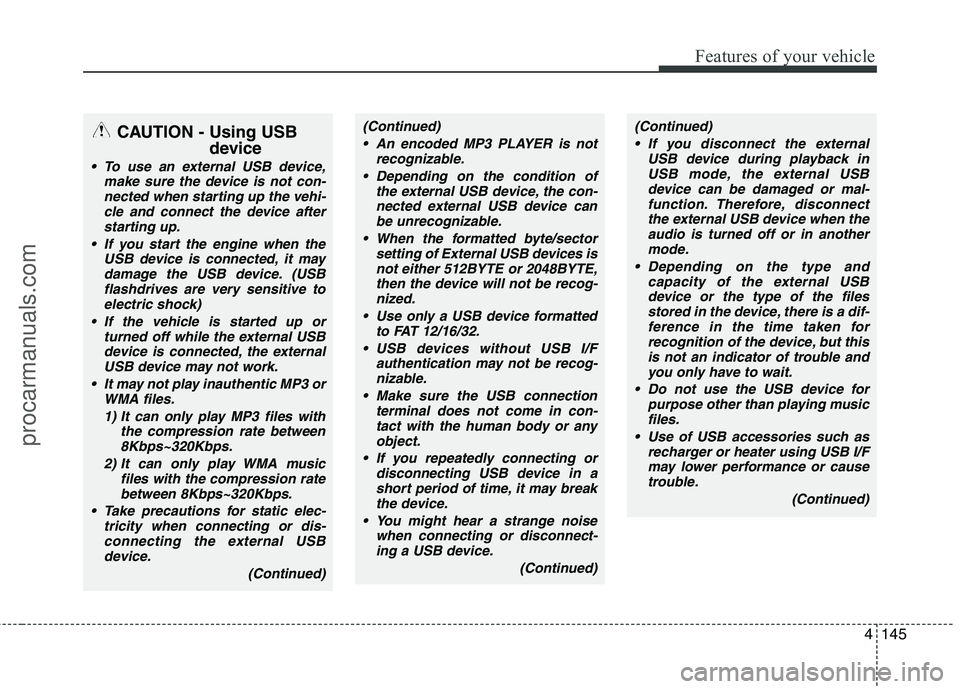
CAUTION - Using USBdevice
To use an external USB device,make sure the device is not con-
nected when starting up the vehi-cle and connect the device afterstarting up.
If you start the engine when the USB device is connected, it maydamage the USB device. (USBflashdrives are very sensitive to electric shock)
If the vehicle is started up or turned off while the external USBdevice is connected, the externalUSB device may not work.
It may not play inauthentic MP3 or WMA files.
1) It can only play MP3 files with the compression rate between8Kbps~320Kbps.
2) It can only play WMA music files with the compression rate
between 8Kbps~320Kbps.
Take precautions for static elec- tricity when connecting or dis-connecting the external USBdevice.
(Continued)
(Continued) An encoded MP3 PLAYER is not recognizable.
Depending on the condition of the external USB device, the con-
nected external USB device can be unrecognizable.
When the formatted byte/sector setting of External USB devices isnot either 512BYTE or 2048BYTE,
then the device will not be recog- nized.
Use only a USB device formatted to FAT 12/16/32.
USB devices without USB I/F authentication may not be recog-nizable.
Make sure the USB connection terminal does not come in con-tact with the human body or any
object.
If you repeatedly connecting or disconnecting USB device in ashort period of time, it may breakthe device.
You might hear a strange noise when connecting or disconnect-ing a USB device.
(Continued)(Continued) If you disconnect the external USB device during playback inUSB mode, the external USBdevice can be damaged or mal-
function. Therefore, disconnectthe external USB device when the audio is turned off or in another
mode.
Depending on the type and capacity of the external USBdevice or the type of the filesstored in the device, there is a dif-
ference in the time taken forrecognition of the device, but this is not an indicator of trouble andyou only have to wait.
Do not use the USB device for purpose other than playing musicfiles.
Use of USB accessories such as recharger or heater using USB I/F
may lower performance or cause trouble.
(Continued)
procarmanuals.com
Page 224 of 419
Features of your vehicle
146
4
(Continued)
If you use devices such as a USB hub you purchased separately,the vehicle’s audio system maynot recognize the USB device.
Connect the USB device directlyto the multimedia terminal of thevehicle.
If USB device is divided by logical drives, only the music files on thehighest-priority drive are recog-nized by car audio.
Devices such as MP3 Player/ Cellular phone/Digital camera
those are not recognizable bystandard USB I/F can be unrecog-nizable.
USB devices other than standard- ized goods (METAL COVER TYPEUSB) can be unrecognizable.
USB flash memory reader (such as CF, SD, microSD, etc.) or exter-nal-HDD type devices can be
unrecognizable.
Music files protected by DRM (DIGITAL RIGHTS MANAGE-MENT) are not recognizalbe.
(Continued)(Continued) The data in the USB memory may lost while using this AUDIO, It isrecommeded to back up impor-tant data on a personal.
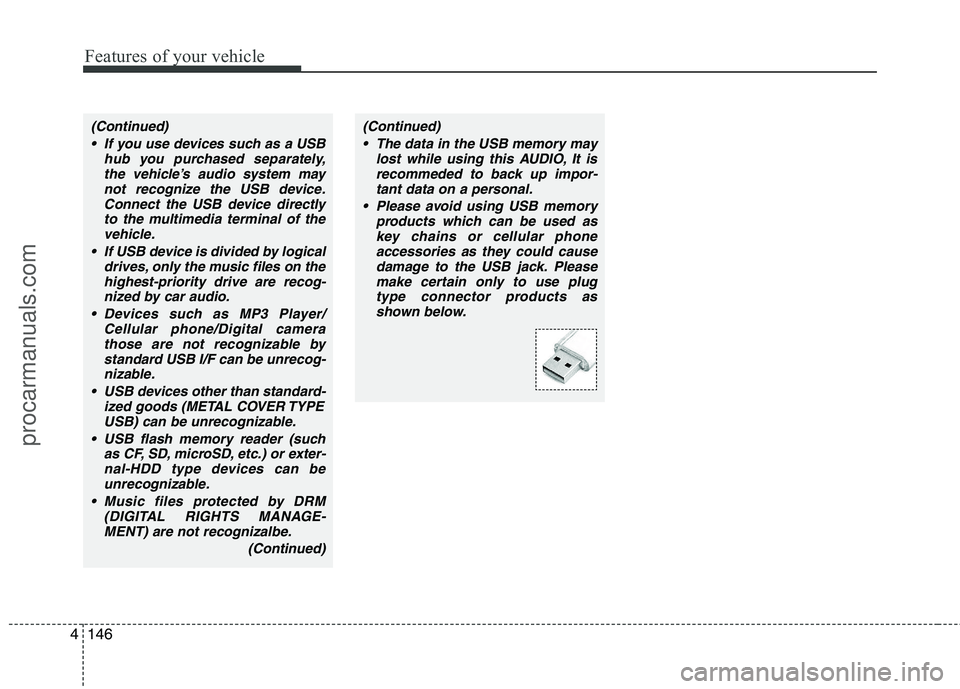
Please avoid using USB memory products which can be used askey chains or cellular phoneaccessories as they could cause
damage to the USB jack. Pleasemake certain only to use plugtype connector products as shown below.
procarmanuals.com
Page 225 of 419
4147
Features of your vehicle
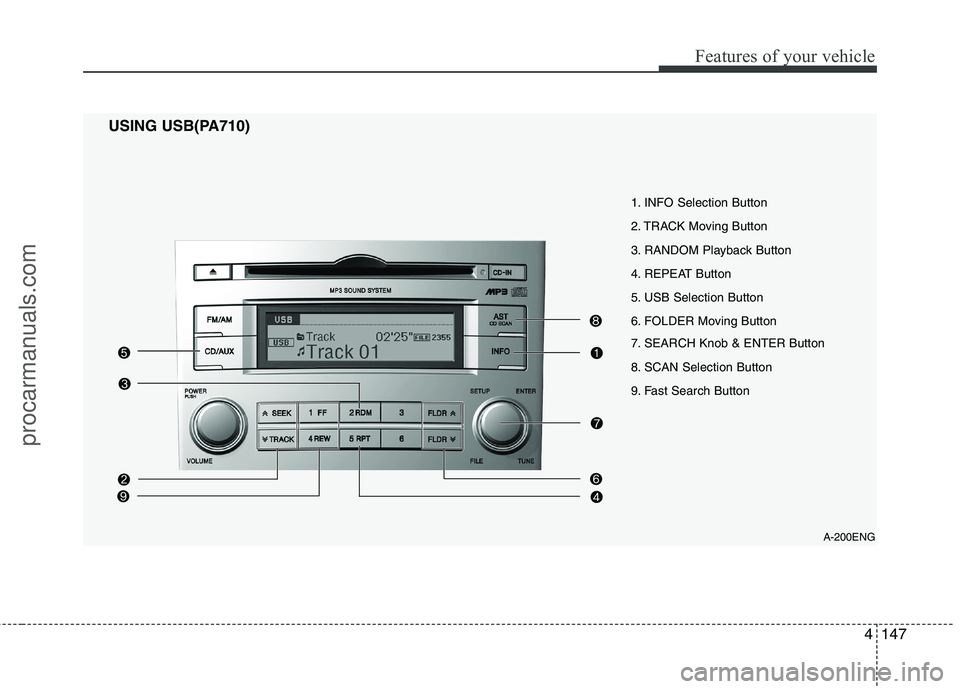
A-200ENG
1. INFO Selection Button
2. TRACK Moving Button
3. RANDOM Playback Button
4. REPEAT Button
5. USB Selection Button
6. FOLDER Moving Button
7. SEARCH Knob & ENTER Button
8. SCAN Selection Button
9. Fast Search Button
USING USB(PA710)
procarmanuals.com
Page 226 of 419
Features of your vehicle
148
4
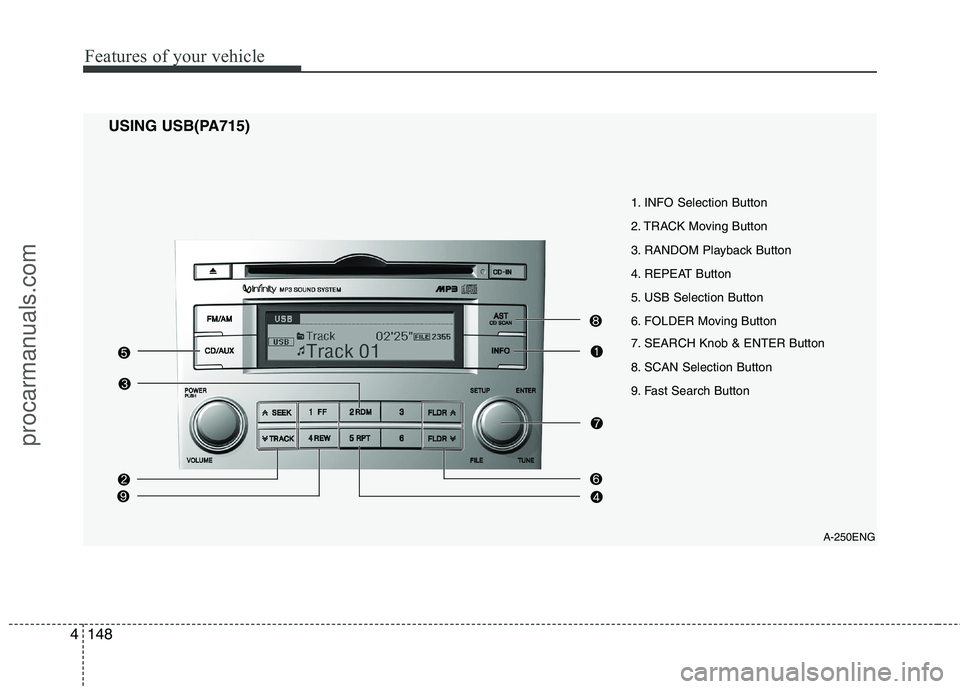
A-250ENG
1. INFO Selection Button
2. TRACK Moving Button
3. RANDOM Playback Button
4. REPEAT Button
5. USB Selection Button
6. FOLDER Moving Button
7. SEARCH Knob & ENTER Button
8. SCAN Selection Button
9. Fast Search Button
USING USB(PA715)
procarmanuals.com
Page 227 of 419
4149
Features of your vehicle
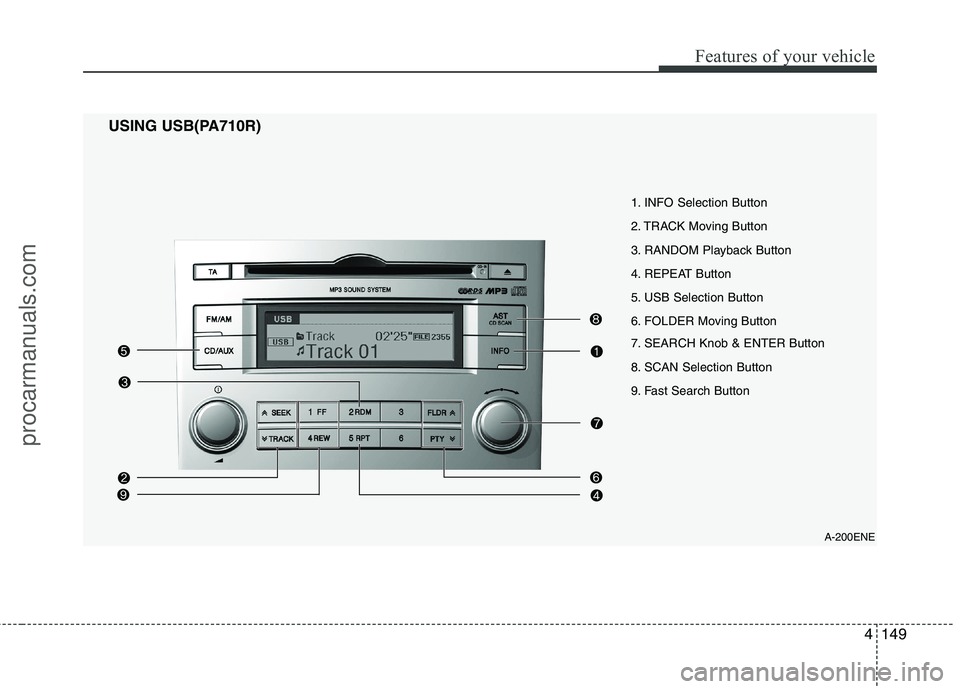
A-200ENE
1. INFO Selection Button
2. TRACK Moving Button
3. RANDOM Playback Button
4. REPEAT Button
5. USB Selection Button
6. FOLDER Moving Button
7. SEARCH Knob & ENTER Button
8. SCAN Selection Button
9. Fast Search Button
USING USB(PA710R)
procarmanuals.com
Page 228 of 419
Features of your vehicle
150
4
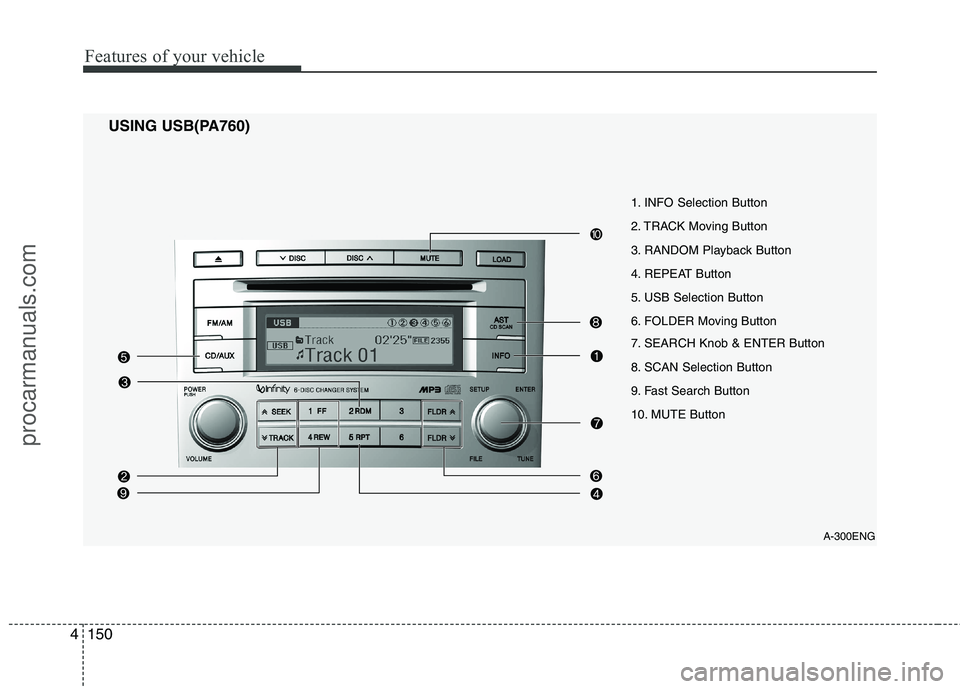
USING USB(PA760)
A-300ENG
1. INFO Selection Button
2. TRACK Moving Button
3. RANDOM Playback Button
4. REPEAT Button
5. USB Selection Button
6. FOLDER Moving Button
7. SEARCH Knob & ENTER Button
8. SCAN Selection Button
9. Fast Search Button
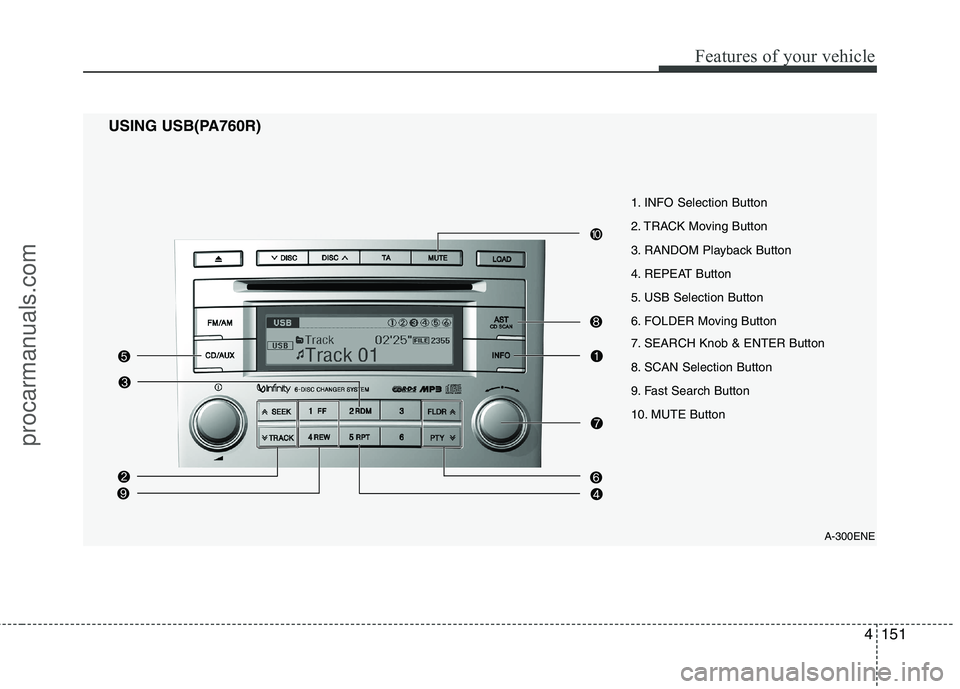
10. MUTE Button
procarmanuals.com
Page 229 of 419
4151
Features of your vehicle
USING USB(PA760R) A-300ENE
1. INFO Selection Button
2. TRACK Moving Button
3. RANDOM Playback Button
4. REPEAT Button
5. USB Selection Button
6. FOLDER Moving Button
7. SEARCH Knob & ENTER Button
8. SCAN Selection Button
9. Fast Search Button
10. MUTE Button
procarmanuals.com