Page 191 of 408
Features of your vehicle
112
4
CAUTION IN USING
USB DEVICE
To use the external USB device,
make sure the device is notmounted when starting up the vehicle and mount the deviceafter starting up.
If you start the vehicle when the USB device is mounted, it maydamage the USB device. (USB isnot ESA)
If the vehicle is started up or turned off while the external USBdevice is connected, the externalUSB device may not work.
It may not play inauthentic MP3 or WMA files.
1) It can only play MP3 files with the compression rate between8Kbps~320Kbps.
2) It can only play WMA music files with the compression ratebetween 8Kbps~320Kbps.
Take cautions for static electricity when mounting or dismountingthe external USB device.
Encoded MP3 PLAYER is not rec- ognizable.
(Continued)
(Continued) Depending on the condition of the external USB device, the con-nected external USB device canbe unrecognizable.
When the formatted byte/sector setting of External USB devices isnot either 512BYTE or 2048BYTE,then the device will not be recog-nized.
Only use an USB device format- ted to FAT 12/16/32.
USB device without USB IF authen- tication may not be recognizable.
Make sure the USB connection terminal does not come in contactwith human body or any object.
If you repeat mounting or dis- mounting USB device in a shortperiod of time, it may break thedevice.
You might hear strange noise when mounting or dismounting aUSB device.
(Continued)(Continued) If you dismount the external USB device during playback in USBmode, the external USB device canbe damaged or malfunction.Therefore, mount the external USB device when the engine is turnedoff or in another mode.
Depending on the type and capac- ity of the external USB device orthe type of the files stored in the device, there is a difference in thetime taken for recognition of the device, but this is not a trouble.Please wait for a moment.
Do not use the USB device for other purposes than playing music files.
Use of USB accessories such as the recharger or heater using USBI/F may lower the performance orcause trouble.
If you use devices such as the USB hub you purchased separate-ly, the vehicle’s audio system maynot recognize the USB device.Connect the USB device directlyto the multimedia terminal of thevehicle.
(Continued)
Page 194 of 408
4115
Features of your vehicle
1. INFO Selection Button
Displays the information of the file cur-
rently played in the order of FILE NAME
➟TITLE➟ARTIST➟ALBUM➟FOLDER➟
TOTAL FILE➟NORMAL DISPLAY➟FILE
NAME
➟... (Displays no information if the
file has no song information.)
2. Track Moving Button
Press the [TRACK ] button for less than 0.8 second to play from the begin-
ning of the song currently played.
Press the button for less than 0.8 sec-
ond and press it again within 1 second
to move and play the previous track.
Press the button for 0.8 second or
longer to play the song in reverse
direction in fast speed.
Press the [SEEK ] button for less than 0.8 second to move to the next-
track. Press the button for 0.8 second
or longer to play the song in forward
direction in fast speed.
3. RANDOM Playback Button
Press this button for less than 0.8 sec-
onds to activate 'RDM' mode and more
than 0.8 seconds to activate 'ALL RDM'
mode.
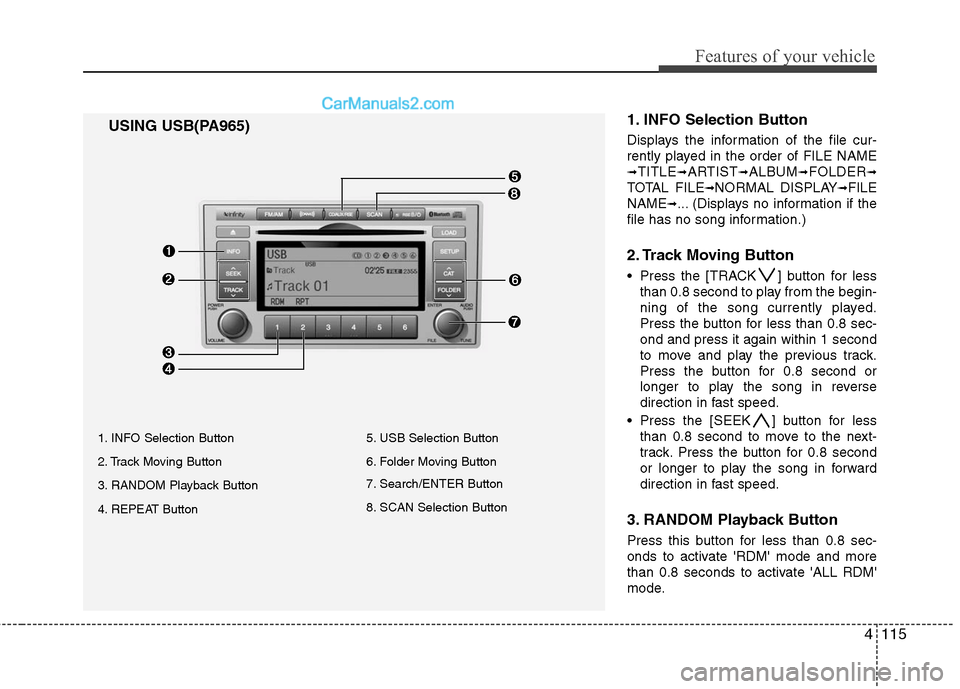
USING USB(PA965)
1. INFO Selection Button
2. Track Moving Button
3. RANDOM Playback Button
4. REPEAT Button 5. USB Selection Button
6. Folder Moving Button
7. Search/ENTER Button
8. SCAN Selection Button
Page 195 of 408
Features of your vehicle
116
4
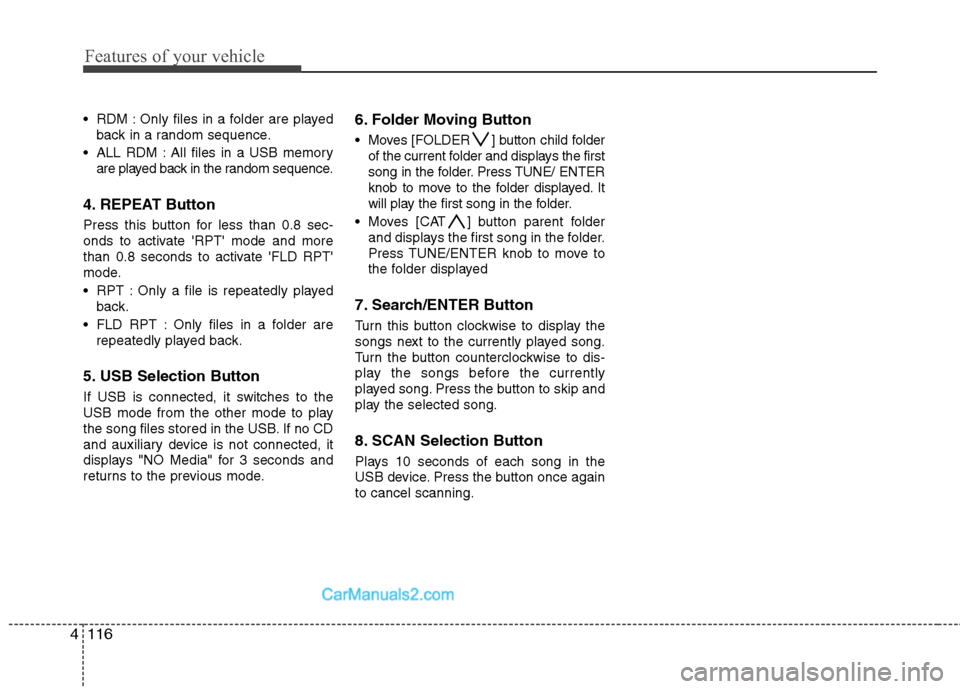
RDM : Only files in a folder are played
back in a random sequence.
ALL RDM : All files in a USB memory are played back in the random sequence.
4. REPEAT Button
Press this button for less than 0.8 sec-
onds to activate 'RPT' mode and more
than 0.8 seconds to activate 'FLD RPT'
mode.
RPT : Only a file is repeatedly playedback.
FLD RPT : Only files in a folder are repeatedly played back.
5. USB Selection Button
If USB is connected, it switches to the
USB mode from the other mode to play
the song files stored in the USB. If no CD
and auxiliary device is not connected, it
displays "NO Media" for 3 seconds and
returns to the previous mode.
6. Folder Moving Button
Moves [FOLDER ] button child folderof the current folder and displays the first
song in the folder. Press TUNE/ ENTER
knob to move to the folder displayed. It
will play the first song in the folder.
Moves [CAT ] button parent folder and displays the first song in the folder.
Press TUNE/ENTER knob to move to
the folder displayed
7. Search/ENTER Button
Turn this button clockwise to display the
songs next to the currently played song.
Turn the button counterclockwise to dis-
play the songs before the currently
played song. Press the button to skip and
play the selected song.
8. SCAN Selection Button
Plays 10 seconds of each song in the
USB device. Press the button once again
to cancel scanning.
Page 198 of 408
4119
Features of your vehicle
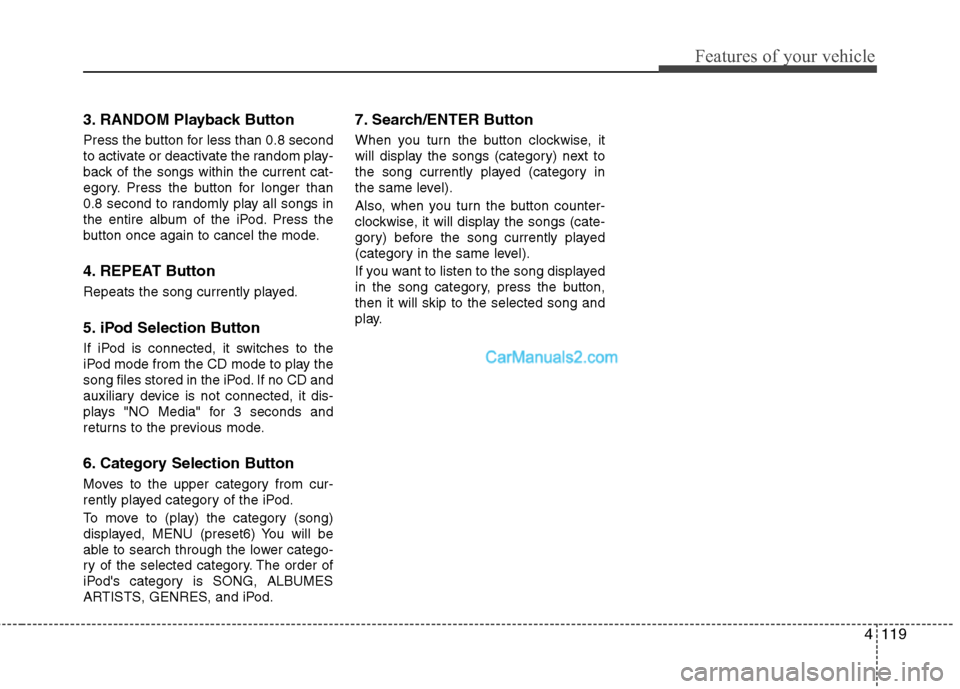
3. RANDOM Playback Button
Press the button for less than 0.8 second
to activate or deactivate the random play-
back of the songs within the current cat-
egory. Press the button for longer than
0.8 second to randomly play all songs in
the entire album of the iPod. Press the
button once again to cancel the mode.
4. REPEAT Button
Repeats the song currently played.
5. iPod Selection Button
If iPod is connected, it switches to the
iPod mode from the CD mode to play the
song files stored in the iPod. If no CD and
auxiliary device is not connected, it dis-
plays "NO Media" for 3 seconds and
returns to the previous mode.
6. Category Selection Button
Moves to the upper category from cur-
rently played category of the iPod.
To move to (play) the category (song)
displayed, MENU (preset6) You will be
able to search through the lower catego-
ry of the selected category. The order of
iPod's category is SONG, ALBUMES
ARTISTS, GENRES, and iPod.
7. Search/ENTER Button
When you turn the button clockwise, it
will display the songs (category) next to
the song currently played (category in
the same level).
Also, when you turn the button counter-
clockwise, it will display the songs (cate-
gory) before the song currently played
(category in the same level).
If you want to listen to the song displayed
in the song category, press the button,
then it will skip to the selected song and
play.
Page 201 of 408
Features of your vehicle
122
4
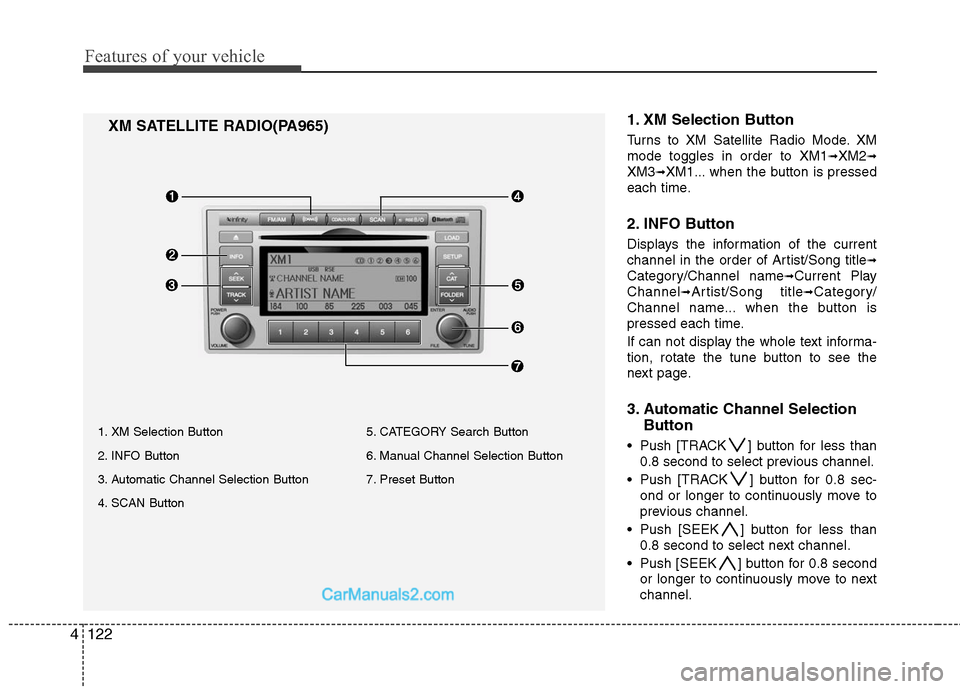
1. XM Selection Button
Turns to XM Satellite Radio Mode. XM
mode toggles in order to XM1
➟XM2➟
XM3➟XM1... when the button is pressed
each time.
2. INFO Button
Displays the information of the current
channel in the order of Artist/Song title
➟
Category/Channel name➟Current Play
Channel
➟Artist/Song title➟Category/
Channel name... when the button is
pressed each time.
If can not display the whole text informa-
tion, rotate the tune button to see the
next page.
3. Automatic Channel Selection Button
Push [TRACK ] button for less than
0.8 second to select previous channel.
Push [TRACK ] button for 0.8 sec- ond or longer to continuously move to
previous channel.
Push [SEEK ] button for less than 0.8 second to select next channel.
Push [SEEK ] button for 0.8 second or longer to continuously move to next
channel.
XM SATELLITE RADIO(PA965)
1. XM Selection Button
2. INFO Button
3. Automatic Channel Selection Button
4. SCAN Button 5. CATEGORY Search Button
6. Manual Channel Selection Button
7. Preset Button
Page 203 of 408
Features of your vehicle
124
4
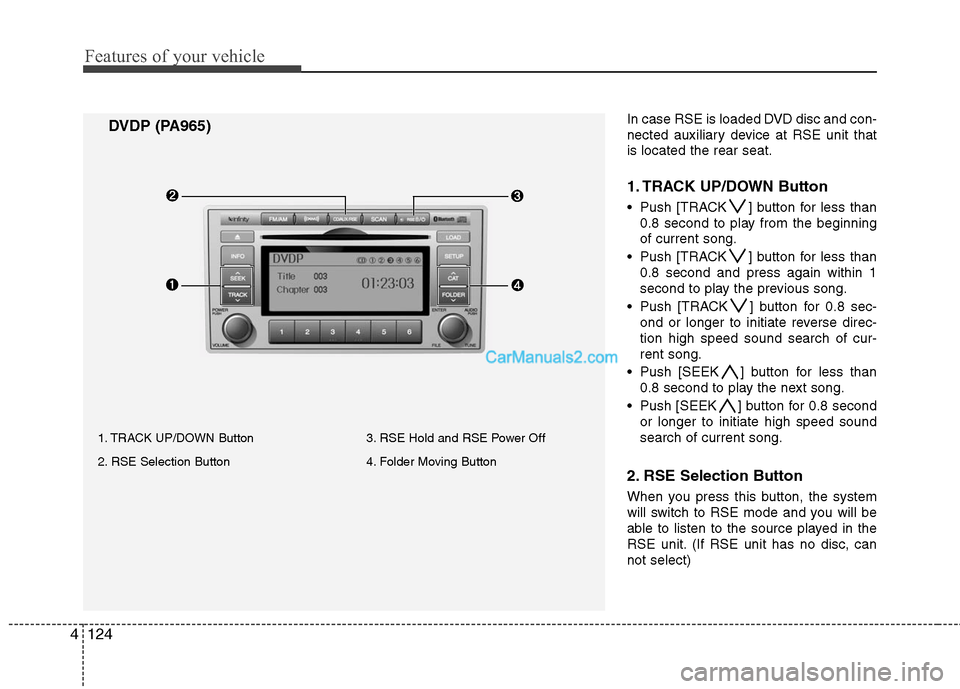
DVDP (PA965)
1. TRACK UP/DOWN Button
2. RSE Selection Button 3. RSE Hold and RSE Power Off
4. Folder Moving Button
In case RSE is loaded DVD disc and con-
nected auxiliary device at RSE unit that
is located the rear seat.
1. TRACK UP/DOWN Button
Push [TRACK ] button for less than
0.8 second to play from the beginning
of current song.
Push [TRACK ] button for less than 0.8 second and press again within 1
second to play the previous song.
Push [TRACK ] button for 0.8 sec- ond or longer to initiate reverse direc-
tion high speed sound search of cur-
rent song.
Push [SEEK ] button for less than 0.8 second to play the next song.
Push [SEEK ] button for 0.8 second or longer to initiate high speed sound
search of current song.
2. RSE Selection Button
When you press this button, the system
will switch to RSE mode and you will be
able to listen to the source played in the
RSE unit. (If RSE unit has no disc, can
not select)
Page 204 of 408
4125
Features of your vehicle
3. RSE Hold and RSE Power Off
If you press and hold this button for less
than 0.8 second, the LED of the button
will light and RSE unit will be locked. If
you press and hold this button for more
than 0.8 second, RSE unit will be turned
off with a beep and [RSE] will disappear
from LCD.
4. Folder Moving Button
Press [FOLDER ] button to play theprevious track.
Press [CAT ] button to play the next
track.
CAUTION IN USING
RSE DEVICE
When listening to the CD on the
H/UNIT in RSE, the mode cannot beconverted to USB on the H/UNIT and will be displayed on the LCD.
Page 205 of 408
Features of your vehicle
126
4
BLUETOOTH PHONE OPERATION■ General Feature
This system supports Bluetooth, a wire-
less system that allows you to make or
receive calls without taking your hands
from the steering wheel and without
using cables to connect the phone and
system.
The phone must be paired to the system before using the hands-free feature.
Only one linked cellular phone can be
used with the system at a time.
The System is avail able in English, US
Spanish, or Canadian French languages.
✽ ✽ NOTICE
Some Bluetooth devices do not offer a
perfect compatibility with this system.
■Voice Recognition Activation
in the Bluetooth System can be activat-
ed in the following conditions:
- Button Activation The voice recognition system will be
active when the button is pressed
and after the sound of a Beep.
- Active Listening The voice recognition system will be
active for a period of time when the
Voice Recognition system has asked
for a customer response.
from zero to nine while number greater
than ten will not be recognized.
system will announce "Pardon" or No
input voice signal from microphone.
(No response)
tion mode in following cases : When
pressing the button and saying
cancel following the beep. When not
making a call and pressing the
button. When voice recognition has
failed 3 consecutive times.
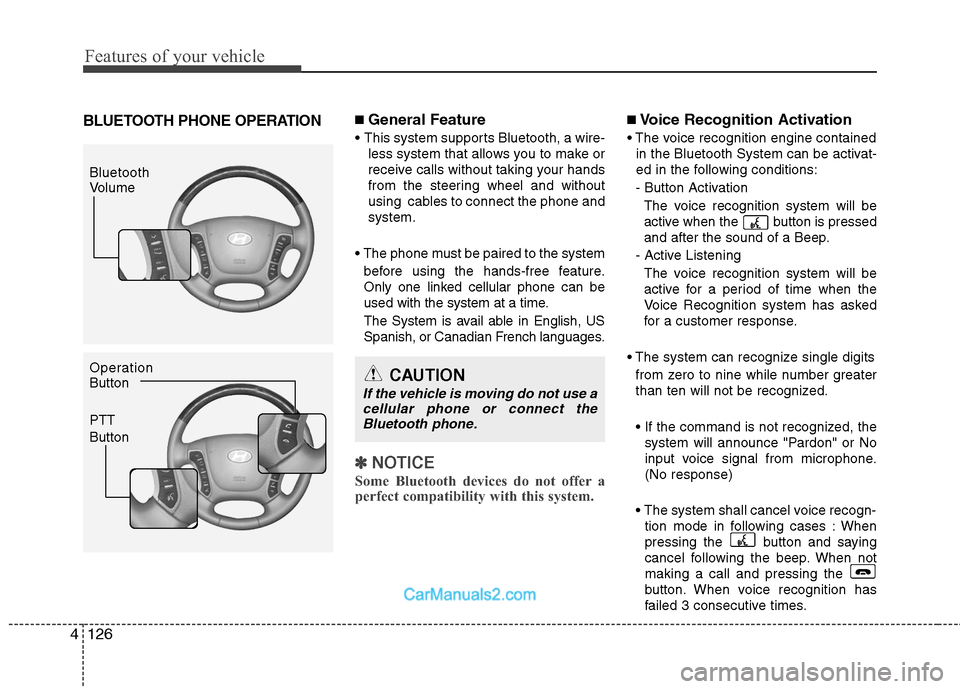
Bluetooth
Volume
Operation
Button
PTT
Button
CAUTION
If the vehicle is moving do not use acellular phone or connect the Bluetooth phone.