Page 238 of 427
�Ì
You can transfer a call from HFL to
your phone, or f rom your phone to
HFL.
Press and release the HFL Talk
button and say ‘‘ .’’
You can mute your voice to the
person you are talking to during a
call.
HFL allows you to send numbers or
names during a call. This is usef ul
when you call a menu-driven phone
system.
To mute your voice during a call,
press and release the HFL Talk
button and say ‘‘ .’’
To unmute your voice, press and
release the HFL Talk button and say
‘‘ ’’ again. Press and release the HFL Talk
button bef ore a command.
To send a pound ( ), say
‘‘pound.’’ To send a star (*), say ‘‘star.’’ Follow the HFL prompts to send
the tones and continue the call.
Follow the HFL prompts and say
the name or number you want to
send.
Say ‘‘ .’’
1. 2. 3.
BluetoothHandsFreeL ink
Transf erring a Call
Transf er Muting a Call Send Numbers or Names During
aCall
Mute
Mute Send
T o send a name or number during a
call:
234
NOTE:
Main MenuTable of Contents
Page 239 of 427

Youcanstoreupto50nameswith
their associated numbers in HFL.
The numbers you store can be not
only phone numbers but other types,
such as account numbers or
passwords, which can be sent during
a menu-driven call.
Press and release the HFL Talk
button bef ore a command.Say ‘‘ .’’
Say‘‘ ’’aftertheprompts.
Say a name you want to list as your
phonebook entry.
Say the number you want to store
f or the name entry.
Follow the HFL prompts and say
‘‘ ’’ to store the entry. Avoid using duplicate name
entries.
Avoid using ‘‘home’’ as a name
entry.
It is easier f or HFL to recognize a
multisyllabic or longer name. For
example, use ‘‘Peter’’ instead of
‘‘Pete,’’ or ‘‘John Smith’’ instead of
‘‘John.’’
Press and release the HFL Talk
button bef ore a command.
Say ‘‘ .’’
Say‘‘ ’’aftertheprompts.
Follow the HFL prompts and say
thenameentryyouwanttoedit.
When asked, say the new number
for that name.
Follow the HFL prompts to
complete the edit.
1. 2.3. 4.5. 1. 2.3. 4.5.
CONT INUED
BluetoothHandsFreeL ink
T o st ore a phonebook ent ry:
To edit the number stored in a name:
Phonebook
Store
Enter PhonebookEdit
Phonebook
Features
235
NOTE:
Main MenuTable of Contents
Page 240 of 427

Press and release the HFL Talk
button bef ore a command.Press and release the HFL Talk
button bef ore a command.
Say ‘‘ .’’
Say‘‘ ’’aftertheprompts.
Say the name you want to delete
and follow the HFL prompts to
complete the deletion. Say ‘‘ .’’
Say‘‘ ’’aftertheprompts.
HFL begins reading the names in
the order they were stored.
If you hear a name you want to call,
immediatelypresstheHFLTalk
button and say ‘‘ .’’Press and release the HFL Talk
button bef ore a command.
Follow the HFL prompts, select a
number f rom your cell phone, and
send it to HFL.
Say ‘‘ ’’ af ter the
prompts.
Say ‘‘ .’’
Follow the HFL prompts and
name the number, or say
‘‘ ’’ if it is not the number
you want to store.
Follow the HFL prompts if you
want to store another number.
1. 2.3.
4.
1.2.3.
4.
1.2. 3. 5.
BluetoothHandsFreeL ink
Phonebook
Delete
Phonebook
List
Call Receive contact
Phonebook
Discard
T o delet e a name: T o list all names in t he phonebook: T o st ore a specif ic phone number f rom your cell phone direct ly t o t heHFL phonebook (available on some
phones):
236
Main MenuTable of Contents
Page 241 of 427
(available on some phones)handsf reelink.honda.
com
www.honda.ca,
If you select
f rom the Inf ormation screen menu,
you will see f our HFL options.
In the U.S., visitor call (888) 528-7876.
In Canada, visit or call
(888) 9-HONDA-9. The entire phonebook data of the
cell phone that is linked to HFL can
be imported to the navigation system.
Select ‘‘
,’’ and HFL will begin
importing the phonebook. Select
‘‘ ’’ af ter the import is completed. Once a phonebook has been
imported, you can search the phone
numbers by the person’s name.
Select ‘‘
,’’ and a list of imported
phonebooks will be displayed.
Select a phonebook f rom the list.
For a list of cell phones that are
compatible with this f eature:
CONT INUED
BluetoothHandsFreeL ink
Cellular Phonebook
Cellular Phonebook
Import Cellular
Phonebook
OK Search Imported
PhonebookImport Cellular Phonebook: Search Import ed Phonebook:
Features
237
IMPORTED PHONEBOOK
IMPORTED DATEPIN ICON
Main MenuTable of Contents
Page 242 of 427
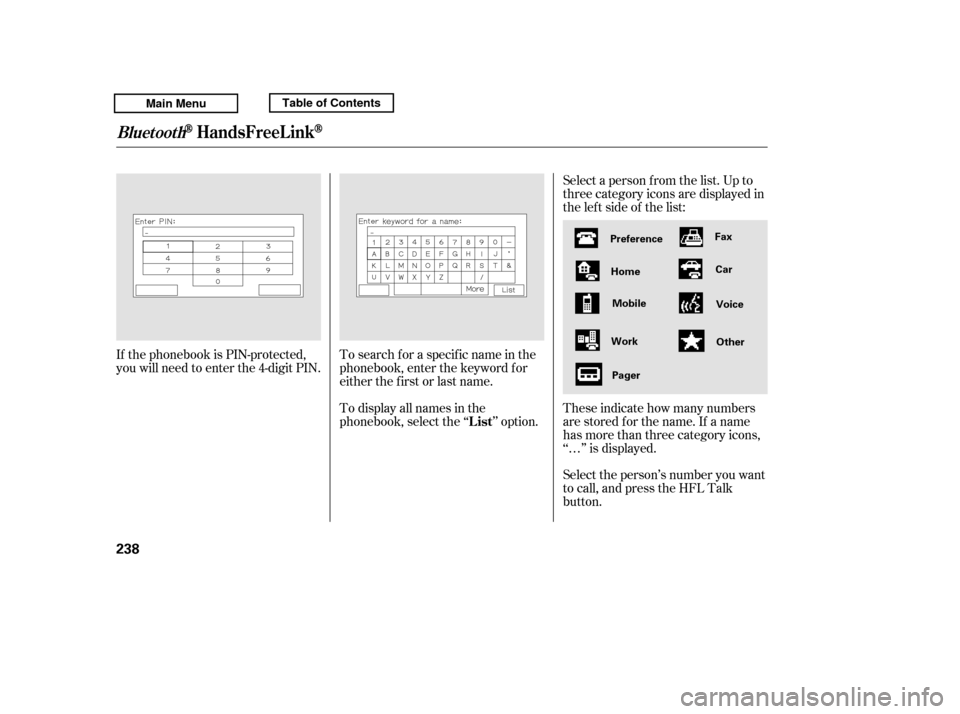
Select a person f rom the list. Up to
three category icons are displayed in
the lef t side of the list:
Select the person’s number you want
to call, and press the HFL Talk
button.
These indicate how many numbers
are stored f or the name. If a name
has more than three category icons,
‘‘…’’ is displayed.
If the phonebook is PIN-protected,
you will need to enter the 4-digit PIN.
To search f or a specif ic name in the
phonebook, enter the keyword f or
either the f irst or last name.
To display all names in the
phonebook, select the ‘‘ ’’ option.
BluetoothHandsFreeL ink
List
238
Preference
Home Mobile
Work Pager Fax
Car
Voice
Other
Main MenuTable of Contents
Page 243 of 427
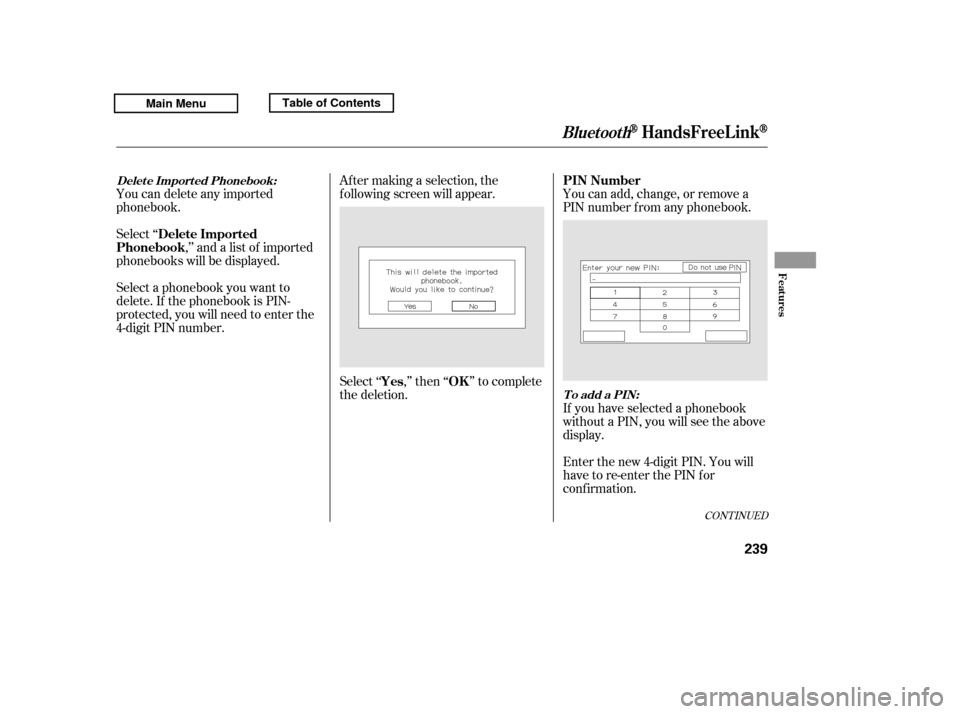
Select ‘‘,’’ and a list of imported
phonebooks will be displayed. Af ter making a selection, the
f ollowing screen will appear.
Select‘‘ ,’’then‘‘ ’’tocomplete
the deletion.You can add, change, or remove a
PIN number f rom any phonebook.
You can delete any imported
phonebook.
Select a phonebook you want to
delete. If the phonebook is PIN-
protected, you will need to enter the
4-digit PIN number.
If you have selected a phonebook
without a PIN, you will see the above
display.
Enter the new 4-digit PIN. You will
have to re-enter the PIN for
conf irmation.
CONT INUED
BluetoothHandsFreeL ink
Delete Imported
Phonebook
Yes OKPIN Number
Delet e Import ed Phonebook:
To add a PIN:
Features
239
Main MenuTable of Contents
Page 244 of 427
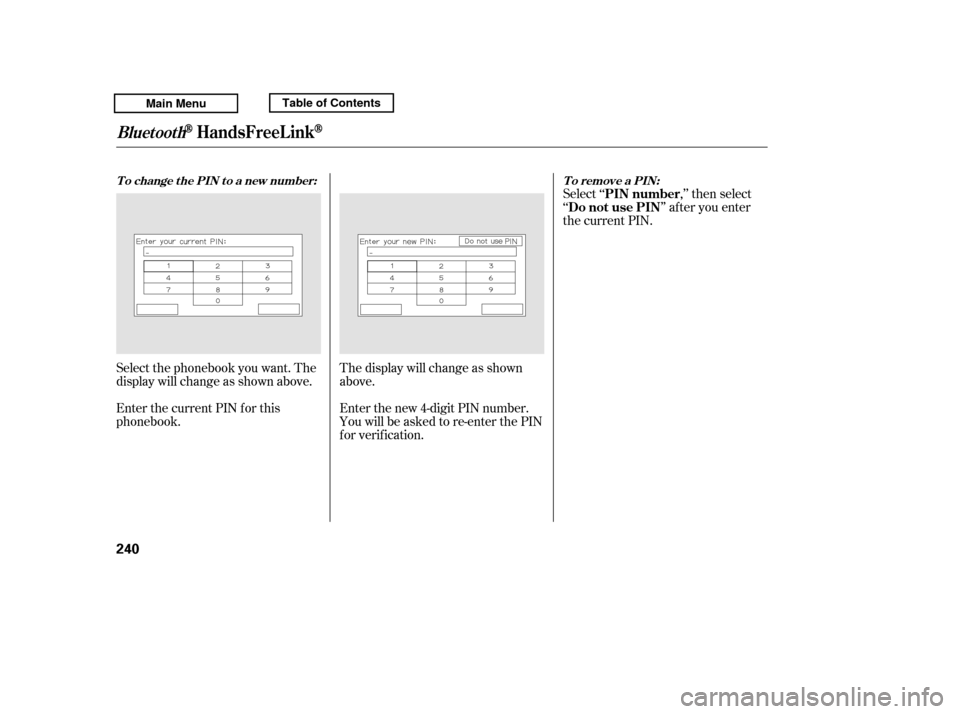
Select ‘‘ ,’’ then select
‘‘ ’’ af ter you enter
the current PIN.
Enter the new 4-digit PIN number.
You will be asked to re-enter the PIN
f or verif ication.
The display will change as shown
above.
Select the phonebook you want. The
display will change as shown above.
Enter the current PIN for this
phonebook.
BluetoothHandsFreeL ink
To remove a PIN:
T o change t he PIN t o a new number:
PIN number
Do not use PIN
240
Main MenuTable of Contents
Page 246 of 427

�Î
�ÎIf you get into the vehicle while you
are on the phone, the call can be
automatically transferred to HFL
with the ignition switch in the
ACCESSORY (I) or ON (II) position.
Press and release the HFL Talk
button bef ore a command.
Say ‘‘ .’’
Press and release the HFL Talk
button bef ore a command.
Say ‘‘ .’’ Press and release the HFL Talk
button bef ore a command.
Say ‘‘ .’’
Follow the HFL prompts to
conf irm the number.
Follow the HFL prompts and say
the new 4-digit passcode.
Say ‘‘ ’’ af ter the
prompts.
Follow the HFL prompts and say
‘‘ ’’ or ‘‘ .’’ You
can also say ‘‘ ’’ f or no audible
incoming call notif ication.
Say ‘‘ ’’ af ter the
prompts.
The def ault setting is a ring tone. HFL will let you know if auto transf er is on or of f , depending on
the previous setting. Follow the
HFL prompts to change the
setting.
Say ‘‘ ’’ af ter the
prompts.
2. 3.
4.
1. 2. 3.
1. 2. 3.
1.
: System setup
System setup
System setup
Change passcode
Ring tone PromptOf f
Call notif ication
Auto transf er
BluetoothHandsFreeL ink
T o change your securit y passcode: T o select eit her a ring t one or a prompt as t he incoming callnotification : To activate or deactivate the auto
transfer function:
242
Main MenuTable of Contents