Page 323 of 574
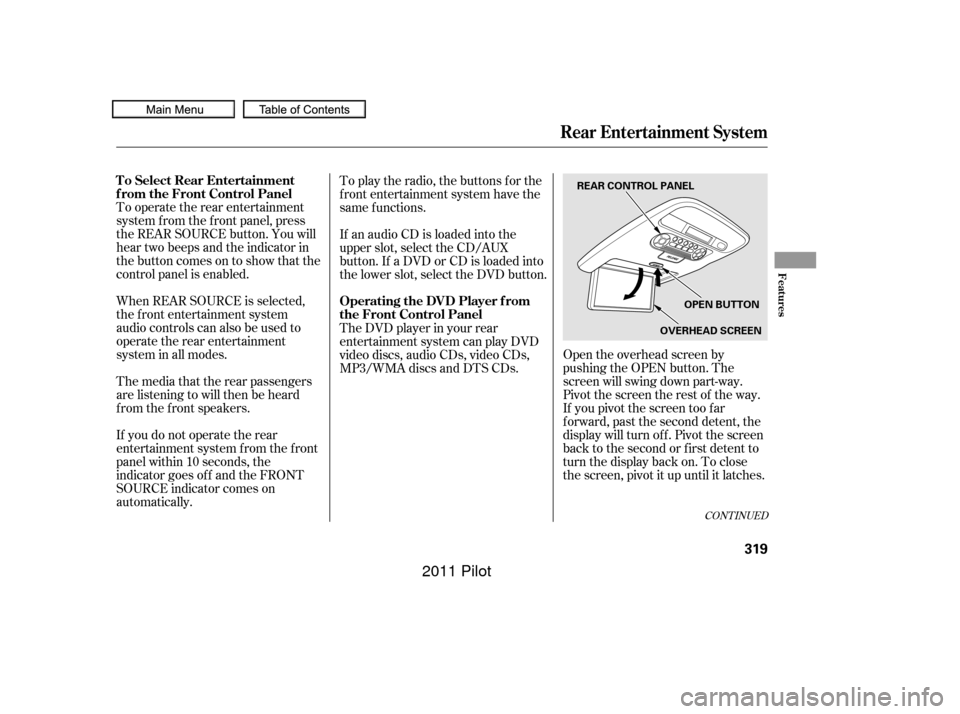
Open the overhead screen by
pushing the OPEN button. The
screen will swing down part-way.
Pivot the screen the rest of the way.
If you pivot the screen too f ar
f orward, past the second detent, the
display will turn of f . Pivot the screen
back to the second or first detent to
turn the display back on. To close
the screen, pivot it up until it latches.
To operate the rear entertainment
system f rom the f ront panel, press
the REAR SOURCE button. You will
hear two beeps and the indicator in
the button comes on to show that the
control panel is enabled.
When REAR SOURCE is selected,
the f ront entertainment system
audio controls can also be used to
operate the rear entertainment
system in all modes.
If an audio CD is loaded into the
upper slot, select the CD/AUX
button. If a DVD or CD is loaded into
the lower slot, select the DVD button. To play the radio, the buttons for the
f ront entertainment system have the
same f unctions.
The media that the rear passengers
are listening to will then be heard
f rom the f ront speakers.
If you do not operate the rear
entertainment system f rom the f ront
panel within 10 seconds, the
indicator goes of f and the FRONT
SOURCE indicator comes on
automatically. The DVD player in your rear
entertainment system can play DVD
video discs, audio CDs, video CDs,
MP3/WMA discs and DTS CDs.
CONT INUED
To Select Rear Entertainment
f rom the Front Control Panel
Operating the DVD Player f rom
the Front Control Panel
Rear Entertainment System
Features
319
REAR CONTROL PANEL
OPEN BUTTON
OVERHEAD SCREEN
10/01/26 19:17:33 31SZA620_324
2011 Pilot
Page 324 of 574
�µ�µ
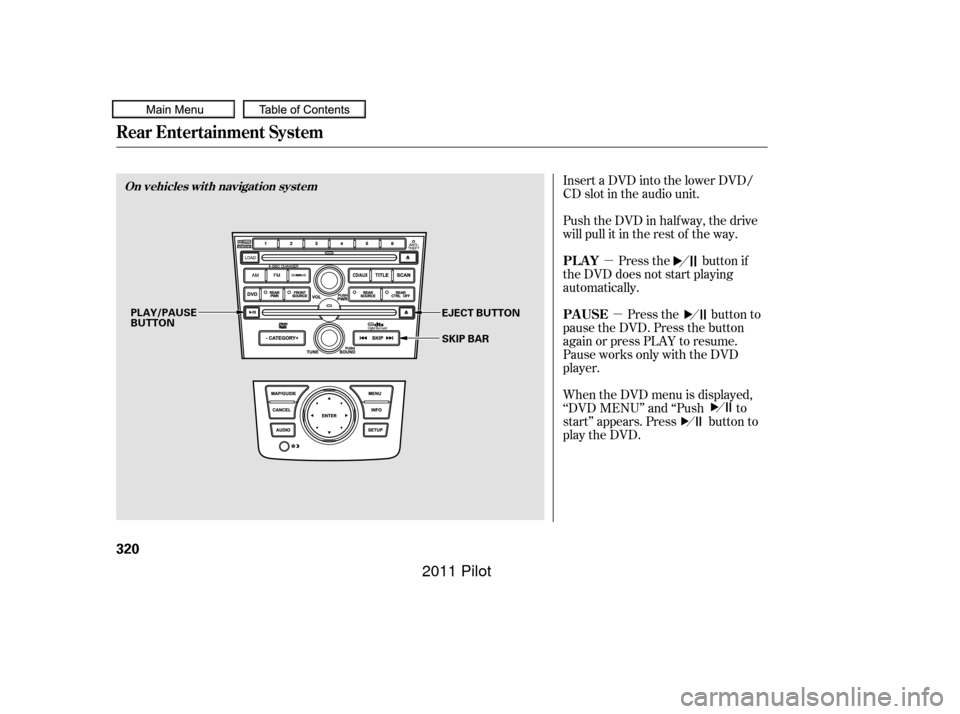
Insert a DVD into the lower DVD/
CD slot in the audio unit.
Push the DVD in half way, the drive
will pull it in the rest of the way.
Press the button if
the DVD does not start playing
automatically.
Press the button to
pause the DVD. Press the button
again or press PLAY to resume.
Pause works only with the DVD
player.
When the DVD menu is displayed,
‘‘DVD MENU’’ and ‘‘Push to
start’’ appears. Press button to
play the DVD.
Rear Entertainment System
PL AY
PAUSE
On vehicles wit h navigat ion syst em
320
PLAY/PAUSE
BUTTON EJECT BUTTON
SKIP BAR
10/01/26 19:17:45 31SZA620_325
2011 Pilot
Page 325 of 574
�µ
�µ Press the eject button to
remove the DVD from the drive.
To return f ront panel control to the
f ront audio system, press the
FRONT SOURCE button. You will
hear a beep and the indicator in the
button comes on. The indicator also
comes on automatically when you do
not operate the rear entertainment
system f or 10 seconds. To turn on the rear entertainment
system f rom the rear control panel,
press the PWR button. Use the AM/
FM button, XM button, CD button,
or DVD/AUX button to select the
entertainment source. The selected
source will be shown in the display.
Make sure the rear control operation
has not been disabled with the REAR
CTRLbuttononthefrontpanel.
When the audio system is off or the
f ront side rear power is of f , the rear
control panel cannot be turned on.
Press and hold the
side of the SKIP bar to move
f orward; you will see the time
elapsed shown in the overhead
screen advances rapidly. Press and
hold the side of the SKIP bar to
move backward; you will see the
time elapsed shown in the overhead
screen decreases. Release the bar
when the system reaches the point
you want.
Each time you press the side of
the SKIP bar and release it, the
system skips f orward to the
beginning of the next track or
chapter. Press and release the side of the SKIP bar to skip
backward to the beginning of the
current track. Press and release it
again to skip to the beginning of the
previous track or chapter. EJECT
To Return to Front Audio
Controls
Using the Rear Control Panel
SEEK /SK IP
Rear Entertainment System
Features
321
10/01/26 19:17:53 31SZA620_326
2011 Pilot
Page 326 of 574
�Û�Ý�Û�Ý
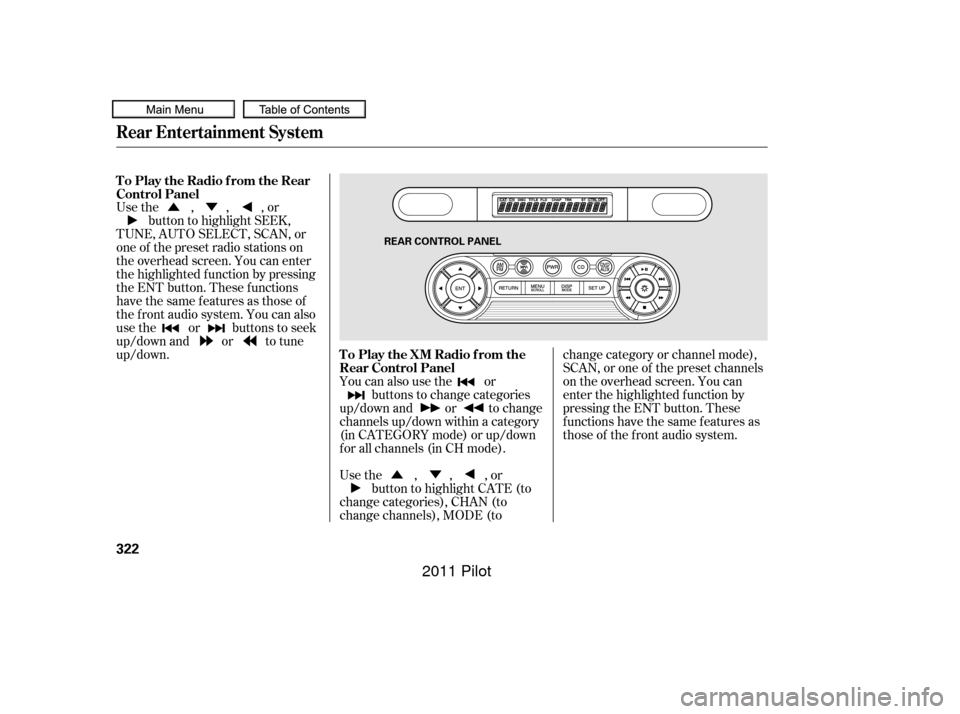
Usethe,,,or
button to highlight SEEK,
TUNE, AUTO SELECT, SCAN, or
one of the preset radio stations on
the overhead screen. You can enter
the highlighted f unction by pressing
the ENT button. These f unctions
have the same features as those of
the f ront audio system. You can also
use the or buttons to seek
up/down and or to tune
up/down.
You can also use the orbuttons to change categories
up/down and or to change
channels up/down within a category
(in CATEGORY mode) or up/down
f or all channels (in CH mode).
Usethe,,,or button to highlight CATE (to
change categories), CHAN (to
change channels), MODE (to change category or channel mode),
SCAN, or one of the preset channels
on the overhead screen. You can
enter the highlighted f unction by
pressing the ENT button. These
functions have the same features as
those of the f ront audio system.
To Play the Radio f rom the Rear
Control Panel
To Play the XM Radio f rom the
Rear Control Panel
Rear Entertainment System
322
REAR CONTROL PANEL
10/01/26 19:18:05 31SZA620_327
2011 Pilot
Page 327 of 574
�Û�Ý
�Û
�Û
�Ý
�Ý �Ý�Û
�Û�Ý
While the overhead screen is closed,
you can see the XM Radio
inf ormation in the subsidiary display
in the ceiling. Pressing the DISP
MODE button repeatedly changes
the subsidiary display f rom the
channel number, to the category
name, to the music title, to the artist
name, and to the channel name, and
then back to the channel number.
To change mode, press and hold the
DISP MODE button f or 5 seconds.
Usethe,,,or
button to highlight REPEAT,
RANDOM, SCAN, , (skip), , or (cue) on the overhead
screen. You can enter the
highlighted f unction by pressing the
ENT button. These f unctions have
the same features as those of the
f ront audio system. If discs are loaded in the disc
changer, select them by pressing the
CD button.
To change the disc currently playing,
usethe,,,or button to highlight your
selected disc icon, and press ENT.
If CDs are loaded in the CD changer
and the overhead screen is not open,
pressing the or button changes
the discs. If an iPod
or USB f lash memory
device is connected to the USB
adapter cable in the console
compartment, you can select f iles to
play.
For an iPod
,usethe , ,
, or button to highlight
REPEAT, RANDOM, , (skip), , or (cue) on
the overhead screen.
For a USB f lash memory device, use
the,,,or button to highlight REPEAT,
RANDOM, SCAN, , (skip), , or (cue) on the overhead
screen.
Rear Entertainment System
To Play a Disc in the 6-Disc
Changer f rom the Rear Control
Panel To Play an iPodor USB Flash
Memory Device f rom the Rear
Control Panel
Features
323
10/01/26 19:18:16 31SZA620_328
2011 Pilot
Page 329 of 574
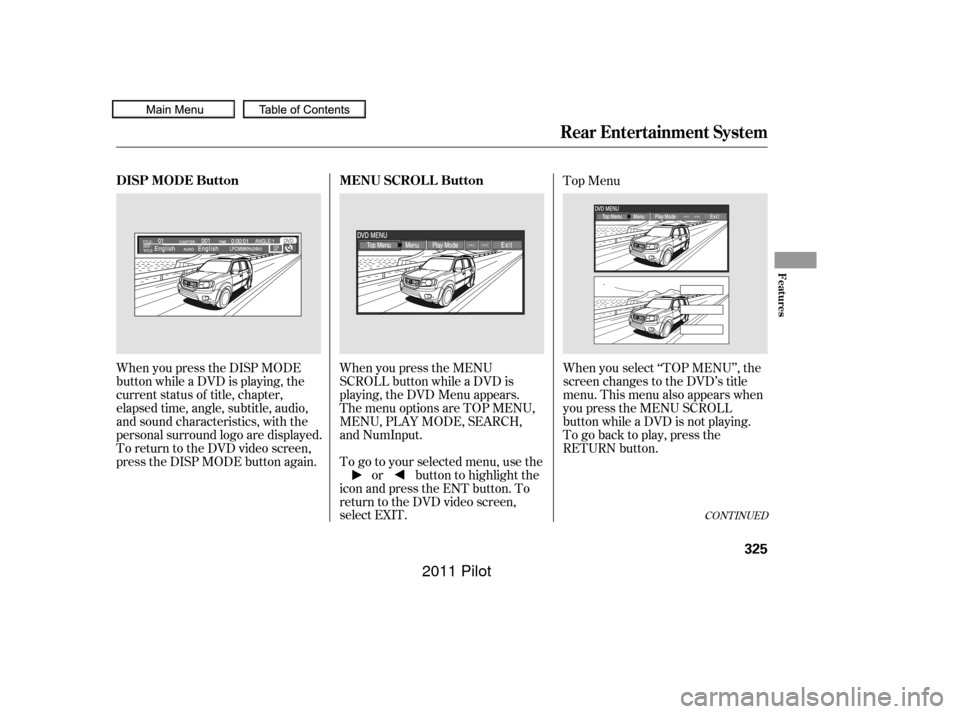
When you press the MENU
SCROLL button while a DVD is
playing, the DVD Menu appears.
ThemenuoptionsareTOPMENU,
MENU, PLAY MODE, SEARCH,
and NumInput.
To go to your selected menu, use theor button to highlight the
icon and press the ENT button. To
return to the DVD video screen,
select EXIT. When you select ‘‘TOP MENU’’, the
screen changes to the DVD’s title
menu. This menu also appears when
you press the MENU SCROLL
button while a DVD is not playing.
To go back to play, press the
RETURN button. Top Menu
When you press the DISP MODE
button while a DVD is playing, the
current status of title, chapter,
elapsed time, angle, subtitle, audio,
and sound characteristics, with the
personal surround logo are displayed.
To return to the DVD video screen,
press the DISP MODE button again.
CONT INUED
Rear Entertainment System
MENU SCROLL Button
DISP MODE Button
Features
325
10/01/26 19:18:40 31SZA620_330
2011 Pilot
Page 330 of 574
�Û�Ý
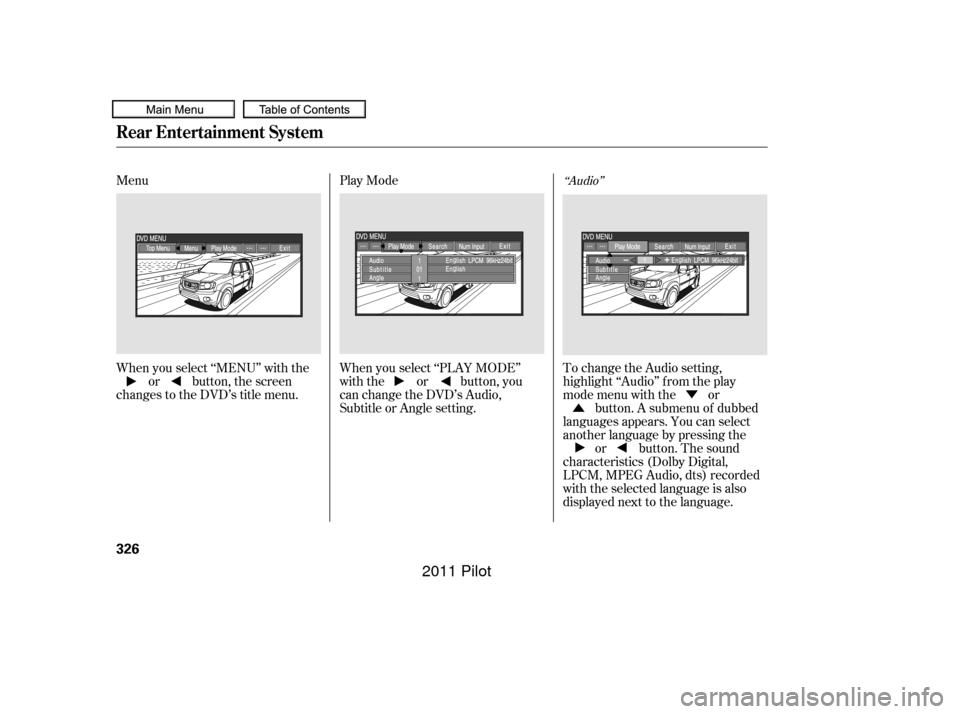
Menu
Play Mode
When you select ‘‘MENU’’ with the or button, the screen
changes to the DVD’s title menu. When you select ‘‘PLAY MODE’’
with the or button, you
can change the DVD’s Audio,
Subtitle or Angle setting.To change the Audio setting,
highlight ‘‘Audio’’ f rom the play
mode menu with the or
button. A submenu of dubbed
languages appears. You can select
another language by pressing the or button. The sound
characteristics (Dolby Digital,
LPCM, MPEG Audio, dts) recorded
with the selected language is also
displayed next to the language.
‘‘Audio’’
Rear Entertainment System
326
10/01/26 19:18:52 31SZA620_331
2011 Pilot
Page 340 of 574
�Ý�Û
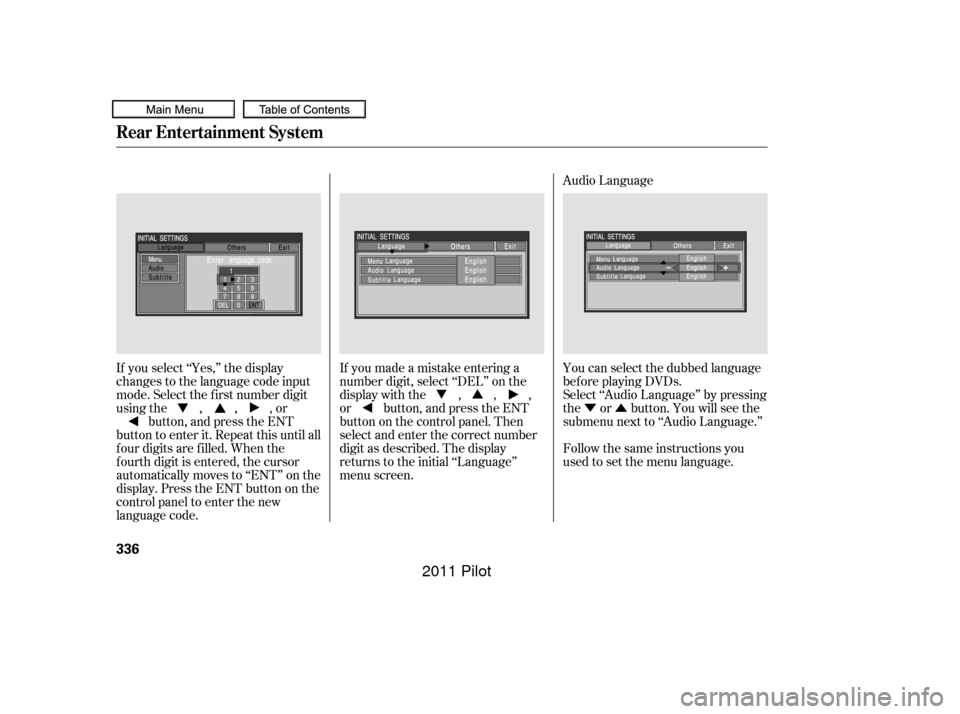
Audio Language
If you select ‘‘Yes,’’ the display
changes to the language code input
mode. Select the f irst number digit
usingthe,,,or button, and press the ENT
button to enter it. Repeat this until all
f our digits are f illed. When the
f ourth digit is entered, the cursor
automatically moves to ‘‘ENT’’ on the
display. Press the ENT button on the
control panel to enter the new
language code. If you made a mistake entering a
number digit, select ‘‘DEL’’ on the
display with the , , ,
or button, and press the ENT
buttononthecontrolpanel.Then
select and enter the correct number
digit as described. The display
returns to the initial ‘‘Language’’
menu screen.
You can select the dubbed language
bef ore playing DVDs.
Select ‘‘Audio Language’’ by pressing
the or button. You will see the
submenu next to ‘‘Audio Language.’’
Follow the same instructions you
used to set the menu language.
Rear Entertainment System
336
10/01/26 19:20:30 31SZA620_341
2011 Pilot