Page 87 of 445

Youshouldhavereceivedakey
number tag with your keys. You will
need this key number if you ever
have to get a lost key replaced. Use
only Honda-approved key blanks.
These keys contain electronic
circuits that are activated by the
immobilizer system. They will not
work to start the engine if the
circuits are damaged.Protect the keys f rom direct
sunlight, high temperature, and
high humidity.
Donotdropthekeysorsetheavy
objects on them.
Keep the keys away f rom liquids.
If they get wet, dry them
immediately with a sof t cloth.
Push the lever up to lock the
steering wheel in position.
Make sure you have securely
locked the steering wheel in place
by trying to move it up, down, in,
and out.
The master key fits all the locks on
your vehicle. The valet key works
only in the ignition and the driver’s
door lock. You can keep the glove
boxlockedwhenyouleaveyour
vehicle and the valet key at a parking
f acility.
The valet key does not contain a
battery. Do not try to take it apart.
3. 4. Keys and Locks
Steering Wheel A djustment, K eys and L ocks
82
LEVER
KEY
NUMBERTAG
MASTER KEY
WITH REMOTE
TRANSMITTER VALET
KEY
(Gray)
Main MenuTable of Contents
Page 89 of 445
�µ�µ
�µ
�µ
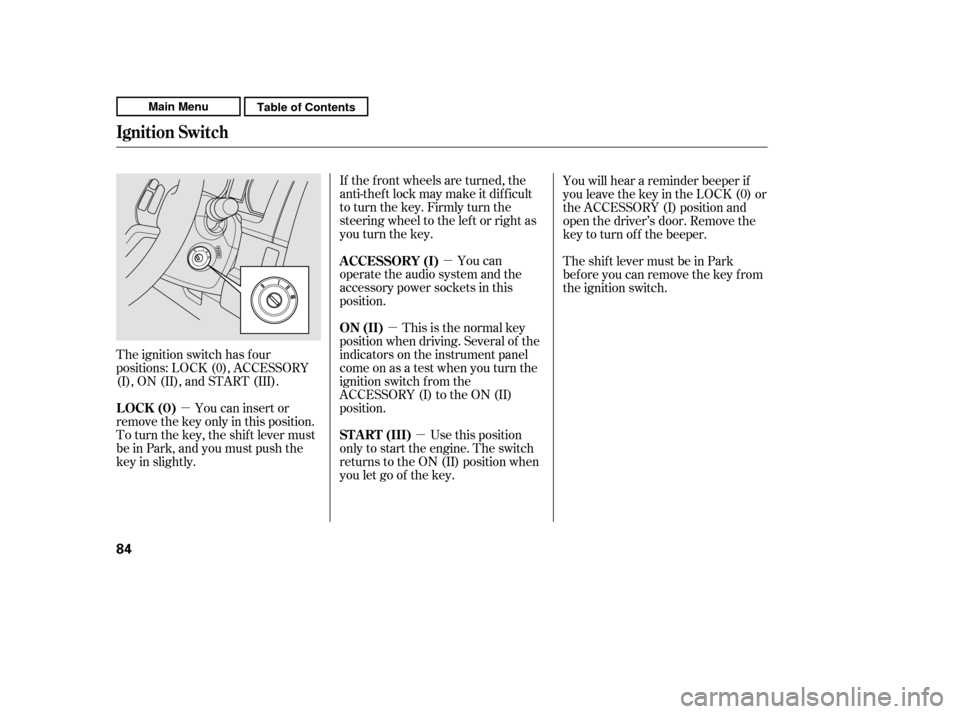
The ignition switch has f our
positions: LOCK (0), ACCESSORY
(I), ON (II), and START (III). If the f ront wheels are turned, the
anti-theft lock may make it difficult
to turn the key. Firmly turn the
steering wheel to the lef t or right as
you turn the key.
This is the normal key
position when driving. Several of the
indicators on the instrument panel
come on as a test when you turn the
ignition switch f rom the
ACCESSORY (I) to the ON (II)
position. You can
operate the audio system and the
accessory power sockets in this
position.
Use this position
only to start the engine. The switch
returns to the ON (II) position when
you let go of the key. You will hear a reminder beeper if
you leave the key in the LOCK (0) or
the ACCESSORY (I) position and
open the driver’s door. Remove the
key to turn of f the beeper.
TheshiftlevermustbeinPark
bef ore you can remove the key f rom
the ignition switch.
You can insert or
remove the key only in this position.
To turn the key, the shift lever must
be in Park, and you must push the
key in slightly. ON (II)
A CCESSORY (I)
ST A RT (III)
LOCK (0)
Ignition Switch
84
Main MenuTable of Contents
Page 179 of 445

�µ�Î�Î
This f unction
samples the f irst track of each disc
in the in-dash disc changer in the
order they are stored. To activate
disc scan, press the SCAN button
repeatedly until you see D-SCAN in
the display. The system will then
play the f irst track/f ile of the f irst
disc f or approximately 10 seconds.
Af ter playing the f irst track/f ile of
the last disc, the system plays
normally. To remove the disc currently in play,
press the eject button. When a disc is
removed f rom a slot, the system
automatically begins the load
sequence so you can load another
disc in that position. If you do not
remove the disc f rom the changer
within 10 seconds, the disc will
reload into the slot. Then the system
returns to the previous mode (AM,
FM, or XM Radio ).
To play the radio when a disc is
playing, press the AM, FM, or XM
button (EX-L). Press the AUX or
CD/AUX button to switch to an
appropriate audio unit (if it is
connected to the USB adapter cable
or the auxiliary input jack). Press the
CD or CD/AUX button again to
switch back to playing a disc.
You can also press the MODE
buttononthesteeringwheelto
change modes.
If you turn the system of f while a
disc is playing, either with the
( ) button or by turning of f the
ignition switch, the disc will stay in
the drive. When you turn the system
back on, the disc will begin playing
where it lef t of f .
:OnEX-Lmodel
Playing Discs (EX and EX-L models wit hout navigat ion syst em)
DISC-SCA N
Removing Discs f rom the In-dash
Disc Changer
To Stop Playing a Disc
174
Main MenuTable of Contents
Page 187 of 445

�Î
�Î
To play the radio when an iPod is
playing, press the FM, AM or XM
button. If a disc is in the audio unit,
press the CD/AUX or CD button to
play the disc.
You can disconnect the iPod at any
time when you see the ‘‘OK to
disconnect’’ message in the iPod
display. Always make sure you see
the ‘‘OK to disconnect’’ message in
the iPod display bef ore you
disconnect it. Make sure to f ollow
the iPod’s instructions on how to
disconnect the dock connector f rom
the USB adapter cable.
The displayed message may
vary on models or versions. On
some models, there is no
message to disconnect.
If you reconnect the same iPod, the
system may begin playing where it
lef t of f , depending on what mode the
iPod is in when it is reconnected.
When you disconnect the iPod while
it is playing, the display shows ‘‘USB
NO DATA.’’ If you see an error message in the
display, see page .
You can also press the MODE
buttononthesteeringwheelto
change modes. : 183
Playing an iPod(Canadian EX model and EX-L model without navigation system)
T o Stop Playing Your iPod
iPod Error MessagesDisconnect ing an iPod
182
Main MenuTable of Contents
Page 196 of 445

�µ�µThis feature samples all
f iles in the current f older in the
order they are stored. To activate
the scan feature, press the SCAN
button. You will see ‘‘SCAN’’ in the
display. You will get a 10 second
sampling of each f ile in the f older.
Press and hold the SCAN button to
get out of the scan mode and play
the last f ile sampled. This feature
samples the f irst f ile in each f older in
the order they are stored. To
activate the folder scan feature,
press the SCAN button repeatedly.
You will see ‘‘F-SCAN’’ in the display.
You will get a 10 second sampling of
the f irst f ile in each f older. Press and
hold the SCAN button to get out of
the f older scan mode and play the
last f ile sampled.
Each time you press and release the
SCAN button, the mode changes
f rom f ile scan to f older scan, then to
normal play. To play the radio when a USB flash
memory device is playing, press the
FM,AMorXMbutton.If adiscisin
the audio unit, press the CD/AUX or
CD button to play the disc.
You can also press the MODE
buttononthesteeringwheelto
change modes.
CONT INUED
Playing a USB Flash Memory Device (Canadian EX model and EX-L model w
ithout navigation system)
SCA N FOL DER SCA N T o Stop Playing a USB Flash
Memory Device
Features
191
Main MenuTable of Contents
Page 217 of 445
�Û�ÝTo play the radio when a disc is
playing, press the AM/FM button or
touch the FM1, FM2, AM, XM1, or
XM2 icon. If a PC card is in the audio
unit, touch the CARD icon to play
the PC card. If a CD or CDs are
loaded in the CD changer, touch the
CDC icon to play the CD changer.
Press the CD button again or touch
the CD icon to switch back to the
disc player.
You can also press the MODE
buttononthesteeringwheelto
change modes.
If you turn the system of f while a
disc is playing, either with the
power/volume knob or by turning
of f the ignition switch, the disc will
stay in the drive. When you turn the
system back on, the disc will begin
playing where it lef t of f .
When playing a CD recorded with
text data, each track name is shown
on the audio display. With a disc
recorded in MP3 or WMA, the f older
number and the location are also
displayed.
If the disc was not recorded with text
data, only the track number is shown.
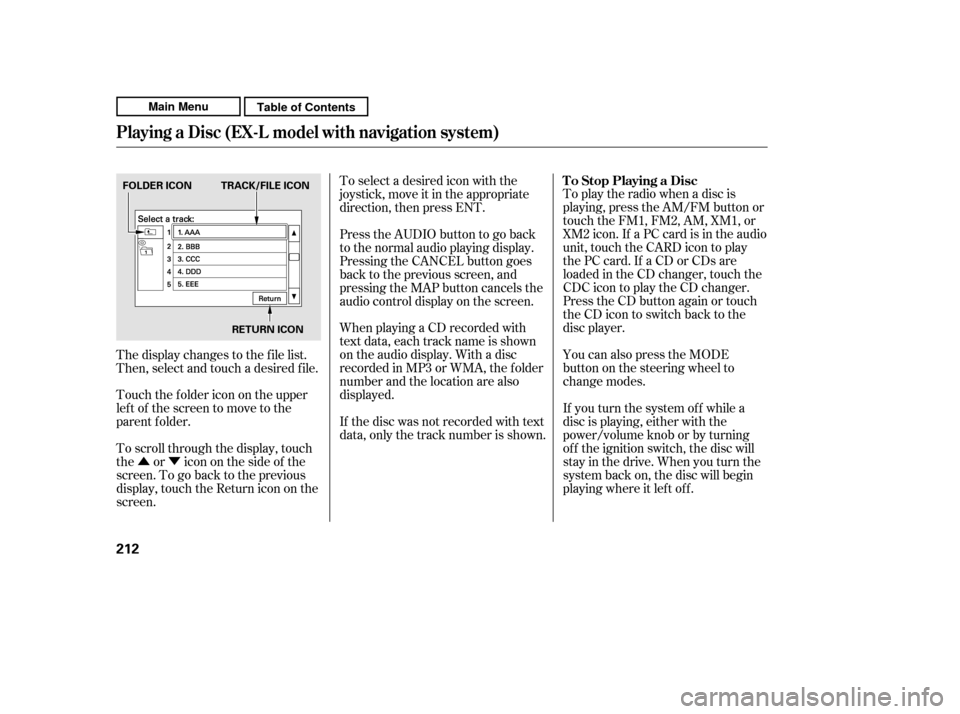
To select a desired icon with the
joystick, move it in the appropriate
direction, then press ENT.
PresstheAUDIObuttontogoback
to the normal audio playing display.
Pressing the CANCEL button goes
back to the previous screen, and
pressing the MAP button cancels the
audio control display on the screen.
To scroll through the display, touch
the or icononthesideof the
screen.Togobacktotheprevious
display, touch the Return icon on the
screen.
The display changes to the f ile list.
Then, select and touch a desired f ile.
Touch the f older icon on the upper
left of the screen to move to the
parent f older. To Stop Playing a Disc
Playing a Disc (EX-L model with navigat ion system)
212
FOLDER ICON TRACK/FILE ICON
RETURN ICON
Main MenuTable of Contents
Page 225 of 445
If you turn the system of f while a CD
in the CD changer is playing, the CD
will stay in the drive. When you turn
the system back on, the CD will be in
pause mode. Touch the CDC icon on
the audio screen. The CD will begin
playing where it lef t of f .
To play the radio when a disc is
playing, press the AM/FM button or
the CD/XM button. Touch the USB
icon to switch to an appropriate
audio unit (if it is connected to the
USB adapter cable).
If there is a PC card in the audio unit,
touch the CARD icon to switch to
the PC card while a CD is playing.
Touch the CDC icon again to play
the CD in the CD changer.
You can also press the MODE
buttononthesteeringwheelto
change modes.
To Stop Playing a CD
CD Changer (EX-L model with navigation system)
220
Main MenuTable of Contents
Page 238 of 445

Searching f or a Song by Album Name
Select the Album icon, and the
album list appears. Select the desired
album, and its song list is displayed.
You can then select the desired song
from the list.To play the radio when a PC card is
playing, press the AM/FM button or
touch the FM1, FM2, AM, XM1, or
XM2 icon. If a disc is in the audio
unit, press the CD/XM button or
touch the CD icon to play the disc. If
a CD or CDs are in the CD changer,
touch the CDC icon to play the
disc(s). Touch the CARD icon to
switch back to the PC card player.
If there is a problem with the PC
card player, see your dealer.
You can also eject a card when the
ignition switch is of f .
To return the screen to the upright
position, press the CLOSE button.
To remove a PC card f rom the audio
unit, f old back the screen by
pressing the OPEN button (see page
). Press the eject button ( )
to remove the card. If you do not
remove it f rom the slot, you cannot
return the screen to the upright
position.
When you leave the vehicle, always
remove the PC card f rom the audio
unit.
If you turn the system of f while a PC
card is playing, either with the
power/volume knob or by turning
of f the ignition switch, the card will
stay in the drive. When you turn the
system back on, the card will begin
playing where it lef t of f .
You can also press the MODE
buttononthesteeringwheelto
change modes.
222
T o Stop Playing a PC Card
PC Card Player Malf unction
Playing a PC card (EX-L model wit h navigat ion system)
Removing a PC Card
Features
233
ALBUM LIST
Main MenuTable of Contents
