Page 137 of 388
Audio System (Models without navigation system)
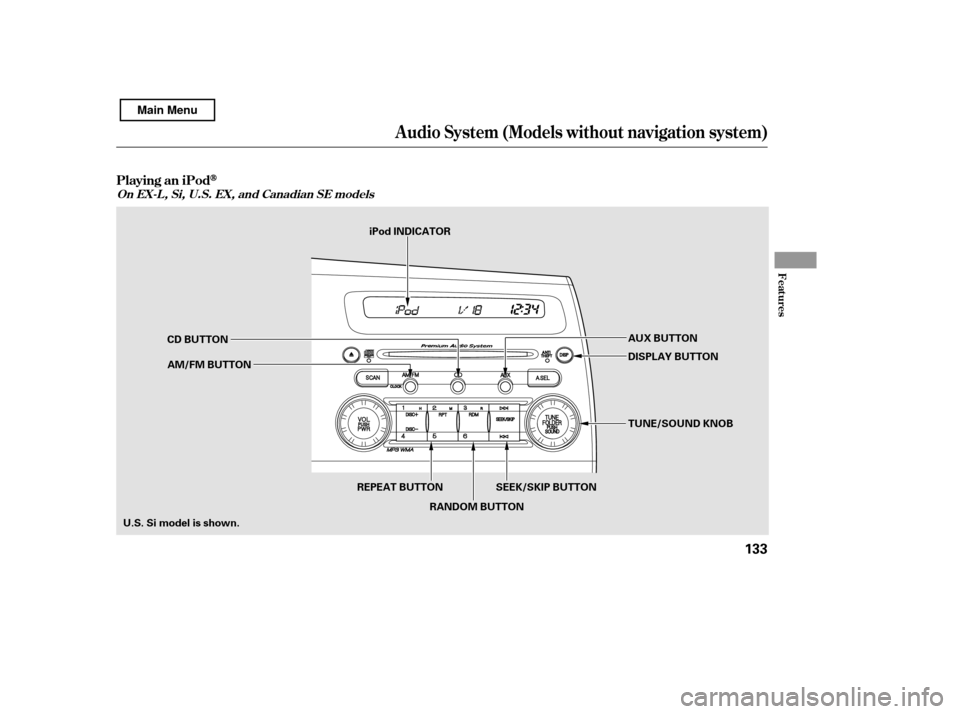
Playing an iPod
Features
On EX-L , Si, U.S. EX, and Canadian SE models
133
AUX BUTTON
SEEK/SKIP BUTTON TUNE/SOUND KNOB
DISPLAY BUTTON
CD BUTTON
AM/FM BUTTON
U.S. Si model is shown. iPod INDICATOR
REPEAT BUTTON RANDOM BUTTON
Main Menu
Page 138 of 388

This audio system can select and
play the audio f iles on the iPod
with
the same controls used f or the disc
player. To play an iPod, connect it to
the USB adapter cable in the console
compartment by using your dock
connector, then press the AUX
button. The ignition switch must be
in the ACCESSORY (I) or ON (II)
position. The iPod will also be
charged with the ignition switch in
these positions. The audio system reads and plays
playable sound f iles on the iPod. The
system cannot operate an iPod as a
mass storage device. The system will
only play songs stored on the iPod
with iTunes.
iPod and iTunes are registered
trademarks owned by Apple Inc.
iPods compatible with your audio
system using the USB adapter cable
are:
Model
iPod classic
(80/160 G)
iPod classic
(120 G)
iPod with video
(iPod 5th
generation)
iPod nano
iPod nano
2nd generation
iPod nano
3rd generation
iPod nano
4th generation
iPod nano
5th generation
iPod touch
iPod touch
2nd generation Sof tware
Ver. 1.1.2 or more
Ver. 2.0.1 or more
Ver. 1.3.0 or more
Ver. 1.3.1 or more
Ver. 1.1.3 or more
Ver. 1.1.3 or more
Ver. 1.0.3 or more
Ver. 1.0.1 or more
Ver. 1.1.5 or more
Ver. 2.2.1 or more
To Play an iPod
Audio System (Models without navigation system)
134
Main Menu
Page 143 of 388

�Î
�Î
To play the radio, press the AM/FM
button. Press the CD button to
switch to the disc mode (if a disc is
loaded). Press the AUX button to
switch the audio mode between the
XM Radio (if equipped) and iPod.
If you see an error message in the
display, see page .
The displayed message may
vary on models or versions. On
some models, there is no
message to disconnect.
When you disconnect the iPod while
it is playing, the display shows ‘‘USB
NO DATA.’’
If you reconnect the same iPod, the
system may begin playing where it
lef t of f , depending on what mode the
iPod is in when it is reconnected.
You can disconnect the iPod at any
time when you see the ‘‘OK to
disconnect’’ message in the iPod
display. Always make sure you see
the ‘‘OK to disconnect’’ message in
the iPod display bef ore you
disconnect it. Make sure to f ollow
the iPod’s instructions on how to
disconnect the dock connector f rom
the USB adapter cable.
: 140
Audio System (Models without navigation system)
Disconnect ing an iPodiPodError Messages
T o Stop Playing Your iPod
Features
139
Main Menu
Page 145 of 388
Audio System (Models without navigation system)
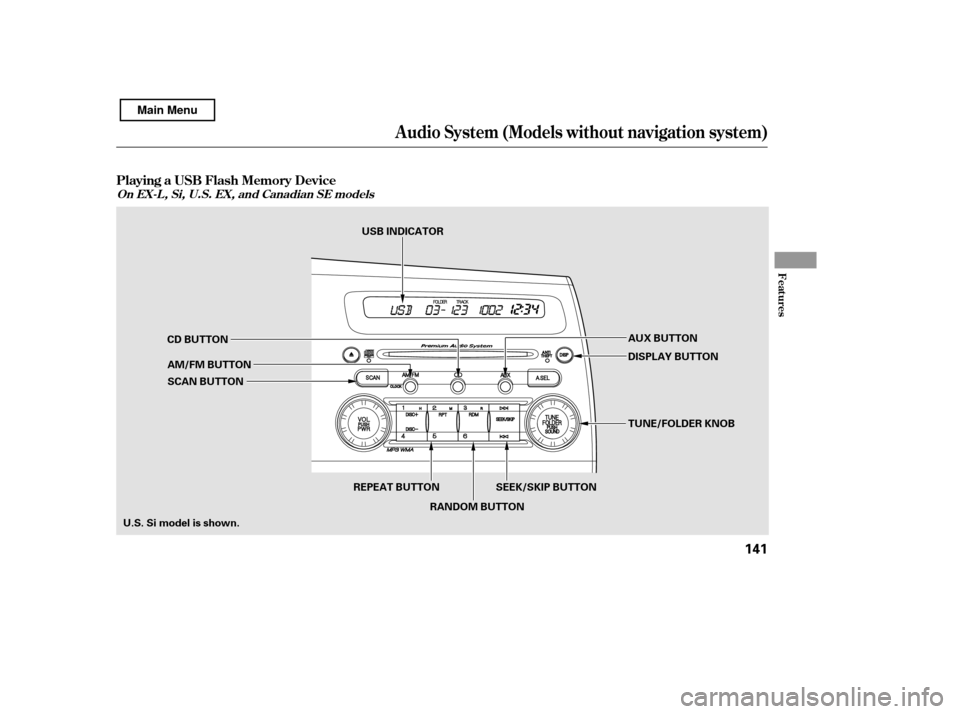
Playing a USB Flash Memory Device
Features
On EX-L , Si, U.S. EX, and Canadian SE models
141
AUX BUTTON
SEEK/SKIP BUTTON DISPLAY BUTTON
CD BUTTON
AM/FM BUTTON
U.S. Si model is shown. SCAN BUTTON
TUNE/FOLDER KNOB
REPEAT BUTTON RANDOM BUTTON
USB INDICATOR
Main Menu
Page 146 of 388

�Î
�Î
This audio system can select and
play the audio f iles on a USB f lash
memory device with the same
controls used f or the disc player. To
play a USB f lash memory device,
connect it to the USB adapter cable
in the console compartment, then
press the AUX button. The ignition
switch must be in the ACCESSORY
(I) or ON (II) position. The recommended USB f lash
memory devices are 256 MB or
higher, and f ormatted with the FAT
f ile system. Some digital audio
players may be compatible as well.
Some USB f lash memory devices
(such as devices with security lock-
out f eatures, etc.) will not work in
this audio unit.
Do not use a device such as a card
reader or hard drive as the device
or your f iles may be damaged.
Do not connect your USB f lash
memory device using a hub.
The audio system reads and plays
the audio f iles on the USB f lash
memory device in MP3, WMA or
AAC f ormats. Depending on the
f ormat, the display shows MP3,
WMA or AAC when a USB flash
memory device is playing. The USB
f lash memory device limit is up to
700 f olders or up to 65535 f iles.
Only AAC f ormat f iles recorded
with iTunes are playable on this
audio unit.
:
To Play a USB Flash Memory
Device
Audio System (Models without navigation system)
142
NOTE:
Main Menu
Page 151 of 388

�µThis feature
samples the f irst f ile in each f older in
the order they are stored. To
activate the folder scan feature,
press the SCAN button repeatedly.
You will see ‘‘F-SCAN’’ in the display.
You will get a 10 second sampling of
the f irst f ile in each f older. Press and
hold the SCAN button to get out of
the f older scan mode and play the
last f ile sampled.
Each time you press and release the
SCAN button, the mode changes
from file scan to folder scan, then to
normal play. To play the radio, press the AM/FM
button. Press the CD button to
switch to the disc mode (if a disc is
loaded). Press the AUX button to
switch the audio mode between the
USB or XM Radio (if equipped).
When you disconnect the USB f lash
memory device while it is playing,
the display shows ‘‘USB NO DATA.’’
If you reconnect the same USB f lash
memory device, the system will
begin playing where it lef t of f .If you see an error message in the
display, see page .
You can disconnect the USB f lash
memory device at any time even if
the USB mode is selected on the
audio system. Always f ollow the USB
f lash memory device’s instructions
when you remove it. 148
Audio System (Models without navigation system)
FOL DER SCAN T o Stop Playing a USB Flash
Memory DeviceUSB Flash Memory Device Error
Messages
Disconnect ing a USB Flash Memory
Device
Features
147
Main Menu
Page 188 of 388
�µ�´
This audio system can select and
play the audio f iles on the iPod
with
the same controls used f or the in-
dash disc player. To play an iPod,
connect it to the USB adapter cable
in the console compartment by using
your dock connector. Press the
AUDIO button beside the screen to
show the audio display and touch the
AUX icon. The ignition switch must
be in the ACCESSORY (I) or ON (II)
position. The iPod will also be
recharged with the ignition switch in
these positions.
The audio system reads and plays
playable sound f iles on the iPod. The
system cannot operate an iPod as a
mass storage device. The system will
only play songs stored on the iPod
with iTunes.
iPod and iTunes are registered
trademarks owned by Apple Inc.
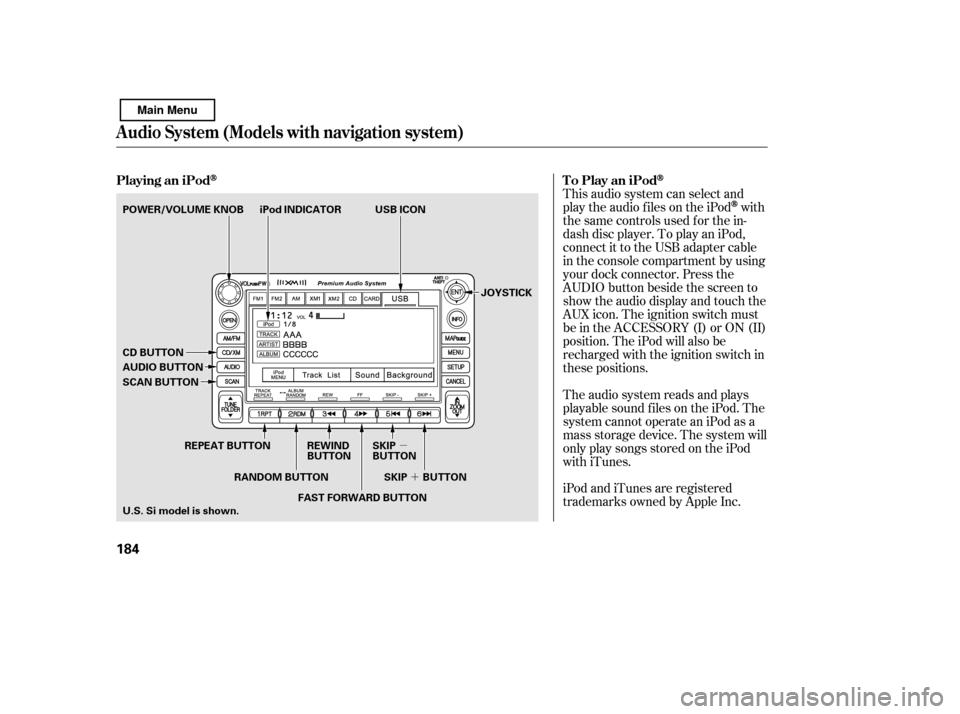
Playing an iPod
To Play an iPod
Audio System (Models with navigation system)
184
JOYSTICK
iPod INDICATOR USB ICON
AUDIO BUTTON
POWER/VOLUME KNOB
CD BUTTON
SCAN BUTTON
U.S. Si model is shown.
REPEAT BUTTON REWIND
BUTTONSKIP
BUTTON
FAST FORWARD BUTTON
RANDOM BUTTON SKIP BUTTON
Main Menu
Page 189 of 388

CONT INUED
Model
iPod classic
(80/160 G)
iPod classic
(120 G)
iPod with video
(iPod 5th
generation)
iPod nano
iPod nano
2nd generation
iPod nano
3rd generation
iPod nano
4th generation
iPod nano
5th generation
iPod touch
iPod touch
2nd generation Sof tware
Ver. 1.1.2 or more
Ver. 2.0.1 or more
Ver. 1.3.0 or more
Ver. 1.3.1 or more
Ver. 1.1.3 or more
Ver. 1.1.3 or more
Ver. 1.0.3 or more
Ver. 1.0.1 or more
Ver. 1.1.5 or more
Ver. 2.2.1 or more
Some devices cannot be powered
or charged via the USB adapter. If
this is the case, use the accessory
adapter to supply power to your
device.
We recommend backing up your
data bef ore playing it.
Do not use an extension cable
between the USB adapter cable
equipped with your vehicle and
your dock connector.
DonotkeeptheiPodinthe
vehicle. Direct sunlight and high
heat will damage it.
Do not connect your iPod using ahub.
UseonlycompatibleiPodswiththe
latest sof tware. iPods that are not
compatible will not work in this audio
unit.
You can select the AUX mode by
using the navigation system voice
control buttons, but cannot operate
theplaymodefunctions. iPods compatible with your audio
system using the USB adapter cable
are:
Audio System (Models with navigation system)
Voice Cont rol Syst em
Features
185
NOTE:
Main Menu