Page 103 of 497
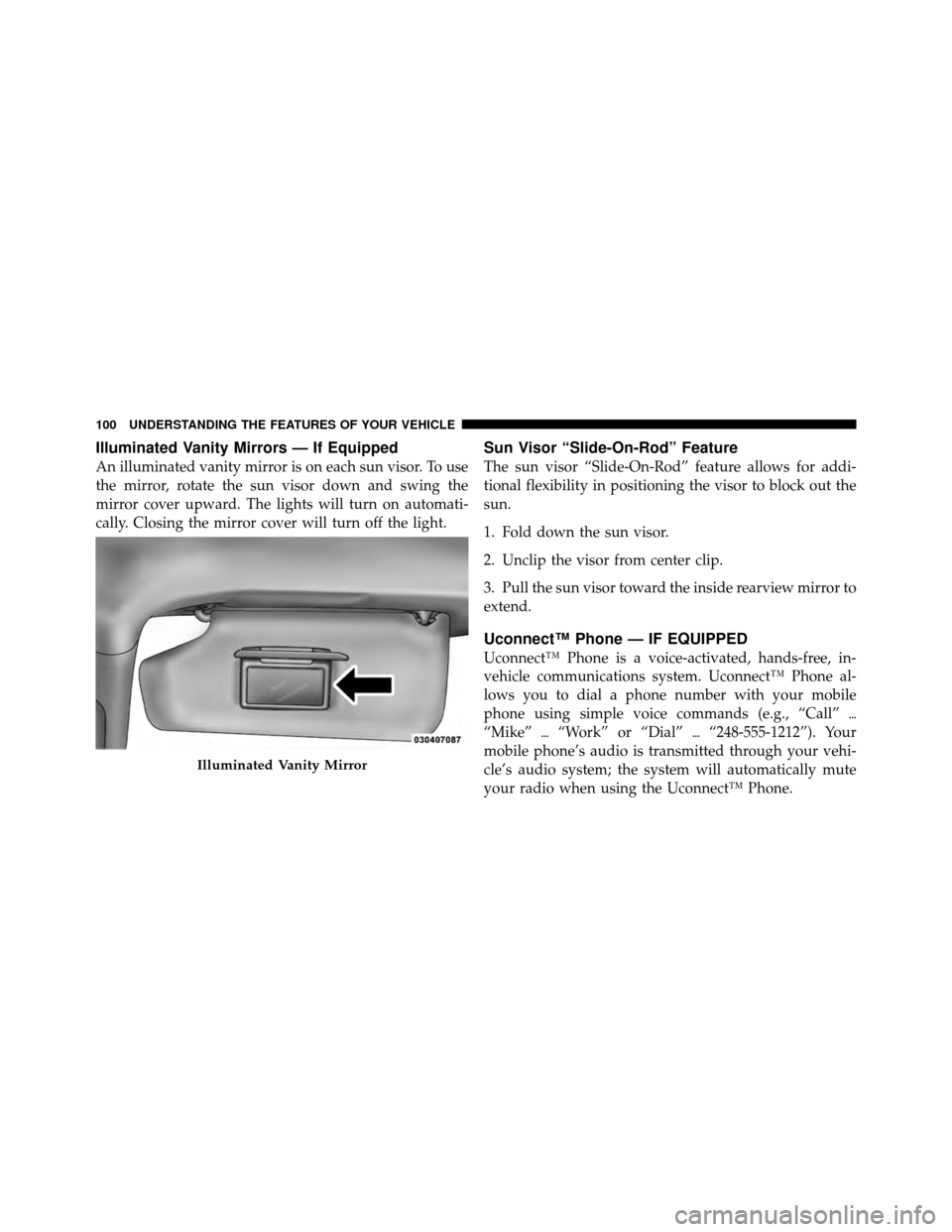
Illuminated Vanity Mirrors — If Equipped
An illuminated vanity mirror is on each sun visor. To use
the mirror, rotate the sun visor down and swing the
mirror cover upward. The lights will turn on automati-
cally. Closing the mirror cover will turn off the light.
Sun Visor “Slide-On-Rod” Feature
The sun visor “Slide-On-Rod” feature allows for addi-
tional flexibility in positioning the visor to block out the
sun.
1. Fold down the sun visor.
2. Unclip the visor from center clip.
3. Pull the sun visor toward the inside rearview mirror to
extend.
Uconnect™ Phone — IF EQUIPPED
Uconnect™ Phone is a voice-activated, hands-free, in-
vehicle communications system. Uconnect™ Phone al-
lows you to dial a phone number with your mobile
phone using simple voice commands (e.g., “Call”\b
“Mike” \b“Work” or “Dial” \b“248-555-1212”). Your
mobile phone’s audio is transmitted through your vehi-
cle’s audio system; the system will automatically mute
your radio when using the Uconnect™ Phone.
Illuminated Vanity Mirror
100 UNDERSTANDING THE FEATURES OF YOUR VEHICLE
Page 105 of 497

Uconnect™ Phone ButtonThe radio or steering wheel controls (if
equipped) will contain the two control buttons
(Uconnect™ Phone
button and Voice
Command
button) that will enable you
to access the system. When you press the button you will
hear the word Uconnect™ followed by a BEEP. The beep
is your signal to give a command.
Voice Command Button Actual button location may vary with the ra-
dio. The individual buttons are described in the
“Operation” section.
The Uconnect™ Phone can be used with any Hands-Free
Profile certified Bluetooth� mobile phone. See the
Uconnect™ website for supported phones. Refer to your
mobile service provider or the phone manufacturer for
details. The Uconnect™ Phone is fully integrated with the vehi-
cle’s audio system. The volume of the Uconnect™ Phone
can be adjusted either from the radio volume control
knob or from the steering wheel radio control (right
switch), if so equipped.
The radio display will be used for visual prompts from
the Uconnect™ Phone such as “CELL” or caller ID on
certain radios.
Operation
Voice commands can be used to operate the Uconnect™
Phone and to navigate through the Uconnect™ Phone
menu structure. Voice commands are required after most
Uconnect™ Phone prompts. You will be prompted for a
specific command and then guided through the available
options.
•Prior to giving a voice command, one must wait for
the beep, which follows the “Ready” prompt or an-
other prompt.
102 UNDERSTANDING THE FEATURES OF YOUR VEHICLE
Page 113 of 497
Phone Call Features
The following features can be accessed through the
Uconnect™ Phone if the feature(s) are available on your
mobile service plan. For example, if your mobile service
plan provides three-way calling, this feature can be
accessed through the Uconnect™ Phone. Check with
your mobile service provider for the features that you
have.
Answer Or Reject An Incoming Call —
No Call Currently In Progress
When you receive a call on your mobile phone, the
Uconnect™ Phone will interrupt the vehicle audio sys-
tem, if on, and will ask if you would like to answer the
call. Press the
button to accept the call. To reject the
call, press and hold the
button until you hear a
single beep, indicating that the incoming call was
rejected.
Answer Or Reject An Incoming Call —
Call Currently In Progress
If a call is currently in progress and you have another
incoming call, you will hear the same network tones for
call waiting that you normally hear when using your
mobile phone. Press the
button to place the current
call on hold and answer the incoming call.
NOTE: The Uconnect™ Phone compatible phones in the
market today do not support rejecting an incoming call
when another call is in progress. Therefore, the user can
only answer an incoming call or ignore it.
110 UNDERSTANDING THE FEATURES OF YOUR VEHICLE
Page 120 of 497

Dialing Using The Mobile Phone Keypad
You can dial a phone number with your mobile phone
keypad and still use the Uconnect™ Phone (while dialing
via the mobile phone keypad, the user must exercise
caution and take precautionary safety measures). By
dialing a number with your paired Bluetooth�mobile
phone, the audio will be played through your vehicle’s
audio system. The Uconnect™ Phone will work the same
as if you dial the number using Voice Command.
NOTE: Certain brands of mobile phones do not send the
dial ring to the Uconnect™ Phone to play it on the vehicle
audio system, so you will not hear it. Under this situa-
tion, after successfully dialing a number the user may feel
that the call did not go through even though the call is in
progress. Once your call is answered, you will hear the
audio.
Mute/Un-Mute (Mute OFF)
When you mute the Uconnect™ Phone, you will still be
able to hear the conversation coming from the other
party, but the other party will not be able to hear you. In
order to mute the Uconnect™ Phone:
•Press thebutton.
•Following the beep, say “Mute”.
In order to un-mute the Uconnect™ Phone:
•Press thebutton.
•Following the beep, say “Mute off”.
Advanced Phone Connectivity
Transfer Call To And From Mobile Phone
The Uconnect™ Phone allows ongoing calls to be trans-
ferred from your mobile phone to the Uconnect™ Phone
without terminating the call. To transfer an ongoing call
3
UNDERSTANDING THE FEATURES OF YOUR VEHICLE 117
Page 124 of 497
•fully closed windows,
•dry weather condition.
•Even though the system is designed for users speaking
in North American English, French, and Spanish ac-
cents, the system may not always work for some.
•When navigating through an automated system such
as voice mail, or when sending a page, at the end of
speaking the digit string, make sure to say “Send”.
•Storing names in the phonebook when the vehicle is
not in motion is recommended.
•It is not recommended to store similar sounding
names in the Uconnect™ Phonebook.
•Phonebook (Downloaded and Uconnect™ Phone Lo-
cal) name recognition rate is optimized when the
entries are not similar.
•Numbers must be spoken in single digits. “800” must
be spoken “eight-zero-zero” not “eight hundred”.
•You can say “O” (letter “O”) for “0” (zero).
•Even though international dialing for most number
combinations is supported, some shortcut dialing
number combinations may not be supported.
•In a convertible vehicle, system performance may be
compromised with the convertible top down.
Far End Audio Performance
•
Audio quality is maximized under:
•low-to-medium blower setting,
•low-to-medium vehicle speed,
•low road noise,
•smooth road surface,
3
UNDERSTANDING THE FEATURES OF YOUR VEHICLE 121
Page 125 of 497
•fully closed windows,
•dry weather conditions, and
•operation from the driver’s seat.
•Performance, such as audio clarity, echo, and loudness
to a large degree rely on the phone and network, and
not the Uconnect™ Phone.
•Echo at the phone far end can sometimes be reduced
by lowering the in-vehicle audio volume.
•In a convertible vehicle, system performance may be
compromised with the convertible top down.
Recent Calls
If your phone supports “Automatic Phonebook Down-
load”, Uconnect™ Phone can list your Outgoing, Incom-
ing and Missed Calls.
SMS
Uconnect™ Phone can read or send new messages on
your phone.
Read Messages:
If you receive a new text message while your phone is
connected to Uconnect™ Phone, an announcement will
be made to notify you that you have a new text message.
If you wish to hear the new message:
•Press thebutton.
•After the “Ready” prompt and the following beep, say
“SMS Read” or “Read Messages.”
•Uconnect™ Phone will play the new text message for
you.
After reading a message, you can “Reply” or “Forward”
the message using Uconnect™ Phone.
122 UNDERSTANDING THE FEATURES OF YOUR VEHICLE
Page 135 of 497
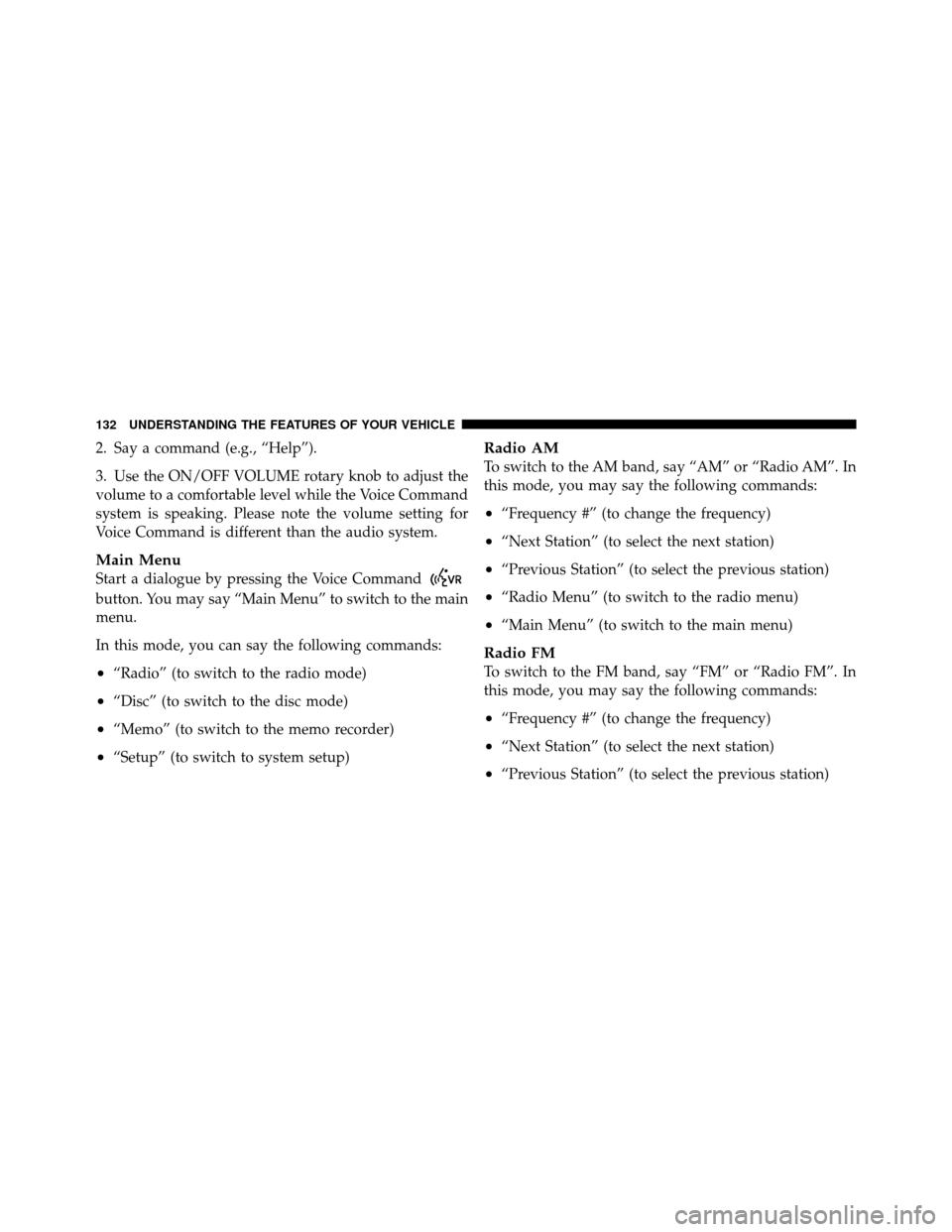
2. Say a command (e.g., “Help”).
3. Use the ON/OFF VOLUME rotary knob to adjust the
volume to a comfortable level while the Voice Command
system is speaking. Please note the volume setting for
Voice Command is different than the audio system.
Main Menu
Start a dialogue by pressing the Voice Command
button. You may say “Main Menu” to switch to the main
menu.
In this mode, you can say the following commands:
•“Radio” (to switch to the radio mode)
•“Disc” (to switch to the disc mode)
•“Memo” (to switch to the memo recorder)
•“Setup” (to switch to system setup)
Radio AM
To switch to the AM band, say “AM” or “Radio AM”. In
this mode, you may say the following commands:
•“Frequency #” (to change the frequency)
•“Next Station” (to select the next station)
•“Previous Station” (to select the previous station)
•“Radio Menu” (to switch to the radio menu)
•“Main Menu” (to switch to the main menu)
Radio FM
To switch to the FM band, say “FM” or “Radio FM”. In
this mode, you may say the following commands:
•“Frequency #” (to change the frequency)
•“Next Station” (to select the next station)
•“Previous Station” (to select the previous station)
132 UNDERSTANDING THE FEATURES OF YOUR VEHICLE
Page 197 of 497
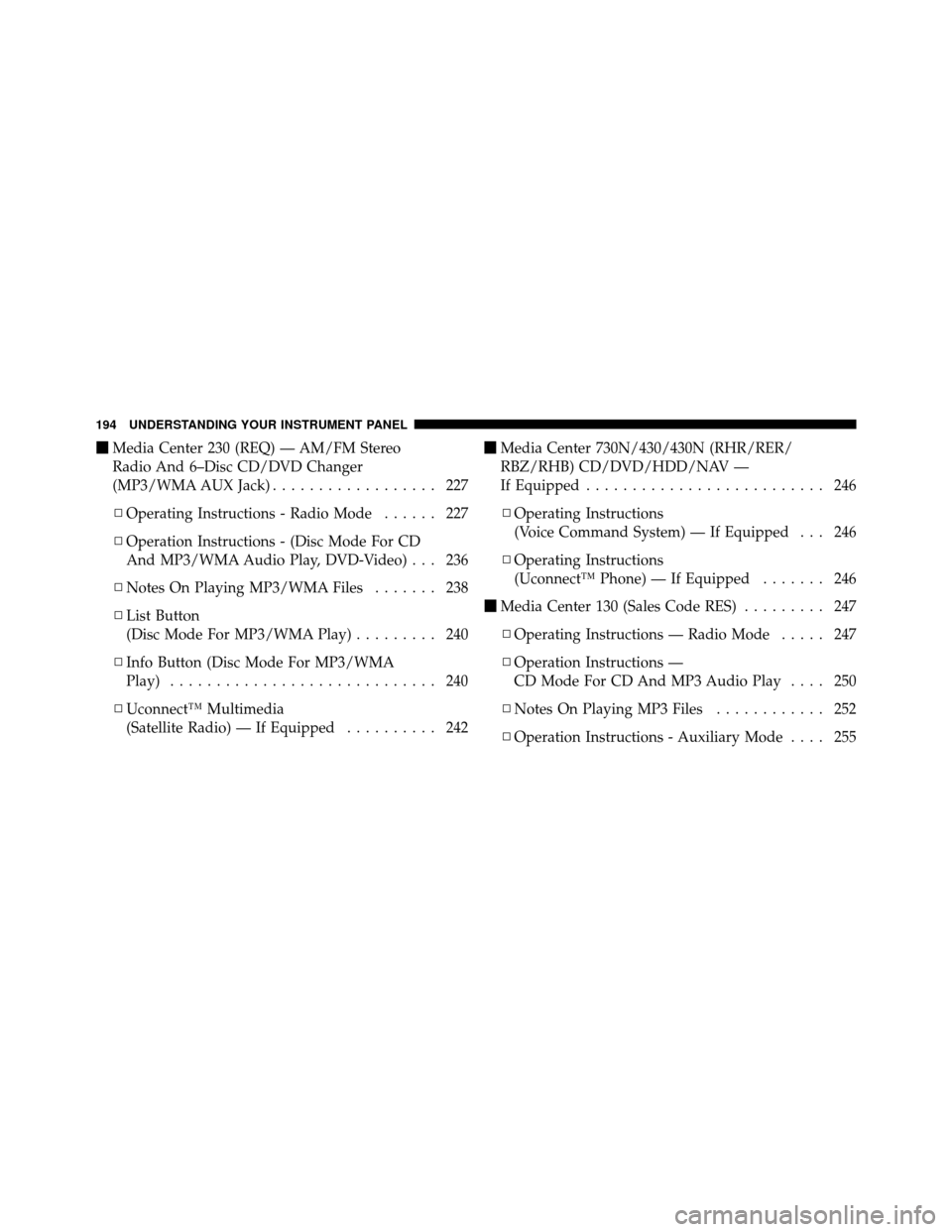
�Media Center 230 (REQ) — AM/FM Stereo
Radio And 6–Disc CD/DVD Changer
(MP3/WMA AUX Jack) .................. 227
▫ Operating Instructions - Radio Mode ...... 227
▫ Operation Instructions - (Disc Mode For CD
And MP3/WMA Audio Play, DVD-Video) . . . 236
▫ Notes On Playing MP3/WMA Files ....... 238
▫ List Button
(Disc Mode For MP3/WMA Play) ......... 240
▫ Info Button (Disc Mode For MP3/WMA
Play) ............................. 240
▫ Uconnect™ Multimedia
(Satellite Radio) — If Equipped .......... 242�
Media Center 730N/430/430N (RHR/RER/
RBZ/RHB) CD/DVD/HDD/NAV —
If Equipped .......................... 246
▫ Operating Instructions
(Voice Command System) — If Equipped . . . 246
▫ Operating Instructions
(Uconnect™ Phone) — If Equipped ....... 246
� Media Center 130 (Sales Code RES) ......... 247
▫ Operating Instructions — Radio Mode ..... 247
▫ Operation Instructions —
CD Mode For CD And MP3 Audio Play .... 250
▫ Notes On Playing MP3 Files ............ 252
▫ Operation Instructions - Auxiliary Mode .... 255
194 UNDERSTANDING YOUR INSTRUMENT PANEL