Page 177 of 452
UNDERSTANDING YOUR INSTRUMENT PANEL
CONTENTS
�Instrument Panel Features ............... 177
� Instrument Cluster .................... 178
� Instrument Cluster Descriptions ........... 179
� Media Center 230 (REQ) — AM/FM Stereo
Radio And 6–Disc CD/DVD Changer
(MP3/WMA AUX Jack) .................. 192
▫ Operating Instructions - Radio Mode ...... 192
▫ Operation Instructions - (Disc Mode For CD
And MP3/WMA Audio Play, DVD-Video) . . . 200
▫ Notes On Playing MP3/WMA Files ....... 202▫
List Button
(Disc Mode For MP3/WMA Play) ......... 205
▫ Info Button
(Disc Mode For MP3/WMA Play) ......... 205
▫ Uconnect™ Multimedia
(Satellite Radio) — If Equipped .......... 207
� Media Center 130 (Sales Code RES) ......... 211
▫ Operating Instructions — Radio Mode ..... 211
▫ Operation Instructions — CD Mode For CD
And MP3 Audio Play ................. 214
4
Page 178 of 452

▫Notes On Playing MP3 Files ............ 216
▫ Operation Instructions - Auxiliary Mode .... 219
� Media Center 130 With Satellite Radio
(Sales Code RES+RSC) ................... 220
▫ Operating Instructions — Radio Mode ..... 220
▫ Operation Instructions — CD Mode For CD
And MP3 Audio Play ................. 226
▫ Notes On Playing MP3 Files ............ 228
▫ List Button (CD Mode For MP3 Play) ...... 230
▫ Info Button (CD Mode For MP3 Play) ...... 230
▫ Uconnect™ Multimedia
(Satellite Radio) — If Equipped .......... 231�
Steering Wheel Audio
Controls — If Equipped .................. 236
▫ Radio Operation ..................... 236
▫ CD Player ......................... 237
� CD/DVD Disc Maintenance .............. 237
� Radio Operation And Mobile Phones ....... 238
� Climate Controls ...................... 238
▫ Air Conditioning And Heater ............ 238
▫ Operating Tips ...................... 241
▫ Operation Tips Chart ................. 244
176 UNDERSTANDING YOUR INSTRUMENT PANEL
Page 194 of 452
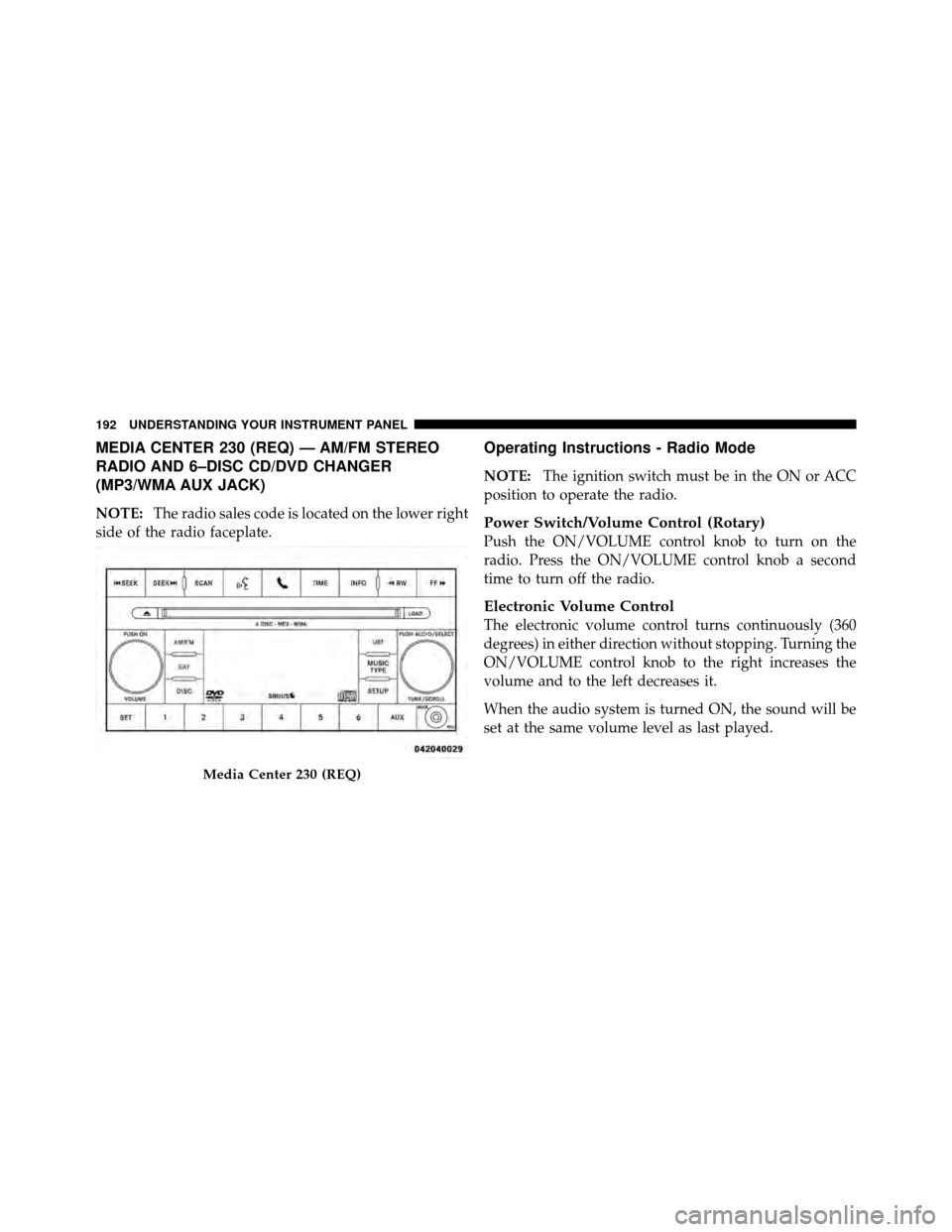
MEDIA CENTER 230 (REQ) — AM/FM STEREO
RADIO AND 6–DISC CD/DVD CHANGER
(MP3/WMA AUX JACK)
NOTE:The radio sales code is located on the lower right
side of the radio faceplate.
Operating Instructions - Radio Mode
NOTE: The ignition switch must be in the ON or ACC
position to operate the radio.
Power Switch/Volume Control (Rotary)
Push the ON/VOLUME control knob to turn on the
radio. Press the ON/VOLUME control knob a second
time to turn off the radio.
Electronic Volume Control
The electronic volume control turns continuously (360
degrees) in either direction without stopping. Turning the
ON/VOLUME control knob to the right increases the
volume and to the left decreases it.
When the audio system is turned ON, the sound will be
set at the same volume level as last played.
Media Center 230 (REQ)
192 UNDERSTANDING YOUR INSTRUMENT PANEL
Page 198 of 452
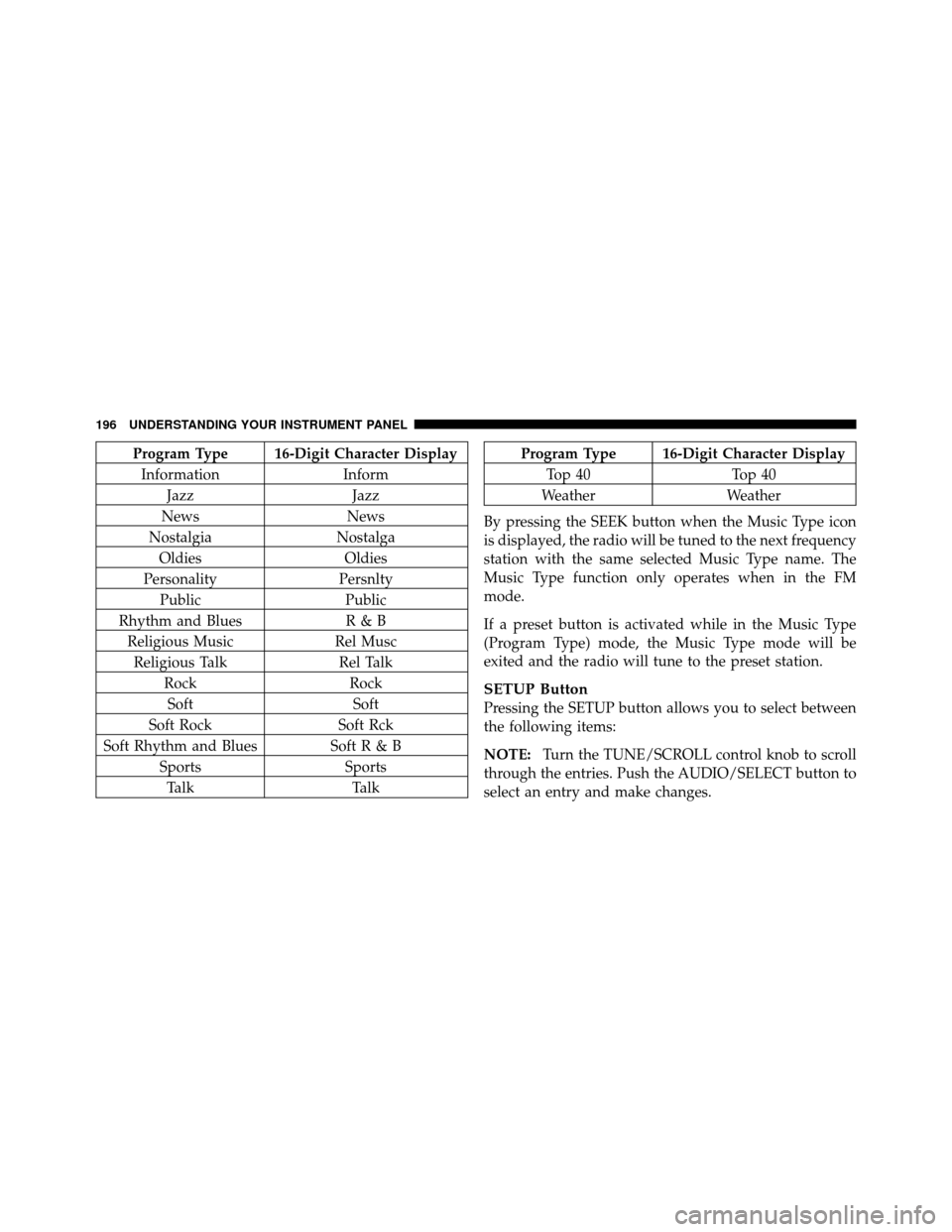
Program Type 16-Digit Character DisplayInformation Inform
Jazz Jazz
News News
Nostalgia Nostalga
Oldies Oldies
Personality Persnlty
Public Public
Rhythm and Blues R & B
Religious Music Rel Musc
Religious Talk Rel Talk
Rock Rock
Soft Soft
Soft Rock Soft Rck
Soft Rhythm and Blues SoftR&B Sports Sports
Talk TalkProgram Type 16-Digit Character Display
Top 40 Top 40
Weather Weather
By pressing the SEEK button when the Music Type icon
is displayed, the radio will be tuned to the next frequency
station with the same selected Music Type name. The
Music Type function only operates when in the FM
mode.
If a preset button is activated while in the Music Type
(Program Type) mode, the Music Type mode will be
exited and the radio will tune to the preset station.
SETUP Button
Pressing the SETUP button allows you to select between
the following items:
NOTE: Turn the TUNE/SCROLL control knob to scroll
through the entries. Push the AUDIO/SELECT button to
select an entry and make changes.
196 UNDERSTANDING YOUR INSTRUMENT PANEL
Page 199 of 452
•DVD Enter -When the disc is in DVD Menu mode,
selecting DVD Enter will allow you to play the current
highlighted selection. Use the remote control to scroll
up and down the menu (if equipped).
•DISC Play/Pause - You can toggle between
playing the DVD and pausing the DVD by
pushing the SELECT button (if equipped).
•DVD Play Options - Selecting the DVD Play Options
will display the following:
•Subtitle – Repeatedly pressing SELECT will switch
subtitles to different subtitle languages that are
available on the disc (if equipped).
•Audio Stream – Repeatedly pressing SELECT will
switch to different audio languages (if supported on
the disc) (if equipped).
•Angle – Repeatedly pressing SELECT will change
the viewing angle if supported by the DVD disc (if
equipped).
NOTE:
•The available selections for each of the above entries
varies depending upon the disc.
•These selections can only be made while playing a
DVD.
•VES™ Power - Allows you to turn VES™ ON and
OFF (if equipped).
•VES™ Lock - Locks out rear VES™ remote controls (if
equipped).
•VES™ CH1/CH2 - Allows the user to change the
mode of either the IR1 or IR2 wireless headphones by
pressing the AUDIO/SELECT button (if equipped).
4
UNDERSTANDING YOUR INSTRUMENT PANEL 197
Page 200 of 452
•Set Home Clock -Pressing the SELECT button allows
you to set the clock. Turn the TUNE/SCROLL control
knob to adjust the hours and then press and turn the
TUNE/SCROLL control knob to adjust the minutes.
Press the TUNE/SCROLL control knob again to save
changes.
•Player Defaults - Selecting this item will allow the
user to scroll through the following items and set
defaults according to customer preference.
Menu Language — If Equipped
Selecting this item will allow the user to choose the
default startup DVD menu language (effective only if
language supported by disc). If you want to select a
language not listed, then scroll down and select �other.�
Enter the four-digit country code using the TUNE/
SCROLL control knob to scroll up and down to select the
number and then push to select. Audio Language — If Equipped
Selecting this item allows you to choose a default audio
language (effective only if the language is supported by
the disc). You can select a language not listed by scrolling
down and selecting
�other.�Enter the country code using
the TUNE/SCROLL control knob to scroll up and down
to select the number and then push to select.
Subtitle Language — If Equipped
Selecting this item allows you to choose a default subtitle
language (effective only if the language is supported by
the disc). You can select a language not listed by scrolling
down and selecting �other.�Enter the country code using
the TUNE/SCROLL control knob to scroll up and down
to select the number and then push to select.
Subtitles — If Equipped
Selecting this item allows you to choose between subtitle
Off or On.
198 UNDERSTANDING YOUR INSTRUMENT PANEL
Page 201 of 452
Audio DRC — If Equipped
Selecting this item allows you to limit maximum audio
dynamic range. The default is set to�High,�and under
this setting, dialogues will play at 11 db higher than if the
setting is �Normal.�
Aspect Ratio — If Equipped
Selecting this item allows you to choose between wide
screen, pan scan, and letter box.
AutoPlay — If Equipped
When this is set to On and a DVD video is inserted, it will
bypass the DVD menu screen and automatically play the
movie. In some rare cases, the DVD player may not
auto-play the main title. In such cases, use the MENU
button on the remote control to select desired title to play. NOTE:
The user will have to set these defaults before
loading a disc. If changes are made to these settings after
a disc is loaded, changes will not be effective. Also, the
defaults are effective only if the disc supports the
customer-preferred settings.
AM and FM Buttons
Press the buttons to select AM or FM mode.
SET Button — To Set the Pushbutton Memory
When you are receiving a station that you wish to
commit to pushbutton memory, press the SET button.
The symbol SET 1 will now show in the display window.
Select the button (1-6) you wish to lock onto this station
and press and release that button. If a button is not
selected within five seconds after pressing the SET but-
ton, the station will continue to play but will not be
stored into pushbutton memory.
4
UNDERSTANDING YOUR INSTRUMENT PANEL 199
Page 202 of 452
You may add a second station to each pushbutton by
repeating the above procedure with this exception: Press
the SET button twice and SET 2 will show in the display
window. Each button can be set for SET 1 and SET 2 in
both AM and FM. This allows a total of 12 AM, 12 FM,
and 12 Satellite (if equipped) stations to be stored into
pushbutton memory. The stations stored in SET 2
memory can be selected by pressing the pushbutton
twice.
Every time a preset button is used, a corresponding
button number will display.
Buttons1-6
These buttons tune the radio to the stations that you
commit to pushbutton memory {12 AM, 12 FM, and 12
Satellite (if equipped) stations}.
DISC Button
Pressing the DISC button will allow you to switch from
AM/FM modes to Disc modes.
Operation Instructions - (DISC MODE for CD and
MP3/WMA Audio Play, DVD-VIDEO)
The radio DVD player and many DVD discs are coded by
geographic region. These region codes must match in
order for the disc to play. If the region code for the DVD
disc does not match the region code for the radio DVD
player, it will not play the disc. Customers may take their
vehicle to an authorized dealer to change the region code
of the player a maximum of five times.
CAUTION!
The radio may shut down during extremely hot
conditions. When this occurs, the radio will indicate
“Disc Hot” and shut off until a safe temperature is
reached. This shutdown is necessary to protect the
optics of the DVD player and other radio internal
components.
200 UNDERSTANDING YOUR INSTRUMENT PANEL