Page 162 of 566
5. Call me.
6. I’ll call you later.
7. I’m on my way.
8. Thanks.
9. I’ll be late.
10. I will be minutes late.
11. See you in minutes.
12. Stuck in traffic.
13. Start without me.
14. Where are you?
15. Are you there yet?
16. I need directions.
17. I’m lost.
18. See you later.Bluetooth�Communication Link
Mobile phones have been found to lose connection to the
Uconnect™ Phone. When this happens, the connection
can generally be reestablished by switching the phone
OFF/ON. Your mobile phone is recommended to remain
in Bluetooth� ON mode.
Power-Up
After switching the ignition key from OFF to either the
ON or ACC position, or after a language change, you
must wait at least 15 seconds prior to using the system.
160 UNDERSTANDING THE FEATURES OF YOUR VEHICLE
Page 300 of 566
Turn Menu OFF
Select from Main Menu using the DOWN button. Press-
ing the SELECT button blanks the menu display. Pressing
any one of the four steering wheel buttons brings the
menu back.
Uconnect TOUCH™ SETTINGS
The Uconnect Touch™ system uses a combination of soft
and hard keys located on the center of the instrument
panel that allows you to access and change the customer
programmable features.
Hard-Keys
Hard-Keys are located on the left and right side of the
Uconnect Touch™ 4.3 screen. In addition, there is a
Scroll/Enter control knob located on the right side of the
Climate Controls in the center of the instrument panel.
Turn the control knob to scroll through menus andchange settings (i.e., 30, 60, 90), press the center of the
control knob one or more times to select or change a
setting (i.e., ON, OFF).
Soft-Keys
Soft-Keys are accessible on the Uconnect Touch™ screen.
Customer Programmable Features — Uconnect
Touch™ 4.3 Settings
In this mode the Uconnect Touch™ system allows you to
access programmable features that may be equipped
such as Display, Clock, Safety/Assistance, Lights, Doors
& Locks, Heated Seats, Engine Off Operation, Compass
Settings, Audio, Phone/Bluetooth and SIRIUS Setup
through hard-keys and soft-keys.
NOTE:
Only one touchscreen area may be selected at a
time.
298 UNDERSTANDING YOUR INSTRUMENT PANEL
Page 313 of 566
•Surround Sound
Touch the Surround Sound soft-key to change this dis-
play. This feature provides simulated surround sound
mode. To make your selection, press the Surround Sound
soft-key and select ON or OFF. Then touch the arrow
back soft-key.
Phone / Bluetooth
•
Paired Devices
This feature shows which phones are paired to the
Phone/Bluetooth system. For further information, refer
to the Uconnect Touch™ Supplement.
SIRIUS Setup
•
Channel Skip
SIRIUS can be programmed to designate a group of
channels that are the most desirable to listen to or to
exclude undesirable channels while scanning. To make your selection, touch the Channel Skip soft-key, select the
channels you would like to skip. Then touch the arrow
back soft-key.
•Subscription Info
New vehicle purchasers or lessees will receive a free
limited time subscription to SIRIUS Satellite Radio with
your radio. Following the expiration of the free services,
it will be necessary to access the information on the
Subscription Information screen in order to re-subscribe.
Touch the Subscription Info soft-key to access the Sub-
scription Information screen.
Write down the SIRIUS ID numbers for your receiver. To
reactivate your service, either call the number listed on
the screen or visit the provider online.
NOTE: SIRIUS Travel Link is a separate subscription.
4
UNDERSTANDING YOUR INSTRUMENT PANEL 311
Page 314 of 566
Customer Programmable Features — Uconnect
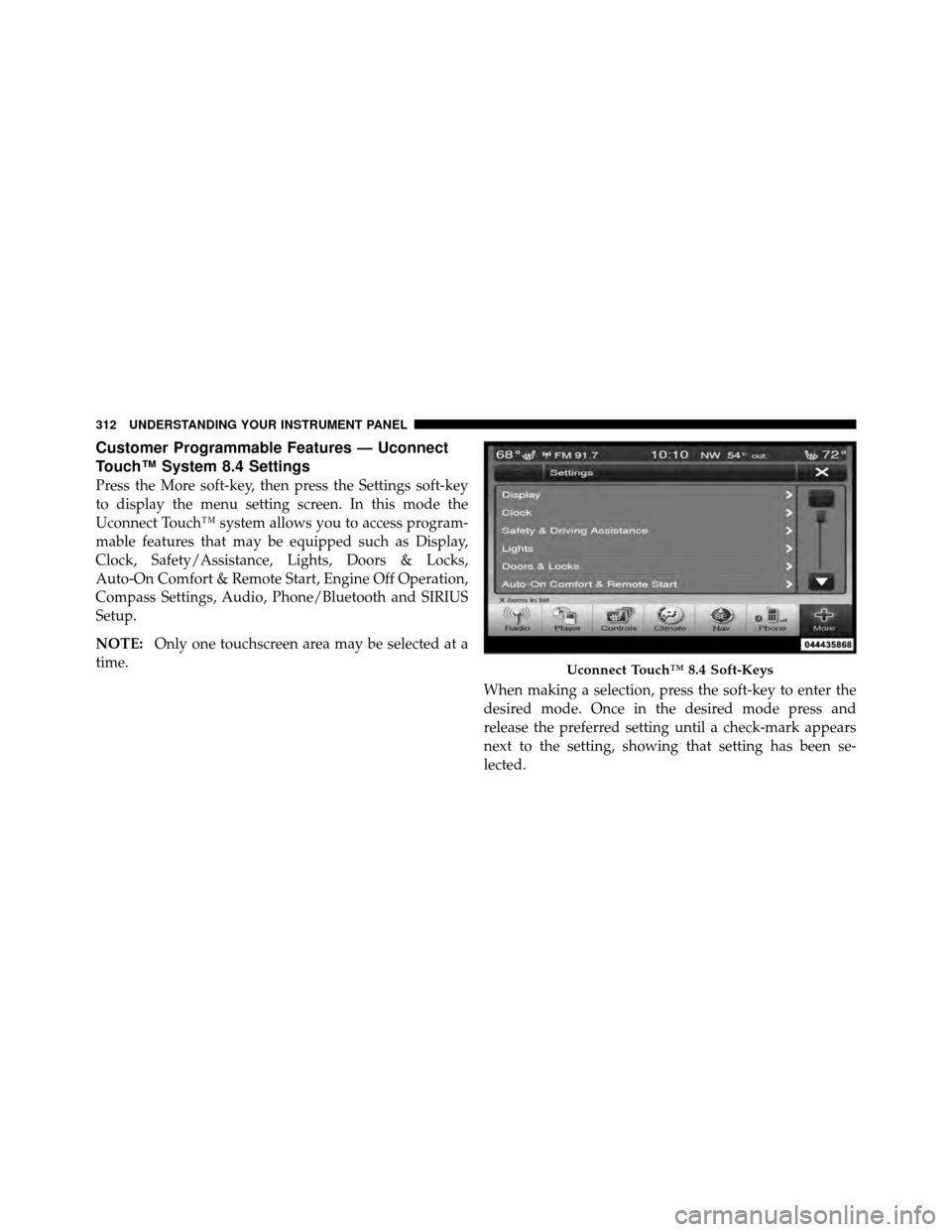
Touch™ System 8.4 Settings
Press the More soft-key, then press the Settings soft-key
to display the menu setting screen. In this mode the
Uconnect Touch™ system allows you to access program-
mable features that may be equipped such as Display,
Clock, Safety/Assistance, Lights, Doors & Locks,
Auto-On Comfort & Remote Start, Engine Off Operation,
Compass Settings, Audio, Phone/Bluetooth and SIRIUS
Setup.
NOTE:Only one touchscreen area may be selected at a
time.
When making a selection, press the soft-key to enter the
desired mode. Once in the desired mode press and
release the preferred setting until a check-mark appears
next to the setting, showing that setting has been se-
lected.
Uconnect Touch™ 8.4 Soft-Keys
312 UNDERSTANDING YOUR INSTRUMENT PANEL
Page 328 of 566
Phone/Bluetooth
After pressing the Phone/Bluetooth soft-key the follow-
ing settings will be available.
•Paired Devices
This feature shows which phones are paired to the
Phone/Bluetooth system. For further information, refer
to the Uconnect Touch™ Supplement.
SIRIUS Setup
After pressing the SIRIUS Setup soft-key the following
settings will be available.
•Channel Skip
SIRIUS can be programmed to designate a group of
channels that are the most desirable to listen to or to
exclude undesirable channels while scanning. To make
your selection, touch the Channel Skip soft-key, select the
channels you would like to skip followed by pressing the
arrow back soft-key.
•Subscription Information
New vehicle purchasers or lessees will receive a free
limited time subscription to SIRIUS Satellite Radio with
your radio. Following the expiration of the free services,
it will be necessary to access the information on the
Subscription Information screen in order to re-subscribe.
Touch the Subscription Info soft-key to access the Sub-
scription Information screen.
Write down the SIRIUS ID numbers for your receiver. To
reactivate your service, either call the number listed on
the screen or visit the provider online.
NOTE: SIRIUS Travel Link is a separate subscription.
326 UNDERSTANDING YOUR INSTRUMENT PANEL