Page 260 of 324
04
8
6
7
4
3
5
2
1
NAVIGATION - GUIDANCE
SEARCHING FOR POINTS OF INTEREST
(POI)
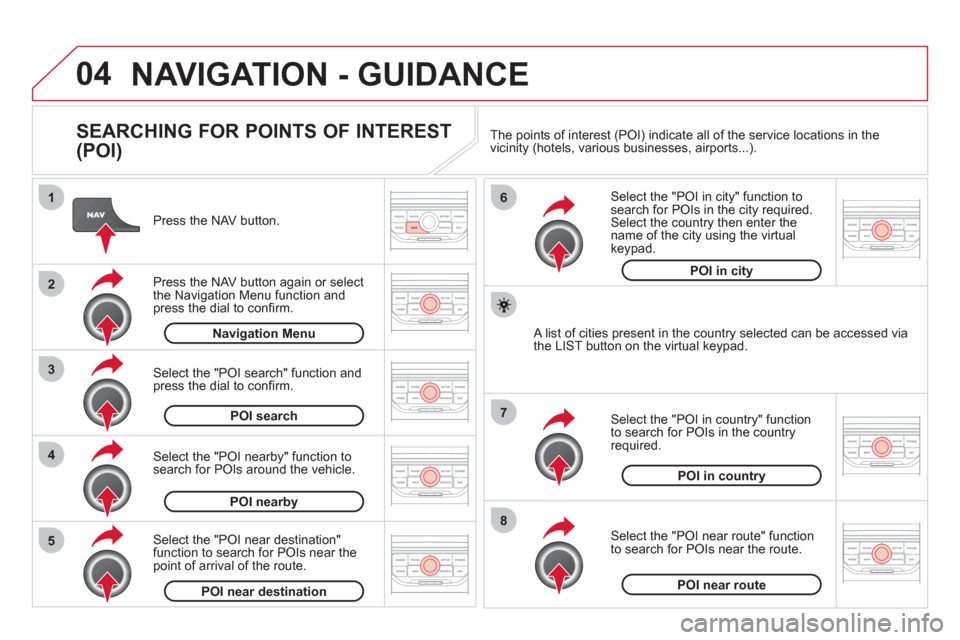
Press the NAV button.
Press the NAV button again or select
the Navigation Menu function and
press the dial to confi rm.
Select the "POI nearby" function to
search for POIs around the vehicle.
Select the "POI search" function and
press the dial to confi rm.
Navigation Menu
POI search
POI nearby
Select the "POI in city" function to
search for POIs in the city required.
Select the country then enter the
name of the city using the virtual
keypad.
Select the "POI near route" function
to search for POIs near the route.
Select the "POI in country" function
to search for POIs in the country
required.
Select the "POI near destination"
function to search for POIs near the
point of arrival of the route.
POI near destination
POI near route
POI in country
POI in city
A list of cities present in the country selected can be accessed via
the LIST button on the virtual keypad. The points of interest (POI) indicate all of the service locations in the
vicinity (hotels, various businesses, airports...).
Page 261 of 324
04
259
LIST OF PRINCIPAL POINTS OF INTEREST (POI)
NAVIGATION - GUIDANCE
*
According to availability in the country. This icon appears when several POIs are grouped
together in the same area. Zooming in on this icon
shows details of the POIs.
Service station
LPG station
Garage
CITROËN
Motor racing circuit
Covered car park
Car park
Rest area
Hotel
Restaurant
Refreshment area
Picnic area
Cafeteria Railway station
Bus station
Port
Industrial estate
Supermarket
Bank
Vending machine
Tennis court
Swimming pool
Golf course
Winter sports resort
Theatre
Airport
Camp site
Theme parks
Hospital
Pharmacy
Police station
School
Post offi ce
Museum
Tourist information
Automatic speed camera *
Red light camera *
Risk area *
Cinema
Page 269 of 324
08
1
2
3
4
267
BLUETOOTH TELEPHONE
*
The services available depend on the network, the SIM card and the
compatibility of the Bluetooth telephone used. Check the telephone
manual and with your network provider for details of the services
available to you.
PAIRING A TELEPHONE
FIRST CONNECTION
For reasons of safety and because they require prolonged attention
on the part of the driver, the operations for pairing the Bluetooth
mobile telephone to the hands-free system of the MyWay must be
carried out with the vehicle stationary. The ignition must be on.
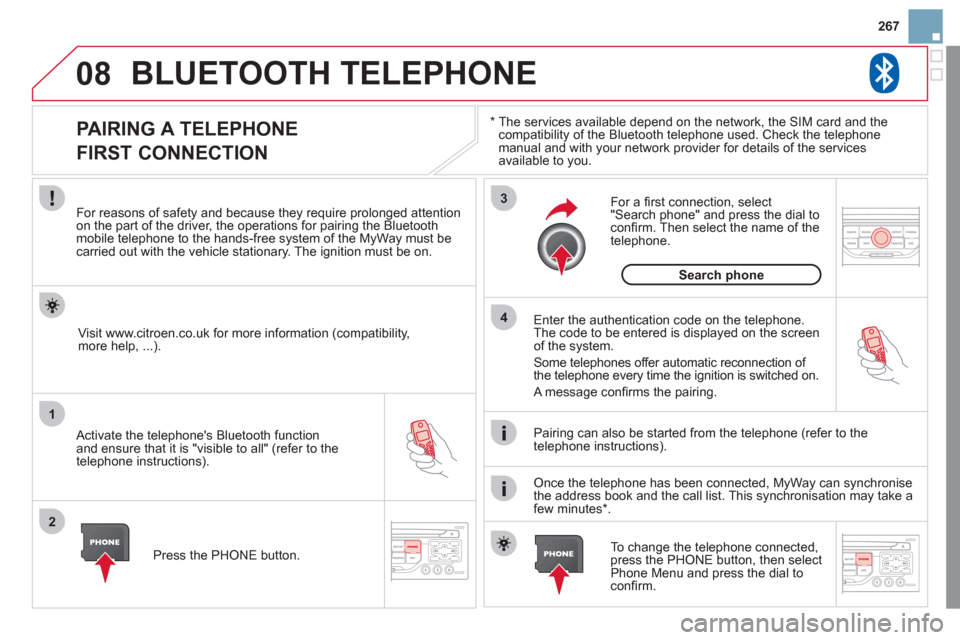
Activate the telephone's Bluetooth function
and ensure that it is "visible to all" (refer to the
telephone instructions).
Enter the authentication code on the telephone.
The code to be entered is displayed on the screen
of the system.
Some telephones offer automatic reconnection of
the telephone every time the ignition is switched on.
A message confi rms the pairing.
To change the telephone connected,
press the PHONE button, then select
Phone Menu and press the dial to
confi rm.
Once the telephone has been connected, MyWay can synchronise
the address book and the call list. This synchronisation may take a
few minutes * .
Pairing can also be started from the telephone (refer to the
telephone instructions).
Visit www.citroen.co.uk for more information (compatibility,
more help, ...).
Press the PHONE button.
For a fi rst connection, select
"Search phone" and press the dial to
confi rm. Then select the name of the
telephone.
Search phone
Page 270 of 324
08
1
2
2
1
*
The services available depend on the network, the SIM card and the
compatibility of the Bluetooth telephone used. Check the telephone
manual and with your network provider for details of the services
available to you.
BLUETOOTH TELEPHONE
CONNECTING A TELEPHONE
For reasons of safety and because they require prolonged attention
on the part of the driver, the operations for pairing the Bluetooth
mobile telephone to the hands-free system of the MyWay must be
carried out with the vehicle stationary. The ignition must be on.
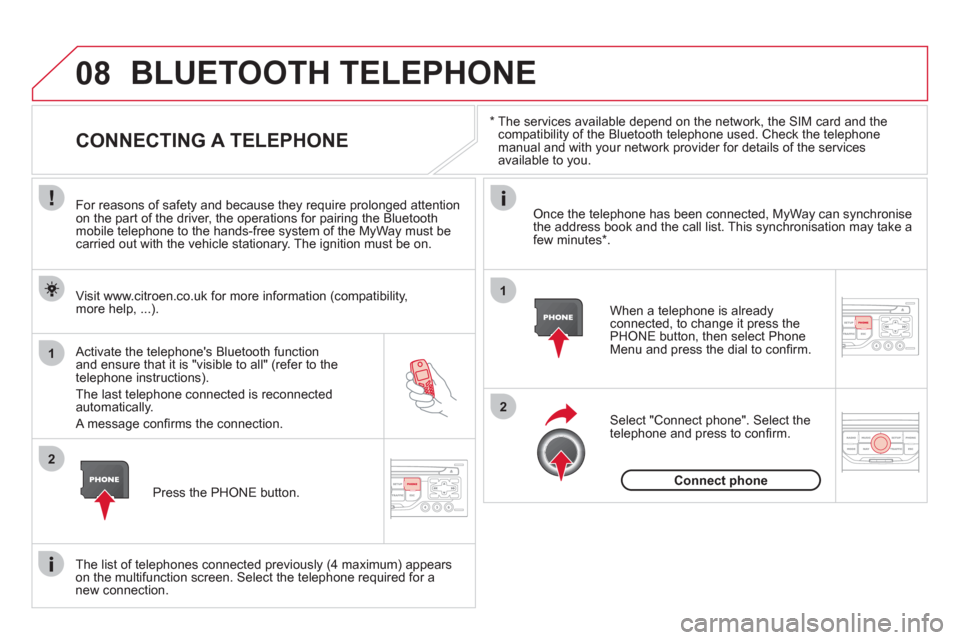
Activate the telephone's Bluetooth function
and ensure that it is "visible to all" (refer to the
telephone instructions).
The last telephone connected is reconnected
automatically.
A message confi rms the connection.
When a telephone is already
connected, to change it press the
PHONE button, then select Phone
Menu and press the dial to confi rm.
Once the telephone has been connected, MyWay can synchronise
the address book and the call list. This synchronisation may take a
few minutes * .
The list of telephones connected previously (4 maximum) appears
on the multifunction screen. Select the telephone required for a
new connection.
Visit www.citroen.co.uk for more information (compatibility,
more help, ...).
Press the PHONE button.
Select "Connect phone". Select the
telephone and press to confi rm.
Connect phone
Page 293 of 324
06
1
2
3
4
5
6
7
8
9
10
291
BLUETOOTH FUNCTIONS
For safety reasons and because they require prolonged attention
on the part of the driver, the operations for pairing of the Bluetooth
mobile telephone with the Bluetooth hands-free system of your
audio equipment must be carried out with the vehicle stationary
and the ignition on.
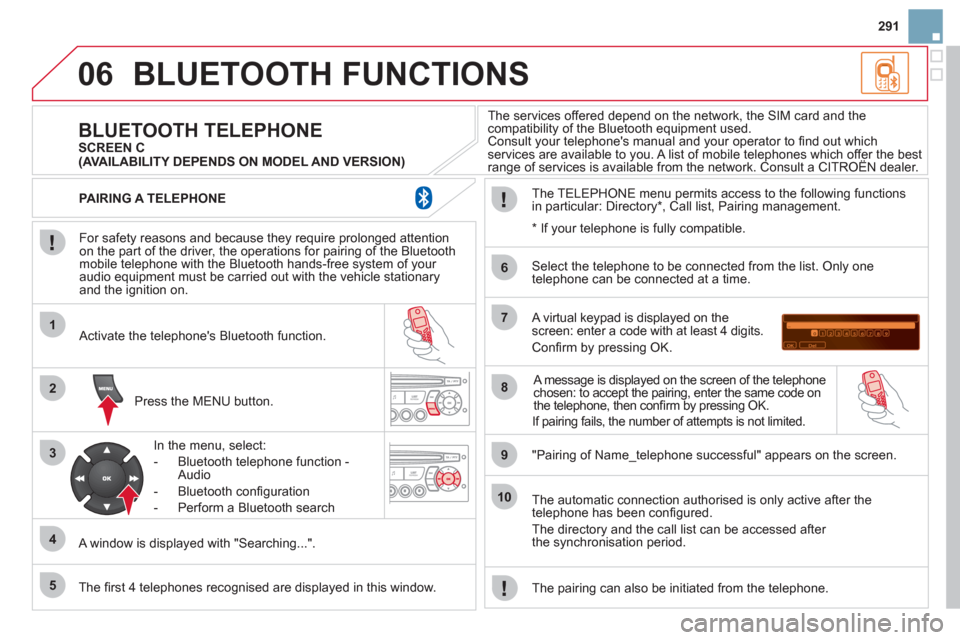
Press the MENU button.
A window is displayed with "Searching...".
Activate the telephone's Bluetooth function.
In the menu, select:
- Bluetooth telephone function -
Audio
- Bluetooth confi guration
- Perform a Bluetooth search
The services offered depend on the network, the SIM card and the
compatibility of the Bluetooth equipment used.
Consult your telephone's manual and your operator to fi nd out which
services are available to you. A list of mobile telephones which offer the best
range of services is available from the network. Consult a CITROËN dealer.
BLUETOOTH TELEPHONE
SCREEN C
The TELEPHONE menu permits access to the following functions
in particular: Directory * , Call list, Pairing management.
The fi rst 4 telephones recognised are displayed in this window.
A virtual keypad is displayed on the
screen: enter a code with at least 4 digits.
Confi rm by pressing OK.
"Pairing of Name_telephone successful" appears on the screen.
Select the telephone to be connected from the list. Only one
telephone can be connected at a time.
A message is displayed on the screen of the telephone
chosen: to accept the pairing, enter the same code on
the telephone, then confi rm by pressing OK.
The automatic connection authorised is only active after the
telephone has been confi gured.
The directory and the call list can be accessed after
the synchronisation period.
PAIRING A TELEPHONE
The pairing can also be initiated from the telephone.
(AVAILABILITY DEPENDS ON MODEL AND VERSION)
* If your telephone is fully compatible.
If pairing fails, the number of attempts is not limited.
