Page 252 of 324
03 GENERAL OPERATION
For a detailed global view of the menus available, refer to the
"Screen menu map" section.
Press the MODE button several times in succession for access to the following menus:
For cleaning the screen, the use of a soft, non-abrasive cloth
(spectacles cloth) is recommended, with no additional product.
RADIO
/ MUSIC
MEDIA PLAYERS
TELEPHONE
(If a conversation is in progress)
FULL SCREEN MAP
NAVIGATION
(If guidance is in progress)
SETUP:
system language * , date and time * , display,
vehicle settings * , unit and system settings, "Demo
mode".
TRAFFIC:
TMC information and messages.
*
Available according to model.
TRIP COMPUTER
Page 253 of 324
03
251
GENERAL OPERATION
A press on the OK dial gives access to
short-cut menus according to the display
on the screen.
DISPLAY ACCORDING TO THE CONTEXT
NAVIGATION (IF GUIDANCE IS IN PROGRESS):
TRIP COMPUTER:
Abort guidance
Repeat advice
Block road
Route info
Show destination
Trip info
Route type
Avoid
Satellites Zoom/Scroll
Voice advice
Route options
Alert log
Status of functions
1
2
3
3
2
1
1
1
3
1
1
1
1
2
TELEPHONE:
End call
Hold call
Dial
DTMF-Tones
Private mode
Micro off
1
1
1
1
1
1
Page 269 of 324
08
1
2
3
4
267
BLUETOOTH TELEPHONE
*
The services available depend on the network, the SIM card and the
compatibility of the Bluetooth telephone used. Check the telephone
manual and with your network provider for details of the services
available to you.
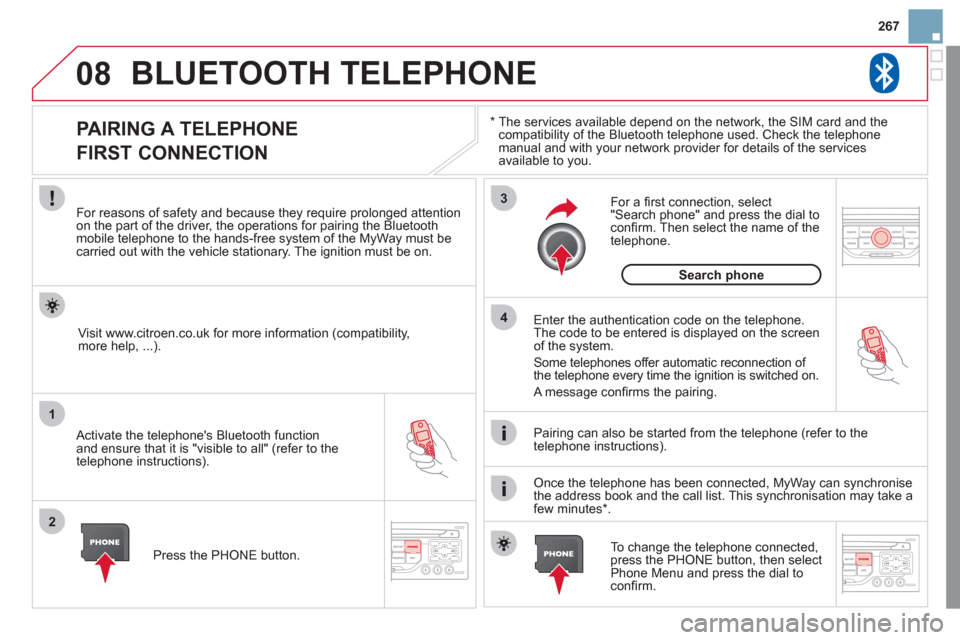
PAIRING A TELEPHONE
FIRST CONNECTION
For reasons of safety and because they require prolonged attention
on the part of the driver, the operations for pairing the Bluetooth
mobile telephone to the hands-free system of the MyWay must be
carried out with the vehicle stationary. The ignition must be on.
Activate the telephone's Bluetooth function
and ensure that it is "visible to all" (refer to the
telephone instructions).
Enter the authentication code on the telephone.
The code to be entered is displayed on the screen
of the system.
Some telephones offer automatic reconnection of
the telephone every time the ignition is switched on.
A message confi rms the pairing.
To change the telephone connected,
press the PHONE button, then select
Phone Menu and press the dial to
confi rm.
Once the telephone has been connected, MyWay can synchronise
the address book and the call list. This synchronisation may take a
few minutes * .
Pairing can also be started from the telephone (refer to the
telephone instructions).
Visit www.citroen.co.uk for more information (compatibility,
more help, ...).
Press the PHONE button.
For a fi rst connection, select
"Search phone" and press the dial to
confi rm. Then select the name of the
telephone.
Search phone
Page 270 of 324
08
1
2
2
1
*
The services available depend on the network, the SIM card and the
compatibility of the Bluetooth telephone used. Check the telephone
manual and with your network provider for details of the services
available to you.
BLUETOOTH TELEPHONE
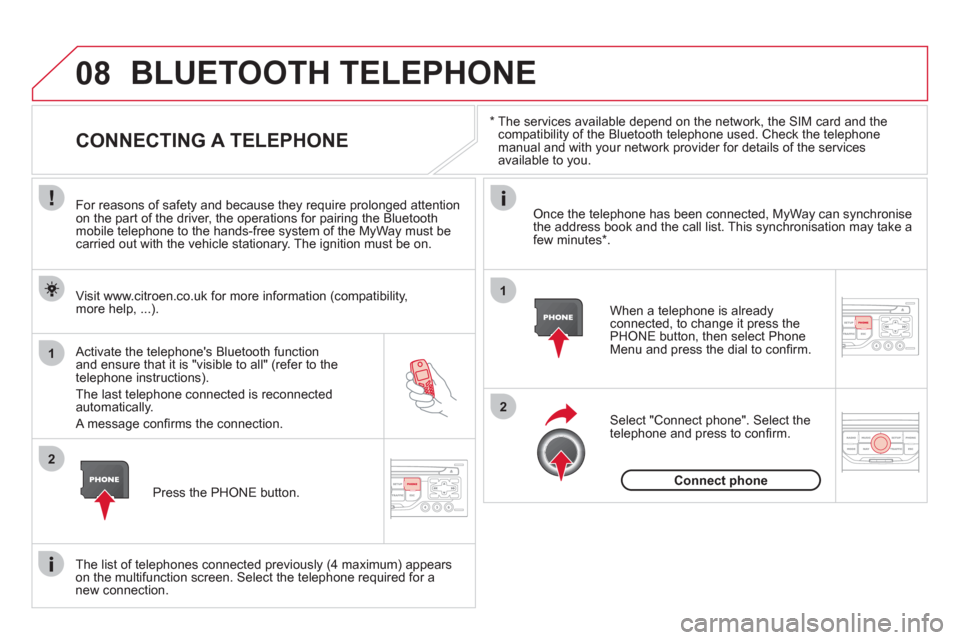
CONNECTING A TELEPHONE
For reasons of safety and because they require prolonged attention
on the part of the driver, the operations for pairing the Bluetooth
mobile telephone to the hands-free system of the MyWay must be
carried out with the vehicle stationary. The ignition must be on.
Activate the telephone's Bluetooth function
and ensure that it is "visible to all" (refer to the
telephone instructions).
The last telephone connected is reconnected
automatically.
A message confi rms the connection.
When a telephone is already
connected, to change it press the
PHONE button, then select Phone
Menu and press the dial to confi rm.
Once the telephone has been connected, MyWay can synchronise
the address book and the call list. This synchronisation may take a
few minutes * .
The list of telephones connected previously (4 maximum) appears
on the multifunction screen. Select the telephone required for a
new connection.
Visit www.citroen.co.uk for more information (compatibility,
more help, ...).
Press the PHONE button.
Select "Connect phone". Select the
telephone and press to confi rm.
Connect phone
Page 271 of 324

08
1
3 2
2 1
269
Select the "Yes" tab to accept or "No"
to refuse and confi rm by pressing
the dial.
RECEIVING A CALL
MAKING A CALL
An incoming call is announced by a ring and a superimposed
display on the multifunction screen.
Ye s
To hang up, press the PHONE button
or press the dial and select "End call"
then confi rm by pressing the dial.
End call
Press the PHONE button.
Select "Dial number", then dial the
telephone number using the virtual
keypad.
No
Select the Phone Menu function and
press the dial to confi rm.
The list of the last 20 calls made and received in the vehicle
appears under Phone Menu. You can select a number and press
the dial to make the call.
It is also possible to select a number from the address book. You
can select "Dial from address book". The MyWay can record up to
1 000 entries (telephone numbers).
Press the end of the steering mounted control for more than
two seconds to gain access to the address book.
Phone Menu
Dial number
It is possible to make a call directly from the telephone; park the
vehicle as a safety measure.
BLUETOOTH TELEPHONE
Press the end of the steering mounted control to
accept the call or end the call in progress.
To delete a number, press the PHONE button then press and hold
on a call number to display a list of actions including:
Delete entry
Delete list
Page 276 of 324
Avoid ferries
Recalculate
Settings
Navi volume
POI categories on Map
Set parameters for risk areas
Display on map
Visual alert
Sound alert
3
2
4
3
3
3
4
4
4
Dial number
Dial from address book
"Phone" Menu
Search phone
Call lists
Connect phone
Select ring tone
Phone/Ring tone volume
Phones connected
Enter mailbox number
Settings Disconnect phone
Rename phone
Delete pairing
Delete all pairings
Show details
"SETUP" menu
System language *
English
Español
Deutsch
Italiano
Français
Nederlands
Polski
Portuguese
Date & Time *
Set date & time
Date format
Time format
1
2
2
2
2
3
3
4
4
4
4
4
2
3
3
3
1
2
3
3
3
3
3
3
3
3
3
3
3
2
Avoid motorways
Route dynamics
Traffi c independent
Semi-dynamic
Avoidance criteria
Avoid toll roads Optimized route
3
3
4
4
4
4
4
*
Available according to model.
Page 281 of 324
279
QUESTION
ANSWER
SOLUTION
There is a long waiting
time after inserting a CD. When a new medium is inserted, the system reads a certain amount of
data (directory, title, artist, etc.). This may take a few seconds. This phenomenon is normal.
I cannot connect my
Bluetooth telephone. The telephone's Bluetooth function may be deactivated or the equipment
may not be visible.
- Check that your telephone's Bluetooth
function is activated.
- Check that your telephone is visible.
A telephone connected
by Bluetooth is inaudible. The volume level depends on both the system and the telephone. Increase the MyWay volume setting, possibly to
maximum, and increase the telephone volume
level if necessary.
Page 284 of 324

01
1 2
1011
13 14 153456 789
12
FIRST STEPS
1. On/Off and volume adjustment.
2. CD eject.
3. Selection of the display on the screen from
the following modes:
Audio (AUDIO), Trip Computer (TRIP) and
Telephone (TEL) functions.
4. Selection of source:
radio, audio CD/MP3 CD, USB, Jack
connection, Streaming.
5. Selection of FM1, FM2, FMast and AM
wavebands.
6. Setting audio options: front/rear fader, left/
right balance, loudness, sound ambience.
7. Display the list of local stations, of the
tracks on the CD or of the MP3 folders.
8. Abandon current operation.
9. TA (Traffi c Announcement) function on/off.
Long press: access to the PTY (Types of
radio programme) mode.
10. Confi rmation.
11. Automatic search for a lower/higher
frequency.
Selection of previous/next CD, MP3 or
USB track.
12. Selection of a lower/higher radio frequency.
Selection of the previous/next MP3 folder.
Selection of the previous/next USB device
folder/genre/artist/playlist.
13. Display the main menu.
14. Buttons 1 to 6:
Selection of a stored radio station.
Long press: store a station.
15. The DARK button changes the display
on the screen to improve driving comfort
at night.
1st press: lighting the upper band only.
2nd press: display of a black screen.
3rd press: return to the standard display.


