2011 CHEVROLET SUBURBAN Tire
[x] Cancel search: TirePage 178 of 542
Black plate (30,1)Chevrolet Tahoe/Suburban Owner Manual - 2011
5-30 Instruments and Controls
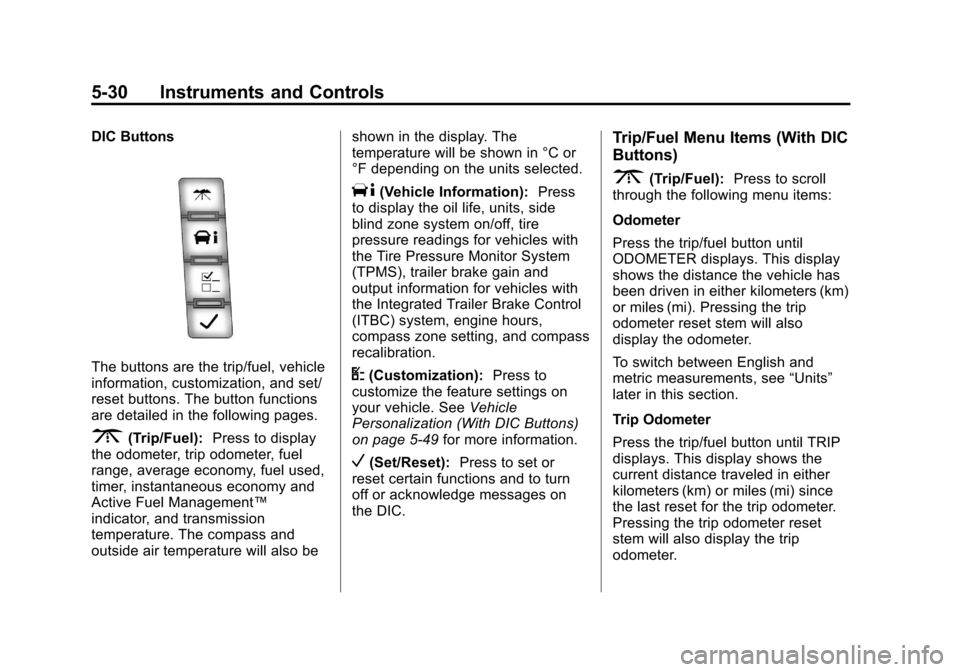
DIC Buttons
The buttons are the trip/fuel, vehicle
information, customization, and set/
reset buttons. The button functions
are detailed in the following pages.
3(Trip/Fuel):Press to display
the odometer, trip odometer, fuel
range, average economy, fuel used,
timer, instantaneous economy and
Active Fuel Management™
indicator, and transmission
temperature. The compass and
outside air temperature will also be shown in the display. The
temperature will be shown in °C or
°F depending on the units selected.
T(Vehicle Information):
Press
to display the oil life, units, side
blind zone system on/off, tire
pressure readings for vehicles with
the Tire Pressure Monitor System
(TPMS), trailer brake gain and
output information for vehicles with
the Integrated Trailer Brake Control
(ITBC) system, engine hours,
compass zone setting, and compass
recalibration.
U(Customization): Press to
customize the feature settings on
your vehicle. See Vehicle
Personalization (With DIC Buttons)
on page 5‑49 for more information.
V(Set/Reset):Press to set or
reset certain functions and to turn
off or acknowledge messages on
the DIC.
Trip/Fuel Menu Items (With DIC
Buttons)
3(Trip/Fuel): Press to scroll
through the following menu items:
Odometer
Press the trip/fuel button until
ODOMETER displays. This display
shows the distance the vehicle has
been driven in either kilometers (km)
or miles (mi). Pressing the trip
odometer reset stem will also
display the odometer.
To switch between English and
metric measurements, see “Units”
later in this section.
Trip Odometer
Press the trip/fuel button until TRIP
displays. This display shows the
current distance traveled in either
kilometers (km) or miles (mi) since
the last reset for the trip odometer.
Pressing the trip odometer reset
stem will also display the trip
odometer.
Page 181 of 542
Black plate (33,1)Chevrolet Tahoe/Suburban Owner Manual - 2011
Instruments and Controls 5-33
Vehicle Information Menu
Items (With DIC Buttons)
T(Vehicle Information):Press
to scroll through the following menu
items:
Oil Life
Press the vehicle information button
until OIL LIFE REMAINING
displays. This display shows an
estimate of the oil's remaining useful
life. If you see 99% OIL LIFE
REMAINING on the display, that
means 99% of the current oil life
remains. The engine oil life system
will alert you to change the oil on a
schedule consistent with your
driving conditions.
When the remaining oil life is low,
the CHANGE ENGINE OIL SOON
message will appear on the display.
See “CHANGE ENGINE OIL SOON”
under Engine Oil Messages on
page 5‑41. You should change the
oil as soon as you can. See Engine
Oil on page 10‑7. In addition to the
engine oil life system monitoring the
oil life, additional maintenance is recommended in the Maintenance
Schedule in this manual. See
Scheduled Maintenance on
page 11‑3
for more information.
Remember, you must reset the OIL
LIFE display yourself after each oil
change. It will not reset itself. Also,
be careful not to reset the OIL LIFE
display accidentally at any time
other than when the oil has just
been changed. It cannot be reset
accurately until the next oil change.
To reset the engine oil life system,
see Engine Oil Life System on
page 10‑11.
Side Blind Zone Alert
If your vehicle has the Side Blind
Zone Alert (SBZA) system, this
display allows the system to be
turned on or off. Once in this
display, press the set/reset button to
select between ON or OFF. If you
choose ON, the system will be
turned on. If you choose OFF, the
system will be turned off. When the
SBZA system is turned off, the DIC
will display the SIDE BLIND ZONE ALERT SYSTEM OFF message as
a reminder that the system has
been turned off. See
Object
Detection System Messages on
page 5‑43 andSide Blind Zone Alert
(SBZA) on page 9‑63 for more
information.
Units
Press the vehicle information button
until UNITS displays. This display
allows you to select between metric
or English units of measurement.
Once in this display, press the set/
reset button to select between
METRIC or units ENGLISH. All of
the vehicle information will then be
displayed in the unit of
measurement selected.
Tire Pressure
On vehicles with the Tire Pressure
Monitor System (TPMS), the
pressure for each tire can be viewed
in the DIC. The tire pressure will be
shown in either kilopascals (kPa) or
pounds per square inch (psi). Press
the vehicle information button until
the DIC displays FRONT
Page 182 of 542
Black plate (34,1)Chevrolet Tahoe/Suburban Owner Manual - 2011
5-34 Instruments and Controls
TIRES kPa (PSI) LEFT ##
RIGHT ##. Press the vehicle
information button again until the
DIC displays REAR TIRES kPa
(PSI) LEFT ## RIGHT ##.
If a low tire pressure condition is
detected by the system while
driving, a message advising you to
add pressure in a specific tire will
appear in the display. SeeTire
Pressure on page 10‑57 andTire
Messages on page 5‑46 for more
information.
If the tire pressure display shows
dashes instead of a value, there
may be a problem with your vehicle.
If this consistently occurs, see your
dealer for service.
Trailer Gain and Output
On vehicles with the Integrated
Trailer Brake Control (ITBC) system,
the trailer brake display appears in
the DIC. Press the vehicle
information button until TRAILER
GAIN and OUTPUT display. TRAILER GAIN shows the trailer
gain setting. This setting can be
adjusted from 0.0 to 10.0 with either
a trailer connected or disconnected.
To adjust this setting, see
“Integrated Trailer Brake Control
System”
underTowing Equipment
on page 9‑87 for more information.
OUTPUT shows the power output to
the trailer anytime a trailer with
electric brakes is connected. Output
is displayed in 0 to 10 bars. Dashes
may appear in the OUTPUT display.
See “Integrated Trailer Brake
Control System” underTowing
Equipment on page 9‑87 for more
information.
Engine Hours
Press the vehicle information button
until ENGINE HOURS displays. This
display shows the total number of
hours the engine has run.
Compass Zone Setting
This display allows for setting the
compass zone. See Compass on
page 5‑7 Compass Recalibration
This display allows for calibrating
the compass. See
Compass on
page 5‑7
Blank Display
This display shows no information.
Trip Odometer Reset Stem
Menu Items (With DIC Buttons)
Use the trip odometer reset stem to
view the odometer and trip
odometer. The Language selection
and Engine Hours display can also
be accessed with the trip odometer
reset stem.
Odometer
Press the trip odometer reset stem
until ODOMETER displays. This
display shows the distance the
vehicle has been driven in either
kilometers (km) or miles (mi).
Page 186 of 542

Black plate (38,1)Chevrolet Tahoe/Suburban Owner Manual - 2011
5-38 Instruments and Controls
Relearn Tire Positions
Your vehicle may have this display.
To access this display, the vehicle
must be in P (Park). If your vehicle
has the Tire Pressure Monitor
System (TPMS), after rotating the
tires or after replacing a tire or
sensor, the system must re-learn the
tire positions. To re-learn the tire
positions, seeTire Pressure Monitor
System on page 10‑58. See Tire
Inspection on page 10‑63, Tire
Rotation on page 10‑63 andTire
Messages on page 5‑46 for more
information.Vehicle Messages
Messages displayed on the DIC
indicate the status of the vehicle or
some action may be needed to
correct a condition. Multiple
messages may appear one after
another.
The messages that do not require
immediate action can be
acknowledged and cleared by
pressing
V(Set/Reset) or the trip
odometer reset stem.
The messages that require
immediate action cannot be cleared
until that action is performed.
All messages should be taken
seriously and clearing the message
does not correct the problem.
The following are the possible
messages and some information
about them.
Battery Voltage and
Charging Messages
BATTERY LOW START
VEHICLE
When the vehicle’ s battery is
severely discharged, this message
will display and four chimes will
sound. Start the vehicle
immediately. If the vehicle is not
started and the battery continues to
discharge, the climate controls,
heated seats, and audio systems
will shut off and the vehicle may
require a jump start. These systems
will function again after the vehicle
is started.
Page 194 of 542
Black plate (46,1)Chevrolet Tahoe/Suburban Owner Manual - 2011
5-46 Instruments and Controls
Anti-Theft Alarm System
Messages
SERVICE THEFT DETERRENT
SYSTEM
This message displays when there
is a problem with the theft-deterrent
system. The vehicle may or may not
restart so you may want to take the
vehicle to your dealer before turning
off the engine. SeeImmobilizer
Operation on page 2‑16 for more
information.
Tire Messages
SERVICE TIRE MONITOR
SYSTEM
On vehicles with the Tire Pressure
Monitor System (TPMS), this
message displays if a part on the
TPMS is not working properly. The
tire pressure light also flashes and
then remains on during the same
ignition cycle. See Tire Pressure
Light on page 5‑26. Several
conditions may cause this message to appear. See
Tire Pressure
Monitor Operation on page 10‑60 for
more information. If the warning
comes on and stays on, there may
be a problem with the TPMS. See
your dealer.
TIRE LEARNING ACTIVE
On vehicles with the Tire Pressure
Monitor System (TPMS), this
message displays when the TPMS
is re-learning the tire positions on
your vehicle. The tire positions must
be re-learned after rotating the tires
or after replacing a tire or sensor.
See Tire Inspection on page 10‑63,
Tire Rotation on page 10‑63, Tire
Pressure Monitor System on
page 10‑58, and Tire Pressure on
page 10‑57 for more information.
TIRE LOW ADD AIR TO TIRE
On vehicles with the Tire Pressure
Monitor System (TPMS), this
message displays when the
pressure in one or more of the
vehicle's tires needs to be checked.
This message also displays LEFT FRT (left front), RIGHT FRT (right
front), LEFT RR (left rear),
or RIGHT RR (right rear) to indicate
the location of the low tire. The low
tire pressure warning light will also
come on. See
Tire Pressure Light
on page 5‑26. You can receive more
than one tire pressure message at a
time. To read the other messages
that may have been sent at the
same time, press the set/reset
button or the trip odometer reset
stem. If a tire pressure message
appears on the DIC, stop as soon
as you can. Have the tire pressures
checked and set to those shown on
the Tire Loading Information label.
See Tires on page 10‑49, Vehicle
Load Limits on page 9‑23, and Tire
Pressure on page 10‑57. The DIC
also shows the tire pressure values.
See “DIC Operation and Displays
(With DIC Buttons)” earlier in this
section.
Page 206 of 542
Black plate (58,1)Chevrolet Tahoe/Suburban Owner Manual - 2011
5-58 Instruments and Controls
Park the vehicle outside of the
garage when programming a garage
door. Be sure that people and
objects are clear of the garage door
or gate that is being programmed.
Programming Universal Home
Remote—Rolling Code
For questions or help programming
the Universal Home Remote
System, call 1-866-572-2728 or go
to www.learcar2u.com.
Most garage door openers sold
after 1996 are Rolling Code units.
Programming a garage door opener
involves time-sensitive actions, so
read the entire procedure before
starting. Otherwise, the device will
time out and the procedure will have
to be repeated.
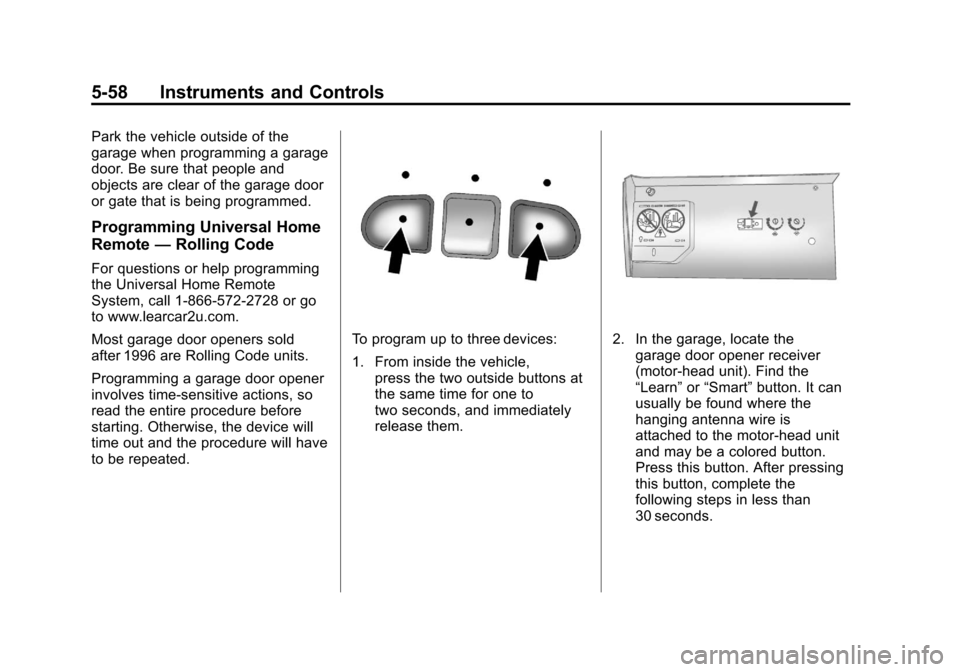
To program up to three devices:
1. From inside the vehicle,
press the two outside buttons at
the same time for one to
two seconds, and immediately
release them.2. In the garage, locate the
garage door opener receiver
(motor-head unit). Find the
“Learn” or“Smart” button. It can
usually be found where the
hanging antenna wire is
attached to the motor-head unit
and may be a colored button.
Press this button. After pressing
this button, complete the
following steps in less than
30 seconds.
Page 207 of 542
Black plate (59,1)Chevrolet Tahoe/Suburban Owner Manual - 2011
Instruments and Controls 5-59
3. Immediately return to thevehicle. Press and hold the
Universal Home Remote button
that will be used to control the
garage door until the garage
door moves. The indicator light,
above the selected button,
should slowly blink. This button
may need to be held for up to
20 seconds.
4. Immediately, within one second, release the button when the
garage door moves. The
indicator light will blink rapidly
until programming is complete.
5. Press and release the same button again. The garage door
should move, confirming that
programming is successful and
complete.
To program another Rolling Code
device such as an additional garage
door opener, a security device,
or home automation device, repeat
Steps 1 through 5, choosing a different function button in Step 3
than what was used for the garage
door opener.
If these instructions do not work, the
garage door opener is probably a
Fixed Code unit. Follow the
programming instructions that follow
for a Fixed Code garage door
opener.
Programming Universal Home
Remote
—Fixed Code
For questions or help programming
the Universal Home Remote
System, call 1-866-572-2728 or go
to www.learcar2u.com.
Most garage door openers sold
before 1996 are Fixed Code units.
Programming a garage door opener
involves time-sensitive actions, so
read the entire procedure before
starting. Otherwise, the device will
time out and the procedure will have
to be repeated.To program up to three devices:
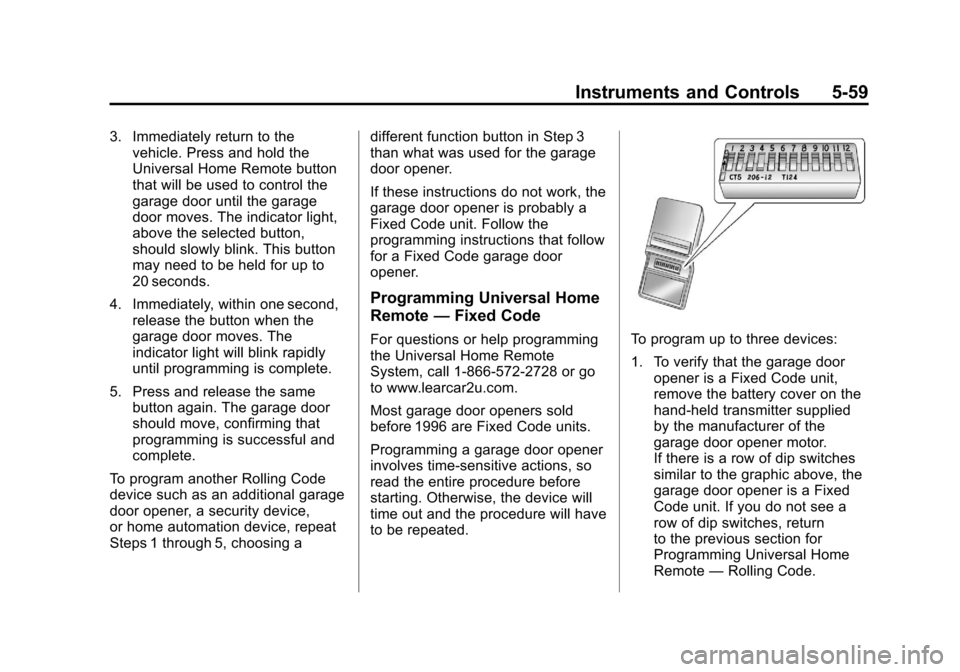
1. To verify that the garage door
opener is a Fixed Code unit,
remove the battery cover on the
hand-held transmitter supplied
by the manufacturer of the
garage door opener motor.
If there is a row of dip switches
similar to the graphic above, the
garage door opener is a Fixed
Code unit. If you do not see a
row of dip switches, return
to the previous section for
Programming Universal Home
Remote —Rolling Code.
Page 247 of 542
Black plate (27,1)Chevrolet Tahoe/Suburban Owner Manual - 2011
Infotainment System 7-27
Inserting a Disc
Insert a disc partway into the top
slot, label side up. The player pulls
it in and the disc should begin
playing.“Loading Disc” shows on
the radio display. At the same time,
the radio displays a softkey menu of
option(s). Some discs automatically
play the movie while others default
to the softkey menu display,
which requires the Play, Enter,
or Navigation softkeys to be
pressed, either by softkey or by the
rear seat passenger using the
remote control.
Loading a disc into the system,
depending on media type and
format, ranges from 5 to 20 seconds
for a CD, and up to 30 seconds for
a DVD.
Ejecting a Disc
ZDVD (Eject): Press and
release to eject the disc currently
playing in the top slot. A beep
sounds and Ejecting Disc displays. If loading and reading of a disc
cannot be completed, due to
unknown format, etc., and the disc
fails to eject, press and hold for
more than five seconds to force the
disc to eject.
Playing a DVD
DVD/CD AUX (Auxiliary):
Press to
cycle through DVD, CD, or Auxiliary
when listening to the radio. The
DVD/CD text tab and a message
showing the track or chapter
number will display when a disc is in
either slot. Press the DVD/CD AUX
button again and the system
automatically searches for an
auxiliary input device; see Auxiliary
Devices on page 7‑31 for more
information. If a portable audio
player is not connected, “No Aux
Input Device” displays. If a disc is in
both the DVD slot and the CD slot,
the DVD/CD AUX button cycles
between the two sources and does
not indicate “No Aux Input Device.”
If a front auxiliary device is
connected, the DVD/CD AUX button cycles through all available options,
such as: DVD slot, CD slot, front
auxiliary, and rear auxiliary (if
available). See
“Using the Auxiliary
Input Jack” inAuxiliary Devices on
page 7‑31 or“Audio/Video (A/V)
Jacks” underRear Seat
Entertainment (RSE) System on
page 7‑36 for more information.
If a disc is inserted into the top DVD
slot, the rear seat operator can turn
on the video screen and use the
remote control to navigate the CD
(tracks only) through the remote
control.
O(Power): Press to turn the radio
on or off. Turn clockwise or
counterclockwise to increase or
decrease the volume. Press and
hold for more than two seconds to
turn off the entire radio and Rear
Seat Entertainment (RSE) system
and to start the Parental Control
feature. Parental Control prevents
the rear seat occupant from
operating the Rear Seat Audio
(RSA) system or remote control.