2011 CHEVROLET SUBURBAN start stop button
[x] Cancel search: start stop buttonPage 256 of 542

Black plate (36,1)Chevrolet Tahoe/Suburban Owner Manual - 2011
7-36 Infotainment System
Rear Seat
Infotainment
Rear Seat Entertainment
(RSE) System
The vehicle may have an
Overhead DVD Rear Seat
Entertainment (RSE) system. The
RSE system works with the
vehicle's audio system. The DVD
player is part of the front radio. The
RSE system includes a radio with a
DVD player, a video display screen,
and if the vehicle has a third row
seat, it could have a second video
display screen, audio/video jacks,
two wireless headphones, and a
remote control. SeeCD/DVD Player
on page 7‑20 for more information
on the vehicle's DVD system.
Before Driving
The RSE is designed for rear seat
passengers only. The driver cannot
safely view the video screen while
driving and should not try to do so.
In severe or extreme weather
conditions, the RSE system might
not work until the temperature is
within the operating range. The
operating range for the RSE system
is above −20°C (−4°F) or below
60°C (140°F). If the temperature of
the vehicle is outside this range,
heat or cool the vehicle until the
temperature is within the operating
range of the RSE system.
Parental Control
The RSE system may have a
Parental Control feature, depending
on which radio the vehicle has. To
start Parental Control, press and
hold the radio power button for more
than two seconds to stop all system
features such as: radio, video
screen, Rear Seat Audio (RSA), DVD, and/or CD. While Parental
Control is on, a padlock icon
displays.
The radio can be turned back on
with a single press of the power
button, but the RSE system will
remain under Parental Control.
To turn Parental Control off, press
and hold the radio power button for
more than two seconds. The RSE
returns from where it was previously
left and the padlock icon disappears
from the radio display.
Parental Control can also be turned
off by inserting or ejecting any disc,
pressing the play icon on the radio
DVD display menu, or changing an
ignition position.
Page 261 of 542

Black plate (41,1)Chevrolet Tahoe/Suburban Owner Manual - 2011
Infotainment System 7-41
Objects blocking the line of sight
could also affect the function of the
remote control.
If a CD or DVD is in the Radio DVD
slot, the remote control
O(power)
button can be used to turn on the
video screen display and start the
disc. The radio can also turn on the
video screen display. See CD/DVD
Player on page 7‑20 for more
information.
Notice: Storing the remote
control in a hot area or in direct
sunlight can damage it, and the
repairs will not be covered by the
warranty. Storage in extreme cold
can weaken the batteries. Keep
the remote control stored in a
cool, dry place.
If the remote control becomes lost
or damaged, a new universal
remote control can be purchased.
If this happens, make sure the
universal remote control uses a
code set of Toshiba
®. Remote Control Buttons
O(Power):
Press this button to
turn the video screen on and off.
P(Illumination): Press this button
to turn the remote control backlight
on. The backlight automatically
times out after 7 to 10 seconds if no
other button is pressed while the
backlight is on.
v(Title): Press this button to
return the DVD to the main menu of
the DVD. This function could vary
for each disc.
y(Main Menu): Press this button
to access the DVD menu. The DVD
menu is different on every DVD.
Use the navigation arrows to move
the cursor around the DVD menu.
After making a selection press the
enter button. This button only
operates when using a DVD.
n,q,p,o(Menu Navigation
Arrows): Use the arrow buttons to
navigate through a menu.
r(Enter): Press this button to
select the choice that is highlighted
in any menu.
z(Display Menu): Press this
button to adjust the brightness,
screen display mode (normal, full,
or zoom), and display the
language menu.
q(Return): Press this button to
exit the current active menu and
return to the previous menu. This
button operates only when the
display menu or a DVD menu is
active.
c(Stop): Press this button to stop
playing, fast reversing, or fast
forwarding a DVD. Press this button
twice to return to the beginning of
the DVD.
Page 262 of 542

Black plate (42,1)Chevrolet Tahoe/Suburban Owner Manual - 2011
7-42 Infotainment System
s(Play/Pause):Press this
button to start playing a DVD. Press
this button while a DVD is playing to
pause it. Press it again to continue
playing the DVD.
While the DVD is playing, the DVD
can be played slowly by pressing
the play/pause button then pressing
the fast forward button. The DVD
continues playing in a slow play
mode. Also, reverse can be played
slowly by pressing the play/pause
button and then pressing the fast
reverse button. To cancel slow play
mode, press the play/pause button.
t(Previous Track/Chapter):
Press this button to return to the
start of the current track or chapter.
Press this button again to go to the
previous track or chapter. This
button might not work when the
DVD is playing the copyright
information or the previews.
u(Next Track/Chapter): Press
this button to go to the beginning of
the next chapter or track. This
button might not work while the
DVD is playing the copyright
information or the previews.
r(Fast Reverse): Press this
button to quickly reverse the DVD or
CD. To stop fast reversing a DVD
video, press the play/pause button.
To stop fast reversing a DVD audio
or CD, release the fast reverse
button. This button might not work
when the DVD is playing the
copyright information or the
previews.
[(Fast Forward): Press this
button to fast forward the DVD or
CD. To stop fast forwarding a DVD
video, press the play/pause button.
To stop fast forwarding a DVD audio
or CD, release the fast forward
button. This button might not work
while the DVD is playing the
copyright information or the
previews.
e(Audio): Press this button to
change audio tracks on DVDs that
have this feature when the DVD is
playing. The format and content of
this function vary for each disc.
{(Subtitles): Press this button to
turn on or off subtitles and to move
through subtitle options when a
DVD is playing. The format and
content of this function vary for
each disc.
AUX (Auxiliary): Press this button
to switch the system between the
DVD player and an auxiliary source.
Page 264 of 542
Black plate (44,1)Chevrolet Tahoe/Suburban Owner Manual - 2011
7-44 Infotainment System
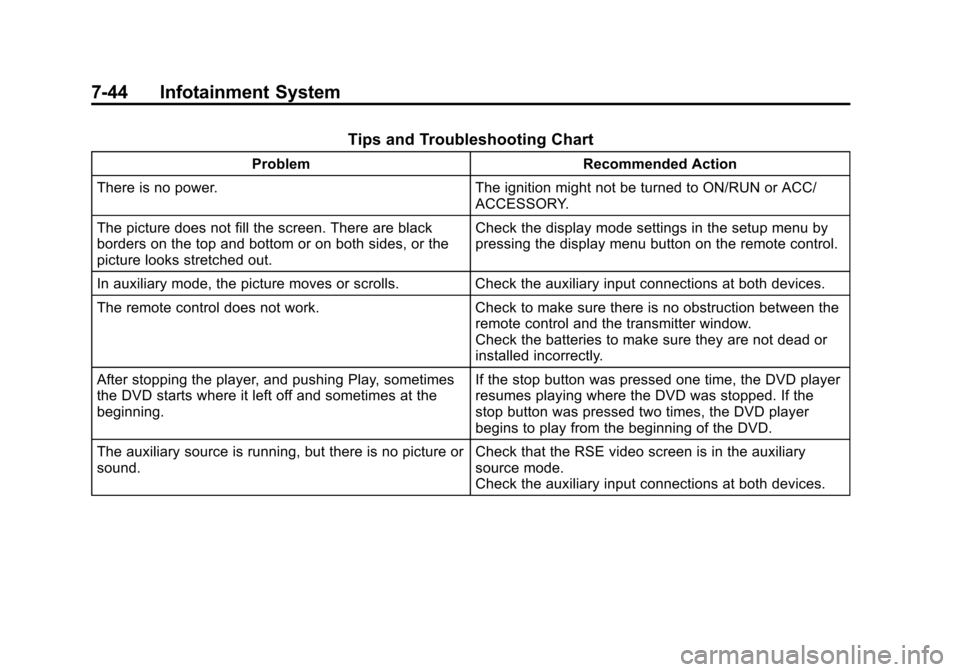
Tips and Troubleshooting Chart
ProblemRecommended Action
There is no power. The ignition might not be turned to ON/RUN or ACC/
ACCESSORY.
The picture does not fill the screen. There are black
borders on the top and bottom or on both sides, or the
picture looks stretched out. Check the display mode settings in the setup menu by
pressing the display menu button on the remote control.
In auxiliary mode, the picture moves or scrolls. Check the auxiliary input connections at both devices.
The remote control does not work. Check to make sure there is no obstruction between the
remote control and the transmitter window.
Check the batteries to make sure they are not dead or
installed incorrectly.
After stopping the player, and pushing Play, sometimes
the DVD starts where it left off and sometimes at the
beginning. If the stop button was pressed one time, the DVD player
resumes playing where the DVD was stopped. If the
stop button was pressed two times, the DVD player
begins to play from the beginning of the DVD.
The auxiliary source is running, but there is no picture or
sound. Check that the RSE video screen is in the auxiliary
source mode.
Check the auxiliary input connections at both devices.
Page 267 of 542

Black plate (47,1)Chevrolet Tahoe/Suburban Owner Manual - 2011
Infotainment System 7-47
SRCE (Source):Press this button
to switch between the radio (AM/
FM), XM™ (if equipped), CD, and if
the vehicle has these features,
DVD, front auxiliary, and rear
auxiliary.
© ¨(Seek): When listening to FM,
AM, or XM™ (if equipped), press
the left
©or right¨seek arrow to go
to the previous or to the next station
or channel and stay there. This
function is inactive, with some
radios, if the front seat passengers
are listening to the radio.
Press and hold the left
©or right¨
seek arrow until the display flashes,
to tune to an individual station. The
display stops flashing after the
buttons have not been pushed for
more than two seconds. This
function is inactive, with some
radios, if the front seat passengers
are listening to the radio. While listening to a disc, press the
left
©seek arrow to go back to the
start of the current track or chapter
(if more than ten seconds have
played). Press the right
¨seek
arrow to go to the next track or
chapter on the disc. This function is
inactive, with some radios, if the
front seat passengers are listening
to the disc.
When a DVD video menu is being
displayed, press the left
©or
right
¨seek arrow to perform a
cursor up or down on the menu.
Hold the left
©or right¨arrow to
perform a cursor left or right on
the menu.
PROG (Program): Press this
button to go to the next preset radio
station or channel set on the main
radio. This function is inactive, with
some radios, if the front seat
passengers are listening to the
radio. When a CD or DVD audio disc is
playing, press this button to go to
the beginning of the CD or DVD
audio. This function is inactive, with
some radios, if the front seat
passengers are listening to the disc.
When a disc is playing in the CD or
DVD changer, press this button to
select the next disc, if multiple discs
are loaded. This function is inactive,
with some radios, if the front seat
passengers are listening to the disc.
When a DVD video menu is being
displayed, press the PROG button
to perform the menu function, enter.