2011 CHEVROLET SUBURBAN radio
[x] Cancel search: radioPage 36 of 542

Black plate (30,1)Chevrolet Tahoe/Suburban Owner Manual - 2011
1-30 In Brief
For a full description of OnStar
services and system limitations, see
the OnStar Owner's Guide in the
glove box.
OnStar service is subject to the
OnStar terms and conditions
included in the OnStar Subscriber
Information.
OnStar service cannot work unless
the vehicle is in a place where
OnStar has an agreement with a
wireless service provider for service
in that area. OnStar service also
cannot work unless the vehicle is in
a place where the wireless service
provider OnStar has hired for that
area has coverage, network
capacity and reception when the
service is needed, and technology
that is compatible with the OnStar
service. Not all services are
available everywhere, particularly in
remote or enclosed areas, or at all
times.The OnStar system can record and
transmit vehicle information. This
information is automatically sent to
an OnStar call center when
Qis
pressed,
]is pressed, or if the
airbags or ACR system deploy. This
information usually includes the
vehicle's GPS location and, in the
event of a crash, additional
information regarding the crash that
the vehicle was involved in (e.g. the
direction from which the vehicle was
hit). When the virtual advisor feature
of OnStar hands-free calling is
used, the vehicle also sends OnStar
the vehicle's GPS location so they
can provide services where it is
located.
Location information about the
vehicle is only available if the GPS
satellite signals are unobstructed
and available. The vehicle must have a working
electrical system, including
adequate battery power, for the
OnStar equipment to operate. There
are other problems OnStar cannot
control that may prevent OnStar
from providing OnStar service at
any particular time or place. Some
examples are damage to important
parts of the vehicle in a crash, hills,
tall buildings, tunnels, weather or
wireless phone network congestion.
See
Radio Frequency Statment on
page 13‑18 for information
regarding Part 15 of the Federal
Communications Commission (FCC)
rules and Industry Canada
Standards RSS-210/220/310.
Page 37 of 542

Black plate (31,1)Chevrolet Tahoe/Suburban Owner Manual - 2011
In Brief 1-31
OnStar Steering Wheel
Controls
This vehicle may have a Talk/Mute
button that can be used to interact
with OnStar hands-free calling. See
Steering Wheel Controls on
page 5‑3for more information.
On some vehicles, the mute button
can be used to dial numbers into
voice mail systems, or to dial phone
extensions. See the OnStar Owner's
Guide for more information.
Your Responsibility
Increase the volume of the radio if
the OnStar advisor cannot be heard.
If the light next to the OnStar
buttons is red, the system may not
be functioning properly. Press
Q
and request a vehicle diagnostic.
If the light appears clear (no light
is appearing), your OnStar
subscription has expired and all
services have been deactivated.
Press
Qto confirm that the OnStar
equipment is active.
Page 40 of 542
Black plate (2,1)Chevrolet Tahoe/Suburban Owner Manual - 2011
2-2 Keys, Doors and Windows
Keys and Locks
Keys
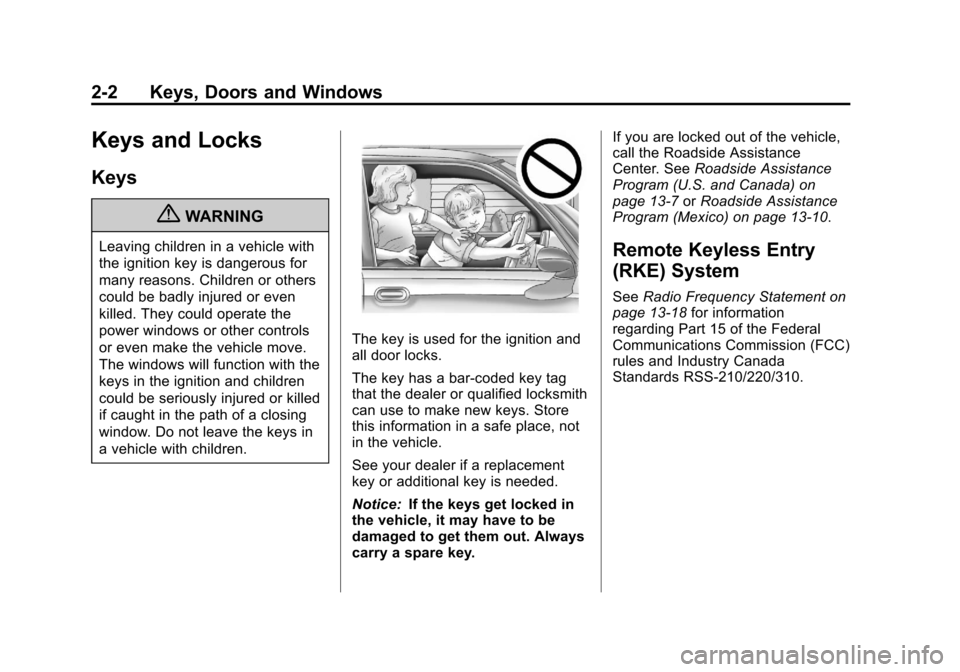
{WARNING
Leaving children in a vehicle with
the ignition key is dangerous for
many reasons. Children or others
could be badly injured or even
killed. They could operate the
power windows or other controls
or even make the vehicle move.
The windows will function with the
keys in the ignition and children
could be seriously injured or killed
if caught in the path of a closing
window. Do not leave the keys in
a vehicle with children.
The key is used for the ignition and
all door locks.
The key has a bar-coded key tag
that the dealer or qualified locksmith
can use to make new keys. Store
this information in a safe place, not
in the vehicle.
See your dealer if a replacement
key or additional key is needed.
Notice:If the keys get locked in
the vehicle, it may have to be
damaged to get them out. Always
carry a spare key. If you are locked out of the vehicle,
call the Roadside Assistance
Center. See
Roadside Assistance
Program (U.S. and Canada) on
page 13‑7 orRoadside Assistance
Program (Mexico) on page 13‑10.
Remote Keyless Entry
(RKE) System
See Radio Frequency Statement on
page 13‑18 for information
regarding Part 15 of the Federal
Communications Commission (FCC)
rules and Industry Canada
Standards RSS-210/220/310.
Page 54 of 542
Black plate (16,1)Chevrolet Tahoe/Suburban Owner Manual - 2011
2-16 Keys, Doors and Windows
Immobilizer
SeeRadio Frequency Statement on
page 13‑18 for information
regarding Part 15 of the Federal
Communications Commission (FCC)
rules and Industry Canada
Standards RSS-210/220/310.
Immobilizer Operation
This vehicle has PASS-Key®III+
(Personalized Automotive Security
System) theft-deterrent system.
PASS-Key III+ is a passive
theft-deterrent system.
The system is automatically armed
when the key is removed from the
ignition.
The system is automatically
disarmed when the key is turned to
ON/RUN, ACC/ACCESSORY,
or START from the LOCK/OFF
position. You do not have to manually arm or
disarm the system.
The security light will come on if
there is a problem with arming or
disarming the theft-deterrent
system.
When the PASS-Key III+ system
senses that someone is using the
wrong key, it prevents the vehicle
from starting. Anyone using a
trial-and-error method to start the
vehicle will be discouraged because
of the high number of electrical key
codes.
If the engine does not start and the
security light on the instrument
panel cluster comes on when trying
to start the vehicle, there may be a
problem with the theft-deterrent
system. Turn the ignition off and try
again.
If the engine still does not start, and
the key appears to be undamaged,
try another ignition key. At this time,
you may also want to check the
fuse. See
Fuses and Circuit
Breakers on page 10‑41. If the
engine still does not start with the
other key, the vehicle needs service.
If the vehicle does start, the first key
may be faulty. See your dealer who
can service the PASS-Key III+ to
have a new key made.
It is possible for the PASS-Key III+
decoder to learn the transponder
value of a new or replacement key.
Up to 10 keys may be programmed
for the vehicle. The following
procedure is for programming
additional keys only. If all the
currently programmed keys are lost
or do not operate, you must see
your dealer or a locksmith who can
service PASS-Key III+ to have keys
made and programmed to the
system.
Page 151 of 542
Black plate (3,1)Chevrolet Tahoe/Suburban Owner Manual - 2011
Instruments and Controls 5-3
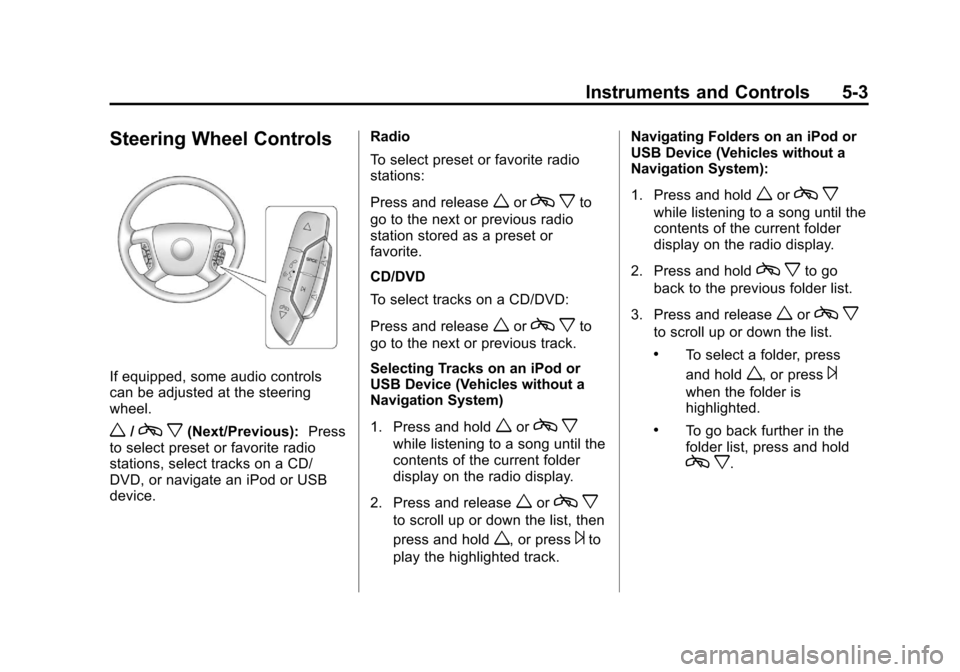
Steering Wheel Controls
If equipped, some audio controls
can be adjusted at the steering
wheel.
w/cx(Next/Previous): Press
to select preset or favorite radio
stations, select tracks on a CD/
DVD, or navigate an iPod or USB
device. Radio
To select preset or favorite radio
stations:
Press and release
worc
xto
go to the next or previous radio
station stored as a preset or
favorite.
CD/DVD
To select tracks on a CD/DVD:
Press and release
worc xto
go to the next or previous track.
Selecting Tracks on an iPod or
USB Device (Vehicles without a
Navigation System)
1. Press and hold
worc x
while listening to a song until the
contents of the current folder
display on the radio display.
2. Press and release
worc x
to scroll up or down the list, then
press and hold
w, or press¨to
play the highlighted track. Navigating Folders on an iPod or
USB Device (Vehicles without a
Navigation System):
1. Press and hold
worc
x
while listening to a song until the
contents of the current folder
display on the radio display.
2. Press and hold
c xto go
back to the previous folder list.
3. Press and release
worc x
to scroll up or down the list.
.To select a folder, press
and hold
w, or press¨
when the folder is
highlighted.
.To go back further in the
folder list, press and hold
cx.
Page 152 of 542

Black plate (4,1)Chevrolet Tahoe/Suburban Owner Manual - 2011
5-4 Instruments and Controls
Navigating an iPod or USB Device
on the Main Audio Screen
(Vehicles with a Navigation
System)
1. Press and release
worcx
to select the next or previous
track within the selected
category.
2. Press and hold
worc xto
move quickly through the tracks.
3. Press and release
¨to move up
one track within the selected
category.
Navigating an iPod or USB Device
on the Music Navigator Screen
(Vehicles with a Navigation
System)
1. Press and release
worc x
to select the next or previous
track within the selected
category.
2. Press and hold
worc xto
move quickly through the tracks
within the selected category. 3. Press and release
¨to move up
one track within the selected
category.
b g(Mute/Push to Talk): Press to
silence the vehicle speakers only.
Press again to turn the sound on.
For vehicles with Bluetooth or
OnStar systems, press and hold for
longer than two seconds to interact
with those systems. See Bluetooth
on page 7‑48 and the OnStar
Owner's Guide for more information.
c x(End): Press to reject an
incoming call, or end a current call.
SRCE (Source/Voice
Recognition): Press to switch
between the radio and CD, and for
equipped vehicles, the DVD, front
auxiliary, and rear auxiliary. For vehicles with the navigation
system, press and hold this button
for longer than one second to
initiate voice recognition. See
“Voice
Recognition” in the Navigation
System manual for more
information.
¨(Seek): Press to go to the next
radio station while in AM,
FM, or XM™.
For vehicles with or without a
navigation system:
Press
¨to go to the next track or
chapter while sourced to the CD or
DVD slot.
Press
¨to select a track or a folder
when navigating folders on an iPod
or USB device.
Page 153 of 542
Black plate (5,1)Chevrolet Tahoe/Suburban Owner Manual - 2011
Instruments and Controls 5-5
For vehicles with a navigation
system:
1. Press and hold
¨until a beep is
heard, to place the radio into
SCAN mode. A station will play
for five seconds before moving
to the next station.
2. To stop the SCAN function, press
¨again.
While listening to a CD/DVD, press
and hold
¨to quickly move forward
through the tracks. Release to stop
on the desired track.
+
e−e(Volume): Press to
increase or to decrease the volume.
Horn
To sound the horn, press the center
pad on the steering wheel.
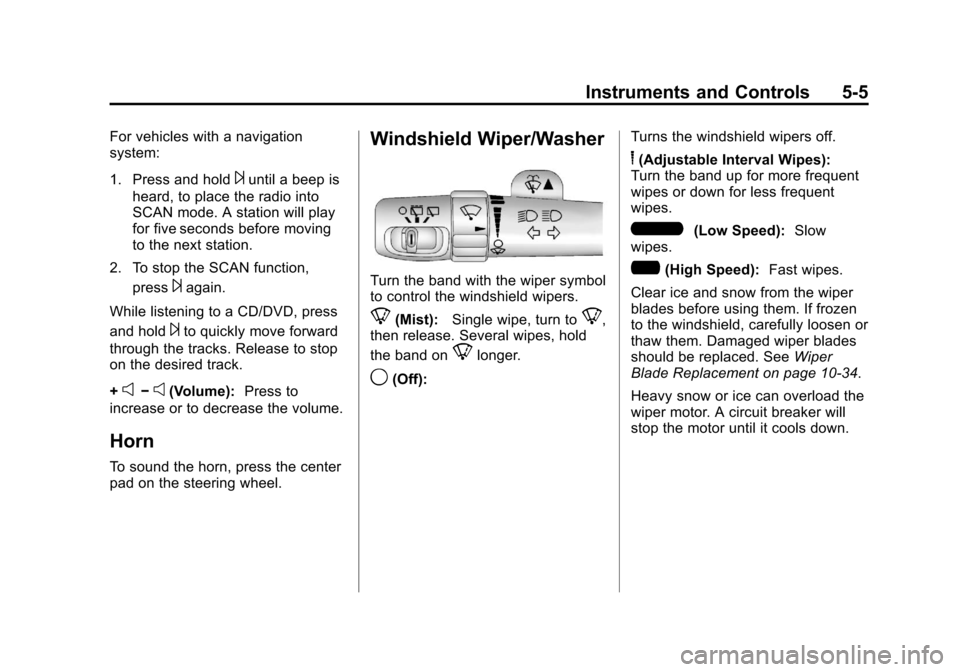
Windshield Wiper/Washer
Turn the band with the wiper symbol
to control the windshield wipers.
8(Mist): Single wipe, turn to8,
then release. Several wipes, hold
the band on
8longer.
9(Off): Turns the windshield wipers off.
6(Adjustable Interval Wipes):
Turn the band up for more frequent
wipes or down for less frequent
wipes.
6(Low Speed): Slow
wipes.
?(High Speed): Fast wipes.
Clear ice and snow from the wiper
blades before using them. If frozen
to the windshield, carefully loosen or
thaw them. Damaged wiper blades
should be replaced. See Wiper
Blade Replacement on page 10‑34.
Heavy snow or ice can overload the
wiper motor. A circuit breaker will
stop the motor until it cools down.
Page 157 of 542

Black plate (9,1)Chevrolet Tahoe/Suburban Owner Manual - 2011
Instruments and Controls 5-9
3. Press the set/reset button tostart the compass calibration. Or,
if the vehicle does not have DIC
buttons, press and hold the trip
odometer reset stem for
two seconds to start the
compass calibration.
4. The DIC will display CALIBRATING: DRIVE IN
CIRCLES. Drive the vehicle in
tight circles at less than 8 km/h
(5 mph) to complete the
calibration. The DIC will display
CALIBRATION COMPLETE
for a few seconds when the
calibration is complete. The DIC
display will then return to the
previous menu.Clock
To set the time and date:
1. Turn the ignition key to ACC/ACCESSORY or ON/RUN, then
press the
Obutton to turn the
radio on.
2. Press the
Hbutton to display
HR, MIN, MM, DD, YYYY (hour,
minute, month, day, and year).
3. Press the softkey located under any one of the tabs to change
that setting.
4. To increase the time or date, do one of the following:
.Press the softkey below the
selected tab.
.Press the¨SEEK button.
.Press the\FWD button.
.Turn thefknob clockwise. 5. To decrease the time or date, do
one of the following:
.Press the©SEEK button.
.Press thesREV button.
.Turn thefknob
counterclockwise.
To change the time default setting
from 12 hour to 24 hour or to change
the date default setting from month/
day/year to day/month/year:
1. Press the
Hbutton and then the
softkey located below the
forward arrow tab. 12H, 24H, the
date MM/DD (month and day),
and DD/MM/ (day and month)
displays.
2. Press the softkey located below the desired option.
3. Press the
Hbutton again to
apply the desired option, or let
the screen time out.