2011 CHEVROLET MALIBU buttons
[x] Cancel search: buttonsPage 134 of 382
Black plate (24,1)Chevrolet Malibu Owner Manual - 2011
5-24 Instruments and Controls
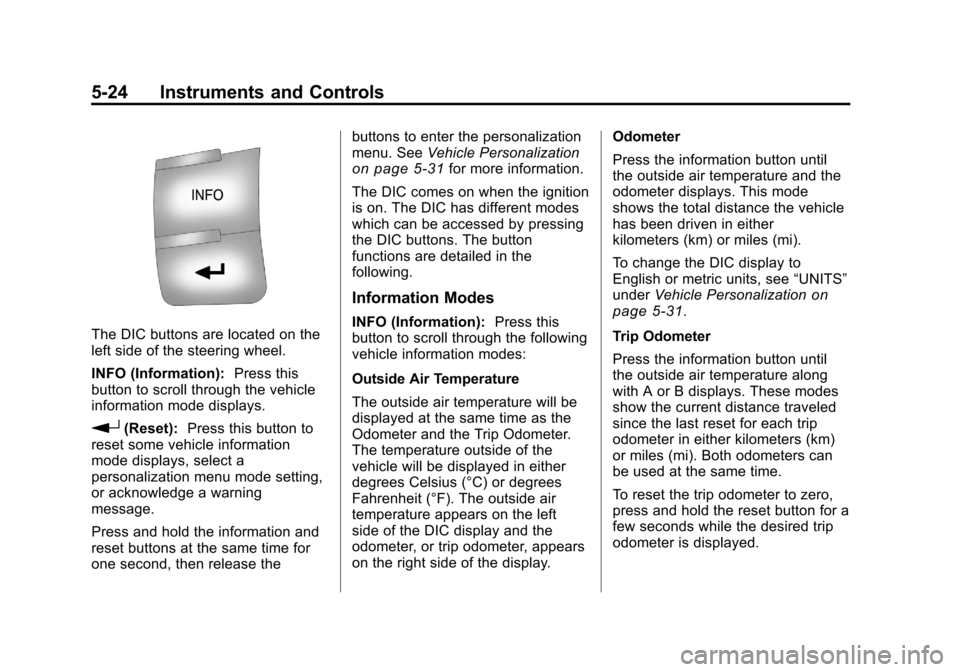
The DIC buttons are located on the
left side of the steering wheel.
INFO (Information):Press this
button to scroll through the vehicle
information mode displays.
r(Reset): Press this button to
reset some vehicle information
mode displays, select a
personalization menu mode setting,
or acknowledge a warning
message.
Press and hold the information and
reset buttons at the same time for
one second, then release the buttons to enter the personalization
menu. See
Vehicle Personalization
on page 5‑31for more information.
The DIC comes on when the ignition
is on. The DIC has different modes
which can be accessed by pressing
the DIC buttons. The button
functions are detailed in the
following.
Information Modes
INFO (Information): Press this
button to scroll through the following
vehicle information modes:
Outside Air Temperature
The outside air temperature will be
displayed at the same time as the
Odometer and the Trip Odometer.
The temperature outside of the
vehicle will be displayed in either
degrees Celsius (°C) or degrees
Fahrenheit (°F). The outside air
temperature appears on the left
side of the DIC display and the
odometer, or trip odometer, appears
on the right side of the display. Odometer
Press the information button until
the outside air temperature and the
odometer displays. This mode
shows the total distance the vehicle
has been driven in either
kilometers (km) or miles (mi).
To change the DIC display to
English or metric units, see
“UNITS”
under Vehicle Personalization
on
page 5‑31.
Trip Odometer
Press the information button until
the outside air temperature along
with A or B displays. These modes
show the current distance traveled
since the last reset for each trip
odometer in either kilometers (km)
or miles (mi). Both odometers can
be used at the same time.
To reset the trip odometer to zero,
press and hold the reset button for a
few seconds while the desired trip
odometer is displayed.
Page 136 of 382
Black plate (26,1)Chevrolet Malibu Owner Manual - 2011
5-26 Instruments and Controls
In addition to the engine oil life
system monitoring the oil life,
additional maintenance is
recommended in the Maintenance
Schedule in this manual. See
Engine Oil
on page 10‑9and
Scheduled Maintenanceon
page 11‑2.
Always reset the engine oil life
system after an oil change. See
“How to Reset the Engine Oil Life
System” underEngine Oil Life
System on page 10‑12.
Tire Pressure
On vehicles with the Tire Pressure
Monitor System (TPMS), the
pressure for each tire can be
viewed in the DIC. The tire pressure
is shown in either kilopascals (kPa)
or pounds per square inch (psi). Press the information button until
LF ## PSI (kPa) ## RF displays for
the front tires. Press the information
button again until
LR ## PSI (kPa) ## RR displays for
the rear tires.
If a low tire pressure condition is
detected by the system while
driving, a message advising you to
add air will appear in the display.
See
Tire Pressure
on page 10‑45andTire Messageson page 5‑30for more information.
Vehicle Messages
The following messages appear if
there is a problem detected in one
of your vehicle's systems.
A message clears when the
vehicle's condition is no longer
present. To acknowledge a
message and clear it from the
display, press and hold any of the
DIC buttons. If the condition is still
present, the warning message
comes back on the next time the
vehicle is turned off and back on.
With most messages, a warning
chime sounds when the message
displays. Your vehicle may have
other warning messages.
Page 141 of 382
Black plate (31,1)Chevrolet Malibu Owner Manual - 2011
Instruments and Controls 5-31
Vehicle Reminder
Messages
ICE POSSIBLE
This message displays when the
outside air temperature is cold
enough to create icy road
conditions. Adjust your driving
accordingly.
Washer Fluid Messages
LOW WASHER FLUID
This message displays when the
vehicle's windshield washer fluid is
low. Fill the windshield washer fluid
reservoir to the proper level as soon
as possible. SeeWasher Fluid
on
page 10‑22.
Vehicle
Personalization
Your vehicle has personalization
capabilities that allow you to
program certain features to a
preferred setting. All of the features
listed may not be available on your
vehicle. Only the features available
will be displayed on the DIC.
The default settings for the features
were set when your vehicle left the
factory, but may have been changed
from their default state since
that time. To change feature settings, use the
following procedure:Entering Personalization Menu
1. Turn the ignition on while the
vehicle is stopped.
To avoid excessive drain on the
battery, it is recommended that
the headlamps are turned off.
2. Press and hold the information and reset buttons at the same
time for one second, then
release to enter the
personalization menu.
If the vehicle speed is greater
than 3 km/h (2 mph), only the
UNITS menu will be accessible.
Page 143 of 382
Black plate (33,1)Chevrolet Malibu Owner Manual - 2011
Instruments and Controls 5-33
To select a setting and move on to
the next feature, press the
information button while the desired
setting is displayed on the DIC.
UNLOCK HORN
This feature, which allows the
vehicle's horn to chirp on the first
press of the unlock button on the
Remote Keyless Entry (RKE)
transmitter, can be enabled or
disabled. When UNLOCK HORN
appears on the display, press and
hold the reset button for at least
one second to scroll through the
available settings:
OFF (default):The horn will not
chirp when the unlock button on the
RKE transmitter is pressed.
ON: The horn will chirp on the first
press of the unlock button on the
RKE transmitter.
See Remote Keyless Entry (RKE)
System Operation
on page 2‑3for
more information. To select a setting and move on to
the next feature, press the
information button while the desired
setting is displayed on the DIC.
LIGHT FLASH
This feature, which allows the
vehicle's exterior hazard/turn signal
lighting to flash every time the lock,
unlock, or trunk release buttons on
the Remote Keyless Entry (RKE)
transmitter are pressed, can be
enabled or disabled. When LIGHT
FLASH appears on the display,
press and hold the reset button for
at least one second to scroll through
the available settings:
OFF:
The exterior hazard/turn
signal lighting will not flash when
the lock, unlock, or trunk release
buttons on the RKE transmitter are
pressed. ON (default):
The exterior hazard/
turn signal lighting will flash when
the lock, unlock, or trunk release
buttons on the RKE transmitter are
pressed.
See Remote Keyless Entry (RKE)
System Operation
on page 2‑3for
more information.
To select a setting and move on to
the next feature, press the
information button while the desired
setting is displayed on the DIC.
DELAY LOCK
This feature, which delays the
actual locking of the vehicle, can be
enabled or disabled. When DELAY
LOCK appears on the display, press
and hold the reset button for at least
one second to scroll through the
available settings:
ON (default): The doors will not
lock until five seconds after the last
door is closed. You can temporarily
override delayed locking by
Page 162 of 382
Black plate (8,1)Chevrolet Malibu Owner Manual - 2011
7-8 Infotainment System
Radios that do not have a FAV
button store radio stations as
presets, up to 18 stations (6 FM1,
6 FM2, and 6 AM), can be
programmed on the 6 numbered
pushbuttons.
Storing a Radio Station as a
Preset
Radios that have numbered
pushbuttons store radio stations as
presets.
Up to 18 stations (six FM1, six FM2,
and six AM), can be programmed on
the six numbered buttons.
To store preset stations:
1. Tune to a radio station.
2. Press and hold one of the6 numbered pushbuttons for
3 seconds until a beep sounds.
3. Repeat Steps 1 and 2 to store additional radio stations. Storing a Radio Station as a
Favorite
Radio that have a FAV button store
radio stations as favorites.
To store a station as a favorite:
1. Tune to a radio station.
2. Press the FAV button to display
the page where the station will
be stored.
3. Press and hold one of the 6 softkeys until a beep sounds.
4. Repeat Steps 1 through 3 to store additional radio stations.
The number of favorites pages can
be setup using the MENU button. To
setup the number of favorites
pages:
1. Press the MENU button.
2. Press the softkey located below the FAV 1-6 tab.
3. Select the number of favorites pages by pressing the softkey
located below the displayed
page numbers. 4. Press the FAV button, or let the
menu time out, to return to the
original main radio screen
showing the radio station
frequency tabs and to begin
the process of programming
favorites.
Satellite Radio
XM™ Satellite Radio Service
XM is a satellite radio service that is
based in the 48 contiguous United
States and 10 Canadian provinces.
XM Satellite Radio has a wide
variety of programming and
commercial-free music,
coast-to-coast, and in digital-quality
sound. A service fee is required to
receive the XM service. If XM
Service needs to be reactivated, the
radio will display "No Subscription
Please Renew" on channel XM1.
For more information, contact XM
at www.xmradio.com or call
1-800-929-2100 in the U.S. and
www.xmradio.ca or call
1-877-438-9677 in Canada.
Page 169 of 382
Black plate (15,1)Chevrolet Malibu Owner Manual - 2011
Infotainment System 7-15
the player, the CD starts to play
where it stopped, if it was the last
selected audio source.
Buttons and Knobs
The buttons and knobs on the radio
control the following features.
f(Tune):Turn to select tracks on
the CD.
©SEEK: Press to go to the start of
the current track, if more than ten
seconds have played. Press and
hold or press multiple times to
continue moving backward through
the tracks on the CD.
¨SEEK: Press to go to the next
track. Press and hold or press
multiple times to continue moving
forward through the tracks on
the CD.
sREV (Reverse): Press and hold
to reverse playback quickly within a
track. Sound is heard at a reduced
volume and the elapsed time of the
track displays. Release to resume
playing the track.
\FWD (Fast Forward): Press
and hold to advance playback
quickly within a track. Sound is
heard at a reduced volume and the
elapsed time of the track displays.
Release to resume playing the
track.
4(Information): Press to display
available additional information
about the current track.
BAND: Press to listen to the radio
while a CD is playing. The CD
remains inside the CD player.
CD/AUX (CD/Auxiliary): Press to
play a CD while listening to the
radio or a portable audio device.
Press this button again and the
system automatically searches for
an auxiliary input device, such as a
portable audio player. If a portable
audio player is not connected, No
Aux Input Device Found may
display. Softkeys
The five softkeys below the radio
display are used to control functions
that display as tabs.
The softkeys below the radio display
control the following features.
RDM (Random):
Tracks can be
listened to in random, rather than
sequential order.
To use random:
1. Press the softkey below RDM
tab until Random Current Disc
displays.
2. Press the softkey again to turn off random play.
MP3 Supported Files
The Radio with CD (MP3), Radio
with USB and CD (MP3), have the
capability of playing an MP3 CD-R
or CD-RW disc.
The radio can also play discs that
contain both uncompressed CD
audio and MP3 files.
Page 171 of 382
Black plate (17,1)Chevrolet Malibu Owner Manual - 2011
Infotainment System 7-17
Buttons and Knobs
The buttons and knobs on the radio
control the following features.
f(Tune):Turn to select MP3 files
on the disc.
©SEEK: Press to go to the start of
the track, if more than ten seconds
have played. Press and hold or
press multiple times to continue
moving backward through tracks.
¨SEEK: Press to go to the next
track. Press and hold or press
multiple times to continue moving
forward through tracks.
sREV (Reverse): Press and hold
to reverse playback quickly. Sound
is heard at a reduced volume and
the elapsed time of the track
displays. Release
sREV to
resume playing.
\FWD (Fast Forward): Press
and hold to advance playback
quickly. Sound is heard at a reduced volume and the elapsed time of the
track displays. Release
\FWD to
resume playing.
4(Information): Press to display
available additional information
about the current track.
BAND: Press to listen to the radio
while an MP3 disc is playing. The
MP3 disc remains inside the CD
player.
CD/AUX (CD/Auxiliary): Press to
play an MP3 disc while listening to
the radio or a portable audio device.
Press this button again and the
system automatically searches for
an auxiliary input device, such as a
portable audio player. If a portable
audio player is not connected, No
Aux Input Device Found may
display.
Softkeys
The five softkeys below the radio
display are used to control functions
that display as tabs. The softkeys below the radio display
control the following features.
S
c(Previous Folder): Press
the softkey below
S cto go to the
first track in the previous folder.
cT (Next Folder): Press the
softkey below
cT to go to the first
track in the next folder.
RDM (Random): MP3 files can be
listened to on a CD in random,
rather than sequential order. To use
random:
1. Press the softkey under the RDM tab until Random Current
Disc displays to play songs from
the current CD in random order.
2. Press the same softkey again to turn off random play.
h(Music Navigator): Press the
softkey below
hto have the files
played in order by artist or album.
The player scans the disc to sort the
files by artist and album ID3 tag
information. It can take several
minutes to scan the disc depending
Page 174 of 382
Black plate (20,1)Chevrolet Malibu Owner Manual - 2011
7-20 Infotainment System
Root Directory
The root directory is treated as a
folder. Files are stored in the root
directory when the disc or storage
device does not contain folders.
Files accessed from the root
directory of a USB device display
as F1 ROOT.
Empty Folder
Folders that do not contain files are
skipped, and the player advances to
the next folder that contains files.
File Naming
The song name that displays is the
song name that is contained in the
ID3 tag. If the song name is not
present in the ID3 tag, then the
radio displays the file name without
the file extension as the track name.
Track names longer than
32 characters or four pages are
shortened. The display does not
show parts of words on the last
page of text and the extension of
the filename is not displayed.Preprogrammed Playlists
Playlists that have an .m3u or .pls
file extension and are stored on a
USB device may be supported by
the radio with a USB port.
Order of Play
Tracks are played in the following
order:
.Play begins from the first track
in the first playlist and continues
sequentially through all tracks in
each playlist. When the last
track of the last playlist has
played, play continues from the
first track of the first playlist.
.Play begins from the first track in
the first folder and continues
sequentially through all tracks in
each folder. When the last track
of the last folder has played,
play continues from the first
track of the first folder.
When play enters a new folder, the
display does not automatically show
the new folder name unless the folder mode has been chosen as
the default display. The new track
name displays.
Connecting a USB Storage
Device or iPod
The radio buttons, knobs and
softkeys are used to control a USB
storage device or an iPod when it is
connected to the USB port.
To connect a USB storage device,
connect the device to the USB port
located on the front of the radio.
To connect an iPod, connect one
end of the USB cable that came
with the iPod to the iPod’s dock
connector and connect the other
end to the USB port located on the
front of the radio. If the vehicle is on
and the USB connection works,
“OK
to disconnect” and a GM logo may
appear on the iPod and iPod
appears on the radio's display.
The iPod charges while it is
connected to the USB port if the
ingition is in the ACC/ACCESSORY
or ON/RUN position. When the