2011 CHEVROLET HHR USB
[x] Cancel search: USBPage 219 of 430
Black plate (63,1)Chevrolet HHR Owner Manual - 2011
CD/AUX (CD/Auxiliary):Press to play a CD while a
portable audio device is connected to the auxiliary
input. Press again and the system begins playing audio
from the connected portable audio player. If a portable
audio player is not connected, No Aux Input Device
may display.
Using the USB Port
Radio's with a USB port can control a USB storage
device or an iPod®using the radio buttons and knobs.
See Using an MP3on page 4‑63for information about
how to connect and control a USB storage device or
an iPod.
USB Support
The USB connector is located on the front of the radio
and uses the USB 2.0 standard.
USB Supported Devices
.USB Flash Drives
.Portable USB Hard Drives
.Fifth generation or later iPod
.First, Second, or Third generation iPod nano
.iPod touch
.iPod classic Make sure the iPod has the latest firmware from Apple
®
for proper operation. iPod firmware can be updated
using the latest iTunes®application. See
www.apple.com/itunes.
For help with identifying your iPod, go to
www.apple.com/support.
Using an MP3
Format
Radios that have the capability of playing MP3's can
play .mp3 or .wma files that were recorded onto a
CD-R or CD-RW disc. Radios that have a USB port
can play .mp3 and .wma files that are stored on a
USB storage device as well as AAC files that are
stored on an iPod
®.
Compressed Audio
The radio can play discs that contain both
uncompressed CD audio and MP3 files. If both formats
are on the disc, the radio reads all MP3 files first, then
the uncompressed CD audio files.
4-63
Page 220 of 430
Black plate (64,1)Chevrolet HHR Owner Manual - 2011
CD‐R or CD‐RW Supported File and Folder
Structure
The radio supports:
.Up to 50 folders.
.Up to 8 folders in depth.
.Up to 50 playlists.
.Up to 255 files.
.Playlists with an .m3u or .wpl extension.
.Files with an .mp3, .wma, or .cda file extension.
USB Supported File and Folder Structure
The radio supports:
.Up to 700 folders.
.Up to 8 folders in depth.
.Up to 65,535 files.
.Folder and file names up to 64 bytes.
.Files with an .mp3 or .wma file extension.
.AAC files stored on an iPod.
.FAT16
.FAT32
Root Directory
The root directory is treated as a folder. Files are stored
in the root directory when the disc or storage device
does not contain folders. Files accessed from the root
directory of a CD display as F1 ROOT.
Empty Folder
Folders that do not contain files are skipped, and the
player advances to the next folder that contains files.
Order of Play
Tracks are played in the following order:
.Play begins from the first track in the first playlist
and continues sequentially through all tracks in
each playlist. When the last track of the last playlist
has played, play continues from the first track of
the first playlist.
.Play begins from the first track in the first folder
and continues sequentially through all tracks in
each folder. When the last track of the last folder
has played, play continues from the first track of
the first folder.
When play enters a new folder, the display does not
automatically show the new folder name unless the
folder mode has been chosen as the default display.
The new track name displays.
4-64
Page 221 of 430
Black plate (65,1)Chevrolet HHR Owner Manual - 2011
File System and Naming
The song name that displays is the song name that is
contained in the ID3 tag. If the song name is not
present in the ID3 tag, then the radio displays the file
name without the extension (such as .mp3) as the
track name.
Track names longer than 32 characters or four pages
are shortened. The display does not show parts of
words on the last page of text and the extension of the
filename is not displayed.
Preprogrammed Playlists
CDs that have preprogrammed playlists that were
created using WinAmp™, MusicMatch™, or Real
Jukebox™software can be accessed, however, there is
no playlist editing capability using the radio. These
playlists are treated as special folders containing
compressed audio song files.
Playlists that have an .m3u or .pls file extension and are
stored on a USB device may be supported by the radio
with a USB port.
Playing a CD-R or CD-RW MP3
f
(Tune): Turn to select MP3 files on the CD currently
playing.
©SEEK: Press to go to the start of the track, if more
than ten seconds have played. Press and hold or press
multiple times to continue moving backward through
tracks.
¨SEEK: Press to go to the next track. Press and hold
or press multiple times to continue moving forward
through tracks.
sREV (Reverse): Press and hold to reverse playback
quickly. Sound is heard at a reduced volume and the
elapsed time of the file displays. Release
sREV to
resume playing.
\FWD (Fast Forward): Press and hold to advance
playback quickly. Sound is heard at a reduced volume
and the elapsed time of the file displays. Release
\FWD to resume playing. The elapsed time of the
file displays.
S c(Previous Folder): Press the softkey
below
S cto go to the first track in the previous
folder.
cT (Next Folder): Press the softkey belowcTto
go to the first track in the next folder.
4-65
Page 223 of 430
Black plate (67,1)Chevrolet HHR Owner Manual - 2011
Connecting a USB Storage Device
or iPod®
The USB Port can be used to control an iPod or a
USB storage device.
To connect a USB storage device, connect the device to
the USB port located on the front of the radio.
To connect an iPod, connect one end of the USB cable
that came with the iPod to the iPod’s dock connector
and connect the other end to the USB port located on
the front of the radio. If the vehicle is on and the
USB connection works, “OK to disconnect”and a
GM logo may appear on the iPod and iPod appears on
the radio's display. The iPod music appears on the
radio’s display and begins playing.
The iPod charges while it is connected to the vehicle if
the vehicle is in the ACC/ACCESSORY or ON/RUN
position. When the vehicle is turned off, the iPod
automatically powers off and will not charge or draw
power from the vehicle's battery.
If you have an older iPod model that is not supported, it
can still be used by connecting it to the Auxiliary Input
Jack using a standard 3.5 mm (1/8 in) stereo cable. See
“Using the Auxiliary Input Jack” earlier for more
information.
Using the Radio to Control a USB
Storage Device or iPod
The radio can control a USB storage device or an iPod
using the radio buttons and knobs and display song
information on the radio’s display.
f(Tune): Turn to select files.
©SEEK:Press to go to the start of the track, if more
than ten seconds have played. Press and hold or press
multiple times to continue moving backward through
tracks.
¨SEEK: Press to go to the next track. Press and hold
or press multiple times to continue moving forward
through tracks.
sREV (Reverse): Press and hold to reverse playback
quickly. Sound is heard at a reduced volume. Release
sREV to resume playing. The elapsed time of the file
displays.
\FWD (Fast Forward): Press and hold to advance
playback quickly. Sound is heard at a reduced volume.
Release
\FWD to resume playing. The elapsed time
of the file displays.
4(Information): Press to display additional information
about the selected track.
4-67
Page 224 of 430
Black plate (68,1)Chevrolet HHR Owner Manual - 2011
Using Softkeys to Control a
USB Storage Device or iPod
The five softkeys below the radio display are used to
control the functions listed below.
To use the softkeys:1. Press the first or fifth softkey below the radio display to display the functions listed below,
or press the softkey below the function if it is
currently displayed.
2. Press the softkey below the tab with the function on it to use that function.
j(Pause): Press the softkey belowjto pause the
track. The tab appears raised when pause is being
used. Press the softkey below
jagain to resume
playback.
Back: Press the softkey below the back tab to go back
to the main display screen on an iPod, or the root
directory on a USB storage device.
c(Folder View): Press the softkey belowcto view
the contents of the current folder on the USB drive. To
browse and select files:
1. Press the softkey below
c.
2. Turn
fto scroll through the list of folders.
3. Press
fto select the desired folder. If there is
more then one folder, repeat Steps 1 and 2 until
the desired folder is reached.
4. Turn
fto scroll through the files in the selected
folder.
5. Press
fto select the desired file to be played.
To skip through large lists, the five softkeys can be used
to navigate in the following order:
.First softkey, first item in the list.
.Second softkey, 1% through the list each time the
softkey is pressed.
.Third softkey, 5% through the list each time the
softkey is pressed.
.Fourth softkey, 10% through the list each time the
softkey is pressed.
.Fifth softkey, end of the list.
4-68
Page 225 of 430
Black plate (69,1)Chevrolet HHR Owner Manual - 2011
h(Music Navigator):Press the softkey belowhto view and select a file on an iPod, using the iPod's
menu system. Files are sorted by:
.Playlists
.Artists
.Albums
.Genres
.Songs
.Composers
To select files:
1. Press the softkey below
h.
2. Turn
fto scroll through the list of menus.
3. Press
fto select the desired menu.
4. Turn
fto scroll through the folders or files in the
selected menu.
5. Press
fto select the desired file to be played. To skip through large lists, the five softkeys can be used
to navigate in the following order:
.First softkey, first item in the list.
.Second softkey, 1% through the list each time the
softkey is pressed.
.Third softkey, 5% through the list each time the
softkey is pressed.
.Fourth softkey, 10% through the list each time the
softkey is pressed.
.Fifth softkey, end of the list.
Repeat Functionality
To use Repeat:
Press the softkey below
"or'to select between
Repeat All and Repeat Track.
"(Repeat All): Press the softkey below"to repeat
all tracks. The tab appears lowered when Repeat
All is being used. This is the default mode when a
USB storage device or iPod is first connected.
'(Repeat Track): Press the softkey below'to
repeat one track. The tab appears raised when Repeat
Track is being used.
4-69
Page 226 of 430
Black plate (70,1)Chevrolet HHR Owner Manual - 2011
Shuffle Functionality
To use Shuffle:
Press the softkey below
>,2,
Songs, Shuffle Album, or Shuffle Folder.
>(Shuffle Off): Press the softkey below2to turn
shuffle off. This is the default mode when a USB
storage device or iPod is first connected.
2(Shuffle All Songs / Shuffle Songs): Press the
softkey below
=or
<(Shuffle Album): Press the softkey below>to
shuffle all songs in the current album on an iPod.
=(Shuffle Folder): Press the softkey below>to
shuffle all songs in the current folder on a USB storage
device.
XM Radio Messages
XL (Explicit Language Channels): These channels,
or any others, can be blocked at a customer's request,
by calling 1-800-852-XMXM (9696).
XM Updating: The encryption code in the receiver is
being updated, and no action is required. This process
should take no longer than 30 seconds. No XM Signal:
The system is functioning correctly, but
the vehicle is in a location that is blocking the XM™
signal. When the vehicle is moved into an open area,
the signal should return.
Loading XM: The audio system is acquiring and
processing audio and text data. No action is needed.
This message should disappear shortly.
Channel Off Air: This channel is not currently in
service. Tune in to another channel.
Channel Unauth : This channel is blocked or cannot
be received with your XM Subscription package.
Channel Unavail: This previously assigned channel is
no longer assigned. Tune to another station. If this
station was one of the presets, choose another station
for that preset button.
No Artist Info: No artist information is available at this
time on this channel. The system is working properly.
No Title Info: No song title information is available at
this time on this channel. The system is working
properly.
No CAT Info: No category information is available at
this time on this channel. The system is working
properly.
No Information: No text or informational messages are
available at this time on this channel. The system is
working properly.
4-70
Page 235 of 430
Black plate (79,1)Chevrolet HHR Owner Manual - 2011
Theft-Deterrent Feature
THEFTLOCK®is designed to discourage theft of the
vehicle's radio by learning a portion of the Vehicle
Identification Number (VIN). The radio does not operate
if it is stolen or moved to a different vehicle.
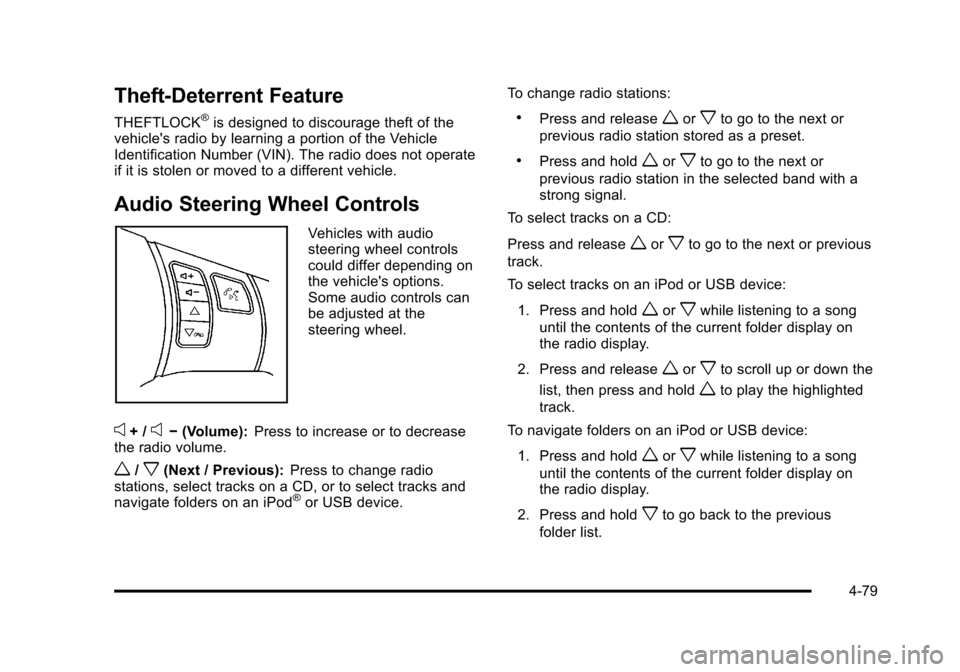
Audio Steering Wheel Controls
Vehicles with audio
steering wheel controls
could differ depending on
the vehicle's options.
Some audio controls can
be adjusted at the
steering wheel.
e+ /e− (Volume): Press to increase or to decrease
the radio volume.
w/x(Next / Previous): Press to change radio
stations, select tracks on a CD, or to select tracks and
navigate folders on an iPod
®or USB device. To change radio stations:
.Press and releaseworxto go to the next or
previous radio station stored as a preset.
.Press and holdworxto go to the next or
previous radio station in the selected band with a
strong signal.
To select tracks on a CD:
Press and release
worxto go to the next or previous
track.
To select tracks on an iPod or USB device:
1. Press and hold
worxwhile listening to a song
until the contents of the current folder display on
the radio display.
2. Press and release
worxto scroll up or down the
list, then press and hold
wto play the highlighted
track.
To navigate folders on an iPod or USB device:
1. Press and hold
worxwhile listening to a song
until the contents of the current folder display on
the radio display.
2. Press and hold
xto go back to the previous
folder list.
4-79