2011 BUICK REGAL buttons
[x] Cancel search: buttonsPage 98 of 368
Black plate (56,1)Buick Regal Owner Manual - 2011
3-56 Seats and Restraints
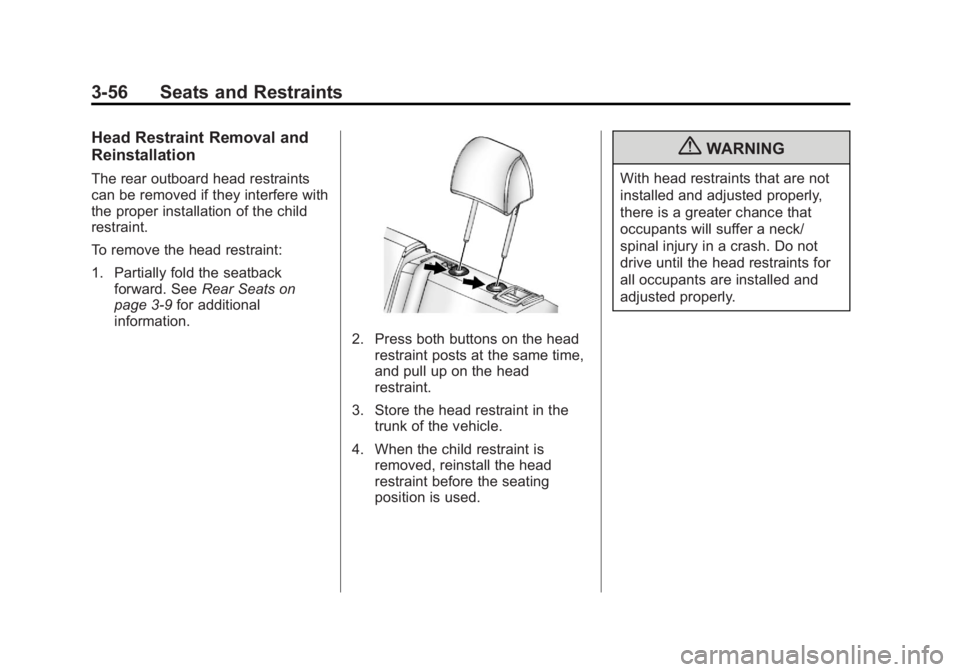
Head Restraint Removal and
Reinstallation
The rear outboard head restraints
can be removed if they interfere with
the proper installation of the child
restraint.
To remove the head restraint:
1. Partially fold the seatbackforward. See Rear Seats on
page 3‑9 for additional
information.
2. Press both buttons on the head restraint posts at the same time,
and pull up on the head
restraint.
3. Store the head restraint in the trunk of the vehicle.
4. When the child restraint is removed, reinstall the head
restraint before the seating
position is used.
{WARNING
With head restraints that are not
installed and adjusted properly,
there is a greater chance that
occupants will suffer a neck/
spinal injury in a crash. Do not
drive until the head restraints for
all occupants are installed and
adjusted properly.
Page 130 of 368

Black plate (22,1)Buick Regal Owner Manual - 2011
5-22 Instruments and Controls
Cruise Control Light
The cruise control light is white
whenever the cruise control is set,
and turns green when the cruise
control is active.
The light turns off when the cruise
control is turned off. SeeCruise
Control on page 9‑39 for more
information.
Door Ajar Light
This light comes when a door is
open or not securely latched.
Information Displays
Driver Information
Center (DIC)
The Driver Information Center (DIC)
displays information about the
vehicle. It also displays warning
messages if a system problem is
detected. See Vehicle Messages on
page 5‑25 for more information.
All messages appear in the DIC
display located in the center of the
instrument panel cluster.
On some models, the DIC may have
some warning lights or indicators
shown in the top portion of the
display. See Warning Lights,
Gauges, and Indicators on page 5‑7
for more information.
The vehicle may also have features
that can be customized through the
controls on the radio. See Vehicle
Personalization on page 5‑31 for
more information.
DIC Operation and Displays
The DIC has different displays
which can be accessed by using
the DIC buttons located on the turn
signal lever located on the left side
of the steering wheel. The DIC
displays trip, fuel, and vehicle
system information, and warning
messages if a system problem is
detected.
The bottom of the DIC display
shows the position of the shift lever
and the odometer. It may also show
the direction the vehicle is driving.
In cold weather the DIC display
may change slowly. This is normal
and will move more quickly as the
vehicle's interior temperature rises.
Page 131 of 368

Black plate (23,1)Buick Regal Owner Manual - 2011
Instruments and Controls 5-23
DIC Buttons
MENU:Press to get to the Trip/
Fuel Menu and the Vehicle
Information Menu.
w x(Thumbwheel): Use to scroll
through the items in each menu.
A small marker will move across the
bottom of the page as you scroll
through the items. This shows
where each page is in the menu.
SET/CLR (Set/Clear): Press to set
or clear the menu item when it is
displayed.
Trip/Fuel Menu Items
Press MENU on the turn signal
lever until Trip/Fuel Information
Menu is displayed. Use
w xto
scroll through the following menu
items:
.Trip 1
.Trip 2
.Fuel Range
.Fuel Economy
.Average Vehicle Speed
.Timer
.Digital Speedometer
.Turn-by-Turn
Trip 1 and Trip 2
This display shows the current
distance traveled, in either
kilometers (km) or miles (mi), since
the last reset for the trip odometer.
The trip odometer can be reset to
zero by pressing SET/CLR while the
trip odometer display is showing. Fuel Range
This display shows the approximate
distance the vehicle can be driven
without refueling. The fuel range
estimate is based on an average of
the vehicle's fuel economy over
recent driving history and the
amount of fuel remaining in the fuel
tank. Fuel range cannot be reset.
Fuel Economy
This display shows both the
average fuel economy and the
instantaneous fuel economy.
They are shown in liters per
100 kilometers (L/100 km) or miles
per gallon (mpg).
Average fuel economy is
calculated based on the number of
L/100 km (mpg) recorded since the
last time this menu item was reset.
The average fuel economy can be
reset by pressing SET/CLR while
the Fuel Economy display is
showing.
Page 153 of 368

Black plate (3,1)Buick Regal Owner Manual - 2011
Infotainment System 7-3
C.s©
.Radio: Seeks the previous
station.
.CD: Select the previous
track or rewinds within a
track.
D. CONFIG
.Opens the Settings menu.
E.
¨ \
.Radio: Seeks the next
station.
.CD: Selects the next track
or fast forwards within a
track.
F.
3 O
.Turns the system on or off
and adjusts the volume.
G. Buttons 1 to 6
.Radio: Saves and selects
favorite stations. H. FAV 1/2/3
.Radio: Opens the
favorites list.
I. INFO
.Radio: Shows available
information about the
current station.
.CD: Shows available
information about the
current track.
J. AS 1/2
.Radio: Opens the
autostore list.
K.
Z
.Removes a disc from the
CD slot.
L.
Z
.Opens menus, highlights
menu items, or sets
numeric values while in
a menu.
.Radio: Manually selects
radio stations.
.CD: Selects tracks.
M. CD Slot
N. BACK
.Menu: Moves one
level back.
.Character Input: Deletes
the last character.
O. TONE
.Opens the Tone
Settings menu.
P.
V/$
.Opens the Phone
main menu.
.Mutes the audio system.
Page 154 of 368

Black plate (4,1)Buick Regal Owner Manual - 2011
7-4 Infotainment System
Operation
Controls
The infotainment system is operated
by using the pushbuttons,
multifunction knobs, menus shown
on the display, and steering wheel
controls, if equipped.
Turning the System On or Off
3O(Volume/Power): Press to
turn the system on and off.
Automatic Switch‐Off
If the infotainment system has been
turned on after the ignition is turned
off, the system will turn off
automatically after 10 minutes.
Volume Control
3 O(Volume/Power): Turn to
adjust the volume.
V/$(Phone/Mute): For vehicles
with OnStar®, press and holdV/$
to mute the infotainment system. To
cancel mute, press and hold
V/$
again, or turn the3 Oknob. For vehicles without OnStar
®, pressV/$to mute the infotainment
system. To cancel mute, press
V/
$again, or turn the3 Oknob.
Menu System
Controls
The
Zknob and the BACK
button are used to navigate the
menu system.
Z(Menu/Select): Press to:
.Enter the menu system.
.Select or activate the highlighted
menu option.
.Confirm a set value.
.Turn a system setting on or off.
Turn to:
.Highlight a menu option.
.Select a value. BACK:
Press to:
.Exit a menu.
.Return from a submenu screen
to the previous menu screen.
.Delete the last character in a
sequence.
Selecting a Menu Option
1. Turn theZknob to move
the highlighted bar.
2. Press the
Zknob to select
the highlighted option.
Page 157 of 368

Black plate (7,1)Buick Regal Owner Manual - 2011
Infotainment System 7-7
5. Press the BACK button to goback to the System
Configuration menu.
Maximum Startup Volume
The maximum volume played when
the radio is first turned on can
be set.
1. Press the CONFIG button.
2. Select Radio Settings.
3. Select Maximum Startup Volume.
4. Select the setting.
5. Press the BACK button to go back to the System
Configuration menu. Configuring the Number of
Favorites Pages
To configure the number of available
favorites pages:
1. Press the CONFIG button.
2. Select Radio Settings.
3. Select Radio Favorites.
4. Select the number of available
favorites pages.
5. Press the BACK button to go back to the System
Configuration menu.
Radio
AM-FM Radio
Control Buttons
The buttons used to control the
radio are:
RADIO/BAND: Press to turn the
radio on and choose between AM,
FM, and XM™, if equipped.
Z(Menu/Select): Turn to
search for stations and press to
navigate the available menus.
INFO: Press to display additional
information that may be available for
the current song.
s ©/¨\:Press to search for
stations.
Buttons 1 to 6: Press to select
preset stations.
FAV 1/2/3: Press to open the
favorites list and select favorites
pages.
Page 159 of 368

Black plate (9,1)Buick Regal Owner Manual - 2011
Infotainment System 7-9
To search for a programming type
determined by station:
1. Press the
Zknob.
2. Select FM Category List. A list of all programming types available
displays.
3. Select the programming type. A list of stations that transmit
programming of the selected
type displays.
4. Select the station. The category lists are updated
when the station lists are
updated.
Updating Station & Category Lists
If stations stored in the station list
can no longer be received:
1. Press the
Zknob.
2. Select Update AM or FM Station List, if the stations stored in the
station list are no longer
received. A station search will be
completed and the first station in
the updated list will play. To cancel the station search, press
the
Zknob.
Storing a Station as a Favorite
Stations from all bands can be
stored in any order in the favorite
pages.
Up to six stations can be stored in
each favorite page and the number
of available favorite pages can
be set.
Storing Stations
To store the station to a position in
the list, press the corresponding
numeric button 1 to 6 until a beep is
heard. The stored station will begin
playback.
Retrieving Stations
Press the FAV 1/2/3 button to open
a favorite page or to switch to
another favorite page. Briefly press
one of the 1 to 6 buttons to retrieve
the station.
Autostore Stations
AS 1/2 (Autostore):
Autostore
searches and stores six FM and
six AM stations with the strongest
signal. To use autostore:
1. Press RADIO/BAND to select FM or AM.
2. Press AS 1/2 for at least two seconds. The radio then
searches for available stations.
3. The radio automatically stores the six strongest stations found
as autostore presets.
Press the AS 1/2 button to alternate
between the autostore stations and
favorites.
AS displays on the radio when using
autostore presets.
Autostore does not delete
previously stored favorite stations.
Autostore does not function with XM
radio stations.
Page 160 of 368

Black plate (10,1)Buick Regal Owner Manual - 2011
7-10 Infotainment System
Satellite Radio
Vehicles with an XM™Satellite
Radio tuner and a valid XM Satellite
Radio subscription can receive XM
programming.
XM Satellite Radio Service
XM is a satellite radio service based
in the 48 contiguous United States
and 10 Canadian provinces. XM
Satellite Radio has a wide variety of
programming and commercial-free
music, coast to coast, and in
digital-quality sound. A service fee
is required to receive the XM
service. If XM Service needs to be
reactivated, the radio will display
"No Subscription Please Renew" on
channel XM1. For more information,
contact XM at www.xmradio.com or
call 1-800-929-2100 in the U.S. and
www.xmradio.ca or call
1-877-438-9677 in Canada.
Control Buttons
The buttons used to control the XM
radio are:
RADIO/BAND: Press to turn the
radio on and choose between AM,
FM, and XM™, if equipped.
Z(Menu/Select): Turn to
search for channels and press to
navigate the available menus.
INFO: Press to display additional
information that may be available
about the current song.
s ©/¨\:Press to go to the
previous or next channel.
FAV 1/2/3: Press to open the
favorites list and select favorite
pages.
Buttons 1 to 6: Press to select
preset stations.
Selecting the XM Band
Press the RADIO/BAND button to
choose between the AM, FM, and
XM bands. The last channel played
in that band begins to play when
that band is selected.
XM Categories
XM channels are organized in
categories.
Removing or Adding Categories
Channels in a category that have
been removed can still be accessed
by using the
s ©or¨\
buttons, or theZknob.
To add or remove categories:
1. Press the CONFIG button.
2. Select Radio Settings.
3. Select XM Categories.
4. Turn the
Zknob to highlight
the category.
5. Press the
Zknob to remove
or add the category.