2011 BMW X3 DRIVE
[x] Cancel search: DRIVEPage 3 of 262

X3 xDrive28i
X3 xDrive35iOwner's Manual for Vehicle
Thank you for choosing a BMW.
The more familiar you are with your vehicle, the better control you
will have on the road. We therefore strongly suggest:
Read this Owner's Manual before starting off in your new BMW.
Also use the Integrated Owner's Manual in your vehicle. It con‐
tains important information on vehicle operation that will help you
make full use of the technical features available in your BMW. The
manual also contains information designed to enhance operating
reliability and road safety, and to contribute to maintaining the
value of your BMW.
Supplementary information can be found in the additional bro‐
chures in the onboard literature.
We wish you a safe and enjoyable drive.
BMW AG
Online Edition for Part no. 01 40 2 606 190 - 12 10 500
Page 5 of 262

ContentsThe fastest way to find information on a partic‐
ular topic or item is by using the index, refer to
page 252.
Using this Owner's Manual6Notes
At a glance
12Cockpit19iDrive25Voice activation system27Integrated Owner's Manual in the vehicle
Controls
32Opening and closing47Adjusting55Transporting children safely58Driving67Displays76Lamps80Safety86Driving stability control systems91Driving comfort101Climate control107Interior equipment114Storage compartments
Driving tips
120Things to remember when driving
Navigation
128Navigation
Entertainment
146Tone148Radio155CD/multimediaCommunication176Professional mobile phone preparation
package185Office193Contacts195BMW Assist
Mobility
204Refueling206Fuel207Wheels and tires215Engine compartment217Engine oil219Maintenance221Replacing components228Breakdown assistance233Care
Reference
238Technical data243Short commands of the voice activation
system252Everything from A to ZSeite 5
Online Edition for Part no. 01 40 2 606 190 - 12 10 500
ReferenceMobilityCommunicationEntertainmentNavigationDriving tipsControlsAt a glance
Page 6 of 262

NotesUsing this Owner's Manual
The fastest way to find information on a partic‐
ular topic is by using the index.
An initial overview of the vehicle is provided in
the first chapter.
Additional sources of information
Should you have any questions, your service
center will be glad to advise you at any time.
Information on BMW, e.g., on technology, is
available on the Internet: bmwusa.com.
Symbols
Indicates precautions that must be followed
precisely in order to avoid the possibility of per‐
sonal injury and serious damage to the vehicle.
◄ Marks the end of a specific item of informa‐
tion.
* Indicates special equipment, country-specific
equipment and optional accessories, as well as
equipment and functions not yet available at the
time of printing.
"..." Identifies Control Display texts used to se‐
lect individual functions.
›...‹ Verbal instructions to use with the voice ac‐
tivation system.
››...‹‹ Identifies the answers generated by the
voice activation system.
Refers to measures that can be taken to help
protect the environment.
Symbols on vehicle components
Indicates that you should consult the rele‐
vant section of this Owner's Manual for infor‐
mation on a particular part or assembly.
Your individual vehicle
You have decided in favor of a vehicle with indi‐
vidualized equipment and features.
This Owner's Manual describes the entire array
of options and equipment available for a specific
model.
As a result, the manual may contain accessories
and equipment that you may not have specified
for your own vehicle.
All options and special equipment are marked
with an asterisk *.
For options and equipment not described in this
Owner's Manual, please refer to the Supple‐
mentary Owner's Manuals.
On right-hand drive vehicles, some controls are
arranged differently than shown in the illustra‐
tions.
Status at publication
The manufacturer of your vehicle pursues a pol‐
icy of constant development that is conceived
to ensure that our vehicles continue to embody
the highest quality and safety standards. In rare
cases, therefore, the features described in this
Owner's Manual may differ from those in your
vehicle.
For your own safety
Maintenance and repairs
Advanced technology, e.g., the use of modern
materials and high-performance electronics, re‐
quires suitable maintenance and repair meth‐
ods.
Therefore, have this work performed only by a
BMW center or a workshop that works accord‐
ing to BMW repair procedures with appropri‐
ately trained personnel.Seite 66
Online Edition for Part no. 01 40 2 606 190 - 12 10 500Notes
Page 19 of 262

iDriveThe concept
The iDrive combines the functions of a multitude
of switches. Thus, these functions can be oper‐
ated from a central location.
Using the iDrive during a trip
To avoid becoming distracted and posing
an unnecessary hazard to your vehicle's occu‐
pants and to other road users, never attempt to
use the controls or enter information unless traf‐
fic and road conditions allow this.◀
Controls at a glance
Controls1Control Display2Controller with buttons
The buttons can be used to open the menus
directly. The controller can be used to select
menu items and create the settings.
Control Display
Notes
▷To clean the Control Display, follow the care
instructions.▷Do not place objects close to the Control
Display; otherwise, the Control Display can
be damaged.Switching off1. Press the button.2."Switch off control display"
Switching on
Press the controller again to switch the screen
back on.
Controller
Select menu items and create settings.
1.Turn.2.Press.Seite 1919
Online Edition for Part no. 01 40 2 606 190 - 12 10 500
ReferenceMobilityCommunicationEntertainmentNavigationDriving tipsControlsAt a glance
Page 20 of 262

3.Move in four directions.
Buttons on controller
Press the buttonFunctionMENUOpen the main menu.RADIOOpens the Radio menu.CDOpens the CD/Multimedia
menu.NAVOpens the Navigation map
view.TELOpens the Telephone
menu.BACKDisplays the previous
panel.OPTIONOpens the Options menu.
Operating concept
Opening the main menu Press the button.
The main menu is displayed.
All iDrive functions can be called up via the main
menu.
Selecting menu items
Menu items shown in white can be selected.1.Turn the controller until the desired menu
item is highlighted.2.Press the controller.
Menu items in the Owner's Manual
In the Owner's Manual, menu items that can be
selected are set in quotation marks, e.g.,
"Settings".
Changing between panels
After a menu item is selected, e.g., "Radio", a
new panel is displayed. Panels can overlap.
▷Move the controller to the left.
The current panel is closed and the previous
panel is displayed.
The previous panel is opened again by
pressing the BACK button. In this case, the
current panel is not closed.▷Move the controller to the right.
A new panel is opened on top of the previous
display.Seite 2020
Online Edition for Part no. 01 40 2 606 190 - 12 10 500iDrive
Page 22 of 262

4.Turn the controller until "Time/Date" is high‐
lighted, and then press the controller.5.Turn the controller until "Time:" is high‐
lighted, and then press the controller.6.Turn the controller to set the hours and
press the controller.7.Turn the controller to set the minutes and
press the controller.
Status information
Status field
The following information is displayed in the sta‐
tus field at the top right:
▷Time.▷Current entertainment source.▷Sound output, on/off.▷Wireless network reception strength.▷Telephone status.▷Traffic bulletin reception.
Status field symbols
The symbols are grouped as follows.
Radio symbolsSymbolMeaning Traffic bulletins* switched on. HD Radio™* is switched on. Satellite radio* switched on
Telephone symbols
SymbolMeaning Incoming or outgoing call* Missed call* Wireless network reception
strength * Symbol flashes: searching
for network Wireless network is not available* Bluetooth* is switched on. Roaming* is active Text message* was received. Check the SIM card*. SIM card* is blocked. SIM card* is missing. Enter the PIN*.
Entertainment symbols
SymbolMeaning CD/DVD player* Music collection* Gracenote® database* AUX-IN port USB audio interface* Mobile phone audio interface*Seite 2222
Online Edition for Part no. 01 40 2 606 190 - 12 10 500iDrive
Page 23 of 262
Additional symbolsSymbolMeaning Spoken instructions* are switched
off. Request of the current vehicle posi‐
tion*.
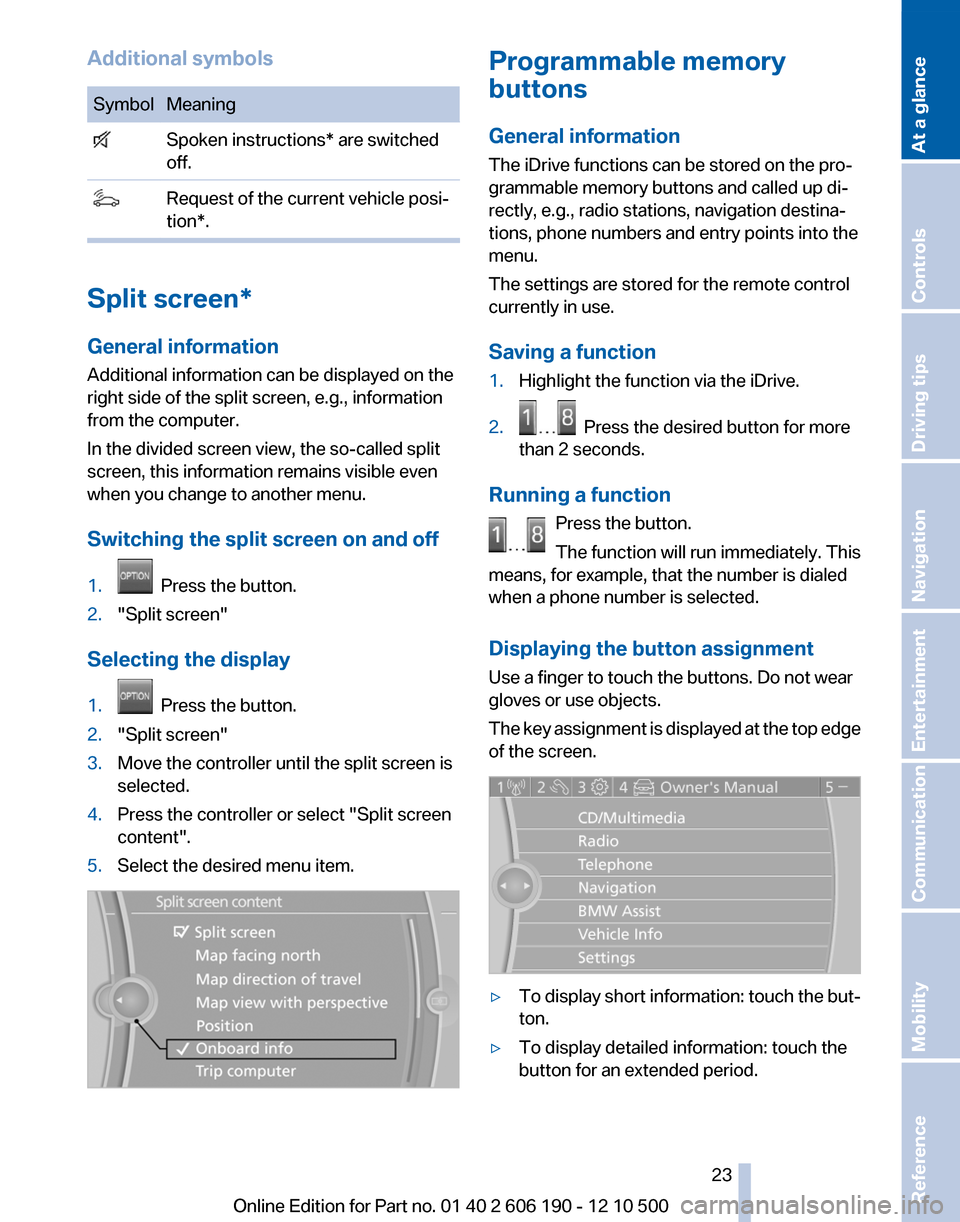
Split screen*
General information
Additional information can be displayed on the
right side of the split screen, e.g., information
from the computer.
In the divided screen view, the so-called split
screen, this information remains visible even
when you change to another menu.
Switching the split screen on and off
1. Press the button.2."Split screen"
Selecting the display
1. Press the button.2."Split screen"3.Move the controller until the split screen is
selected.4.Press the controller or select "Split screen
content".5.Select the desired menu item.Programmable memory
buttons
General information
The iDrive functions can be stored on the pro‐
grammable memory buttons and called up di‐
rectly, e.g., radio stations, navigation destina‐
tions, phone numbers and entry points into the
menu.
The settings are stored for the remote control
currently in use.
Saving a function1.Highlight the function via the iDrive.2. Press the desired button for more
than 2 seconds.
Running a function
Press the button.
The function will run immediately. This
means, for example, that the number is dialed
when a phone number is selected.
Displaying the button assignment
Use a finger to touch the buttons. Do not wear
gloves or use objects.
The key assignment is displayed at the top edge
of the screen.
▷To display short information: touch the but‐
ton.▷To display detailed information: touch the
button for an extended period.Seite 2323
Online Edition for Part no. 01 40 2 606 190 - 12 10 500
ReferenceMobilityCommunicationEntertainmentNavigationDriving tipsControlsAt a glance
Page 24 of 262

Deleting the button assignments1.Press buttons 1 and 8 simultaneously for
approx. five seconds.2."OK"
Entering letters and numbers
1.Turn the controller: select letters or num‐
bers.2.Select additional letters or numbers if
needed.3."OK": confirm the entry.SymbolFunction Press the controller: delete the letter
or number. Press the controller for an extended
period: delete all letters or numbers. Enter a blank space.
Switching between letters and
numbers
Depending on the menu, you can switch be‐
tween entering letters and numbers:
SymbolFunction Enter the letters. Enter the numbers.
Switching between upper and lower
case letters
Depending on the menu, you can switch be‐
tween entering upper and lower case letters:
SymbolFunction Move the controller up: switch
from upper to lower case letters. Move the controller up: switch
from lower to upper case letters.Entry comparison
Entry of names and addresses: the selection is
narrowed down every time a letter is entered and
letters may be added automatically.
The entries are continuously compared to the
data stored in the vehicle.▷Only those letters are offered during the en‐
try for which data is available.▷Destination search: town/city names can be
entered using the spelling of language avail‐
able on the Control Display.Seite 2424
Online Edition for Part no. 01 40 2 606 190 - 12 10 500iDrive