2011 BMW 750LI Idrive
[x] Cancel search: IdrivePage 213 of 299

▷
The mobile phone is ready for operation.
▷ Bluetooth is activated in the vehicle and on
the mobile phone.
▷ Bluetooth presettings may need to be made
on the mobile phone, e.g., for a connection
without
confirmation or visibility, refer to the
mobile phone operating instructions.
▷ Deactivate Bluetooth audio if necessary.
▷ A number with at least four and a maximum
of 16 digits was defined as the Bluetooth
passkey. It is only required once for pairing.
▷ The ignition is switched on.
Activating/deactivating Bluetooth
Bluetooth
is not permitted everywhere. Comply
with all safety guidelines and regulations.
1. "Telephone"
2. Open "Options".
3. "Bluetooth®"
Additional functions
General information
Activate the functions before pairing to be able
to use them in the vehicle. Information on suit‐
able
mobile phones, refer to page 212, that sup‐
port these functions.
Additional telephone
A mobile phone can be used as an additional
telephone.
The additional telephone can be used to accept
incoming calls, refer to page 216. While a call is
active on the additional telephone, incoming
calls are displayed on the Control Display.
Audio source
A mobile phone can be used as an audio source.
Activating/deactivating the additional
functions
1. "Telephone"
2. "Bluetooth® (phone)" 3.
Open "Options".
4. Select the desired additional function.
▷"Additional telephone"
▷ "Office"
▷ "Bluetooth® audio"
Pairing and connecting a device Pairing a device
To
avoid becoming distracted and posing
an unnecessary hazard both to your own vehi‐
cle's occupants and to other road users, only
pair the device while the vehicle is stationary.◀
Pair the vehicle entirely on the front or rear Con‐
trol Display.
1. "Telephone"
2. "Bluetooth® (phone)"
3. "Add new phone"
The Bluetooth name of the vehicle is dis‐
played.
4. To perform additional steps on the mobile
phone, refer to the mobile phone operating
instructions:
for instance, search for or con‐
nect the Bluetooth device or a new device.
The Bluetooth name of the vehicle appears
on the mobile phone display.
5. Select the Bluetooth name of the vehicle on
the mobile phone display.
Prompt
via iDrive or the mobile phone to en‐
ter the same Bluetooth passkey.
6. Enter the passkey and confirm. 7.
Select the functions for which the mobile
phone is to be used.
8. "OK" Seite 213
213Online Edition for Part no. 01 40 2 606 497 - 03 11 490
Reference Mobility
Communication Entertainment Navigation Driving tips Controls At a glance
Page 215 of 299
The mobile phone could not be paired or con‐
nected.
▷
Is Bluetooth activated in the vehicle and on
the
mobile phone? Activate Bluetooth in the
vehicle and on the mobile phone.
▷ Do the Bluetooth passkeys on the mobile
phone and the vehicle match? Enter the
same passkey on the mobile phone and via
iDrive.
▷ Did it take longer than 30 seconds to enter
the
passkey? Repeat the pairing procedure.
▷ Are too many Bluetooth devices connected
to
the mobile phone or vehicle? Delete con‐
nections with other devices if necessary.
▷ Is the audio connection activated? Deacti‐
vate the audio connection.
▷ Is the mobile phone in power-save mode or
does
it have only a limited remaining battery
life? Charge the mobile phone in the snap-
in adapter* or via the charging cable.
▷ Depending on the mobile phone, it is possi‐
ble that only one device can be connected
to the vehicle. Unpair the connected device
from the vehicle and pair and connect only
one device.
▷ The mobile phone no longer reacts? Switch
the mobile phone off and on again. Repeat
the pairing procedure.
The telephone functions are not available.
▷ Is the mobile phone paired as an additional
telephone and is the additional telephone
function
deactivated? Activate the function.
▷ Is an outgoing call not possible? Connect
the mobile phone as a telephone.
No or not all phone book entries are displayed,
or they are incomplete.
▷ Transmission of the phone book entries is
not yet complete.
▷ It is possible that only the phone book en‐
tries of the mobile phone or the
SIM card*
are transmitted.
▷ It may not be possible to display phone book
entries with special characters. ▷
The number of phone book entries being
stored is too high.
▷ Is the data volume of the contact too large,
e.g., due to stored information such as
notes? Reduce the data volume of the con‐
tact.
▷ Is the mobile phone connected as an audio
source
or additional telephone? The mobile
phone must be connected as a telephone.
The phone connection quality is poor.
▷ The strength of the Bluetooth signal on the
mobile phone can be adjusted, depending
on the mobile phone.
▷ Insert the mobile phone into the snap-in
adapter* or place it in the area of the center
console.
▷ Adjust the volume of the microphone and
loudspeakers separately.
If all points in this list have been checked and the
required function is still not available, please
contact the hotline or service center.
Controls
Adjusting the volume
Turn the knob until the desired volume is se‐
lected.
The setting is stored for the remote con‐
trol currently in use.
The vehicle automatically adjusts the volume of
the microphone on the telephone and the vol‐
ume of the called party. Depending on the mo‐
bile phone, the volumes may need to be ad‐
justed. The settings can only be created during
a call and must be adjusted separately for each
telephone. The settings are deleted when the
telephone is unpaired.
1. "Settings"
2. "Tone"
3. "Volume settings"
4. Select the desired setting: "Microphone" or
"Loudspeak."
5. To adjust: turn the controller.
6. To store: press the controller.
Seite 215
215Online Edition for Part no. 01 40 2 606 497 - 03 11 490
Reference Mobility
Communication Entertainment Navigation Driving tips Controls At a glance
Page 216 of 299
Incoming call
Receiving calls
If
the number of the caller is stored in the phone
book and is transmitted by the network, the
name of the contact is displayed. Otherwise,
only the phone number is displayed.
If more than one phone number is assigned to a
contact, only the name of the contact is dis‐
played.
For calls on the additional telephone, the num‐
ber is only displayed if it is transmitted by the
network.
An incoming call to the additional telephone is
automatically rejected if there is an active call on
the other telephone.
Accepting a call
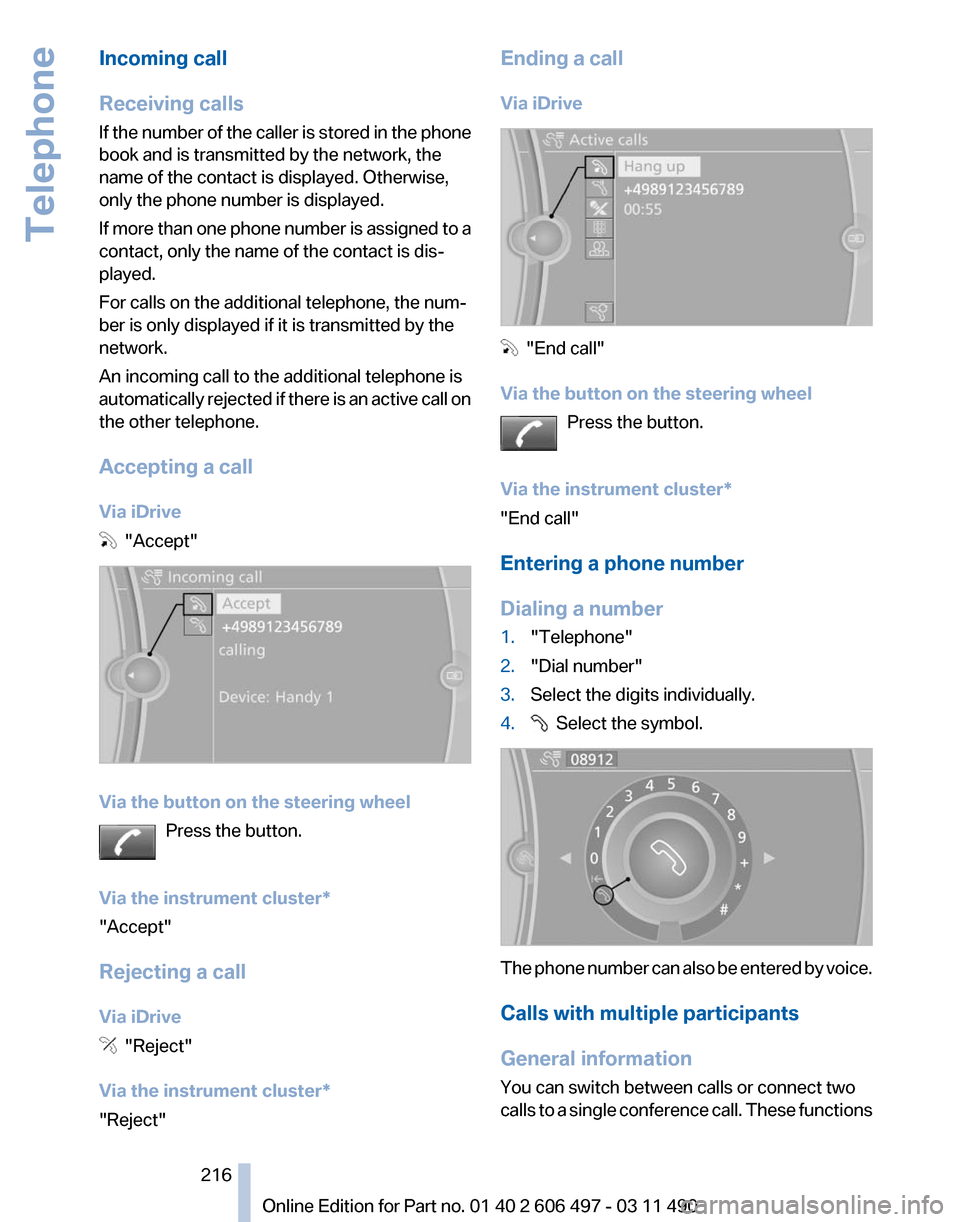
Via iDrive "Accept"
Via the button on the steering wheel
Press the button.
Via the instrument cluster
*
"Accept"
Rejecting a call
Via iDrive "Reject"
Via the instrument cluster
*
"Reject" Ending a call
Via iDrive
"End call"
Via the button on the steering wheel Press the button.
Via the instrument cluster
*
"End call"
Entering a phone number
Dialing a number
1. "Telephone"
2. "Dial number"
3. Select the digits individually.
4. Select the symbol.
The phone number can also be entered by voice.
Calls with multiple participants
General information
You can switch between calls or connect two
calls
to a single conference call. These functions Seite 216
216 Online Edition for Part no. 01 40 2 606 497 - 03 11 490
Telephone
Page 217 of 299
must be supported by the mobile phone and
service provider.
Accepting a call while speaking to
another party
This function might have to be activated by the
service provider and the mobile phone must be
adjusted accordingly.
If
a second call comes in during an ongoing call,
a call waiting signal is sounded where appropri‐
ate. "Accept"
The call is accepted and the existing call is put
on hold.
Establishing a second call
Establish
an additional call during an active call.
1. "Telephone"
2. "Active calls"
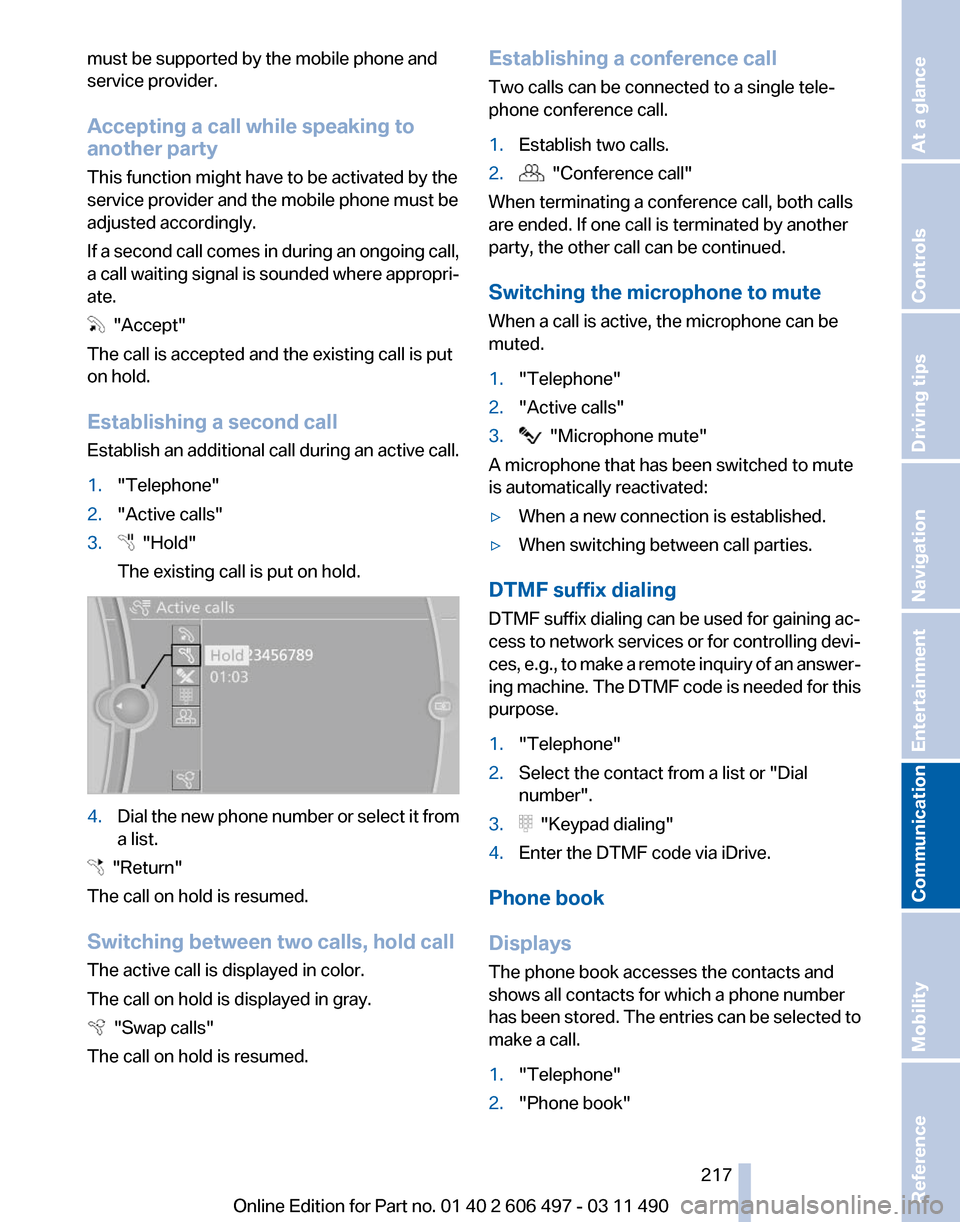
3. "Hold"
The existing call is put on hold. 4.
Dial the new phone number or select it from
a list. "Return"
The call on hold is resumed.
Switching between two calls, hold call
The active call is displayed in color.
The call on hold is displayed in gray. "Swap calls"
The call on hold is resumed. Establishing a conference call
Two calls can be connected to a single tele‐
phone conference call.
1.
Establish two calls.
2. "Conference call"
When terminating a conference call, both calls
are ended. If one call is terminated by another
party, the other call can be continued.
Switching the microphone to mute
When a call is active, the microphone can be
muted.
1. "Telephone"
2. "Active calls"
3. "Microphone mute"
A microphone that has been switched to mute
is automatically reactivated:
▷ When a new connection is established.
▷ When switching between call parties.
DTMF suffix dialing
DTMF suffix dialing can be used for gaining ac‐
cess
to network services or for controlling devi‐
ces, e.g., to make a remote inquiry of an answer‐
ing machine. The DTMF code is needed for this
purpose.
1. "Telephone"
2. Select the contact from a list or "Dial
number".
3. "Keypad dialing"
4. Enter the DTMF code via iDrive.
Phone book
Displays
The phone book accesses the contacts and
shows all contacts for which a phone number
has
been stored. The entries can be selected to
make a call.
1. "Telephone"
2. "Phone book"
Seite 217
217Online Edition for Part no. 01 40 2 606 497 - 03 11 490
Reference Mobility
Communication Entertainment Navigation Driving tips Controls At a glance
Page 218 of 299
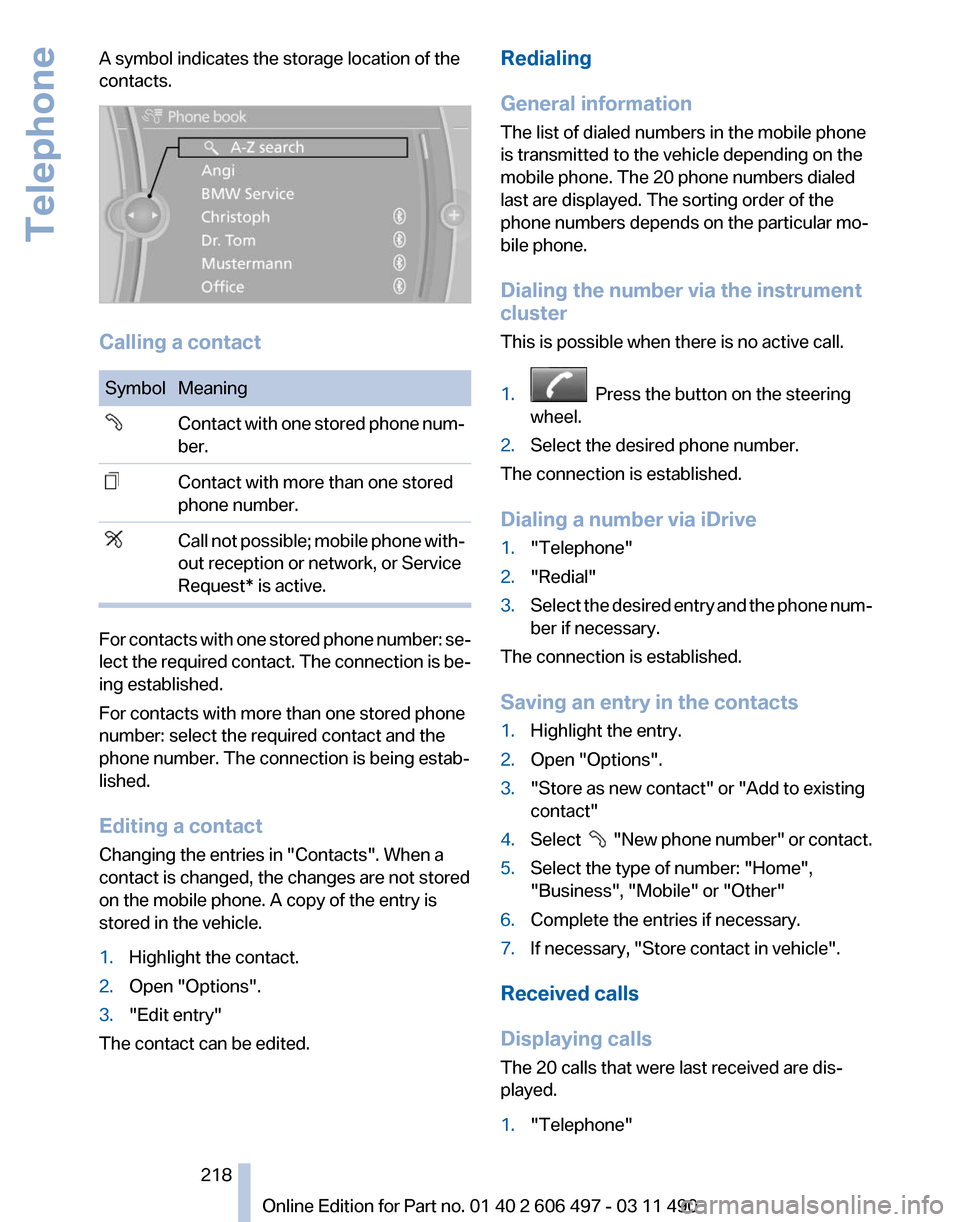
A symbol indicates the storage location of the
contacts.
Calling a contact
Symbol Meaning
Contact with one stored phone num‐
ber.
Contact with more than one stored
phone number.
Call not possible; mobile phone with‐
out reception or network, or Service
Request* is active.
For contacts with one stored phone number: se‐
lect
the required contact. The connection is be‐
ing established.
For contacts with more than one stored phone
number: select the required contact and the
phone number. The connection is being estab‐
lished.
Editing a contact
Changing the entries in "Contacts". When a
contact is changed, the changes are not stored
on the mobile phone. A copy of the entry is
stored in the vehicle.
1. Highlight the contact.
2. Open "Options".
3. "Edit entry"
The contact can be edited. Redialing
General information
The list of dialed numbers in the mobile phone
is transmitted to the vehicle depending on the
mobile phone. The 20 phone numbers dialed
last are displayed. The sorting order of the
phone numbers depends on the particular mo‐
bile phone.
Dialing the number via the instrument
cluster
This is possible when there is no active call.
1.
Press the button on the steering
wheel.
2. Select the desired phone number.
The connection is established.
Dialing a number via iDrive
1. "Telephone"
2. "Redial"
3. Select the desired entry and the phone num‐
ber if necessary.
The connection is established.
Saving an entry in the contacts
1. Highlight the entry.
2. Open "Options".
3. "Store as new contact" or "Add to existing
contact"
4. Select
"New phone number" or contact.
5. Select the type of number: "Home",
"Business", "Mobile" or "Other"
6. Complete the entries if necessary.
7. If necessary, "Store contact in vehicle".
Received calls
Displaying calls
The 20 calls that were last received are dis‐
played.
1. "Telephone"
Seite 218
218 Online Edition for Part no. 01 40 2 606 497 - 03 11 490
Telephone
Page 238 of 299
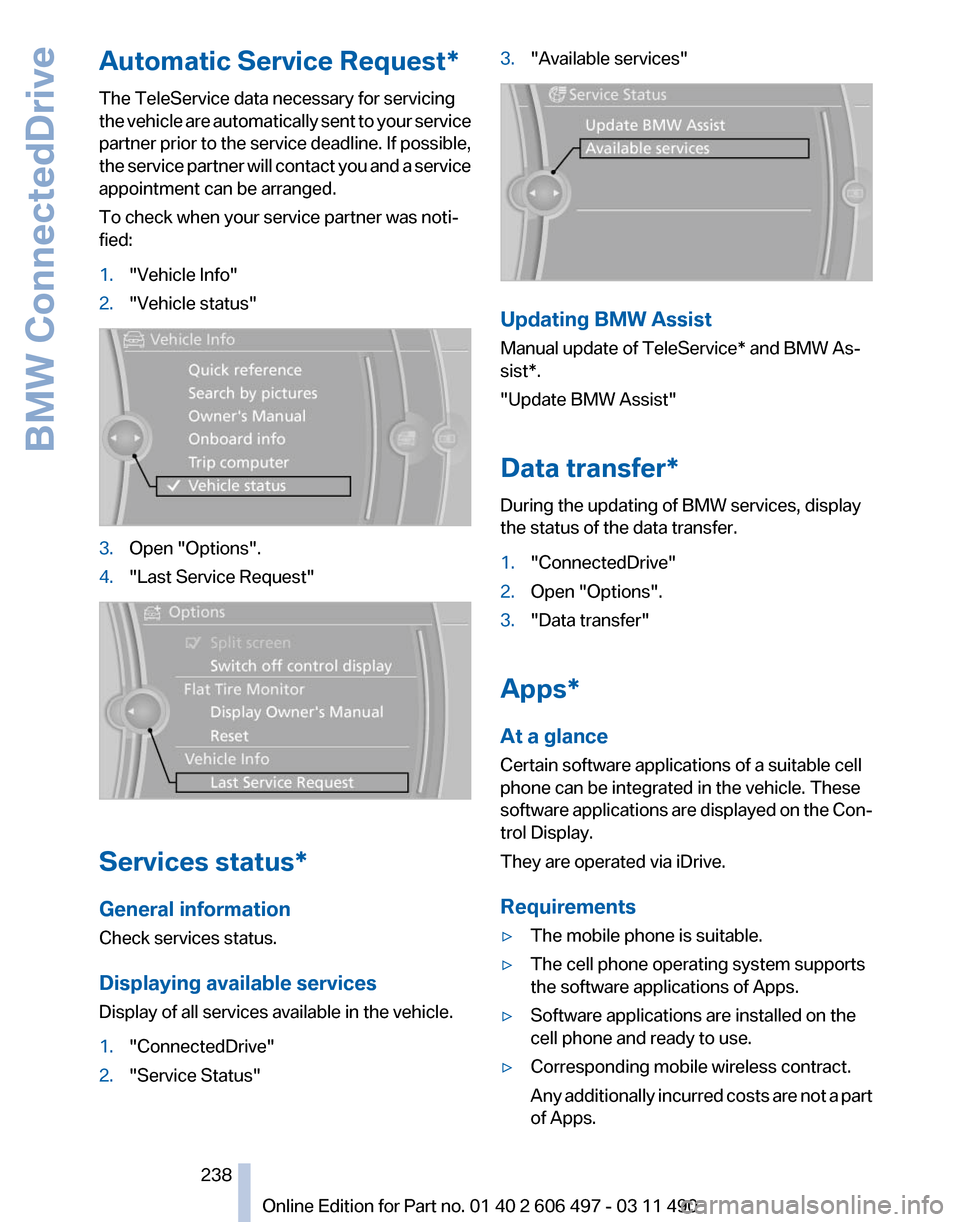
Automatic Service Request*
The TeleService data necessary for servicing
the
vehicle are automatically sent to your service
partner prior to the service deadline. If possible,
the service partner will contact you and a service
appointment can be arranged.
To check when your service partner was noti‐
fied:
1. "Vehicle Info"
2. "Vehicle status" 3.
Open "Options".
4. "Last Service Request" Services status*
General information
Check services status.
Displaying available services
Display of all services available in the vehicle.
1.
"ConnectedDrive"
2. "Service Status" 3.
"Available services" Updating BMW Assist
Manual update of
TeleService* and BMW As‐
sist*.
"Update BMW Assist"
Data transfer*
During the updating of BMW services, display
the status of the data transfer.
1. "ConnectedDrive"
2. Open "Options".
3. "Data transfer"
Apps*
At a glance
Certain software applications of a suitable cell
phone can be integrated in the vehicle. These
software
applications are displayed on the Con‐
trol Display.
They are operated via iDrive.
Requirements
▷ The mobile phone is suitable.
▷ The cell phone operating system supports
the software applications of Apps.
▷ Software applications are installed on the
cell phone and ready to use.
▷ Corresponding mobile wireless contract.
Any
additionally incurred costs are not a part
of Apps.
Seite 238
238 Online Edition for Part no. 01 40 2 606 497 - 03 11 490
BMW ConnectedDrive
Page 239 of 299

▷
Use only BMW approved software applica‐
tions; otherwise, it may result in malfunc‐
tions.
Information about suitable cell phones, available
software applications and their installation can
be found at www.bmw.com/connectivity or at
the service center.
Create the entries.
Make entries only when traffic and road
conditions allow. Otherwise, the vehicle occu‐
pants
and other road users may be put in danger
because of the distraction from driving.
For reasons of safety, some software applica‐
tions are usable only while the vehicle is station‐
ary.◀
Operate Apps
1. Connect the cell phone via the snap-in
adapter or via the USB audio interface.
2. "ConnectedDrive"
3. Select the desired software application.
Displaying status
Information about the currently available soft‐
ware applications can be displayed.
1. "ConnectedDrive"
2. "BMW apps"
PlugIn*
Selected functions of the cell phone are dis‐
played on the Control Display. They can be op‐
erated via iDrive.
1. Connect cell phone via the snap-in adapter.
2. "ConnectedDrive"
3. "PlugIn"
4. "Activate PlugIn"
5. Navigate to the displayed functions via the
controller
and select, for example, a desired
category or track.
Press button to switch within the cell
phone functions to a higher level or back. Press button twice to switch back to the
main menu.
Notes
▷ The ranges of Apps that can be displayed on
the Control Display depend on the range of
installed software applications on the cell
phone.
▷ The data transmission of the software ap‐
plications
from the cell phone to the vehicle
can last some time. Some software applica‐
tions depend on the speed of the available
Internet connection of the cell phone.
▷ Some cell phones cannot simultaneously
use
Apps and the Bluetooth hands-free sys‐
tem.
If necessary, restart the software application
on the cell phone after a phone conversa‐
tion.
TeleService Report*
Transmits
technical data that is evaluated for the
ongoing development of BMW products from
your vehicle to BMW in regular intervals if nec‐
essary.
TeleService Report is activated in vehicles that
meet certain technical requirements and have a
valid Assist contract; this feature is free of
charge.
Neither personal data nor position data is trans‐
mitted.
Indicate when the last Teleservice Report was
transmitted:
1. "Vehicle Info"
2. "Vehicle status"
3. Open "Options".
4. "Last Teleservice Info" Seite 239
239Online Edition for Part no. 01 40 2 606 497 - 03 11 490
Reference Mobility
Communication Entertainment Navigation Driving tips Controls At a glance
Page 252 of 299

Make sure that the snow chains are always suf‐
ficiently
tight. Retighten as needed according to
the chain manufacturer's instructions.
Do not initialize the Tire Pressure Monitor after
mounting snow chains, as doing so may result
in incorrect readings.
When driving with snow chains, briefly activate
Dynamic Traction Control if necessary.
Maximum speed with snow chains
Do not exceed a speed of 30 mph/50 km/h when
using snow chains.
Snow chain detection*
The concept
When using snow chains, you should set
whether you are driving with or without snow
chains via the iDrive.
The snow chain detection system supports you
by automatically showing the detected state on
the Control Display.
When snow chains are in use, the rear axle steer‐
ing of the Integral Active Steering* is deacti‐
vated automatically.
At speeds above the maximum allowable speed
with snow chains of 30 mph/50 km/h, the rear
axle steering is activated again automatically.
Activating the status
1. "Settings"
2. "Tire chains"
3. "Tire chains installed"
Automatic detection
If functioning properly:
▷ Snow chains are mounted. The setting is not
activated .
After you drive a short distance, a Check
Control message is shown and the state is
activated automatically.
Confirm the automatic activation.
▷ Snow chains are not mounted. The setting
is activated . At speeds above 30 mph/50 km/h, a Check
Control message is displayed. Deactivate
the status manually.
If not functioning properly:
▷ Snow chains are mounted. The setting is not
activated .
A Check Control message is not displayed.
The
automatic detection system is malfunc‐
tioning. Activate the status manually.
Activating/deactivating rear axle
steering
If the status indicating that snow chains are in
use
is activated, the rear axle steering is deacti‐
vated automatically.
At speeds above 30 mph/50 km/h, the rear axle
steering is activated again, even though snow
chains are in use.
Seite 252
252 Online Edition for Part no. 01 40 2 606 497 - 03 11 490
Wheels and tires