2011 BMW 3 SERIES panel
[x] Cancel search: panelPage 17 of 325

2.Press.
3.Move in four directions.
Buttons on controller
Press the button Function
MENUOpen the main menu.
RADIOOpens the Radio menu.
MEDIAOpens the CD/Multimedia
menu.
NAVOpens the Navigation
menu.
TELOpens the Telephone
menu.
BACKDisplays the previous
panel.
OPTION Opens the Options menu.
Controller without navigation system
Select menu items and create settings.
1.Turn.
2.Press.
3.Move in two directions.
Buttons on controller
Press the button Function
MENUOpen the main menu.
AudioOpen audio menu last lis‐
tened to, switch between
audio menus.
TELOpens the Telephone
menu.
Seite 17
iDriveAt a glance
17Online Edition for Part no. 01 40 2 608 633 - 11 09 490
Page 18 of 325

Press the button Function
BACKOpen previous panel.
OPTION Opens the Options menu.
Operating concept
Opening the main menu
Press the button.
The main menu is displayed.
All iDrive functions can be called up via the main
menu.
Selecting menu items
Menu items shown in white can be selected.
1.Turn the controller until the desired menu
item is highlighted.
2.Press the controller.
Menu items in the Owner's Manual
In the Owner's Manual, menu items that can be
selected are set in quotation marks, e.g.,
"Settings".
Changing between panels
After a menu item is selected, e.g., "Radio", a
new panel is displayed. Panels can overlap.
▷Move the controller to the left.
The current panel is closed and the previous
panel is displayed.
The previous panel is opened again by
pressing the BACK button. In this case, the
current panel is not closed.
▷Move the controller to the right.
A new panel is opened on top of the previous
display.
White arrows pointing to the left or right indicate
that additional panels can be opened.
View of an opened menu
When a menu is opened, it generally opens with
the panel that was last selected in that menu. To
display the first panel of a menu:
▷Move the controller to the left repeatedly
until the first panel is displayed.
▷Press the menu button on the controller
twice.
Opening the Options menu
Press the button.
The "Options" menu is displayed.
Seite 18
At a glanceiDrive
18Online Edition for Part no. 01 40 2 608 633 - 11 09 490
Page 27 of 325

Opening during operation via iDrive
To move directly from the application on the
Control Display to the options menu:
1. Press the button or move the controller
to the right repeatedly until the "Options"
menu is displayed.
2."Display Owner's Manual"
Opening when a Check Control
message is displayed
Directly from the Check Control message on the
Control Display:
"Display Owner's Manual"
Changing between a function and the
Owner's Manual
To change from a function, e.g., radio, to the
Owner's Manual on the Control Display and to
switch between the two displays:
1. Press the button or move the controller
to the right repeatedly until the "Options"
menu is displayed.
2."Display Owner's Manual"
3.Select the desired page in the Owner's
Manual.
4. Press the button again to return to the
function displayed last.
5. Press the button to return to the page
of the Owner's Manual displayed last.
To switch back and forth repeatedly between
the function displayed last and the page of the
Owner's Manual displayed last, repeat steps 4
and 5. This opens a new panel every time.
Programmable memory buttons
General information
The Owner's Manual can be stored on the pro‐
grammable memory buttons and called up di‐
rectly.
Storing
1."Owner's Manual" Select via the iDrive.
2. Press the desired button for more
than 2 seconds.
Executing
Press the button.
The Owner's Manual is displayed im‐
mediately.
Seite 27
Integrated Owner's Manual in the vehicleAt a glance
27Online Edition for Part no. 01 40 2 608 633 - 11 09 490
Page 92 of 325

Protective action
Airbags are not triggered in every impact situa‐
tion, e.g., in less severe accidents or rear-end
collisions.
Information on how to ensure the optimal
protective effect of the airbags
▷Keep at a distance from the airbags.
▷Always grasp the steering wheel on the
steering wheel rim, holding your hands at
the 3 o'clock and 9 o'clock positions, to keep
the danger of injury to your hands or arms as
low as possible if the airbag is triggered.
▷There should be no people, animals, or ob‐
jects between an airbag and a person.
▷Do not use the cover of the front airbag on
the front passenger side as a storage area.
▷Keep the dashboard and window on the
front passenger side clear, i.e., do not cover
with adhesive labels or coverings, and do not
attach holders such as for navigation instru‐
ments and mobile phones.
▷Make sure that the front passenger is sitting
correctly, i.e., keeps his or her feet and legs
in the footwell; otherwise, leg injuries can
occur if the front airbag is triggered.
▷Do not place slip covers, seat cushions or
other objects on the front passenger seat
that are not approved specifically for seats
with integrated side airbags.
▷Do not hang pieces of clothing, such as jack‐
ets, over the backrests.
▷Make sure that occupants keep their heads
away from the side airbag and do not rest
against the head airbag; otherwise, injuries
can occur if the airbags are triggered.
▷Do not remove the airbag restraint system.
▷Do not remove the steering wheel.
▷Do not apply adhesive materials to the air‐
bag cover panels, cover them or modify
them in any way.
▷Never modify either the individual compo‐
nents or the wiring in the airbag system. This
also applies to steering wheel covers, the
dashboard, the seats, the roof pillars and the
sides of the headliner.◀
Even when all instructions are followed closely,
injury from contact with the airbags cannot be
ruled out in certain situations.
The ignition and inflation noise may lead to
short-term and, in most cases, temporary hear‐
ing impairment in sensitive individuals.
In the case of a malfunction, deactivation
and after triggering of the airbags
Do not touch the individual components imme‐
diately after the system has been triggered; oth‐
erwise, there is the danger of burns.
Only have the airbags checked, repaired or dis‐
mantled and the airbag generator scrapped by
your service center or a workshop that has the
necessary authorization for handling explosives.
Non-professional attempts to service the sys‐
tem could lead to failure in an emergency or un‐
desired triggering of the airbag, either of which
could result in injury.◀
Warnings and information on the airbags are
also found on the sun visors.
Functional readiness of the airbag
system
When the ignition is switch on, the warn‐
ing lamp in the instrument cluster lights
up briefly and thereby indicates the op‐
erational readiness of the entire airbag system
and the belt tensioner.
Airbag system malfunctioning
▷Warning lamp does not come on when the
ignition is turned on.
▷The warning lamp lights up continuously.
Seite 92
ControlsSafety
92Online Edition for Part no. 01 40 2 608 633 - 11 09 490
Page 151 of 325
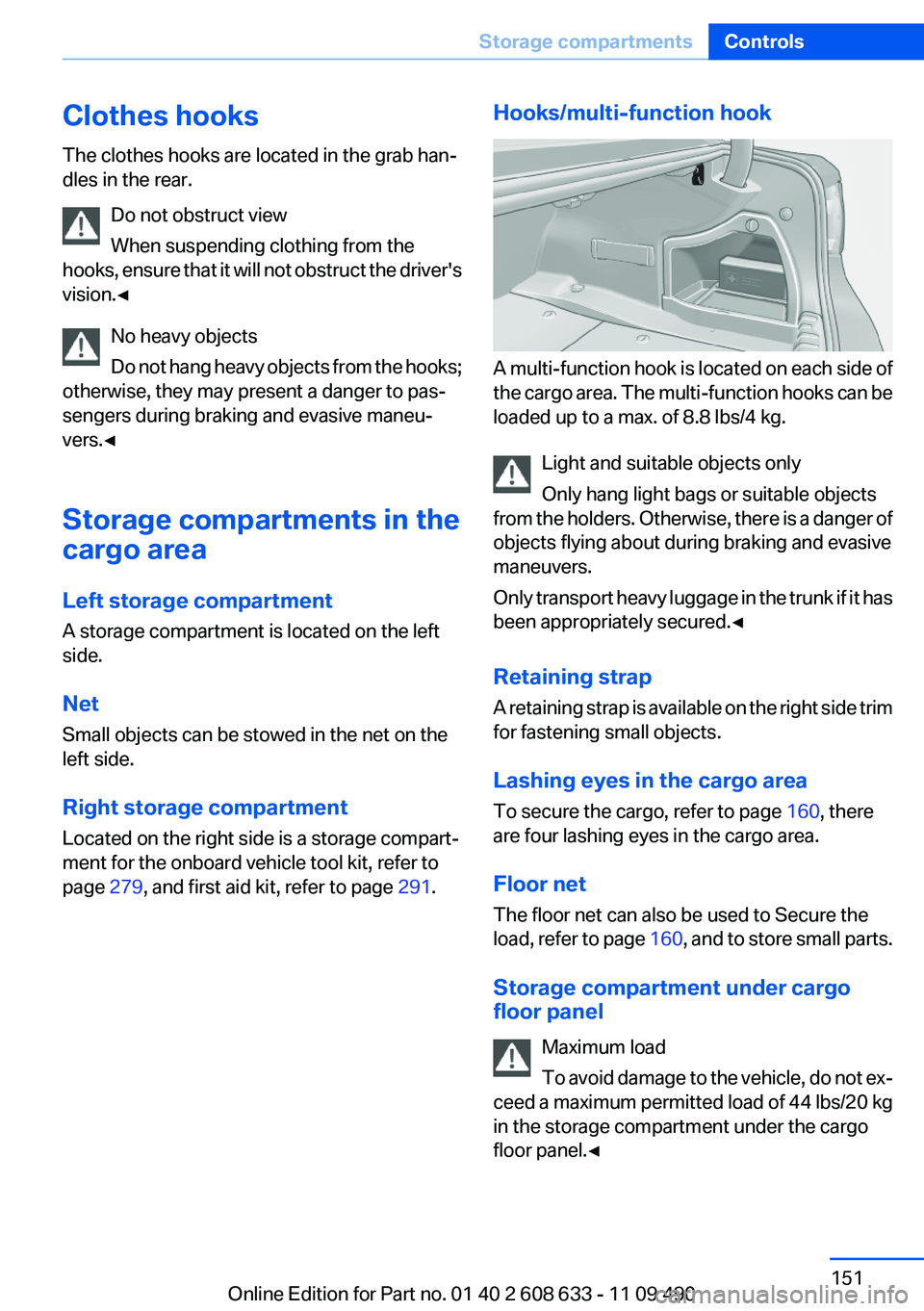
Clothes hooks
The clothes hooks are located in the grab han‐
dles in the rear.
Do not obstruct view
When suspending clothing from the
hooks, ensure that it will not obstruct the driver's
vision.◀
No heavy objects
Do not hang heavy objects from the hooks;
otherwise, they may present a danger to pas‐
sengers during braking and evasive maneu‐
vers.◀
Storage compartments in the
cargo area
Left storage compartment
A storage compartment is located on the left
side.
Net
Small objects can be stowed in the net on the
left side.
Right storage compartment
Located on the right side is a storage compart‐
ment for the onboard vehicle tool kit, refer to
page 279, and first aid kit, refer to page 291.
Hooks/multi-function hook
A multi-function hook is located on each side of
the cargo area. The multi-function hooks can be
loaded up to a max. of 8.8 lbs/4 kg.
Light and suitable objects only
Only hang light bags or suitable objects
from the holders. Otherwise, there is a danger of
objects flying about during braking and evasive
maneuvers.
Only transport heavy luggage in the trunk if it has
been appropriately secured.◀
Retaining strap
A retaining strap is available on the right side trim
for fastening small objects.
Lashing eyes in the cargo area
To secure the cargo, refer to page 160, there
are four lashing eyes in the cargo area.
Floor net
The floor net can also be used to Secure the
load, refer to page 160, and to store small parts.
Storage compartment under cargo
floor panel
Maximum load
To avoid damage to the vehicle, do not ex‐
ceed a maximum permitted load of 44 lbs/20 kg
in the storage compartment under the cargo
floor panel.◀
Seite 151
Storage compartmentsControls
151Online Edition for Part no. 01 40 2 608 633 - 11 09 490
Page 152 of 325
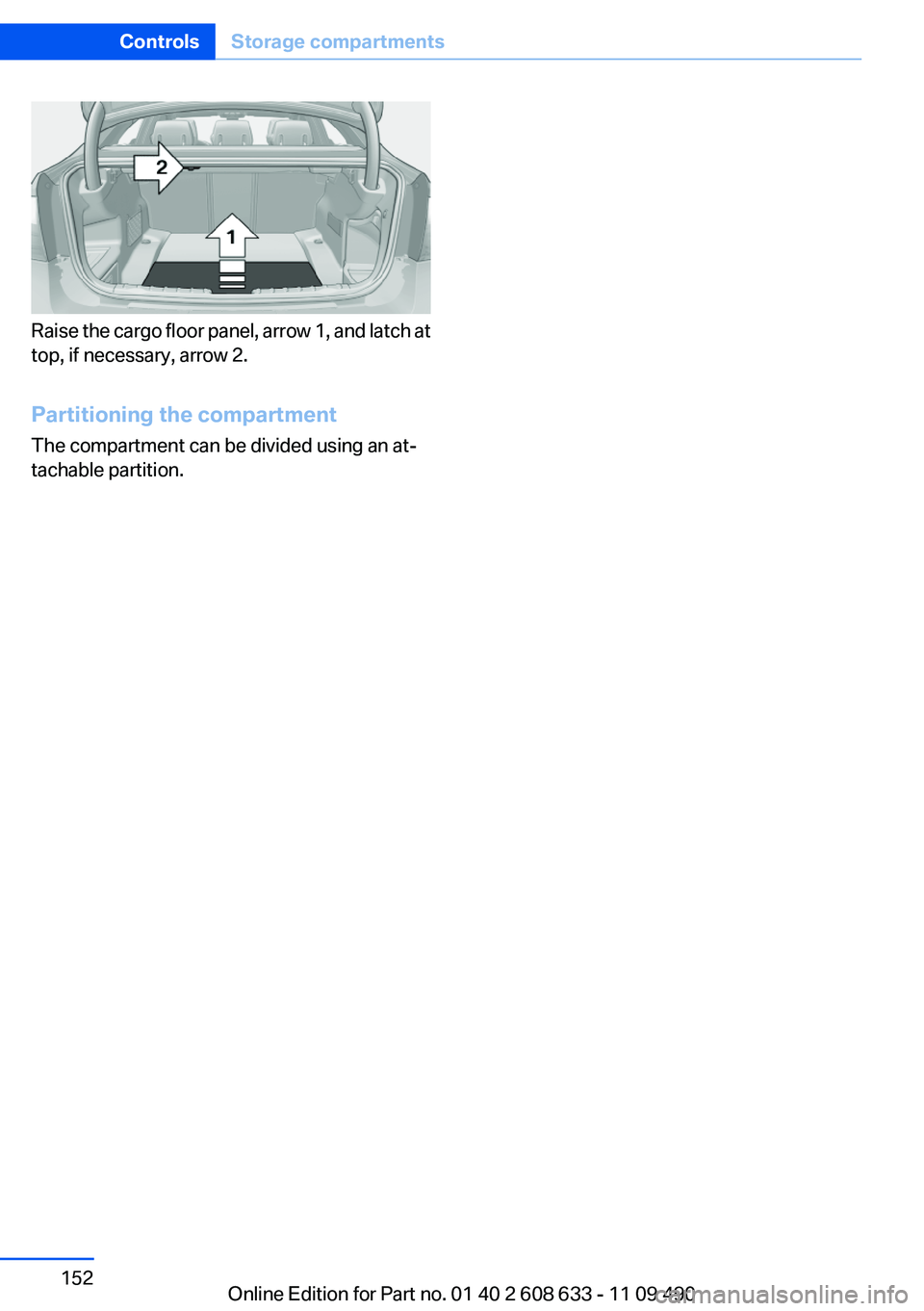
Raise the cargo floor panel, arrow 1, and latch at
top, if necessary, arrow 2.
Partitioning the compartment
The compartment can be divided using an at‐
tachable partition.
Seite 152
ControlsStorage compartments
152Online Edition for Part no. 01 40 2 608 633 - 11 09 490
Page 196 of 325
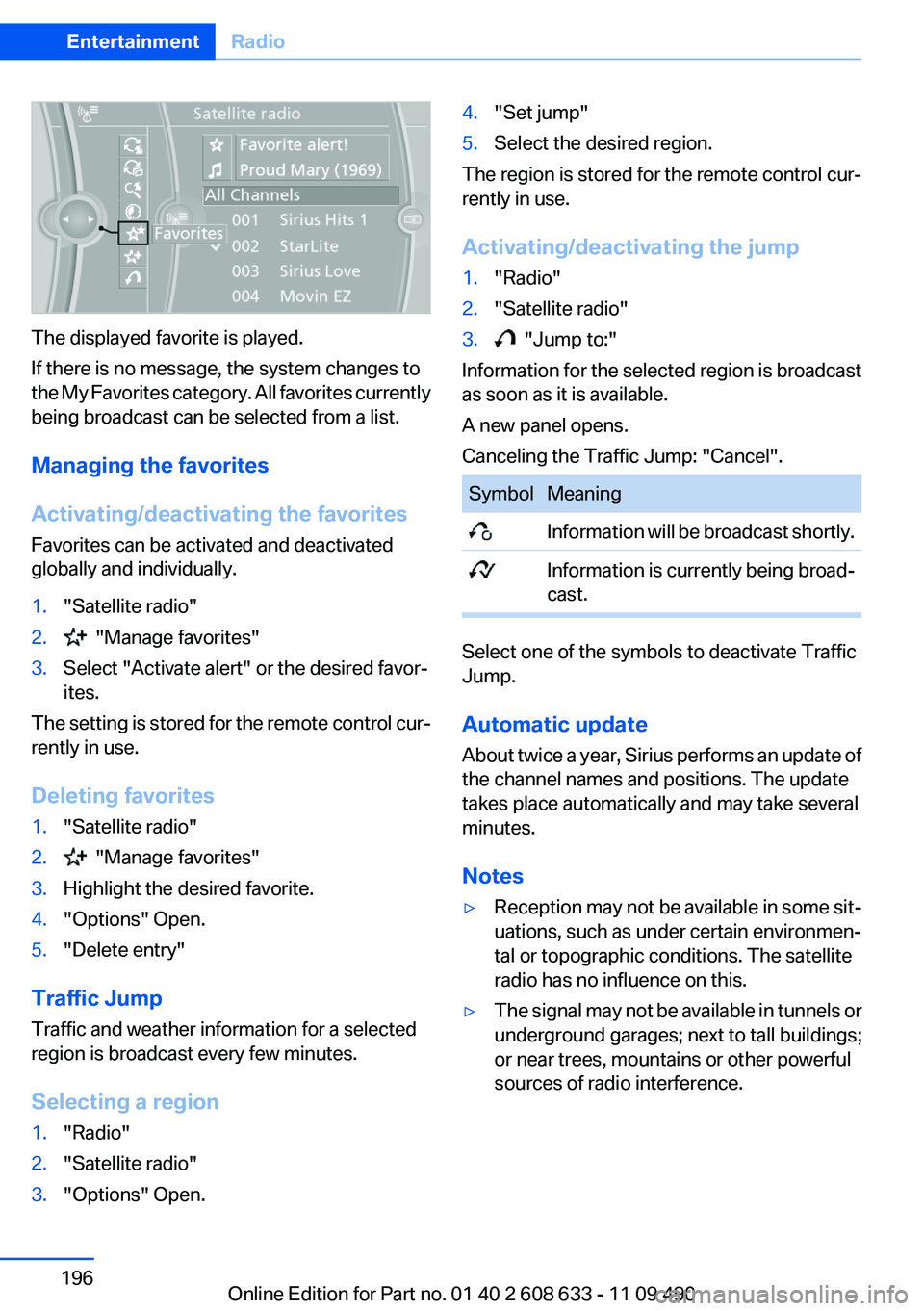
The displayed favorite is played.
If there is no message, the system changes to
the My Favorites category. All favorites currently
being broadcast can be selected from a list.
Managing the favorites
Activating/deactivating the favorites
Favorites can be activated and deactivated
globally and individually.
1."Satellite radio"
2. "Manage favorites"
3.Select "Activate alert" or the desired favor‐
ites.
The setting is stored for the remote control cur‐
rently in use.
Deleting favorites
1."Satellite radio"
2. "Manage favorites"
3.Highlight the desired favorite.
4."Options" Open.
5."Delete entry"
Traffic Jump
Traffic and weather information for a selected
region is broadcast every few minutes.
Selecting a region
1."Radio"
2."Satellite radio"
3."Options" Open.
4."Set jump"
5.Select the desired region.
The region is stored for the remote control cur‐
rently in use.
Activating/deactivating the jump
1."Radio"
2."Satellite radio"
3. "Jump to:"
Information for the selected region is broadcast
as soon as it is available.
A new panel opens.
Canceling the Traffic Jump: "Cancel".
Symbol Meaning
Information will be broadcast shortly.
Information is currently being broad‐
cast.
Select one of the symbols to deactivate Traffic
Jump.
Automatic update
About twice a year, Sirius performs an update of
the channel names and positions. The update
takes place automatically and may take several
minutes.
Notes
▷Reception may not be available in some sit‐
uations, such as under certain environmen‐
tal or topographic conditions. The satellite
radio has no influence on this.
▷The signal may not be available in tunnels or
underground garages; next to tall buildings;
or near trees, mountains or other powerful
sources of radio interference.
Seite 196
EntertainmentRadio
196Online Edition for Part no. 01 40 2 608 633 - 11 09 490
Page 284 of 325

21-watt bulb, PY21W
1.In the wheel house, loosen the two brackets
and remove the cover.
2.If necessary, pull the inside trim of the wheel
house slightly inward. Turn the bulb holder
counterclockwise and remove.
3.Press the bulb gently into the socket, turn
counterclockwise and remove.
4.Install the new bulb and bulb holder in re‐
verse order of removal.
5.Attach the cover to the wheel house.
Front fog lamps
Follow the General instructions on lamps and
bulbs, refer to page 279.
35-watt bulb, H8
1.Use the back side of the screwdriver from
the onboard vehicle tool kit to remove the
three wheel house panel screws, arrow 1.
Carefully raise the wheel house panel, ar‐
row 2.
2.Pull off the bulb connector, arrow 1.
Turn the bulb, arrow 2.
Left side of vehicle: turn clockwise.
Right side of vehicle: turn counterclockwise.
Remove the bulb.
3.Insert the new bulb, connect the connector
and screw on the wheel house panel.
Turn signal in exterior mirror
Follow the General instructions on lamps and
bulbs, refer to page 279.
The turn signals feature LED technology. Con‐
tact your service center in the event of a mal‐
function.
Seite 284
MobilityReplacing components
284Online Edition for Part no. 01 40 2 608 633 - 11 09 490