2011 Acura RDX audio
[x] Cancel search: audioPage 189 of 517

Depending on where you drive, you
may experience reception problems.
Interference can be caused by any of
these conditions:●Driving on the north side of an
east/west mountain road.●Driving on the north side of a large
commercial truck on an east/west
road.●Driving in tunnels.●Driving on a road beside a vertical
wall, steep cliff, or hill to the south
of you.●Driving on the lower level of a
multi-tiered road.●Driving on a single lane road
alongside dense trees taller than
50 ft. (15 m) to the south of you.
There may also be other geographic
situations or structures that could
affect satellite radio reception.
As required by the FCC: Changes or modifications not expresslyapproved by the party responsible for
compliance could void the user'sauthority to operate the equipment.Receiving XM Radio ServiceIf your XM Radio service has expired
or you purchased your vehicle from a
previous owner, you can listen to a
sampling of the broadcasts available on
XM radio. With the ignition switch in
the ACCESSORY (I) or the ON (II)
position, push the PWR/VOL knob to
turn on the audio system, and press the
button. A variety of music types
and styles will play.
If you decide to purchase XM Radio
service, contact XM Radio at
www.
xmradio.com,
or at 1-800-852-9696. In
Canada, contact XM CANADA at
www.
xmradio.ca,
or at 1-877-209-0079. You
will need to give them your radio I.D.
number and your credit card number.
To get your radio I.D. number, turn the
TUNE knob until ‘‘0 ’’ appears in the
display. Your I.D. will appear in the
display.
After you've registered with XM
Radio, keep your audio system in the
satellite radio mode while you wait
for activation. This should take about
30 minutes.
While waiting for activation, make
sure your vehicle remains in an open
area with good reception. Once your
audio system is activated, ‘‘CAT’’ or
‘‘ CH ’’will appear in the display, and
you'll be able to listen to XM Radio
broadcasts. XM Radio will continue
to send an activation signal to your
vehicle for at least 12 hours from the
activation request. If the service has
not been activated after 36 hours,
contact XM Radio. In Canada,
contacr XM CANADA
®.
Playing the XM
®Radio (Models without navigation system)
18410/06/08 17:42:32 11 ACURA RDX MMC North America Owner's M 50 31STK640 enu
Page 192 of 517
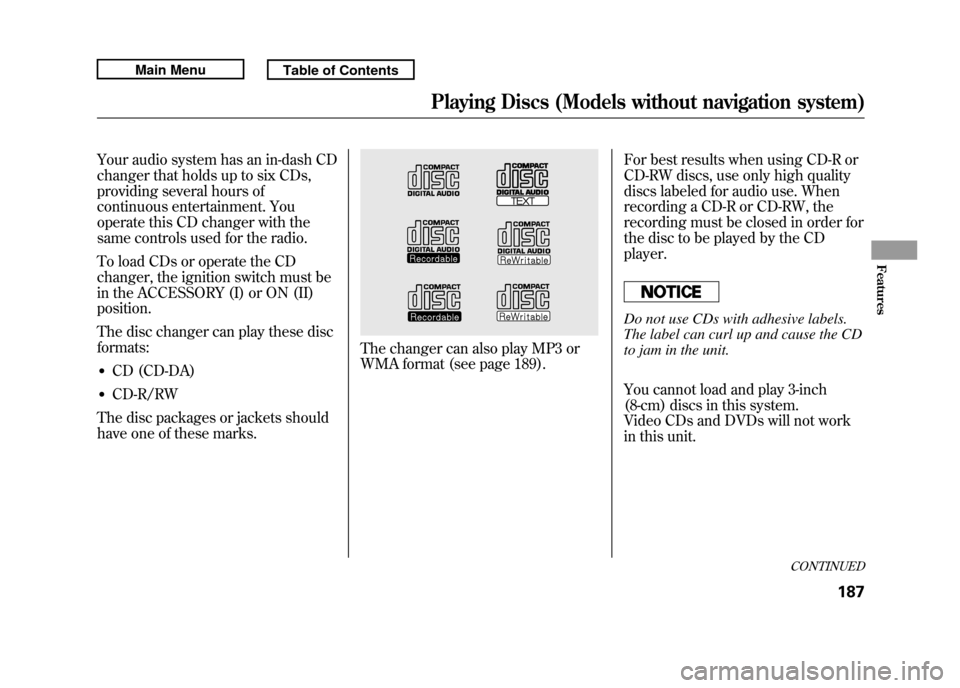
Your audio system has an in-dash CD
changer that holds up to six CDs,
providing several hours of
continuous entertainment. You
operate this CD changer with the
same controls used for the radio.
To load CDs or operate the CD
changer, the ignition switch must be
in the ACCESSORY (I) or ON (II)
position.
The disc changer can play these disc
formats:●CD (CD-DA)●CD-R/RW
The disc packages or jackets should
have one of these marks.
The changer can also play MP3 or
WMA format (see page 189). For best results when using CD-R or
CD-RW discs, use only high quality
discs labeled for audio use. When
recording a CD-R or CD-RW, the
recording must be closed in order for
the disc to be played by the CD
player.
Do not use CDs with adhesive labels.
The label can curl up and cause the CD
to jam in the unit.
You cannot load and play 3-inch
(8-cm) discs in this system.
Video CDs and DVDs will not work
in this unit.
CONTINUED
Playing Discs (Models without navigation system)
187
Features
10/06/08 17:42:32 11 ACURA RDX MMC North America Owner's M 50 31STK640 enu
Page 193 of 517

Loading CDs in the Changer
To load multiple discs in one
operation:1. Press and hold the LOAD button on the changer unit until you hear
a beep. You will see ‘‘BUSY ’’on
the center display, and disc load
indicator turns red and starts
blinking.
2. Insert the disc into the disc slot when the disc load indicator turns
green and ‘‘LOAD ’’appears on the
center display at the same time.
Insert it only halfway; the drive will
pull it in the rest of the way. You
will see ‘‘BUSY ’’on the center
display, and the disc load indicator
turns red again and blinks as the
CD is loaded. 3. When the disc load indicator turns
green and ‘‘LOAD ’’appears on the
center display again, insert the
next CD in the slot.
Do not try to insert a disc until
‘‘ LOAD ’’appears. You could
damage the audio unit.
4. Repeat steps 1 through 3 until all six positions are loaded. If you are
not loading all six positions, press
the LOAD button again after the
last CD has loaded. ‘‘DISC READ ’’
appears on the center display, then
the system begins playing the last
CD loaded.
If you stop loading discs before all
six positions are filled, the system
will wait for 10 seconds, stop the load
operation, and begin playing the last
disc loaded. To load a single disc:
1. Press and release the LOAD
button on the changer unit. You
will see ‘‘BUSY ’’on the center
display, and the disc load indicator
turns red and starts blinking.
2. Insert a disc into the disc slot when the disc load indicator turns
green and ‘‘LOAD ’’appears on the
center display at the same time.
Insert the disc only about halfway;
the drive will pull it in the rest of
the way. You will see the disc
indicator blinking on the center
display.
Do not try to insert a disc until
‘‘ LOAD ’’appears. You could
damage the audio unit.Playing Discs (Models without navigation system)18810/06/08 17:42:32 11 ACURA RDX MMC North America Owner's M 50 31STK640 enu
Page 195 of 517

NOTE: If a file on an MP3 or WMA
disc is protected by digital rights
management (DRM), the audio unit
displays FORMAT, and then skips to
the next file.
If the disc has a complex structure, it
will take a while to read the disc
before the system begins to play it.
Depending on the software the files
were made with, it may not be
possible to play some files, or display
some text data.
Name Display FunctionEach time you press the DISP/
MODE button while playing a CD
(CD-DA), the center display changes
from album name, to track name, to
artist name, and then to normal
display. If the disc was not recorded
with CD-TEXT, ‘‘NO INFO ’’will be
shown on the center display.
When playing a disc compressed in
MP3/WMA format, the display
changes from folder name, to file
name, to artist tag, to album tag, to
track tag, and then to normal display
each time you press the DISP/
MODE button. If the disc was not
recorded with this information, ‘‘NO
INFO ’’will be shown on the center
display. If the title is too long, it will not show
all at once. Press and hold the DISP/
MODE button, and the rest of the
title will show on the center display.
You will also see the album and track
name (CD-TEXT), or the folder and
file name (MP3/WMA) under these
conditions:
●When you insert a disc, and the
system begins to play.●Each time a new track, file, or
folder plays.
Playing Discs (Models without navigation system)19010/06/08 17:42:32 11 ACURA RDX MMC North America Owner's M 50 31STK640 enu
Page 201 of 517

The chart on the right explains the
error messages you may see in the
display while playing a disc.
If you see an error message in the
display while playing a disc, press
the eject button. After ejecting the
disc, check it for damage or
deformation. If there is no damage,
insert the disc again.
For the additional information on
damaged discs, see page 258.
The audio system will try to play the
disc. If there is still a problem, the
error message will reappear. Press
the eject button, and pull out the
disc.
Insert a different disc. If the new disc
plays, there is a problem with the
first disc. If the error message cycle
repeats and you cannot clear it, take
your vehicle to a dealer.Error
Message Cause Solution
FORMAT
Track/File format not
supported Current track will be skipped. The next
supported track or file plays automatically.
BAD DISC
PLEASE CHECK OWNER'SMANUAL
PUSH EJECT Mechanical error
Press the EJECT button, and pull out the disc(s).
Check the disc for serious damage, signs of
deformation, excessive scratches, and/or dirt
(see page 258.)
Insert the disc again. If the code does not
disappear, or the disc(s) cannot be removed,
consult your dealer. Do not try to force the disc
out of the player.
BAD DISC
PLEASE CHECK OWNER'SMANUAL Servo error
Disc Changer Error Messages (Models without navigation system)19610/06/08 17:42:32 11 ACURA RDX MMC North America Owner's M 50 31STK640 enu
Page 203 of 517

To Play an iPod
®
This audio system can operate the
audio files on the iPod
®with the
same controls used for the disc
player. To play an iPod, connect it to
the USB adapter cable in the console
compartment by using your dock
connector, then press the CD/AUX
button. The ignition switch must be
in the ACCESSORY (I) or ON (II)
position. The iPod will also be
charged with the ignition switch in
these positions.
The audio system reads and plays
sound files to be playable on the
iPod. The system cannot operate an
iPod as a mass storage device. The
system will only play songs stored on
the iPod with iTunes.
iPod and iTunes are registered
trademarks owned by Apple Inc. iPods compatible with your audio
system using the USB adapter cable
are:
Model Software
iPod classic Ver. 1.0 or more
iPod with
video
(iPod 5th
generation) Ver. 1.2 or more
iPod nano Ver. 1.2 or more
iPod nano 2nd
generation Ver. 1.1.2 or more
iPod nano 3rd
generation Ver. 1.0 or more
iPod nano 4th
generation Ver. 1.0.2 or more
iPod touch Ver. 1.1.1 or more
iPod touch
2nd generation Ver. 2.1.1 or more
iPhone Ver. 2.1.0 or more
iPhone 3G Ver. 2.1.0 or more Use only compatible iPods with the
latest software. iPods that are not
compatible will not work in this audio
unit.
NOTE:
●Do not connect your iPod using a
hub.●Do not keep the iPod in the
vehicle. Direct sunlight and high
heat will damage it.●Do not use an extension cable
between the USB adapter cable
equipped with your vehicle and
your dock connector.●We recommend backing up your
data before playing it.●Some devices cannot be powered
or charged via the USB adapter, if
this is the case use the accessory
adapter to supply power to your
device.
Playing an iPod
®(Models without navigation system)
19810/06/08 17:42:32 11 ACURA RDX MMC North America Owner's M 50 31STK640 enu
Page 204 of 517

Connecting an iPod1. Push the release button to releasethe USB adapter cable.
2. Connect your dock connector tothe iPod correctly and securely.
3. Install the dock connector to the USB adapter cable securely. If the iPod indicator does not appear
in the center display, check the
connections, and try to reconnect the
iPod a few times.
If the audio system still does not
recognize the iPod, the iPod may
need to be reset. Follow the
instructions that came with your
iPod, or you can find reset
instructions online at
www.apple.com/
ipod.
USB ADAPTER CABLE
DOCK CONNECTOR
USB ADAPTER CABLE
CONTINUED
Playing an iPod
®(Models without navigation system)
199
Features
10/06/08 17:42:32 11 ACURA RDX MMC North America Owner's M 50 31STK640 enu
Page 206 of 517

The center display shows items on
the selected list. Press either side of
the TUNE/FOLDER bar repeatedly.
After making a selection, wait for a
few seconds to set your selection.
If you select‘‘ALL,’’ all available files
on the selected list are played.
To Select Repeat or Shuffle Mode:You can select any type of repeat and
shuffle mode by using the RPT
button or the A.SEL/RDM button.
REPEAT -This feature
continuously plays a file. To activate
the repeat feature, press the RPT
button. You will see ‘‘RPT ’’in the
center display. To turn it off, press
the RPT button again.
SHUFFLE ALL -This feature
plays all available files in a selected
list (playlists, artists, albums or
songs) in random order. To activate
the shuffle all feature, press the A.
SEL/RDM button. You will see
‘‘ RDM ’’in the center display. To turn
it off, press and hold the A.SEL/
RDM button. SHUFFLE ALBUM
-This feature
plays all available albums in a
selected list (playlists, artists, albums
or songs) in random order. The files
in each album are played in the
recorded order. To activate the
shuffle album feature, press the A.
SEL/RDM button repeatedly. You
will see ‘‘F-RDM ’’in the center
display. To turn it off, press and hold
the A.SEL/RDM button.
Each time you press the A.SEL/
RDM button, the mode changes from
shuffle all play to shuffle album play,
then to normal play.
NOTE:
Available operating functions vary on
models or versions. Some functions
may not be available on the vehicle's
audio system.
ALBUM MODE is selected
CONTINUED
Playing an iPod
®(Models without navigation system)
201
Features
10/06/08 17:42:32 11 ACURA RDX MMC North America Owner's M 50 31STK640 enu