Page 197 of 517

In MP3/WMA modeFOLDER REPEAT-This feature,
when activated, replays all the files in
the current folder in the order they
are compressed in MP3/WMA. To
activate folder repeat mode, press the
RPT button twice. You will see ‘‘F-
RPT ’’on the center display. Press
and hold the RPT button for more
than 2 seconds to turn off this
feature.
DISC REPEAT -Press the RPT
button twice to continuously replay
the current CD. In MP3/WMA
mode, press the RPT button three
times. You will see ‘‘D-RPT ’’on the
center display. Press and hold the
RPT button for more than 2 seconds
to turn off this feature.
Each time you press and release the
RPT button, the mode changes from
repeat to folder repeat, disc repeat
then to normal play. SCAN
-The scan function samples
all the tracks (files in a folder in
MP3/WMA mode) on the current
disc in the order they are recorded
on the CD. To activate this feature,
press and release the SCAN button.
You will see ‘‘SCAN ’’and the track/
file number flashing on the center
display. The system will then play
the track/file for approximately 10
seconds. To hear the rest of the
track/file, press and hold the SCAN
button for more than 2 seconds. If
you do nothing, the system will then
play the following tracks/files for 10
seconds each. When the system
finishes scanning all the tracks/files
on the current disc, the system
returns to the track/file it first
started scanning with, scan is
canceled and the system begins to
play that track/file normally.
In MP3/WMA modeFOLDER SCAN -The folder scan
function samples the first file of each
folder on the current disc in the
order they are compressed in MP3/
WMA. To activate this feature, press
the SCAN button twice. The first file
of each folder plays for about 10
seconds. You will see ‘‘F-SCAN ’’and
the folder number flashing on the
center display. To hear the rest of the
file in the folder currently scanning,
press and hold the SCAN button for
more than 2 seconds. When the
system finishes scanning all the
folders on the current disc, the
system returns to the folder it started
scanning with, folder scan is
canceled and the system begins to
play that folder normally.
Playing Discs (Models without navigation system)19210/06/08 17:42:32 11 ACURA RDX MMC North America Owner's M 50 31STK640 enu
Page 198 of 517

DISC SCAN-The disc scan
function samples the first track (file
in MP3/WMA mode) on each disc
within the changer in numerical
order. To activate this feature, press
the SCAN button twice. In MP3/
WMA mode, press the SCAN button
three times. The first track/file on
each disc plays for about 10 seconds.
You will see ‘‘D-SCAN ’’and disc
number flashing on the center
display. To hear the rest of the track/
file on the disc currently scanning,
press and hold the SCAN button for
more than 2 seconds. When the
system finishes scanning all the
discs, disc scan is canceled and the
system begins to play the first track/
file of that disc normally. Each time you press and release the
SCAN button, the mode changes
from scan to folder scan, disc scan
then to normal play.
RANDOM (Random within a
Disc)
-This feature plays the
tracks (all files in each folder in
MP3/WMA mode) within a disc in
random order. To activate it, press
and release the A.SEL/RDM button.
In MP3/WMA mode, press the
A.SEL/RDM button twice to select
random play within a disc. You will
see ‘‘RDM ’’on the center display.
Press and hold the A.SEL/RDM
button for more than 2 seconds to
return to normal play.
In MP3/WMA modeFOLDER RANDOM -This feature
plays the files within a folder in
random order, rather than in the
order they are compressed in MP3/
WMA. To activate it, press the
A.SEL/RDM button once. You will
see ‘‘F-RDM ’’on the center display.
The system will then select and play
files randomly. This continues until
you deactivate folder random play by
pressing and holding the RDM
button for more than 2 seconds.
Each time you press and release the
A.SEL/RDM button, the mode
changes from folder random to
random, then to normal play.
CONTINUED
Playing Discs (Models without navigation system)
193
Features
10/06/08 17:42:32 11 ACURA RDX MMC North America Owner's M 50 31STK640 enu
Page 202 of 517
iPod INDICATOR
RPT BUTTON SEEK/SKIP BAR
PWR/VOL KONB RDM BUTTON
CD/AUX BUTTON USB INDICATOR
DISP BUTTON
SOUND/CLOCK BUTTON TUNE/FOLDER BAR
U.S. model is shown.
CONTINUED
Playing an iPod
®(Models without navigation system)
197
Features
10/06/08 17:42:32 11 ACURA RDX MMC North America Owner's M 50 31STK640 enu
Page 206 of 517

The center display shows items on
the selected list. Press either side of
the TUNE/FOLDER bar repeatedly.
After making a selection, wait for a
few seconds to set your selection.
If you select‘‘ALL,’’ all available files
on the selected list are played.
To Select Repeat or Shuffle Mode:You can select any type of repeat and
shuffle mode by using the RPT
button or the A.SEL/RDM button.
REPEAT -This feature
continuously plays a file. To activate
the repeat feature, press the RPT
button. You will see ‘‘RPT ’’in the
center display. To turn it off, press
the RPT button again.
SHUFFLE ALL -This feature
plays all available files in a selected
list (playlists, artists, albums or
songs) in random order. To activate
the shuffle all feature, press the A.
SEL/RDM button. You will see
‘‘ RDM ’’in the center display. To turn
it off, press and hold the A.SEL/
RDM button. SHUFFLE ALBUM
-This feature
plays all available albums in a
selected list (playlists, artists, albums
or songs) in random order. The files
in each album are played in the
recorded order. To activate the
shuffle album feature, press the A.
SEL/RDM button repeatedly. You
will see ‘‘F-RDM ’’in the center
display. To turn it off, press and hold
the A.SEL/RDM button.
Each time you press the A.SEL/
RDM button, the mode changes from
shuffle all play to shuffle album play,
then to normal play.
NOTE:
Available operating functions vary on
models or versions. Some functions
may not be available on the vehicle's
audio system.
ALBUM MODE is selected
CONTINUED
Playing an iPod
®(Models without navigation system)
201
Features
10/06/08 17:42:32 11 ACURA RDX MMC North America Owner's M 50 31STK640 enu
Page 209 of 517
FILE TYPE
POW/VOL KNOB RPT BUTTONUSB INDICATOR
SEEK/SKIP BAR RDM BUTTON
CD/AUX BUTTON
DISP BUTTON
TUNE/FOLDER BAR
SCAN BUTTON
U.S. model is shown.
Playing a USB Flash Memory Device (Models without navigation system)20410/06/08 17:42:32 11 ACURA RDX MMC North America Owner's M 50 31STK640 enu
Page 210 of 517

To Play a USB Flash Memory
Device
This audio system can operate the
audio files on a USB flash memory
device with the same controls used
for the in-dash disc changer. To play
a USB flash memory device, connect
it to the USB adapter cable in the
console compartment, then press the
CD/AUX button. The ignition switch
must be in the ACCESSORY (I) or
ON (II) position.The audio system reads and plays
the audio files on the USB flash
memory device in MP3, WMA or
AAC
ꭧformats. Depending on the
format, the display shows MP3,
WMA or AAC when a USB flash
memory device is playing. The USB
flash memory device limit is up to
700 folders or up to 65535 files.
ꭧ : Only AAC format files recorded
with iTunes are playable on this
audio unit. The recommended USB flash
memory devices are 256 MB or
higher, and formatted with the FAT
file system. Some digital audio
players may be compatible as well.
Some USB flash memory devices
(such as devices with security lock-
out features, etc.) will not work in
this audio unit.
CONTINUED
Playing a USB Flash Memory Device (Models without navigation system)
205
Features
10/06/08 17:42:32 11 ACURA RDX MMC North America Owner's M 50 31STK640 enu
Page 212 of 517
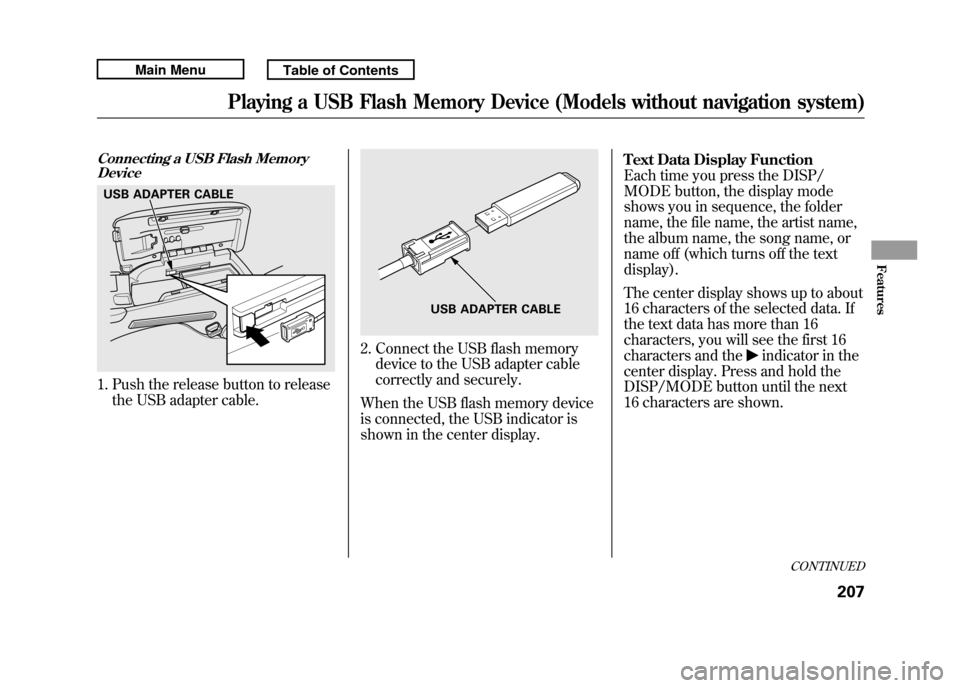
Connecting a USB Flash MemoryDevice1. Push the release button to release
the USB adapter cable.
2. Connect the USB flash memorydevice to the USB adapter cable
correctly and securely.
When the USB flash memory device
is connected, the USB indicator is
shown in the center display. Text Data Display Function
Each time you press the DISP/
MODE button, the display mode
shows you in sequence, the folder
name, the file name, the artist name,
the album name, the song name, or
name off (which turns off the text
display).
The center display shows up to about
16 characters of the selected data. If
the text data has more than 16
characters, you will see the first 16
characters and the
indicator in the
center display. Press and hold the
DISP/MODE button until the next
16 characters are shown.
USB ADAPTER CABLE
USB ADAPTER CABLE
CONTINUED
Playing a USB Flash Memory Device (Models without navigation system)
207
Features
10/06/08 17:42:32 11 ACURA RDX MMC North America Owner's M 50 31STK640 enu
Page 213 of 517

FOLDER SELECTION-To select
a different folder, press and release
either side of the TUNE/FOLDER
bar. Press the
side to skip to the
next folder, and press the
side to
skip to the beginning of the previous
folder.
To Change or Select FilesUse the SKIP bar while a USB flash
memory device is playing to change
files.
SKIP -Each time you press and
release the
side of the SEEK/
SKIP bar, the system skips forward
to the beginning of the next file.
Press and release the
side of the
bar, to skip backward to the
beginning of the current file. Press it
again to skip to the beginning of the
previous file.
To move rapidly within a file, press
and hold either side (or
)of
the SEEK/SKIP bar.
To Select Repeat, Random or Scan Mode:You can select any type of repeat,
random and scan modes by using the
RPT button, A.SEL/RDM button, or
SCAN button.
REPEAT -This feature
continuously plays a file. To activate
the repeat feature, press the RPT
button. You will see ‘‘RPT ’’in the
center display. To turn it off, press
and hold the RPT button.
Playing a USB Flash Memory Device (Models without navigation system)20810/06/08 17:42:32 11 ACURA RDX MMC North America Owner's M 50 31STK640 enu

