Page 274 of 513
273
3-3. Using the hand
s-free phone system (for cellular phone)
3
Interior features
Using the hands-free phone system for the first time
Before using the hands-free phone system, it is necessary to register
a cellular phone in the system. Th e phone registration mode will be
entered automatically when starting the system with no cellular
phone registered. Follow the procedure below to register a cellular
phone:
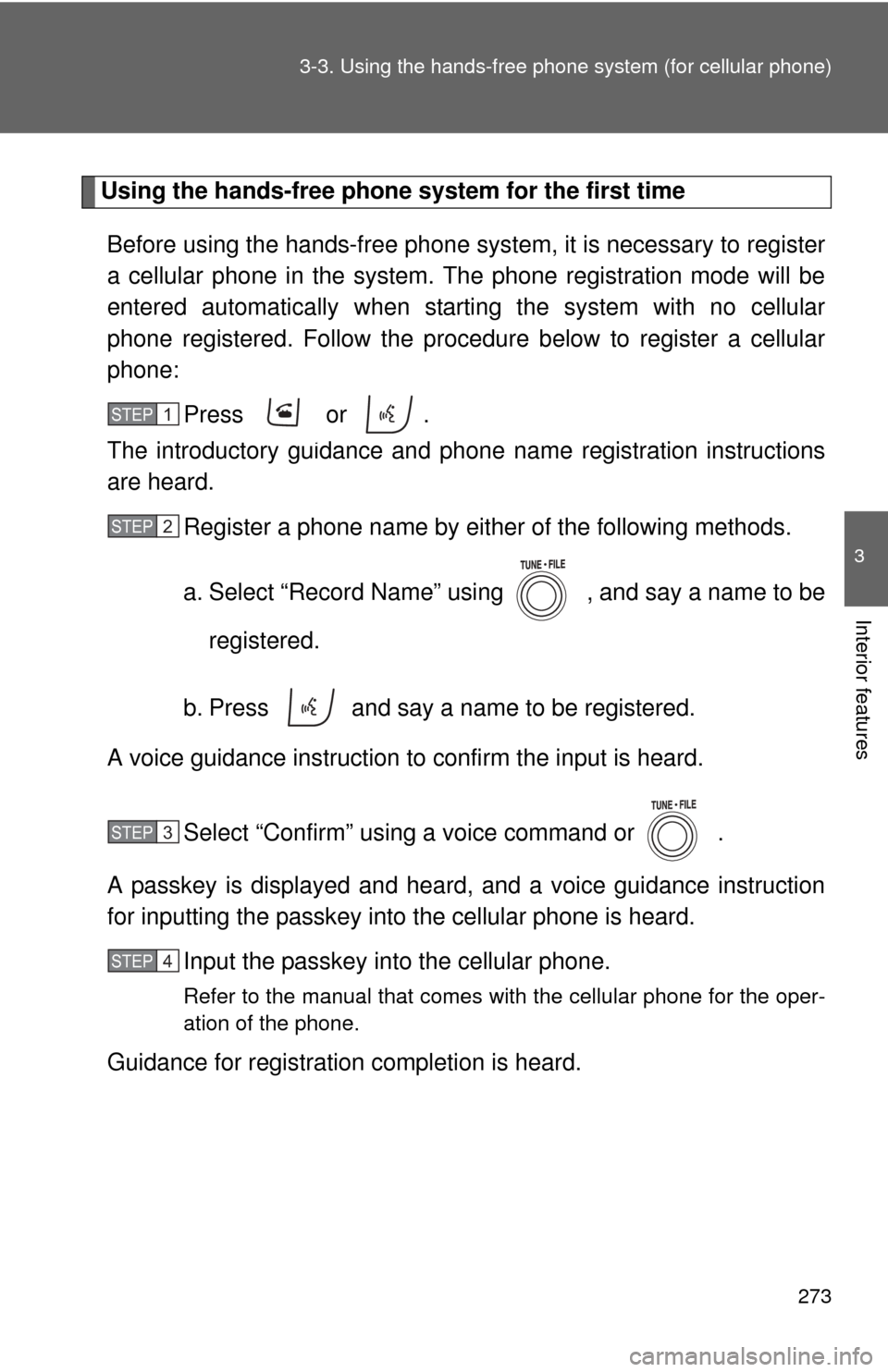
Press or .
The introductory guidance and phone name registration instructions
are heard.
Register a phone name by either of the following methods.
a. Select “Record Name” using , and say a name to be
registered.
b. Press and say a name to be registered.
A voice guidance instruction to confirm the input is heard.
Select “Confirm” using a voice command or .
A passkey is displayed and heard, and a voice guidance instruction
for inputting the passkey into the cellular phone is heard. Input the passkey into the cellular phone.
Refer to the manual that comes with the cellular phone for the oper-
ation of the phone.
Guidance for registration completion is heard.
STEP 1
STEP 2
STEP 3
STEP 4
Page 276 of 513
275
3-3. Using the hand
s-free phone system (for cellular phone)
3
Interior features
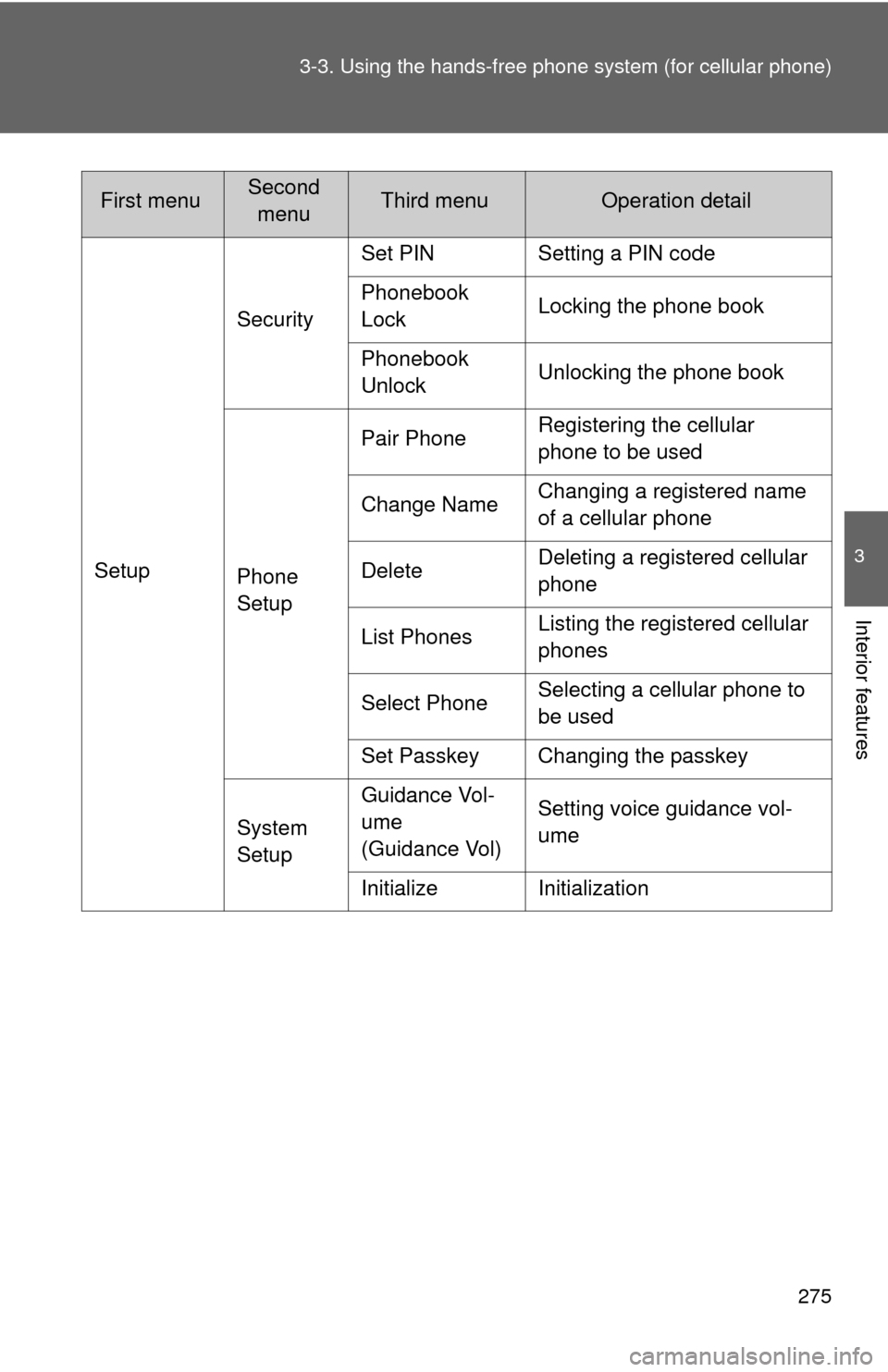
SetupSecurity
Set PIN Setting a PIN code
Phonebook
Lock
Locking the phone book
Phonebook
Unlock Unlocking the phone book
Phone
Setup Pair Phone
Registering the cellular
phone to be used
Change Name Changing a registered name
of a cellular phone
Delete Deleting a registered cellular
phone
List Phones Listing the registered cellular
phones
Select Phone Selecting a cellular phone to
be used
Set Passkey Changing the passkey
System
Setup Guidance Vol-
ume
(Guidance Vol)
Setting voice guidance vol-
ume
Initialize Initialization
First menuSecond menuThird menuOperation detail
Page 277 of 513
276 3-3. Using the hands-free phone system (for cellular phone)
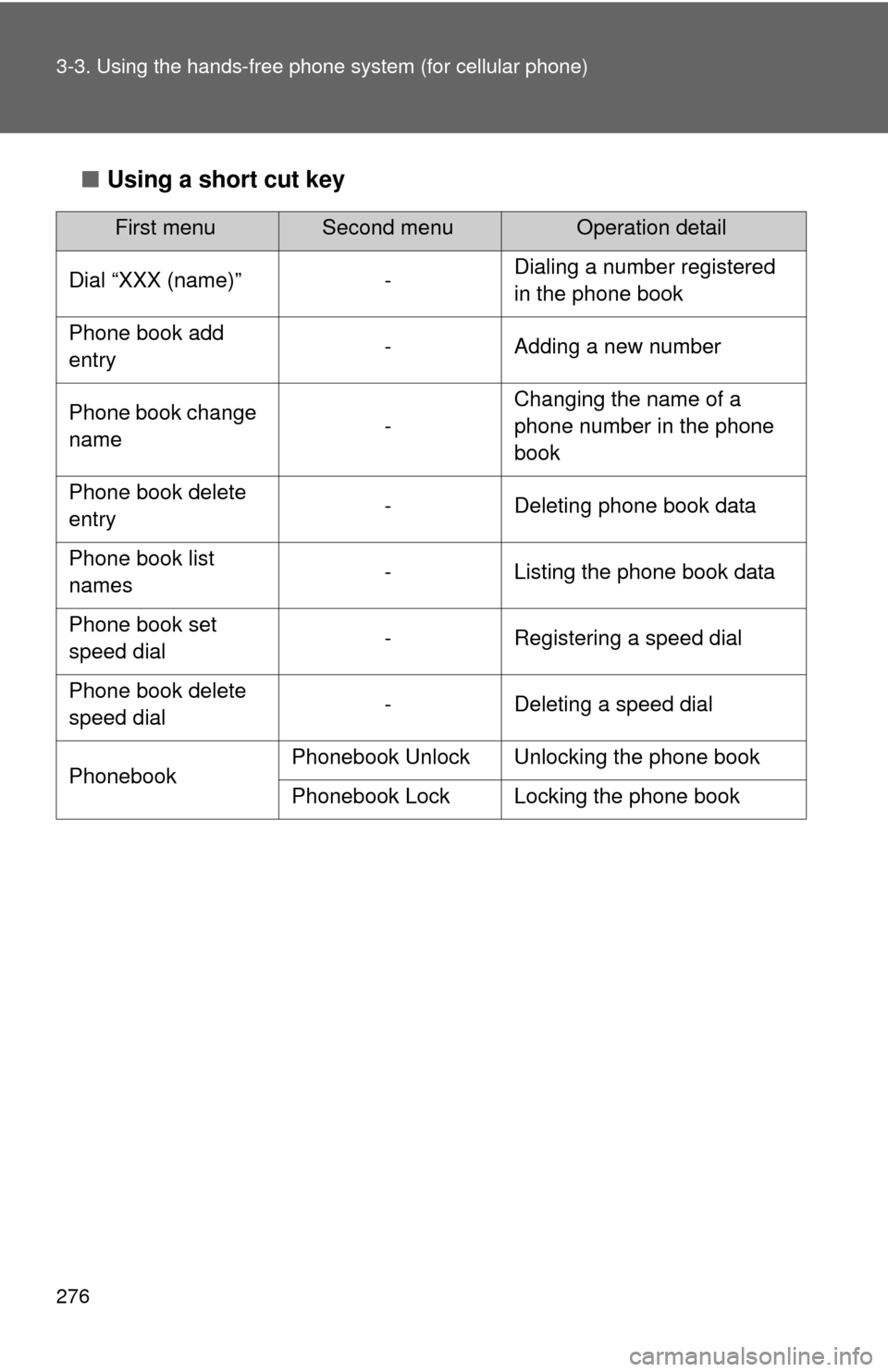
■Using a short cut key
First menuSecond menuOperation detail
Dial “XXX (name)” - Dialing a number registered
in the phone book
Phone book add
entry - Adding a new number
Phone book change
name -Changing the name of a
phone number in the phone
book
Phone book delete
entry - Deleting phone book data
Phone book list
names - Listing the phone book data
Phone book set
speed dial - Registering a speed dial
Phone book delete
speed dial - Deleting a speed dial
Phonebook Phonebook Unlock Unlocking the phone book
Phonebook Lock Locking the phone book
Page 278 of 513
277
3-3. Using the hand
s-free phone system (for cellular phone)
3
Interior features
■Automatic adjustment of volume
When vehicle speed is 50 mph (80 km/h) or more, the volume automatically
increases. The volume returns to the previous volume setting when vehicle
speed drops to 43 mph (70 km/h) or less.
■ When using a voice command
●For numbers, say a combination of single digits from zero to nine, #
(pound), (star), and + (plus).
● Say a command correctly and clearly.
■ The system may not recognize your voice in the following situations:
●When driving on a rough road
● When driving at high speeds
● When air is blowing out of the vents onto the microphone
● When the air conditioning fan emits a loud noise
■ The following cannot be performed while driving:
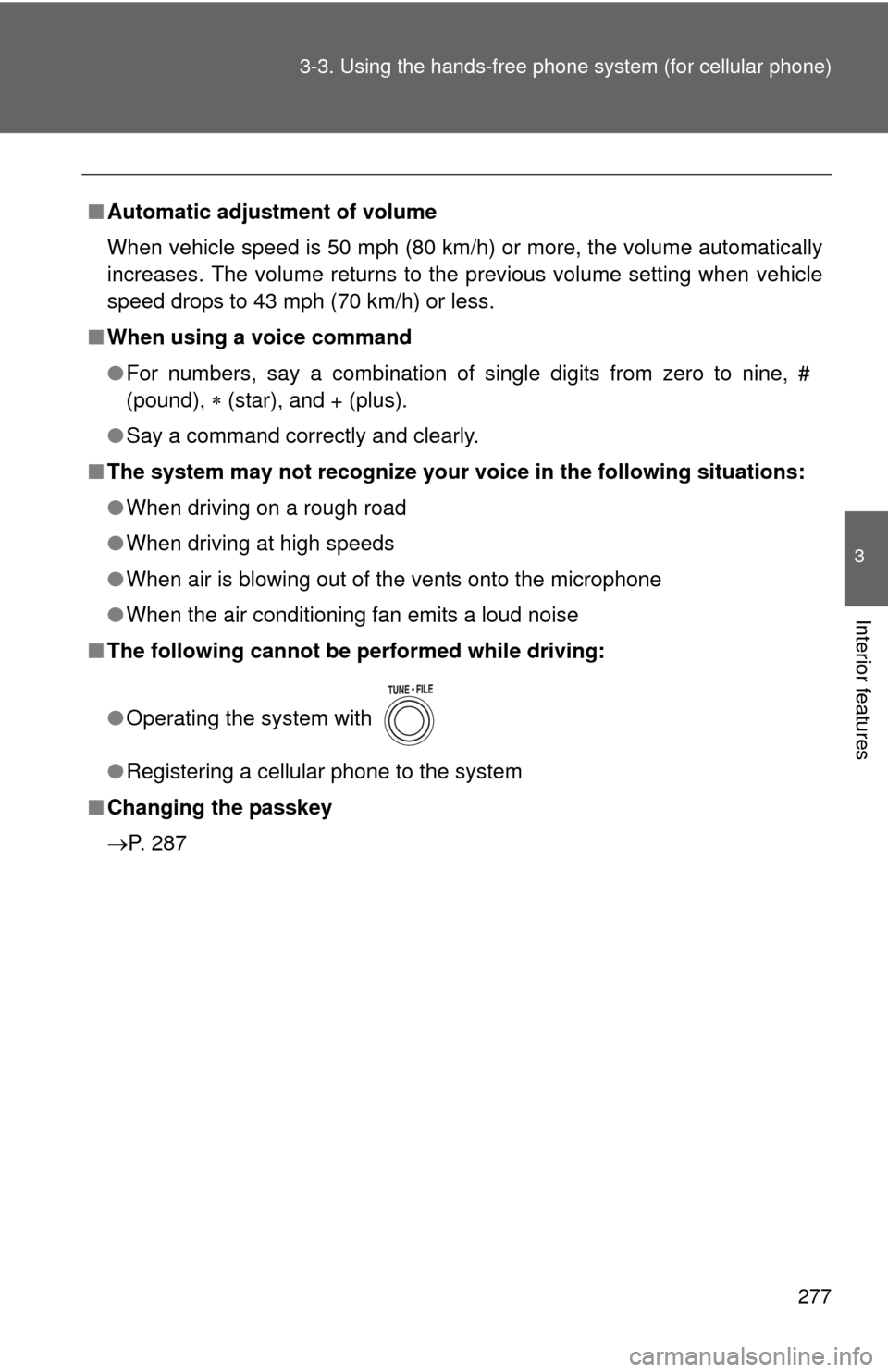
●Operating the system with
● Registering a cellular phone to the system
■ Changing the passkey
P. 287
Page 285 of 513
284
3-3. Using the hands-free phone system (for cellular phone)
Setting a cellular phone
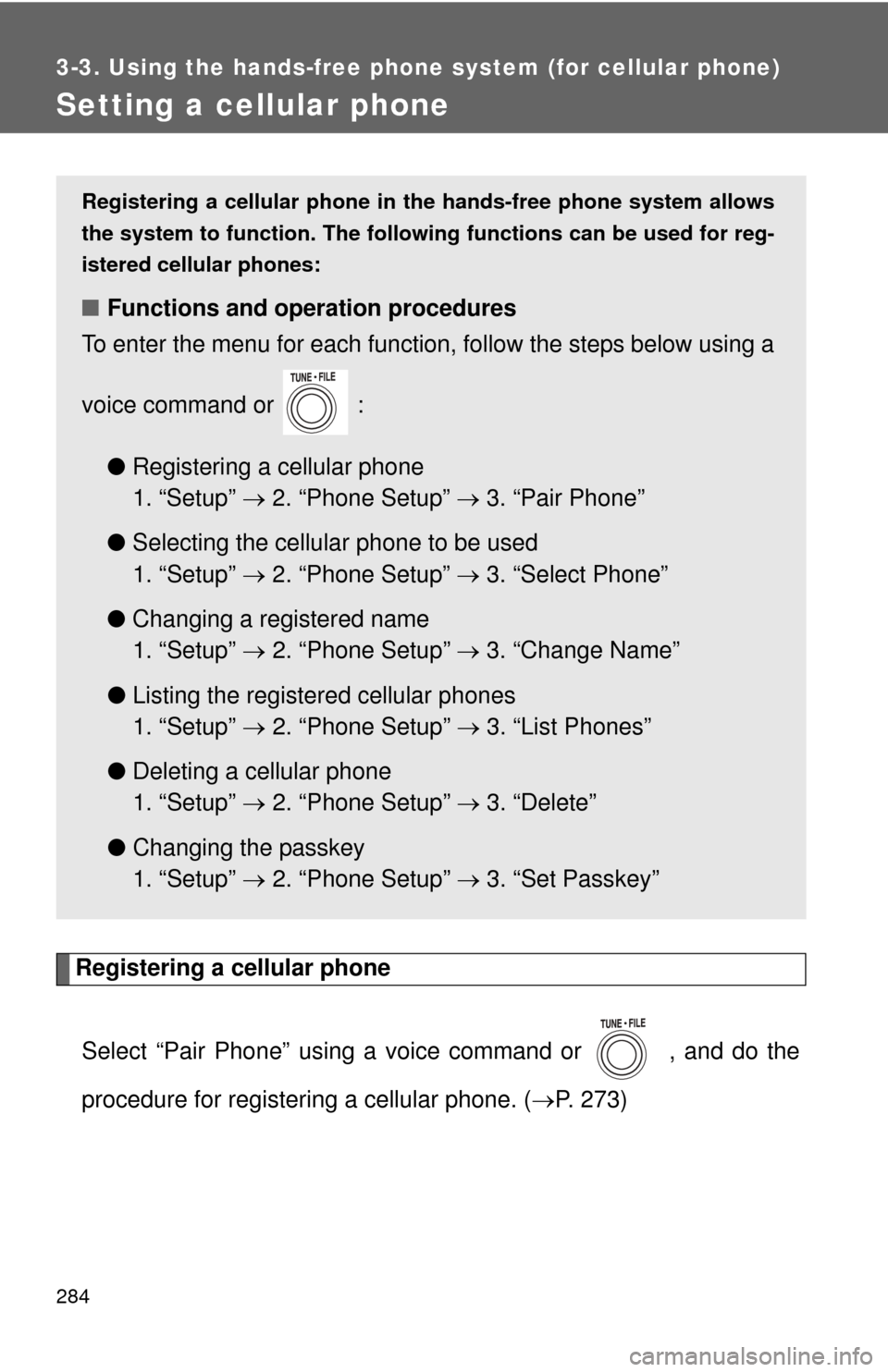
Registering a cellular phoneSelect “Pair Phone” using a voice command or , and do the
procedure for registering a cellular phone. ( P. 273)
Registering a cellular phone in the hands-free phone system allows
the system to function. The followin g functions can be used for reg-
istered cellular phones:
■ Functions and operation procedures
To enter the menu for each function, follow the steps below using a
voice command or :
●Registering a cellular phone
1. “Setup” 2. “Phone Setup” 3. “Pair Phone”
● Selecting the cellular phone to be used
1. “Setup” 2. “Phone Setup” 3. “Select Phone”
● Changing a registered name
1. “Setup” 2. “Phone Setup” 3. “Change Name”
● Listing the registered cellular phones
1. “Setup” 2. “Phone Setup” 3. “List Phones”
● Deleting a cellular phone
1. “Setup” 2. “Phone Setup” 3. “Delete”
● Changing the passkey
1. “Setup” 2. “Phone Setup” 3. “Set Passkey”
Page 288 of 513
287
3-3. Using the hand
s-free phone system (for cellular phone)
3
Interior features
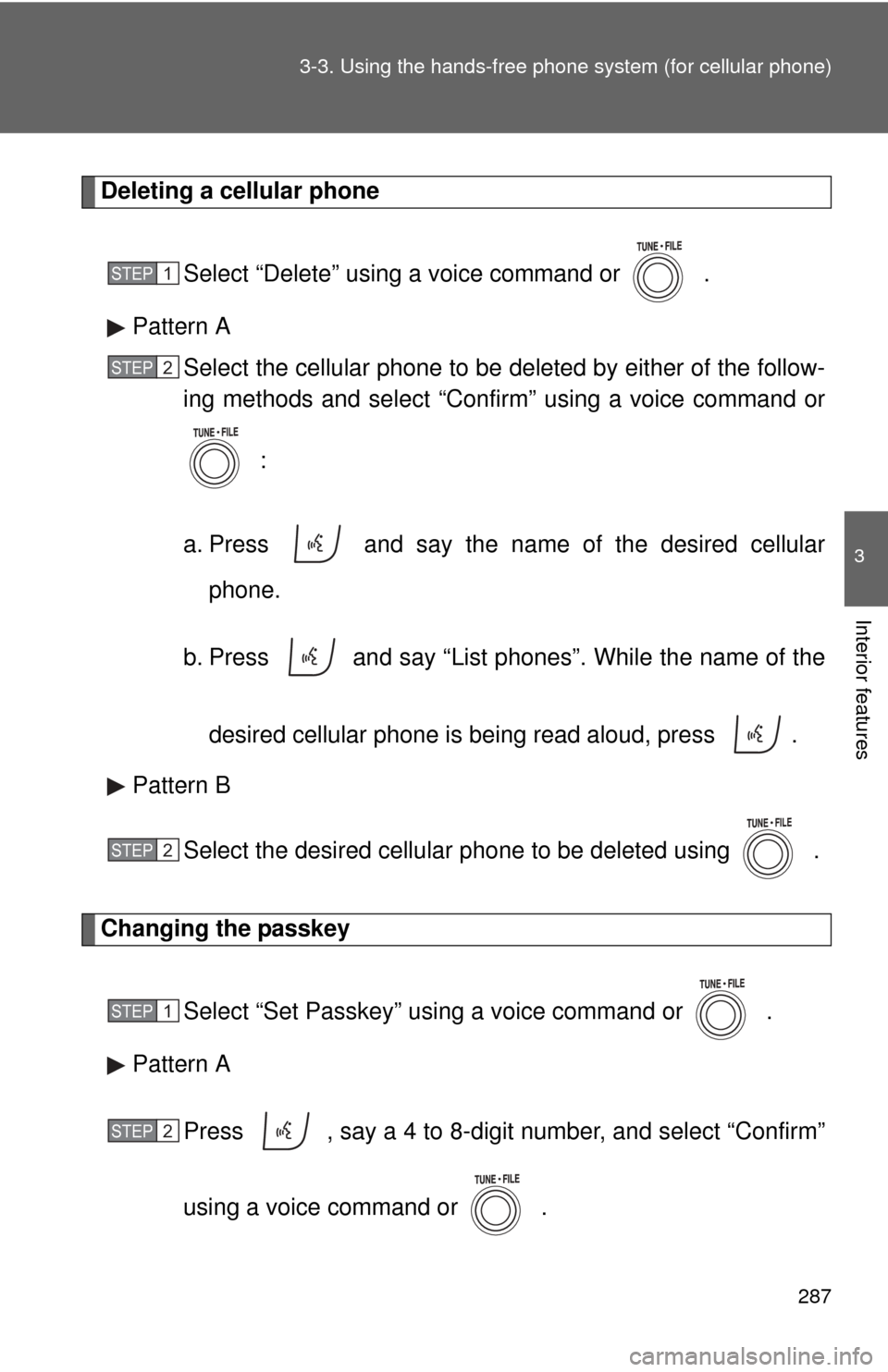
Deleting a cellular phone
Select “Delete” using a voice command or .
Pattern A Select the cellular phone to be deleted by either of the follow-
ing methods and select “Confirm” using a voice command or
:
a. Press and say the name of the desired cellular phone.
b. Press and say “List phones”. While the name of the
desired cellular phone is being read aloud, press .
Pattern B
Select the desired cellular phone to be deleted using .
Changing the passkey
Select “Set Passkey” using a voice command or .
Pattern A
Press , say a 4 to 8-digit number, and select “Confirm”
using a voice command or .
STEP 1
STEP 2
STEP 2
STEP 1
STEP 2
Page 289 of 513
288 3-3. Using the hands-free phone system (for cellular phone)
Pattern B
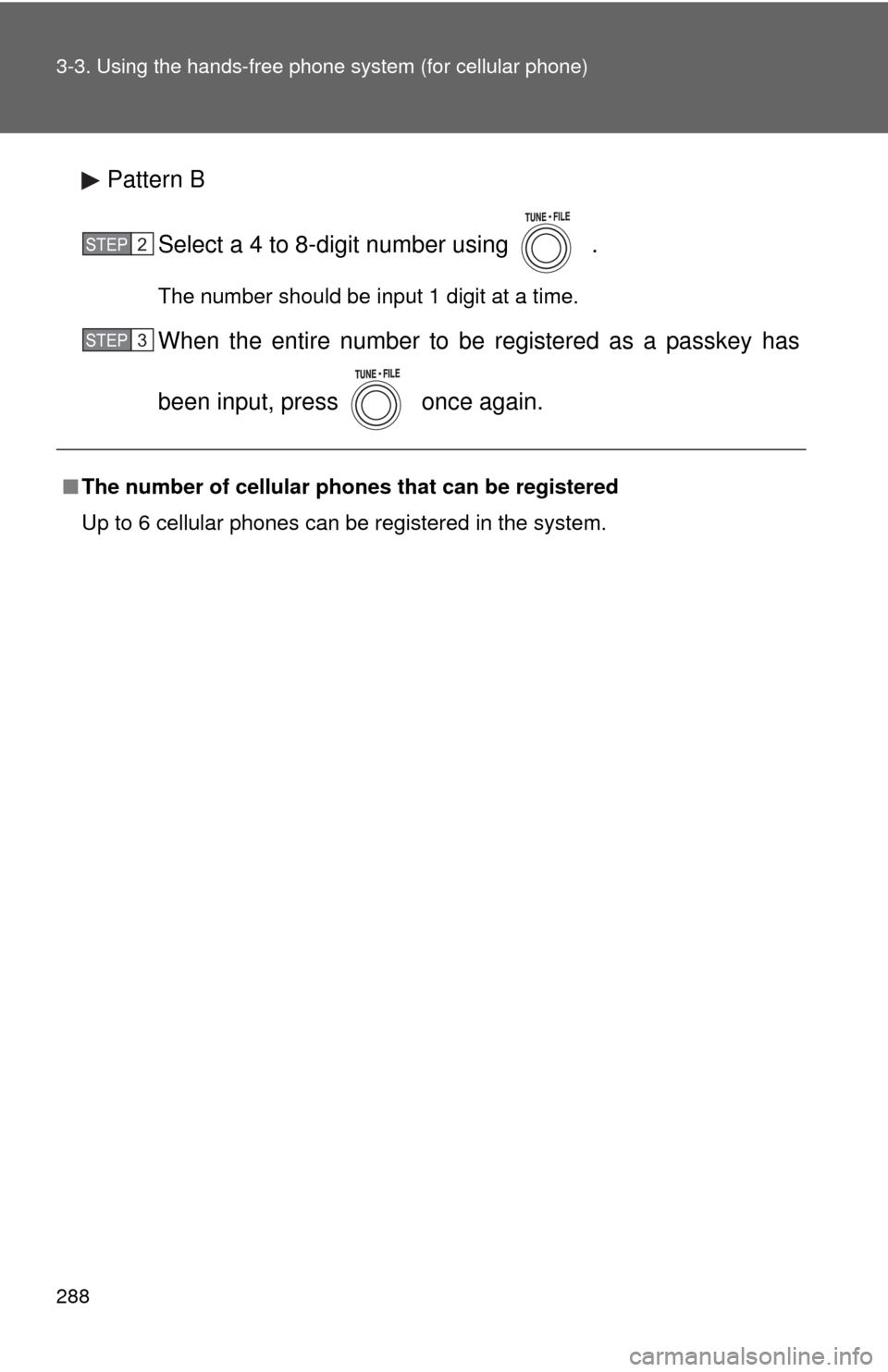
Select a 4 to 8-digit number using .
The number should be input 1 digit at a time.
When the entire number to be registered as a passkey has
been input, press once again.
■The number of cellular phon es that can be registered
Up to 6 cellular phones can be registered in the system.
STEP 2
STEP 3
Page 301 of 513
300
3-4. Using the interior lights
Interior lights list
Your Toyota is equipped with the illuminated entry system to assist
in entering the vehicle. Owing to the function of the system, the
lights shown in the following illu stration (except the luggage com-
partment light) automatically turn on/off according to the presence
of the electronic key (vehicles with smart key system), whether the
doors are locked/unlocked, whethe r the doors are opened/closed,
and the “ENGINE START STOP” switch mode or the engine switch
position.
The luggage compartment light tu rns on/off according to whether
the back door is opened/closed.
Interior light ( P. 302)
Personal/interior lights ( P. 301)
Engine switch light
Foot lights (if equipped)
Luggage compartment light (turns on/off according to whether
the back door is opened/closed)