Page 231 of 476
231
3-2. Using the audio system
3
Interior features
AVALON_U (OM41437U)
■
Canceling random, repeat and scan playback
Press , or again.
■ Display
P. 224
■ Error messages
P. 224
■ CD player protection feature
To protect the internal components, playback is automatically stopped when
a problem is detected while the CD player is being used.
■ If CDs are left inside the CD pla yer or in the ejected position for
extended periods
CDs may be damaged and may not play properly.
■ Lens cleaners
Do not use lens cleaners. Doing so may damage the CD player.
Page 233 of 476
233
3-2. Using the audio system
3
Interior features
AVALON_U (OM41437U)
●
Compatible disc formats
The following disc formats can be used.
• Disc formats: CD-ROM Mode 1 and Mode 2
CD-ROM XA Mode 2, Form 1 and Form 2
• File formats: ISO9660 level 1, level 2, (Romeo, Joliet) MP3 and WMA files written in any format other than those listed above
may not play correctly, and their file names and folder names may not be
displayed correctly.
Items related to standards and limitations are as follows:
• Maximum directory hierarchy: 8 levels
• Maximum length of folder names/file names: 32 characters
• Maximum number of folders: 192 (including the root)
• Maximum number of files per disc: 255
● File names
The only files that can be recogniz ed as MP3/WMA and played are those
with the extension .mp3 or .wma.
● Multi-sessions
As the audio system is compatible with multi-sessions, it is possible to play
discs that contain MP3 and WMA files. However, only the first session can
be played.
● ID3 and WMA tags
ID3 tags can be added to MP3 files, making it possible to record the track
title and artist name, etc.
The system is compatible with ID3 Ver. 1.0, 1.1, and Ver. 2.2, 2.3 ID3 tags.
(The number of characters is based on ID3 Ver. 1.0 and 1.1.)
WMA tags can be added to WMA files, making it possible to record the
track title and artist name in the same way as with ID3 tags.
Page 236 of 476
236
3-2. Using the audio system
AVALON_U (OM41437U)
Optimal use of the audio system
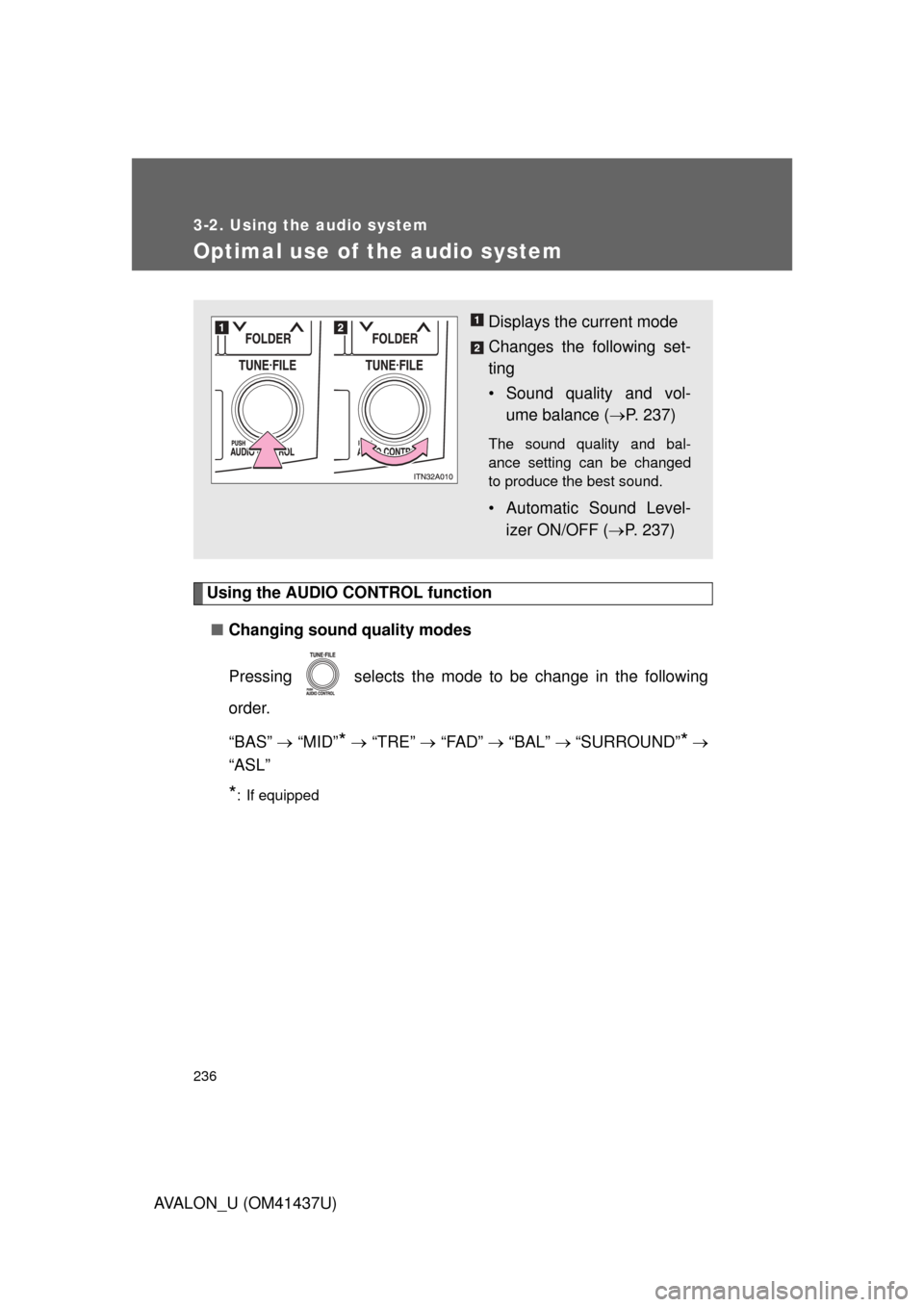
Using the AUDIO CONTROL function■ Changing sound quality modes
Pressing selects the mode to be change in the following
order.
“BAS” “MID”
* “TRE” “FAD” “BAL” “SURROUND”*
“ASL”
*: If equipped
Displays the current mode
Changes the following set-
ting
• Sound quality and vol- ume balance ( P. 237)
The sound quality and bal-
ance setting can be changed
to produce the best sound.
• Automatic Sound Level-
izer ON/OFF ( P. 237)
Page 237 of 476
237
3-2. Using the audio system
3
Interior features
AVALON_U (OM41437U)
■
Adjusting sound quality
Turning adjust the level.
*: The sound quality level is adjusted individually in each radio mode or CD
mode.
■ Adjusting the Automatic Sound Levelizer (ASL)
When ASL is selected, turning to the right turns on the ASL,
and turning to the left turns off the ASL.
ASL automatically the volume and tone quality according to the vehicle
speed.
Mode
displayedSound quality modeLevelTurn to the leftTurn to the right
“BAS” Bass
*-5 to 5
Low High
“MID”
(if
equipped) Mid-range
*-5 to 5
“TRE” Treble
*-5 to 5
“FAD” Front/rear
volume
balance F7 to R7 Shifts to rear Shifts to front
“BAL” Left/right
volume
balance L7 to R7 Shifts to left Shifts to right
“SUR-
ROUND” (if
equipped) Surround ON/OFF OFF ON
Page 246 of 476
246
3-3. Using the hands-free system (for cellular phone)
AVALON_U (OM41437U)
Using the hands-free system
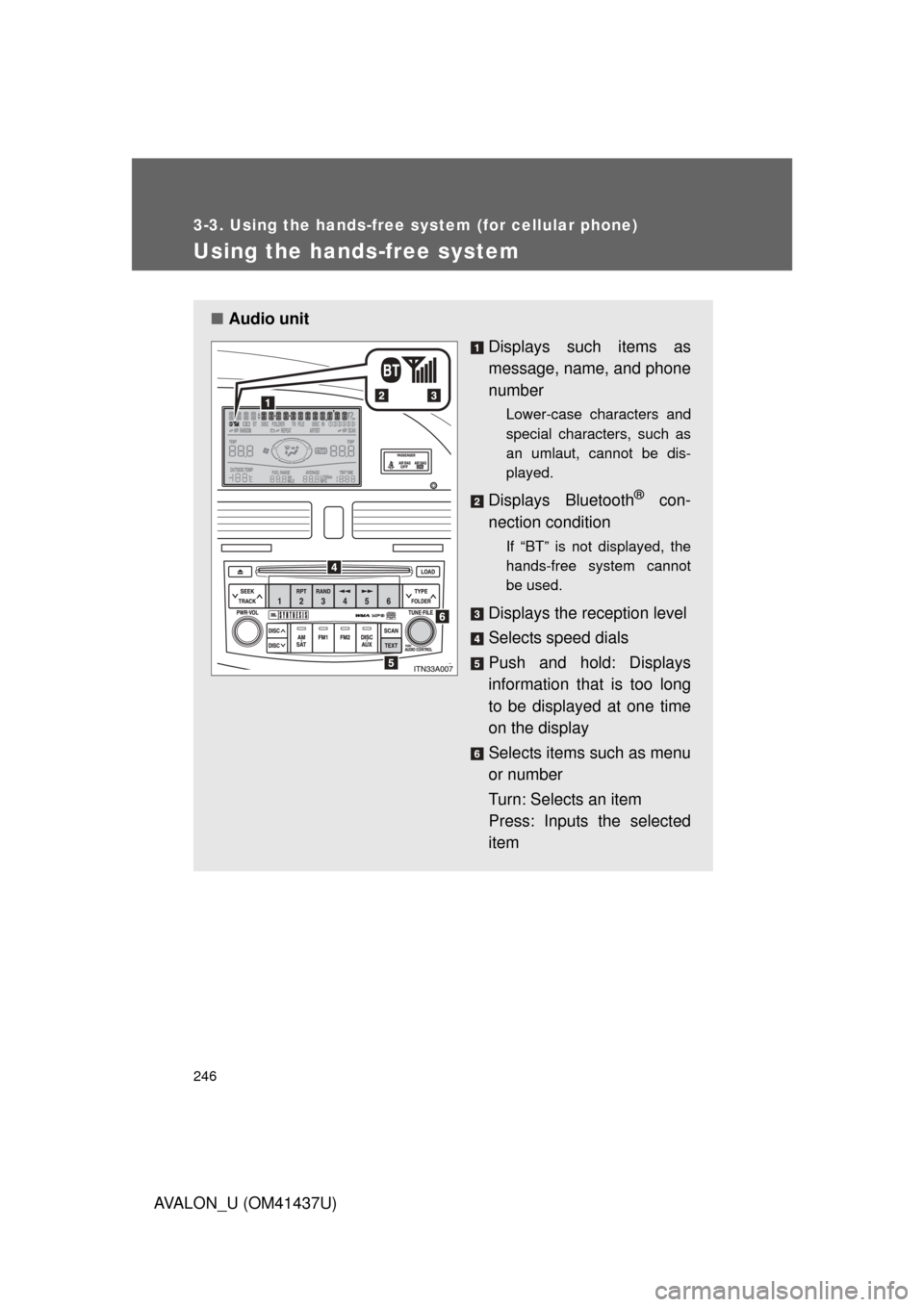
■Audio unit
Displays such items as
message, name, and phone
number
Lower-case characters and
special characters, such as
an umlaut, cannot be dis-
played.
Displays Bluetooth® con-
nection condition
If “BT” is not displayed, the
hands-free system cannot
be used.
Displays the reception level
Selects speed dials
Push and hold: Displays
information that is too long
to be displayed at one time
on the display
Selects items such as menu
or number
Turn: Selects an item
Press: Inputs the selected
item
Page 248 of 476
248 3-3. Using the hands-free system (for cellular phone)
AVALON_U (OM41437U)
Operating the system by using a voice commandBy following voice gui dance instructions output from the speaker,
voice commands can be given to allow for operation of the hands-
free system without checking the display or operating .
■ Operation procedure
Press and say a command for a desired function.
( P. 250)
■ Auxiliary commands
The following auxiliary commands can be used:
Cancel: Exits the hands-free system
Go back: Returns to the previous procedure
Page 249 of 476
249
3-3. Using the hands-free
system (for cellular phone)
3
Interior features
AVALON_U (OM41437U)
Using the hands-free system for the first time
Before using the hands-free system, it is necessary to register a cel-
lular phone in the system. The phone registration mode will be
entered automatically when starting the system with no cellular
phone registered. Follow the procedure below to register a cellular
phone:
Press
or .
The introductory guidance and phone name registration instructions
are heard.
Register a phone name by either of the following methods.
a. Select “Record Name” by using , and say a name to
be registered.
b. Press and say a name to be registered.
Voice guidance instruction to confirm the input is heard.
Press and say “Confirm”, or select “Confirm” by using.
A passkey is displayed and heard, and voice guidance instruction for
inputting the passkey into the cellular phone is heard.
Input the passkey into the cellular phone.
Refer to the manual that comes with the cellular phone for the oper-
ation of the phone.
Guidance for registration completion is heard.
STEP1
STEP2
STEP3
STEP4
Page 257 of 476
257
3-3. Using the hands-free
system (for cellular phone)
3
Interior features
AVALON_U (OM41437U)
Transferring a call
A call can be transferred between the cellular phone and system
while dialing, receiving a call, or during a call. Use one of the follow-
ing methods:
a. Operate the cellular phone.
Refer to the manual that comes with the cellular phone for the oper-
ation of the phone.
b. Press *1.
c. Press and say “Call Transfer”
*2.
*1: This operation can be performed only when transferring a call from the cellular phone to the system during a call.
*2: While the vehicle is in motion, a call cannot be transferred fromthe system to the cellular phone.
Using a call history memory
Follow the procedure below to use number stored in call history
memory:
Press and say “Redial” (when using a number stored in
the outgoing history memory) or “Callback” (when using a
number stored in the incoming history memory).
Select the number by either of the following methods:
a. Say “Previous” or “Go back” until the desired number isdisplayed.
b. Select the desired number by using .
STEP1
STEP2