Page 198 of 215
11
AUDIO EQUIPMENT and TELEMATICS
DVD MODE DVD MODE
The DVD button is only active if the
player contains a DVD. Press Open to return the screen to the
vertical position. For safety reasons, the video is
not displayed while driving, how-
ever the audio can be played.
To display the picture and watch
a DVD, park the vehicle in a safe
place.
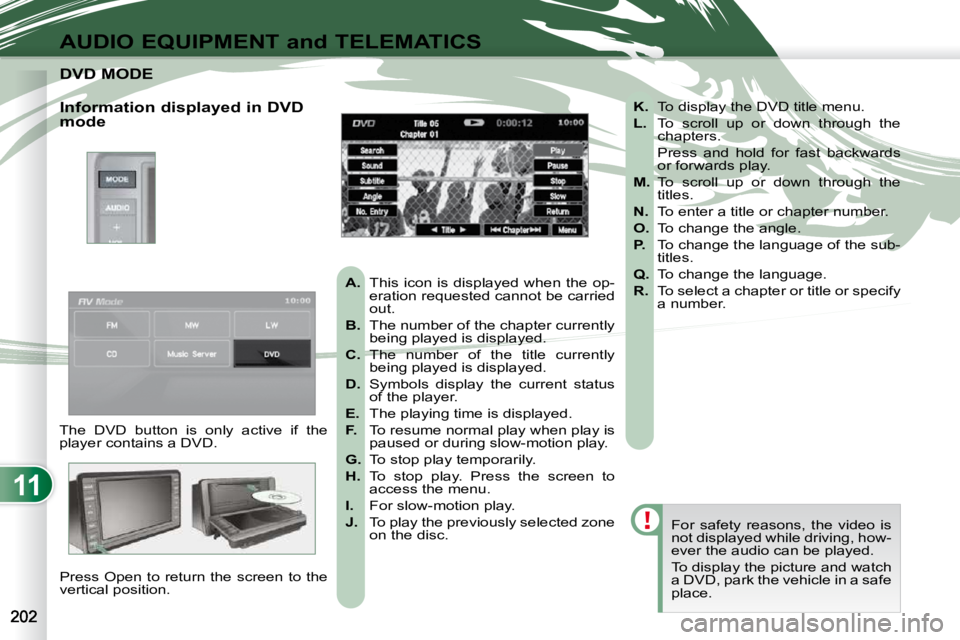
K. To display the DVD title menu.
L. To scroll up or down through the
chapters.
Press and hold for fast backwards or forwards play.
M. To scroll up or down through the
titles.
N. To enter a title or chapter number.
O. To change the angle.
P. To change the language of the sub-
titles.
Q. To change the language.
R. To select a chapter or title or specify
a number.
A. This icon is displayed when the op-
eration requested cannot be carried
out.
B. The number of the chapter currently
being played is displayed.
C. The number of the title currently
being played is displayed.
D. Symbols display the current status
of the player.
E. The playing time is displayed.
F. To resume normal play when play is
paused or during slow-motion play.
G. To stop play temporarily.
H. To stop play. Press the screen to
access the menu.
I. For slow-motion play.
J. To play the previously selected zone
on the disc.
Information displayed in DVD
mode
Page 199 of 215
11
AUDIO EQUIPMENT and TELEMATICS
Playing a DVD Result
Explanations
Selecting a chapter
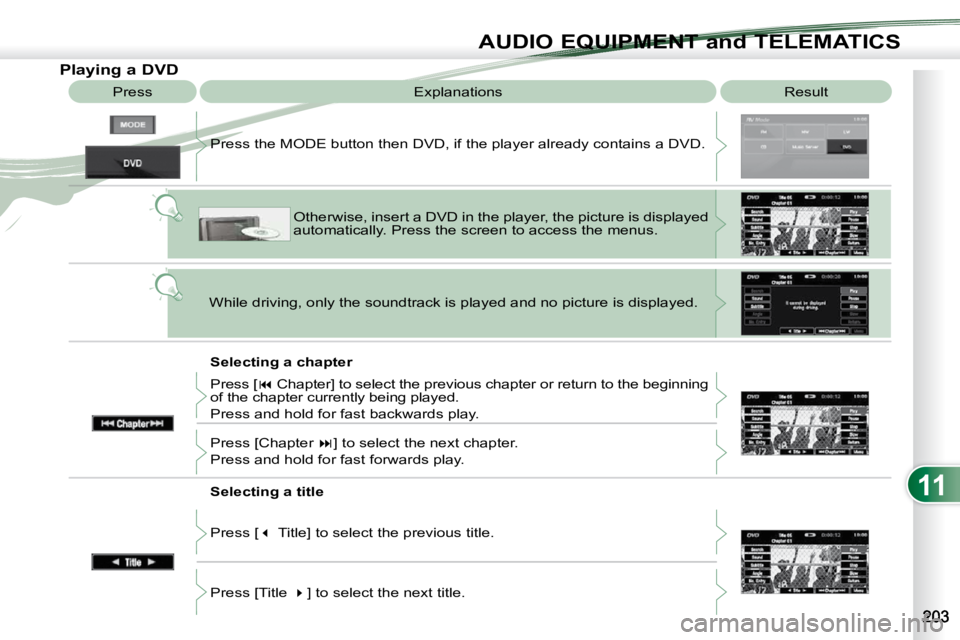
Press the MODE button then DVD, if the player already contains
a DVD.
Otherwise, insert a DVD in the player, the picture is displa yed
automatically. Press the screen to access the menus.
While driving, only the soundtrack is played and no picture i s displayed.
Press [ Chapter] to select the previous chapter or return to the beginning
of the chapter currently being played.
Press and hold for fast backwards play.
Press [Chapter ] to select the next chapter.
Press and hold for fast forwards play.
Selecting a title
Press [ Title] to select the previous title.
Press [Title ] to select the next title.
Press
Page 200 of 215
11
AUDIO EQUIPMENT and TELEMATICS
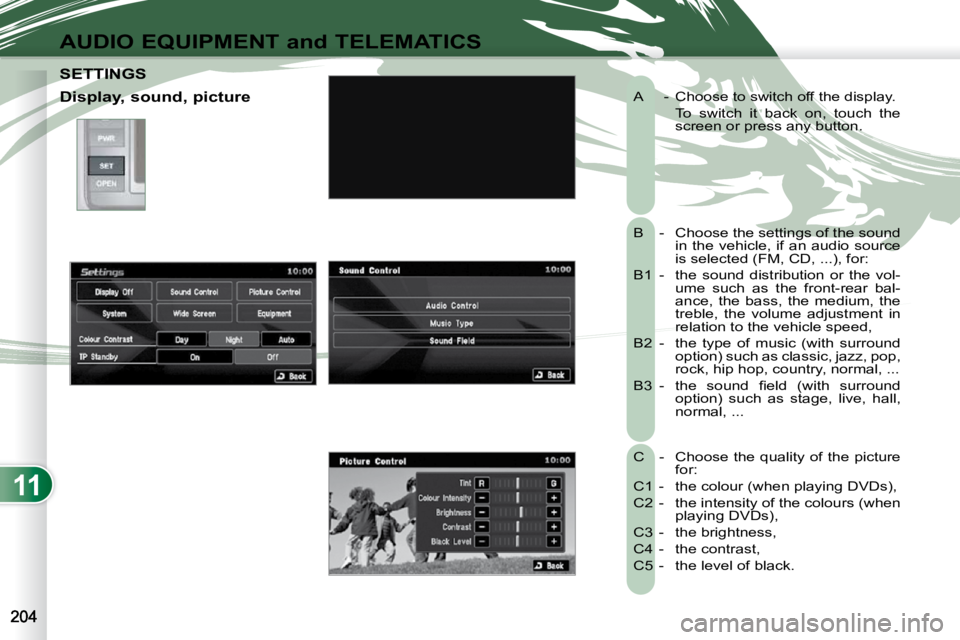
A - Choose to switch off the display.
To switch it back on, touch the screen or press any button.
B - Choose the settings of the sound in the vehicle, if an audio source
is selected (FM, CD, ...), for:
B1 - the sound distribution or the vol- ume such as the front-rear bal-
ance, the bass, the medium, the
treble, the volume adjustment in
relation to the vehicle speed,
B2 - the type of music (with surround option) such as classic, jazz, pop,
rock, hip hop, country, normal, ...
B3 - the sound fi eld (with surround option) such as stage, live, hall,
normal, ...
C - Choose the quality of the picture for:
C1 - the colour (when playing DVDs),
C2 - the intensity of the colours (when playing DVDs),
C3 - the brightness,
C4 - the contrast,
C5 - the level of black.
SETTINGS SETTINGS
Display, sound, picture
Page 201 of 215
11
AUDIO EQUIPMENT and TELEMATICS
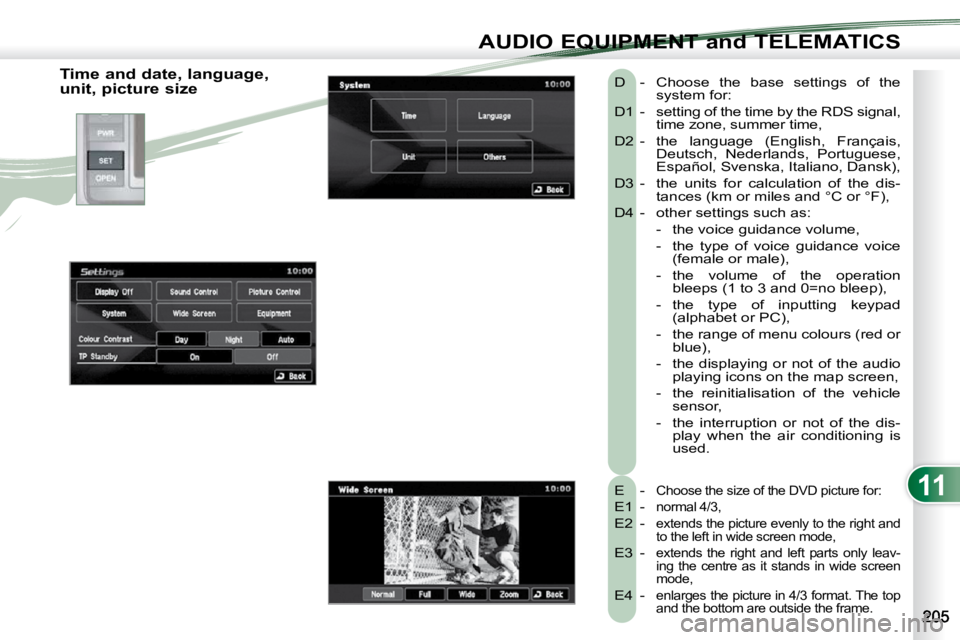
Time and date, language,
unit, picture size E -
Choose the size of the DVD picture for:
E1 - normal 4/3,
E2 - extends the picture evenly to the right and
to the left in wide screen mode,
E3 - extends the right and left parts only leav-
ing the centre as it stands in wide screen
mode,
E4 - enlarges the picture in 4/3 format. The top
and the bottom are outside the frame.
D - Choose the base settings of the system for:
D1 - setting of the time by the RDS signal, time zone, summer time,
D2 - the language (English, Français, Deutsch, Nederlands, Portuguese,
Español, Svenska, Italiano, Dansk),
D3 - the units for calculation of the dis- tances (km or miles and °C or °F),
D4 - other settings such as:
- the voice guidance volume,
- the type of voice guidance voice (female or male),
- the volume of the operation bleeps (1 to 3 and 0=no bleep),
- the type of inputting keypad (alphabet or PC),
- the range of menu colours (red or blue),
- the displaying or not of the audio playing icons on the map screen,
- the reinitialisation of the vehicle sensor,
- the interruption or not of the dis- play when the air conditioning is
used.
Page 202 of 215
11
AUDIO EQUIPMENT and TELEMATICS
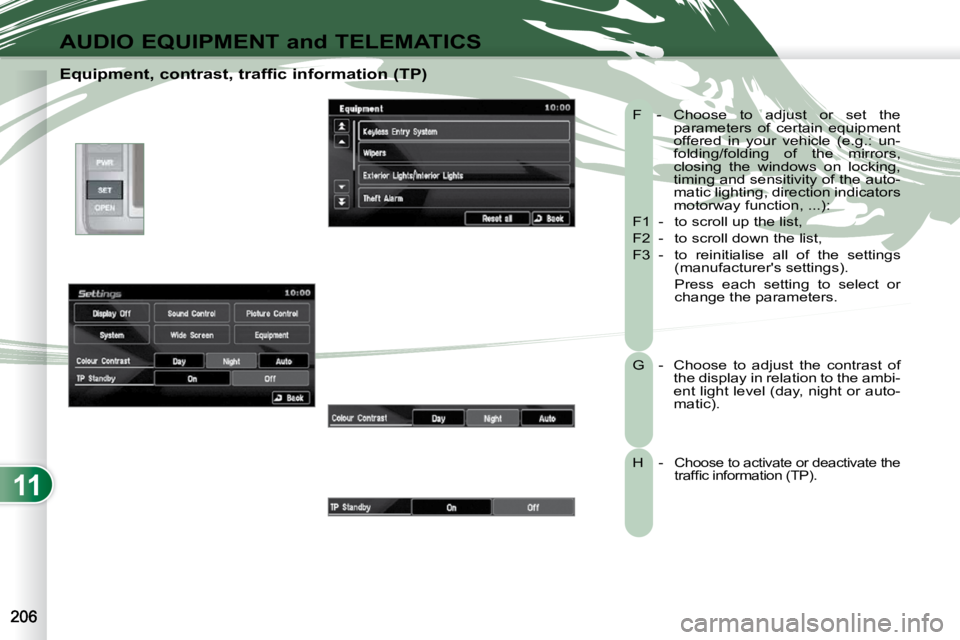
Equipment, contrast, traffic information (TP) F - Choose to adjust or set the parameters of certain equipment
offered in your vehicle (e.g.: un-
folding/folding of the mirrors,
closing the windows on locking,
timing and sensitivity of the auto-
matic lighting, direction indicators
motorway function, ...):
F1 - to scroll up the list,
F2 - to scroll down the list,
F3 - to reinitialise all of the settings (manufacturer's settings).
Press each setting to select or change the parameters.
G - Choose to adjust the contrast of the display in relation to the ambi-
ent light level (day, night or auto-
matic).
H - Choose to activate or deactivate the traffi c information (TP).
Page 206 of 215
11
AUDIO EQUIPMENT and TELEMATICS
HANDS-FREE TELEPHONE HANDS-FREE TELEPHONE
What is the Bluetooth®
hands-free telephone with voice recognition?
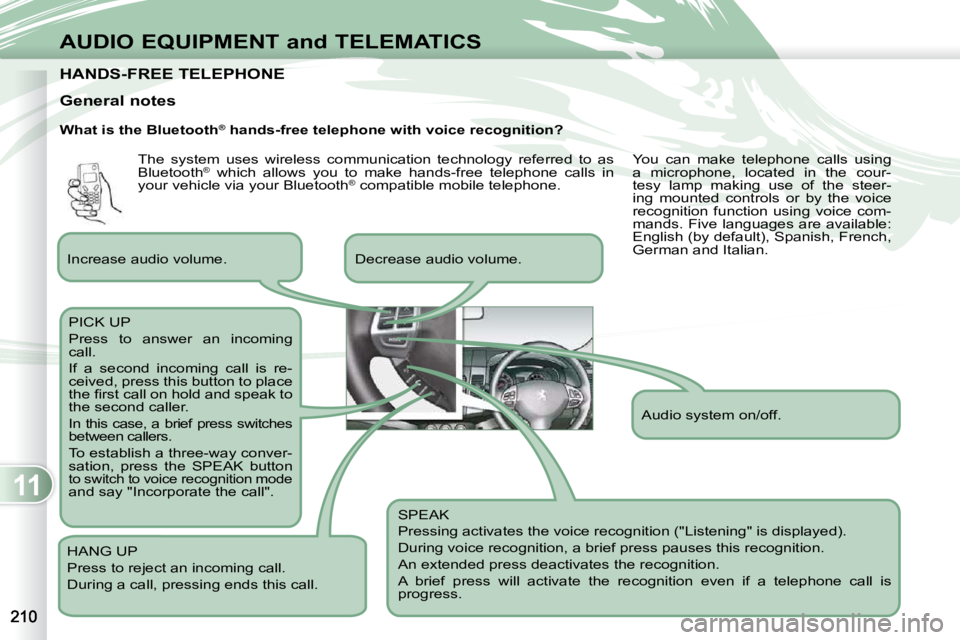
SPEAK
Pressing activates the voice recognition ("Listening" is displayed).
During voice recognition, a brief press pauses this recognition.
An extended press deactivates the recognition.
A brief press will activate the recognition even if a telep hone call is
progress.
Decrease audio volume.
PICK UP
Press to answer an incoming
call.
If a second incoming call is re-
ceived, press this button to place
the fi rst call on hold and speak to
the second caller.
In this case, a brief press switches
between callers.
To establish a three-way conver-
sation, press the SPEAK button
to switch to voice recognition mode and say "Incorporate the call".
HANG UP
Press to reject an incoming call.
During a call, pressing ends this call.
General notes
Increase audio volume. Audio system on/off.
The system uses wireless communication technology referred to as
Bluetooth
®
which allows you to make hands-free telephone calls in
your vehicle via your Bluetooth ®
compatible mobile telephone. You can make telephone calls using
a microphone, located in the cour-
tesy lamp making use of the steer-
ing mounted controls or by the voice
recognition function using voice com-
mands. Five languages are available:
English (by default), Spanish, French,
German and Italian.