Page 220 of 438
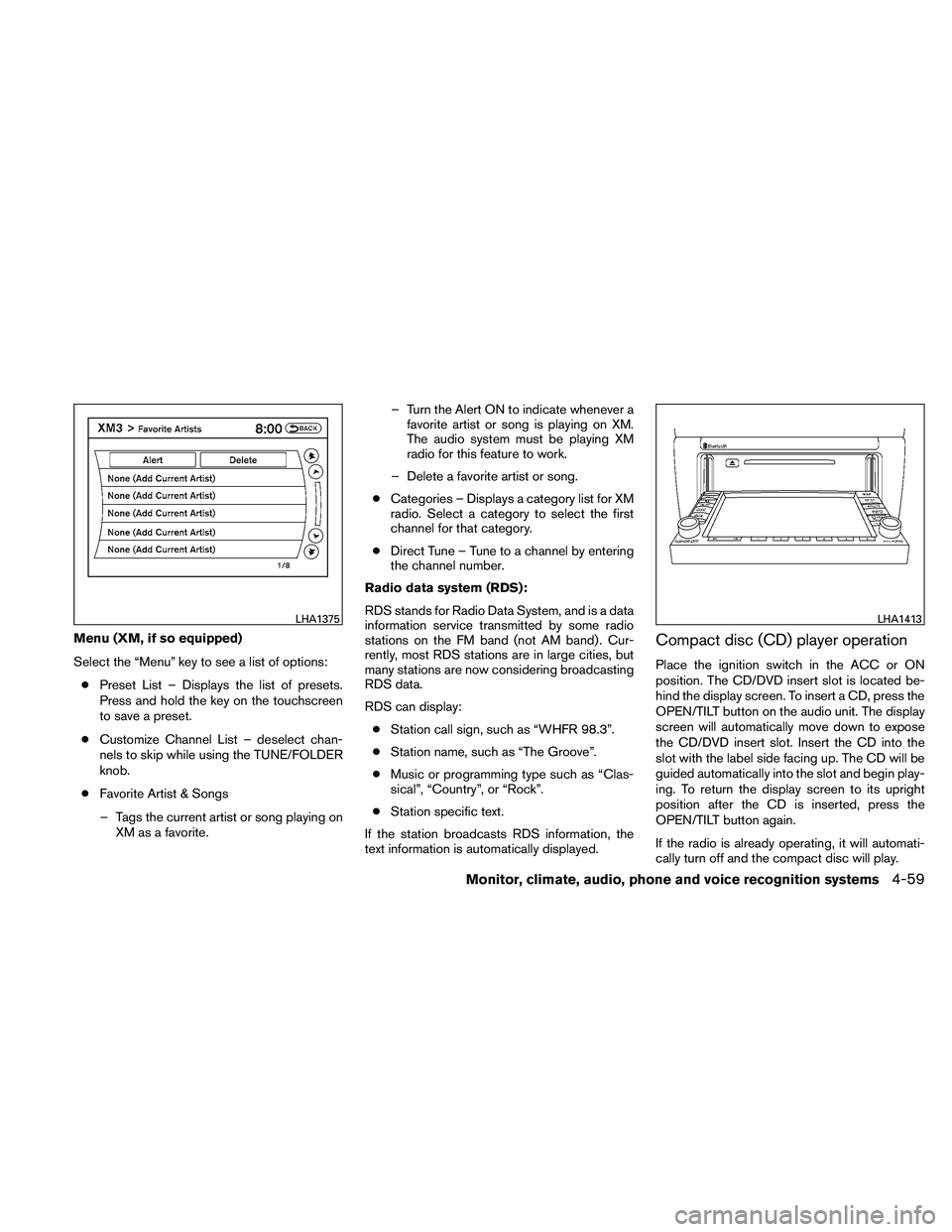
Menu (XM, if so equipped)
Select the “Menu” key to see a list of options:● Preset List – Displays the list of presets.
Press and hold the key on the touchscreen
to save a preset.
● Customize Channel List – deselect chan-
nels to skip while using the TUNE/FOLDER
knob.
● Favorite Artist & Songs
– Tags the current artist or song playing on XM as a favorite. – Turn the Alert ON to indicate whenever a
favorite artist or song is playing on XM.
The audio system must be playing XM
radio for this feature to work.
– Delete a favorite artist or song.
● Categories – Displays a category list for XM
radio. Select a category to select the first
channel for that category.
● Direct Tune – Tune to a channel by entering
the channel number.
Radio data system (RDS):
RDS stands for Radio Data System, and is a data
information service transmitted by some radio
stations on the FM band (not AM band) . Cur-
rently, most RDS stations are in large cities, but
many stations are now considering broadcasting
RDS data.
RDS can display: ● Station call sign, such as “WHFR 98.3”.
● Station name, such as “The Groove”.
● Music or programming type such as “Clas-
sical”, “Country”, or “Rock”.
● Station specific text.
If the station broadcasts RDS information, the
text information is automatically displayed.Compact disc (CD) player operation
Place the ignition switch in the ACC or ON
position. The CD/DVD insert slot is located be-
hind the display screen. To insert a CD, press the
OPEN/TILT button on the audio unit. The display
screen will automatically move down to expose
the CD/DVD insert slot. Insert the CD into the
slot with the label side facing up. The CD will be
guided automatically into the slot and begin play-
ing. To return the display screen to its upright
position after the CD is inserted, press the
OPEN/TILT button again.
If the radio is already operating, it will automati-
cally turn off and the compact disc will play.
Page 222 of 438
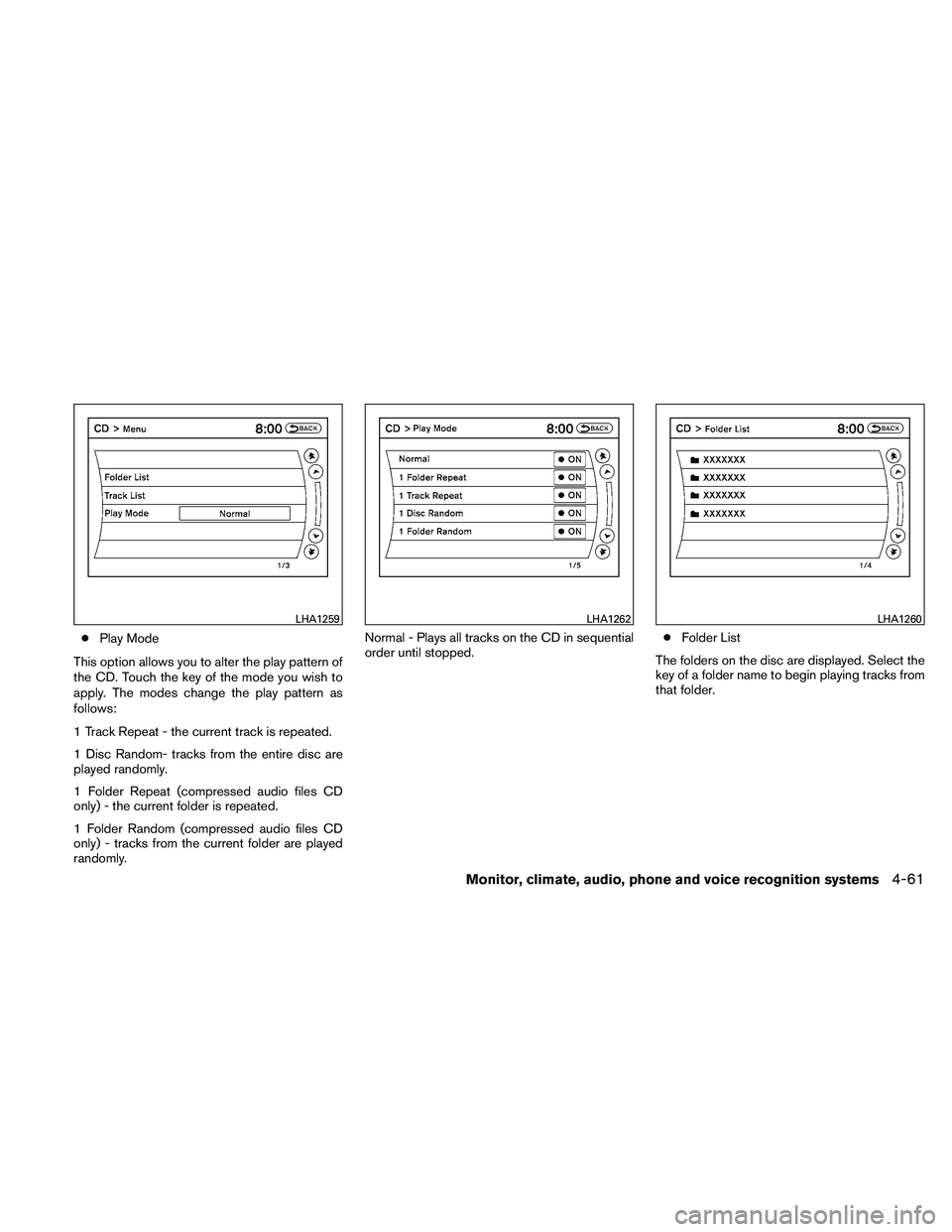
●Play Mode
This option allows you to alter the play pattern of
the CD. Touch the key of the mode you wish to
apply. The modes change the play pattern as
follows:
1 Track Repeat - the current track is repeated.
1 Disc Random- tracks from the entire disc are
played randomly.
1 Folder Repeat (compressed audio files CD
only) - the current folder is repeated.
1 Folder Random (compressed audio files CD
only) - tracks from the current folder are played
randomly. Normal - Plays all tracks on the CD in sequential
order until stopped.
●
Folder List
The folders on the disc are displayed. Select the
key of a folder name to begin playing tracks from
that folder.
Page 223 of 438
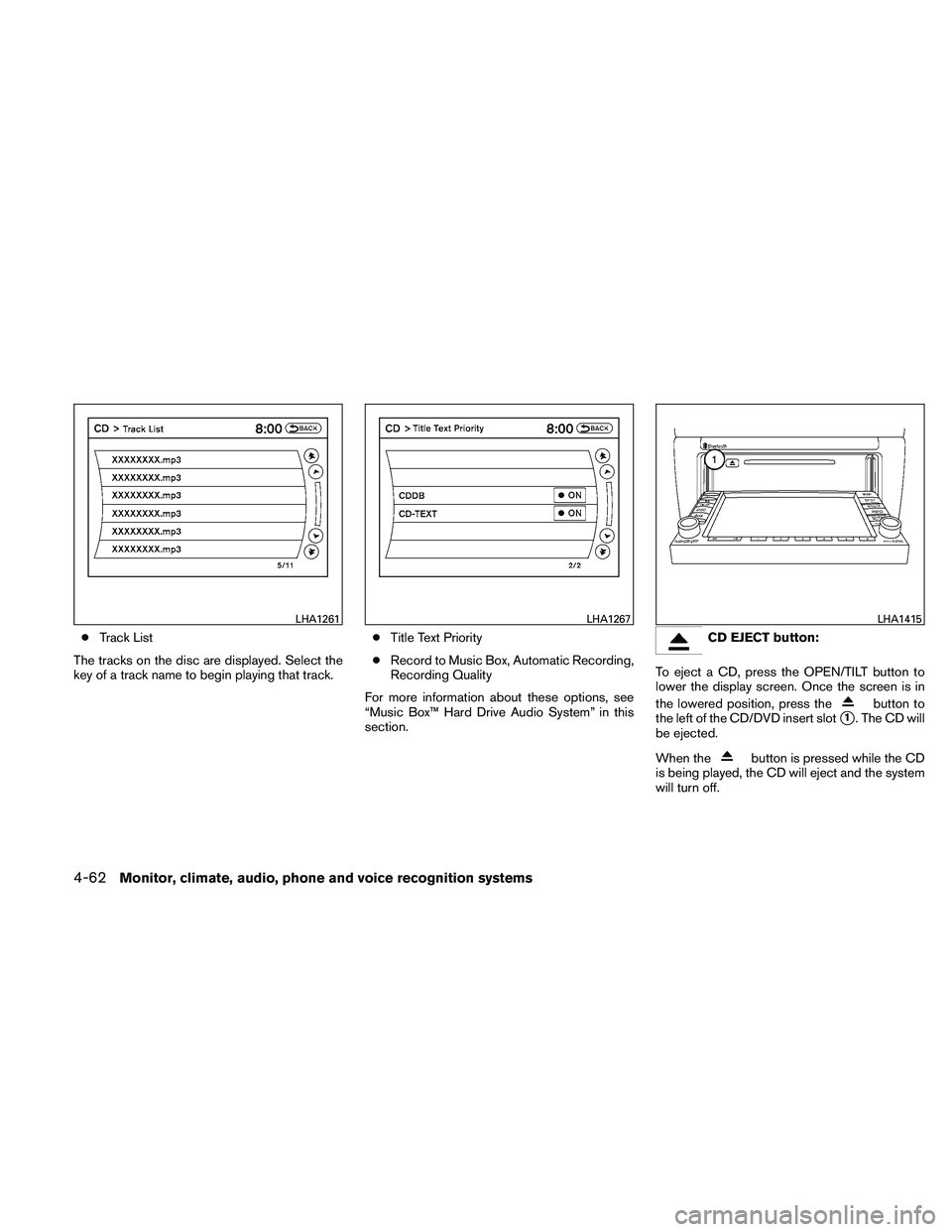
●Track List
The tracks on the disc are displayed. Select the
key of a track name to begin playing that track. ●
Title Text Priority
● Record to Music Box, Automatic Recording,
Recording Quality
For more information about these options, see
“Music Box™ Hard Drive Audio System” in this
section.
Page 224 of 438
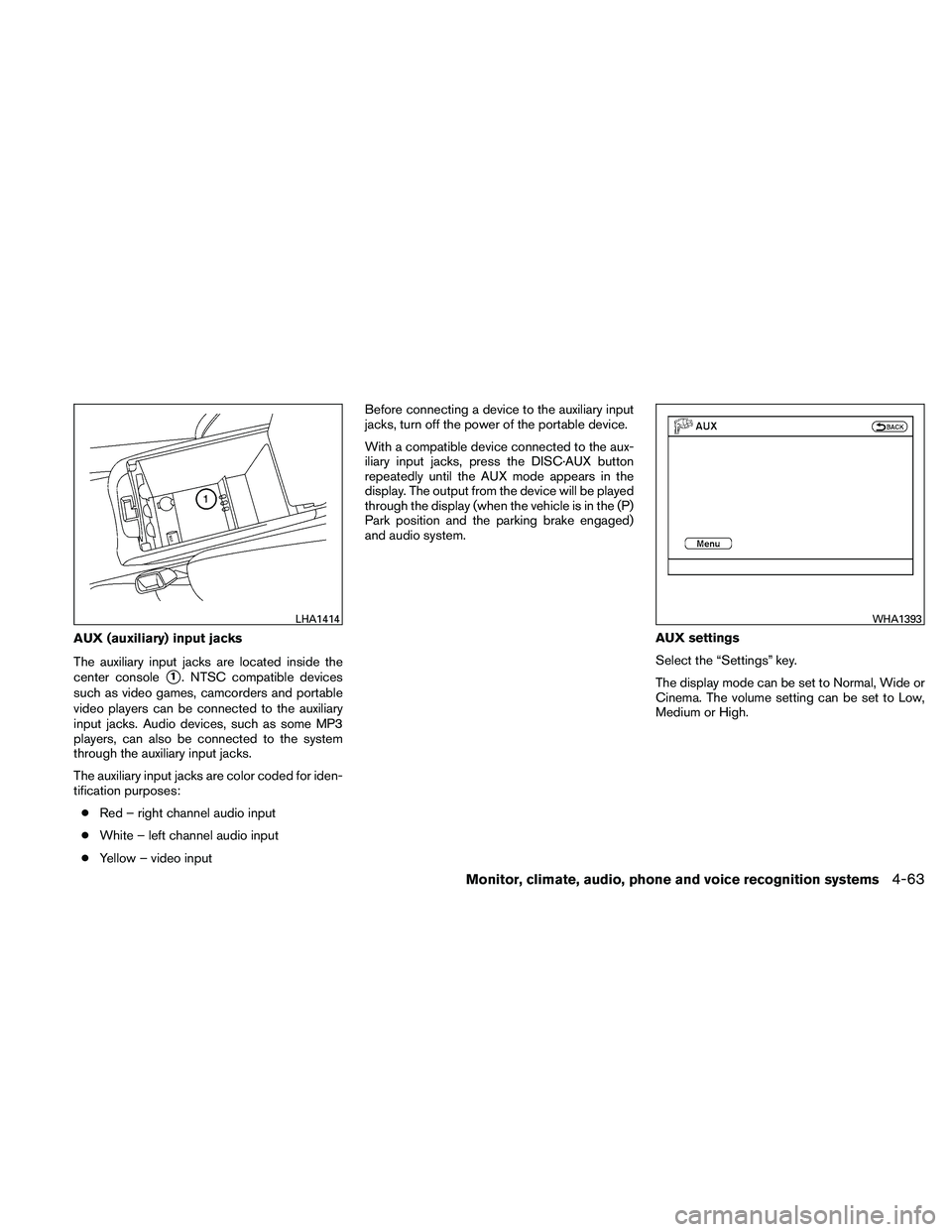
AUX (auxiliary) input jacks
The auxiliary input jacks are located inside the
center console
�1. NTSC compatible devices
such as video games, camcorders and portable
video players can be connected to the auxiliary
input jacks. Audio devices, such as some MP3
players, can also be connected to the system
through the auxiliary input jacks.
The auxiliary input jacks are color coded for iden-
tification purposes:
● Red – right channel audio input
● White – left channel audio input
● Yellow – video input Before connecting a device to the auxiliary input
jacks, turn off the power of the portable device.
With a compatible device connected to the aux-
iliary input jacks, press the DISC·AUX button
repeatedly until the AUX mode appears in the
display. The output from the device will be played
through the display (when the vehicle is in the (P)
Park position and the parking brake engaged)
and audio system.
AUX settings
Select the “Settings” key.
The display mode can be set to Normal, Wide or
Cinema. The volume setting can be set to Low,
Medium or High.
Page 228 of 438
●Angle Mark (DVD-VIDEO)
When this item is turned on, an angle mark
will be shown on the bottom of the screen if
the scene can be seen from a different angle.
● Menu Skip (DVD-VIDEO)
DVD menus are automatically configured
and the contents will be played directly
when the “Menu Skip” key is turned on. Note
that some discs may not be played directly
even if this item is turned on.
● CM Skip (DVD-VIDEO)
Select the “CM Skip” key to choose the
setting time for CM backward and forward
operations. Use the “+” or “-” key to choose
a setting time of 15, 30 or 60 seconds.
● DRC (DVD-VIDEO, DVD-VR)
DRC (Dynamic Range Compression) auto-
matically adjusts the soundtrack volume
level to maintain a more even sound to the
speakers.
● DVD Language (DVD-VIDEO, VIDEO CD)
Select the “DVD Language” key to open the
number entry screen. Input the number cor-
responding to the preferred language and
select the “OK” key. The DVD top menu
language will be changed to the one speci-
fied. ●
Display
Adjust the image quality of the screen by
selecting the preferred adjustment items.
● Audio
Choose the preferred language for the au-
dio.
● Subtitle (DVD-VIDEO, DVD-VR)
Choose the preferred language for the sub-
titles.
● Display Mode (DVD-VIDEO, VIDEO CD,
DVD-VR)
Choose from the “Full”, “Wide”, “Normal” or
“Cinema” mode.
● Title List (DVD-VR)
Choose the preferred title from the list.
● Play Mode
Choose the preferred play mode.
● PG/PL Mode (DVD-VR)
Choose from the “PG” or “PL” mode.
USB INTERFACE (models without
Navigation System) (if so equipped)
Connecting a device to the USB input
jack
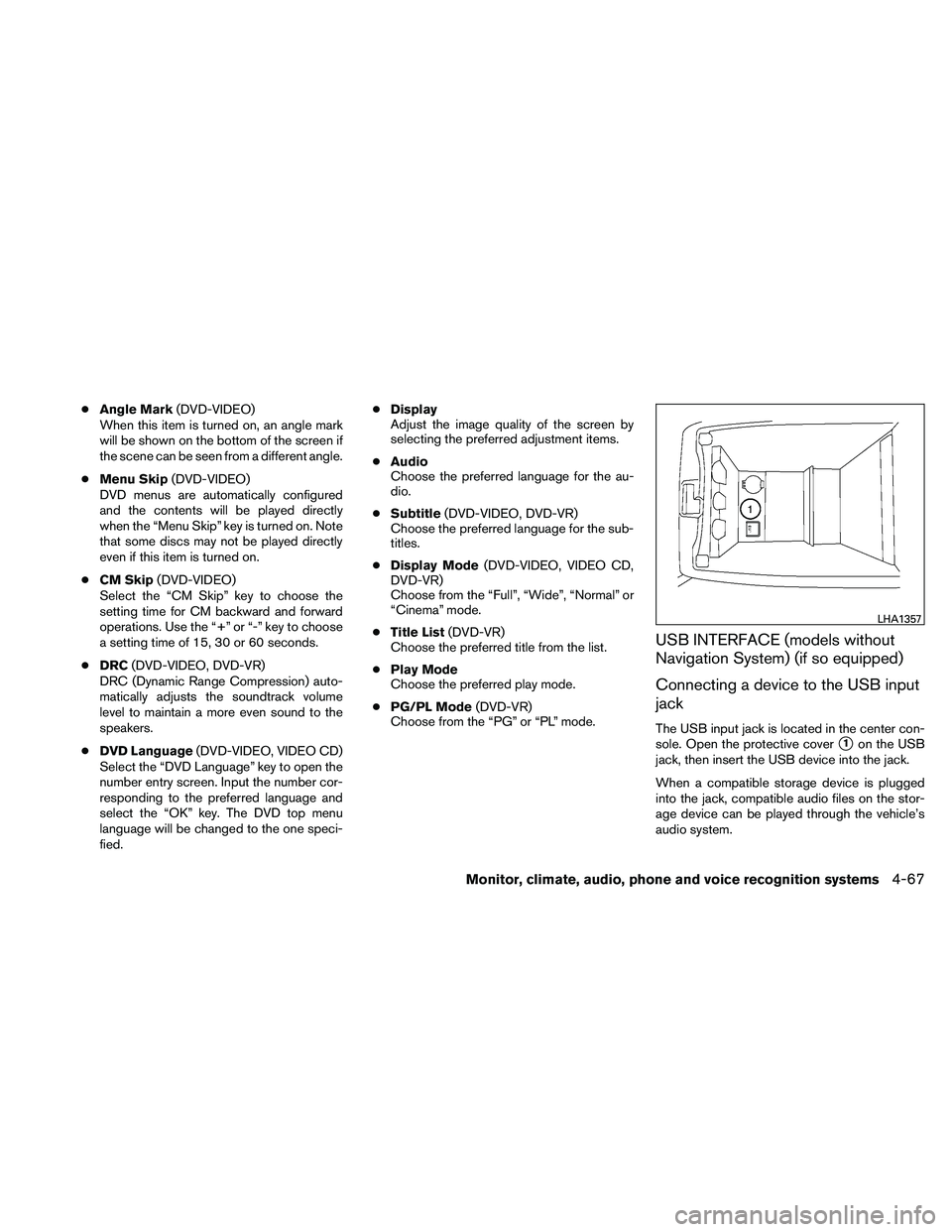
The USB input jack is located in the center con-
sole. Open the protective cover
�1on the USB
jack, then insert the USB device into the jack.
When a compatible storage device is plugged
into the jack, compatible audio files on the stor-
age device can be played through the vehicle’s
audio system.
Page 232 of 438
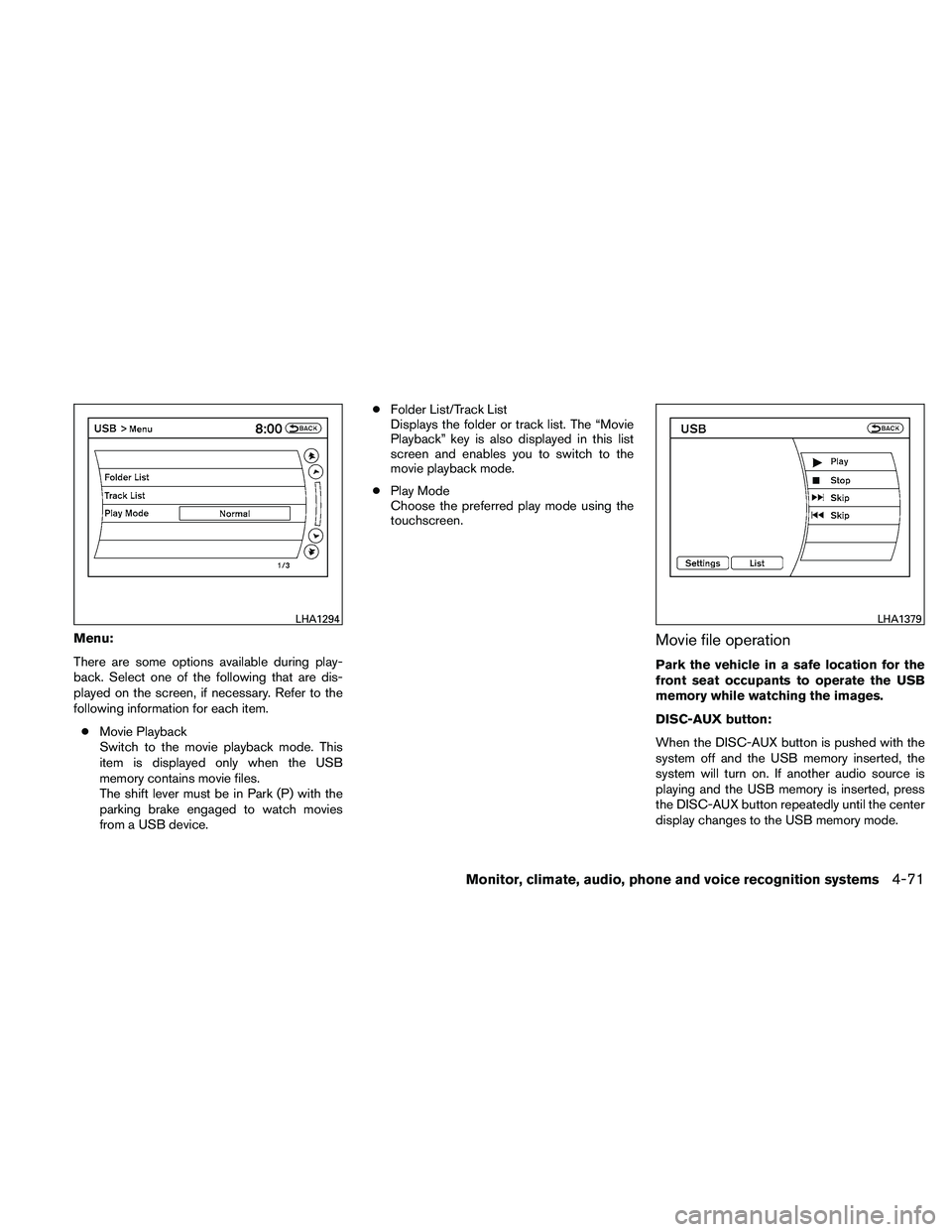
Menu:
There are some options available during play-
back. Select one of the following that are dis-
played on the screen, if necessary. Refer to the
following information for each item.● Movie Playback
Switch to the movie playback mode. This
item is displayed only when the USB
memory contains movie files.
The shift lever must be in Park (P) with the
parking brake engaged to watch movies
from a USB device. ●
Folder List/Track List
Displays the folder or track list. The “Movie
Playback” key is also displayed in this list
screen and enables you to switch to the
movie playback mode.
● Play Mode
Choose the preferred play mode using the
touchscreen.Movie file operation
Park the vehicle in a safe location for the
front seat occupants to operate the USB
memory while watching the images.
DISC-AUX button:
When the DISC-AUX button is pushed with the
system off and the USB memory inserted, the
system will turn on. If another audio source is
playing and the USB memory is inserted, press
the DISC-AUX button repeatedly until the center
display changes to the USB memory mode.
Page 233 of 438
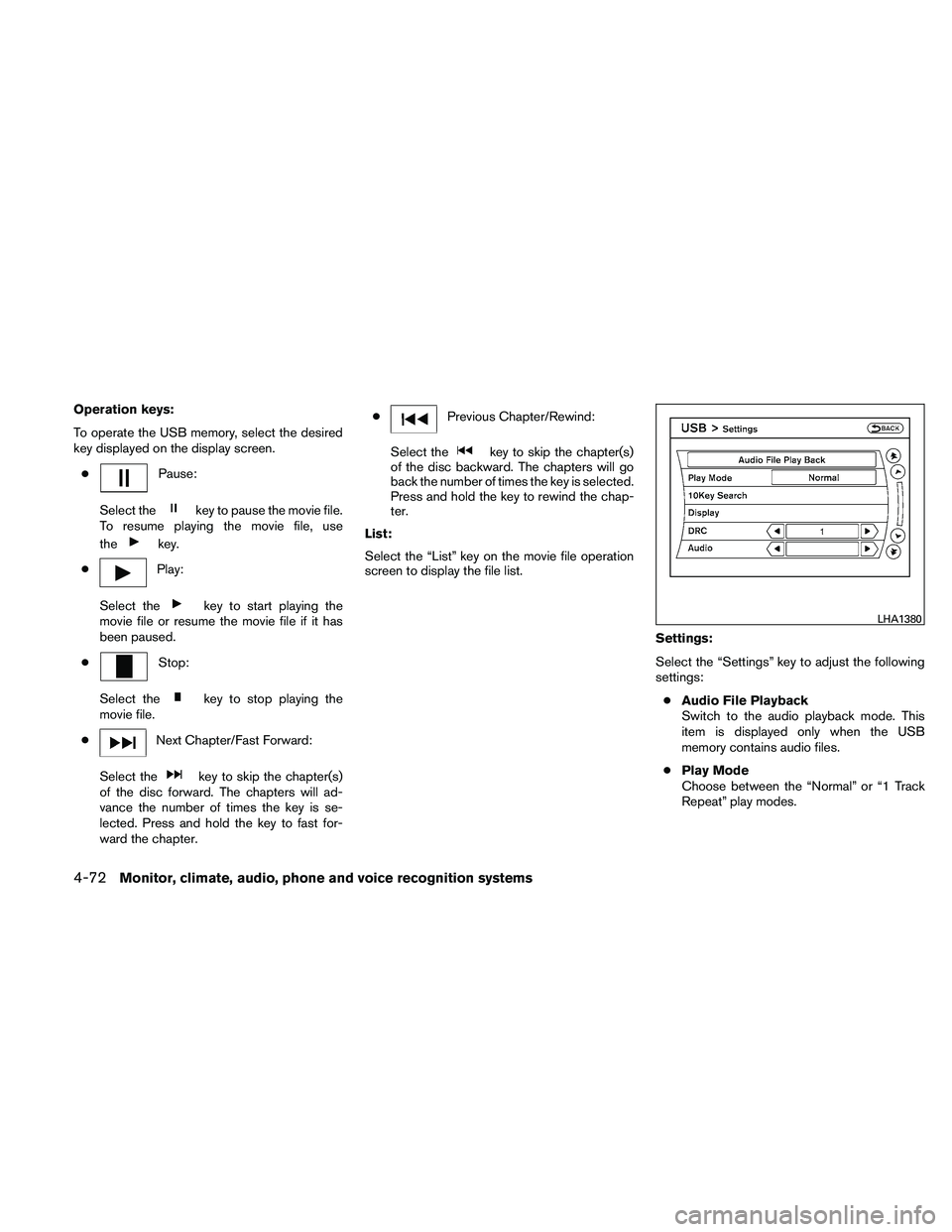
Operation keys:
To operate the USB memory, select the desired
key displayed on the display screen.●
Page 234 of 438
●10 Key Search
Select the “10 Key Search” key to open the
number entry screen. Input the number you
want to search for and the specified file or
folder will be played.
● Display
Adjust the image quality of the screen.
● DRC
DRC (Dynamic Range Compression) auto-
matically adjusts the soundtrack volume
level to maintain a more even sound to the
speakers.
● Audio
Choose the preferred language of the audio.
● Subtitle
Choose the preferred language of the sub-
titles.
● Display Mode
Choose between the “Normal”, “Wide”,
“Cinema” or “Full” display modes.
iPod�* PLAYER OPERATION
WITHOUT NAVIGATION SYSTEM (if
so equipped)
Connecting iPod�
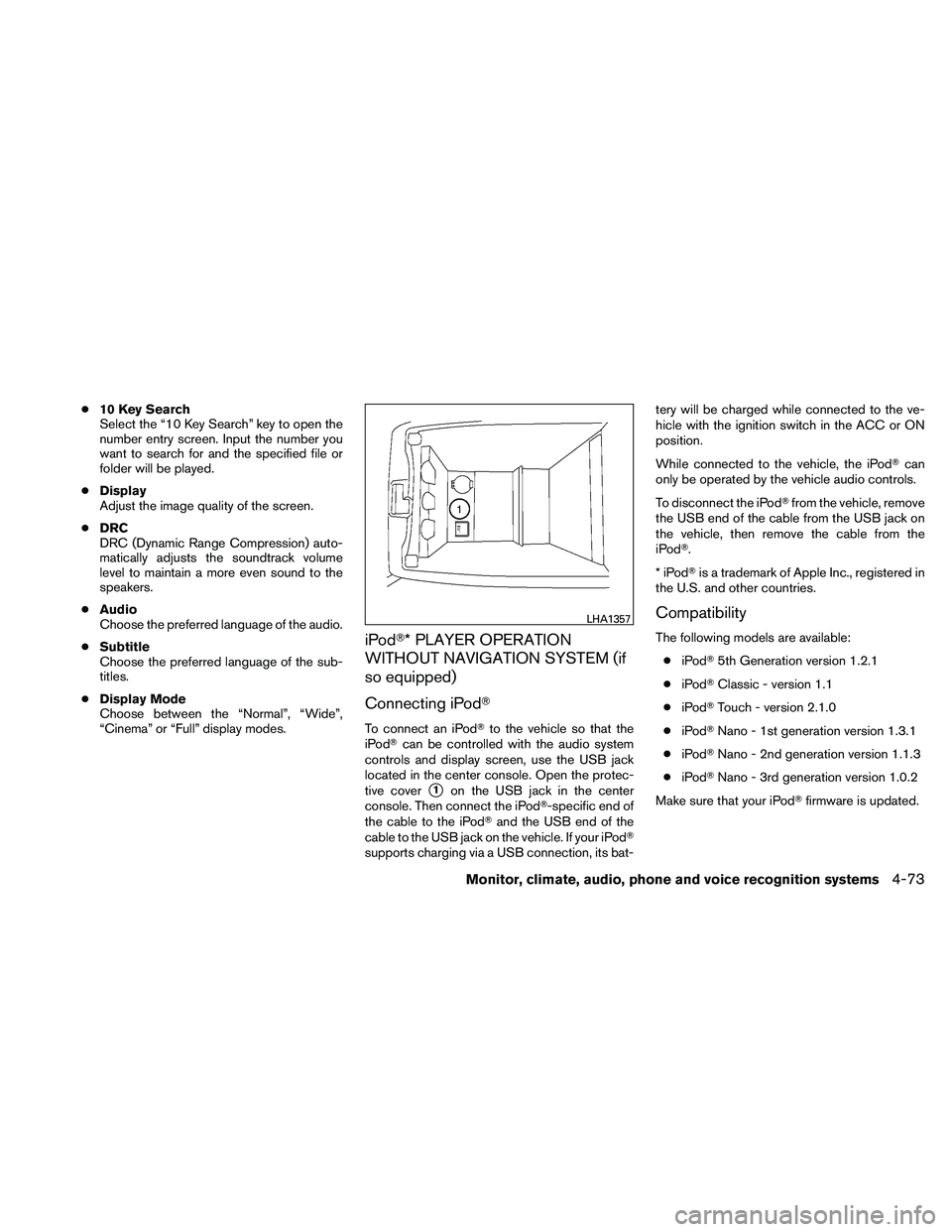
To connect an iPod� to the vehicle so that the
iPod� can be controlled with the audio system
controls and display screen, use the USB jack
located in the center console. Open the protec-
tive cover
�1on the USB jack in the center
console. Then connect the iPod�-specific end of
the cable to the iPod� and the USB end of the
cable to the USB jack on the vehicle. If your iPod�
supports charging via a USB connection, its bat- tery will be charged while connected to the ve-
hicle with the ignition switch in the ACC or ON
position.
While connected to the vehicle, the iPod�
can
only be operated by the vehicle audio controls.
To disconnect the iPod� from the vehicle, remove
the USB end of the cable from the USB jack on
the vehicle, then remove the cable from the
iPod�.
*iPod �is a trademark of Apple Inc., registered in
the U.S. and other countries.
Compatibility
The following models are available:
● iPod� 5th Generation version 1.2.1
● iPod� Classic - version 1.1
● iPod� Touch - version 2.1.0
● iPod� Nano - 1st generation version 1.3.1
● iPod� Nano - 2nd generation version 1.1.3
● iPod� Nano - 3rd generation version 1.0.2
Make sure that your iPod� firmware is updated.