2010 MERCEDES-BENZ S CLASS center console
[x] Cancel search: center consolePage 153 of 548
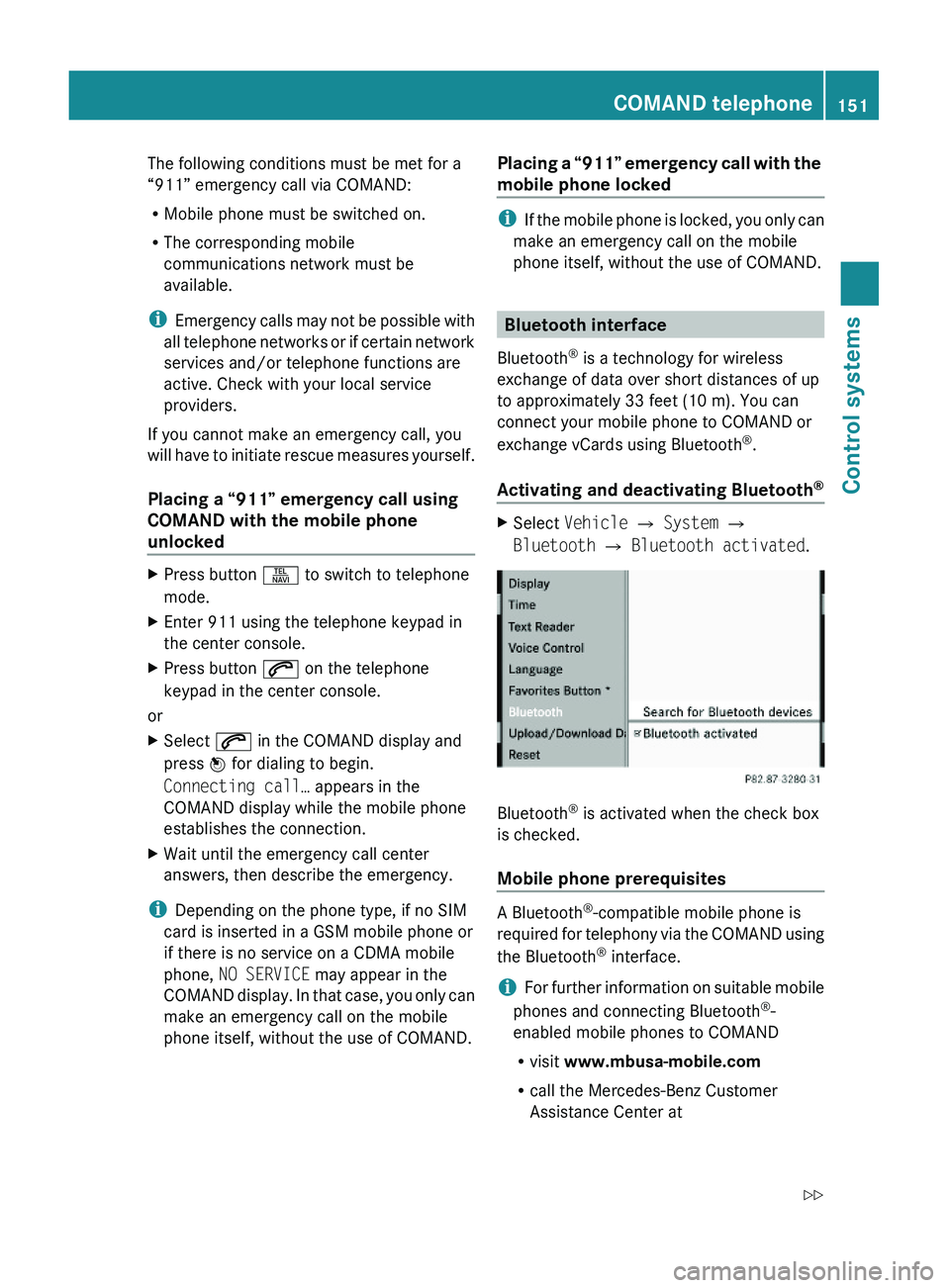
The following conditions must be met for a
“911” emergency call via COMAND:
RMobile phone must be switched on.
RThe corresponding mobile
communications network must be
available.
iEmergency calls may not be possible with
all telephone networks or if certain network
services and/or telephone functions are
active. Check with your local service
providers.
If you cannot make an emergency call, you
will have to initiate rescue measures yourself.
Placing a “911” emergency call using
COMAND with the mobile phone
unlocked
XPress button \000X to switch to telephone
mode.
XEnter 911 using the telephone keypad in
the center console.
XPress button \000j on the telephone
keypad in the center console.
or
XSelect \000j in the COMAND display and
press \000
Page 159 of 548
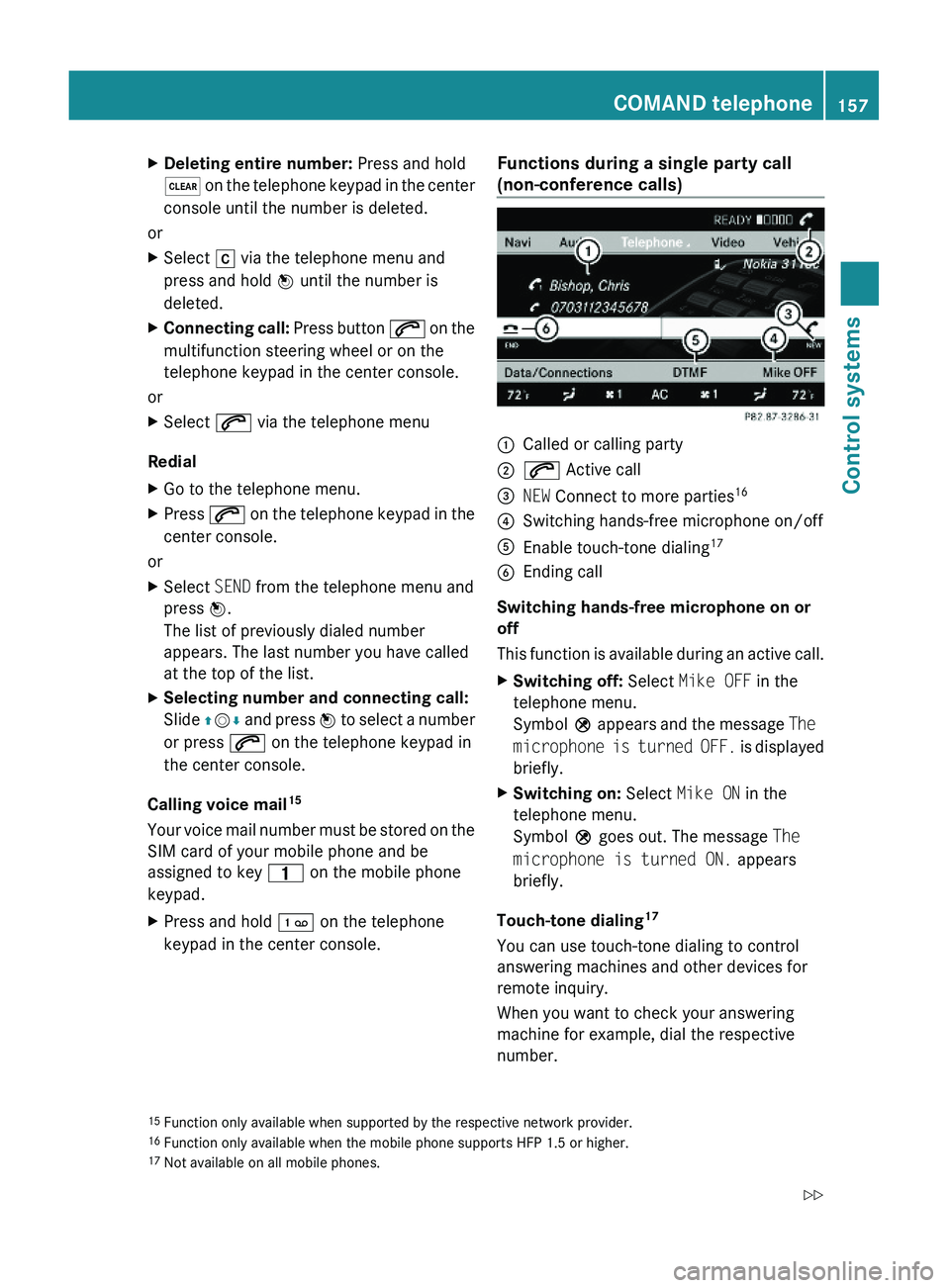
XDeleting entire number: Press and hold
\000@ on the telephone keypad in the center
console until the number is deleted.
or
XSelect \000h via the telephone menu and
press and hold \000
Page 160 of 548
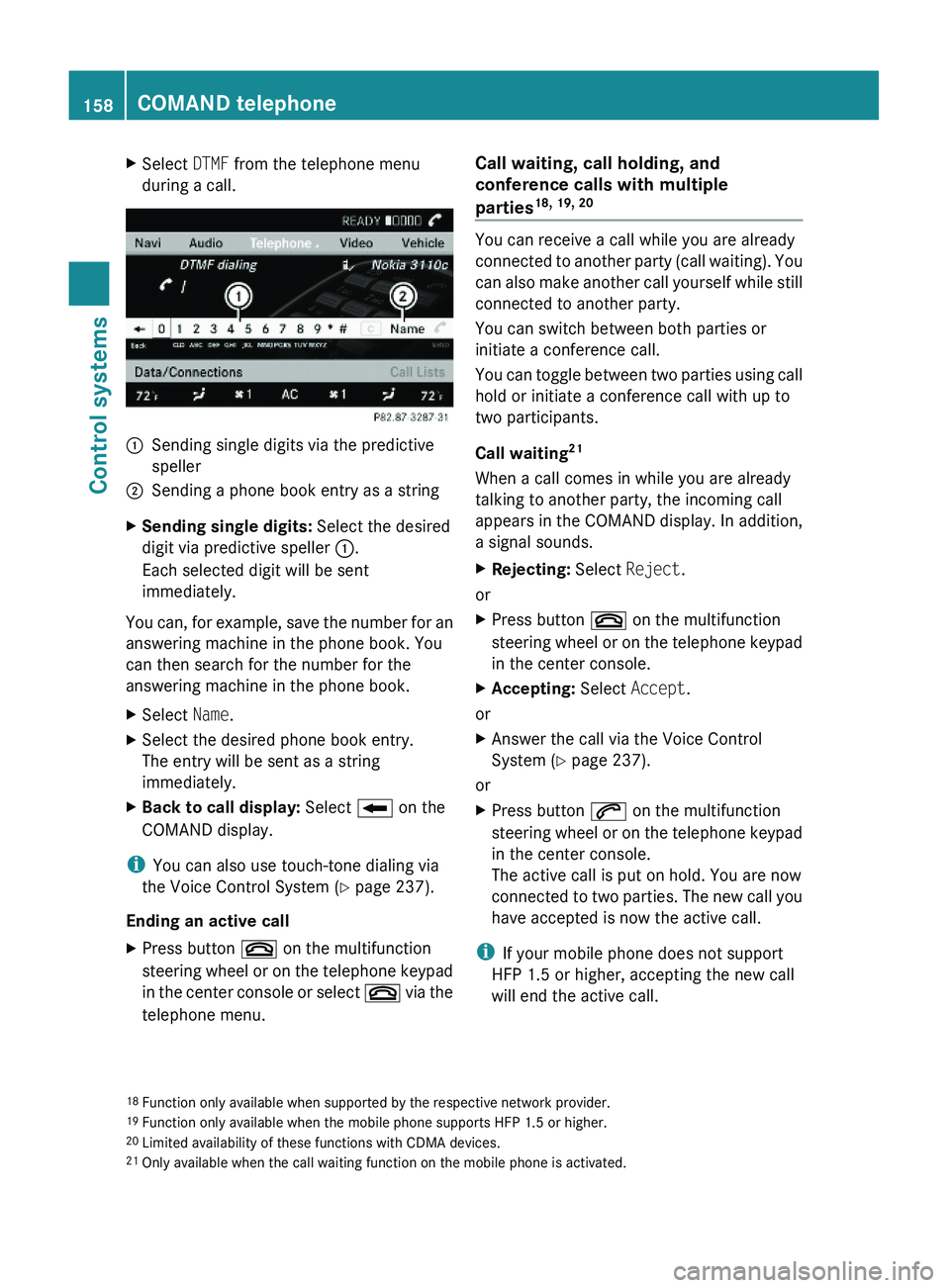
XSelect DTMF from the telephone menu
during a call.\000FSending single digits via the predictive
speller
\000GSending a phone book entry as a stringXSending single digits: Select the desired
digit via predictive speller \000F.
Each selected digit will be sent
immediately.
You can, for example, save the number for an
answering machine in the phone book. You
can then search for the number for the
answering machine in the phone book.
XSelect Name.XSelect the desired phone book entry.
The entry will be sent as a string
immediately.
XBack to call display: Select \000E on the
COMAND display.
iYou can also use touch-tone dialing via
the Voice Control System (Y page 237).
Ending an active call
XPress button \000 on the multifunction
steering wheel or on the telephone keypad
in the center console or select \000 via the
telephone menu.
Call waiting, call holding, and
conference calls with multiple
parties18, 19, 20
You can receive a call while you are already
connected to another party (call waiting). You
can also make another call yourself while still
connected to another party.
You can switch between both parties or
initiate a conference call.
You can toggle between two parties using call
hold or initiate a conference call with up to
two participants.
Call waiting21
When a call comes in while you are already
talking to another party, the incoming call
appears in the COMAND display. In addition,
a signal sounds.
XRejecting: Select Reject.
or
XPress button \000 on the multifunction
steering wheel or on the telephone keypad
in the center console.
XAccepting: Select Accept.
or
XAnswer the call via the Voice Control
System (Y page 237).
or
XPress button \000j on the multifunction
steering wheel or on the telephone keypad
in the center console.
The active call is put on hold. You are now
connected to two parties. The new call you
have accepted is now the active call.
iIf your mobile phone does not support
HFP 1.5 or higher, accepting the new call
will end the active call.
18Function only available when supported by the respective network provider.19Function only available when the mobile phone supports HFP 1.5 or higher.20Limited availability of these functions with CDMA devices.21Only available when the call waiting function on the mobile phone is activated.
158COMAND telephoneControl systems
221_AKB; 6; 20, en-USd2ugruen,Version: 2.11.8.12009-09-24T13:28:17+02:00 - Seite 158
Page 170 of 548
Selecting stations/channels using the
search functionXSlide 009E005B 009F or rotate 0082005B 0083 when the main
area is selected.
Depending on the direction in which the
controller is being slid or rotated, the
system searches upward or downward and
stops at the next receivable station/
channel.
or
XPress and hold button 003C or 003D on the
multifunction steering wheel 24
.
Selecting stations using station presets
i This function is not available for Weather
Band.
XSelect Audio 0054 FM/AM Radio 0054 FM or
AM .XSelect Presets .
or
XPress 00A1 when the main area is selected.
The preset menu appears. The dot 003F in
front of a preset position indicates that the
currently selected station is saved there.XSelect station preset by rotating 0082005B 0083 or
sliding 00A0005B 0050 and press 00A1.
or
XEnter a position number with the telephone
keypad using buttons 0101 - 0109
( Y page 79).
or
XPress button 003C or 003D on the
multifunction steering wheel briefly 24
.
i Vehicles with rear multicontour seats:
Rear occupants can also select a station
using the buttons on the rear armrest
( Y page 80).
Selecting stations by entering the
frequency manually
i This function is not available for Weather
Band.
XSelect Audio 0054 FM/AM Radio 0054 FM or
AM .
Entering the frequency using the
COMAND controller
XSelect Radio 0054 Enter Frequency .
The menu for manual frequency entry
appears.XExiting menu without making an entry:
Press back button 0041 in the center
console ( Y page 87).XIncreasing or decreasing number: Slide
00A0 005B 0050 or rotate 0082005B 0083.
i
You can only select available frequencies.
XSelecting the next number: Slide 005B009F.XConfirming frequency entry: Press 00A1.
COMAND tunes in to the frequency
entered.
i If you enter a frequency which is outside
the frequency range, COMAND tunes in to
the next lowest frequency.
Entering the frequency using the
telephone keypad
XPress button 004D on the telephone
keypad ( Y page 79).XEnter frequency using buttons 010B -
0109 .
COMAND tunes in to the frequency
entered.
Selecting channels using the WB
channel
i This function is only available for Weather
Band.
24 Function is only available if the Audio menu is selected in the instrument cluster.168COMAND FM/AM radioControl systems
221_AKB; 6; 20, en-USd2ugruen,Version: 2.11.8.12009-09-24T13:28:17+02:00 - Seite 168
Page 176 of 548
XSelect station preset and briefly press 00A1.
or
XEnter a position number with the telephone
keypad using buttons 0101 - 0109
( Y page 79).
COMAND tunes in the corresponding
channel as long as it is included in your
subscription and is still available.
i Vehicles with rear multicontour seats:
Rear occupants can also select a channel
using the buttons on the rear armrest
( Y page 80).
If the channel is not included in your
subscription, you will see the message
described in the section “Satellite radio
service is not activated” ( Y page 171).
If the channel is no longer available, you will
see the message Invalid Channel .
XClosing message: Press 00A1.
Tuning in channels using manual
channel number entry
i If you try to tune in a channel when the
satellite radio service is not activated, you
will see the screen described in the section
“Satellite radio service is not activated”
( Y page 171).
Entering the channel number using the
COMAND controller
XSelect Audio 0054 Audio 0054 Sat. Radio
0054 Sat. Radio 0054 Channel Entry .
The menu for manual channel number entry
appears.XExiting menu without making an entry:
Press back button 0041 in the center
console ( Y page 87).XIncrease or decreasing number: Slide
00A0 005B 0050 or rotate 0082005B 0083.XSelecting next number: Slide 009E005B 009F.XConfirming channel entry: Press 00A1.
Further operation depends on whether the
selected channel number is valid or if the
channel is included in your subscription.
Entering the channel number using the
telephone keypad
XPress button 004D on the telephone
keypad ( Y page 79).XEnter channel number using buttons 010B
- 0109 .
Further operation depends on whether the
selected channel number is valid or if the
channel is included in your subscription.
Channel number is valid and channel is
included in subscription
COMAND tunes in the channel entered.
Channel number is invalid
You will see the message Invalid Channel.
XClosing message: Press 00A1.
Channel number is valid but channel is
not included in subscription
You will see the screen described in the
section “Satellite radio service is not
activated” ( Y page 171).
XClosing display: Press 00A1.
Tuning in channels using the channel
list
XSelect Audio 0054 Audio 0054 Sat. Radio
0054 Sat. Radio 0054 Channel List .
The channel list appears. The dot 003F in
front of a list entry indicates the currently
selected channel.XSelect channel by rotating 0082005B 0083 or sliding
00A0 005B 0050 and press 00A1.
i
The contents of the channel list depends
on which channels are included in your
subscription and which program category
you have selected (Y page 173). If satellite
174COMAND satellite radioControl systems
221_AKB; 6; 20, en-USd2ugruen,Version: 2.11.8.12009-09-24T13:28:17+02:00 - Seite 174
Page 241 of 548
Starting the dialog with the Voice
Control System
XSwitch on the ignition (Y page 284).XPress button \000b on the multifunction
steering wheel.
An acoustic signal sounds. The dialog is
started.
XSpeak a command.
Pausing and resuming a dialog
Pausing
You can pause the dialog when a selection list
is displayed in COMAND.
XSpeak the command “Pause”.
Continue With Push-to-talk appears
at the top of the selection list. You can
select an entry using the COMAND
controller.
Resuming
XPress button \000b on the multifunction
steering wheel.
The dialog is resumed.
Aborting dialog
XPress button \000A on the multifunction
steering wheel.
or
XSpeak one of the commands “Stop”, “Quit”,
“Abort”, “Terminate”, “Cancel” or “Exit”.
This does not apply when entering voice
names or during the individualization
process.
or
XPress any COMAND button.
Setting volume level
XActivate the Voice Control System.XSpeak a command, for example “Help”.XPress button \000Z or \000[. The volume is
increased or decreased during voice
output.
or
XSet volume for voice output using the
COMAND volume thumbwheel on the lower
part of the front center console
(Y page 88).
iYou can also set the text reader speed
(Y page 91).
Displays
COMAND Display
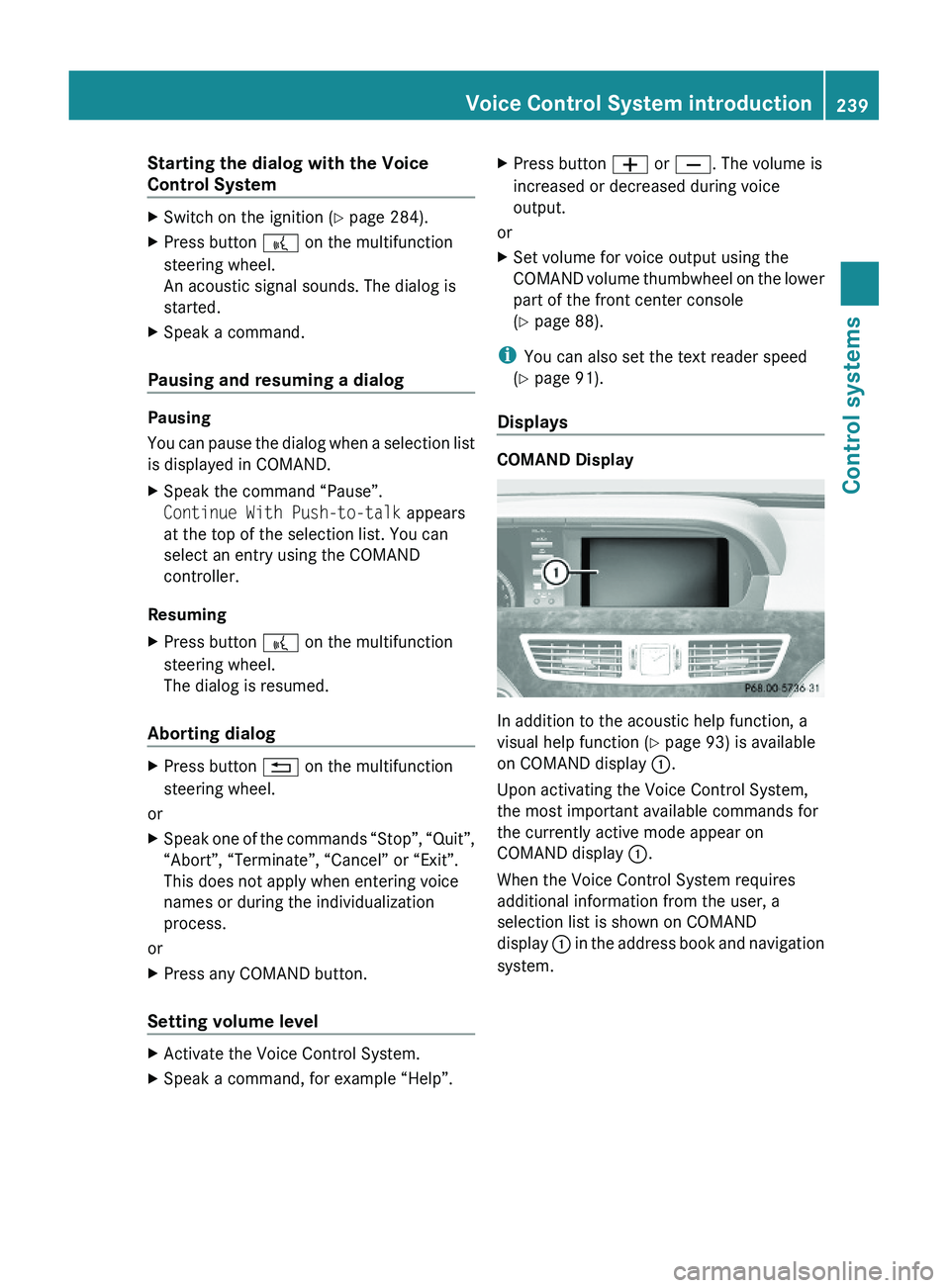
In addition to the acoustic help function, a
visual help function (Y page 93) is available
on COMAND display \000F.
Upon activating the Voice Control System,
the most important available commands for
the currently active mode appear on
COMAND display \000F.
When the Voice Control System requires
additional information from the user, a
selection list is shown on COMAND
display \000F in the address book and navigation
system.
Voice Control System introduction239Control systems221_AKB; 6; 20, en-USd2ugruen,Version: 2.11.8.12009-09-24T13:28:17+02:00 - Seite 239Z
Page 293 of 548
GWarning!
Make sure the rear seat head restraints
engage when placing them upright manually.
Otherwise their protective function cannot be
ensured.
The back of the head will not be supported in
the event of a collision. That could cause
serious or even fatal injuries. Rear seat
occupants can be seriously injured or killed.
Folding rear seat head restraints back
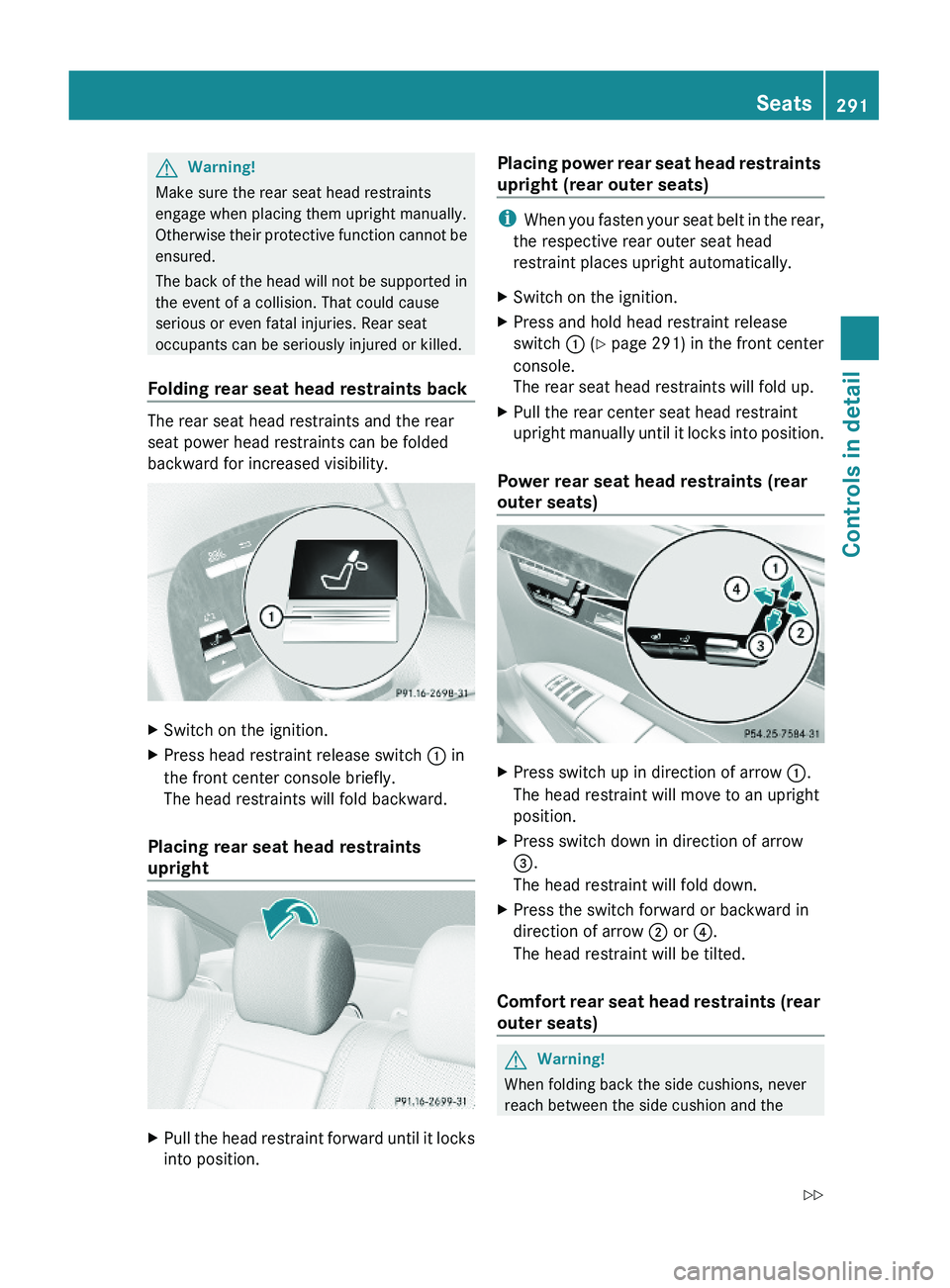
The rear seat head restraints and the rear
seat power head restraints can be folded
backward for increased visibility.
XSwitch on the ignition.XPress head restraint release switch \000F in
the front center console briefly.
The head restraints will fold backward.
Placing rear seat head restraints
upright
XPull the head restraint forward until it locks
into position.
Placing power rear seat head restraints
upright (rear outer seats)
iWhen you fasten your seat belt in the rear,
the respective rear outer seat head
restraint places upright automatically.
XSwitch on the ignition.XPress and hold head restraint release
switch \000F (Y page 291) in the front center
console.
The rear seat head restraints will fold up.
XPull the rear center seat head restraint
upright manually until it locks into position.
Power rear seat head restraints (rear
outer seats)
XPress switch up in direction of arrow \000F.
The head restraint will move to an upright
position.
XPress switch down in direction of arrow
\000
Page 295 of 548
Multicontour seats, rear
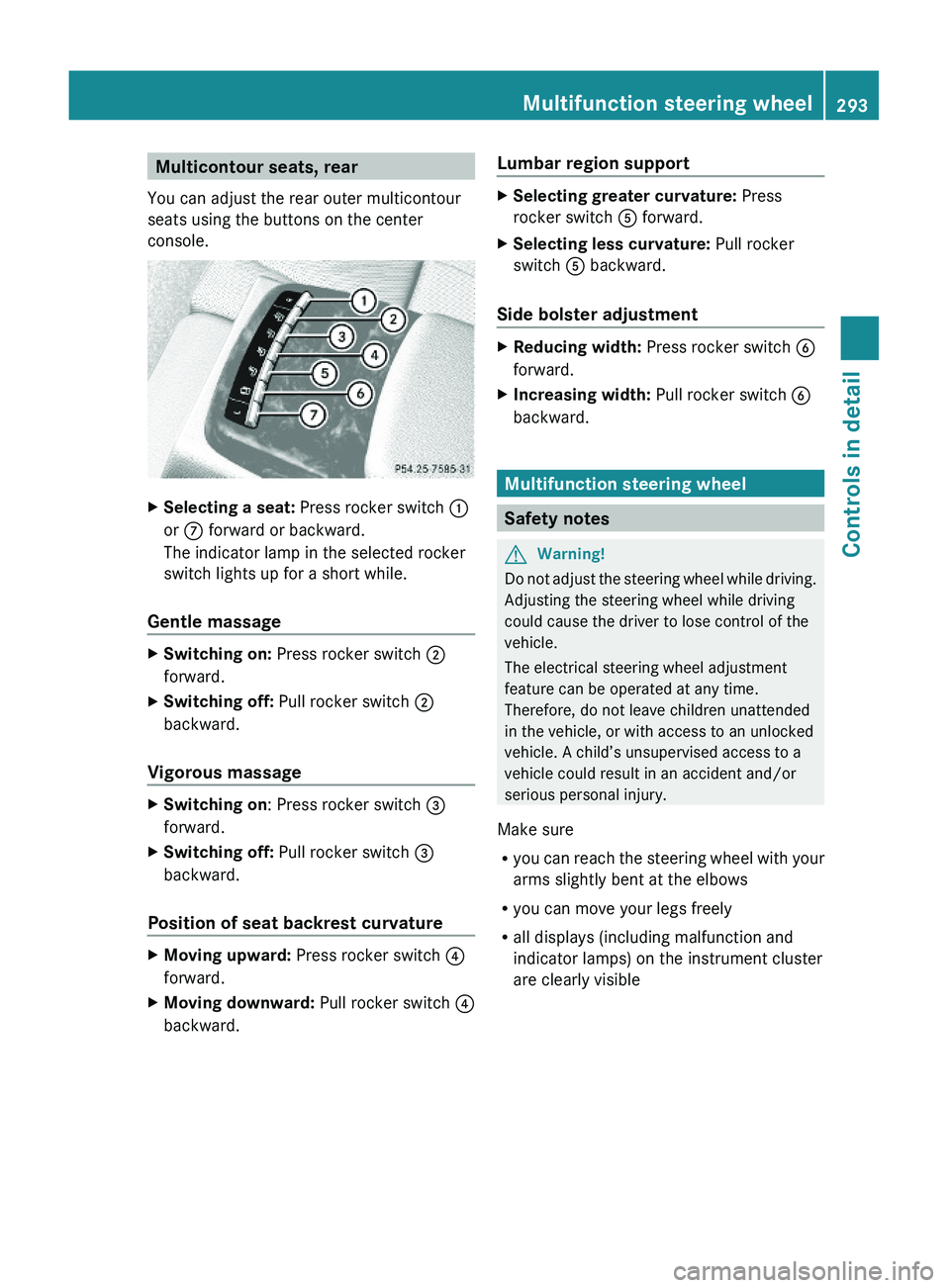
You can adjust the rear outer multicontour
seats using the buttons on the center
console.
XSelecting a seat: Press rocker switch \000F
or \000n forward or backward.
The indicator lamp in the selected rocker
switch lights up for a short while.
Gentle massage
XSwitching on: Press rocker switch \000G
forward.
XSwitching off: Pull rocker switch \000G
backward.
Vigorous massage
XSwitching on: Press rocker switch \000