2010 MERCEDES-BENZ E-Class SEDAN Back seat
[x] Cancel search: Back seatPage 15 of 224

normal and random options ...........144
rear seat entertainment system .....175
steering wheel operation .................28
voice commands for ......................204
Track selection (video) ..... 160, 161, 179
voice commands for ......................204
Traffic lane recommendations ........... 83
Traffic messages ................................. 87
Traffic symbol information ................. 90
Training for voice control ................... 42
Transmit volume (phone) ................. 101
Treble setting
main system .................................... 35
rear seat entertainment system .....171
Troubleshooting
voice control .................................. 211
U
Units of measurement, navigation .... 52
Updating Gracenote ®
Media
Database ............................................ 143
Updating map software ...................... 48
USB devices
connecting to ................................. 147
playback options ............................ 152
playlists and folders .......................150
selecting active partition ...............152
selecting tracks .....................150, 152
V
Vehicle location (current)
displaying ......................................... 58
GPS reception .................................. 51
moving map to ................................. 55
saving in Last Destinations ........54, 95
Video .................................................. 156
control menu, displaying/hiding ....158
handling and care of discs .............156
interactive content ........................162
operating DVD menu .............160, 180
picture settings .............................. 160
rear seat entertainment system .....177
voice control with .......................... 211
Video Aux (auxiliary)
main system .................................. 163
rear seat entertainment system .....168
Voice control ..................................... 186
canceling the dialog .......................188
command list ................................. 205
creating voice names .....................198
general operation .......................... 186
help function .................................. 213
interrupting the dialog ...................187
operating safety ............................. 186
settings ............................................ 42
starting the dialog ..........................187
switching help screen on or off ........42
training for voice recognition ...........42
troubleshooting ............................. 211
with address book .........116, 197, 211
with DVD changer ..........................203
with external equipment (Aux) .......205
with navigation .............................. 191
with phone ..................................... 188
with radio and satellite radio .........201
Voice mail, voice control for ............ 191
Voice names, creating ...................... 198
Volume (loudness)
COMAND ......................................... 34
external audio sources ..........153, 163
mobile phones ............................... 101
muting COMAND ............................. 34
navigation announcements ........35, 85
phone calls ...................................... 35
voice command ............................. 188
wireless headsets ..........................169
W
Wireless headsets, rear seat
entertainment .................................... 168
basic operation .............................. 171
batteries for ................................... 170
muting audio playback ...................168
Y
Yahoo Local Maps ®
........................... 217
Z
ZAGAT ®
Rating Service ....................... 79
Zip code of destination, selecting ...... 65
Index13
Page 38 of 224

Setting Balance and Fader (display image may
differ depending on model)
1Current settingXTo change the setting: Slide qm r or
o m p until the balance and fader are set as
desired.XTo store a setting: Press the n button.
The setting is stored and the menu is
exited.XTo exit the menu without changes: Press
the k button.
Surround Sound
Your vehicle is equipped with the harman/
kardon LOGIC7 ®
Surround Sound system.
You can select between LOGIC7®
off and
LOGIC7 ®
on .
harman/kardon LOGIC7 ®
Surround Sound is
available for the following operating modes:
R Radio (FM only)
R SatRadio
R CD Audio
R DVD Audio (MLP, DTS, PCM and Dolby
Digital audio formats)
R MP3 (including PCMCIA memory card)
R AUX
R Video DVD (PCM, DTS and Dolby Digital
audio formats)
i As some DVDs contain both stereo and
multi-channel audio formats, it may be
necessary to set the audio format.
i The LOGIC7 ®
on function of the harman/
kardon LOGIC7 ®
Surround Sound system
allows playback of discrete 5.1 and stereo
recordings with an optimum surround
sound experience for each passenger. It
enables optimum playback of music and
films on CD or audio and video DVDs with
high-resolution surround formats, such as
MLP, DTS or Dolby Digital. For ideal sound
perception from all seats, LOGIC7 ®
distributes the 5.1 surround information
over the 12-channel architecture. This
results in sound characteristics like those
intended by the sound engineer when the
original was recorded.
harman/kardon LOGIC7 ®
converts each
two-channel stereo sound source into
multi-channel surround sound. LOGIC7 ®
reads the surround information stored
during the original recording and
distributes it over the 12 channels. No
effects are created during the process,
anything that was always on the recording
is just made audible again. In addition,
harman/kardon LOGIC7 ®
moves the
perceived sound source away from the
loudspeakers and thereby generates a
natural 360° sound experience for every
passenger.
i If you select LOGIC7®
off , playback of all
recognized formats is as it is on the
medium. Due to the design of the
passenger compartment, an optimum
audio experience cannot be guaranteed for
all passengers.
i Discs which support the audio formats
mentioned have the following logos:36Basic Functions of COMANDAt a Glance
Page 124 of 224

Audio Menu
i Information on the COMAND control
system and how to operate it can be found
on ( Y page 18).
i For many operating functions you can
also use the buttons on the multifunction
steering wheel, e.g. the =, ; ,
9 , : buttons, for selecting a channel
or a menu or scrolling through lists
( Y page 25).
Vehicle Equipment
i This Operator’s Manual describes all
features, standard or optional, potentially
available for your vehicle at the time of
purchase. Please be aware that your
vehicle might not be equipped with all
features described in this manual.
Calling up the Audio Menu
XSelect Audio
The audio mode last active is switched on.
or
XPress the $ function button.
Radio mode is switched onXSelect Audio
The audio menu appears.
i If radio mode was active last, you only
need to select Audio.
Display with Audio menu
1Main function line2Current audio mode3Audio menu
You can switch to the various audio modes in
the audio menu:
R FM / AM radio mode ( Y page 123)
R SatRadio mode ( Y page 127)
R CD-/DVD audio/MP3 mode ( Y page 131)
R Memory Card ( Y page 139)
R Music Register ( Y page 144)
R Rear ( Y page 122)
R Aux mode ( Y page 153)
Rear Playback Mode
Rear playback mode channels the audio
source from the Rear Seat Entertainment
System to COMAND for playback through the
vehicle speakers.
XSwitching on Rear playback mode:
Select Rear from the Audio menu122Audio MenuAudio
Page 169 of 224
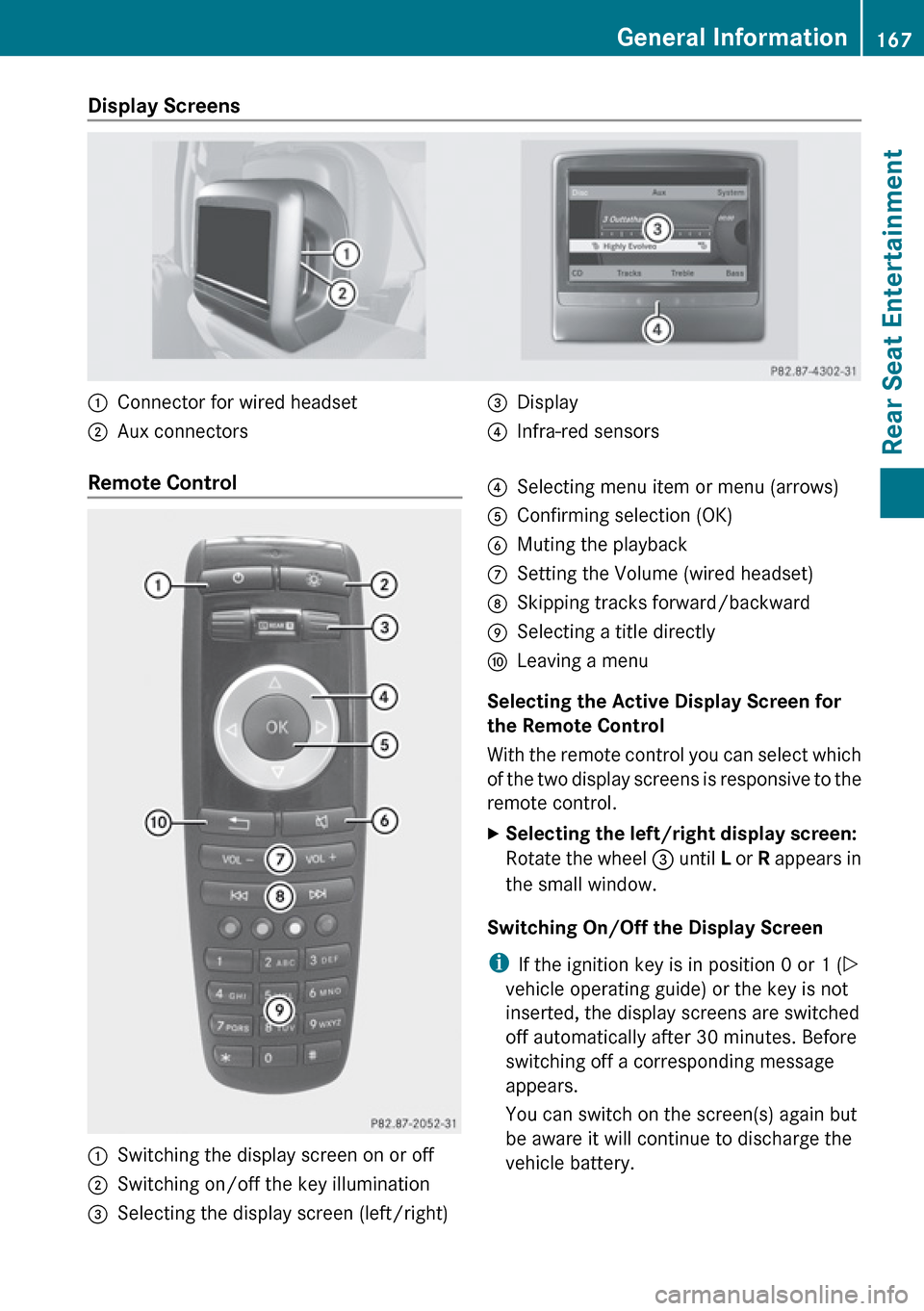
Display Screens :Connector for wired headset;Aux connectors=Display?Infra-red sensorsRemote Control :Switching the display screen on or off;Switching on/off the key illumination=Selecting the display screen (left/right)?Selecting menu item or menu (arrows)AConfirming selection (OK)BMuting the playbackCSetting the Volume (wired headset)DSkipping tracks forward/backwardESelecting a title directlyFLeaving a menu
Selecting the Active Display Screen for
the Remote Control
With the remote control you can select which
of the two display screens is responsive to the
remote control.
XSelecting the left/right display screen:
Rotate the wheel = until L or R appears in
the small window.
Switching On/Off the Display Screen
i If the ignition key is in position 0 or 1 ( Y
vehicle operating guide) or the key is not
inserted, the display screens are switched
off automatically after 30 minutes. Before
switching off a corresponding message
appears.
You can switch on the screen(s) again but
be aware it will continue to discharge the
vehicle battery.
General Information167Rear Seat EntertainmentZ
Page 170 of 224

XPoint the remote control to the active
screen and press the On/Off : button on
the remote control.
The display screen is switched on or off.
i Switching on with the remote control is
only possible if the ignition is on.
Muting the Audio Playback (Only Wired
Headset)
XPress the button B on the remote control.
Depending on the previous state the sound
is switched on or off.
Selecting a Menu Item and Confirming the
Selection
XSelecting the menu item: Press the arrow
buttons ? on the remote control.XConfirming the selection: Press the OK
button A.
CD/DVD Drive and Aux Connectors
The CD/DVD drive is located in
R central position underneath the rear seats
in vehicles with folding rear seat
R in the arm rest between the rear seats in
vehicles without folding rear seat
:CD/DVD slot;Aux, right (R) connector for audio signal=Aux, left (L) connector for audio signal?Aux, connector for video signal (V)ACD/DVD eject button
The Aux connectors shown here represent
the source Disk Drive Aux. The same
connectors are available at the display
screens. These represent the Aux source
Display Aux .
Wireless Headsets
i Vehicles sold in the US are equipped with
wireless headsets. Vehicles sold in Canada
and elsewhere are equipped with wired
headsets.
:Setting the volume;Selecting the display screen=Battery compartment?Switching headset on/offAState Indicator LEDXAdapt the fit of the headset by pulling the
headset clamp as indicated by the arrows
in the figure above.168General InformationRear Seat Entertainment
Page 172 of 224

Remote Control Batteries
The remote control contains two batteries of
size AAA, 1.5 V.
XRemove the cover of the battery
compartment 3 on the back of the remote
control by pressing down the clip :.XTake out the empty batteries 5.XInsert the new batteries. Mind the polarity
marks on the batteries.
Battery on the left:
The plus terminal (+) must face upwards.
Battery on the right:
The plus terminal (+) must face downwards.XPut the cover with the engagement
hooks ? first onto the battery
compartment and let the snap-fit hook 2
snap in.Wireless Headset Batteries
The battery compartment cover is located on
the left headphone.
1Battery compartment cover
The wireless headset contains two batteries
of size AAA, 1.5 V.
XOpen battery compartment cover : by
folding it up. When doing so, hold the left
headphone as shown in the illustration to
prevent the inserted batteries from falling
out.XTake out the empty batteries.XInsert the new batteries. Mind the polarity
marks on the batteries.
Battery on the left:
The plus terminal (+) must face upwards.
Battery on the right:
The plus terminal (+) must face downwards.XClose the battery compartment.
The state indicator LED lights green when
you switch on the headset and the batteries
were inserted correctly.
Basic Functions
The following operating modes are available
for the rear-seat entertainment system:
R CD/DVD Audio and MP3 mode CD/DVD
Audio and MP3 operation ( Y page 173)
R DVD Video operation ( Y page 177)
R AUX mode
170Basic FunctionsRear Seat Entertainment
Page 173 of 224

In Aux mode you can play external video
sources that are connected either to the
display screens or to the CD/DVD drive. In
addition you can play the active audio or
video source of COMAND ( Y page 181).
With the system settings menu you can set
display design and language for each screen
separately ( Y page 172).
Wireless Headset Operation
i Vehicles sold in the US are equipped with
wireless headsets. Vehicles sold in Canada
and elsewhere are equipped with wired
headsets.
You can use the wireless headset and/or two
wired headsets connected to the display
screens ( Y page 168).
XSwitch on the wireless headset
( Y page 169).XSet the volume of the headset
( Y page 169).XSelect the display screen for the headset
( Y page 169).
Main Loudspeaker Operation
i This function is available in connection
with COMAND.
The sound of a medium which is played in the
RSE disc drive can also be heard over the
vehicle loudspeakers. For this, at least on one
of the display screens the operating mode
Disc has to be active.
XSwitching to Audio menu: Select Audio
£ Audio in COMAND.XSelect Rear.
The volume control of the headsets has no
impact on the volume of the loudspeakers.
Setting Treble and Bass XSwitch to the menu of the respective
operating mode
R CD Audio ( Y page 174)
R DVD Audio ( Y page 174)
R MP3 ( Y page 174)
R DVD Video ( Y page 177)
R Aux ( Y page 182)XSelect Treble or Bass .
A setting scale appears.XTo change the value: Press the n or
ý button on the remote control.XTo confirm the setting: Press the 9
button on the remote control.
Multiuser Operation
The two display screens can be operated
almost entirely independent from each other.
For some menus, however, there can arise
conflicts if the two display screens are used
simultaneously.
Simultaneous Use of the Rear-
Compartment Disc Drive
If on both display screens the disc drive is
used, the selection of certain settings on one
screen will have an impact on the other
screen as well.
The following functions affect both screens:
R Changing the playback options
R Selecting a track (from track list or folder)
R Using the Play, Stop or Pause function.
R Using the fast forward/rewind function
R Switching to DVD menu and and navigating
through it
R Setting language, subtitle and camera
angle
R Calling up interactive DVD content
Basic Functions171Rear Seat EntertainmentZ
Page 176 of 224

Ejecting a Disc XPress Eject button 8.
The drive ejects the disc.XTake the disc out of the slot.
If you do not take the disc out of the slot,
the drive will pull it in again automatically
after a short while.
Switching to CD Audio, DVD Audio or
MP3 Operation
XInsert a disc ( Y page 173).XSelect Disc in the main function line using
the remote control.
The corresponding mode is activated. The
rear-seat entertainment system plays the
disc.
Example Display of CD Audio Operation
1Disc type _2Track number3Track name (only if stored on the disc as
CD text)4Elapsed track time5Visual time and track display6Current playback settings (no icon for
“Normal track sequence”)7Bass setting8Treble setting9Disc name (only if stored on the disc as
CD text)aTrack listbPlayback optionsExample Display of DVD Audio
Operation1Disc type ü2Track number3Track name4Elapsed track time5Visual time and track display6Current playback option (no icon for
“Normal track sequence”)7Bass setting8Treble setting9Disc name (if available)aTrack listbStop functionHPause functionIPlayback options
Example Display of MP3 Operation
1Disc type þ2Track number3Track name4Elapsed track time174CD/DVD Audio and MP3 OperationRear Seat Entertainment