2010 MERCEDES-BENZ E-Class COUPE audio
[x] Cancel search: audioPage 175 of 224

Adjusting the Brightness XSelect System settings £
Brightness .
A scale appears.XTo set the brightness: Press the n or
ý button.
The brightness bar moves up or down. The
image dims or brightens according to the
bar position on the scale.XTo confirm the setting: Press the 9
button on the remote control.
Switching the Display Screen On/ Off
Switching Off the Display
XSelect Display off from the system
menu.
Switching On the Display
XPress the 9 button on the remote control.
CD/DVD Audio and MP3 Operation
Safety Instructions
GWarning
The RSE CD/DVD player is a Class 1 laser
product. There is a danger of invisible laser
radiation when you open or damage the cover.
Do not remove the cover. The RSE CD/DVD
player does not contain any parts which can
be serviced by the user. For safety reasons,
have any necessary service work performed
by qualified personnel.
Notes on CDs/DVDs
Please refer to the chapter ”Audio” for
general information about CD/DVD discs and
on the MP3 format ( Y page 133) and
( Y page 132).
Inserting a Disc
The CD/DVD drive is located in
R central position underneath the rear seats
in vehicles with folding rear seat
R in the arm rest between the rear seats in
vehicles without folding rear seat1CD/DVD slot2Eject button
The drive takes one medium at a time. If there
is already a medium loaded, you must first
eject it.
XInsert a disc into the slot with the printed
side upwards.
If the medium has no printed side, the side
you want to play has to face downwards.
The drive pulls the disc in.
The CD/DVD drive plays the disc
R if it has been inserted properly and
R after you have switched to disc operation
( Y page 174).
The data of a MP3 disc must be first loaded
from the drive. This takes some time
depending on the number of folders and files.
CD/DVD Audio and MP3 Operation173Rear Seat EntertainmentZ
Page 176 of 224

Ejecting a Disc XPress Eject button 8.
The drive ejects the disc.XTake the disc out of the slot.
If you do not take the disc out of the slot,
the drive will pull it in again automatically
after a short while.
Switching to CD Audio, DVD Audio or
MP3 Operation
XInsert a disc ( Y page 173).XSelect Disc in the main function line using
the remote control.
The corresponding mode is activated. The
rear-seat entertainment system plays the
disc.
Example Display of CD Audio Operation
1Disc type _2Track number3Track name (only if stored on the disc as
CD text)4Elapsed track time5Visual time and track display6Current playback settings (no icon for
“Normal track sequence”)7Bass setting8Treble setting9Disc name (only if stored on the disc as
CD text)aTrack listbPlayback optionsExample Display of DVD Audio
Operation1Disc type ü2Track number3Track name4Elapsed track time5Visual time and track display6Current playback option (no icon for
“Normal track sequence”)7Bass setting8Treble setting9Disc name (if available)aTrack listbStop functionHPause functionIPlayback options
Example Display of MP3 Operation
1Disc type þ2Track number3Track name4Elapsed track time174CD/DVD Audio and MP3 OperationRear Seat Entertainment
Page 177 of 224

5Visual time and track display6Current playback option (no icon for
"Normal track sequence")7Bass setting8Treble setting9Current folder or medium nameaFolder listbPlayback options
i For MP3 titles with variable bitrate the
display of the elapsed track time may not
be correct.
Selecting a Track
Selecting by Skipping to a Track
XTo skip forwards or back to a track:
Press . or , on the remote control.
or
XPress E or F button on the remote
control.
‘ Forward track skip’ skips to the next track.
‘Backward track skip’ skips to the
beginning of the current track, if the track
has been playing for more than 8 seconds.
If the track has been playing for less than
8 seconds, it will skip to the beginning of
the previous track.
Selecting via Track List
XIn CD Audio/DVD Audio mode: Select
Track list .
or
XIn MP3 mode: Press the 9 button when
the main area is highlighted.
The track list appears. The R dot indicates
the current track.XTo select a track: Press n or ý on
the remote control.XPress 9 on the remote control.Selecting a Track by Directly Entering
its NumberXPress button h.
The track entry display appears.
Example: track 2
XPress the number button 2.
Example: track 12
XPress the corresponding number keys in
rapid succession.
i It is not possible to enter numbers that
exceed the number of tracks on the CD or
in the currently active folder.
XWait for approximately 3 seconds after
making an entry.
You will hear the entered track. The
corresponding basic menu then reappears.
Fast Forward/Rewind
XMain area is active: Press and hold
the . or , button on the remote
control until you have reached the desired
position.
or
XPress and hold the E or F on the
remote control until you have reached the
desired position.
Selecting a Folder
i This function is only available in MP3
mode.
XSelect Folder in MP3 mode.
or
XPress the 9 button when the main area is
highlighted.
The content of the folder is displayed.CD/DVD Audio and MP3 Operation175Rear Seat EntertainmentZ
Page 178 of 224

1Back folder symbol2Current folder name3Track iconXTo switch to the next folder up: Select
icon U .
The display shows the next folder up.1Back folder symbol2Folder symbolXTo select a folder: Select the desired
folder.
You will see the tracks in the folder.XTo select a track: Press n or ý on
the remote control.XPress 9 on the remote control.
The track is played and the corresponding
folder is now the active folder.
Pause function
i This function is only available in DVD
Audio mode.
XTo pause playback: Select «.
The display « changes to X.XTo resume playback: Select X.
The display X changes to «.
Stop function
i This function is only available in DVD
Audio mode.
XTo interrupt playback: Select ±.
The playback stops and jumps to the
beginning of the DVD.XTo resume playback: Select X.
The playback continues from the position
where it was stopped.
Setting the Audio Format
It is only possible to set the audio format in
DVD Audio mode. The number of available
audio formats is dependent on the DVD. The
content of an Audio DVD is called the ‘album’,
which can be divided into a maximum of nine
groups. A group may contain, for example,
music of different sound qualities (stereo and
multi-channel formats) or bonus tracks. Each
group can include up to 99 tracks. If an Audio
DVD only comprises one audio format, the
“Group” menu item(s) cannot be selected.
XSelect DVD-A £ Group .
The list of available audio formats appears.
The R dot indicates the format currently
selected.XTo change a setting: Press n or ý
on the remote control.XPress 9 on the remote control.XTo exit the menu: Press . or , on
the remote control.
Playback options
The following options are available:
176CD/DVD Audio and MP3 OperationRear Seat Entertainment
Page 179 of 224

RNormal Track Sequence
You will hear the tracks in the normal
sequence (e.g. track 1, 2, 3, etc.).
R Random Tracks:
You will hear the tracks in random order
(e.g. track 3, 8, 5, etc.).
R Random Folder (MP3 mode only)
The tracks in the currently active folder and
any subfolders are heard in random order.XTo select an option: Switch to CD or DVD-
A or MP3 mode ( Y page 174).XSelect CD or DVD-A or MP3 .
The option list appears. A R dot indicates
the option currently selected.XSelect an option.
The option is switched on. All options
except Normal Track Sequence will be
indicated in the main area.
i If you change the disc, the Normal
Track Sequence option is activated
automatically. If an option is selected, it
remains selected after the rear-seat
entertainment system is switched on or off.
Switching Track Information On/Off
(MP3 Mode Only)
If this function is switched on, folder and track
names are displayed.
If this function is switched off, disc and file
name are displayed.
XSelect Display Track Information .
The function is switched on Ç or off
c depending on the previous status.
DVD Video Operation
Please refer to the chapter “Audio” for
general information about CD/DVD discs
( Y page 133) and on the MP3 format
( Y page 132).
For Safety Instructions refer to section “CD/
DVD Audio and MP3 Operation”
( Y page 131).
For special notes on DVDs and DVD playback
conditions refer to chapter “Video”
( Y page 158).
Functional Restrictions
Depending on the DVD, it is possible that
certain functions or actions described in this
section will be temporarily blocked or may not
function at all. As soon as you try to activate
these functions or actions, you will see icon
7 in the display.
Loading and Ejecting DVDs
XProceed as described in the "CD/DVD
Audio and MP3 mode" section
( Y page 173).
Switching to DVD mode
XLoad a DVD Video disc.
The rear-seat entertainment system loads
the inserted disc.
The DVD is played according to the
playback options:
Either the film is started automatically or
the DVD menu appears that is stored on the
disc. In the latter case you must start the
film manually.XSelect Disc using the remote control.
DVD mode is activated.
The Video DVD meets the playback
criteria: Either the film is started
automatically or the DVD menu appears
that is stored on the disc. In the latter case
you must start the film manually.XTo do so, select the corresponding menu
item in the DVD menu ( Y page 180).
i
If Disc operation was selected last, the
disc is played automatically after loading.
DVD Video Operation177Rear Seat EntertainmentZ
Page 183 of 224

You will see the 7 icon in the display as
an indicator.
Back to MovieXPress % on the remote control
repeatedly until you see the film.
or
XSelect the corresponding menu item in the
DVD menu.
or
XSelect any menu item from the DVD menu.XSelect the Back (To the Movie) menu
item from the selection menu.
i Depending on the DVD, the Back (To
the Movie) menu item may not function
in general or may not function at certain
points in the DVD menu. You will see the
7 icon in the display as an indicator.
Setting the Language
i This function is not available on all DVDs.
If it is available, you can set the audio
language or the audio format. The number
of settings is determined by the DVD
content. The settings may also be
accessible in the DVD menu ( Y page 180).
XDisplay the menu system if necessary
( Y page 178).XSelect DVD-V £ DVD Functions .XSelect Audio Language .
A selection menu appears after a short
while. The R dot in front of an entry
indicates the currently selected language.XTo change a setting: Press n or ý
until the desired setting has been reached.XTo save setting: Press 9.XTo exit the menu without changes:
Press . or , .Subtitles and Camera Angle
i These functions are not available on all
DVDs. The number of subtitle languages
and camera angles available depends on
the content of the DVD. The settings may
also be accessible in the DVD menu.XDisplay the menu system if necessary
( Y page 178).XSelect DVD-V £ DVD functions .XSelect Subtitles or Camera angle .
Both of these will call up a selection menu
after a few seconds. The R dot in front of
an entry indicates the current setting.XTo change a setting: Press n or ý
until the desired setting has been attained.XTo save setting: Press 9.XTo exit the menu without changes:
Press . or , .
Interactive content
DVDs can also contain interactive content
(e.g. a video game). In a video game, you may
be able to influence events by selecting and
triggering actions. The type and number of
actions depend on the DVD.
XTo select an action: Press n,
ý , . or , on the remote control.XTo trigger an action: Press 9 on the
remote control.
A menu appears and the first entry,
Select , is highlighted.XPress 9 on the remote control.
Aux Operation
i You can connect two external video
sources to the display screens (Display
Aux) and additionally one video source to
the DVD drive (Drive Aux).
Aux Operation181Rear Seat EntertainmentZ
Page 184 of 224

For further information on external video
sources please refer to the operating guide
of the device.
Connecting an Aux Source
Drive Aux
The Aux connectors of the drive are beside
the Eject button on the front panel of the DVD
drive ( Y page 168).
Display Aux
The display Aux jacks are located on the side
of the screen ( Y page 167).
Connecting an Audio or Video Source
XInsert the audio jacks for the left and the
right signal into the respective connectors
labeled L and R.XInsert the video jack (yellow) into the
connector with the V label.
Switching to AUX Mode
Disc Drive Aux
XSelect Aux.
The Aux menu appears.
Aux menu
XSelect Source £ Drive Aux .
The video source is played if it is connected
to the drive and in playback mode. If thereis no video picture available, an Audio menu
appears.
i For operating the external video source
please refer to the operator’s guide of the
device.
Display Aux
XSelect the display screen to which the
external source is connected.XSelect Aux.XSelect Source £ Display Aux .
The video source is played if it is connected
to the screen and in playback mode. If there
is no video picture available, an Audio menu
appears.
Selecting an Active COMAND Source
XSelect Aux.XSelect Source £ COMAND .
The Audio or Video mode to which
COMAND is set is played by the RSE
system.
Operation with Active Source from
COMAND
Audio or Video that is active in COMAND can
also be played back via the RSE system.
XSwitch to the desired Audio mode or
display the menu system in Video mode on
COMAND.XSelect the menu item on the left below, e.g.
CD if COMAND is in CD mode.XSelect Active Aud./Vid. Source for
the Rear .182Aux OperationRear Seat Entertainment
Page 185 of 224
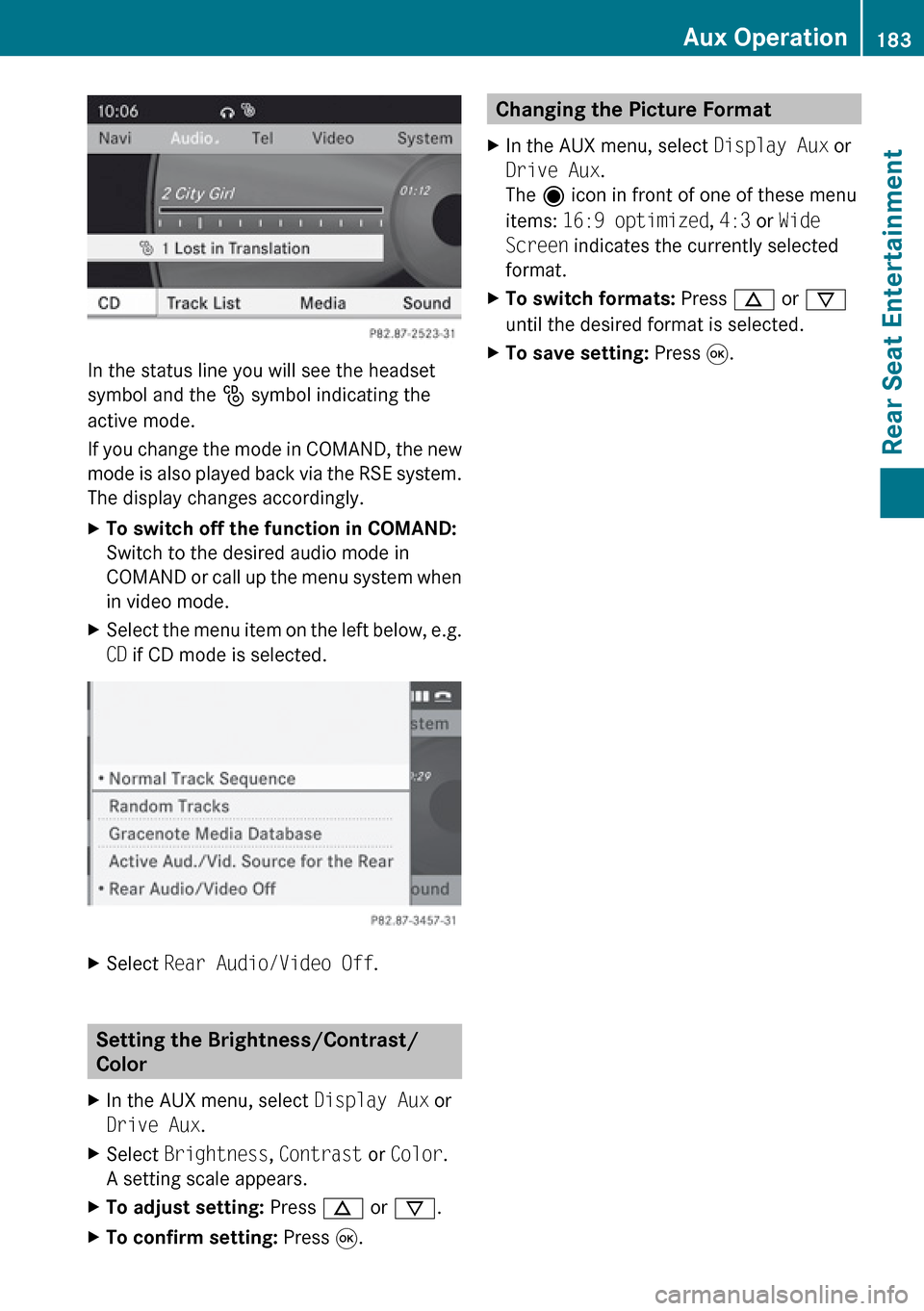
In the status line you will see the headset
symbol and the _ symbol indicating the
active mode.
If you change the mode in COMAND, the new
mode is also played back via the RSE system.
The display changes accordingly.
XTo switch off the function in COMAND:
Switch to the desired audio mode in
COMAND or call up the menu system when
in video mode.XSelect the menu item on the left below, e.g.
CD if CD mode is selected.XSelect Rear Audio/Video Off .
Setting the Brightness/Contrast/
Color
XIn the AUX menu, select Display Aux or
Drive Aux .XSelect Brightness , Contrast or Color .
A setting scale appears.XTo adjust setting: Press n or ý .XTo confirm setting: Press 9.Changing the Picture Format XIn the AUX menu, select Display Aux or
Drive Aux .
The ä icon in front of one of these menu
items: 16:9 optimized , 4:3 or Wide
Screen indicates the currently selected
format.XTo switch formats: Press n or ý
until the desired format is selected.XTo save setting: Press 9.Aux Operation183Rear Seat EntertainmentZ