2010 KIA Sportage AUX
[x] Cancel search: AUXPage 105 of 371
Knowing your vehicle
96
3
1
2
3
4
5
6
7
8
9
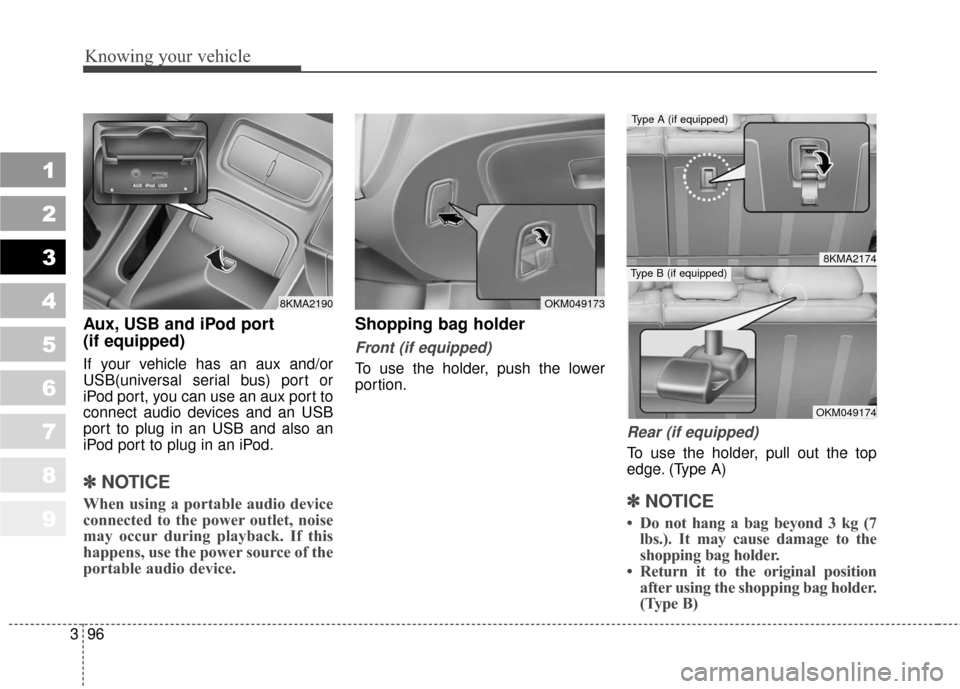
Aux, USB and iPod port
(if equipped)
If your vehicle has an aux and/or
USB(universal serial bus) port or
iPod port, you can use an aux port to
connect audio devices and an USB
port to plug in an USB and also an
iPod port to plug in an iPod.
✽ ✽
NOTICE
When using a portable audio device
connected to the power outlet, noise
may occur during playback. If this
happens, use the power source of the
portable audio device.
Shopping bag holder
Front (if equipped)
To use the holder, push the lower
portion.
Rear (if equipped)
To use the holder, pull out the top
edge. (Type A)
✽ ✽NOTICE
• Do not hang a bag beyond 3 kg (7
lbs.). It may cause damage to the
shopping bag holder.
• Return it to the original position after using the shopping bag holder.
(Type B)
8KMA2190OKM049173
8KMA2174
OKM049174
Type A (if equipped)
Type B (if equipped)
Page 118 of 371
3109
Knowing your vehicle
1
2
3
4
5
6
7
8
9
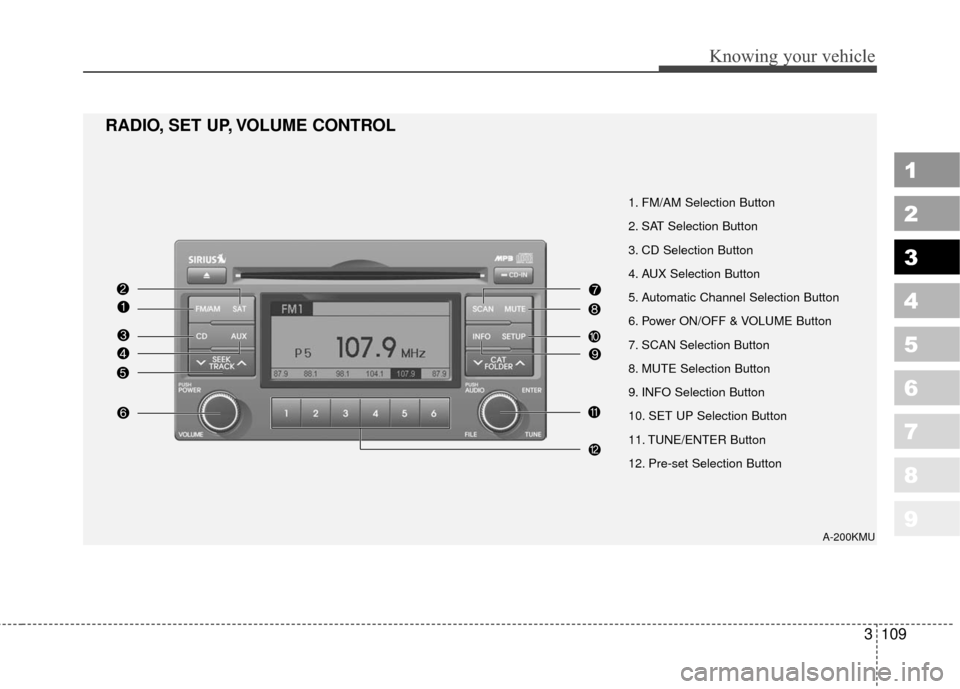
1. FM/AM Selection Button
2. SAT Selection Button
3. CD Selection Button
4. AUX Selection Button
5. Automatic Channel Selection Button
6. Power ON/OFF & VOLUME Button
7. SCAN Selection Button
8. MUTE Selection Button
9. INFO Selection Button
10. SET UP Selection Button
11. TUNE/ENTER Button
12. Pre-set Selection Button
RADIO, SET UP, VOLUME CONTROL
A-200KMU
Page 119 of 371
Knowing your vehicle
110
3
1
2
3
4
5
6
7
8
9
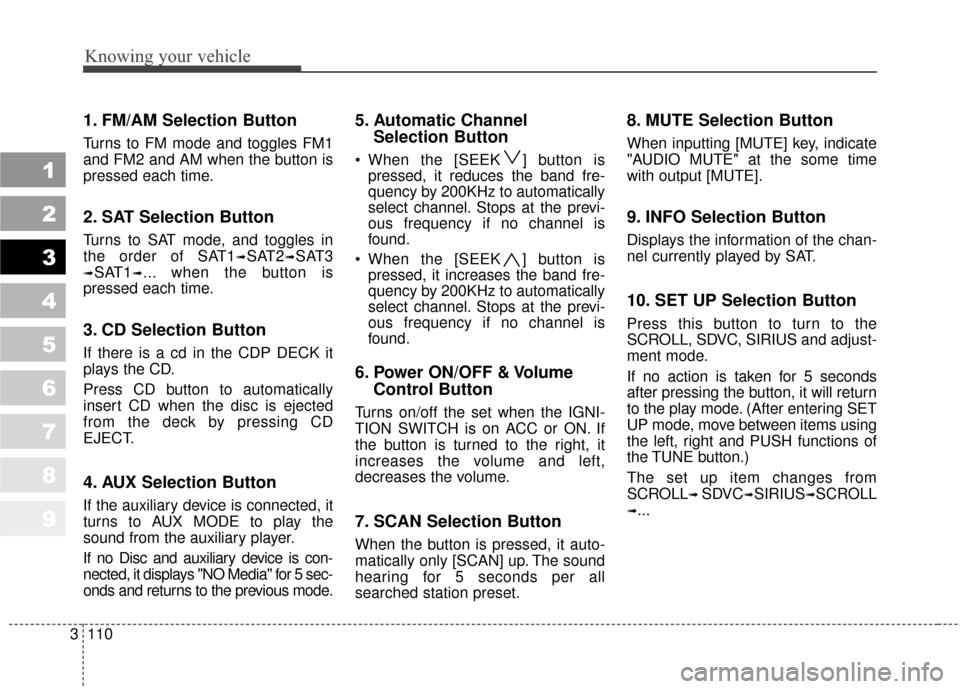
1. FM/AM Selection Button
Turns to FM mode and toggles FM1
and FM2 and AM when the button is
pressed each time.
2. SAT Selection Button
Turns to SAT mode, and toggles in
the order of SAT1
➟SAT2➟SAT3
➟SAT1➟... when the button is
pressed each time.
3. CD Selection Button
If there is a cd in the CDP DECK it
plays the CD.
Press CD button to automatically
insert CD when the disc is ejected
from the deck by pressing CD
EJECT.
4. AUX Selection Button
If the auxiliary device is connected, it
turns to AUX MODE to play the
sound from the auxiliary player.
If no Disc and auxiliary device is con-
nected, it displays "NO Media" for 5 sec-
onds and returns to the previous mode.
5. Automatic Channel Selection Button
When the [SEEK ] button is
pressed, it reduces the band fre-
quency by 200KHz to automatically
select channel. Stops at the previ-
ous frequency if no channel is
found.
When the [SEEK ] button is pressed, it increases the band fre-
quency by 200KHz to automatically
select channel. Stops at the previ-
ous frequency if no channel is
found.
6. Power ON/OFF & Volume Control Button
Turns on/off the set when the IGNI-
TION SWITCH is on ACC or ON. If
the button is turned to the right, it
increases the volume and left,
decreases the volume.
7. SCAN Selection Button
When the button is pressed, it auto-
matically only [SCAN] up. The sound
hearing for 5 seconds per all
searched station preset.
8. MUTE Selection Button
When inputting [MUTE] key, indicate
"AUDIO MUTE" at the some time
with output [MUTE].
9. INFO Selection Button
Displays the information of the chan-
nel currently played by SAT.
10. SET UP Selection Button
Press this button to turn to the
SCROLL, SDVC, SIRIUS and adjust-
ment mode.
If no action is taken for 5 seconds
after pressing the button, it will return
to the play mode. (After entering SET
UP mode, move between items using
the left, right and PUSH functions of
the TUNE button.)
The set up item changes from
SCROLL
➟ SDVC➟SIRIUS➟SCROLL
➟...
Page 121 of 371
Knowing your vehicle
112
3
1
2
3
4
5
6
7
8
9
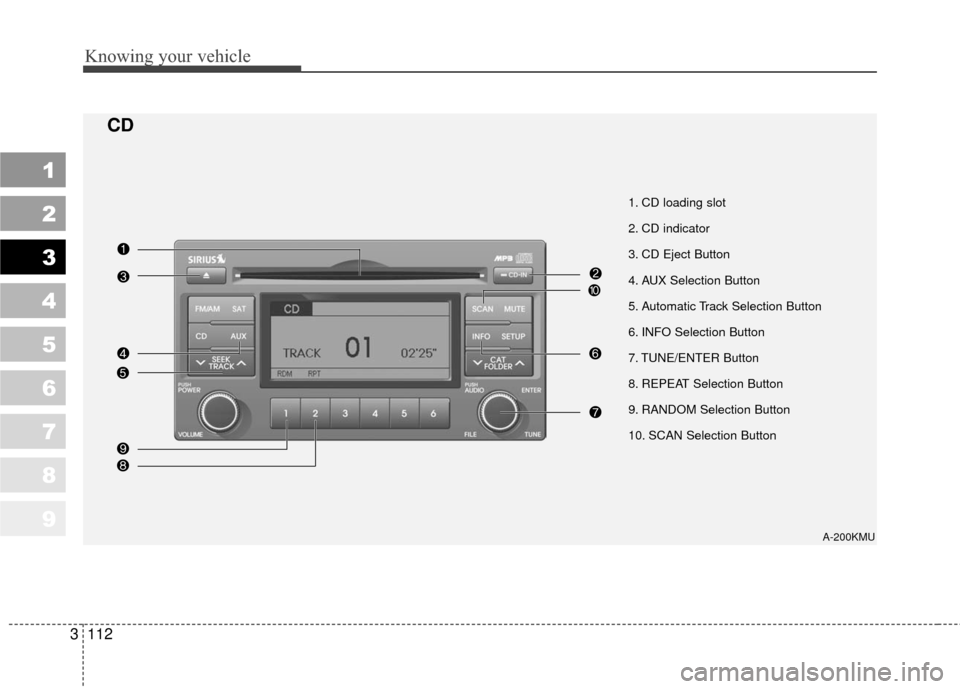
1. CD loading slot
2. CD indicator
3. CD Eject Button
4. AUX Selection Button
5. Automatic Track Selection Button
6. INFO Selection Button
7. TUNE/ENTER Button
8. REPEAT Selection Button
9. RANDOM Selection Button
10. SCAN Selection Button
A-200KMU
CD
Page 122 of 371
3113
Knowing your vehicle
1
2
3
4
5
6
7
8
9
1. CD loading slot
Please face printed side upward and
gently push in. When the ignition
switch is on ACC or ON and power is
off, power is automatically turned on
if the CD is loaded. This CDP sup-
ports both 8 cm and 12 cm CDs. But
if VCD, Data CD, MP3 CD are
loaded, "Er-6" message will appear
and CD will be ejected.
2. CD Indicator
When car ignition switch is ACC or
ON and if the CD is loaded, this indi-
cator is lighted. If the CD is ejected
the light is turned off.
3. CD eject Button
Push button to eject the CD during
CD playback. This button is enabled
when ignition switch is off.
4. AUX Selection Button
If the auxiliary device is connected, it
turns to AUX MODE to play the
sound from the auxiliary player.
If no Disc and auxiliary device is con-
nected, it displays "NO Media" for 5
seconds and returns to the previous
mode.
5. Automatic Track SelectionButton
Push [SEEK ] button for less
than 0.8 second to play from the
beginning of current song.
Push [SEEK ] button for less than 0.8 second and press again
within 1 second to play the previ-
ous song.
Push [SEEK ] button for 0.8 sec- ond or longer to initiate reverse
direction high speed sound search
of current song.
Push [SEEK ] button for less than 0.8 second to play the next
song.
Push [SEEK ] button for 0.8 sec- ond or longer to initiate high speed
sound search of current song.
6. INFO Selection Button
Displays the information of the cur-
rent CD TRACK in the order of
DISC TITLE
➟DISC ARTIST➟TRACK
TITLE
➟TRACK ARTIST➟TOTAL
TRACK
➟Play Screen➟ DISC TITLE
➟... (not displayed if the information
is not available on the DISC.)
7. TUNE/ENTER Button
Turn this button clockwise to display
songs after current song.
Also, turn this button counterclock-
wise to display songs before current
song.
To listen to the displayed song, press
the button to skip to the song and
play.
8. REPEAT Selection Button
Repeats current song when the but-
ton is pressed for less than 0.8 sec-
ond.
Repeats the entire DISC when the
button is pressed for 0.8 second or
longer.
Page 125 of 371
Knowing your vehicle
116
3
1
2
3
4
5
6
7
8
9
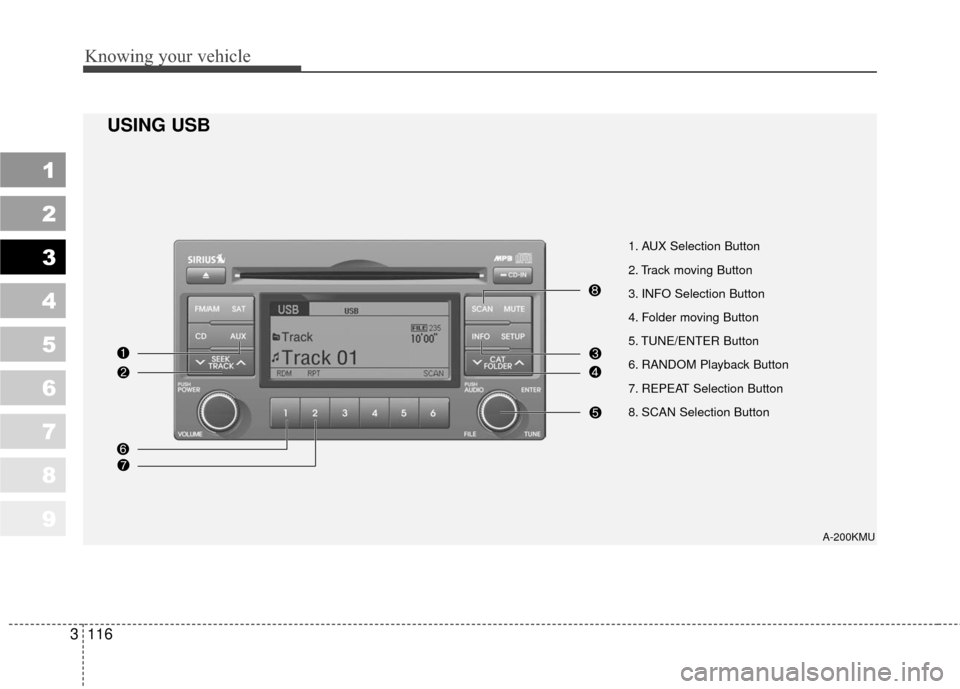
1. AUX Selection Button
2. Track moving Button
3. INFO Selection Button
4. Folder moving Button
5. TUNE/ENTER Button
6. RANDOM Playback Button
7. REPEAT Selection Button
8. SCAN Selection Button
A-200KMU
USING USB
Page 126 of 371
3117
Knowing your vehicle
1
2
3
4
5
6
7
8
9
In case USB is connected to the mul-
tiple terminal inside the console on
the right hand side of the driver’s
seat. When USB is connected, the
‘USB’ icon will be displayed on the
top right corner of the display screen.
1.AUX Selection Button
If USB is not connected, it switches
to the USB mode from the Radio and
CD mode to play the song files
stored in the USB.
If AUX is not connected, it is invalid
key.
2. Track Moving Button
Press the [SEEK ] button forless than 0.8 second to play from
the beginning of the song currently
played.
Press the button for less than 0.8
second and press it again within 1
second to move to and play the pre-
vious track.
Press the button for 0.8 second or
longer to play the song in reverse
direction in fast speed. Press the [SEEK ] button for
less
than 0.8 second to move to the
next track.
Press the button for 0.8 second or
longer to play the song in forward
direction in fast speed.
3. INFO Selection Button
Displays the information of the file
currently played in the order of FILE
NAME
➟TITLE➟ARTIST➟ALBUM➟
FOLDER➟TOTAL FILE➟FILE NAME
➟… (Displays no information if the
file has no song information.)
4. Folder moving Button
Moves [FLDR ] button child fold- er of the current folder and displays
the first song in the folder. Press
TUNE/ENTER button to move to
the folder displayed. It will play the
first song in the folder.
Moves [FLDR ] button parent folder and displays the first song in
the folder. Press TUNE/ENTER
button to move to the folder dis-
played. It will play the first song in
the folder.
5. TUNE/ENTER Button
Turn this button clockwise to display
the songs next to the currently
played song.
Turn the button counterclockwise to
display the songs before the current-
ly played song.
Press the button to skip to and play
the selected song.
Page 129 of 371
Knowing your vehicle
120
3
1
2
3
4
5
6
7
8
9
In case the iPod exclusive cable is
connected to the multiple terminal
inside the console on the right hand
side of the driver’s seat. When the
iPod is connected, the ‘iPod’ icon will
be displayed on the top right corner
of the display screen.
1. iPod Selection Button
If iPod is connected, it switches to
the iPod mode from the Radio and
CD mode to play the song files
stored in the iPod.
If there are no CD and AUX mode
from the Radio mode, it displays ‘NO
MEDIA’.
2. Track Moving Button
Press the [SEEK ] b utton for less
than 0.8 second to play from the
beginning of the song currently
played.
Press the button for less than 0.8
second and press it again within 1
second to move to and play the
previous track. Press the button for
0.8 second or longer to play the
song in reverse direction in fast
speed. Press the [SEEK ] button for
less
than 0.8 second to move to the
next track.
Press the button for 0.8 second or
longer to play the song in forward
direction in fast speed.
3. INFO Selection Button
Displays the information of the file
currently played in the order of FILE
NAME
➟TITLE➟ARTIST➟ALBUM➟
FILE NAME ➟… (Displays no infor-
mation if the file has no song infor-
mation.)
4. Category Selection Button
Moves to the upper category from
currently played category of the iPod.
To move to (play) the category
(song) displayed, press TUNE/
ENTER key.
You will be able to search through
the lower category of the selected
category.
The order of iPod’s category is
SONG, ALBUMES, ARTISTS, GEN-
RES, and iPod.
5. TUNE/ENTER Button
When you turn the button clockwise,
it will display the songs (category)
next to the song currently played
(category in the same level).
Also, when you turn the button coun-
terclockwise, it will display the songs
(category) before the song currently
played (category in the same level).
If you want to listen to the song dis-
played in the song category, press
the button, then it will skip to the
selected song and play.
6. RANDOM Playback Button
Press the button for less than 0.8
second to activate or deactivate the
random playback of the songs within
the current category.
Press the button for longer than 0.8
second to randomly play all songs in
the entire album of the iPod.
Press the button once again to can-
cel the mode.
7. REPEAT Selection Button
Repeats the song currently played.