2010 JAGUAR XF traffic
[x] Cancel search: trafficPage 115 of 225

R
(FM8) SEMCON JLR OWNER GUIDE VER 1.00 EURO
LANGUAGE: english-en; MARQUE: jaguar; MODEL: XF
Portable media
115
PORTABLE MEDIA CONTROLS
My Music includes CD, iPod, USB, AUX and
Bluetooth devices. Th e full infotainment
system also includes Stored CD.
1. Touch the My Music + icon to display all
options. Select an option.
Note: Sound quality and volume levels
available from devices connected to the
auxiliary input may vary widely.
2. Display of information about the current
track, including elapse d run-time. Some of
this information is also displayed in the
instrument panel.
3. Settings : Select to switch traffic and news
announcements on or off. Additionally, for
MP3 recorded media, you can select the
number of list entries that are skipped
when you use the page up/down arrows
when navigating a list.
4. Depending on the selected mode, this soft
key will be either Track list or Browse . In
Stored CD mode, both soft keys will be
displayed. Track list
. Select to view current CD or
Stored CD track list. Select a track to start
playback.
Browse . (iPod, USB and Stored CD modes
only).
• Select to view the contents of the
connected device wh ich are displayed
as dictated by the file structure.
• Select a file to start playback (Browse
view will remain). Se lect a folder or
subfolder to view their contents.
• To return to the Cont rols menu, select
the Back soft key.
5. Upload : Applicable to Stored CD menu
only.
Select to view and manage the CDs loaded
onto the CD store.
• Select Upload alongside an empty slot
to upload the current CD. There are 10
slots available.
• If the CD store is full, select Replace to
overwrite an existing CD.
Page 120 of 225

L
(FM8) SEMCON JLR OWNER GUIDE VER 1.00 EURO
LANGUAGE: english-en; MARQUE: jaguar; MODEL: XF
CD player
120
CD PLAYER CONTROLS
1. Display of information about the current
track, including elapse d run-time. Some of
this information is also displayed in the
instrument panel.
2. Select to switch traffic and news
announcements on or off.
3. Select to view the track list of the current
CD or Stored CD. Select a track from the
list to start playback. This is displayed as a
Browse soft key on some screens.
4. Select to view and manage the CDs in the
CD store.
•Select Upload alongside an empty slot
to upload the current CD.
• If the CD store is full, select Replace to
overwrite an existing CD.
In each case a confirmation pop-up will
appear. Select Yes to continue.
5. Shows progress of upload to the CD store. 6.
Skip/Scan forward:
•Touch and release to skip to the next
track on the current CD.
• Touch and hold to scan forwards
through the current track. Playback will
resume when the soft key is released.
7. Repeat:
•Touch and release onc e to repeat the
current track continuously until Repeat
mode is cancelled. Repeat track is
displayed.
• Touch and release again to repeat the
current Stored CD (or folder for MP3
discs) continuously until Repeat mode
is cancelled. Repeat disc is displayed.
• Touch and release a third time to
cancel Repeat mode.
Note: Selecting Shuffle will cancel Repeat
mode but Repeat track can be selected
with Shuffle mode active (cancels the
previously selected shuffle mode).
Page 122 of 225

L
(FM8) SEMCON JLR OWNER GUIDE VER 1.00 EURO
LANGUAGE: english-en; MARQUE: jaguar; MODEL: XF
Television
122
TelevisionTELEVISION CONTROLS
1. TV/My video : TV band/video input
selection:
Touch the + icon to view and select either
digital ( DTV 1 or DTV 2 - Digital ) or
analogue ( TV - Analogue ) TV reception.
When changing between analogue and
digital bands, this will cause the last tuned
channel on the new band to be displayed.
When changing between digital bands, the
current channel wi ll be displayed.
Note: After 5 seconds without use, the
TV/My video menu will close.
2. Preview screen for TV program: Touch to
select full screen mode.
Short touch the screen again to view the
controls and Electronic Programme Guide
(EPG) information at any time.
To return to preview mode, touch and hold
the full screen view.
3. Seek down: Select to view the previous
channel on the TV channel list.
4. Seek up: Select to view the next channel on
the TV channel list. 5. Settings
: Select to switch Traffic and News
announcements on or off, or to select an
alternative country an alogue TV format, if
necessary, when travelling abroad.
Note: Digital TV is not af fected by a change
of country.
6. Channel list : Select to view an alphabetical
list of all TV channels currently available.
• A small preview of the current channel
and program title is also displayed.
• Touch a listed channel to change the
preview and title to the new channel.
• Touch the preview to view that
channel.
Note: As the TV system is continually
checking the availability of channels, it is
possible for a channel to be in the list, but
not actually availabl e (e.g. when driving
through different tr ansmitter regions).
After a country format change, the channel
list will be empty unt il the system has
scanned all channe ls at least once.
Page 134 of 225
L
(FM8) SEMCON JLR OWNER GUIDE VER 1.00 EURO
LANGUAGE: english-en; MARQUE: jaguar; MODEL: XF
Navigation system
134
Navigation systemTHE NAVIGATION SYSTEM
Navigation instruction is by map and turn
information displayed on the touch screen and
can be complemented by voice guidance if
required. The system uses signals from Global
Positioning System (GPS) satellites combined
with information from vehicle sensors and
from data stored on the hard drive, to establish
the true vehicle position.
Note: Mapping data loaded on the hard drive is
relevant to the market in which the vehicle is
first sold and will provide guidance and
information only for that area. Your local Dealer
will have details of software updates.
Using this combination of data sources the
vehicle navigation com puter enables you to
plan and follow a route map to your desired
destination.
The touch screen is used to control navigation
via menus, text screens and map displays.
Operate the system only when it is
safe to do so.
The requirements of na tional Road Traffic
Regulations always apply.
Observation of traffic signs and local traffic
regulations always take priority.
The navigation system serves solely as an aid
to navigation. In part icular, the navigation
system cannot be used as an aid to orientation
when visibility is poor.
GPS signals may occasion ally be interrupted
due to physical barriers such as tunnels and
roads under raised highways.
However, direction and speed sensors on the
vehicle will minimise any adverse effect on the
navigation system. Normal operation will
resume once the obstruc tion has been passed. Under certain conditions it is possible for the
vehicle position show
n on screen to be
incorrect. This may happen when:
• Driving on a spiral ramp in a building.
• Driving on or beneath elevated roads.
• Two roads are close and parallel.
• The vehicle is transported to another
destination.
• After the vehicle is rotated on a turntable.
• After vehicle batte ry disconnection.
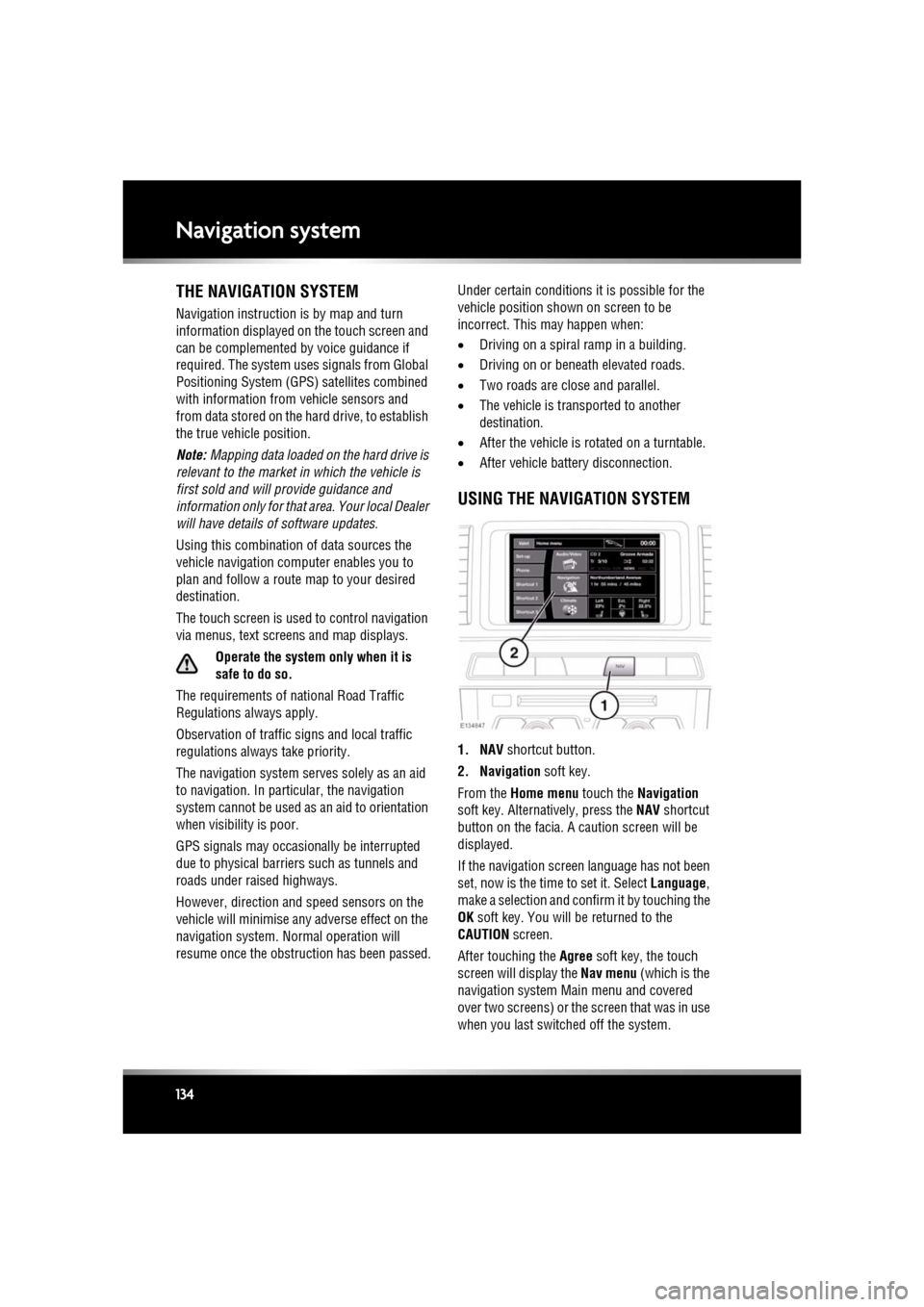
USING THE NAVIGATION SYSTEM
1. NAV shortcut button.
2. Navigation soft key.
From the Home menu touch the Navigation
soft key. Alternatively, press the NAV shortcut
button on the facia. A caution screen will be
displayed.
If the navigation screen language has not been
set, now is the time to set it. Select Language,
make a selection and confirm it by touching the
OK soft key. You will be returned to the
CAUTION screen.
After touching the Agree soft key, the touch
screen will display the Nav menu (which is the
navigation system Ma in menu and covered
over two screens) or the screen that was in use
when you last switched off the system.
Page 136 of 225

L
(FM8) SEMCON JLR OWNER GUIDE VER 1.00 EURO
LANGUAGE: english-en; MARQUE: jaguar; MODEL: XF
Navigation system
136
4. Route voice guidance: Allows the voice
guidance messages to be turned off for the
current journey. The soft key is highlighted
while voice guidance is enabled.
5. Detour: Allows a detour from the current route.
6. Return to map : Advances to the main map
screen.
7. Nav set-up : Settings for the navigation
system.
8. Map POI off : Turns the POI (Point Of
Interest) icons on the map on/off.
9. TMC (Traffic Message Channel): Not used
for entering a destination but, when
enabled, will provide data about road
conditions and any even ts that may affect
the journey.
10. More...: Displays the other Nav menu screen.
11. Stored locations : Manages the stored
locations.
12. Stop guidance: Cancels current route guidance.
13. Destination entry : Provides a choice of
options for entering a destination.
Page 137 of 225

R
(FM8) SEMCON JLR OWNER GUIDE VER 1.00 EURO
LANGUAGE: english-en; MARQUE: jaguar; MODEL: XF
Navigation system
137
MAP SPLIT SCREEN
1. North is up.
2. TMC (Traffic Messag e Channel) signal.
Without a diagonal bar, a signal is being
received; with a diagonal bar, a signal is not
being received.
3. Set Destination : Calculates route from
current vehicle position to the scrolled
position on map.
4. Point of interest : Lists the POI.
5. Set memory point : Adds a stored location.
6. Split screen.
7. Current vehicle position.
8. Vehicle direction arrow.
9. Split screen scale/zoom setting. 10.
Current street location.
11. GPS signal. Without a diagonal bar, a
signal is being received; with a diagonal
bar, a signal is not being received.
12. Screen mode selection.
13. Nav menu : Opens Navigation menu 1 of 2
screen.
14. Normal screen scale/zoom setting.
15. Cancel browse mode : Cancels browse
mode on map and displays current vehicle
position.
16. TMC event (traff ic congestion).
17. Normal screen.
Page 139 of 225

R
(FM8) SEMCON JLR OWNER GUIDE VER 1.00 EURO
LANGUAGE: english-en; MARQUE: jaguar; MODEL: XF
Navigation system
139
START GUIDANCE
After selecting a destination, the system will
calculate the route.
There is now a choice to select 3 Routes,
Change route or to Start navigation guidance.
Touch 3 Routes to display a choice of three
different route options on the map.
The roads on the map are drawn in three
different colours to highlight each route.
EcoRoute helps you find the most fuel efficient
route available. A display of three leaves
indicates the most fuel efficient route.
Select route 1, 2 or 3 by touching the
respective box displaye d on the right side of
the map.
Touch Change Route followed by Route prefs.
to change the route setti ngs. If a destination is
already set, touch Waypoint to add a waypoint
in the journey if required.
When you have made your selection, if any,
touch Go.
Note: As you approach a j unction, in addition
to the voice guidance, an inset on the map will
display an enlarged view of the junction.
EASY ROUTE
In Route options , Easy Route can be turned On
or Off .
When On is selected, Easy Route changes the
calculation parameters of Route 3 in order to
reduce:
• Junctions.
• Turns.
• Turns that cross traffic.
• The priority of minor roads.
• Complex junction s and manoeuvres.
LEARN ROUTE
In Route options , Learn Route can be turned
On or Off.
When On is selected, if you make the same
deviation from the proposed route three times,
then the system will memorize the deviation
and offer that as the normal route from then on.
Select Reset all routes to delete any learnt
routes and return to the default settings.
VOICE GUIDANCE
To turn voice guidance on or off but maintain
route guidance, proceed as follows:
1. Touch Nav menu on the navigation screen.
2. Touch the Route voice guidance soft key.
The soft key will be highlighted when voice
guidance is enabled.
CANCEL ROUTE GUIDANCE
To cancel route guidance, proceed as follows:
1. Touch Nav menu on the navigation screen.
2. Touch the Cancel guidance soft key.
QUICK POI SELECTION
Touch the Map screen to display the POI
button. Touch the POI (Point of interest)
button. The screen shows six suggested
categories, five of which can be selected as
quick points of interest.
Note: The POI icons will not be shown if the
map zoom level is greate r than 1 km (½ mile).
Select a Quick POI category, or select More to
see further POIs. Touch OK to confirm a
selection.
The map screen with the POI icon(s) is
displayed. Select the five POIs you wish to see
when the Quick POIs are displayed.
Page 142 of 225

L
(FM8) SEMCON JLR OWNER GUIDE VER 1.00 EURO
LANGUAGE: english-en; MARQUE: jaguar; MODEL: XF
Navigation system
142
LIST SOFT KEY
The List button can be used when the
characters entered reduce the possible entries
to a small enough number.
You can also select List (when active) without
entering a POI name. All the relevant points of
interest will be displayed, e.g. in a selected
town or category.
ALL SOFTKEY
The All button shows a list of all POI
categories.
LOCAL POI SEARCH
This selects the points of interest in all
categories within 32 kilometres (20 miles) of
the vehicle.
• Touch the All Local POIs button.
RDS-TMC OVERVIEW
RDS-TMC (Radio Data System-Traffic
Message Channel) is a feature that announces
traffic hold-ups on your route as broadcast by
radio stations that transmit TMC information.
Touch the TMC button on the Navigation Menu
to access the TMC menu.
TMC events ahead on route can be displayed by
touching the Events ahead soft key. TMC can
be set to display on the map for all events, for
major events or can be switched off. During
route calculation, it can be set to avoid TMC
events along the route.
RDS-TMC DISPLAY
When a TMC signal is received the icon in the
top left of the screen will appear green. If a TMC
signal is not being received, the icon will be
shown with a bar through it.
The system will inform the driver of any
roadworks, narrow road, contraflow,
accidents, slippery road, diversion,
information, parking in formation, congestion
or other hazard.
The driver is informed of a traffic event as
follows:
• A TMC Event icon shown on the map at the
location of the event.
• Text can be displaye d showing the details
of each occurrence which can be selected
either by touching the screen icon or from
the traffic information list.
• Dynamic route guidance, which calculates
an alternative route when the system
receives the traffic event warning affecting
the route currently set in the navigation
system.
• Traffic event list shows all events sorted by
road name/ distance on your selected route
in a straight line or along your actual route.
The information rega rding the hold-up is
maintained and updated even if the vehicle
crosses into another country.