2010 HONDA ODYSSEY change
[x] Cancel search: changePage 2 of 155

2Navigation System
Table of Contents
Icon Options ....................................61
Going Off the Route ......................63
Off-road Tracking.......................... 63
Viewing/Saving the Current Location ...................................... 64
Pop-Ups and Disclaimers .............. 65
Changing the Route ....................... 66
Change Route By Screen ................. 66
Waypoints ........................................ 66
Reroute: Avoid Streets ..................... 68
Reroute: Detour ............................... 68
Reroute: Change Routing Method.......................................... 68
Cancel Current Route ...................... 68
Back to Current Route ..................... 68
Changing Your Destination ...........69
Find Nearest (Voice command) .......69
Go Home (Voice command) ............ 69
Using Joystick to Change Destination ................................... 69
Entering a Destination from the Menu Screen (while en route) ................ 70
Continue Trip Screen..................... 70
Information Features ................71
Information Screen ........................ 71
Cellular Phonebook ....................... 71
Calendar ......................................... 72
Entering Your Schedule ................... 72
Calculator.......................................73
Unit Conversion ............................... 74
Voice Command Help ...................74
Map Legend ................................... 75
Key to Zagat Ratings ..................... 76
System Setup ..............................77
Setup Mode .................................... 77
Setup Screen (first) ........................ 77
Brightness ........................................ 77
Volume ............................................. 77
Display ............................................. 78
Guidance Prompts ....... .................... 79
Contrast ........................................... 79
Setup Screen (second) ...................80
Personal Information ..................... 80
Address Book ................................... 80
Home Address .................................. 84
PIN Number ..................................... 84
User Name ....................................... 85
Previous Destinations ...................... 85
Routing & Guidance ......................86
Rerouting ......................................... 86Unverified Area Routing ..................
87
Edit Avoid Area................................ 91
Edit Waypoint Search Area.............. 93
Guidance Mode .... ............................94
Vehicle ........................................... 94
Off-road Tracking............................94
Correct Vehicle Position.................. 95
System Information .......................96
Basic Settings................................. 96
Keyboard Layout..............................96
Units (mile or km) ............................ 96
Voice Recognition Fe edback ...........96
Clock Adjustment .......................... 97
Auto Daylight Saving Time .............. 97
Auto Time Zone by GPS ................... 98
Daylight Saving Time (DST) Selection
(Change DST Schedule) ...............98
Time Adjustment .............................. 98
Color ..............................................99
Map Color ........................................ 99
Menu Color ...................................... 99
Rearview Camera.........................100
Rearview Camera Brightness
Adjustment .................................. 100
2010 Odyssey
Page 7 of 155

Navigation System7
Introduction
Verified streets (dark colored) Unverified streets (light colored)
When
displayed These roads are found within
metropolitan areas, and
include interstate freeways and major roads
connecting cities. These roads are found in rural
areas, and typically include
residential street s away from the center of a town.
Street color Shown on daytime
map screen as black or red, such as
interstate freeways. Shown on the daytime
map screen as light brown.
Map quality The database vendor has
verified these streets.
Information like tu rn restrictions, average speed, and
whether it is a one-way street have been gathered and
used when creating your route to a destination. These streets have not been veri
fied by the database vendor. The
system does not contain inform ation on one-way streets, turn
restrictions, or the road’s average speed. They are shown on the
map for reference and may have e rrors in map location, naming,
and address range.
Routing
differences While driving to your destin
ation, the displayed route
line is solid blue. The sy stem provides voice and map
guidance to your destination. Your route line is either a blue
dotted “vector line,” or a dashed
pink/blue line. For information on selecting this option, and the
routing differences, see Unverified Area Routing on page87.
Cautions There are no pop-up boxes urging extra caution during
a route. However, because roads constantly change,
you are urged to use common
sense, and always obey
posted traffic restrictions. Regardless of whether the user c
hooses route guidance, there are
cautionary screens before and dur ing the route urging the user to
be extra cautious, and obey a ll traffic restrictions. See Unverified
Area Routing on page87.
Guidance
voice Voice guidance issues instruct
ions such as “In a half-
mile, make a right turn.” The phrase “if possible” is added
to each guidance instruction.
For example: “In a half-mile, ma ke a right turn, if possible.”
Time and
distance
“to go” The time and distance “t
o go,” displayed while en
route to a destination, is based on the average speed
and distance for the roads used for your route. Because the average speed of thes
e roads is not known, the time
and distance “to go” is based on a fixed average speed of 25 mph
for these roads.
2010 Odyssey
Page 8 of 155

8Navigation System
User Agreement
In using this DVD “Satellite Linked
Navigation System” (the “DVD”),
which includes HONDA MOTOR CO.,
LTD. software, ALPINE
ELECTRONICS, INC. software,
NAVTEQ database contents, INFO
USA CORPORATION database,
ZAGAT SURVEY database contents,
and ZENRIN CO. database contents
(hereinafter referred to as “Licensors”),
you are bound by the terms and
conditions set forth below.
By using your copy of the DVD, you
have expressed your Agreement to the
terms and conditions of this Agreement.
You should, therefore, make sure that
you read and understand the following
provisions. If for any reason you do not
wish to be bound by the terms of this
Agreement, please return the DVD to
your dealer. • The DVD may not be copied,
duplicated, or otherwise modified, in
whole or in part, without the express
written permission of the Licensors.
• The DVD may not be transferred or sublicensed to any third party for
profit, rent or loan, or licensed for
reuse in any manner.
• The DVD may not be decompiled, reverse engineered or otherwise
disassembled, in whole or in part.
• The DVD may not be used in a network or by any other manner of
simultaneous use in multiple systems.
• The DVD is intended solely for personal use (or internal use where
the end-user is a business) by the
consumer. The DVD is not to be used
for commercial purposes. • The Licensors do not guarantee to the
customer that the functions included
in the DVD meet the specific
objectives of the user.
• Licensor shall not be responsible for any damages caused by the use of the
DVD to the actual user or to any third
party.
• The warranty on the DVD shall not extend to an exchange or refund due
to misspelling, omission of letters, or
any other cosmetic discrepancy in the
contents of the DVD.
• The right to use the DVD shall expire either when the user destroys the
DVD or software, or when any of the
terms of this Agreement are violated
and the Licensors exercise the option
to revoke the license to use the DVD
or software.
2010 Odyssey
Page 11 of 155
Navigation System11
Getting Started
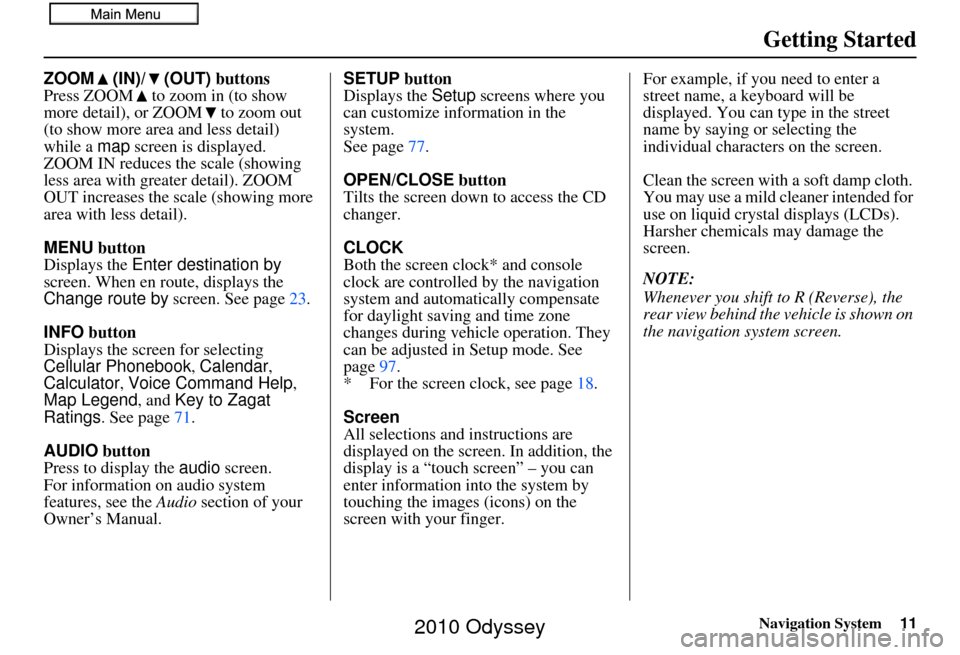
ZOOM (IN)/ (OUT) buttons
Press ZOOM to zoom in (to show
more detail), or ZOOM to zoom out
(to show more area and less detail)
while a map screen is displayed.
ZOOM IN reduces the scale (showing
less area with greater detail). ZOOM
OUT increases the scale (showing more
area with less detail).
MENU button
Displays the Enter destination by
screen. When en r oute, displays the
Change route by screen. See page23.
INFO button
Displays the screen for selecting
Cellular Phonebook , Calendar,
Calculator , Voice Command Help ,
Map Legend, and Key to Zagat
Ratings . See page 71.
AUDIO button
Press to display the audio screen.
For information on audio system
features, see the Audio section of your
Owner’s Manual. SETUP button
Displays the
Setup screens where you
can customize information in the
system.
See page 77.
OPEN/CLOSE button
Tilts the screen down to access the CD
changer.
CLOCK
Both the screen clock* and console
clock are controlled by the navigation
system and automatically compensate
for daylight saving and time zone
changes during vehicle operation. They
can be adjusted in Setup mode. See
page 97.
* For the screen clock, see page 18.
Screen
All selections and instructions are
displayed on the screen. In addition, the
display is a “touch screen” – you can
enter information into the system by
touching the images (icons) on the
screen with your finger. For example, if you need to enter a
street name, a keyboard will be
displayed. You can type in the street
name by saying or selecting the
individual character
s on the screen.
Clean the screen with a soft damp cloth.
You may use a mild cleaner intended for
use on liquid crystal displays (LCDs).
Harsher chemicals may damage the
screen.
NOTE:
Whenever you shift to R (Reverse), the
rear view behind the vehicle is shown on
the navigation system screen.
2010 Odyssey
Page 13 of 155
Navigation System13
Getting Started
Using the Voice Control System
You should use the voice control system
as much as possible, and consider
manual entry using the joystick as a
backup method of entry.
Most of the system’s functions can be
controlled by voice commands activated
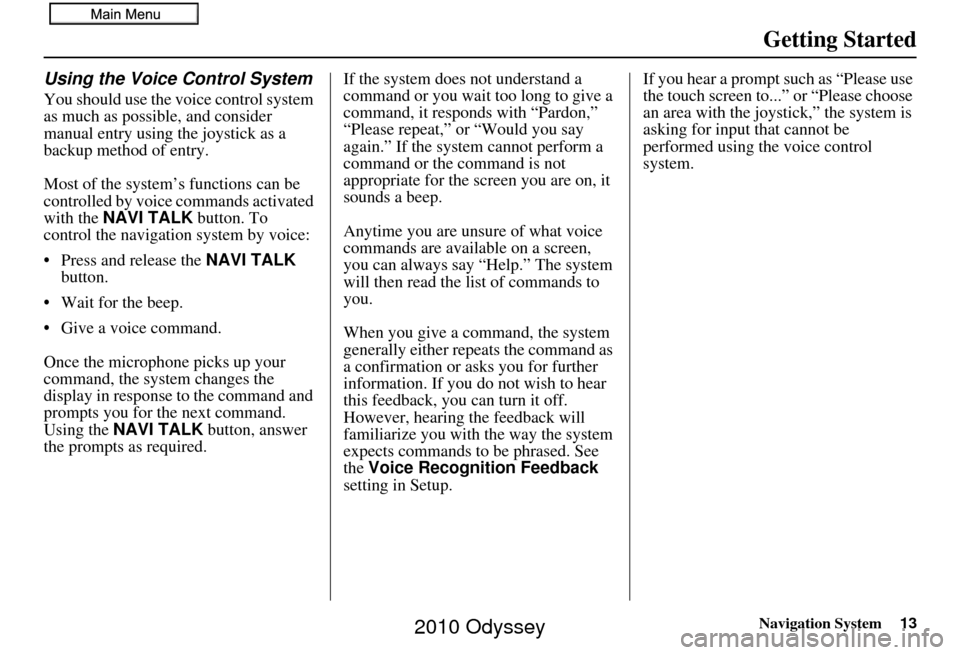
with the NAVI TALK button. To
control the navigation system by voice:
• Press and release the NAVI TALK
button.
• Wait for the beep.
• Give a voice command.
Once the microphone picks up your
command, the system changes the
display in response to the command and
prompts you for the next command.
Using the NAVI TALK button, answer
the prompts as required. If the system does not understand a
command or you wait too long to give a
command, it responds with “Pardon,”
“Please repeat,” or “Would you say
again.” If the system cannot perform a
command or the command is not
appropriate for the screen you are on, it
sounds a beep.
Anytime you are unsure of what voice
commands are available on a screen,
you can always say “Help.” The system
will then read the list of commands to
you.
When you give a command, the system
generally either repeats the command as
a confirmation or asks you for further
information. If you do not wish to hear
this feedback, you can turn it off.
However, hearing the feedback will
familiarize you with the way the system
expects commands to be phrased. See
the
Voice Recognition Feedback
setting in Setup. If you hear a prompt such as “Please use
the touch screen to...” or “Please choose
an area with the joystick,” the system is
asking for input
that cannot be
performed using the voice control
system.
2010 Odyssey
Page 16 of 155
16Navigation System
Getting Started
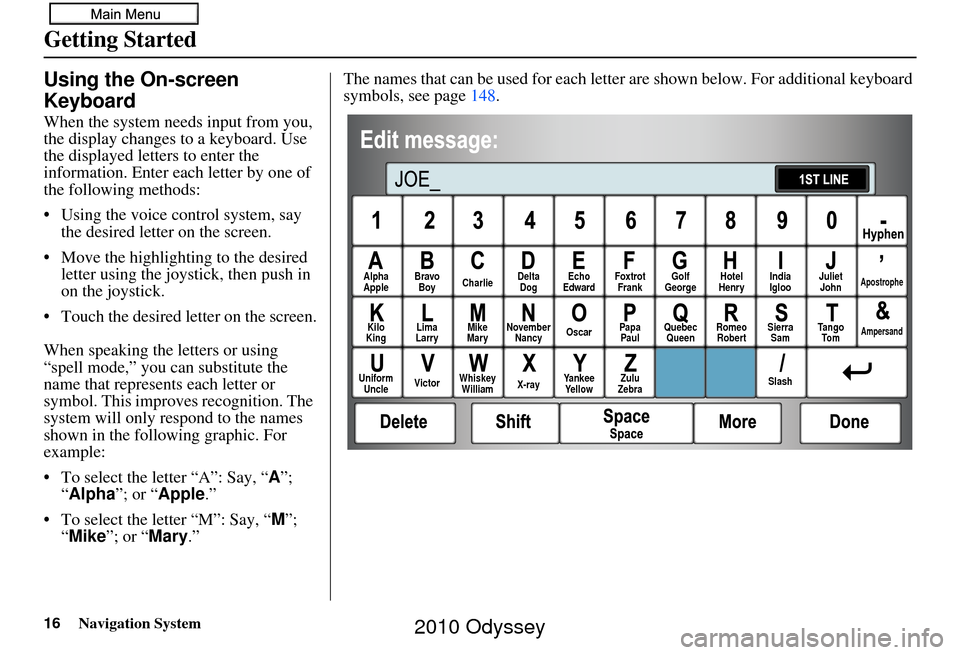
Using the On-screen
Keyboard
When the system needs input from you,
the display changes to a keyboard. Use
the displayed letters to enter the
information. Enter each letter by one of
the following methods:
• Using the voice control system, say the desired letter on the screen.
• Move the highlighting to the desired letter using the joystick, then push in
on the joystick.
• Touch the desired le tter on the screen.
When speaking the letters or using
“spell mode,” you can substitute the
name that represents each letter or
symbol. This improves recognition. The
system will only re spond to the names
shown in the following graphic. For
example:
• To select the letter “A”: Say, “ A”;
“ Alpha ”; or “Apple .”
• To select the letter “M”: Say, “ M”;
“ Mike”; or “Mary.” The names that can be used for each lette
r are shown below. For additional keyboard
symbols, see page 148.
Alpha
Apple Bravo
Boy Charlie Delta
Dog Echo
Edward Foxtrot
Frank Golf
George Hotel
Henry Juliet
JohnApostrophe
Kilo
King Lima
Larry Mike
Mary November
Nancy Oscar
Papa
Paul Quebec
Queen Romeo
Robert Sierra
Sam Tango
To mAmpersand
Uniform Uncle Victor
Whiskey
William X-rayYankee
Yellow Zulu
Zebra SlashIndia
Igloo
2010 Odyssey
Page 17 of 155
Navigation System17
Getting Started
Each entered letter will appear at the top
of the display. Say or select Space to
enter a space between words. Say or
select Delete to erase a letter entered
incorrectly.
When entering an address, the system
searches the database for words that
match the letters you are entering. As a
result, you will notice that some letters
are no longer available.
When the system finds only one entry
that matches, it completes the entry of
the name for you. If the system finds
more than one entry that matches your
input, the system displays a list.
Tip:
If you are unsure of the spelling of a
name, enter the letters that you are sure
of, and then select List. The system
displays a list of names that most closely
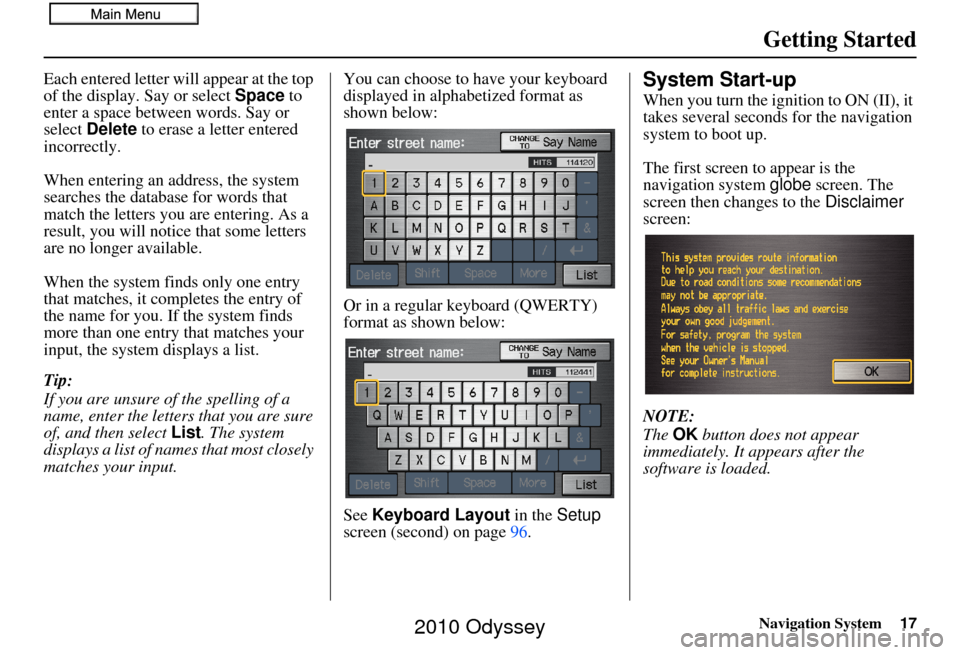
matches your input. You can choose to have your keyboard
displayed in alphabetized format as
shown below:
Or in a regular keyboard (QWERTY)
format as shown below:
See
Keyboard Layout in the Setup
screen (second) on page 96.System Start-up
When you turn the ignition to ON (II), it
takes several seconds for the navigation
system to boot up.
The first screen to appear is the
navigation system globe screen. The
screen then changes to the Disclaimer
screen:
NOTE:
The OK button does not appear
immediately. It appears after the
software is loaded.
2010 Odyssey
Page 18 of 155
18Navigation System
Getting Started
Read this disclaimer carefully so you
understand it before continuing. Push in
on the joystick, or touch OK, and the
map screen will appear on the display.
The “OK” cannot be activated by voice.
NOTE:
If you do not select OK, and then enter
the Setup or Information screens, some
items are not available and will show up
as darkened buttons (grayed out). See
System Function Diagram on page22.
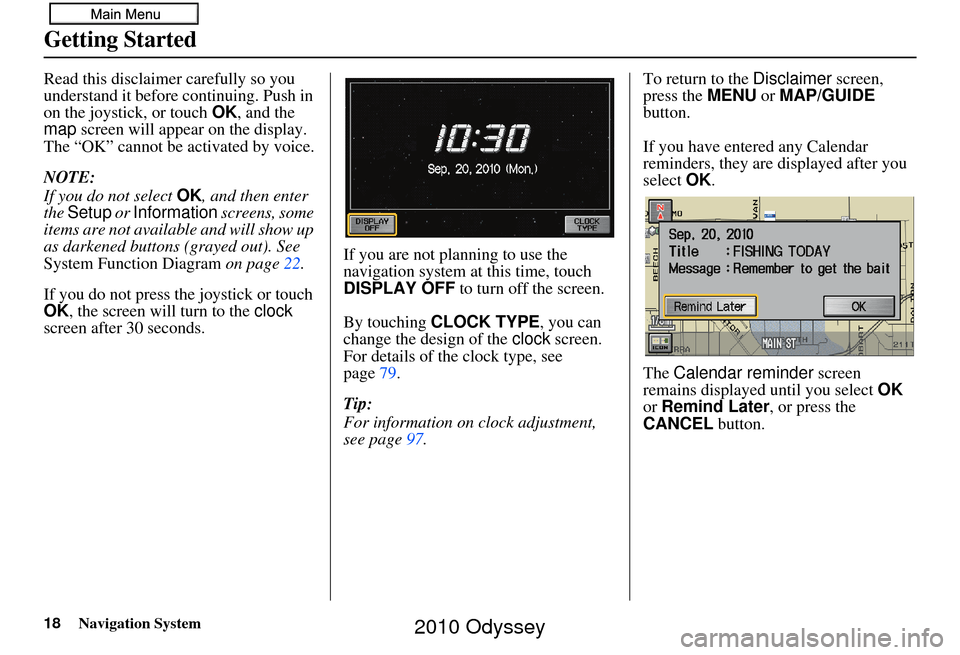
If you do not press the joystick or touch
OK , the screen will turn to the clock
screen after 30 seconds. If you are not planning to use the
navigation system at this time, touch
DISPLAY OFF
to turn off the screen.
By touching CLOCK TYPE , you can
change the design of the clock screen.
For details of the clock type, see
page 79.
Tip:
For information on clock adjustment,
see page 97. To return to the
Disclaimer screen,
press the MENU or MAP/GUIDE
button.
If you have entered any Calendar
reminders, they are displayed after you
select OK.
The Calendar reminder screen
remains displayed until you select OK
or Remind Later , or press the
CANCEL button.
2010 Odyssey