Page 235 of 441
If there is a PC card in the audio unit,
touch the CARD icon to switch to
the PC card while a CD is playing.
Touch the CDC icon again to play
the CD in the CD changer.
If you turn the system of f while a CD
in the CD changer is playing, the CD
will stay in the drive. When you turn
the system back on, the CD will be in
pause mode. Touch the CDC icon on
the audio screen. The CD will begin
playing where it lef t of f .
PresstheAM/FMorCD/XM
buttontoswitchtotheradioor
satellite radio while a CD is playing.
To Stop Playing a CD
CD Changer (EX-L model with navigation system)
220
Table of Contents
Page 236 of 441

If you see an error message in the
display while playing a disc, f ind the
cause in the chart to the right. If you
cannot clear the error message, take
your vehicle to your dealer.
Thechartontherightexplainsthe
error messages you may see in the
display while playing a disc.
If you see an error message in the
display while playing a disc, press
the eject button. After ejecting the
disc, check it for damage or
deformation. If there is no damage,
insert the disc again.
For additional information on
damaged discs, see page .
Insert a dif f erent disc. If the new
disc plays, there is a problem with
the f irst disc. If the error message
cycle repeats and you cannot clear it,
take your vehicle to a dealer.
Theaudiosystemwilltrytoplaythe
disc. If there is still a problem, the
error message will reappear. Press
the eject button, and pull out the disc. Cause
Error Message Solution
253
FOCUS Error
Mechanical Error The disc is pulled out.
Check if it is inserted correctly in the discplayer.
Make sure the disc is not scratched or damaged.
For more inf ormation see page 253 .
Press the eject button, and pull out the disc.
Check the disc f or damage or def ormation. For
more information see page 253 .
If the disc cannot be pulled out, or the error
message does not disappear after the disc is
ejected, see your dealer.
CD Changer Error Messages (EX-L model with navigation system)
Features
221
DISC ERROR
MECH ERROR
Table of Contents
Page 248 of 441
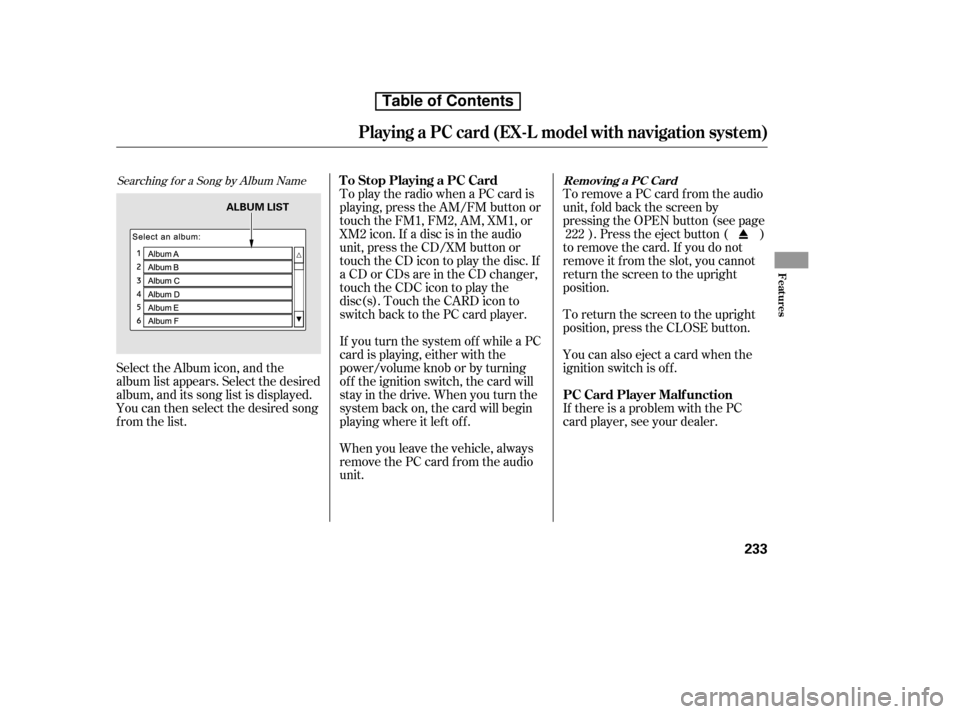
Searching f or a Song by Album Name
Select the Album icon, and the
album list appears. Select the desired
album, and its song list is displayed.
You can then select the desired song
from the list.To remove a PC card f rom the audio
unit, f old back the screen by
pressing the OPEN button (see page
). Press the eject button ( )
to remove the card. If you do not
remove it f rom the slot, you cannot
return the screen to the upright
position.
To return the screen to the upright
position, press the CLOSE button.
You can also eject a card when the
ignition switch is of f .
If there is a problem with the PC
card player, see your dealer.
To play the radio when a PC card is
playing, press the AM/FM button or
touch the FM1, FM2, AM, XM1, or
XM2 icon. If a disc is in the audio
unit, press the CD/XM button or
touch the CD icon to play the disc. If
a CD or CDs are in the CD changer,
touch the CDC icon to play the
disc(s). Touch the CARD icon to
switch back to the PC card player.
If you turn the system of f while a PC
card is playing, either with the
power/volume knob or by turning
of f the ignition switch, the card will
stay in the drive. When you turn the
system back on, the card will begin
playing where it lef t of f .
When you leave the vehicle, always
remove the PC card f rom the audio
unit. 222
T o Stop Playing a PC Card
PC Card Player Malf unction
Removing a PC Card
Playing a PC card (EX-L model with navigation system)
Features
233
ALBUM LIST
Table of Contents
Page 268 of 441
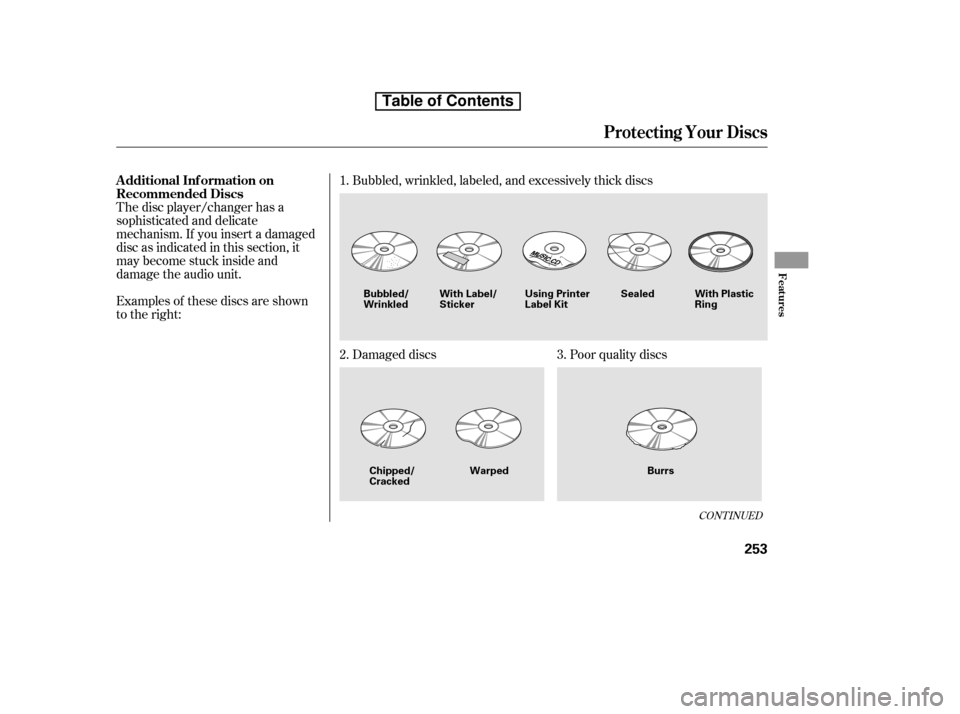
Examples of these discs are shown
to the right:Bubbled, wrinkled, labeled, and excessively thick discs
The disc player/changer has a
sophisticated and delicate
mechanism. If you insert a damaged
disc as indicated in this section, it
maybecomestuckinsideand
damage the audio unit.
Damaged discs Poor quality discs
1.
2. 3.
CONT INUED
Additional Inf ormation on
Recommended Discs
Protecting Your Discs
Features
253
Sealed
Warped Burrs
Chipped/ Cracked With Label/Sticker
With Plastic
Ring
Using Printer
Label Kit
Bubbled/
Wrinkled
Table of Contents
Page:
< prev 1-8 9-16 17-24