2010 GMC SIERRA DENALI audio
[x] Cancel search: audioPage 294 of 550
Using the Call Command
1. Press and holdbgfor two seconds. The system
responds with “Ready”followed by a tone.
2. Say “Call”. The system responds with “Call using
by a tone.
3. Say the name tag of the person to call.
.If the system clearly recognizes the name tag it
responds with “OK, calling,
dials the number.
.If the system is unsure it recognizes the right
name tag, it confirms the name tag followed by
a tone. If the name tag is correct, say “Yes”.
The system responds with “OK, calling,
not correct, say “No”. The system will ask for
the name tag to be re‐entered.
Once connected, the person called will be heard
through the audio speakers.
Using the Re‐dial Command
1. Press and holdb gfor two seconds. The system
responds with “Ready”followed by a tone.
2. After the tone, say “Re‐dial”. The system responds
with “Re‐dial using
last number called from the connected Bluetooth
phone.
Once connected, the person called will be heard
through the audio speakers.
Receiving a Call
When an incoming call is received, the audio system
mutes and a ring tone is heard in the vehicle.
.Pressb gand begin speaking to answer the call.
.Pressc xto ignore a call.
4-122
Page 296 of 550
Transferring a Call
Audio can be transferred between the in‐vehicle
Bluetooth system and the cell phone.
To Transfer Audio to the Cell Phone
During a call with the audio in the vehicle:1. Press
b g. The system responds with “Ready”
followed by a tone.
2. Say “Transfer Call.” The system responds with
“Transferring call” and the audio will switch from
the vehicle to the cell phone.
To Transfer Audio to the In-Vehicle
Bluetooth System
The cellular phone must be paired and connected
with the Bluetooth system before a call can be
transferred. The connection process can take up to
two minutes after the key is turned to the ON/RUN or
ACC/ACCESSORY position.
During a call with the audio on the cell phone, press
b gfor more than two seconds. The audio switches
from the cell phone to the vehicle.
Voice Pass-Thru
Voice Pass‐Thru allows access to the voice recognition
commands on the cell phone. See the cell phone
manufacturers user guide to see if the cell phone
supports this feature. This feature can be used to
verbally access contacts stored in the cell phone.
1. Press and hold
b gfor two seconds. The system
responds with “Ready”followed by a tone.
2. Say “Bluetooth”. The system responds with
“Bluetooth ready” followed by a tone.
3. Say “Voice”. The system responds with “OK,
accessing
.The cell phone's normal prompt messages will
go through its cycle according to the phone's
operating instructions.
4-124
Page 298 of 550
Clearing the System
Unless information is deleted out of the in‐vehicle
Bluetooth system, it will be retained indefinitely. This
includes all saved name tags in the phonebook and
phone pairing information. For information on how to
delete this information, see the above sections on
Deleting a Paired Phone and Deleting Name Tags.
Other Information
The Bluetooth®word mark and logos are owned by the
Bluetooth®SIG, Inc. and any use of such marks by
General Motors is under license. Other trademarks and
trade names are those of their respective owners.
See Radio Frequency Statement
on page 8‑20for FCC
information.
Rear Seat Entertainment (RSE)
System
The vehicle may have a DVD Rear Seat Entertainment
(RSE) system. The RSE system works with the
vehicle's audio system. The DVD player is part of the
front radio. The RSE system includes a radio with a
DVD player, a video display screen, audio/video jacks,
two wireless headphones, and a remote control. See
Radio(s)
on page 4‑79for more information on the
vehicle's audio/DVD system.
Before Driving
The RSE is designed for rear seat passengers only. The
driver cannot safely view the video screen while driving
and should not try to do so.
In severe or extreme weather conditions the RSE
system might not work until the temperature is within
the operating range. The operating range for the RSE
system is above −4°F (−20°C) or below 140°F (60°C).
If the temperature of the vehicle is outside of this range,
heat or cool the vehicle until the temperature is within
the operating range of the RSE system.
Parental Control
The RSE system may have a Parental Control feature,
depending on which radio the vehicle has. To start
Parental Control, quickly press the radio power button
twice, while the radio is on, to stop all system features
such as: radio, video screen, RSA, DVD and/or CD.
While Parental Control is on, a padlock icon displays.
The radio can be turned back on with a single press of
the power button, but the RSE system will remain under
Parental Control.
To turn Parental Control off, press the radio power
button twice, while the radio is on. The RSE returns
from where it was previously left and the padlock icon
disappears from the radio display.
4-126
Page 299 of 550
Parental Control can also be turned off by inserting or
ejecting any disc, pressing the play icon on the radio
DVD display menu, or changing an ignition position.
Headphones
The RSE includes two 2-channel wireless headphones
that are dedicated to this system. Channel 1 is
dedicated to the DVD player, while Channel 2 is
dedicated to RSA selections. These headphones can
be used to listen to the radio, CDs, DVDs, MP3s,
DVDAs, any auxiliary source connected to A/V jacks,
or the auxiliary input jack, if the vehicle has this feature.
The wireless headphones have an On/Off button,
channel 1/2 switch, and a volume control.
Push the power button to turn on the headphones. An
indicator light located on the headphones comes on.
If the light comes on but, there is intermittent sound
and/or static on the headphones, or if the indicator light
does not come on, the batteries might need to be
replaced. See“Battery Replacement” later in this
section for more information. Switch the headphones to
Off when not in use.
Infrared transmitters are located at the rear of the RSE
overhead console. The headphones shut off
automatically to save the battery power if the RSE
system and RSA are shut off or if the headphones are out of range of the transmitters for more than
three minutes. If you move too far forward or step out of
the vehicle, the headphones lose the audio signal.
The headphones may automatically turn off after
four hours of continuous use.
To adjust the volume on the headphones, use the
volume control located on the right side.
For optimal audio performance, the headphones must
be worn correctly. Headphones should be worn with
headband over the top of the head for best audio
reception. The symbol L (Left) appears on the upper left
side, above the ear pad and should be positioned on
the left ear. The symbol R (Right) appears on the upper
right side, above the ear pad and should be positioned
on the right ear.
Notice:
Do not store the headphones in heat or
direct sunlight. This could damage the headphones
and repairs will not be covered by the warranty.
Storage in extreme cold can weaken the batteries.
Keep the headphones stored in a cool, dry place.
If the foam ear pads attached to the headphones
become worn or damaged, the pads can be replaced
separately from the headphone set. Refer to your
dealer/retailer for more information.
4-127
Page 300 of 550
Battery Replacement
To change the batteries on the headphones, do the
following:1. Turn the screw to loosen the battery door located on the left side of the headphones. Slide the
battery door open.
2. Replace the two batteries in the compartment. Make sure that they are installed correctly, using
the diagram on the inside of the battery
compartment.
3. Replace the battery door and tighten the door screw.
If the headphones are to be stored for a long period of
time, remove the batteries and keep them in a cool, dry
place.
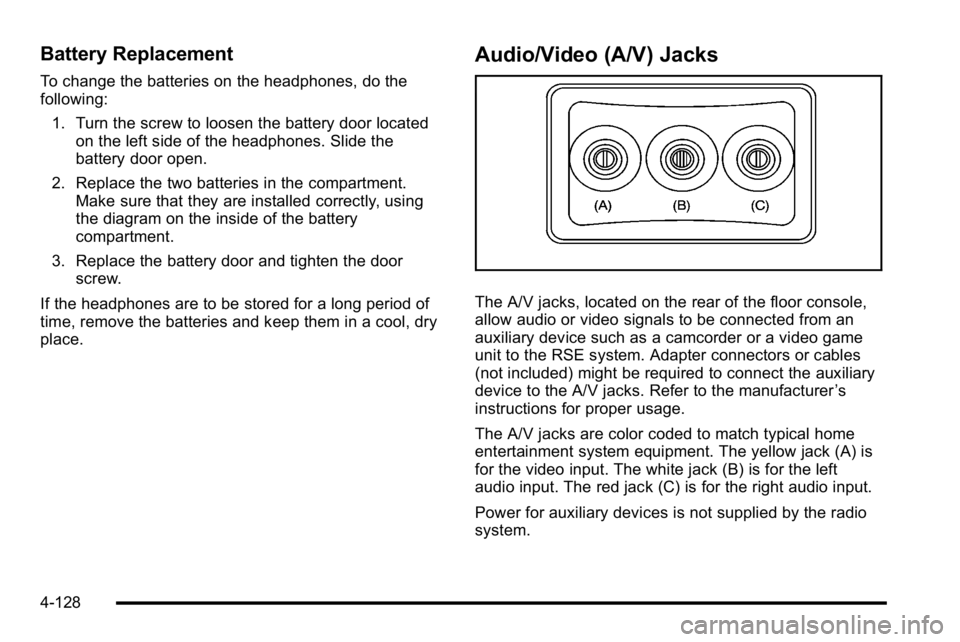
Audio/Video (A/V) Jacks
The A/V jacks, located on the rear of the floor console,
allow audio or video signals to be connected from an
auxiliary device such as a camcorder or a video game
unit to the RSE system. Adapter connectors or cables
(not included) might be required to connect the auxiliary
device to the A/V jacks. Refer to the manufacturer ’s
instructions for proper usage.
The A/V jacks are color coded to match typical home
entertainment system equipment. The yellow jack (A) is
for the video input. The white jack (B) is for the left
audio input. The red jack (C) is for the right audio input.
Power for auxiliary devices is not supplied by the radio
system.
4-128
Page 301 of 550
To use the auxiliary inputs of the RSE system, connect
an external auxiliary device to the color-coded A/V jacks
and turn both the auxiliary device and the video screen
power on. If the video screen is in the DVD player
mode, pressing the AUX (auxiliary) button on the
remote control switches the video screen from the DVD
player mode to the auxiliary device. The radio can listen
to the audio of the connected auxiliary device by
sourcing to auxiliary. SeeRadio(s)
on page 4‑79for
more information.
How to Change the RSE Video Screen
Settings
The screen display mode (normal, full, and zoom),
screen brightness, and setup menu language can be
changed from the on screen setup menu. To change
any feature, do the following:
1. Press the
z(display menu) button on the remote
control.
2. Use the remote control
n,q,p,o
(navigation) arrows and the enter button to use the
setup menu.
3. Press the
zbutton again to remove the setup
menu from the screen.
Audio Output
Audio from the DVD player or auxiliary inputs can be
heard through the following possible sources:
.Wireless Headphones
.Vehicle Speakers
.Vehicle wired headphone jacks on the rear seat
audio system, if the vehicle has this feature.
The RSE system always transmits the audio signal to
the wireless headphones, if there is audio available.
See “Headphones” earlier in this section for more
information.
The DVD player is capable of outputting audio to the
wired headphone jacks on the RSA system, if the
vehicle has this feature. The DVD player can be
selected as an audio source on the RSA system. See
Rear Seat Audio (RSA)
on page 4‑135for more
information.
When a device is connected to the A/V jacks, or the
radio's auxiliary input jack, if the vehicle has this
feature, the rear seat passengers are able to hear audio
from the auxiliary device through the wireless or wired
headphones. The front seat passengers are able to
listen to playback from this device through the vehicle
speakers by selecting AUX as the source on the radio.
4-129
Page 302 of 550
Video Screen
The video screen is located in the overhead console.
To use the video screen, do the following:1. Push the release button located on the overhead console.
2. Move the screen to the desired position.
When the video screen is not in use, push it up into its
locked position.
If a DVD is playing and the screen is raised to its locked
position, the screen remains on. This is normal, and the
DVD continues to play through the previous audio
source. Use the remote control power button or eject
the disc to turn off the screen.
The overhead console contains the infrared transmitters
for the wireless headphones and the infrared receivers
for the remote control. They are located at the rear of
the console.
Notice: Avoid directly touching the video screen, as
damage may occur. See “Cleaning the Video
Screen” later in this section for more information.
Remote Control
To use the remote control, aim it at the transmitter
window at the rear of the RSE overhead console and
press the desired button. Direct sunlight or very bright
light could affect the ability of the RSE transmitter to
receive signals from the remote control. If the remote
control does not seem to be working, the batteries might
need to be replaced. See “Battery Replacement”later in
this section. Objects blocking the line of sight could also
affect the function of the remote control.
If a CD or DVD is in the Radio DVD slot, the remote
control power button can be used to turn on the video
screen display and start the disc. The radio can also
turn on the video screen display. See Radio(s)
on
page 4‑79for more information.
Notice: Storing the remote control in a hot area or
in direct sunlight can damage it, and the repairs will
not be covered by the warranty. Storage in extreme
cold can weaken the batteries. Keep the remote
control stored in a cool, dry place.
If the remote control becomes lost or damaged, a new
universal remote control can be purchased. If this
happens, make sure the universal remote control uses
a code set of Toshiba
®.
4-130
Page 304 of 550
u(Next Track/Chapter):Press this button to go to the
beginning of the next chapter or track. This button might
not work while the DVD is playing the copyright
information or the previews.
r(Fast Reverse): Press this button to quickly reverse
the DVD or CD. To stop fast reversing a DVD video,
press the play/pause button. To stop fast reversing a
DVD audio or CD, release the fast reverse button. This
button might not work when the DVD is playing the
copyright information or the previews.
[(Fast Forward): Press this button to fast forward the
DVD or CD. To stop fast forwarding a DVD video, press
the play/pause button. To stop fast forwarding a DVD
audio or CD, release the fast forward button. This
button might not work while the DVD is playing the
copyright information or the previews.
e(Audio): Press this button to change audio tracks on
DVDs that have this feature when the DVD is playing.
The format and content of this function vary for
each disc.
{(Subtitles): Press this button to turn ON/OFF
subtitles and to move through subtitle options when a
DVD is playing. The format and content of this function
vary for each disc.
AUX (Auxiliary) : Press this button to switch the
system between the DVD player and an auxiliary
source.
d(Camera): Press this button to change camera
angles on DVDs that have this feature while a DVD is
playing. The format and content of this function vary for
each disc.
1 through 0 (Numeric Keypad) : The numeric keypad
provides the capability of direct chapter or track number
selection.
\(Clear): Press this button within three seconds after
entering a numeric selection, to clear all numerical
inputs.
}10 (Double Digit Entries): Press this button to select
chapter or track numbers greater than nine. Press this
button before entering the number.
Battery Replacement
To change the remote control batteries, do the following:
1. Slide the rear cover back on the remote control.
2. Replace the two batteries in the compartment. Make sure that they are installed correctly, using
the diagram on the inside of the battery
compartment.
3. Replace the battery cover.
If the remote control is to be stored for a long period of
time, remove the battery and keep it in a cool, dry
place.
4-132