2010 GMC SIERRA DENALI ad blue
[x] Cancel search: ad bluePage 294 of 550
Using the Call Command
1. Press and holdbgfor two seconds. The system
responds with “Ready”followed by a tone.
2. Say “Call”. The system responds with “Call using
by a tone.
3. Say the name tag of the person to call.
.If the system clearly recognizes the name tag it
responds with “OK, calling,
dials the number.
.If the system is unsure it recognizes the right
name tag, it confirms the name tag followed by
a tone. If the name tag is correct, say “Yes”.
The system responds with “OK, calling,
not correct, say “No”. The system will ask for
the name tag to be re‐entered.
Once connected, the person called will be heard
through the audio speakers.
Using the Re‐dial Command
1. Press and holdb gfor two seconds. The system
responds with “Ready”followed by a tone.
2. After the tone, say “Re‐dial”. The system responds
with “Re‐dial using
last number called from the connected Bluetooth
phone.
Once connected, the person called will be heard
through the audio speakers.
Receiving a Call
When an incoming call is received, the audio system
mutes and a ring tone is heard in the vehicle.
.Pressb gand begin speaking to answer the call.
.Pressc xto ignore a call.
4-122
Page 295 of 550
Call Waiting
Call waiting must be supported on the Bluetooth phone
and enabled by the wireless service carrier to work.
.Pressbgto answer an incoming call when
another call is active. The original call is placed
on hold.
.Pressb gagain to return to the original call.
.To ignore the incoming call, continue with the
original call with no action.
.Pressc xto disconnect the current call and
switch to the call on hold.
Three‐Way Calling
Three‐Way Calling must be supported on the Bluetooth
phone and enabled by the wireless service carrier
to work.
1. While on a call press
b g. The system responds
with “Ready” followed by a tone.
2. Say “Three‐way call”. The system responds with
“Three‐way call, please say dial or call”.
3. Use the dial or call command to dial the number of the third party to be called.
4. Once the call is connected, press
b gto link all
the callers together.
Ending a Call
Pressc xto end a call.
Muting a Call
During a call, all sounds from inside the vehicle can be
muted so that the person on the other end of the call
cannot hear them.
To Mute a call
1. Pressbg. The system responds with “Ready”
followed by a tone.
2. Say “Mute Call”. The system responds with “Call
muted”.
To Cancel Mute
1. Pressb g. The system responds with “Ready”
followed by a tone.
2. After the tone, say “Mute Call”. The system
responds with “Resuming call”.
4-123
Page 296 of 550
Transferring a Call
Audio can be transferred between the in‐vehicle
Bluetooth system and the cell phone.
To Transfer Audio to the Cell Phone
During a call with the audio in the vehicle:1. Press
b g. The system responds with “Ready”
followed by a tone.
2. Say “Transfer Call.” The system responds with
“Transferring call” and the audio will switch from
the vehicle to the cell phone.
To Transfer Audio to the In-Vehicle
Bluetooth System
The cellular phone must be paired and connected
with the Bluetooth system before a call can be
transferred. The connection process can take up to
two minutes after the key is turned to the ON/RUN or
ACC/ACCESSORY position.
During a call with the audio on the cell phone, press
b gfor more than two seconds. The audio switches
from the cell phone to the vehicle.
Voice Pass-Thru
Voice Pass‐Thru allows access to the voice recognition
commands on the cell phone. See the cell phone
manufacturers user guide to see if the cell phone
supports this feature. This feature can be used to
verbally access contacts stored in the cell phone.
1. Press and hold
b gfor two seconds. The system
responds with “Ready”followed by a tone.
2. Say “Bluetooth”. The system responds with
“Bluetooth ready” followed by a tone.
3. Say “Voice”. The system responds with “OK,
accessing
.The cell phone's normal prompt messages will
go through its cycle according to the phone's
operating instructions.
4-124
Page 297 of 550
Dual Tone Multi-Frequency (DTMF)
Tones
The in‐vehicle Bluetooth system can send numbers and
numbers stored as name tags during a call. This is used
when calling a menu driven phone system. Account
numbers can be programmed into the phonebook for
retrieval during menu driven calls.
Sending a Number During a Call
1. Pressbg. The system responds with “Ready”
followed by a tone.
2. Say “Dial”. The system responds with “Say a
number to send tones” followed by a tone.
3. Say the number to send.
.If the system clearly recognizes the number it
responds with “OK, Sending Number” and the
dial tones are sent and the call continues.
.If the system is not sure it recognized the
number properly, it responds “Dial Number,
Please say yes or no?” followed by a tone.
If the number is correct, say “Yes”. The system
responds with “OK, Sending Number” and the
dial tones are sent and the call continues.
Sending a Stored Name Tag During a Call
1. Pressb g. The system responds with “Ready”
followed by a tone.
2. Say “Send name tag.” The system responds with
“Say a name tag to send tones” followed by a tone.
3. Say the name tag to send.
.If the system clearly recognizes the name tag it
responds with “OK, Sending
the dial tones are sent and the call continues.
.If the system is not sure it recognized the name
tag properly, it responds “Dial
Please say yes or no?” followed by a tone.
If the name tag is correct, say “Yes”. The
system responds with “OK, Sending
continues.
4-125
Page 298 of 550
Clearing the System
Unless information is deleted out of the in‐vehicle
Bluetooth system, it will be retained indefinitely. This
includes all saved name tags in the phonebook and
phone pairing information. For information on how to
delete this information, see the above sections on
Deleting a Paired Phone and Deleting Name Tags.
Other Information
The Bluetooth®word mark and logos are owned by the
Bluetooth®SIG, Inc. and any use of such marks by
General Motors is under license. Other trademarks and
trade names are those of their respective owners.
See Radio Frequency Statement
on page 8‑20for FCC
information.
Rear Seat Entertainment (RSE)
System
The vehicle may have a DVD Rear Seat Entertainment
(RSE) system. The RSE system works with the
vehicle's audio system. The DVD player is part of the
front radio. The RSE system includes a radio with a
DVD player, a video display screen, audio/video jacks,
two wireless headphones, and a remote control. See
Radio(s)
on page 4‑79for more information on the
vehicle's audio/DVD system.
Before Driving
The RSE is designed for rear seat passengers only. The
driver cannot safely view the video screen while driving
and should not try to do so.
In severe or extreme weather conditions the RSE
system might not work until the temperature is within
the operating range. The operating range for the RSE
system is above −4°F (−20°C) or below 140°F (60°C).
If the temperature of the vehicle is outside of this range,
heat or cool the vehicle until the temperature is within
the operating range of the RSE system.
Parental Control
The RSE system may have a Parental Control feature,
depending on which radio the vehicle has. To start
Parental Control, quickly press the radio power button
twice, while the radio is on, to stop all system features
such as: radio, video screen, RSA, DVD and/or CD.
While Parental Control is on, a padlock icon displays.
The radio can be turned back on with a single press of
the power button, but the RSE system will remain under
Parental Control.
To turn Parental Control off, press the radio power
button twice, while the radio is on. The RSE returns
from where it was previously left and the padlock icon
disappears from the radio display.
4-126
Page 310 of 550
Navigating folders on an iPod or USB
Device (Vehicles without a Navigation
System):
1. Press and holdworxwhile listening to a song
until the contents of the current folder display on
the radio display.
2. Press and hold
xto go back to the previous
folder list.
3. Press and release
worxto scroll up or down
the list.
.To select a folder, press and holdw, or press
¨when the folder is highlighted.
.To go back further in the folder list, press and
hold
x.
Navigating an iPod or USB Device on the
Main Audio Screen (Vehicles with a
Navigation System)
Press and releaseworxto select the next or
previous track within the selected category.
Press and hold
worxto move quickly through the
tracks.
Press and release
¨to move up one track within the
selected category.
Navigating an iPod or USB Device on the
Music Navigator Screen (Vehicles with a
Navigation System)
Press and releaseworxto select the next or
previous track within the selected category.
Press and hold
worxto move quickly through the
tracks within the selected category.
Press and release
¨to move up one track within the
selected category.
b g(Mute/Push to Talk): Press to silence the vehicle
speakers only. Press again to turn the sound on.
For vehicles with Bluetooth or OnStar
®systems, press
and hold for longer than two seconds to interact with
those systems. See Bluetooth
®on page 4‑115and the
OnStar Owner's Guide for more information.
c(End): Press to reject an incoming call, or end a
current call.
SRCE (Source/Voice Recognition) : Press to switch
between the radio, CD, and for vehicles with, DVD, front
auxiliary, and rear auxiliary.
For vehicles with the navigation system, press and hold
this button for longer than one second to initiate voice
recognition. See “Voice Recognition” in the Navigation
System manual for more information.
4-138
Page 372 of 550
Trailer Wiring Harness
Heavy-Duty Trailer Wiring Harness Package
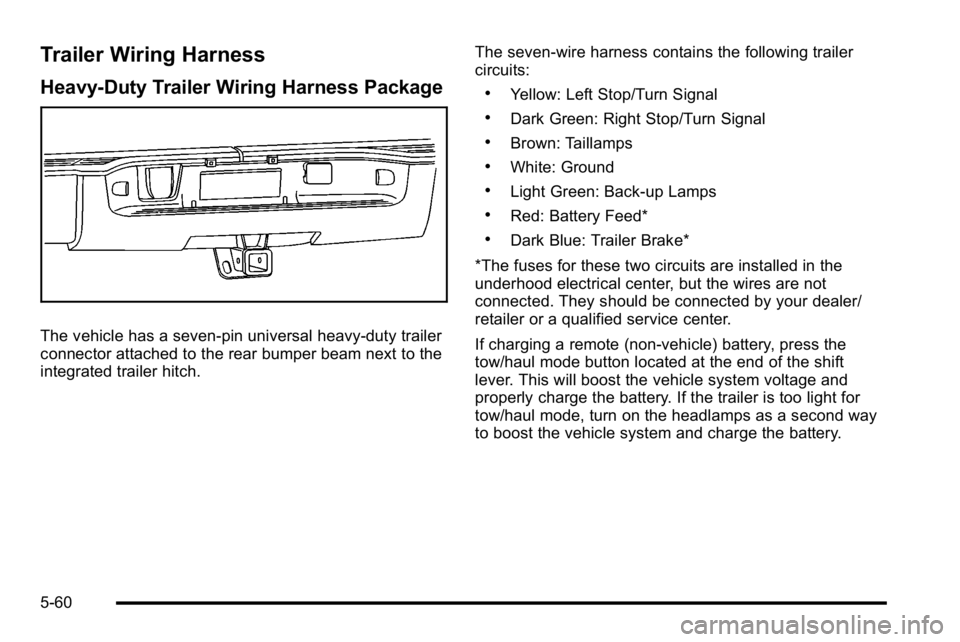
The vehicle has a seven-pin universal heavy-duty trailer
connector attached to the rear bumper beam next to the
integrated trailer hitch.The seven-wire harness contains the following trailer
circuits:
.Yellow: Left Stop/Turn Signal
.Dark Green: Right Stop/Turn Signal
.Brown: Taillamps
.White: Ground
.Light Green: Back-up Lamps
.Red: Battery Feed*
.Dark Blue: Trailer Brake*
*The fuses for these two circuits are installed in the
underhood electrical center, but the wires are not
connected. They should be connected by your dealer/
retailer or a qualified service center.
If charging a remote (non-vehicle) battery, press the
tow/haul mode button located at the end of the shift
lever. This will boost the vehicle system voltage and
properly charge the battery. If the trailer is too light for
tow/haul mode, turn on the headlamps as a second way
to boost the vehicle system and charge the battery.
5-60
Page 373 of 550
Electric Brake Control Wiring
Provisions
These wiring provisions are included with the vehicle as
part of the trailer wiring package. These provisions are
for an electric brake controller. The instrument panel
contains blunt cut wires near the data link connector for
the trailer brake controller. The harness contains the
following wires:
.Dark Blue: Brake Signal to Trailer Connector
.Red/Black: Battery
.Light Blue/White: Brake Switch
.White: Ground
It should be installed by your dealer/retailer or a
qualified service center.
If the vehicle is equipped with an ITBC, the blunt cuts
exist, but are not connected further in the harness. If an
aftermarket trailer brake controller is installed, the ITBC
must be disconnected. Do not power both ITBC and
aftermarket controllers to control the trailer brakes at the
same time.
Trailer Recommendations
Subtract the hitch loads from the Cargo Weight Rating
(CWR). CWR is the maximum weight of the load the
vehicle can carry. It does not include the weight of the
people inside, but you can figure about 150 lbs. (68 kg)
for each passenger. The total cargo load must not be
more than the vehicles CWR.
Weigh the vehicle with the trailer attached, so the
GVWR or GAWR are not exceeded. If using a
weight-distributing hitch, weigh the vehicle without the
spring bars in place.
The best performance is obtained by correctly
spreading out the weight of the load and choosing the
correct hitch and trailer brakes.
For more information see Towing a Trailer
on
page 5‑42.
5-61