Page 225 of 484

Subtitles — If Equipped
Selecting this item allows you to choose between subtitle
Off or On.
Audio DRC — If Equipped
Selecting this item allows you to limit maximum audio
dynamic range. The default is set to�High,�and under
this setting, dialogues will play at 11 db higher than if the
setting is �Normal.�
Aspect Ratio — If Equipped
Selecting this item allows you to choose between wide
screen, pan scan, and letter box.
AutoPlay — If Equipped
When this is set to On and a DVD video is inserted, it will
bypass the DVD menu screen and automatically play the
movie. In some rare cases, the DVD player may not
auto-play the main title. In such cases, use the MENU
button on the remote control to select desired title to play. NOTE:
The user will have to set these defaults before
loading a disc. If changes are made to these settings after
a disc is loaded, changes will not be effective. Also, the
defaults are effective only if the disc supports the
customer-preferred settings.
AM and FM Buttons
Press the buttons to select AM or FM mode.
SET Button — To Set the Pushbutton Memory
When you are receiving a station that you wish to
commit to pushbutton memory, press the SET button.
The symbol SET 1 will now show in the display window.
Select the button (1-6) you wish to lock onto this station
and press and release that button. If a button is not
selected within five seconds after pressing the SET but-
ton, the station will continue to play but will not be
stored into pushbutton memory.
224 UNDERSTANDING YOUR INSTRUMENT PANEL
Page 226 of 484

You may add a second station to each pushbutton by
repeating the above procedure with this exception: Press
the SET button twice and SET 2 will show in the display
window. Each button can be set for SET 1 and SET 2 in
both AM and FM. This allows a total of 12 AM, 12 FM,
and 12 Satellite (if equipped) stations to be stored into
pushbutton memory. The stations stored in SET 2
memory can be selected by pressing the pushbutton
twice.
Every time a preset button is used, a corresponding
button number will display.
Buttons1-6
These buttons tune the radio to the stations that you
commit to pushbutton memory {12 AM, 12 FM, and 12
Satellite (if equipped) stations}.
DISC Button
Pressing the DISC button will allow you to switch from
AM/FM modes to Disc modes.
Operation Instructions - (DISC MODE for CD and
MP3/WMA Audio Play, DVD-VIDEO)
The radio DVD player and many DVD discs are coded by
geographic region. These region codes must match in
order for the disc to play. If the region code for the DVD
disc does not match the region code for the radio DVD
player, it will not play the disc. Customers may take their
vehicle to an authorized dealer to change the region code
of the player a maximum of five times.
CAUTION!
The radio may shut down during extremely hot
conditions. When this occurs, the radio will indicate
“Disc Hot” and shut off until a safe temperature is
reached. This shutdown is necessary to protect the
optics of the DVD player and other radio internal
components.
4
UNDERSTANDING YOUR INSTRUMENT PANEL 225
Page 229 of 484
The radio uses the following limits for file systems:
•Maximum number of directory levels: 8
•Maximum number of files: 255
•Maximum number of folders: 100
•Maximum number of characters in file/folder names:
•Level 1: 12 (including a separator�.�and a three-
character extension)
•Level 2: 31 (including a separator �.�and a three-
character extension)
Multisession disc formats are supported by the radio.
Multisession discs may contain combinations of normal
CD audio tracks and computer files (including MP3/
WMA files). Discs created with an option such as �keep
disc open after writing� are most likely multisession
discs. The use of multisession for CD audio or MP3/
WMA playback may result in longer disc loading times. If a disc contains multi-formats, such as CD audio and
MP3/WMA tracks, the radio will only play the MP3/
WMA tracks on that disc.
Supported MP3/WMA File Formats
The radio will recognize only files with the *.MP3/WMA
extension as MP3/WMA files. Non-MP3/WMA files
named with the *.MP3/WMA extension may cause play-
back problems. The radio is designed to recognize the file
as an invalid MP3/WMA and will not play the file.
When using the MP3/WMA encoder to compress audio
data to an MP3/WMA file, the bit rate and sampling
frequencies in the following table are supported. In
addition, variable bit rates (VBR) are also supported. The
majority of MP3/WMA files use a 44.1 kHz sampling rate
and a 192, 160, 128, 96 or VBR bit rates.
228 UNDERSTANDING YOUR INSTRUMENT PANEL
Page 230 of 484

MPEG
Specification Sampling
Frequency (kHz) Bit Rate (kbps)
MPEG-1 Audio Layer 3 48, 44.1, 32 320, 256, 224,
192, 160, 128,
112, 96, 80, 64, 56, 48
MPEG-2 Audio Layer 3 24, 22.05, 16 160, 128, 144,
112, 96, 80, 64, 56, 48
WMA
Specification Sampling
Frequency (kHz) Bit Rate (kbps)
WMA 44.1 and 48 48, 64, 96, 128,
160, 192 VBR
ID3 Tag information for artist, song title, and album title
are supported for ID3 version 1 tags. ID3 version 2 is not
supported by the radios. Playlist files are not supported. MP3 Pro files are not
supported.
Playback of MP3/WMA Files
When a medium containing MP3/WMA data is loaded,
the radio checks all files on the medium. If the medium
contains a lot of folders or files, the radio will take more
time to start playing the MP3/WMA files.
Loading times for playback of MP3/WMA files may be
affected by the following:
•Media - CD-RW media may take longer to load than
CD-R media
•Medium formats - Multisession discs may take longer
to load than non-multisession discs
•Number of files and folders - Loading times will
increase with more files and folders
4
UNDERSTANDING YOUR INSTRUMENT PANEL 229
Page 231 of 484

To increase the speed of disc loading, it is recommended
to use CD-R media and single-session discs. To create a
single-session disc, enable the “Disc at Once” option
before writing to the disc.
LIST Button (DISC Mode for MP3/WMA Play)
Pressing the LIST button will bring up a list of all folders
on the disc. Scrolling up or down the list is done by
turning the TUNE/SCROLL control knob. Selecting a
folder by pressing the TUNE/SCROLL control knob will
begin playing the files contained in that folder (or the
next folder in sequence if the selection does not contain
playable files).
The folder list will time out after five seconds.
INFO Button (DISC Mode for MP3/WMA Play)
Pressing the INFO button repeatedly will scroll through
the following TAG information: Song Title, Artist, File
Name, and Folder Name (if available).Press the INFO button once more to return to
�elapsed
time� priority mode.
Press and hold the INFO button for three seconds or
more and radio will display song titles for each file.
Press and hold the INFO button again for three seconds
to return to �elapsed time� display.
Operation Instructions - Auxiliary Mode
The auxiliary (AUX) jack is an audio input jack which
allows the user to plug in a portable device such as an
MP3/WMA player, cassette player, or microphone and
utilize the vehicle’s audio system to amplify the source
and play through the vehicle speakers.
Pressing the AUX button will change the mode to auxil-
iary device if the AUX jack is connected.
NOTE:The AUX device must be turned on and the
device’s volume set to the proper level. If the AUX audio
230 UNDERSTANDING YOUR INSTRUMENT PANEL
Page 232 of 484
is not loud enough, turn the device’s volume up. If the
AUX audio sounds distorted, turn the device’s volume
down.
SEEK Button (Auxiliary Mode)
No function.
SCAN Button (Auxiliary Mode)
No function.
EJECT Button (Auxiliary Mode)
No function.
TIME Button (Auxiliary Mode)
Press the TIME button to change the display from
elapsed playing time to time of day. The time of day will
display for five seconds.
RW/FF (Auxiliary Mode)
No function.
SET Button (Auxiliary Mode)
No function.
Operating Instructions — Voice Command System
(If Equipped)
For the radio, refer to “Voice Command” in “Understand-
ing The Features Of Your Vehicle”.
For Uconnect™ “Voice Command,” refer to “Uconnect™
Phone” in “Understanding The Features Of Your
Vehicle”.
Operating Instructions - Uconnect™ Phone (If
Equipped)
Refer to “Uconnect™ Phone” in “Understanding The
Features Of Your Vehicle”.
4
UNDERSTANDING YOUR INSTRUMENT PANEL 231
Page 238 of 484
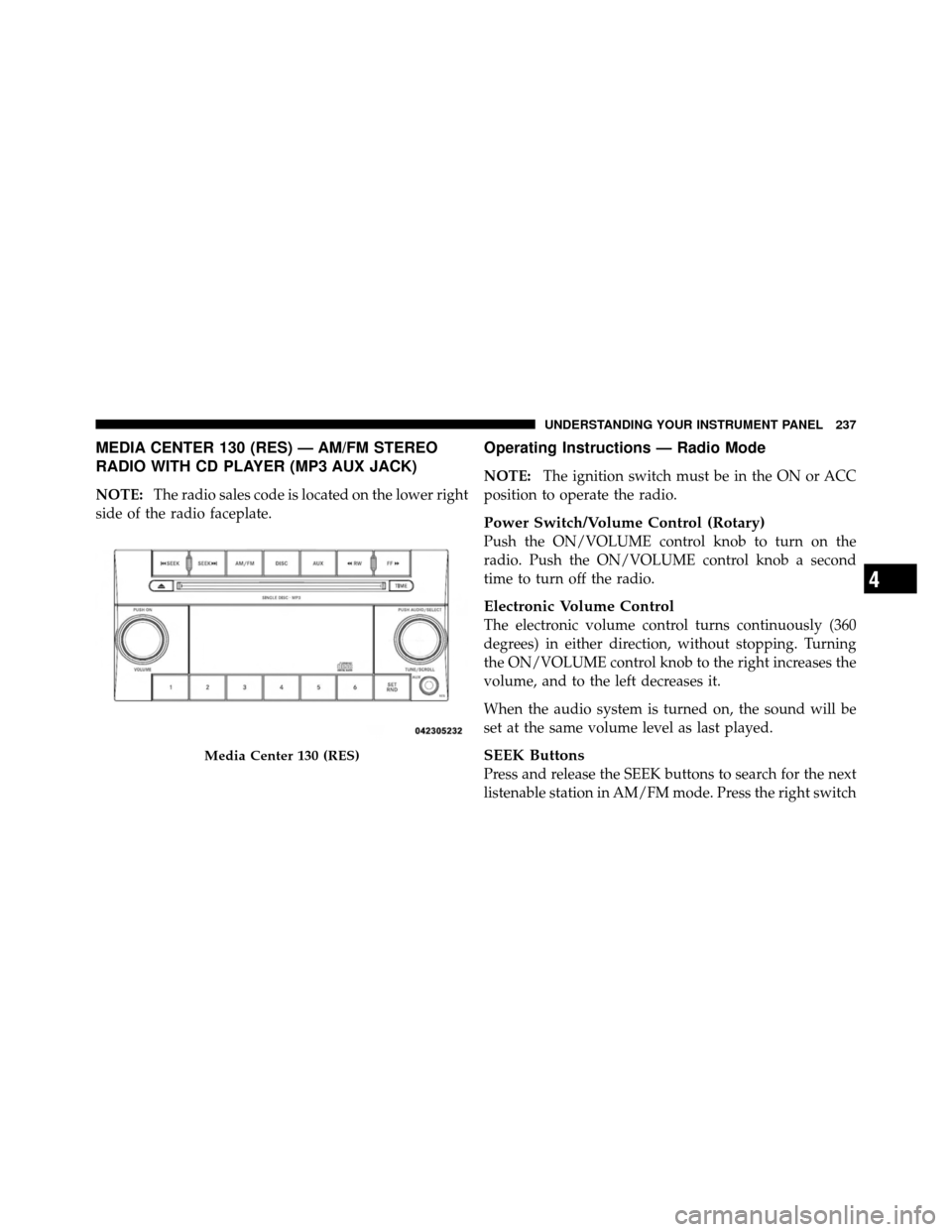
MEDIA CENTER 130 (RES) — AM/FM STEREO
RADIO WITH CD PLAYER (MP3 AUX JACK)
NOTE:The radio sales code is located on the lower right
side of the radio faceplate.
Operating Instructions — Radio Mode
NOTE: The ignition switch must be in the ON or ACC
position to operate the radio.
Power Switch/Volume Control (Rotary)
Push the ON/VOLUME control knob to turn on the
radio. Push the ON/VOLUME control knob a second
time to turn off the radio.
Electronic Volume Control
The electronic volume control turns continuously (360
degrees) in either direction, without stopping. Turning
the ON/VOLUME control knob to the right increases the
volume, and to the left decreases it.
When the audio system is turned on, the sound will be
set at the same volume level as last played.
SEEK Buttons
Press and release the SEEK buttons to search for the next
listenable station in AM/FM mode. Press the right switch
Media Center 130 (RES)
4
UNDERSTANDING YOUR INSTRUMENT PANEL 237
Page 241 of 484

SET 2 in both AM and FM. This allows a total of 12 AM
and 12 FM stations to be stored into pushbutton memory.
The stations stored in SET 2 memory can be selected by
pressing the pushbutton twice.
Every time a preset button is used, a corresponding
button number will display.
Buttons1-6
These buttons tune the radio to the stations that you
commit to pushbutton memory (12 AM and 12 FM
stations).
DISC Button
Pressing the DISC button will allow you to switch from
AM/FM modes to Disc modes.
Operation Instructions — CD MODE For CD And
MP3 Audio Play
NOTE:
•The ignition switch must be in the ON or ACC
position to operate the radio.
•This radio is capable of playing compact discs (CD),
recordable compact discs (CD-R), rewritable compact
discs (CD-RW), compact discs with MP3 tracks and
multisession compact discs with CD and MP3 tracks.
Inserting Compact Disc(s)
Gently insert one CD into the CD player with the CD
label facing up. The CD will automatically be pulled into
the CD player and the CD icon will illuminate on the
radio display. If a CD does not go into the slot more than
1.0 in (2.5 cm), a disc may already be loaded and must be
ejected before a new disc can be loaded.
240 UNDERSTANDING YOUR INSTRUMENT PANEL