2010 CHEVROLET CORVETTE steering wheel
[x] Cancel search: steering wheelPage 172 of 472

Telescopic Steering Column
For vehicles with this
feature, the telescopic
steering column switch is
located on the right side
of the steering column.
To adjust the telescopic steering column: 1. Push the switch forward to move the wheel away from you.
2. Pull the switch toward you to move the wheel closer to you.
The telescopic steering column position can be stored
with your memory settings. See Memory Seat, Mirrors
and Steering Wheel
on page 2‑4for more
information.
Turn Signal/Multifunction Lever
The lever on the left side of the steering column
includes the following:
G :Turn and Lane-Change Signals
3 :Headlamp High/Low-Beam Changer
# :Fog Lamps
I :Cruise Control
P :Exterior Lamps Control
.Flash-to-Pass Feature. See Flash-to-Passon
page 4‑5.
Information for these features is on the pages following.
4-4
Page 179 of 472
Exterior Lamps
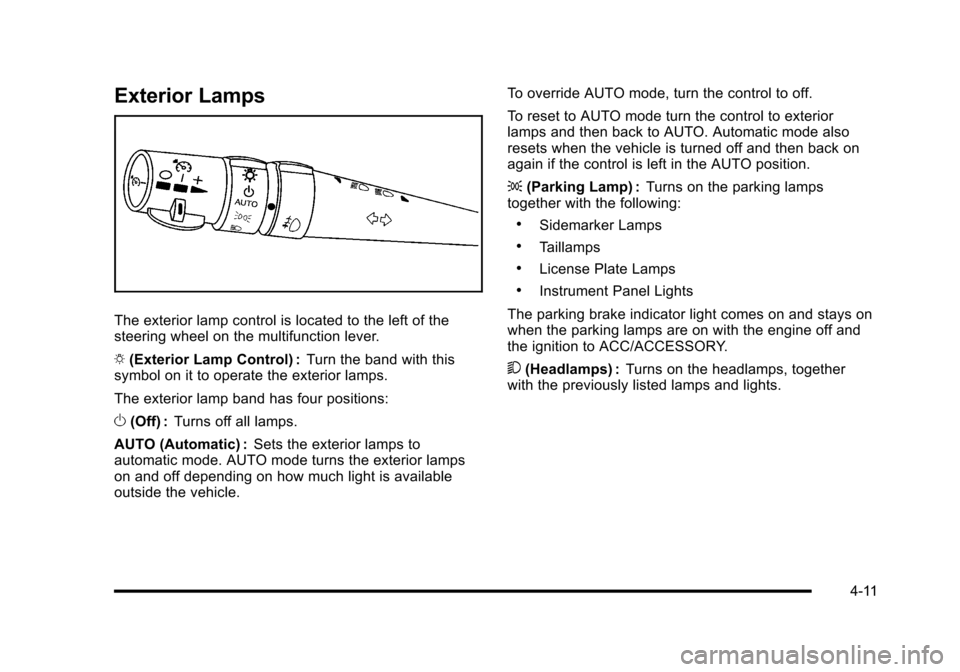
The exterior lamp control is located to the left of the
steering wheel on the multifunction lever.
O (Exterior Lamp Control) : Turn the band with this
symbol on it to operate the exterior lamps.
The exterior lamp band has four positions:
O (Off) : Turns off all lamps.
AUTO (Automatic) : Sets the exterior lamps to
automatic mode. AUTO mode turns the exterior lamps
on and off depending on how much light is available
outside the vehicle. To override AUTO mode, turn the control to off.
To reset to AUTO mode turn the control to exterior
lamps and then back to AUTO. Automatic mode also
resets when the vehicle is turned off and then back on
again if the control is left in the AUTO position.
;
(Parking Lamp) : Turns on the parking lamps
together with the following:
.Sidemarker Lamps
.Taillamps
.License Plate Lamps
.Instrument Panel Lights
The parking brake indicator light comes on and stays on
when the parking lamps are on with the engine off and
the ignition to ACC/ACCESSORY.
5 (Headlamps) : Turns on the headlamps, together
with the previously listed lamps and lights.
4-11
Page 187 of 472
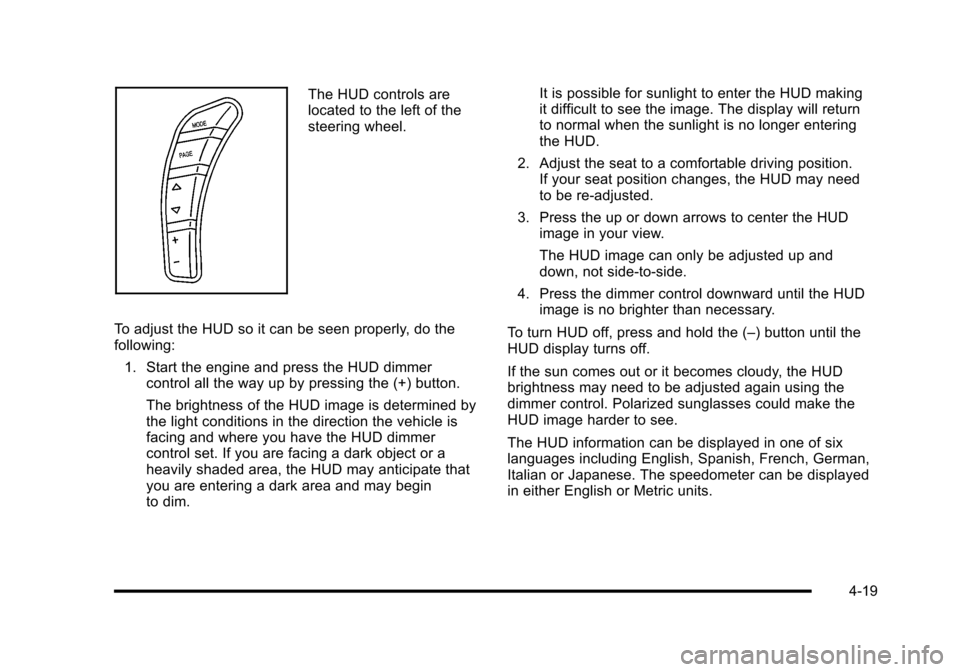
The HUD controls are
located to the left of the
steering wheel.
To adjust the HUD so it can be seen properly, do the
following: 1. Start the engine and press the HUD dimmer control all the way up by pressing the (+) button.
The brightness of the HUD image is determined by
the light conditions in the direction the vehicle is
facing and where you have the HUD dimmer
control set. If you are facing a dark object or a
heavily shaded area, the HUD may anticipate that
you are entering a dark area and may begin
to dim. It is possible for sunlight to enter the HUD making
it difficult to see the image. The display will return
to normal when the sunlight is no longer entering
the HUD.
2. Adjust the seat to a comfortable driving position. If your seat position changes, the HUD may need
to be re-adjusted.
3. Press the up or down arrows to center the HUD image in your view.
The HUD image can only be adjusted up and
down, not side-to-side.
4. Press the dimmer control downward until the HUD image is no brighter than necessary.
To turn HUD off, press and hold the (–) button until the
HUD display turns off.
If the sun comes out or it becomes cloudy, the HUD
brightness may need to be adjusted again using the
dimmer control. Polarized sunglasses could make the
HUD image harder to see.
The HUD information can be displayed in one of six
languages including English, Spanish, French, German,
Italian or Japanese. The speedometer can be displayed
in either English or Metric units.
4-19
Page 233 of 472
SERVICE TRACTION SYSTEM
If this message displays when you are driving, there is a
problem with the Traction Control System (TCS) and the
vehicle is in need of service. See your dealer/retailer.
When this message is displayed, the system will not
limit wheel spin. Adjust your driving accordingly.
The traction control system (TCS) warning light on the
instrument panel cluster will also turn on and a sound
will be heard.
When this message is displayed, the computer
controlled systems will not assist the driver in controlling
the vehicle. Have the system repaired by your dealer/
retailer as soon as possible. Adjust your driving
accordingly. See Traction Control System (TCS)
on
page 5‑6for more information.
To acknowledge the message, press the RESET button.
SERVICE TRANSMISSION
This message displays when there is a problem with the
transmission. See your dealer/retailer for service.
SERVICE VEHICLE SOON
This message displays and a sound will be heard when
there may be an electrical or another system problem
with the vehicle. Have your vehicle checked by your
dealer/retailer if this message keeps appearing.
SET PARK BRAKE FOR SEAT RECALL
If the vehicle has a manual transmission, this message
displays if you try to recall the memory positions when
the ignition is on and the parking brake is not set. If the
vehicle is on, you must set the parking brake in order
for the memory positions to recall. See Memory Seat,
Mirrors and Steering Wheel
on page 2‑4for more
information.
SET PARK BRAKE TO MOVE TOP
If the vehicle has a manual transmission, this message
displays and a sound will be heard if you try to operate
the power convertible top without first setting the
parking brake. Set the parking brake before trying to
operate the power convertible top. See Convertible Top
(Manual)
on page 3‑59or Convertible Top (Power)on
page 3‑66for more information.
SHIFT TO PARK
If the vehicle has an automatic transmission, this
message displays if the vehicle is not in P (Park) when
the engine is being turned off. The vehicle will be in
ACCESSORY Once the shift lever is moved to P (Park),
the vehicle will turn off.
4-65
Page 239 of 472
DIC Vehicle Personalization
Many features on your vehicle can be personalized.
This means that the operation of these features can be
set to operate differently depending on who is driving
the vehicle. See “Personal Options” later in this section
for the features that you can personalize.
The personalization settings for other features are
automatically updated and saved as the driver adjusts
them. These include the following settings and presets:
.The radio presets, tone, volume, fade, balance,
equalization (EQ) settings and source (radio
or CD)
.The last climate control setting
.The Head-Up Display (HUD) position and dimming
level, if your vehicle has this feature
.The instrument panel cluster dimming level and
last selected DIC display
Separate personalization settings are saved for two
different drivers. One of the keyless access transmitters
is assigned to driver 1. The other is assigned to driver 2.
The back of the keyless access transmitters are
labelled 1 or 2 to correspond to each driver. The current driver's preferences are recalled when one
of the following occurs:
.The lock or unlock button on the keyless access
transmitter, labelled 1 or 2, is pressed.
.The appropriate memory button, 1 or 2, located on
the driver's door is pressed. See
Memory Seat,
Mirrors and Steering Wheel
on page 2‑4for
more information.
.A valid keyless access transmitter is detected upon
opening the driver's door.
If more than one valid keyless access transmitter is
detected upon opening the driver's door, the driver
preferences for the lowest driver number will be
recalled.
If a keyless access transmitter that is not labelled
1 or 2 is used, the personalization system will not
recognize the transmitter. The Driver Information
Center (DIC) will not display a current driver number
and the features that are normally programmed through
the DIC will be set to the default states. Also, if the
OPTION button is pressed, the DIC does not display
the menus used to set personalizations, but instead
displays OPTIONS UNAVAILABLE for a few seconds.
4-71
Page 241 of 472
Press the OPTION button until AUTO MEMORY
RECALL appears on the display, then press the RESET
button to scroll through the following modes:
.YES
.NO (default)
If you choose YES, the driver's seat, the outside
rearview mirrors and the telescopic steering column,
if your vehicle has this feature, positions are recalled
when you turn the ignition on.
If you choose NO, this option will turn off.
When the mode you want is selected, press the
OPTION button to set your choice and advance
to the next personal option.
Auto Exit Recall : If your vehicle has the memory
package, you may have this option. This option allows
the driver's seat and telescopic steering column, if your
vehicle has this feature, to automatically move to the
current driver's exit position when one of the following
occurs:
.The vehicle is turned off or in Retained Accessory
Power (RAP) or accessory mode and the driver's
door is opened.
.The vehicle is turned off or in RAP and the unlock
button on the keyless access transmitter is
pressed. In order for the Auto Exit Recall feature to work on an
automatic transmission vehicle, the vehicle must be in
P (Park). On a manual transmission vehicle, the parking
brake must be set.
Press the OPTION button until AUTO EXIT RECALL
appears on the display, then press the RESET button to
scroll through the following modes:
.YES
.NO (default)
If you choose YES, when you turn the ignition off and
open the driver's door or press the unlock button on the
keyless access transmitter, the seat and the telescopic
steering wheel, if your vehicle has this feature, will
return to their stored exit positions for an easy exit
or an easy entrance when returning to the vehicle.
The seat and steering wheel will only return to the
stored driving position if you press the appropriate
memory button or activate the auto memory recall
feature.
If you choose NO, this option will turn off.
When the mode you want is selected, press the
OPTION button to set your choice and advance
to the next personal option.
4-73
Page 264 of 472
Navigation/Radio System
For vehicles with a navigation radio system, see the
separate Navigation System manual.
Bluetooth®
Vehicles with a Bluetooth system can use a Bluetooth
capable cell phone with a Hands Free Profile to make
and receive phone calls. The system can be used while
the key is in ON/RUN or ACC/ACCESSORY position.
The range of the Bluetooth system can be up to
9.1 m (30 ft). Not all phones support all functions,
and not all phones are guaranteed to work with
the in-vehicle Bluetooth system. See www.gm.com/
bluetooth for more information on compatible phones.
Voice Recognition
The Bluetooth system uses voice recognition to
interpret voice commands to dial phone numbers and
name tags.
Noise : Keep interior noise levels to a minimum.
The system may not recognize voice commands
if there is too much background noise.
When to Speak : A short tone sounds after the system
responds indicating when it is waiting for a voice
command. Wait until the tone and then speak.
How to Speak : Speak clearly in a calm and natural
voice.
Audio System
When using the in‐vehicle Bluetooth system, sound
comes through the vehicle's front audio system
speakers and over‐rides the audio system. Use the
audio system volume knob, during a call, to change
the volume level. The adjusted volume level remains
in memory for later calls. To prevent missed calls, a
minimum volume level is used if the volume is turned
down too low.
Bluetooth Controls
Use the buttons located on the steering wheel to
operate the in‐vehicle Bluetooth system. See Audio
Steering Wheel Controls
on page 4‑107for more
information.
b g(Push To Talk) : Press to answer incoming calls,
to confirm system information, and to start speech
recognition.
c(Phone On Hook): Press to end a call, reject a
call, or to cancel an operation.
4-96
Page 275 of 472
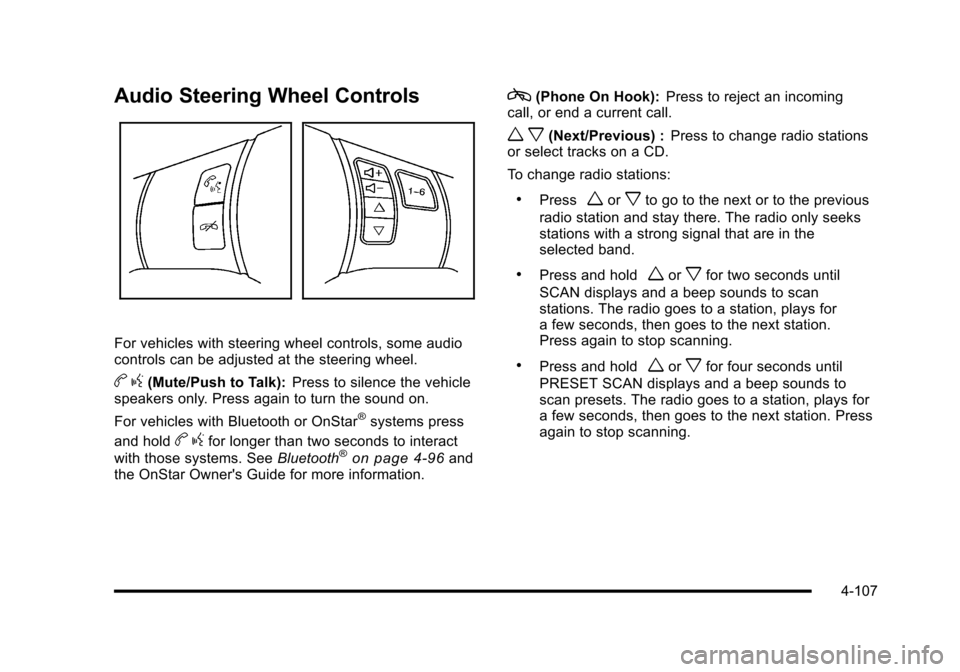
Audio Steering Wheel Controls
For vehicles with steering wheel controls, some audio
controls can be adjusted at the steering wheel.
b g(Mute/Push to Talk): Press to silence the vehicle
speakers only. Press again to turn the sound on.
For vehicles with Bluetooth or OnStar
®systems press
and hold
b gfor longer than two seconds to interact
with those systems. See Bluetooth®on page 4‑96and
the OnStar Owner's Guide for more information.
c(Phone On Hook): Press to reject an incoming
call, or end a current call.
w x(Next/Previous) : Press to change radio stations
or select tracks on a CD.
To change radio stations:
.Pressworxto go to the next or to the previous
radio station and stay there. The radio only seeks
stations with a strong signal that are in the
selected band.
.Press and holdworxfor two seconds until
SCAN displays and a beep sounds to scan
stations. The radio goes to a station, plays for
a few seconds, then goes to the next station.
Press again to stop scanning.
.Press and holdworxfor four seconds until
PRESET SCAN displays and a beep sounds to
scan presets. The radio goes to a station, plays for
a few seconds, then goes to the next station. Press
again to stop scanning.
4-107