2010 CADILLAC ESCALADE ESV audio
[x] Cancel search: audioPage 300 of 620

Black plate (108,1)Cadillac Escalade/Escalade ESV Owner Manual - 2010
Music Navigator Screen To enter the music navigator screen, press and
release
¨ while on the main audio screen. While using
the music navigator screen, the track currently playing
continues to play until the next track is selected.
To move up or down the list of tracks or folders: .
Press and release
w or
x to highlight one track
or folder at a time. .
Press and hold
w or
x to scroll through the list.
To select the highlighted track or folder press and
release
¨ .
To move back to the previous folder, press and hold
¨ .
Radio Reception Frequency interference and static can occur during
normal radio reception if items such as cell phone
chargers, vehicle convenience accessories, and
external electronic devices are plugged into the
accessory power outlet. If there is interference or static,
unplug the item from the accessory power outlet. AM The range for most AM stations is greater than for FM,
especially at night. The longer range can cause station
frequencies to interfere with each other. For better radio
reception, most AM radio stations boost the power
levels during the day, and then reduce these levels
during the night. Static can also occur when things like
storms and power lines interfere with radio reception.
When this happens, try reducing the treble on the radio.
FM Stereo FM signals only reach about 10 to 40 miles
(16 to 65 km). Although the radio has a built-in electronic
circuit that automatically works to reduce interference,
some static can occur, especially around tall buildings
or hills, causing the sound to fade in and out.
XM ™ Satellite Radio Service XM Satellite Radio Service gives digital radio reception
from coast-to-coast in the 48 contiguous United States,
and in Canada. Just as with FM, tall buildings or hills
can interfere with satellite radio signals, causing the
sound to fade in and out. In addition, traveling or
standing under heavy foliage, bridges, garages,
or tunnels may cause loss of the XM signal for a period
of time.
4-108
Page 303 of 620
Black plate (1,1)Cadillac Escalade/Escalade ESV Owner Manual - 2010
Section 5 Navigation SystemOverview . . . . . . . . . . . . . . . . . . . . . . . . . . . . . . . . . . . . . . . . . . . 5-2
Navigation System Overview . . . . . . . . . . . . . . . . . . . . 5-2
Getting Started . . . . . . . . . . . . . . . . . . . . . . . . . . . . . . . . . . 5-4
Cleaning the Display . . . . . . . . . . . . . . . . . . . . . . . . . . . 5-11
Features and Controls . . . . . . . . . . . . . . . . . . . . . . . . . . . 5-12
Using the Navigation System . . . . . . . . . . . . . . . . . . 5-12
Maps . . . . . . . . . . . . . . . . . . . . . . . . . . . . . . . . . . . . . . . . . . 5-14
Symbols . . . . . . . . . . . . . . . . . . . . . . . . . . . . . . . . . . . . . . . 5-17
Destination . . . . . . . . . . . . . . . . . . . . . . . . . . . . . . . . . . . . 5-24
Configure Menu . . . . . . . . . . . . . . . . . . . . . . . . . . . . . . . 5-42
Global Positioning System (GPS) . . . . . . . . . . . . . . 5-57 Vehicle Positioning . . . . . . . . . . . . . . . . . . . . . . . . . . . . 5-57
Problems with Route Guidance . . . . . . . . . . . . . . . . 5-58
If the System Needs Service . . . . . . . . . . . . . . . . . . . 5-59
Ordering Map DVDs . . . . . . . . . . . . . . . . . . . . . . . . . . . 5-59
Database Coverage Explanations . . . . . . . . . . . . . 5-59
Navigation Audio System . . . . . . . . . . . . . . . . . . . . . . . . 5-60
CD Player . . . . . . . . . . . . . . . . . . . . . . . . . . . . . . . . . . . . . 5-68
DVD Player . . . . . . . . . . . . . . . . . . . . . . . . . . . . . . . . . . . . 5-75
Care of Your CDs and DVDs . . . . . . . . . . . . . . . . . . . 5-84
Auxiliary Devices . . . . . . . . . . . . . . . . . . . . . . . . . . . . . . 5-85
Voice Recognition . . . . . . . . . . . . . . . . . . . . . . . . . . . . . . . . 5-86
5-1
Page 305 of 620
Black plate (3,1)Cadillac Escalade/Escalade ESV Owner Manual - 2010
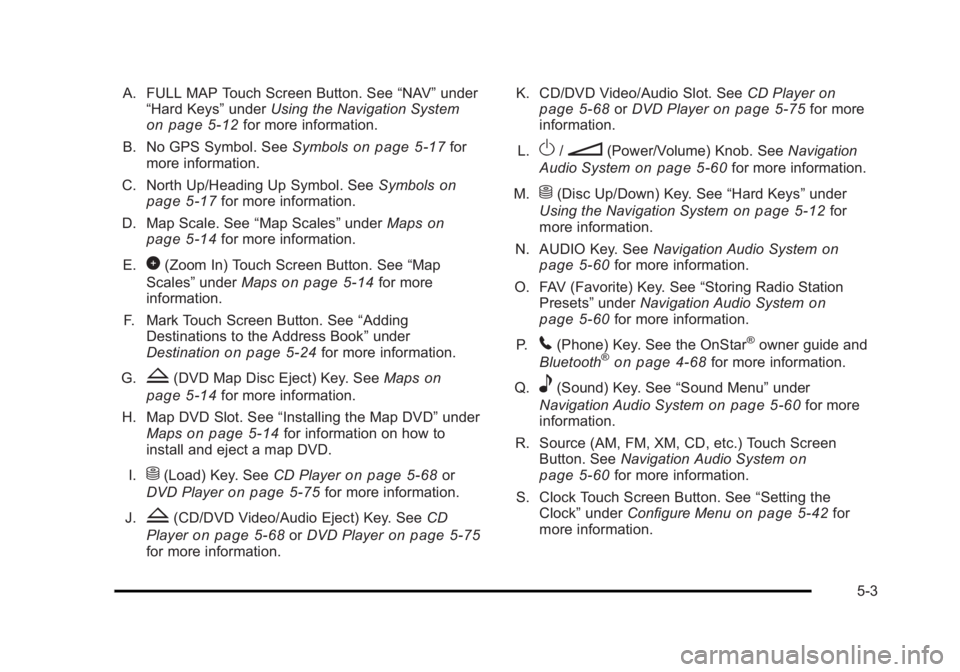
A. FULL MAP Touch Screen Button. See “ NAV ” under
“ Hard Keys ” under Using the Navigation System
on page 5 ‑ 12 for more information.
B. No GPS Symbol. See Symbols on page 5 ‑ 17 for
more information.
C. North Up/Heading Up Symbol. See Symbols
on
page 5 ‑ 17 for more information.
D. Map Scale. See “ Map Scales ” under Maps on
page 5 ‑ 14
for more information.
E.
0 (Zoom In) Touch Screen Button. See “ Map
Scales ” under Maps on page 5 ‑ 14 for more
information.
F. Mark Touch Screen Button. See “ Adding
Destinations to the Address Book ” under
Destination
on page 5 ‑ 24 for more information.
G.
Z (DVD Map Disc Eject) Key. See Maps on
page 5 ‑ 14 for more information.
H. Map DVD Slot. See “ Installing the Map DVD ” under
Maps
on page 5 ‑ 14 for information on how to
install and eject a map DVD.
I.
M (Load) Key. See CD Player on page 5 ‑ 68 or
DVD Player on page 5 ‑ 75 for more information.
J.
Z (CD/DVD Video/Audio Eject) Key. See CD
Player
on page 5 ‑ 68 or DVD Player on page 5 ‑ 75
for more information. K. CD/DVD Video/Audio Slot. See CD Player on
page 5 ‑ 68
or DVD Player on page 5 ‑ 75 for more
information.
L.
O /
n (Power/Volume) Knob. See Navigation
Audio System on page 5 ‑ 60 for more information.
M.
M (Disc Up/Down) Key. See “ Hard Keys ” under
Using the Navigation System on page 5 ‑ 12 for
more information.
N. AUDIO Key. See Navigation Audio System on
page 5 ‑ 60 for more information.
O. FAV (Favorite) Key. See “ Storing Radio Station
Presets ” under Navigation Audio System
on
page 5 ‑ 60 for more information.
P.
5 (Phone) Key. See the OnStar ®
owner guide and
Bluetooth ®
on page 4 ‑ 68 for more information.
Q.
e (Sound) Key. See “ Sound Menu ” under
Navigation Audio System
on page 5 ‑ 60 for more
information.
R. Source (AM, FM, XM, CD, etc.) Touch Screen
Button. See Navigation Audio System
on
page 5 ‑ 60 for more information.
S. Clock Touch Screen Button. See “ Setting the
Clock ” under Configure Menu on page 5 ‑ 42 for
more information.
5-3
Page 306 of 620
Black plate (4,1)Cadillac Escalade/Escalade ESV Owner Manual - 2010
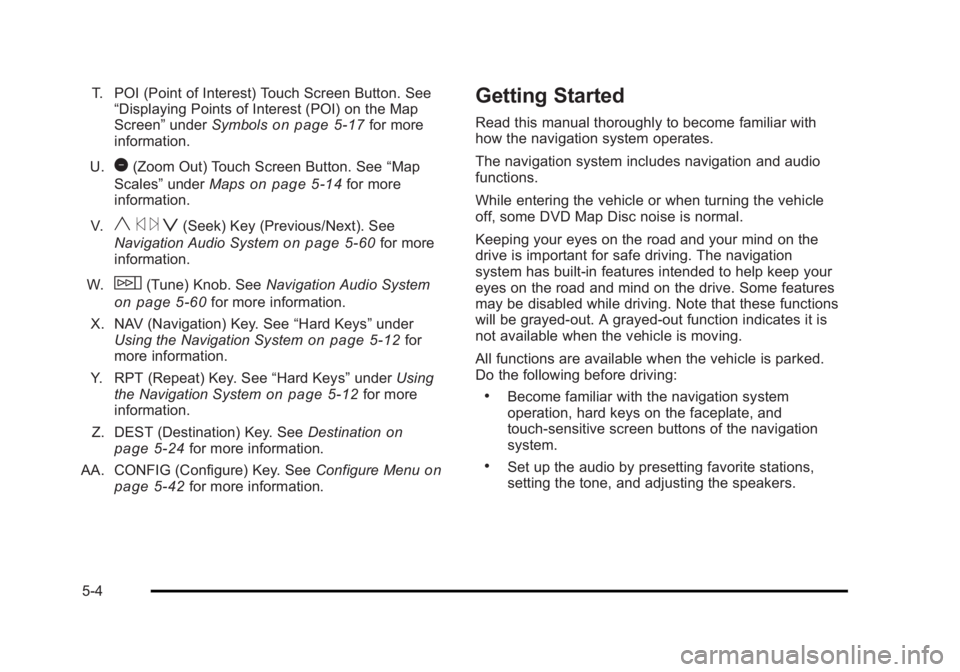
T. POI (Point of Interest) Touch Screen Button. See
“ Displaying Points of Interest (POI) on the Map
Screen ” under Symbols
on page 5 ‑ 17 for more
information.
U.
1 (Zoom Out) Touch Screen Button. See “ Map
Scales ” under Maps
on page 5 ‑ 14 for more
information.
V.
y © ¨ z (Seek) Key (Previous/Next). See
Navigation Audio System on page 5 ‑ 60 for more
information.
W.
w (Tune) Knob. See Navigation Audio System
on page 5 ‑ 60 for more information.
X. NAV (Navigation) Key. See “ Hard Keys ” under
Using the Navigation System
on page 5 ‑ 12 for
more information.
Y. RPT (Repeat) Key. See “ Hard Keys ” under Using
the Navigation System
on page 5 ‑ 12 for more
information.
Z. DEST (Destination) Key. See Destination on
page 5 ‑ 24 for more information.
AA. CONFIG (Configure) Key. See Configure Menu
on
page 5 ‑ 42 for more information. Getting Started Read this manual thoroughly to become familiar with
how the navigation system operates.
The navigation system includes navigation and audio
functions.
While entering the vehicle or when turning the vehicle
off, some DVD Map Disc noise is normal.
Keeping your eyes on the road and your mind on the
drive is important for safe driving. The navigation
system has built-in features intended to help keep your
eyes on the road and mind on the drive. Some features
may be disabled while driving. Note that these functions
will be grayed-out. A grayed-out function indicates it is
not available when the vehicle is moving.
All functions are available when the vehicle is parked.
Do the following before driving: .
Become familiar with the navigation system
operation, hard keys on the faceplate, and
touch-sensitive screen buttons of the navigation
system. .
Set up the audio by presetting favorite stations,
setting the tone, and adjusting the speakers.
5-4
Page 309 of 620

Black plate (7,1)Cadillac Escalade/Escalade ESV Owner Manual - 2010
Language — English/MetricTo change the language of the navigation screens, see
Driver Information Center (DIC) on page 4 ‑ 41 for more
information.
To change the navigation screens from English or
metric, see DIC Operation and Displays
on page 4 ‑ 42
for more information.
Deleting Personal Information This navigation system can record and store personal
information such as names and addresses. Delete this
information when selling your vehicle or returning a
leased vehicle. See “ Edit Address Book — Edit/View ”
under Configure Menu on page 5 ‑ 42 for deleting
information from the address book.
Limit Features While Driving The navigation system may have this feature.
Touch the Limit Features While Driving screen button to
turn the ability to limit functions on and off while driving.
When this screen button is highlighted, the following
functions are limited while driving: .
Music Navigator Scrolling .
Radio Category Scrolling .
Navigation Menu Scrolling and some functions See “ Category ” under Navigation Audio System
on
page 5 ‑ 60
for more information. See “ From Map ” under
Destination on page 5 ‑ 24 for more information.
Some functions will remain limited regardless of the
setting.
Storing Radio Station Presets To set preset radio stations, do the following:
1. Press
O to turn the system on.
2. Press the AUDIO hard key and select the desired
band (AM, FM, or XM (if equipped)).
3. Use the
w (tuning) knob or the SEEK arrows to
tune to the desired station.
4. Press and hold one of the five preset screen
buttons, at the bottom of the screen, until a beep is
heard or if the station displays on the selected
preset button.
5. Repeat the steps for each preset.
See “ Storing Radio Station Presets ” under Navigation
Audio System
on page 5 ‑ 60 for more information.
5-7
Page 314 of 620

Black plate (12,1)Cadillac Escalade/Escalade ESV Owner Manual - 2010
Features and Controls Using the Navigation System This section presents basic information needed to
operate the navigation system.
Use the hard keys located on the navigation system
along with the available touch-sensitive screen buttons
on the navigation screen to operate the system. See
Navigation System Overview on page 5 ‑ 2 for more
information.
Once the vehicle is moving, various functions are
disabled to reduce driver distractions.
Hard Keys The following hard keys are located on the navigation
system:
O /
n (Power/Volume): Press to turn the system
on and off. Turn to increase or decrease the volume to
the audio system.
Press and hold for more than two seconds to turn off
the navigation system, the Rear Seat Entertainment
(RSE), and Rear Seat Audio (RSA). If the vehicle has
not been tuned off, the RSE and the RSA can be turned
back on by pressing this knob and continues play of the
last active source. w (Tune): Turn to go to the next or previous radio
station or disc track or chapter. See Navigation Audio
System on page 5 ‑ 60 , CD Player on page 5 ‑ 68 ,
or DVD Player
on page 5 ‑ 75 for more information.
Z (DVD Map Disc Eject): Press to eject the DVD
map disc. This button is located next to the upper disc
slot. See Maps on page 5 ‑ 14 for more information.
M (Load): Press to load CDs or audio/video DVDs. See
CD Player on page 5 ‑ 68 or DVD Player on page 5 ‑ 75
for more information.
Z (CD/DVD Eject): Press to eject CDs or audio/video
DVDs. This button is located under the load button. See
CD Player on page 5 ‑ 68 or DVD Player on page 5 ‑ 75
for more information.
M (Disc Up/Down): Press the up or down arrows to go
to the next or previous disc.
AUDIO: Press to access the full Audio screen to
change AM, FM, XM ™ Satellite Radio Service (if
equipped), CD/DVD, and auxiliary input. See “ Audio ”
under Navigation Audio System
on page 5 ‑ 60 for more
information.
FAV (Favorite): Press to access the preset stations.
See “ Storing Radio Station Presets ” under Navigation
Audio System on page 5 ‑ 60 for more information.
5-12
Page 315 of 620

Black plate (13,1)Cadillac Escalade/Escalade ESV Owner Manual - 2010
5 (Phone): Press to access calling through OnStar ®
.
See the OnStar ®
owner guide and Bluetooth ®
on
page 4 ‑ 68 for more information.
e (Sound): Press to access the Sound screen to
adjust bass, midrange, treble, and Digital Signal
Processing (DSP). See “ Sound Menu ” under Navigation
Audio System on page 5 ‑ 60 for more information.
DEST (Destination): Press to access the Destination
Entry screen to plan a destination. See Destination on
page 5 ‑ 24 for more information.
CONFIG (Configure Menu): Press to adjust features
for sound, radio, navigation, and the display. See
Configure Menu on page 5 ‑ 42 for more information.
NAV (Navigation): Press to view your vehicle's current
position on the map screen. Each press of this key
cycles through Full Map and the tab that displays the
current audio source (AM, FM, CD, etc.). Full Map
displays the screen in full map view. Selecting the audio
tab splits the screen between the map screen and the
current audio source screen menu. See “ Audio ” under
Navigation Audio System
on page 5 ‑ 60 for more
information.
RPT (Navigation Repeat): Press to repeat the last
voice guidance prompt. y © ¨ z (Seek): Press the seek arrows to seek and
scan radio stations, to seek tracks on a CD, and to seek
chapters on a DVD. See Navigation Audio System on
page 5 ‑ 60
, CD Player on page 5 ‑ 68 , or DVD Player
on page 5 ‑ 75 for more information.
Touch-Sensitive Screen Buttons Touch-sensitive screen buttons are located on the
screen. When a screen button has been selected, a
beep sounds. Screen buttons are highlighted when a
feature is available.
Alpha-Numeric Keyboard Letters of the alphabet, symbols, punctuation, and
numbers, when available, displays on the navigation
screen as an alpha or numeric keyboard. The alpha
keyboard displays when the system requires entry of a
city or street name.
All characters are touch-sensitive screen buttons. Touch
a character to select it.
A-Y (Accent Alphabet): Select to enter letters with
accent symbols. This button may toggle to A-Z.
A-Z (Alphabet): Select to enter letters from the
alphabet. This button may toggle to A-Y.
0-9 (Numbers): Select to enter numbers.
5-13
Page 344 of 620

Black plate (42,1)Cadillac Escalade/Escalade ESV Owner Manual - 2010
Configure Menu
Press the CONFIG (Configure) hard key to adjust
several of the system's features and preferences.
The last selected CONFIG screen is the screen that
displays: Sound, Radio, Nav (navigation), Display,
or Time. Sound Press the CONFIG key to enter the configure menu
options, then press the CONFIG key repeatedly until
Sound is selected or touch the Sound screen button to
make speaker and DSP (Digital Signal Processing)
adjustments. See “ Sound Menu ” under, Navigation
Audio System on page 5 ‑ 60 for more information.
Radio Press the CONFIG key to enter the configure menu
options, then press the CONFIG key repeatedly until
Radio is selected or touch the Radio screen button to
make changes for radio information displayed, preset
pages, XM ™ categories, and Bose ®
AudioPilot ®
. See
“ Radio Menu ” under, Navigation Audio System on
page 5 ‑ 60 for more information.
5-42