2010 BUICK LUCERNE wheel
[x] Cancel search: wheelPage 187 of 474

Rear Window Defogger
The rear window defogger uses a warming grid to
remove fog or frost from the rear window.
<(Rear Defogger):Press to turn the rear window
defogger on or off. An indicator light below the button
comes on to show that the rear window defogger is on.
Be sure to clear as much snow from the rear window as
possible.
The rear window defogger only works when the ignition
is in ON/RUN. The rear window defogger stays on for
about 20 minutes after the button is pressed if the
vehicle is traveling at slower vehicle speeds. At higher
vehicle speeds the rear window defogger may stay on
continuously. If turned on again, the defogger only runs
for about 10 minutes before turning off. The defogger
can be turned off by pressing the button again, by
turning the ignition to ACC/ACCESSORY or ON/RUN,
or by turning off the engine.
The heated outside rearview mirrors will heat to help
clear fog or frost from the surface of the mirror when the
rear window defogger is on. See Outside Heated
Mirrors
on page 3‑36for more information. Notice:
Do not use a razor blade or sharp object to
clear the inside rear window. Do not adhere
anything to the defogger grid lines in the rear glass.
These actions may damage the rear defogger.
Repairs would not be covered by your warranty.
Outlet Adjustment
Use the levers, located in the middle of the front
outlets, to change the direction of the airflow. Use the
thumbwheel located between the outlets to turn them on
and off.
If the vehicle has rear seat outlets, adjust the direction
of the airflow using the lever in the center of each outlet.
Operation Tips
.Clear away any ice, snow, or leaves from the air
inlets at the base of the windshield that could block
the flow of air into the vehicle.
.Use of non-GM approved hood deflectors can
adversely affect the performance of the system.
.Keep the path under the front seats clear of
objects to help circulate the air inside the vehicle
better.
4-27
Page 198 of 474
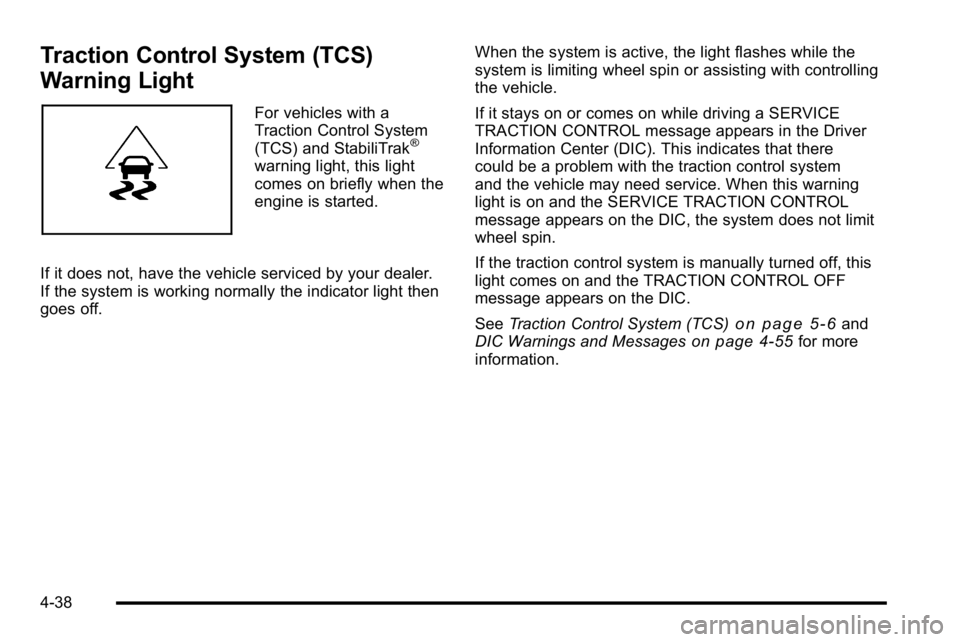
Traction Control System (TCS)
Warning Light
For vehicles with a
Traction Control System
(TCS) and StabiliTrak
®
warning light, this light
comes on briefly when the
engine is started.
If it does not, have the vehicle serviced by your dealer.
If the system is working normally the indicator light then
goes off. When the system is active, the light flashes while the
system is limiting wheel spin or assisting with controlling
the vehicle.
If it stays on or comes on while driving a SERVICE
TRACTION CONTROL message appears in the Driver
Information Center (DIC). This indicates that there
could be a problem with the traction control system
and the vehicle may need service. When this warning
light is on and the SERVICE TRACTION CONTROL
message appears on the DIC, the system does not limit
wheel spin.
If the traction control system is manually turned off, this
light comes on and the TRACTION CONTROL OFF
message appears on the DIC.
See
Traction Control System (TCS)
on page 5‑6and
DIC Warnings and Messageson page 4‑55for more
information.
4-38
Page 231 of 474

EASY EXIT RECALL
If your vehicle has this feature, it allows you to select
your preference for the automatic easy exit seat feature.
SeeMemory Seat and Mirrors
on page 2‑7for more
information.
Press the customization button until EASY EXIT
RECALL appears on the DIC display. Press the set/
reset button once to access the settings for this feature.
Then press the menu up/down button to scroll through
the following settings:
DOOR BUTTON ONLY: No automatic seat exit recall
will occur. The recall will only occur after pressing the
easy exit seat button.
BUTTON AND KEY OUT (default): If the features are
enabled through the EASY EXIT SETUP menu, the
driver's seat will move back, and if the vehicle has the
power tilt wheel and telescopic steering feature, the
power steering column will move up and forward when
the key is removed from the ignition or after pressing
the easy exit seat button. The automatic easy exit seat
movement will only occur one time after the key is
removed from the ignition. If the automatic movement
has already occurred, and you put the key back in the
ignition and remove it again, the seat and steering
column will stay in the original exit position, unless a
memory recall took place prior to removing the key
again. NO CHANGE:
No change will be made to this feature.
The current setting will remain.
To select a setting, press the set/reset button while the
desired setting is displayed on the DIC.
EASY EXIT SETUP
If your vehicle has this feature, it allows you to select
which areas will recall with the automatic easy exit
seat feature. It also allows you to turn off the automatic
easy exit feature. See Memory Seat and Mirrors
on
page 2‑7and “EASY EXIT RECALL” earlier for more
information.
Press the customization button until EASY EXIT SETUP
appears on the DIC display. Press the set/reset button
once to access the settings for this feature. Then press
the menu up/down button to scroll through the following
settings:
OFF: No automatic seat exit will recall.
SEAT ONLY: The driver's seat will recall.
TILT ONLY: The steering wheel tilt feature will recall.
4-71
Page 232 of 474

TELESCOPE ONLY:The steering column telescope
feature will recall.
SEAT/TILT: The driver's seat and the steering wheel tilt
feature will recall.
SEAT/TELESCOPE: The driver's seat and the steering
column telescope feature will recall.
TILT/TELESCOPE: The steering wheel tilt and steering
column telescope features will recall.
ALL (default): The driver's seat and the steering wheel
tilt and steering column telescope features will recall,
if your vehicle has this option.
NO CHANGE: No change will be made to this feature.
The current setting will remain.
To select a setting, press the set/reset button while the
desired setting is displayed on the DIC.MEMORY SEAT RECALL
If your vehicle has this feature, it allows you to select
your preference for the remote memory seat recall
feature. See Memory Seat and Mirrors
on page 2‑7for more information.
Press the customization button until MEMORY SEAT
RECALL appears on the DIC display. Press the set/
reset button once to access the settings for this feature.
Then press the customization button to scroll through
the following settings:
OFF (default): No remote memory seat recall will
occur.
ON: The driver's seat and outside mirrors will
automatically move to the stored driving position when
the unlock button on the Remote Keyless Entry (RKE)
transmitter is pressed. The steering column will also
move on vehicles with the power tilt and telescopic
steering feature. See Power Tilt Wheel and Telescopic
Steering Column
on page 4‑4for more information.
See “Relearn Remote Key” underDIC Operation and
Displays
on page 4‑47for more information on
matching transmitters to driver ID numbers.
NO CHANGE: No change will be made to this feature.
The current setting will remain.
To select a setting, press the set/reset button while the
desired setting is displayed on the DIC.
4-72
Page 239 of 474

Storing a Radio Station as a Favorite
Drivers are encouraged to set up their radio station
favorites while the vehicle is in P (Park). Tune to
favorite stations using the presets, favorites button, and
steering wheel controls if the vehicle has this feature.
SeeDefensive Driving on page 5‑2.
If the vehicle has XM and has a FAV button, a
maximum of 36 stations can be programmed as
favorites using the six pushbuttons positioned below the
radio station frequency tabs and by using the radio
favorites page button (FAV button).
FAV (Favorites): Press to go through up to six pages
of favorites, each having six favorite stations available
per page. Each page of favorites can contain any
combination of AM, FM, or XM stations. To store a
station as a favorite:
1. Tune to the desired radio station.
2. Press the FAV button to display the page where you want the station stored.
3. Press and hold one of the six pushbuttons until a beep sounds. When that pushbutton is pressed
and released, the station that was set, returns.
4. Repeat the steps for each pushbutton radio station you want stored as a favorite. The number of favorites pages can be setup using the
MENU button. To setup the number of favorites pages:
1. Press the MENU button to display the radio setup menu.
2. Press the pushbutton located below the FAV 1-6 tab.
3. Select the desired number of favorites pages by pressing the pushbutton located below the
displayed page numbers.
4. Press the FAV button, or let the menu time out, to return to the original main radio screen showing
the radio station frequency tabs and to begin the
process of programming favorites for the chosen
amount of numbered pages.
Setting the Tone (Bass/Midrange/Treble)
BASS/MID/TREB (Bass, Midrange, or Treble): The
radio may display some or all tones, such as BASS,
MID, and TREB. To adjust the tone settings, press the
fknob until the tone control tabs display. Press the
pushbutton positioned under the desired tab, then turn
the
fknob clockwise or counterclockwise to adjust the
highlighted setting. The highlighted setting can also be
adjusted by pressing either SEEK arrow,
\FWD,
or
sREV button until the desired levels are obtained.
If a station's frequency is weak, or has static, decrease
the treble.
4-79
Page 254 of 474

Audio System
When using the in‐vehicle Bluetooth system, sound
comes through the vehicle's front audio system
speakers and overrides the audio system. Use the
audio system volume knob, during a call, to change the
volume level. The adjusted volume level remains in
memory for later calls. To prevent missed calls, a
minimum volume level is used if the volume is turned
down too low.
Bluetooth Controls
Use the buttons located on the steering wheel to
operate the in‐vehicle Bluetooth system. SeeAudio
Steering Wheel Controls
on page 4‑105for more
information.
b g(Push To Talk) : Press to answer incoming calls,
to confirm system information, and to start speech
recognition.
c x(Phone On Hook): Press to end a call, reject a
call, or to cancel an operation.
Pairing
A Bluetooth enabled cell phone must be paired to the
in‐vehicle Bluetooth system first and then connected
to the vehicle before it can be used. See the cell
phone manufacturers user guide for Bluetooth functions
before pairing the cell phone. If a Bluetooth phone is
not connected, calls will be made using OnStar
®
Hands‐Free Calling, if available. Refer to the OnStar
owner's guide for more information.
Pairing Information:
.Up to five cell phones can be paired to the
in‐vehicle Bluetooth system.
.The pairing process is disabled when the vehicle is
moving.
.The in‐vehicle Bluetooth system automatically links
with the first available paired cell phone in the
order the phone was paired.
.Only one paired cell phone can be connected to
the in‐vehicle Bluetooth system at a time.
.Pairing should only need to be completed once,
unless changes to the pairing information have
been made or the phone is deleted.
To link to a different paired phone, see Linking to a
Different Phone later in this section.
4-94
Page 265 of 474

Audio Steering Wheel Controls
Vehicles with audio
steering wheel controls
could differ depending on
the vehicle's options.
Some audio controls can
be adjusted at the
steering wheel.
w(Next):Press to go to the next radio station stored
as a favorite, or the next track if a CD/DVD is playing.
c x(Previous/End): Press to go to the previous
radio station stored as a favorite, the next track if a
CD/DVD is playing, to reject an incoming call, or end a
current call.
b g(Mute/Push to Talk): Press to silence the vehicle
speakers only. Press again to turn the sound on.
For vehicles with Bluetooth or OnStar
®systems press
and hold for longer than two seconds to interact with
those systems. See Bluetooth
®on page 4‑93or the
OnStar Owner's Guide for more information.
SRCE (Source): Press to switch between the radio
(AM, FM, XM), CD, and for vehicles with, DVD, front
auxiliary, and rear auxiliary.
For vehicles with the navigation system, press and hold
this button for longer than two seconds to initiate voice
recognition. See “Voice Recognition” in the Navigation
System manual for more information.
+
e−e(Volume): Press to increase or to decrease
the radio volume.
¨(Seek): Press to go to the next radio station while in
AM, FM, or XM™. Press
¨to go to the next track or
chapter while sourced to the CD or DVD slot. Press the
¨if multiple discs are loaded to go to the next disc
while sourced to a CD player.
4-105
Page 272 of 474

Avoid needless heavy braking. Some people drive in
spurts, heavy acceleration followed by heavy braking,
rather than keeping pace with traffic. This is a mistake.
The brakes might not have time to cool between hard
stops. The brakes will wear out much faster with a lot
of heavy braking. Keeping pace with the traffic and
allowing realistic following distances eliminates a lot of
unnecessary braking. That means better braking and
longer brake life.
If the engine ever stops while the vehicle is being
driven, brake normally but do not pump the brakes.
If the brakes are pumped, the pedal could get harder to
push down. If the engine stops, there will still be some
power brake assist but it will be used when the brake is
applied. Once the power assist is used up, it can take
longer to stop and the brake pedal will be harder
to push.
Adding non‐dealer/non‐retailer accessories can
affect vehicle performance. SeeAccessories and
Modifications on page 6‑3.Antilock Brake System (ABS)
This vehicle has the Antilock Brake System (ABS), an
advanced electronic braking system that helps prevent
a braking skid.
When the engine is started and the vehicle begins to
drive away, ABS checks itself. A momentary motor or
clicking noise might be heard while this test is going on,
and it might even be noticed that the brake pedal
moves a little. This is normal.
If there is a problem with
ABS, this warning light
stays on. See Antilock
Brake System (ABS)
Warning Light
on
page 4‑37.
Let us say the road is wet and you are driving safely.
Suddenly, an animal jumps out in front of you. You slam
on the brakes and continue braking. Here is what
happens with ABS:
A computer senses that the wheels are slowing down.
If one of the wheels is about to stop rolling, the
computer will separately work the brakes at each front
wheel and at both rear wheels.
5-4