2010 BMW X5M M button
[x] Cancel search: M buttonPage 127 of 300

Controls
125Reference
At a glance
Driving tips
Communications
Navigation
Entertainment
Mobility
Before using the adaptive fixing system,
fold up and lock the rear seat backrest;
otherwise, the cargo could be thrown into the
vehicle interior in an accident.<
1Brackets
2Telescopic rail
3Notch in the cargo bay rail
Mounting brackets
The two brackets are connected with a tele-
scopic rail.
1.Insert the brackets at the respective notch
in the rail on the cargo bay floor.
2.Press down the brackets to push them into
the desired position.
3.Check the firm seating of the brackets.
They must be clearly heard to engage.
Do not lay cargo on the brackets, as oth-
erwise they could be unlocked.<
Dividing up cargo bay
You can position the cargo as follows:
>between the rear seat backrest and the
telescopic rail
>between the telescopic rail and the retain-
ing strapPositioning cargo between telescopic rail and
retaining strap:
1.Lay the cargo on the telescopic rail. Press
the button, arrow1, and route the retaining
strap around the cargo, arrow2.
2.Hook the retaining strap into the mount3
on the telescopic rail.
3.Press the button of the bracket, arrow1.
The retaining strap is tensioned.
You can also hook both retaining straps
into each other.<
When you are finished using the adaptive fixing
system, unhook the retaining strap and guide it
back into the bracket in order to prevent dam-
age and injury.
Then slide the fastening system toward the
front in order to permit the best possible use of
the cargo bay.
Removing brackets
Press down the brackets, slide them up to the
notches of the rails and remove them.
Depending on your vehicle's equipment pack-
age, you can store the adaptive fixing system
under the floor panel in the cargo bay.
Ski bag*
The ski bag is designed for safe, clean transport
of up to 4 pairs of standard skis or up to 2 snow-
boards.
With the ski bag you can stow skis with a length
of up to 6.9 ft/2.10 m. When skis of 6.9 ft/
2.10 m in length are loaded, the ski bag will tend
to contract, reducing its overall capacity.
Before loading the ski bag, fold in the dis-
play screen of the DVD system in the
rear
*, as otherwise the display screen could be
damaged.<
ba8_e70ag.book Seite 125 Freitag, 5. Juni 2009 11:42 11
Page 128 of 300

Practical interior accessories
126
Loading
1.Fold down the center armrest, press the
button and open the cover.
2.Press the button again; the cover in the
cargo bay opens. If you press the button
firmly the first time, this cover also opens.
3.Extend the ski bag between the front seats
and fill it. The zipper facilitates access to the
stowed items and drying of the ski bag.
4.BMW X5: insert the latch plate of the ski bag
retaining strap into the center safety belt
buckle that is marked CENTER.
BMW X6: attach the hook of the ski bag
retaining strap to the eyelet on the rear seat
backrest.
Only stow clean skis in the ski bag. Wrap sharp
edges to prevent damage.
Securing cargo
After loading, secure the ski bag and its con-
tents. Tighten the retaining strap on the ten-
sioning buckle for this purpose.
Secure the ski bag in this way. If you fail to
do so, it could endanger occupants dur-
ing braking or evasive maneuvers.<
To store the ski bag, perform the above steps in
reverse order.
Removing ski bag
The ski bag can be completely removed, e.g. for
faster drying or to allow you to put it to other
uses.
1.Pull the handle toward the front, arrow1.
2.Take out the ski bag upward, arrow2.
3.Close the cover in the cargo bay.
Details on various inserts are available
from your BMW Sports Activity Vehicle
Center.<
ba8_e70ag.book Seite 126 Freitag, 5. Juni 2009 11:42 11
Page 142 of 300

Navigation system
140
Navigation system
General information
With the help of satellites, the navigation sys-
tem is able to ascertain the precise position of
the vehicle and guide you reliably to any desti-
nation you enter.
Navigation data are stored in the vehicle and
can be updated.
Enter data only with the vehicle station-
ary, and always give priority to the appli-
cable traffic regulations in the event of any con-
tradiction between traffic and road conditions
and the instructions issued by the navigation
system. Failure to take to this precaution can
place you in violation of the law and put vehicle
occupants and other road users in danger.<
Updating the navigation data
General information
Navigation data and an activation code can be
obtained from your BMW Sports Activity Vehi-
cle Center.
Updating the data can take several hours,
depending on the volume of data.
>The data are updated as you drive.
>The updating process continues automati-
cally when you resume driving.
>All functions remain available as you drive.
>Data are stored on the hard drive or in the
internal memory.
>After the updating process is complete, the
system restarts.
>The medium with the navigation data can
be removed after the update.
Updating the navigation data
Inserting navigation DVD
1.Insert navigation DVDs into the DVD player
with the printed side up.
2.Follow the instructions on the Control Dis-
play.
3.Enter the activation code of the navigation
DVDs and switch DVDs if necessary.
Removing navigation DVD
1.Press the button1.
The DVD emerges slightly from the drive.
2.Remove the DVD.
If the DVD is not ejected from the drive, it is pos-
sible that it is blocked. In this case a message is
also shown on the Control Display.
Displaying information on the version
1."Navigation"
2.Open "Options".
3."Navigation system version":
Information on the data version is displayed.
*
ba8_e70ag.book Seite 140 Freitag, 5. Juni 2009 11:42 11
Page 143 of 300

Navigation
Driving tips
141Reference
At a glance
Controls
Communications
Entertainment
Mobility
Destination entry
In entering your destination you can select from
among the following options:
>Entering a destination manually, see below
>Selecting destination from address book,
refer to page143
>Last destinations, refer to page144
>Special destinations, refer to page144
>Entering a destination on the map, refer to
page146
>Selecting home address, refer to page144
>Entering destination via voice*, refer to
page147
You can also store a navigation destination on
the programmable memory buttons, refer to
page20.
Enter data only with the vehicle station-
ary, and always give priority to the appli-
cable traffic regulations in the event of any con-
tradiction between traffic and road conditions
and the instructions issued by the navigation
system. If you do not observe this precaution,
you can endanger the vehicle occupants and
other road users.<
Entering a destination
manually
The system's word-matching principle makes it
easier for you to enter the names of streets or
towns, refer to page149. This allows you to
enter different spellings and completes your
entry automatically, so that stored names can
be called up quickly.
1.Press the MENUbutton.
2."Navigation"3."Enter address"
The system also supports you with the follow-
ing features:
>If you do not enter a street, the system will
guide you to the downtown a r e a o f a t o w n o r
city.
>You can skip the entry of country and town/
city if the current entries should be retained
for your new destination.
Entering a state/province
1."Navigation"
2."Enter address"
3.Select "State/Province" or the displayed
state/province.
Entering a town/city
1.Select "Town/City/Postal Code" or the dis-
played town/city, or select letters.
ba8_e70ag.book Seite 141 Freitag, 5. Juni 2009 11:42 11
Page 149 of 300

Navigation
Driving tips
147Reference
At a glance
Controls
Communications
Entertainment
Mobility
Interactive map
In the interactive map, the scale can be adjusted
and the visible map section can be shifted. In
addition, pressing the controller makes further
functions available:
>Select the symbol: "Start guidance".
>"Exit interactive map"
>Map display
>"Display destination"
The map section around the destination
is displayed.
>"Display current location"
The map section around your current
location is displayed.
>"Find points of interest", refer to
page144.
Entering destination via
voice*
General information
You can enter a desired destination with the
voice activation system. When entering the
destination, it is possible to change between
voice command and iDrive at any time. Reacti-
vate the voice command system for this pur-
pose if necessary.
You can use {Voice commands} to have
the possible commands read aloud to
you.<
Speaking the entry aloud
>Countries, towns/cities, streets, and inter-
sections can be either spoken aloud as an
entire words or spelled in the system lan-
guage, refer to page22.
>Town/city, street, and house number can
also be spoken aloud in one sentence.
>Spell the entry if the language of the area is
different from the system language.
>Speak the letters smoothly and avoid
excessive emphasis and pauses.
Entering an address
1.Press the button on the steering wheel.
3.Wait for the system prompt.
4.Say the desired address in the suggested
form.
5.Continue entering as prompted by the sys-
tem.
6.If necessary, say the parts of the address
individually, e.g. town/city.
Entering a town/city
The town/city can be spelled or entered as an
entire word
*.
The entry possibilities depend on the par-
ticular navigation data as well as the
country and language settings.<
2.Wait for the system prompt for the town/
city.
3.Say the name of the town/city or if neces-
sary, spell at least the first three letters.
Depending on the entry, up to 20 towns/cit-
ies are suggested.
2.{Enter address}
1.{City} or {Spell city}.
4.Select city/town:
>Choose selected city/town: {Yes}
>Select other city/town: {New entry}
>Select an entry, e.g. {Entry 2}
>Spell the entry: {Spell city}
ba8_e70ag.book Seite 147 Freitag, 5. Juni 2009 11:42 11
Page 154 of 300

Destination guidance
152
Destination guidance via
voice instructions
Switching voice instructions on/off
Voice instructions can be switched on or off
during destination guidance.
1."Navigation"
2."Map"
3. Select the symbol.
For rapid access, the feature can be stored on a
programmable memory button, refer to
page20.
Repeating a voice instruction
1."Navigation"
2."Map"
3. Highlight the symbol.
4.Press the controller twice.
Adjusting the volume of voice
instructions*
The volume can be adjusted only while a voice
instruction is being issued.
1.Repeat the last voice instruction, if neces-
sary.
2.Turn the knob during the voice instruction
to select the desired volume.
The setting is stored for the remote control cur-
rently in use.
Map display
Displaying map view
You can have your current position displayed on
a map. After starting the destination guidance,
the planned route is shown on the map.
1."Navigation"
2."Map"
The following functions are directly available in
the map display:
Information in the map display:
>Time, entertainment source, sound output,
map orientation
>Distance from destination, estimated time
of arrival, if destination guidance is active.
>Any traffic obstructions are highlighted in
color.
SymbolMeaning
Voice instructions switched on
Voice instructions switched off
SymbolFunction
Displaying the destination and
starting/terminating destination
guidance
Switching voice instructions on/off
Changing route criteria or select-
ing route alternatives
Special destinations
Displaying traffic bulletins
Interactive map
Map display
Changing scale
ba8_e70ag.book Seite 152 Freitag, 5. Juni 2009 11:42 11
Page 162 of 300

On/off and tone
160
On/off and tone
The following audio and video sources share
the same control elements and adjustments:
>Radio
>CD/DVD player
>CD/DVD changer
*
>Video
>External devices, e.g. MP3 player
Controls
The audio and video sources can be controlled
using:
>Buttons near the CD/DVD player
>iDrive
>Buttons on the steering wheel, refer to
page11
>Programmable memory buttons, refer to
page20
>Voice activation system
Buttons near the CD/DVD player
1Sound output for entertainment on/off,
volume
>Press: switch on/off
When you switch on the unit, the last set
radio station or track is played.
>Turn: adjust volume
2 Ejecting CD/DVD
3CD/DVD drive4 Station scan/track search
>Change the radio station
>Select track for CD/DVD player and CD/
DVD changer and certain multimedia
devices
5MODE: change the audio and video
sources
6FM/AM: change the radio station wave-
band
Switching on/off
To switch the Entertainment sound output on
and off:
Press button1 next to the CD/DVD player.
This symbol on the Control Display indicates
that sound output is switched off.
The sound output is available for approx.
20 minutes after the ignition was switched off.
Switch on the sound output again for this pur-
pose.
Adjusting volume
Turn button1 next to the CD/DVD player until
the desired volume is obtained.
You can also adjust the volume with buttons on
the steering wheel, refer to page11.
The setting is stored for the remote control cur-
rently in use.
Tone control
You can alter various tone settings, e.g. treble
and bass or the speed-dependent volume
increase.
The tone settings are set for all audio sources at
once.
The settings are stored for the remote control
currently in use.
ba8_e70ag.book Seite 160 Freitag, 5. Juni 2009 11:42 11
Page 165 of 300
Navigation
Entertainment
Driving tips
163Reference
At a glance
Controls
Communications
Mobility
Radio
Your radio is designed for reception of the fol-
lowing stations:
>FM and AM
>HD Radio
*
>Weather Radio*
>satellite radio*
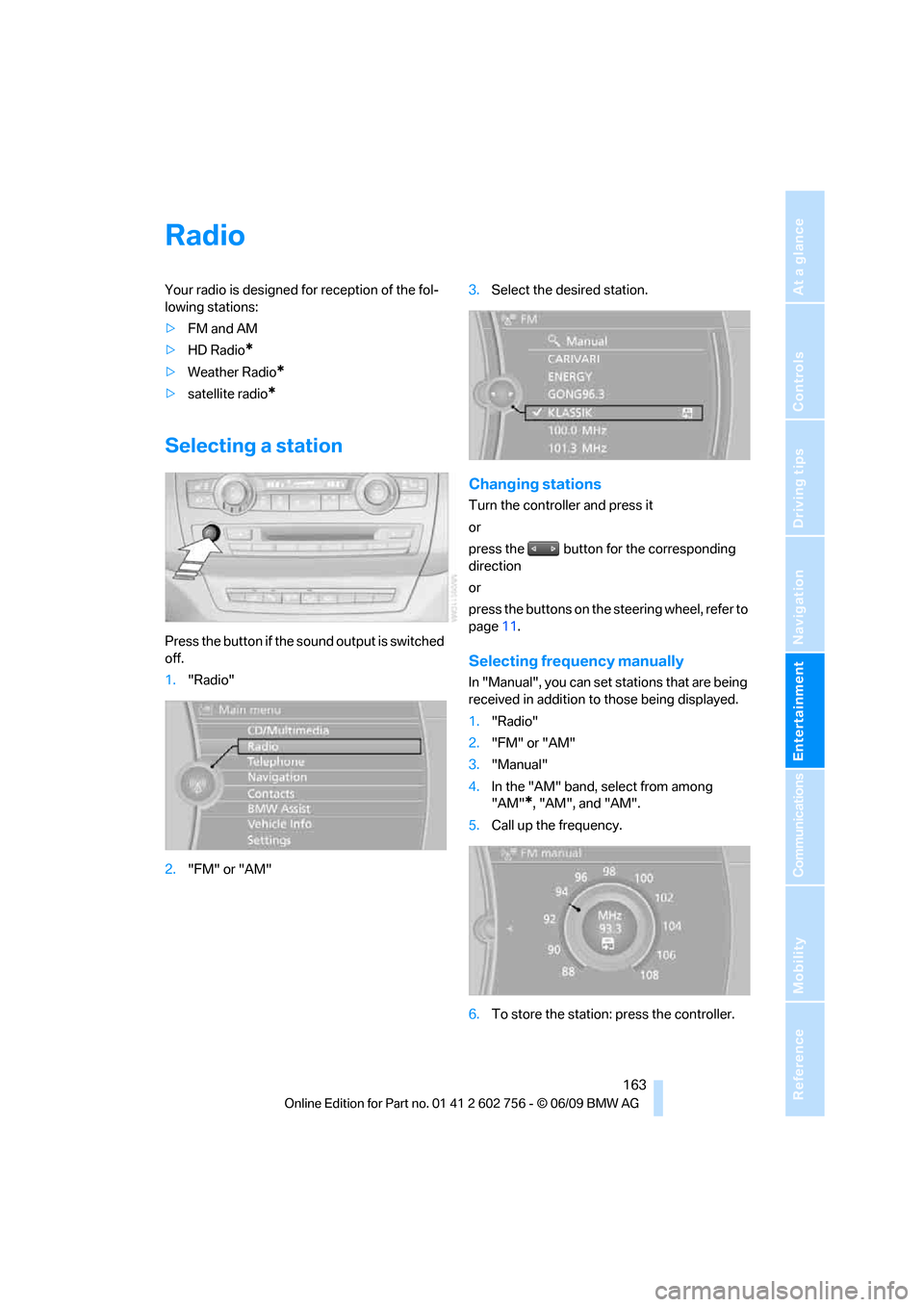
Selecting a station
Press the button if the sound output is switched
off.
1."Radio"
2."FM" or "AM"3.Select the desired station.
Changing stations
Turn the controller and press it
or
press the button for the corresponding
direction
or
press the buttons on the steering wheel, refer to
page11.
Selecting frequency manually
In "Manual", you can set stations that are being
received in addition to those being displayed.
1."Radio"
2."FM" or "AM"
3."Manual"
4.In the "AM" band, select from among
"AM"
*, "AM", and "AM".
5.Call up the frequency.
6.To store the station: press the controller.
ba8_e70ag.book Seite 163 Freitag, 5. Juni 2009 11:42 11