2010 BMW X5 range
[x] Cancel search: rangePage 145 of 300

Navigation
Driving tips
143Reference
At a glance
Controls
Communications
Entertainment
Mobility
3.Change to the list of house numbers.
4.Select a house number or range of house
numbers.
Selection after destination entry
>"Accept destination"
Destination guidance starts immediately.
>"Route preference"
refer to page150.
>"Points of Interest at loc."
refer to page144.
If a new town/city is selected during destination
guidance, the current destination guidance is
terminated.
Address book
To create contacts, refer to page213.
Selecting a destination from the
address book
1."Navigation"
2."Address book"
Contacts with addresses are displayed if
these addresses have been checked as
destinations.
If the contacts with addresses are not dis-
played by the mobile phone, then they must
first be checked as destinations, refer to
page214.
3.Select a contact from the list or, if neces-
sary, using "A-Z search".
4.If necessary, select "Business address" or
"Home address".
Storing a destination in the address
book
Store the destination in the address book after
entering the destination.
1.Open "Options".
2."Store as new contact" or "Add to existing
contact".
3.Select an existing contact, if available.
4.Select "Business address" or "Home
address".
5.Enter "Last name" and, if necessary, "First
name".
6."Store in vehicle"
Storing the position
Your current position can be stored in the
address book.
1."Navigation"
2.Open "Options".
3."Store position as contact" or "Add position
to contact".
4.Depending on the selection, select an exist-
ing contact from the list or the type of
address and enter the last and first name.
5."Store in vehicle"
ba8_e70ag.book Seite 143 Freitag, 5. Juni 2009 11:42 11
Page 153 of 300

Navigation
Driving tips
151Reference
At a glance
Controls
Communications
Entertainment
Mobility
The setting applies to the current route and to
the planning of future routes.
Dynamic destination guidance
"Dynamic guidance" is switched on:
The route is automatically changed in the event
of traffic obstructions. The system does not
point out traffic obstructions along the original
route.
Depending on the type of road and the nature
and length of the traffic obstruction, the route
can also be calculated so that you travel
through the traffic obstruction.
1."Navigation"
2.Open "Options".
3."Dynamic guidance"
If the "Avoid highways", "Avoid toll roads"
or "Avoid ferries" route criteria are
selected, route calculation may take consider-
ably longer.<
Route
General information
Depending on the equipment in your vehicle,
various views of the route are available during
destination guidance.
>Map display
>Arrow display
>Display of the streets and towns/cities on
the route
Displaying a list of the streets or towns/
cities on the route
When destination guidance is started, a list of
the streets and towns/cities on the route is dis-
played. The driving distances and traffic bulle-
tins are displayed for each route section.
>Display a list of the streets and towns/cities
on the route.
>Display the traffic bulletins and the driving
distance for each route section.1."Navigation"
2."Route information"
3.Highlight a section.
The section is displayed in the preview map.
Bypassing a section of the route
During destination guidance, you can revise the
navigation system's route recommendations to
avoid particular stretches of road. Enter the
number of miles/kilometers that you want to
travel before returning to the original route.
1."Navigation"
2."Route information"
3."New route for:"
4.Turn the controller: enter the desired mile-
age.
5.Press the controller.
If the route section should no longer be
bypassed: "Remove blocking".
Gas station recommendations
The vehicle calculates the range and recom-
mends several gas stations along the route.
1."Navigation"
2."Route information"
3."Recommended refuel"
A list of filling stations is displayed.
4.Select a gas station.
5.Select the symbol to start destination
guidance.
ba8_e70ag.book Seite 151 Freitag, 5. Juni 2009 11:42 11
Page 155 of 300

Navigation
Driving tips
153Reference
At a glance
Controls
Communications
Entertainment
Mobility
Viewing the map
1.Select the symbol.
2.Select a setting:
>"View facing north"
>"View in dir. of travel"
>"Perspective view"
>"Arrow display"
3.Press the controller.
Changing map scale
Select interactive map.
>Moving map: move the controller in the cor-
responding direction.
>Shifting map diagonally: move the control-
ler in the corresponding direction and turn
the controller.
Changing scale
1.Select the symbol.
2.Turn the controller to change the scale.
Automatic scaling of the map
In the map display facing north, turn the control-
ler in any direction until AUTO is displayed as
the map scale.
The map shows the entire range from your loca-
tion to the destination.
Settings for the map display
The map appears on the Control Display.
1.Open "Options".
2."Settings"
3.Set the optimum map view.
>"Day/night mode"
Select according to lighting conditions
and make adjustments. This setting is
disregarded when the traffic info map is
activated.
>"Satellite images"
Satellite images
* are displayed,
depending on availability and resolution.
>"Perspective view in 3D"
Shows a three-dimensional depiction. Prominent landmarks contained in the
navigation data are displayed on the map
in 3D.
>"Traffic Info map"
Split screen settings
The map settings for the split screen can be
created separately from the main screen.
1.Open "Options".
2."Split screen"
3.Select the settings:
>"Arrow display"
>"View facing north"
>"View in dir. of travel"
>"Perspective view"
>"Exit ramp view"
Changing scale
1.Move the controller to the right until the
split screen is selected.
2.Turn the controller.
Traffic information*
You can display the traffic bulletins from radio
stations that broadcast the TMC (Traffic Mes-
sage Channel) of a traffic information service.
This information from the traffic information
service is continuously updated on the basis of
measurement data from traffic control centers
and information on traffic congestion.
During destination guidance, traffic bulletins
that are relevant to areas along the route are
automatically displayed and taken into account
in the route planning. You can open all traffic
bulletins manually using iDrive.
The traffic bulletins are shown in the map dis-
play.
Real Time Traffic Information End-User
Provisions
Certain BMW models equipped with navigation
have the capability to display real-time traffic
information. If your system has this capability
ba8_e70ag.book Seite 153 Freitag, 5. Juni 2009 11:42 11
Page 163 of 300

Navigation
Entertainment
Driving tips
161Reference
At a glance
Controls
Communications
Mobility
Treble, bass, balance, fader
>"Balance": left/right volume distribution
>"Fader": front/rear volume distribution
Adjustments
1."CD/Multimedia", "Radio" or "Settings".
2."Tone"
3.Select the desired tone setting.
4.To adjust: turn the controller.
5.To store: press the controller.
Equalizer*
You can set individual sound frequency ranges.
1."CD/Multimedia", "Radio" or "Settings".
2."Tone"
3."Equalizer"4.Select the desired setting.
5.To adjust: turn the controller.
6.To store: press the controller.
Multichannel playback, surround*
You can choose between stereo and multichan-
nel playback, surround.
1."CD/Multimedia", "Radio" or "Settings".
2."Tone"
3."Surround"
Multichannel playback, surround, is simulated
when playing back an audio track in stereo.
Surround is automatically activated or deacti-
vated, depending on the audio track selected.
Volume
>"Speed volume": adaptation of the volume
as a function of vehicle speed
>"PDC"
*: volume of the PDC signal tone in
comparison to entertainment sound output
>"Gong": volume of the signal tone, e.g. for
the safety belt reminder, in comparison to
entertainment sound output
ba8_e70ag.book Seite 161 Freitag, 5. Juni 2009 11:42 11
Page 166 of 300

Radio
164
Storing stations
Using iDrive
1."Radio"
2."FM" or "AM"
3.Select the desired station.
4.Press the controller again.
5.Select the desired memory location.
The station is stored.
The stations are stored for the remote control
currently in use.
Using programmable memory buttons
You can store a station on the programmable
memory buttons, refer to page20.
1.Select a station.
2. ... Press the desired button
for a longer period.
Radio Data System RDS*
In the FM frequency range, additional informa-
tion is transmitted via RDS. If the reception con-
ditions are good, the station names are shown
on the Control Display. If the reception is weak
or disrupted, it can take some time before the
station names are displayed.
Switching RDS on/off
1."Radio"
2."FM"
3.Open "Options".4."RDS"
The setting is stored for the remote control cur-
rently in use.
HD Radio*
Many radio stations transmit analog and digital
signals. If a digital radio network is available,
these stations can be received digitally and thus
with improved sound quality.
License conditions
HD Radio™ technology is manufactured under
U.S. and Foreign Patents licensed from iBiquity
Digital Corp. HD Radio™ and the HD and HD
Radio logos are proprietary trademarks of iBiq-
uity Digital Corp.
Activating/deactivating digital radio
reception
1."Radio"
2."FM" or "AM"
3.Open "Options".
4."HD Radio"
The setting is stored for the remote control cur-
rently in use.
This symbol is displayed when a station is
being received digitally.
In areas in which the station is not continuously
received in digital mode, playback switches
between analog and digital reception. Any time
shift between these two broadcasts can lead to
repetitions or interruptions in the output. In this
case, switch off digital radio reception.
ba8_e70ag.book Seite 164 Freitag, 5. Juni 2009 11:42 11
Page 211 of 300

209
Entertainment
Reference
At a glance
Controls
Driving tips Communications
Navigation
Mobility
1.Select the message that contains the
desired number.
2. "Call"
Messages from the concierge service
To use the address in destination guidance*:
1.Select the message.
2. "Start guidance" or "Add as another
dest.".
3.Start destination guidance, if necessary.
To dial a phone number:
1.Select the message.
2. "Call"
To save an address:
1.Select the message.
2.Open "Options".
3."Store contact in vehicle"
Deleting messages
1.Select the message to be deleted.
2.Open "Options".
3."Delete message"
Changing between mobile
phone and hands-free system
From mobile phone to hands-free
system*
You can continue calls begun outside the Blue-
tooth range of the vehicle via the handsfree sys-
tem when the engine is running or the ignition is
switched on. Depending on your mobile phone, the system automatically switches over to the
handsfree mode.
For mobile phones that do not automatically
switch over to the handsfree mode:
Depending on the mobile phone model used,
the conversation can be continued via the
hands-free system if necessary. Refer to the
display on your mobile phone and/or your
mobile phone's operating instructions.
From handsfree system to mobile
phone
When you telephone via the handsfree system,
you can also continue the call via the mobile
phone if necessary, depending on the mobile
phone model. Act according to what is shown
on the mobile phone display, refer to the oper-
ating instructions of your mobile phone.
Alternatively, you can deactivate the Bluetooth
link, refer to page204.
Depending on your mobile phone model, poor
reception of the wireless communications net-
work can result in the system changing from the
hands-free system to the mobile phone.
Operation by voice*
The concept
You can operate your mobile phone without
having to remove your hands from the steering
wheel. When making your entries, you will be
supported by announcements or questions in
many cases.
The same prerequisites as for operation via
iDrive apply, refer to page205.
Voice commands
Activating system
1.Briefly press the button on the steering
wheel.
An acoustic signal indicates that you can
say commands.
2.Say the command.
ba8_e70ag.book Seite 209 Freitag, 5. Juni 2009 11:42 11
Page 221 of 300
219
Entertainment
Reference
At a glance
Controls
Driving tips Communications
Navigation
Mobility
Vehicle equipped with BMW Assist or
BMW TeleServices
1."BMW Assist"
2."Customer Relations"
3."Start service"
A voice connection is established to Customer
Relations.
Vehicle not equipped with BMW Assist
or BMW TeleServices
1."BMW Assist"
2."Customer Relations"
The Customer Relations phone number is dis-
played. If the vehicle is equipped with the
mobile phone preparation package, a voice
connection is established.
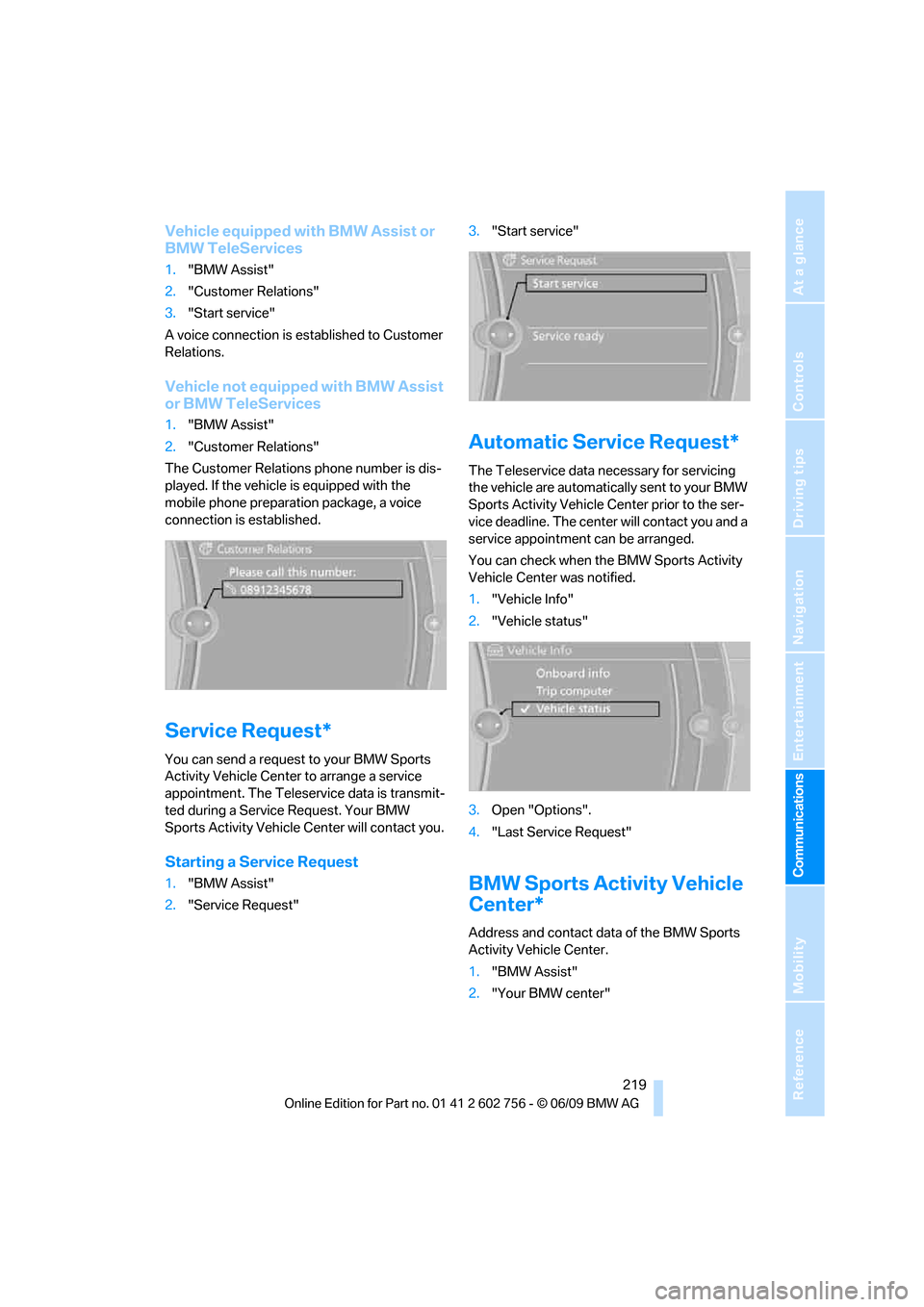
Service Request*
You can send a request to your BMW Sports
Activity Vehicle Center to arrange a service
appointment. The Teleservice data is transmit-
ted during a Service Request. Your BMW
Sports Activity Vehicle Center will contact you.
Starting a Service Request
1."BMW Assist"
2."Service Request"3."Start service"
Automatic Service Request*
The Teleservice data necessary for servicing
the vehicle are automatically sent to your BMW
Sports Activity Vehicle Center prior to the ser-
vice deadline. The center will contact you and a
service appointment can be arranged.
You can check when the BMW Sports Activity
Vehicle Center was notified.
1."Vehicle Info"
2."Vehicle status"
3.Open "Options".
4."Last Service Request"
BMW Sports Activity Vehicle
Center*
Address and contact data of the BMW Sports
Activity Vehicle Center.
1."BMW Assist"
2."Your BMW center"
ba8_e70ag.book Seite 219 Freitag, 5. Juni 2009 11:42 11
Page 226 of 300

Refueling
224
Refueling
Switch off the engine before refueling.
When handling fuel, always observe all
applicable precautionary measures and regula-
tions. Never transport reserve fuel containers in
the vehicle. These could become leaky and
cause an explosion or a fire in an accident.<
Fuel filler door
Opening
1.Open the fuel filler door. To do this, briefly
press the lower edge.
2.Turn the fuel filler cap counterclockwise.
3.Place the fuel filler cap in the bracket
attached to the fuel filler door.
Closing
Fit the cap and turn it clockwise until you clearly
hear a click.
Do not crush the band attached to the
cap; otherwise, the cap may not properly
seal and fuel vapors can escape.<
A message
* is displayed if the cap is loose or
missing.
Releasing manually
If an electrical malfunction should occur, you
can unlock the fuel filler door manually.
1.Open the right-hand side panel in the cargo
bay.
2.Pull the knob with the gas pump symbol.
Observe the following when refueling
When handling fuels, follow the safety
precautions posted at the filling station.
Otherwise, there is a danger of personal injury
or property damage.<
When refueling, insert the filler nozzle com-
pletely into the filler pipe. Avoid raising the filler
nozzle during refueling, otherwise this leads to
>premature pump shutoff
>a reduced efficiency of the fuel-vapor
recovery system
The fuel tank is full when the filler nozzle clicks
off the first time.
Fuel tank capacity
Approx. 22.5 US gal/85 liters, including the
reserve capacity of approx. 2.1 US gal/8 liters
X5 xDrive48i: approx. 2.6 US gal/10 liters
reserve
X6 xDrive50i: approx. 3.2 US gal/12 liters
reserve
Refuel as soon as possible once your
cruising range falls below 30 miles/
50 km, otherwise engine functions are not
ensured and damage can occur.<
ba8_e70ag.book Seite 224 Freitag, 5. Juni 2009 11:42 11