2009 VOLVO XC60 wheel
[x] Cancel search: wheelPage 107 of 297

03 Your driving environment
Starting the engine03
}}
105
Starting the engine
Ignition switch with remote key inserted ( see
page 79for more information on ignition modes)
WARNING
Before starting the engine:
\b
Fasten the seat belt.
\b Check that the seat, steering wheel and
mirrors are adjusted properly.
\b Make sure the brake pedal can be
depressed completely. Adjust the seat
if necessary. 1. Insert the remote key into the ignition slot
with the buttons upward and the metallic
key blade pointing outward (not inserted
into the slot) 1
. 2. Push lightly on the remote key. It will be
automatically drawn into the ignition slot in
the correct position. 3.
Depress the brake pedal 2
. Press and
release the START/STOP ENGINE button.
The autostart function will operate the
starter motor until the engine starts.
The starter motor operates for a maximum
of 10 seconds. If the engine has not
started, repeat the procedure.
WARNING An extra mat on the driver\fs floor can cause
the accelerator and/or brake pedal to catch.
Check that the movement of these pedals is
not impeded. Not more than one protective
floor covering may be used at one time.
1
On vehicles with the optional keyless drive, it is only necessary to hav\
e a remote key in the passenger’s compartment.
2 If the vehicle is moving, it is only necessary to press the START/STOP E\
NGINE button to start the vehicle.
Page 113 of 297

03 Your driving environment
Transmission03
111
All Wheel Drive – AWD
4Your Volvo can be equipped with permanent
All Wheel Drive, which means that power is
distributed automatically between the front
and rear wheels. Under normal driving condi-
tions, most of the engine\fs power is directed to
the front wheels. However, if there is any ten-
dency for the front wheels to spin, an electron-
ically controlled coupling distributes power to
the wheels that have the best traction.
NOTEThe message
AWD disabled Service
required will be appear in the information
display if an electrical fault should occur in
the AWD system. A warning light will also
illuminate in the instrument panel. If this
occurs, have the system checked by a
trained and qualified Volvo service techni-
cian.
4 Standard on certain models.
Page 118 of 297
03 Your driving environmentParking brake 03
116 Electric parking brake
An electric parking brake has the same func-
tion as a manual parking brake.
NOTE
\b
A faint sound from the parking brake\fs
electric motor can be heard when the
parking brake is being applied. This
sound can also be heard during the
automatic function check of the parking
brake.
\b The brake pedal will move slightly when
the electric parking brake is applied or
released.
Low battery voltageIf the battery voltage is too low, the parking
brake cannot be applied or released. Connect
an auxiliary battery if the battery voltage is too
low, see page 107.
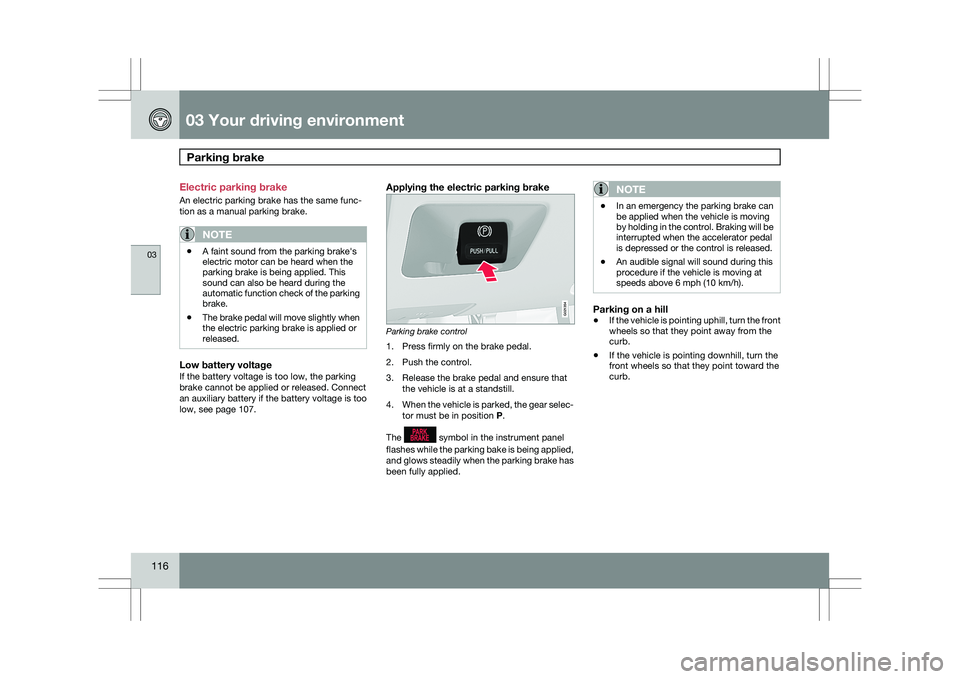
Applying the electric parking brake Parking brake control
1. Press firmly on the brake pedal.
2. Push the control.
3. Release the brake pedal and ensure that
the vehicle is at a standstill.
4. When the vehicle is parked, the gear selec-
tor must be in position P.
The symbol in the instrument panel
flashes while the parking bake is being applied,
and glows steadily when the parking brake has
been fully applied.NOTE \b
In an emergency the parking brake can
be applied when the vehicle is moving
by holding in the control. Braking will be
interrupted when the accelerator pedal
is depressed or the control is released.
\b An audible signal will sound during this
procedure if the vehicle is moving at
speeds above 6 mph (10 km/h).
Parking on a hill
\b
If the vehicle is pointing uphill, turn the front
wheels so that they point away from the
curb.
\b If the vehicle is pointing downhill, turn the
front wheels so that they point toward the
curb. G021354
Page 120 of 297
03 Your driving environmentParking brake 03
118 shop. If you drive off with this error message
showing, a warning signal sounds.
Parking brake not applied – A fault is pre-
venting the parking brake from being applied.
Try to apply and release. Contact a Volvo work-
shop if the message remains.
Parking brake Service required – A fault has
arisen. Contact a Volvo workshop if the fault
remains.
WARNING
If the vehicle must be parked before the fault
has been corrected, always put the gear
selector in
P and turn the wheels so that
they point away from the curb if the vehicle
is pointing uphill or toward the curb if it is
pointing downhill.
Page 124 of 297

04 Comfort and driving pleasureMenus and messages 04
122
* Option/accessory, for more information, see Introduction.
Center console
Certain functions are controlled from the cen-
ter console via the menu system or from the
optional keypad in the steering wheel. Each
function is described under its respective sec-
tion.
The current menu level is shown at the top right
of display in the center console.
Center console controls
Center console with information display and con-
trols for menus
Menu navigation button – scrolls and
selects among menu options
MENU – selects menu options
EXIT – accesses the menu system ENTER – leads back one step in the menu
structure. A long press exits the menu sys-
tem.
Numerical keypad 1–9
Steering wheel keypad
ENTER
EXIT
Navigation buttons.
If the steering wheel keypad has ENTER and
EXIT, the buttons to have the same
function as those in the center console.
Search pathsAccess to some functions is provided directly
via the function buttons and others are access
through the menu system. Search paths to the menu system functions are
listed as follows: Car settings Lock
settings, if the following steps have been taken
first:
1. Press MENU.
2. Scroll to Menu and press ENTER.
3. Scroll to Submenu and press ENTER.
The navigation button can be used instead of
ENTER and EXIT when navigating the menu
hierarchy. The right arrow is equal to ENTER
and the left arrow to EXIT.
The menu options are numbered and can also
be selected directly with the numerical keypad
(1 – 9 only).
Menu overview
NOTE Menu selections will not be available (will be
"grayed out") when the vehicle is moving.
Car key memory
Seat & mirror positions
Car settings Fold mirr. when locking*
Collision warning settings*
Page 125 of 297

04 Comfort and driving pleasure
Menus and messages04
}}
* Option/accessory, for more information, see Introduction. 123
City Safety
Light settings
Lock settings
Reduced guard
1
Parking camera settings*
Steering force level*
Information
Climate settings Automatic blower adjust
Recirculation timer
Auto. rear defroster
Reset climate settings
Main menu AM
Audio settings 2
Sound stage
Equalizer, front
Equalizer, rear
Auto. volume control
Resets all audio settings.
Main menu FMFM settings Radio text
Advanced radio settings
Audio settings
Main menu CDRandom Off
Folder
Disc
Single disc
All discs
CD settings Disc text*
Audio settings
Main menu AUXVolume, AUX input
Audio settings Main instrument panel
Information display and menu controls
READ – access to the list of messages and
message confirmation.
Thumbwheel – browse among menus and
options in the list of functions.
RESET – reset the active function. Used in
certain cases to select/activate a function,
see the explanation under each respective
function.
The menus shown on the information displays
in the instrument panel are controlled with the
left lever. The menus shown depend on ignition
mode. Press READ to erase a message and
return to the menus. 1
Certain models
2 The menu option for audio settings is available in all audio sources. G022908
Page 135 of 297

04 Comfort and driving pleasure
Audio system04
}}
* Option/accessory, for more information, see Introduction. 133
Introduction
The audio system is available in two versions:
High Performance and Premium Sound. The
system version is shown in the display when
the audio system is switched on.
If the audio system is on when the ignition is
switched off, it will come on automatically the
next time the ignition is put in mode
I or higher.
The audio system can be operated without a
key in the ignition slot for 15 minutes at a time
by pressing the POWER button (the driver\fs
door must be closed on vehicles with the
optional keyless drive).
Some functions are controlled from the menu
system in the center console. For more infor-
mation on menus, see page 122.
Dolby Surround Pro Logic II and the sym-
bol are trademarks of Dolby Laboratories
Licensing Corporation. The Dolby Surround
Pro Logic II System is manufactured under
license from Dolby Laboratories Licensing Cor-
poration.
Remote key and ignition modesThe audio system can be used for 15 minutes
at a time if the remote key is not inserted in the
ignition slot.
NOTE To prevent unnecessary drain on the vehi-
cle\fs battery, remove the remote key from
the ignition slot if the audio system is used
when the engine is not running.
If the audio system is playing when the engine
is switched off, it will be on when the engine is
restarted.
Overview
Socket for external audio source (AUX,
USB, iPod®)
Steering wheel keypad
Center console control panel Control panel with headphone socket*
Rear seat control panel
Steering wheel keypad Confirm selection in menu system and
control for a bluetooth-connected cell
phone (see page 148).
Go higher in the menu system, interrupt an
ongoing function and control for a blue-
tooth-connected cell phone.
Volume
A short press scrolls between CD tracks or
preset radio stations. A long press
searches within CD tracks or searches for
the next available radio station. 5G031438 G02139
9
Page 136 of 297

04 Comfort and driving pleasureAudio system 04
134 Please note that these functions are also avail-
able through the audio system controls on cen-
ter console.
USB/iPod connector
An iPod or MP3 player can be connected to the
audio system via the AUX or USB sockets in the
center storage compartment
An auxiliary device, such as an iPod, MP3
player or a USB flash drive can be connected
to the audio system via the sockets in the cen-
ter console storage compartment. A standard
cable from an iPod or MP3 player can be
routed under the cover to the AUX connector
in the storage compartment.
The USB socket provides current to or charges
the device connected (depending on the
device). A sound source must be chosen, depending on
the device that has been connected:
1.
Use MODE to select iPod or USB. The text
CONNECT DEVICE will be displayed.
2. Connect the device to the connector in the
center console storage compartment.
The text LOADING will be displayed while the
system loads the files (folder structure) on the
device. This may take a short time.
When information about the files (the folder
structure) on the device has been loaded, the
resulting list includes information on the artist,
genre and song title if this information is
included on the device.
To navigate in the folder structure, press
ENTER and scroll up and down the folders
using the arrow buttons (on the audio system
control panel or on the steering wheel keypad).
Press the right arrow button to select a folder.
Press the left arrow button to go up a level in
the folder structure. Press ENTER to go down
a level in the folder structure.
Tracks can be selected in two ways:
\b Turn the Tuning knob clockwise or coun-
terclockwise
\b Use the right or left arrow keys on the nav-
igation control to select the desired track. The arrow keys on the steering wheel key-
pad can also be used in the same way.
NOTE The system supports playback of files in the
most common versions of formats such as
mp3, wma, and wav. However, there may be
versions of these formats that the system
does not support.
The system also supports a number of
iPod® models produced in 2005 or later.
iPod® Shuffle is not supported.
USB flash driveTo simplify the use of a USB flash drive, it is
advisable to only store music files on the drive.
It will take considerably longer for the system
to index the files on the drive if it contains any-
thing other than compatible music files.
NOTE
The system supports removable media that
uses the USB 2.0 standard and the FAT32
file system and can index up to 500 folders
and a maximum of 64,000 files. The device
must have at least 256 Mb of memory.
MP3 playerMany mp3 players have a file indexing system
that is not supported by the vehicle\fs audio
system. In order to use an mp3 player, the sys- G031959