Page 125 of 468
125
2-1. Driving procedures
2
When driving
CAUTION
■
When starting the engine
Always start the engine while sitting in the driver's seat. Do not depress the
accelerator pedal while starting the engine under any circumstances.
Doing so may cause an accident resulting in death or serious injury.
■ Stopping the engine in an emergency
If you want to stop the engine in an emergency while driving the vehicle,
push and hold the “ENGINE START STOP” switch for more than 3 seconds.
However, do not touch the “ENGINE START STOP” switch while driving
except in an emergency. If the engine stops while the vehicle is being driven,
this could lead to an unexpected accident.
NOTICE
■To prevent battery discharge
Do not leave the “ENGINE START STOP” switch in ACCESSORY or IGNI-
TION ON mode for long periods without the engine running.
■ When starting the engine
●Do not race a cold engine.
● If the engine becomes difficult to start or stalls frequently, have the engine
checked immediately.
Page 145 of 468

145
2-2. Instrument cluster
2
When driving
CAUTION
■
If a safety system warning light does not come on
Should a safety system light such as the ABS or the SRS airbag warning
light not come on when you start the engine, this could mean that these sys-
tems are not available to help protect you in an accident, which could result
in death or serious injury. Have the vehicle inspected by your Toyota dealer
immediately if this occurs.
■ Warning lights
Warning lights inform the driver of malfunctions in any of the
vehicle’s systems. ( P. 377)
*1:These lights turn on when the “ENGINE START STOP” switch is
turned to IGNITION ON mode (vehicles with smart key system) or
the engine switch is turned to
the “ON” position (vehicles without
smart key system) to indicate that a system check is being per-
formed. They will turn off after the engine is started, or after a few
seconds. There may be a malfunction in a system if a light does not
come on, or if the lights do not turn off. Have the vehicle inspected
by your Toyota dealer for details.
*
2: Vehicles with optitron type meters
(Canada)(U.S.A.)(Canada)(U.S.A.)(Canada)
(U.S.A.)(U.S.A.)(if equipped)(Canada)
(if equipped)
*1*1*1*1*1*1*1*1
*1*1*1*1
Page 148 of 468
148 2-2. Instrument cluster
●Average vehicle speed
● Elapsed time
Setting the clock
Display the clock when the vehicle is stopped. ( P. 146)
Press and hold the display but-
ton to enter the adjustment mode
for the clock.
Press the display button to adjust the minutes.
After adjusting the minutes, wait 5 seconds to allow the minutes to
be automatically input.
Press the display button to adjust the hours.
After adjusting the hours, wait 5 seconds to allow the hours to be
automatically input.
Displays the average vehicle speed since the
engine was started or since the function was
reset.
The function can be reset by pressing the display but-
ton for longer than one second when the average
vehicle speed is displayed.
Displays the elapsed ti me since the engine was
started or since the function was reset.
The function can be reset by pressing the display but-
ton for longer than one second when the elapsed time
is displayed.
STEP1
STEP2
STEP3
STEP4
Page 154 of 468
154 2-3. Operating the lights and wipers
■The windshield wipers and washers can be operated when
Vehicles with smart key system
The “ENGINE START STOP” switch is in IGNITION ON mode.
Vehicles without smart key system
The engine switch is in the “ON” position.
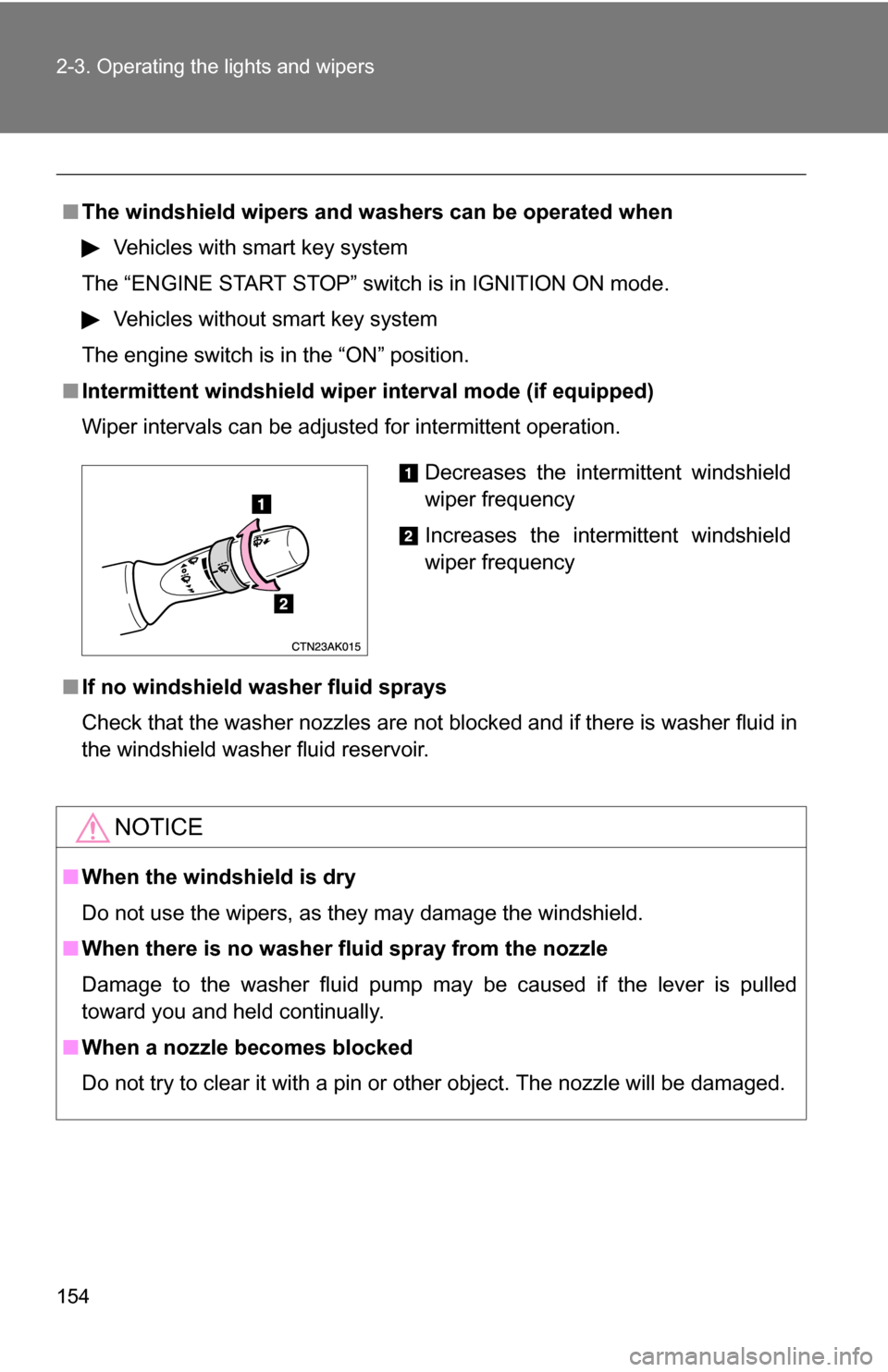
■ Intermittent windshield wiper interval mode (if equipped)
Wiper intervals can be adjusted for intermittent operation.
■ If no windshield washer fluid sprays
Check that the washer nozzles are not blocked and if there is washer fluid in
the windshield washer fluid reservoir.
NOTICE
■When the windshield is dry
Do not use the wipers, as they may damage the windshield.
■ When there is no washer fluid spray from the nozzle
Damage to the washer fluid pump may be caused if the lever is pulled
toward you and held continually.
■ When a nozzle becomes blocked
Do not try to clear it with a pin or other object. The nozzle will be damaged.
Decreases the intermittent windshield
wiper frequency
Increases the intermittent windshield
wiper frequency
Page 201 of 468
201
3-2. Using the audio system
3
Interior features
Using the radio
Setting station presets (excluding XM® Satellite Radio)
Search for desired stations by turning or pressing “
”
or “ ” on .
Press and hold the button (from to ) the station
is to be set to until you hear a beep.
Scanning radio stations (excluding XM® Satellite Radio)
■ Scanning the preset radio stations
Press and hold until you hear a beep.
Preset stations will be played for 5 seconds each.
When the desired station is reached, press once
again.
Vol um e
Scanning for
receivable stations Station selector
Seeking the frequency Adjusting the frequency (AM, FM
mode) or channel (SAT mode)
AM SAT/FM
mode buttonsPower
Displaying radio text
messages
Changing the channel
STEP1
STEP2
STEP1
STEP2
Page 218 of 468
218 3-2. Using the audio system
■MP3 and WMA files
MP3 (MPEG Audio LAYER3) is a standard audio compression format.
Files can be compressed to approximately 1/10 of their original size by using
MP3 compression.
WMA (Windows Media
TM Audio) is a Microsoft audio compression format.
This format compresses audio data to a size smaller than that of the MP3
format.
There is a limit to the MP3 and WMA file standards and to the media/formats
recorded by them that can be used.
● MP3 file compatibility
• Compatible standards
MP3 (MPEG1 LAYER3, MPEG2 LSF LAYER3)
• Compatible sampling frequencies MPEG1 LAYER3: 32, 44.1, 48 (kHz)
MPEG2 LSF LAYER3: 16, 22.05, 24 (kHz)
• Compatible bit rates (compatible with VBR) MPEG1 LAYER3: 64, 80, 96, 112, 128, 160, 192, 224, 256, 320 (kbps)
MPEG2 LSF LAYER3: 64, 80, 96, 112, 128, 144, 160 (kbps)
• Compatible channel modes: stereo, joint stereo, dual channel and monaural
● WMA file compatibility
• Compatible standards
WMA Ver. 7, 8, 9
• Compatible sampling frequencies 32, 44.1, 48 (kHz)
• Compatible bit rates (only compatible with 2-channel playback) Ver. 7, 8: CBR 48, 64, 80, 96, 128, 160, 192 (kbps)
Ver. 9: CBR 48, 64, 80, 96, 128, 160, 192, 256, 320 (kbps)
● Compatible media
Media that can be used for MP3 and WMA playback are CD-Rs and CD-
RWs.
Playback in some instances may not be possible, depending on the status
of the CD-R or CD-RW. Playback may not be possible or the audio may
jump if the disc is scratched or marked with fingerprints.
Page 219 of 468

219
3-2. Using the audio system
3
Interior features
●
Compatible disc formats
The following disc formats can be used.
• Disc formats: CD-ROM Mode 1 and Mode 2
CD-ROM XA Mode 2, Form 1 and Form 2
• File formats: ISO9660 Level 1, Level 2, (Romeo, Joliet) MP3 and WMA files written in any format other than those listed above
may not play correctly, and their file names and folder names may not
be displayed correctly.
Items related to standards and limitations are as follows.
• Maximum directory hierarchy: 8 levels
• Maximum length of folder names/file names: 32 characters
• Maximum number of folders: 192 (including the root)
• Maximum number of files per disc: 255
● File names
The only files that can be recognized as MP3/WMA and played are those
with the extension .mp3 or .wma.
● Multi-sessions
As the audio system is compatible with multi-sessions, it is possible to play
discs that contain MP3 and WMA files. However, only the first session can
be played.
● D3 and WMA tags
ID3 tags can be added to MP3 files, making it possible to record the track
title and artist name, etc.
The system is compatible with ID3 Ver. 1.0, 1.1, and Ver. 2.2, 2.3 ID3 tags.
(The number of characters is based on ID3 Ver. 1.0 and 1.1.)
WMA tags can be added to WMA files, making it possible to record the
track title and artist name in the same way as with ID3 tags.
● MP3 and WMA playback
When a disc containing MP3 or WMA files is inserted, all files on the disc
are first checked. Once the file check is finished, the first MP3 or WMA\
file
is played. To make the file check finish more quickly, we recommend you
do not write in any files other than MP3 or WMA files or create any unnec-
essary folders.
If the discs contain a mixture of music data and MP3 or WMA format data,
only music data can be played.
Page 235 of 468
235
3-3. Using the hand
s-free phone system (for cellular phone)
3
Interior features
Using the hands-free phone system for the first time
Before using the hands-free phone system, it is necessary to register
a cellular phone in the system. Th e phone registration mode will be
entered automatically when starting the system with no cellular
phone registered. Follow the procedure below to register a cellular
phone:
Press the off-hook switch or the talk switch.
The introductory guidance and phone name registration instructions
are heard.
Register a phone name by either of the following methods.
a. Select “Record Name” by using , and say a name to
be registered.
b. Press the talk switch and say a name to be registered.
A voice guidance instruction to confirm the input is heard.
Select “Confirm” by using a voice command or .
A passkey is displayed and heard, and a voice guidance instruction
for inputting the passkey into the cellular phone is heard. Input the passkey into the cellular phone.
Refer to the manual that comes with the cellular phone for the oper-
ation of the phone.
Guidance for registration completion is heard.
STEP1
STEP2
STEP3
STEP4


