Page 175 of 384
5-10Audio
FM/AM radio operation &FM/AM selection
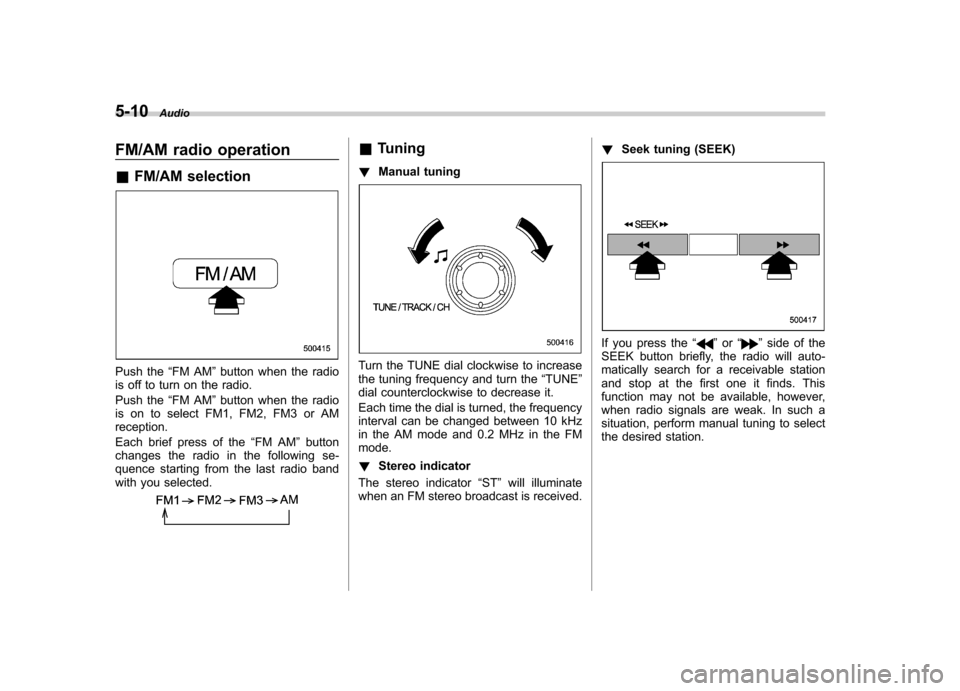
Push the “FM AM ”button when the radio
is off to turn on the radio.
Push the “FM AM ”button when the radio
is on to select FM1, FM2, FM3 or AM reception.
Each brief press of the “FM AM ”button
changes the radio in the following se-
quence starting from the last radio band
with you selected.
& Tuning
! Manual tuning
Turn the TUNE dial clockwise to increase
the tuning frequency and turn the “TUNE ”
dial counterclockwise to decrease it.
Each time the dial is turned, the frequency
interval can be changed between 10 kHz
in the AM mode and 0.2 MHz in the FMmode. ! Stereo indicator
The stereo indicator “ST ”will illuminate
when an FM stereo broadcast is received. !
Seek tuning (SEEK)
If you press the “”or “”side of the
SEEK button briefly, the radio will auto-
matically search for a receivable station
and stop at the first one it finds. This
function may not be available, however,
when radio signals are weak. In such a
situation, perform manual tuning to select
the desired station.
Page 179 of 384
5-14Audio
ready because each tuner is identified by
its unique satellite radio tuner ID.
The satellite radio ID will be needed when
you activate satellite radio and receive
satellite radio customer support.
The satellite radio ID can be found on the
audio display by tuning the channel to “0 ”.
Turn the “CH ”dial to select the satellite
radio channel.
NOTE
For Sirius, change the display to an
indication mode other than the channel
number after performing the aboveoperation. & Band selection
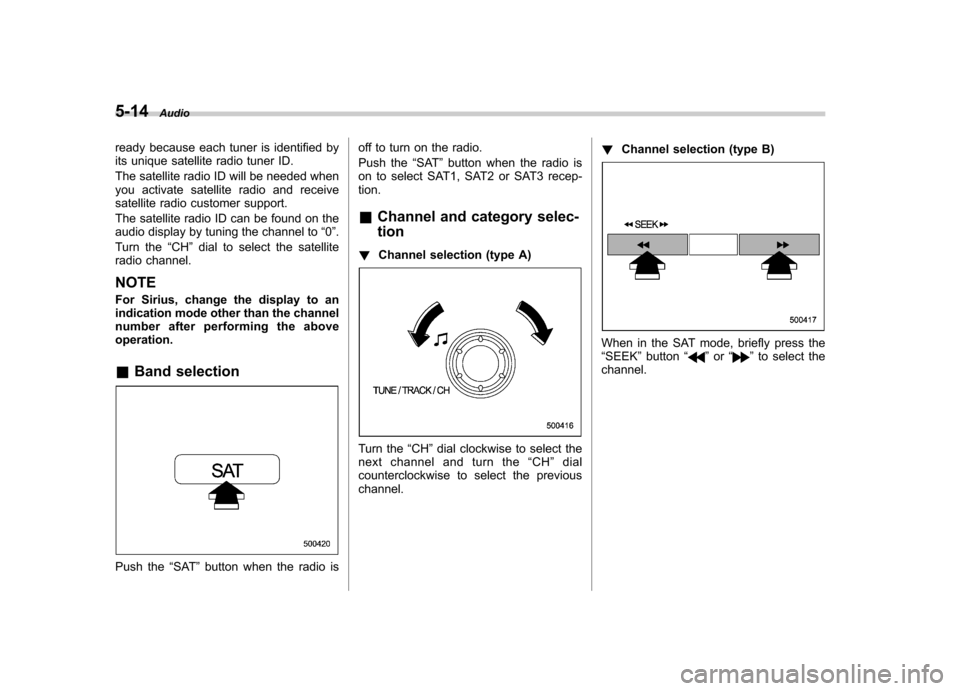
Push the “SAT ”button when the radio is off to turn on the radio.
Push the
“SAT ”button when the radio is
on to select SAT1, SAT2 or SAT3 recep- tion.
& Channel and category selec- tion
! Channel selection (type A)
Turn the “CH ”dial clockwise to select the
next channel and turn the “CH ”dial
counterclockwise to select the previous channel. !
Channel selection (type B)
When in the SAT mode, briefly press the “SEEK ”button “”or “”to select the
channel.
Page 184 of 384

start playback of the discs, beginning with
the one inserted first.
If you fail to insert any disc during each 15
seconds interval, the full disc loading
mode will be canceled, and the player will
start playback of the disc inserted first. &How to play back a CD
! When there is no CD inserted
Insert a CD by referring to “How to insert a
CD (type A) ”/“How to insert a CD(s) (type
B) ”.
When a CD is loaded, the player will start
playback of the CD, beginning with the
first track. ! When CD is in the player (type A)
When the “CD ”button is pressed, the player will start playback. !
When there are CDs loaded (type B)
Press a desired one of the disc select
buttons the disc number indicator of which
steadily lights up. The player will then start
playback of the selected CD, beginning
with the first track.
If a disc that the player cannot read has
been loaded, the player will display themessage “CHECK DISC ”. &
To select a track from its beginning
! Forward direction
Turn the “TRACK ”dial clockwise to skip to
the beginning of the next track/file (track).
Each time the dial is turned, the indicated
track/file (track) number will increase.
NOTE
In an MP3 or WMA folder, skipping past
the last track/file (track) will take you
back to the first track/file (track) in the
folder. Audio
5-19
– CONTINUED –
Page 185 of 384
5-20Audio
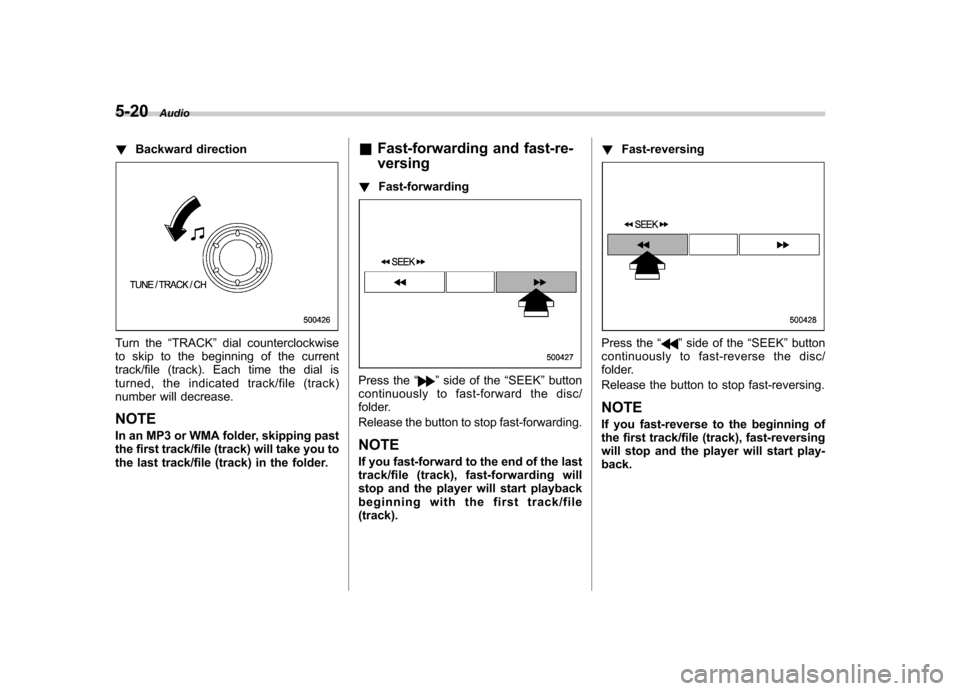
! Backward direction
Turn the “TRACK ”dial counterclockwise
to skip to the beginning of the current
track/file (track). Each time the dial is
turned, the indicated track/file (track)
number will decrease.
NOTE
In an MP3 or WMA folder, skipping past
the first track/file (track) will take you to
the last track/file (track) in the folder. &
Fast-forwarding and fast-re- versing
! Fast-forwarding
Press the “”side of the “SEEK ”button
continuously to fast-forward the disc/
folder.
Release the button to stop fast-forwarding.
NOTE
If you fast-forward to the end of the last
track/file (track), fast-forwarding will
stop and the player will start playback
beginning with the first track/file(track). !
Fast-reversing
Press the “”side of the “SEEK ”button
continuously to fast- reverse the disc/
folder.
Release the button to stop fast-reversing. NOTE
If you fast-reverse to the beginning of
the first track/file (track), fast-reversing
will stop and the player will start play-back.
Page 187 of 384
5-22Audio
format CD is playing. . The “F-RDM ”indication refers to the
random playback in the folder. It ran-
domly repeats the tracks in the folder. It
is possible to select the function when
an MP3/WMA format track is playing.. The “D-RDM ”indication refers to the
random playback of a disc. It randomly
repeats the tracks in the CD. It is
possible to select the function when
an MP3/WMA format track is playing.
To cancel the random playback mode,
press the “RPT ”button again and select
CANCEL. The “RDM ”indication will turn off, and the
normal playback mode will be resumed. NOTE
Random playback will be cancelled if
you perform any of the following steps: . Press the “RPT ”button and select
CANCEL . Press the “
”button
. Press the disc select button
. Press the “SCAN ”button
. Press the “LOAD ”button when
there is free space in the CD magazine. &
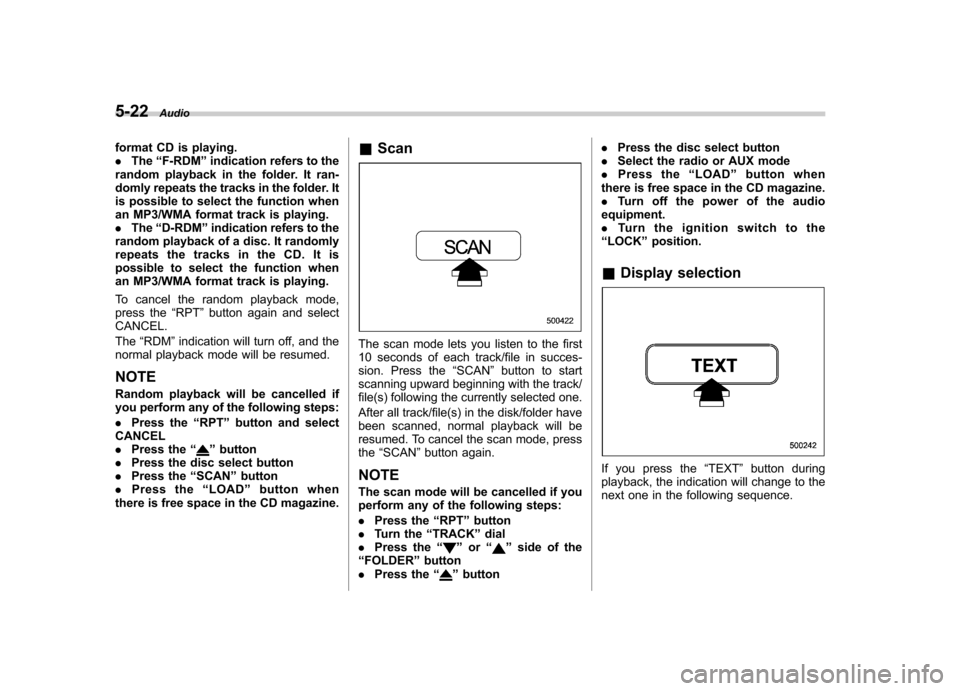
Scan
The scan mode lets you listen to the first
10 seconds of each track/file in succes-
sion. Press the “SCAN ”button to start
scanning upward beginning with the track/
file(s) following the currently selected one.
After all track/file(s) in the disk/folder have
been scanned, normal playback will be
resumed. To cancel the scan mode, pressthe “SCAN ”button again.
NOTE
The scan mode will be cancelled if you
perform any of the following steps: . Press the “RPT ”button
. Turn the “TRACK ”dial
. Press the “
”or “”side of the
“ FOLDER ”button
. Press the “
”button .
Press the disc select button
. Select the radio or AUX mode
. Press the “LOAD ”button when
there is free space in the CD magazine. . Turn off the power of the audio
equipment.. Turntheignitionswitchtothe
“ LOCK ”position.
& Display selection
If you press the “TEXT ”button during
playback, the indication will change to the
next one in the following sequence.
Page 197 of 384
6-2Interior equipment
Interior lights
When leaving your vehicle, make sure the
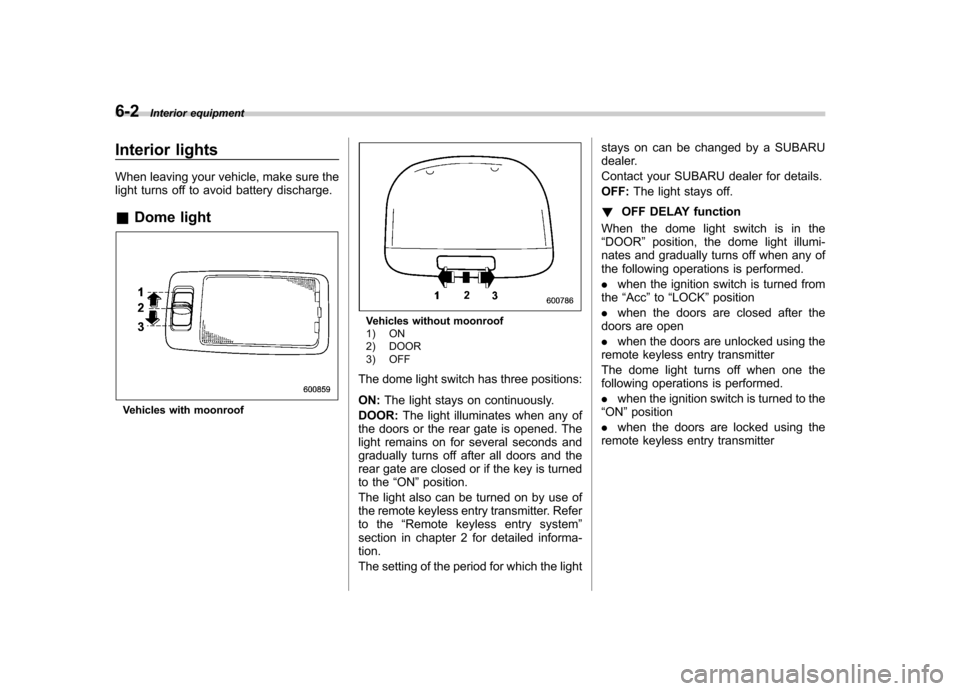
light turns off to avoid battery discharge. &Dome light
Vehicles with moonroof
Vehicles without moonroof
1) ON
2) DOOR
3) OFF
The dome light switch has three positions: ON: The light stays on continuously.
DOOR: The light illuminates when any of
the doors or the rear gate is opened. The
light remains on for several seconds and
gradually turns off after all doors and the
rear gate are closed or if the key is turned
to the “ON ”position.
The light also can be turned on by use of
the remote keyless entry transmitter. Refer
to the “Remote keyless entry system ”
section in chapter 2 for detailed informa-tion.
The setting of the period for which the light stays on can be changed by a SUBARU
dealer.
Contact your SUBARU dealer for details.OFF:
The light stays off.
! OFF DELAY function
When the dome light switch is in the “ DOOR ”position, the dome light illumi-
nates and gradually turns off when any of
the following operations is performed. . when the ignition switch is turned from
the “Acc ”to “LOCK ”position
. when the doors are closed after the
doors are open. when the doors are unlocked using the
remote keyless entry transmitter
The dome light turns off when one the
following operations is performed. . when the ignition switch is turned to the
“ ON ”position
. when the doors are locked using the
remote keyless entry transmitter
Page 199 of 384
6-4Interior equipment
Sun visors
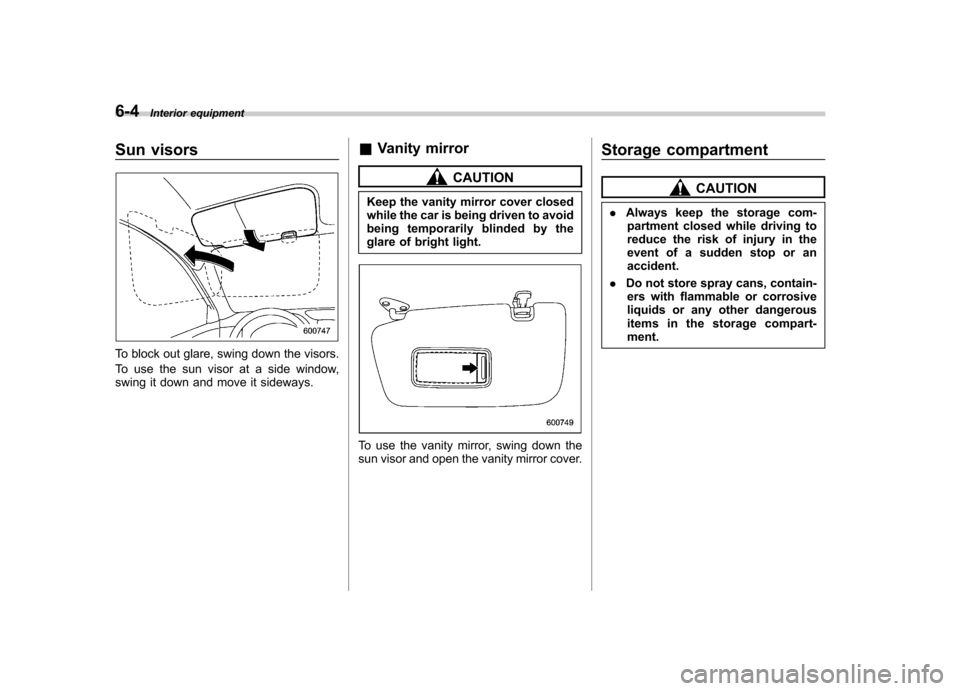
To block out glare, swing down the visors.
To use the sun visor at a side window,
swing it down and move it sideways. &
Vanity mirror
CAUTION
Keep the vanity mirror cover closed
while the car is being driven to avoid
being temporarily blinded by the
glare of bright light.
To use the vanity mirror, swing down the
sun visor and open the vanity mirror cover. Storage compartment
CAUTION
. Always keep the storage com-
partment closed while driving to
reduce the risk of injury in the
event of a sudden stop or anaccident.
. Do not store spray cans, contain-
ers with flammable or corrosive
liquids or any other dangerous
items in the storage compart-ment.
Page 200 of 384
&Glove box
1) Lock
2) Unlock
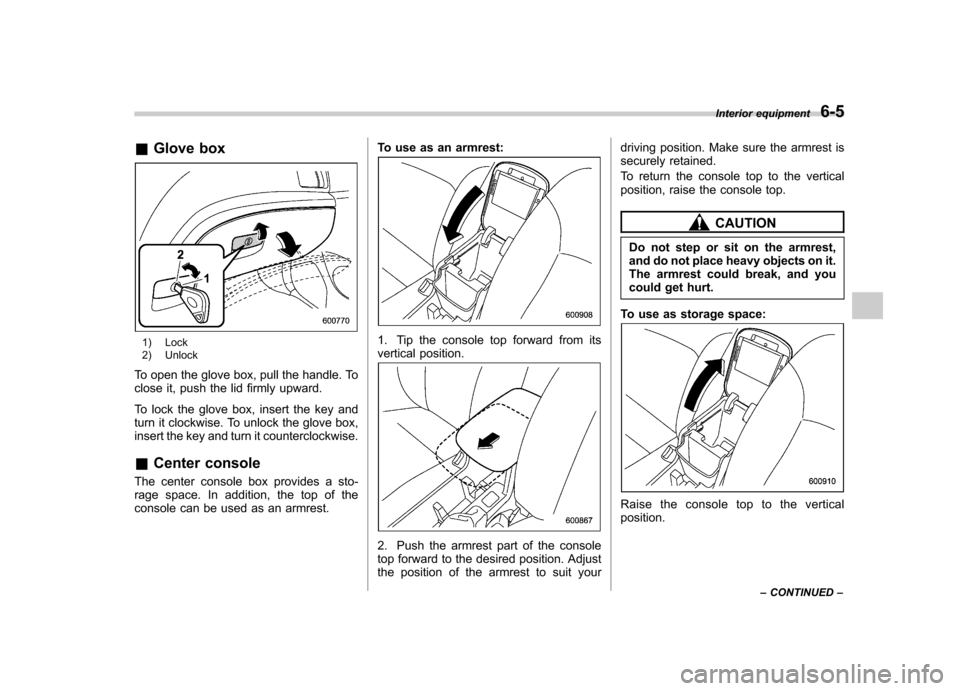
To open the glove box, pull the handle. To
close it, push the lid firmly upward.
To lock the glove box, insert the key and
turn it clockwise. To unlock the glove box,
insert the key and turn it counterclockwise. & Center console
The center console box provides a sto-
rage space. In addition, the top of the
console can be used as an armrest. To use as an armrest:1. Tip the console top forward from its
vertical position.
2. Push the armrest part of the console
top forward to the desired position. Adjust
the position of the armrest to suit yourdriving position. Make sure the armrest is
securely retained.
To return the console top to the vertical
position, raise the console top.
CAUTION
Do not step or sit on the armrest,
and do not place heavy objects on it.
The armrest could break, and you
could get hurt.
To use as storage space:
Raise the console top to the vertical position. Interior equipment
6-5
– CONTINUED –