2009 SAAB 9-7X remote control
[x] Cancel search: remote controlPage 111 of 424

Universal Home Remote System
Operation (With One Triangular LED)
If there is one triangular Light Emitting Diode (LED)
indicator light above the Universal Home Remote
buttons, follow the instructions below.
This system provides a way to replace up to three
remote control transmitters used to activate devices
such as garage door openers, security systems,
and home automation devices.
Do not use the Universal Home Remote with any
garage door opener that does not have the stop and
reverse feature. This includes any garage door opener
model manufactured before April 1, 1982.Read the instructions completely before attempting to
program the Universal Home Remote. Because of
the steps involved, it may be helpful to have another
person available to assist you in the programming
the Universal Home Remote.
Keep the original hand-held transmitter for use in other
vehicles as well as for future Universal Home Remote
programming. It is also recommended that upon the
sale of the vehicle, the programmed Universal Home
Remote buttons should be erased for security purposes.
See “Erasing Universal Home Remote Buttons” later
in this section.
When programming a garage door, park outside of
the garage. Park directly in line with and facing
the garage door opener motor-head or gate motor-head.
Be sure that people and objects are clear of the
garage door or gate that is being programmed.
It is recommended that a new battery be installed
in your hand-held transmitter for quicker and more
accurate transmission of the radio-frequency signal.
2-39
ProCarManuals.com
Page 112 of 424
Programming the Universal Home
Remote System
For questions or help programming the Universal
Home Remote System, call 1-800-355-3515 or go
to www.homelink.com.
Programming a garage door opener involves
time-sensitive actions, so read the entire procedure
before starting. Otherwise, the device will time out
and the procedure will have to be repeated.
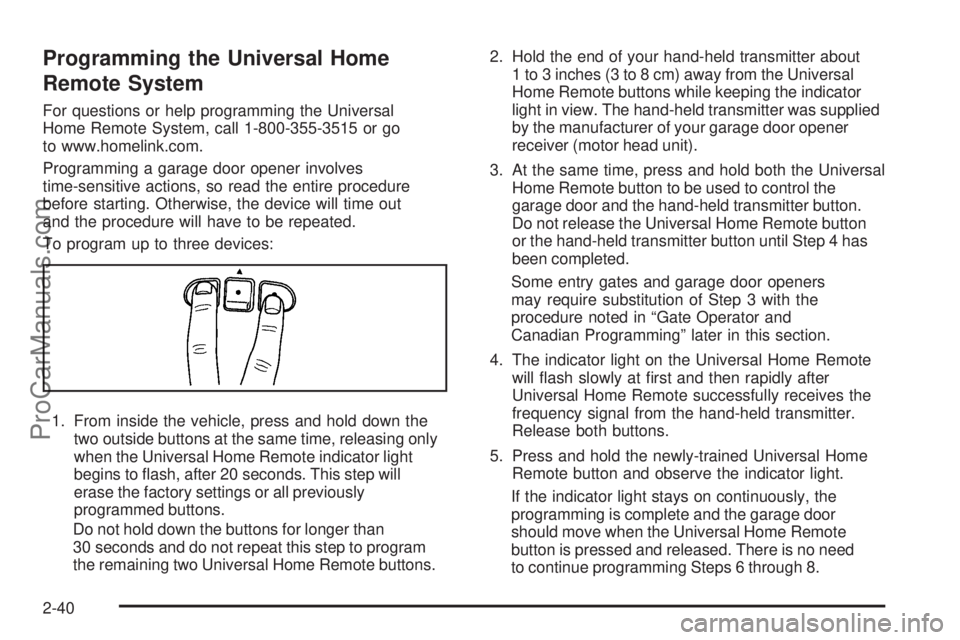
To program up to three devices:
1. From inside the vehicle, press and hold down the
two outside buttons at the same time, releasing only
when the Universal Home Remote indicator light
begins to ash, after 20 seconds. This step will
erase the factory settings or all previously
programmed buttons.
Do not hold down the buttons for longer than
30 seconds and do not repeat this step to program
the remaining two Universal Home Remote buttons.2. Hold the end of your hand-held transmitter about
1 to 3 inches (3 to 8 cm) away from the Universal
Home Remote buttons while keeping the indicator
light in view. The hand-held transmitter was supplied
by the manufacturer of your garage door opener
receiver (motor head unit).
3. At the same time, press and hold both the Universal
Home Remote button to be used to control the
garage door and the hand-held transmitter button.
Do not release the Universal Home Remote button
or the hand-held transmitter button until Step 4 has
been completed.
Some entry gates and garage door openers
may require substitution of Step 3 with the
procedure noted in “Gate Operator and
Canadian Programming” later in this section.
4. The indicator light on the Universal Home Remote
will ash slowly at rst and then rapidly after
Universal Home Remote successfully receives the
frequency signal from the hand-held transmitter.
Release both buttons.
5. Press and hold the newly-trained Universal Home
Remote button and observe the indicator light.
If the indicator light stays on continuously, the
programming is complete and the garage door
should move when the Universal Home Remote
button is pressed and released. There is no need
to continue programming Steps 6 through 8.
2-40
ProCarManuals.com
Page 113 of 424

If the Universal Home Remote indicator light blinks
rapidly for two seconds and then turns to a
constant light, continue with the programming
Steps 6 through 8.
It may be helpful to have another person assist with
the remaining steps.
6. After Steps 1 through 5 have been completed,
locate inside the garage the garage door opener
receiver (motor-head unit). Locate the “Learn”
or “Smart” button. The name and color of the
button may vary by manufacturer.7. Firmly press and release the “Learn” or “Smart”
button. After you press this button, you will have
30 seconds to complete Step 8.
8. Immediately return to the vehicle. Firmly press and
hold the Universal Home Remote button, chosen in
Step 3 to control the garage door, for two seconds,
and then release it. If the garage door does not
move, press and hold the same button a second time
for two seconds, and then release it. Again, if the
door does not move, press and hold the same button
a third time for two seconds, and then release.
The Universal Home Remote should now activate
the garage door.
To program the remaining two Universal Home Remote
buttons, begin with Step 2 of “Programming the Universal
Home Remote System.” Do not repeat Step 1, as this will
erase all previous programming from the Universal Home
Remote buttons.
2-41
ProCarManuals.com
Page 116 of 424

Overhead Console
For this vehicles with this feature, the overhead console
may include reading lamps, a Universal Home Remote,
and a moonroof switch. See the following for more
information:
Reading Lamps on page 3-17.
Universal Home Remote System on page 2-38.
Moonroof on page 2-47.
Center Console Storage
Grasp the front lever on the center console while lifting
the top to open it.
The console may contain one or more of the following
components:
Rear Seat Audio Controls. SeeRear Seat
Audio (RSA) on page 3-95.
Rear Climate Control. SeeRear Climate Control
System on page 3-23.
Accessory Power Outlets. SeeAccessory Power
Outlet(s) on page 3-18.
Ignition Switch. SeeIgnition Positions on page 2-20.
For vehicles with the center armrest compartment,
pull up on the latch handle located underneath the
front edge to lift the cover.
Luggage Carrier
{CAUTION:
If something is carried on top of the vehicle that
is longer or wider than the luggage carrier — like
paneling, plywood, or a mattress — the wind can
catch it while the vehicle is being driven. This can
cause a driver to lose control. The item being
carried could be violently torn off, and this could
cause a collision, and damage the vehicle. Items
may be carried inside. Never carry something
longer or wider than the luggage carrier on top of
the vehicle.
The vehicle may be equipped with a luggage carrier
that allows things to be loaded on top of the vehicle.
The luggage carrier, if equipped, has side rails attached
to the roof, and places to use for tying things down.
These allow for thing to be loaded on the vehicle,
as long as they are not wider or longer than the
luggage carrier.
2-44
ProCarManuals.com
Page 136 of 424

Instrument Panel Brightness
Turn the knob clockwise
or counterclockwise to
brighten or dim the
interior lights.
To turn on the dome lamps, turn the knob completely
clockwise as far as it will go. The dome lamps stay
on until they are turned off.
Dome Lamps
The dome lamps automatically come on when a door is
opened, unless the dome lamp override button is
pressed in.
The lamps can also be turned on and off by turning the
instrument panel brightness control clockwise to the
farthest position.
Dome Lamp Override
The dome lamp override button is located to the left of
the steering column on the instrument panel.
E:Press to turn the dome lamps off. The dome lamps
will remain off when a door is open. This overrides
the illuminated entry feature unless the remote keyless
entry transmitter is used to unlock the vehicle.
To return the lamps to automatic operation, press
E
again. The dome lamps will come on when any
door is opened.
Entry Lighting
The vehicle has entry lighting.
When any door is opened, the dome lamps come on
as long as the dome override lamp override button is not
pressed in. When all the doors are closed, the lamps
stay on for a short period of time and then turn off
automatically. If you use the Remote Keyless Entry
(RKE) transmitter to unlock the vehicle, the interior
lamps come on for a short time whether or not the dome
lamp override is on.
3-16
ProCarManuals.com
Page 144 of 424

P(On/Off):Press to turn the rear climate controls on
or off.
The rear control only turns on if the front control is on
and not in defrost mode.
Climate Controls Personalization
The vehicle has a Driver Information Center (DIC).
Climate control settings can be stored and recalled for
temperature, air delivery mode and fan speed for
two different drivers. The personal choice settings
recalled are determined by the transmitter used to enter
the vehicle. After the button with the unlock symbol
on a remote keyless entry transmitter is pressed, the
climate control will adjust to the last settings of the
identied driver. The settings can also be changed by
pressing one of the memory buttons (1 or 2) located on
the driver’s door. When adjustments are made, the
new settings are automatically saved for the driver.
Warning Lights, Gages, and
Indicators
Warning lights and gages can signal that something is
wrong before it becomes serious enough to cause
an expensive repair or replacement. Paying attention to
the warning lights and gages could prevent injury.
Warning lights come on when there may be or is a
problem with one of the vehicle’s functions. Some
warning lights come on briey when the engine is started
to indicate they are working.
Gages can indicate when there may be or is a problem
with one of the vehicle’s functions. Often gages and
warning lights work together to indicate a problem with
the vehicle.
When one of the warning lights comes on and stays on
while driving, or when one of the gages shows there
may be a problem, check the section that explains
what to do. Follow this manual’s advice. Waiting to do
repairs can be costly and even dangerous.
3-24
ProCarManuals.com
Page 204 of 424

Other Information
The Bluetooth®word mark and logos are owned by the
Bluetooth®SIG, Inc. and any use of such marks by
General Motors is under license. Other trademarks and
trade names are those of their respective owners.
This device complies with Part 15 of the FCC Rules.
Operation is subject to the following two conditions:
1. This device may not cause harmful interference.
2. This device must accept any interference received,
including interference that may cause undesired
operation.
This device complies with RSS-210 of Industry Canada.
Operation is subject to the following two conditions:
1. This device may not cause interference.
2. This device must accept any interference received,
including interference that may cause undesired
operation of the device.
Changes or modications to this system by other than
an authorized service facility could void authorization to
use this equipment.
Rear Seat Entertainment (RSE)
System
The vehicle may have a DVD Rear Seat Entertainment
(RSE) system. The RSE system includes a DVD player,
a video display screen, two sets of wireless headphones,
and a remote control.
Before You Drive
The RSE system is for rear seat passengers only,
not intended for the driver while driving.
Parental Control
This button is located behind the video screen. Press
this button while a DVD or CD is playing to freeze
the video and mute the audio. The video screen will
display Parental Control ON and the power indicator
light on the DVD player will ash. It will also disable all
other button operations from the remote control and
the DVD player, with the exception of the eject button.
Press this button again to restore operation of the
DVD player.
This button can also be used to turn the DVD player
power on and automatically resume play if the ignition
is in ON/RUN, ACC/ACCESSORY, or if Retained
Accessory Power (RAP) is active.
3-84
ProCarManuals.com
Page 206 of 424

To use the auxiliary inputs on the RSE system, connect
an external auxiliary device to the color-coded RCA
jacks and turn both the auxiliary device and the
RSE system power on. If the RSE system had been
previously in the DVD player mode, pressing the SRCE
button on the faceplate or the remote control will
switch the RSE system between the auxiliary device
and the DVD player.
How to Change the Video Format when in
the Auxiliary Mode
The auxiliary input video format is preset to NTSC.
In some countries, the video format may be in the
PAL system. To change the video format:
1. Press the display menu button.
2. Press the down arrow button to highlight the Video
Format option.
3. Press the enter button to select Video Format.
4. Press the right or left arrow button to select
the desired video format.
5. Press the enter button to accept the change.
Audio Output
Audio from the DVD player or auxiliary inputs can be
heard through the following possible sources:
Wireless Headphones
Vehicle Speakers
Vehicle wired headphone jacks on the Rear Seat
Audio system (if equipped)
The RSE system always transmits the audio signal to
the wireless headphones, if there is audio available.
See “Headphones” earlier in this section for more
information.
The RSE system is capable of outputting audio to the
vehicle speakers by using the radio. The RSE system
may be selected as an audio source on the radio if the
RSE system power is on. Once the RSE system is
selected as an audio source on the radio, adjust the
speaker volume on the radio, if necessary. If the RSE
system power is not on, the RSE system will not be an
available source on the radio. Refer to the radio
information for the radio that the vehicle has for more
information.
The RSE system is capable of outputting audio to the
wired headphone jacks on the rear seat audio system
(if equipped). The RSE system can be selected as
an audio source on the rear seat audio system if the
RSE system power is on. SeeRear Seat Audio (RSA)
on page 3-95for more information.
3-86
ProCarManuals.com