2009 NISSAN ALTIMA COUPE display
[x] Cancel search: displayPage 230 of 373
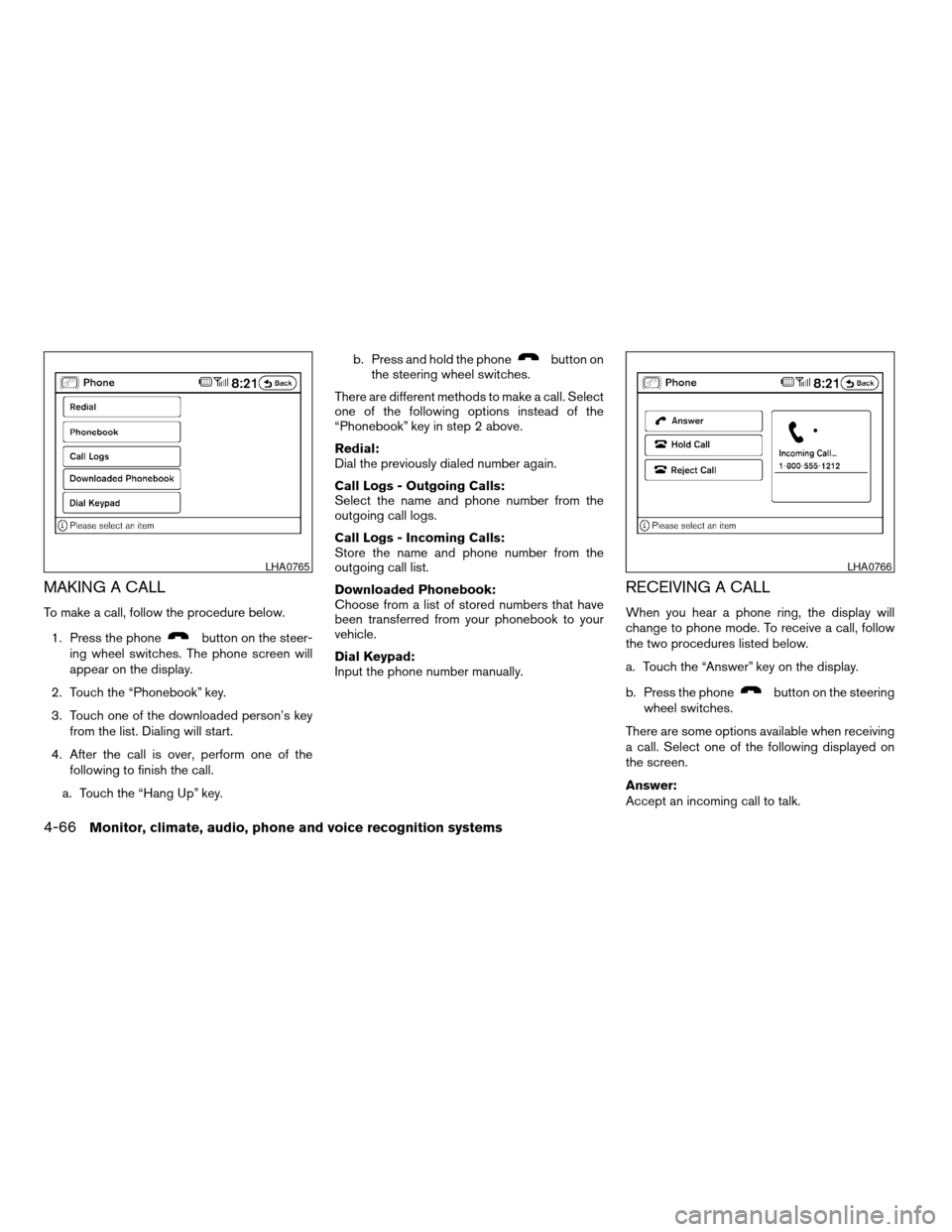
MAKING A CALL
To make a call, follow the procedure below.
1. Press the phone
button on the steer-
ing wheel switches. The phone screen will
appear on the display.
2. Touch the “Phonebook” key.
3. Touch one of the downloaded person’s key
from the list. Dialing will start.
4. After the call is over, perform one of the
following to finish the call.
a. Touch the “Hang Up” key.b. Press and hold the phone
button on
the steering wheel switches.
There are different methods to make a call. Select
one of the following options instead of the
“Phonebook” key in step 2 above.
Redial:
Dial the previously dialed number again.
Call Logs - Outgoing Calls:
Select the name and phone number from the
outgoing call logs.
Call Logs - Incoming Calls:
Store the name and phone number from the
outgoing call list.
Downloaded Phonebook:
Choose from a list of stored numbers that have
been transferred from your phonebook to your
vehicle.
Dial Keypad:
Input the phone number manually.
RECEIVING A CALL
When you hear a phone ring, the display will
change to phone mode. To receive a call, follow
the two procedures listed below.
a. Touch the “Answer” key on the display.
b. Press the phone
button on the steering
wheel switches.
There are some options available when receiving
a call. Select one of the following displayed on
the screen.
Answer:
Accept an incoming call to talk.
LHA0765LHA0766
4-66Monitor, climate, audio, phone and voice recognition systems
ZREVIEW COPYÐ2009 Altima(alt)
Owners Manual(owners)ÐUSA_English(nna)
02/03/09Ðdebbie
X
Page 231 of 373
Hold Call:
Continue to hold call.
Reject Call:
Reject an incoming call.
To finish the call, follow one of the procedures
listed below:
a. Touch the “Reject Call” key on the display.
b. Press and hold the phone
button on the
steering wheel switches.
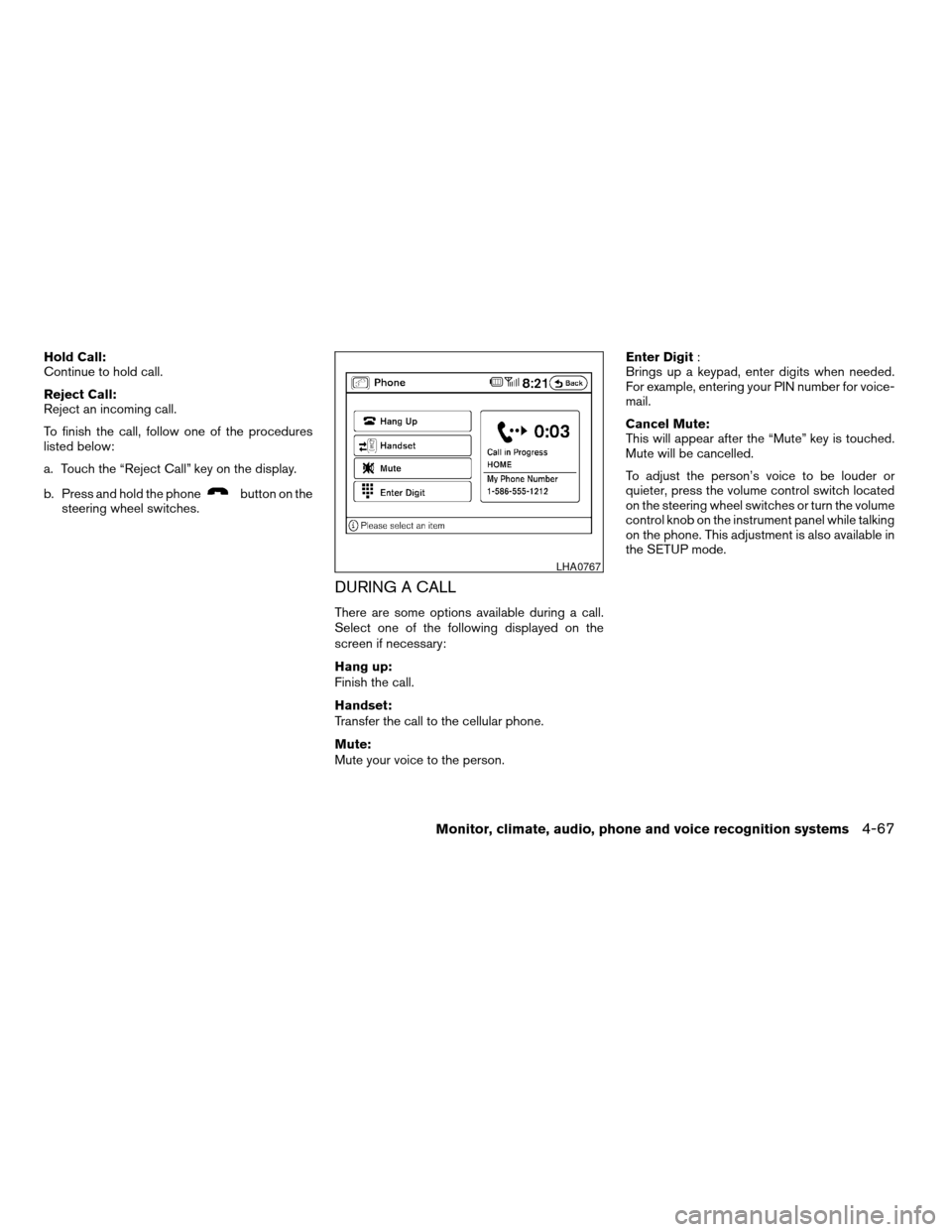
DURING A CALL
There are some options available during a call.
Select one of the following displayed on the
screen if necessary:
Hang up:
Finish the call.
Handset:
Transfer the call to the cellular phone.
Mute:
Mute your voice to the person.Enter Digit:
Brings up a keypad, enter digits when needed.
For example, entering your PIN number for voice-
mail.
Cancel Mute:
This will appear after the “Mute” key is touched.
Mute will be cancelled.
To adjust the person’s voice to be louder or
quieter, press the volume control switch located
on the steering wheel switches or turn the volume
control knob on the instrument panel while talking
on the phone. This adjustment is also available in
the SETUP mode.
LHA0767
Monitor, climate, audio, phone and voice recognition systems4-67
ZREVIEW COPYÐ2009 Altima(alt)
Owners Manual(owners)ÐUSA_English(nna)
02/03/09Ðdebbie
X
Page 232 of 373
PHONE SETTING
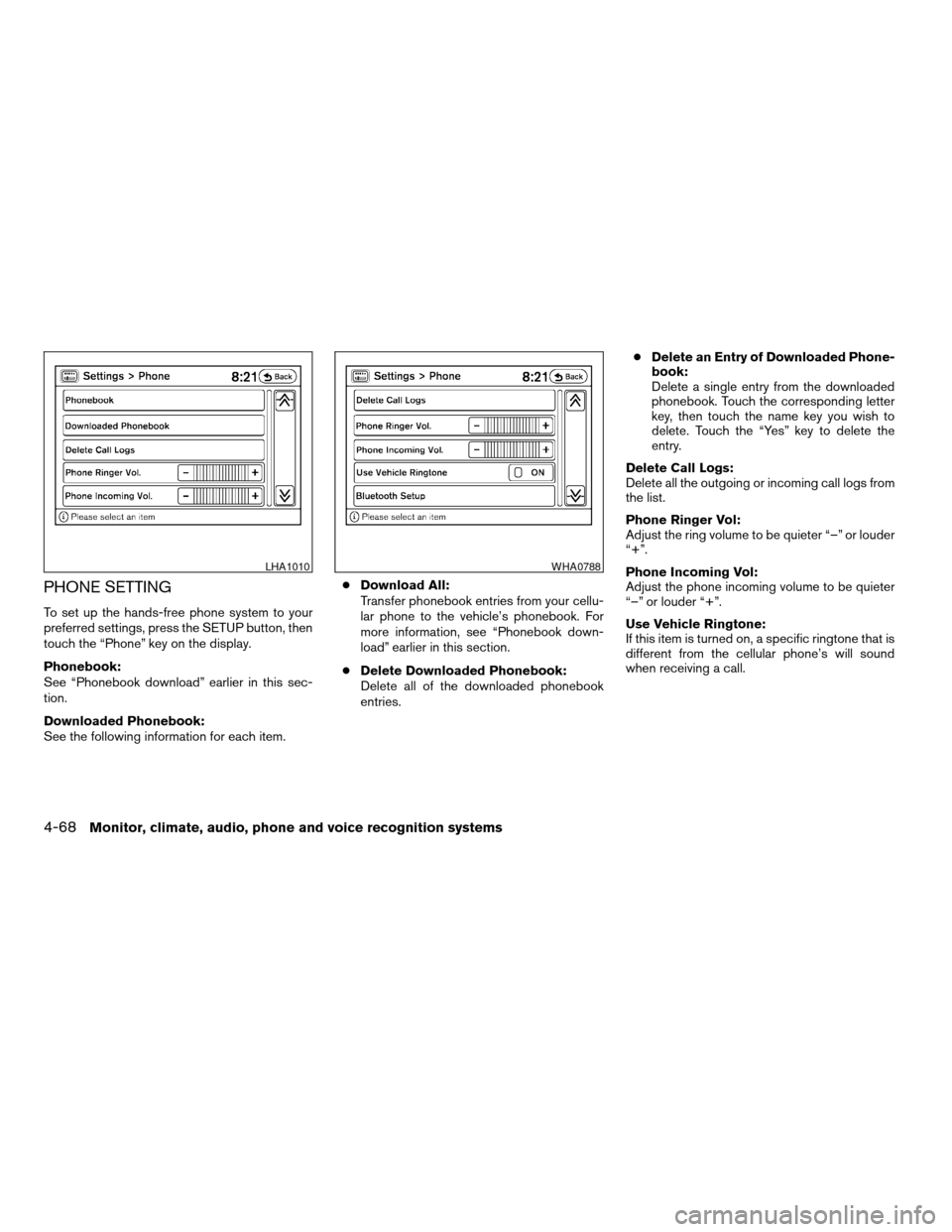
To set up the hands-free phone system to your
preferred settings, press the SETUP button, then
touch the “Phone” key on the display.
Phonebook:
See “Phonebook download” earlier in this sec-
tion.
Downloaded Phonebook:
See the following information for each item.cDownload All:
Transfer phonebook entries from your cellu-
lar phone to the vehicle’s phonebook. For
more information, see “Phonebook down-
load” earlier in this section.
cDelete Downloaded Phonebook:
Delete all of the downloaded phonebook
entries.cDelete an Entry of Downloaded Phone-
book:
Delete a single entry from the downloaded
phonebook. Touch the corresponding letter
key, then touch the name key you wish to
delete. Touch the “Yes” key to delete the
entry.
Delete Call Logs:
Delete all the outgoing or incoming call logs from
the list.
Phone Ringer Vol:
Adjust the ring volume to be quieter “–” or louder
“+”.
Phone Incoming Vol:
Adjust the phone incoming volume to be quieter
“–” or louder “+”.
Use Vehicle Ringtone:
If this item is turned on, a specific ringtone that is
different from the cellular phone’s will sound
when receiving a call.
LHA1010WHA0788
4-68Monitor, climate, audio, phone and voice recognition systems
ZREVIEW COPYÐ2009 Altima(alt)
Owners Manual(owners)ÐUSA_English(nna)
02/03/09Ðdebbie
X
Page 233 of 373
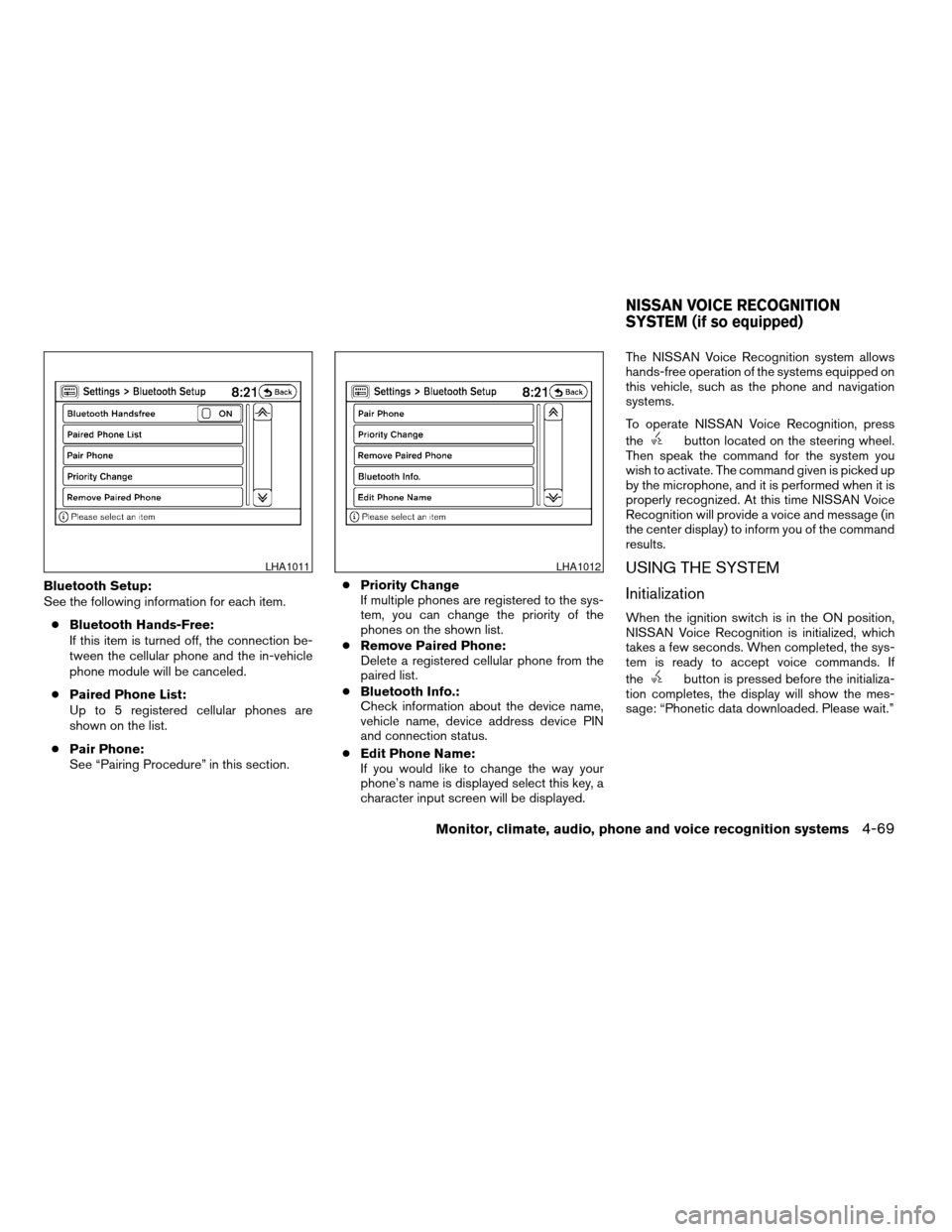
Bluetooth Setup:
See the following information for each item.
cBluetooth Hands-Free:
If this item is turned off, the connection be-
tween the cellular phone and the in-vehicle
phone module will be canceled.
cPaired Phone List:
Up to 5 registered cellular phones are
shown on the list.
cPair Phone:
See “Pairing Procedure” in this section.cPriority Change
If multiple phones are registered to the sys-
tem, you can change the priority of the
phones on the shown list.
cRemove Paired Phone:
Delete a registered cellular phone from the
paired list.
cBluetooth Info.:
Check information about the device name,
vehicle name, device address device PIN
and connection status.
cEdit Phone Name:
If you would like to change the way your
phone’s name is displayed select this key, a
character input screen will be displayed.The NISSAN Voice Recognition system allows
hands-free operation of the systems equipped on
this vehicle, such as the phone and navigation
systems.
To operate NISSAN Voice Recognition, press
the
button located on the steering wheel.
Then speak the command for the system you
wish to activate. The command given is picked up
by the microphone, and it is performed when it is
properly recognized. At this time NISSAN Voice
Recognition will provide a voice and message (in
the center display) to inform you of the command
results.
USING THE SYSTEM
Initialization
When the ignition switch is in the ON position,
NISSAN Voice Recognition is initialized, which
takes a few seconds. When completed, the sys-
tem is ready to accept voice commands. If
the
button is pressed before the initializa-
tion completes, the display will show the mes-
sage: “Phonetic data downloaded. Please wait.”
LHA1011LHA1012
NISSAN VOICE RECOGNITION
SYSTEM (if so equipped)
Monitor, climate, audio, phone and voice recognition systems4-69
ZREVIEW COPYÐ2009 Altima(alt)
Owners Manual(owners)ÐUSA_English(nna)
02/03/09Ðdebbie
X
Page 234 of 373
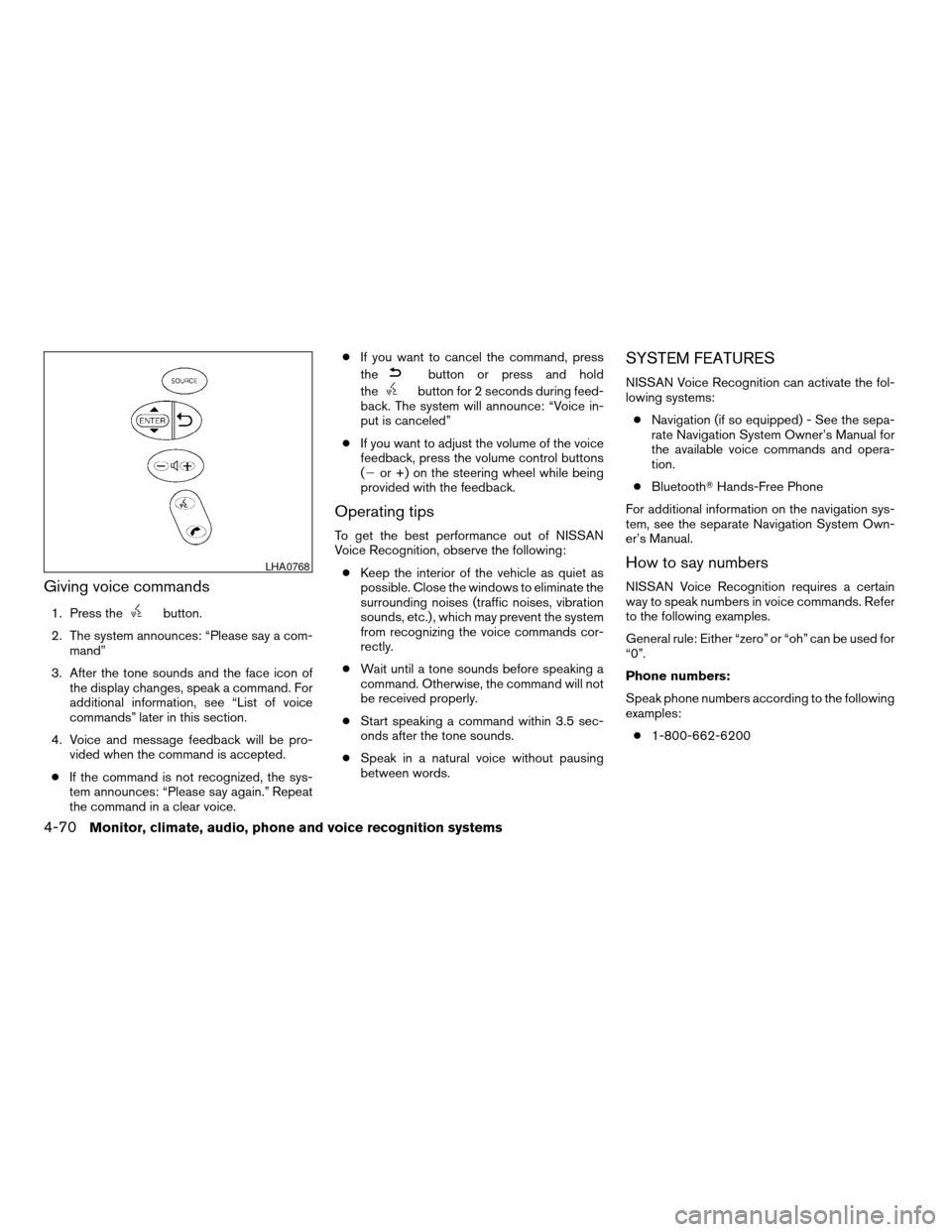
Giving voice commands
1. Press thebutton.
2. The system announces: “Please say a com-
mand”
3. After the tone sounds and the face icon of
the display changes, speak a command. For
additional information, see “List of voice
commands” later in this section.
4. Voice and message feedback will be pro-
vided when the command is accepted.
cIf the command is not recognized, the sys-
tem announces: “Please say again.” Repeat
the command in a clear voice.cIf you want to cancel the command, press
the
button or press and hold
the
button for 2 seconds during feed-
back. The system will announce: “Voice in-
put is canceled”
cIf you want to adjust the volume of the voice
feedback, press the volume control buttons
(2or +) on the steering wheel while being
provided with the feedback.
Operating tips
To get the best performance out of NISSAN
Voice Recognition, observe the following:
cKeep the interior of the vehicle as quiet as
possible. Close the windows to eliminate the
surrounding noises (traffic noises, vibration
sounds, etc.) , which may prevent the system
from recognizing the voice commands cor-
rectly.
cWait until a tone sounds before speaking a
command. Otherwise, the command will not
be received properly.
cStart speaking a command within 3.5 sec-
onds after the tone sounds.
cSpeak in a natural voice without pausing
between words.
SYSTEM FEATURES
NISSAN Voice Recognition can activate the fol-
lowing systems:
cNavigation (if so equipped) - See the sepa-
rate Navigation System Owner’s Manual for
the available voice commands and opera-
tion.
cBluetoothTHands-Free Phone
For additional information on the navigation sys-
tem, see the separate Navigation System Own-
er’s Manual.
How to say numbers
NISSAN Voice Recognition requires a certain
way to speak numbers in voice commands. Refer
to the following examples.
General rule: Either “zero” or “oh” can be used for
“0”.
Phone numbers:
Speak phone numbers according to the following
examples:
c1-800-662-6200
LHA0768
4-70Monitor, climate, audio, phone and voice recognition systems
ZREVIEW COPYÐ2009 Altima(alt)
Owners Manual(owners)ÐUSA_English(nna)
02/03/09Ðdebbie
X
Page 235 of 373
csay “Dial” or “Phone dial” the system will
respond with “Please say the first group of
numbers”, then say:
– “one eight oh oh six six two six two oh oh”,
– “one eight hundred six six two six two oh
oh”, or
– “one eight zero zero six six two six two oh
oh”.
Note 1: For the best voice recognition phone
dialing results, say phone numbers as single dig-
its.
Note 2: You cannot say 555-6000 as “five five
five six thousand”.
Personal vocabulary (voicetags)
NISSAN Voice Recognition provides the function
called “voicetags”, which can be associated with
the phone and the navigation system (if so
equipped) . Using your own voice, 70 voicetags
can be registered in the “Phonebook” (phone)
and 20 locations can be registered in the “Ad-
dress Book” (navigation system) .
For additional information, see “BluetoothT
Hands-Free Phone System” earlier in this section
and/or the separate Navigation System Owner’s
Manual (if so equipped) for the method of “voic-
etag” registration.
BLUETOOTHTHANDS-FREE
PHONE SYSTEM VOICE
COMMANDS
Depending on the commands, some different
phrases are available. Optional words are shown
in brackets [ ]. A few words, identified with a slash
/, indicate the alternate words that you can select
when speaking the command. Data items that
you need to enter, such as phone numbers, are
indicated in italics with brackets < >.
How to say commands
Example: “[PHONE] DIAL/CALL
commands.
DIAL<1 to 32 phone number digits>
CALL<1 to 32 phone number digits>
PHONE DIAL<1 to 32 phone number digits>
Help commands
c“COMMAND LIST”, “VOICE HELP” or
“HELP”
Gives spoken information about NISSAN
Voice Recognition and displays the list of
help commands.
Phone commands
c“[PHONE] DIAL
or “CALL
Dials the phone number given in the com-
mand. Speak the phone number in one se-
quence. The number is automatically dialed.
c“[PHONE] REDIAL”
Redials the phone number last dialed.
c“OUTGOING CALLS”
Shows the outgoing call history (1 to 5) .
c“INCOMING CALLS”
Shows the incoming call history (1 to 5) .
c“PHONE SELECT
If multiple phones are registered to the sys-
tem, you can change which phone to con-
nect to the system (as long as that phone is
present in the vehicle) .
c“PHONEBOOK”
Shows the first page of the “phone book” list.
Monitor, climate, audio, phone and voice recognition systems4-71
ZREVIEW COPYÐ2009 Altima(alt)
Owners Manual(owners)ÐUSA_English(nna)
02/03/09Ðdebbie
X
Page 237 of 373
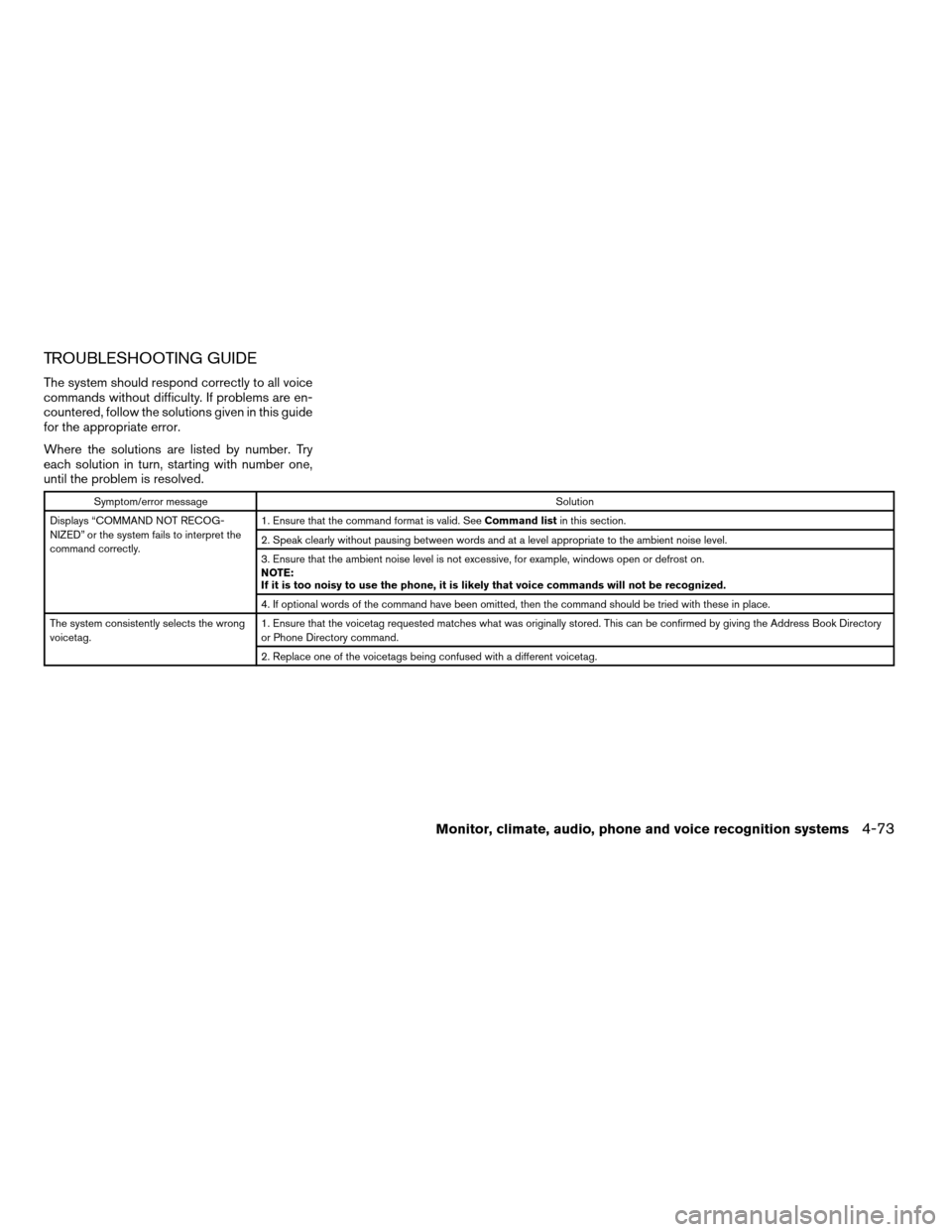
TROUBLESHOOTING GUIDE
The system should respond correctly to all voice
commands without difficulty. If problems are en-
countered, follow the solutions given in this guide
for the appropriate error.
Where the solutions are listed by number. Try
each solution in turn, starting with number one,
until the problem is resolved.
Symptom/error messageSolution
Displays “COMMAND NOT RECOG-
NIZED” or the system fails to interpret the
command correctly.1. Ensure that the command format is valid. SeeCommand listin this section.
2. Speak clearly without pausing between words and at a level appropriate to the ambient noise level.
3. Ensure that the ambient noise level is not excessive, for example, windows open or defrost on.
NOTE:
If it is too noisy to use the phone, it is likely that voice commands will not be recognized.
4. If optional words of the command have been omitted, then the command should be tried with these in place.
The system consistently selects the wrong
voicetag.1. Ensure that the voicetag requested matches what was originally stored. This can be confirmed by giving the Address Book Directory
or Phone Directory command.
2. Replace one of the voicetags being confused with a different voicetag.
Monitor, climate, audio, phone and voice recognition systems4-73
ZREVIEW COPYÐ2009 Altima(alt)
Owners Manual(owners)ÐUSA_English(nna)
02/03/09Ðdebbie
X
Page 242 of 373
Additional information:
cThe TPMS does not monitor the tire
pressure of the spare tire.
cThe TPMS will activate only when the vehicle
is driven at speeds above 16 MPH (25
km/h) . Also, this system may not detect a
sudden drop in tire pressure (for example a
flat tire while driving) .
cThe low tire pressure warning light does not
automatically turn off when the tire pressure
is adjusted. After the tire is inflated to the
recommended pressure, the vehicle must be
driven at speeds above 16 MPH (25 km/h)
to activate the TPMS and turn off the low tire
pressure warning light. Use a tire pressure
gauge to check the tire pressure.
cTire pressure rises and falls depending on
the heat caused by the vehicle’s operation
and the outside temperature. Low outside
temperature can lower the temperature of
the air inside the tire which can cause a
lower tire inflation pressure. This may cause
the low tire pressure warning light to illumi-
nate. If the warning light illuminates in low
ambient temperature, check the tire pres-
sure for all four tires.cThe Tire and Loading Information label (also
referred to as the vehicle placard or tire
inflation pressure label) is located in the
driver’s door opening.
cYou can also check the pressure of all tires
(except the spare tire) on the display screen
(if so equipped) . The order of the tire pres-
sure figures displayed on the screen does
not correspond with the actual order of the
tire position. See “Tire pressure information”
in the “Monitor, climate, audio, phone and
voice recognition systems ” section.
For additional information, see “Low tire pressure
warning light” in the “Instruments and controls”
section and “Tire pressure monitoring system
(TPMS)” in the “In case of emergency” section.WARNING
cIf the low tire pressure warning light
illuminates while driving, avoid sudden
steering maneuvers or abrupt braking,
reduce vehicle speed, pull off the road
to a safe location and stop the vehicle
as soon as possible. Driving with under-
inflated tires may permanently damage
the tires and increase the likelihood of
tire failure. Serious vehicle damage
could occur and may lead to an acci-
dent and could result in serious per-
sonal injury. Check the tire pressure for
all four tires. Adjust the tire pressure to
the recommended COLD tire pressure
shown on the Tire and Loading Informa-
tion label to turn the low tire pressure
warning light OFF. If you have a flat tire,
replace it with a spare tire as soon as
possible. (See “Flat tire” in the “In case
of emergency” section for changing a
flat tire.)
5-4Starting and driving
ZREVIEW COPYÐ2009 Altima(alt)
Owners Manual(owners)ÐUSA_English(nna)
02/03/09Ðdebbie
X