2009 NISSAN ALTIMA COUPE display
[x] Cancel search: displayPage 169 of 373
Clock
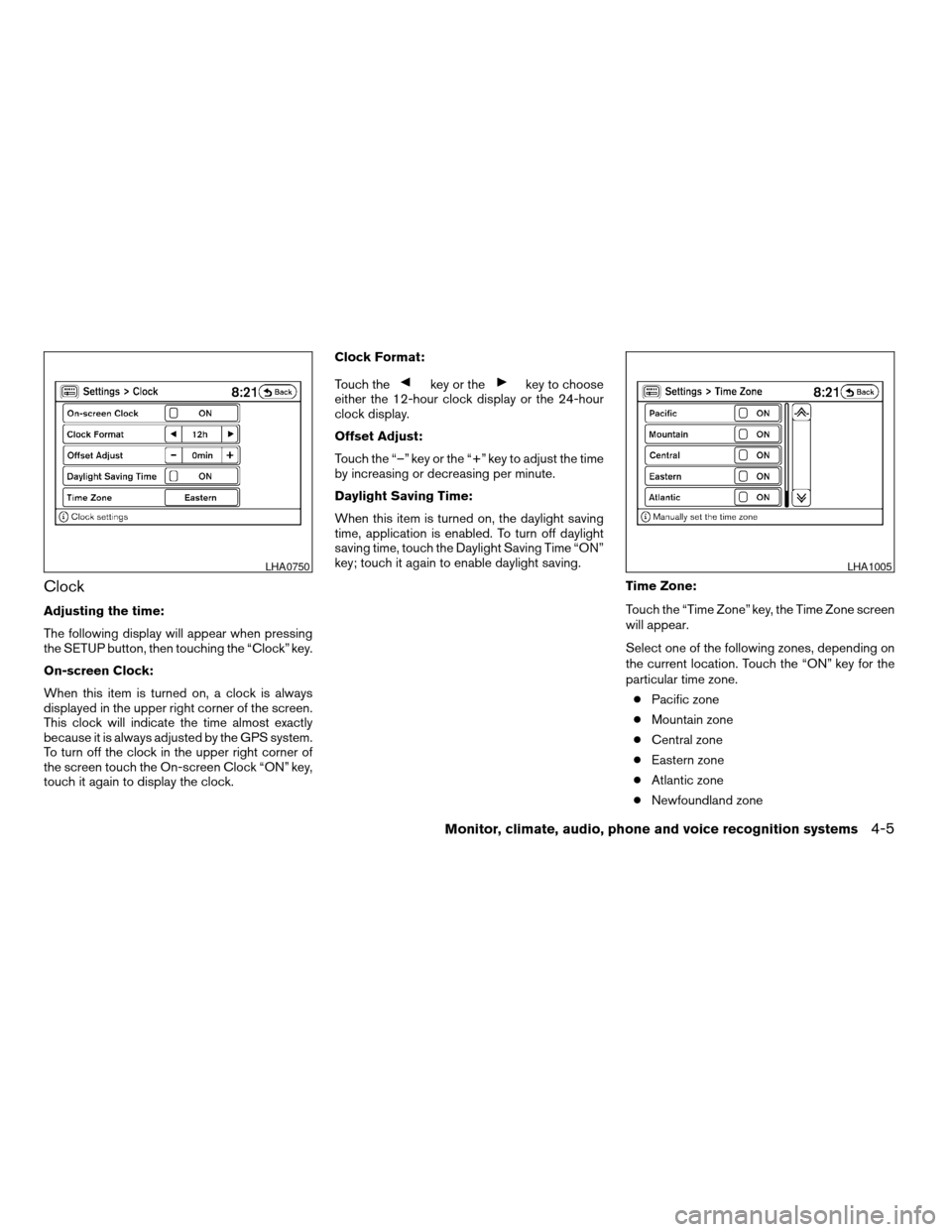
Adjusting the time:
The following display will appear when pressing
the SETUP button, then touching the “Clock” key.
On-screen Clock:
When this item is turned on, a clock is always
displayed in the upper right corner of the screen.
This clock will indicate the time almost exactly
because it is always adjusted by the GPS system.
To turn off the clock in the upper right corner of
the screen touch the On-screen Clock “ON” key,
touch it again to display the clock.Clock Format:
Touch the
key or thekey to choose
either the 12-hour clock display or the 24-hour
clock display.
Offset Adjust:
Touch the “–” key or the “+” key to adjust the time
by increasing or decreasing per minute.
Daylight Saving Time:
When this item is turned on, the daylight saving
time, application is enabled. To turn off daylight
saving time, touch the Daylight Saving Time “ON”
key; touch it again to enable daylight saving.
Time Zone:
Touch the “Time Zone” key, the Time Zone screen
will appear.
Select one of the following zones, depending on
the current location. Touch the “ON” key for the
particular time zone.
cPacific zone
cMountain zone
cCentral zone
cEastern zone
cAtlantic zone
cNewfoundland zone
LHA0750LHA1005
Monitor, climate, audio, phone and voice recognition systems4-5
ZREVIEW COPYÐ2009 Altima(alt)
Owners Manual(owners)ÐUSA_English(nna)
02/03/09Ðdebbie
X
Page 170 of 373
After selection, touch the “Back” key the Clock
screen will appear.
Pacific zone has been set as the initial (default)
setting.
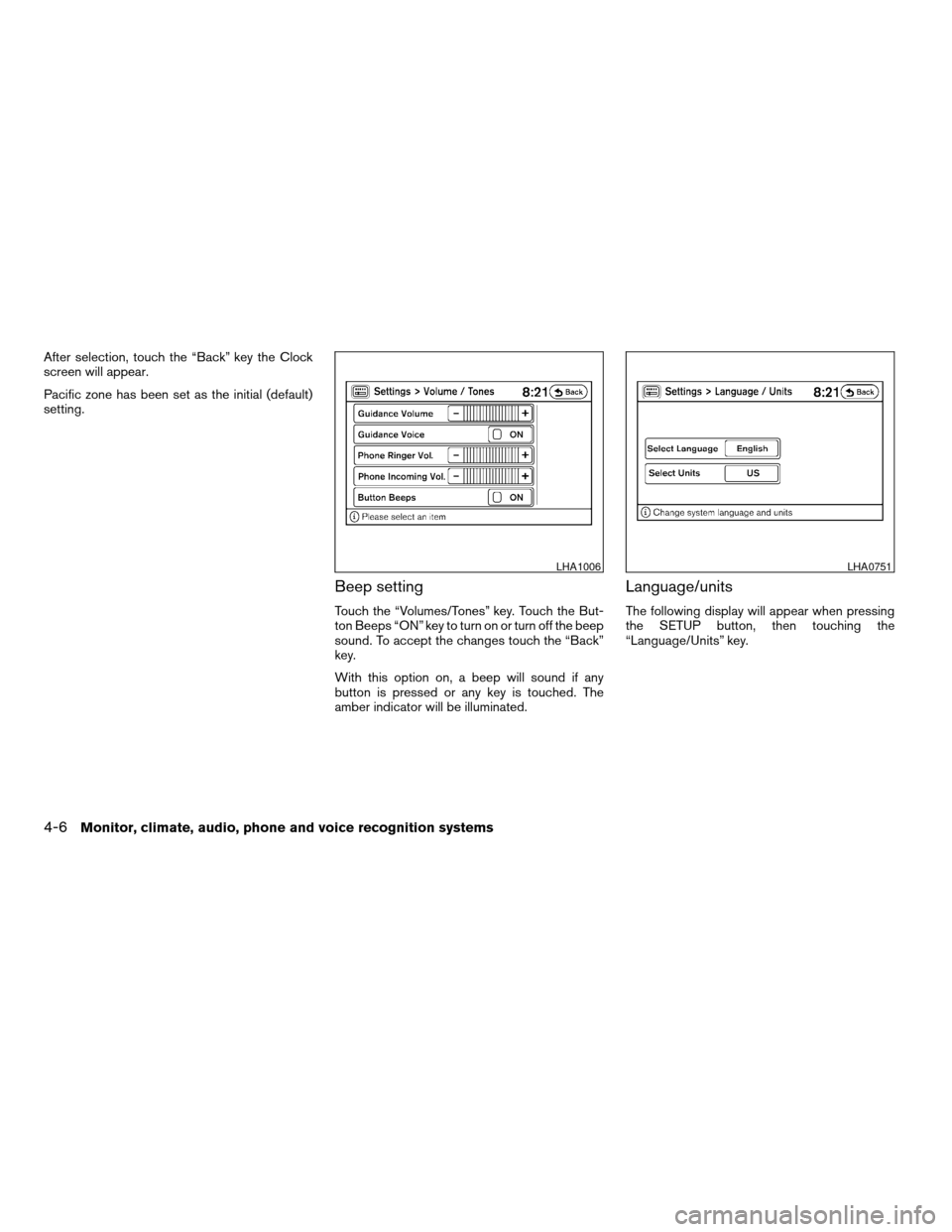
Beep setting
Touch the “Volumes/Tones” key. Touch the But-
ton Beeps “ON” key to turn on or turn off the beep
sound. To accept the changes touch the “Back”
key.
With this option on, a beep will sound if any
button is pressed or any key is touched. The
amber indicator will be illuminated.
Language/units
The following display will appear when pressing
the SETUP button, then touching the
“Language/Units” key.
LHA1006LHA0751
4-6Monitor, climate, audio, phone and voice recognition systems
ZREVIEW COPYÐ2009 Altima(alt)
Owners Manual(owners)ÐUSA_English(nna)
02/03/09Ðdebbie
X
Page 171 of 373
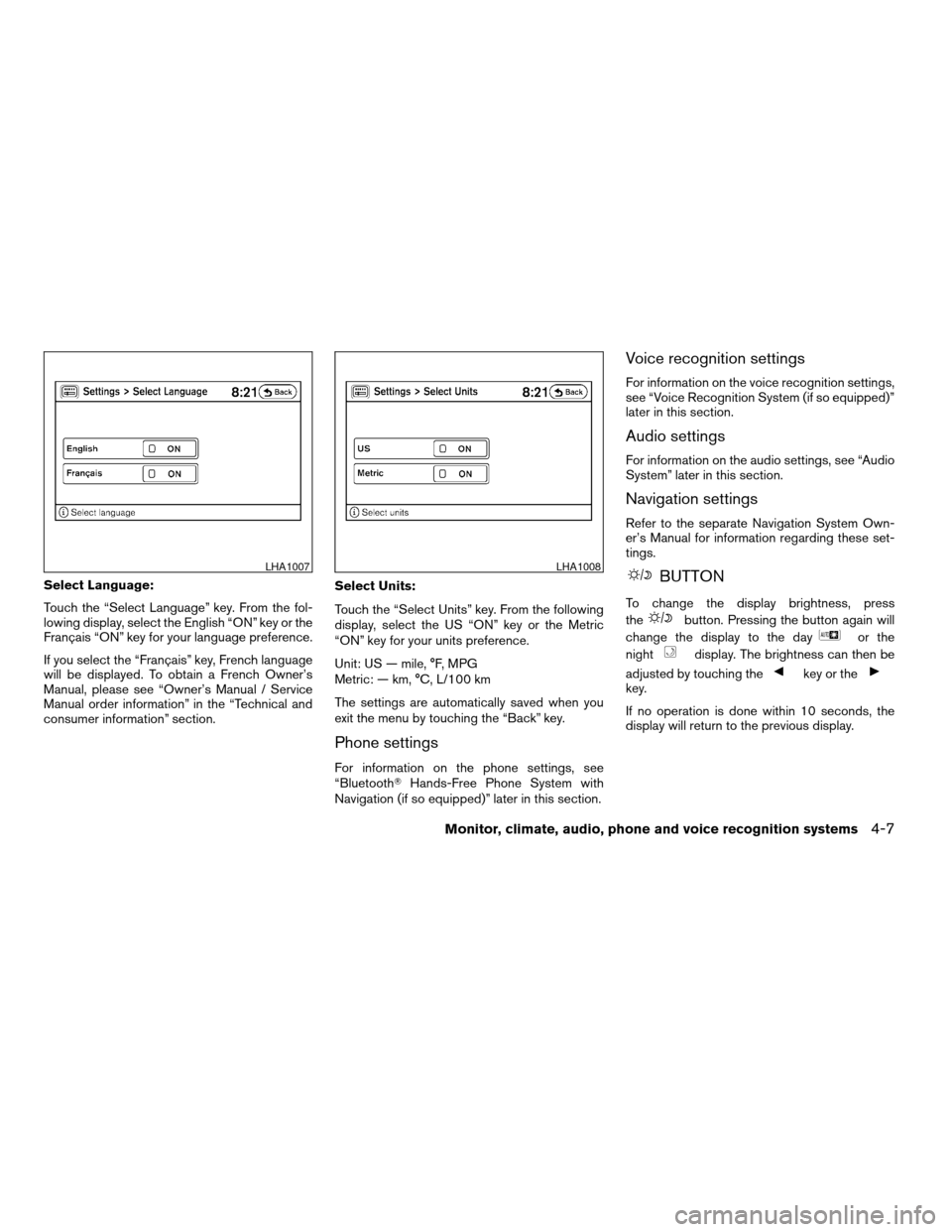
Select Language:
Touch the “Select Language” key. From the fol-
lowing display, select the English “ON” key or the
Français “ON” key for your language preference.
If you select the “Français” key, French language
will be displayed. To obtain a French Owner’s
Manual, please see “Owner’s Manual / Service
Manual order information” in the “Technical and
consumer information” section.Select Units:
Touch the “Select Units” key. From the following
display, select the US “ON” key or the Metric
“ON” key for your units preference.
Unit: US — mile, °F, MPG
Metric: — km, °C, L/100 km
The settings are automatically saved when you
exit the menu by touching the “Back” key.
Phone settings
For information on the phone settings, see
“BluetoothTHands-Free Phone System with
Navigation (if so equipped)” later in this section.
Voice recognition settings
For information on the voice recognition settings,
see “Voice Recognition System (if so equipped)”
later in this section.
Audio settings
For information on the audio settings, see “Audio
System” later in this section.
Navigation settings
Refer to the separate Navigation System Own-
er’s Manual for information regarding these set-
tings.
BUTTON
To change the display brightness, press
the
button. Pressing the button again will
change the display to the day
or the
night
display. The brightness can then be
adjusted by touching the
key or thekey.
If no operation is done within 10 seconds, the
display will return to the previous display.
LHA1007LHA1008
Monitor, climate, audio, phone and voice recognition systems4-7
ZREVIEW COPYÐ2009 Altima(alt)
Owners Manual(owners)ÐUSA_English(nna)
02/03/09Ðdebbie
X
Page 172 of 373
When the shift selector is shifted into the R
(Reverse) position, the monitor display shows the
view directly to the rear of the vehicle.
WARNING
cThe system is designed as an aid to the
driver in detecting large stationary ob-
jects to help avoid damaging the ve-
hicle. The system will not detect small
objects below the bumper, and may not
detect objects close to the bumper or
on the ground.
cThe RearView Monitor is a convenience
but it is not a substitute for proper back-
ing. Always turn and check that it is safe
to do so before backing up. Always
back up slowly.
cObjects viewed in the RearView Moni-
tor differ from actual distance because
a wide-angle lens is used.
cMake sure that the trunk is securely
closed when backing up.
cDo not put anything on the rearview
camera. The rearview camera is in-
stalled beside the license plate light.cWhen washing the vehicle with high-
pressure water, be sure not to spray it
around the camera. Otherwise, water
may enter the camera unit causing wa-
ter condensation on the lens, a mal-
function, fire or an electric shock.
cDo not strike the camera. It is a preci-
sion instrument. Otherwise, it may mal-
function or cause damage resulting in a
fire or an electric shock.
CAUTION
There is a plastic cover over the camera.
Do not scratch the cover when cleaning
dirt or snow from the cover.
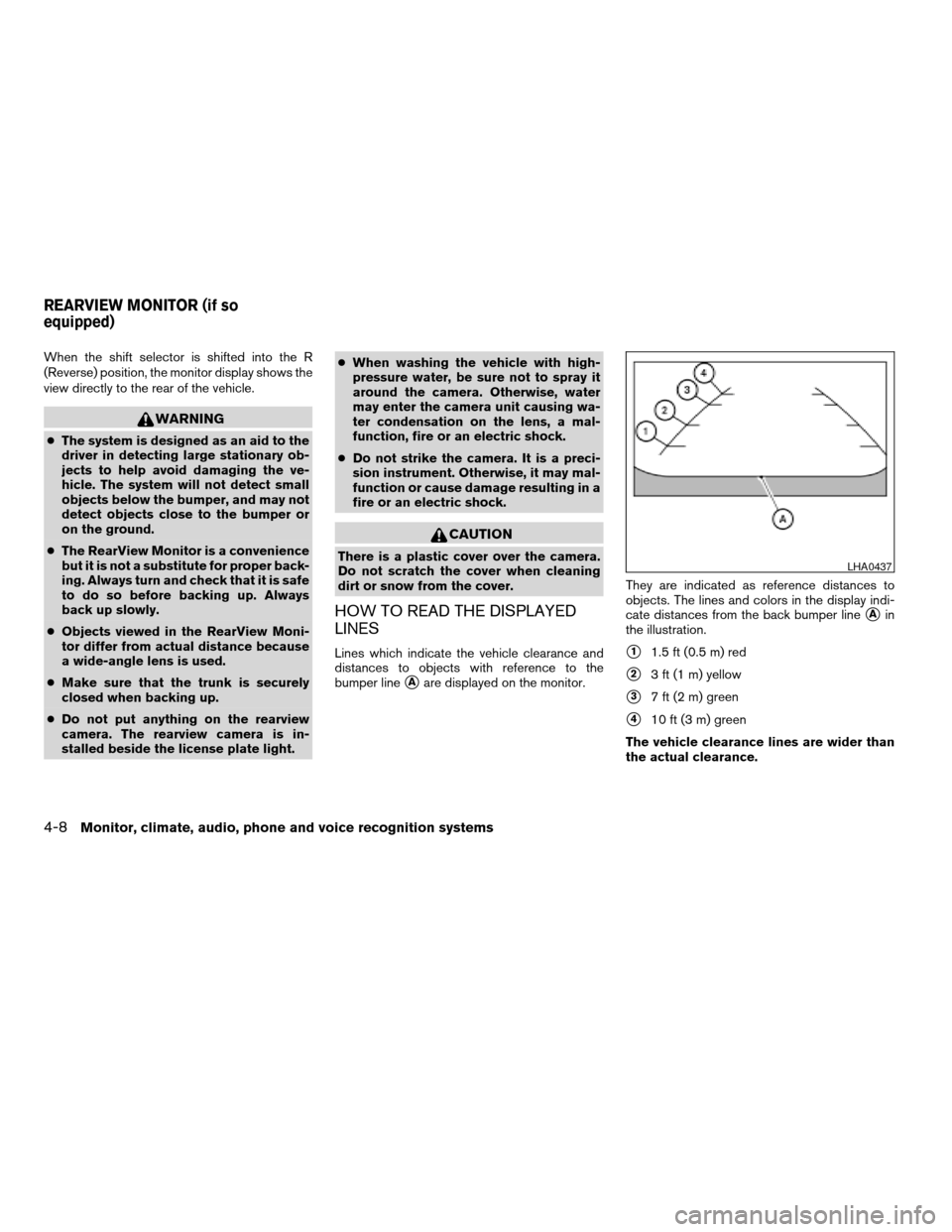
HOW TO READ THE DISPLAYED
LINES
Lines which indicate the vehicle clearance and
distances to objects with reference to the
bumper line
sAare displayed on the monitor.They are indicated as reference distances to
objects. The lines and colors in the display indi-
cate distances from the back bumper line
sAin
the illustration.
s11.5 ft (0.5 m) red
s23 ft (1 m) yellow
s37 ft (2 m) green
s410 ft (3 m) green
The vehicle clearance lines are wider than
the actual clearance.
LHA0437
REARVIEW MONITOR (if so
equipped)
4-8Monitor, climate, audio, phone and voice recognition systems
ZREVIEW COPYÐ2009 Altima(alt)
Owners Manual(owners)ÐUSA_English(nna)
02/03/09Ðdebbie
X
Page 173 of 373
ADJUSTING THE SCREEN
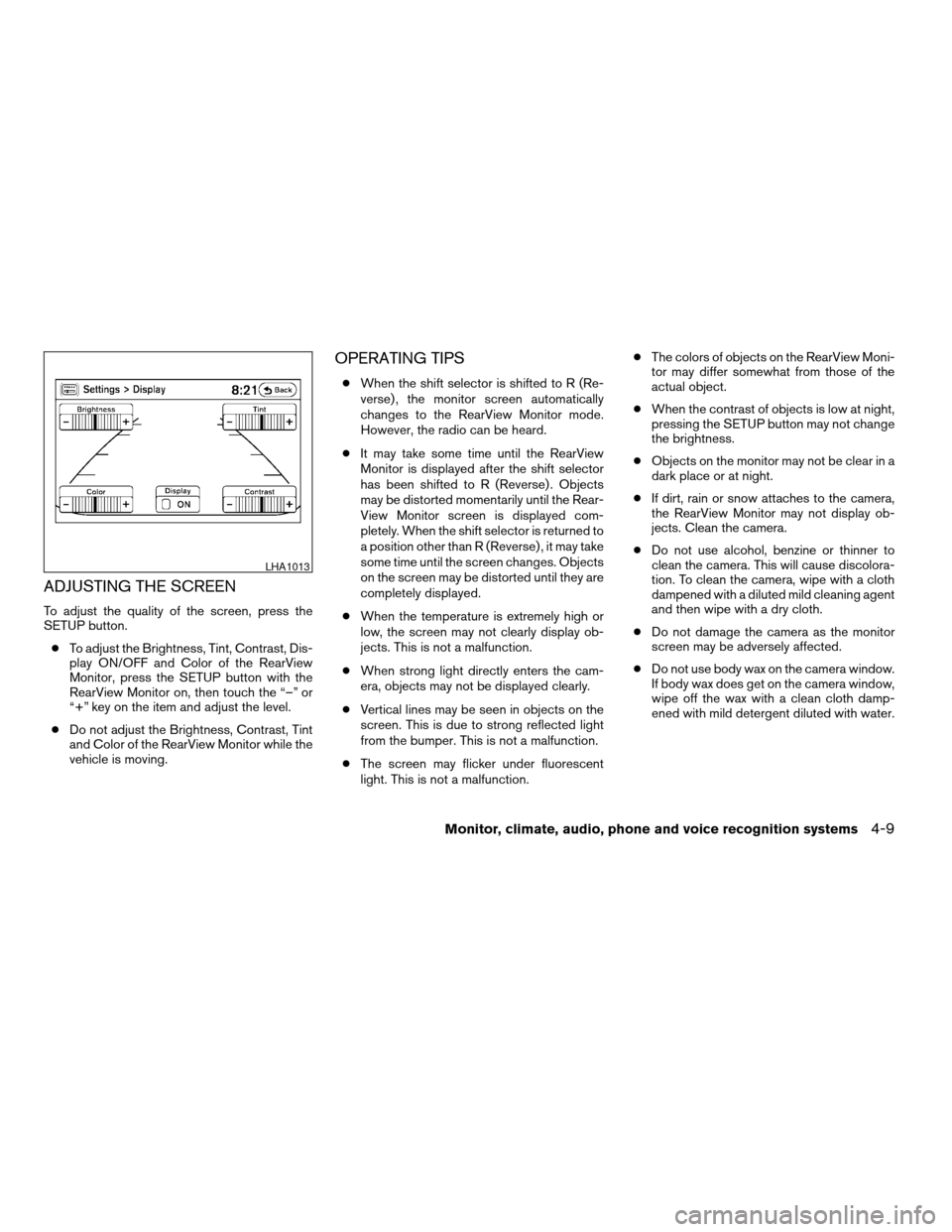
To adjust the quality of the screen, press the
SETUP button.
cTo adjust the Brightness, Tint, Contrast, Dis-
play ON/OFF and Color of the RearView
Monitor, press the SETUP button with the
RearView Monitor on, then touch the “–” or
“+” key on the item and adjust the level.
cDo not adjust the Brightness, Contrast, Tint
and Color of the RearView Monitor while the
vehicle is moving.
OPERATING TIPS
cWhen the shift selector is shifted to R (Re-
verse) , the monitor screen automatically
changes to the RearView Monitor mode.
However, the radio can be heard.
cIt may take some time until the RearView
Monitor is displayed after the shift selector
has been shifted to R (Reverse) . Objects
may be distorted momentarily until the Rear-
View Monitor screen is displayed com-
pletely. When the shift selector is returned to
a position other than R (Reverse) , it may take
some time until the screen changes. Objects
on the screen may be distorted until they are
completely displayed.
cWhen the temperature is extremely high or
low, the screen may not clearly display ob-
jects. This is not a malfunction.
cWhen strong light directly enters the cam-
era, objects may not be displayed clearly.
cVertical lines may be seen in objects on the
screen. This is due to strong reflected light
from the bumper. This is not a malfunction.
cThe screen may flicker under fluorescent
light. This is not a malfunction.cThe colors of objects on the RearView Moni-
tor may differ somewhat from those of the
actual object.
cWhen the contrast of objects is low at night,
pressing the SETUP button may not change
the brightness.
cObjects on the monitor may not be clear in a
dark place or at night.
cIf dirt, rain or snow attaches to the camera,
the RearView Monitor may not display ob-
jects. Clean the camera.
cDo not use alcohol, benzine or thinner to
clean the camera. This will cause discolora-
tion. To clean the camera, wipe with a cloth
dampened with a diluted mild cleaning agent
and then wipe with a dry cloth.
cDo not damage the camera as the monitor
screen may be adversely affected.
cDo not use body wax on the camera window.
If body wax does get on the camera window,
wipe off the wax with a clean cloth damp-
ened with mild detergent diluted with water.
LHA1013
Monitor, climate, audio, phone and voice recognition systems4-9
ZREVIEW COPYÐ2009 Altima(alt)
Owners Manual(owners)ÐUSA_English(nna)
02/03/09Ðdebbie
X
Page 186 of 373
SATELLITE RADIO RECEPTION (if so
equipped)
When the satellite radio is used for the first time
or the battery has been replaced, the satellite
radio may not work properly. This is not a mal-
function. Wait more than 10 minutes with satellite
radio ON and the vehicle outside of any metal or
large building for satellite radio to receive all of
the necessary data.
No satellite radio reception is available and “NO
SAT” is displayed when the SAT band option is
selected unless optional satellite receiver and
antenna are installed and an XMTsatellite radio
service subscription is active. Satellite radio is
not available in Alaska, Hawaii and Guam.
Satellite radio performance may be affected if
cargo carried on the roof blocks the satellite radio
signal.
If possible, do not put cargo over the satellite
antenna.
A build up of ice on the satellite radio antenna can
affect satellite radio performance. Remove the
ice to restore satellite radio reception.
AUDIO OPERATION PRECAUTIONSCompact disc (CD) player
CAUTION
cDo not force a compact disc into the CD
insert slot. This could damage the CD
and/or CD changer/player.
cTrying to load a CD with the CD door
closed could damage the CD and/or CD
changer.
cOnly one CD can be loaded into the CD
player at a time.
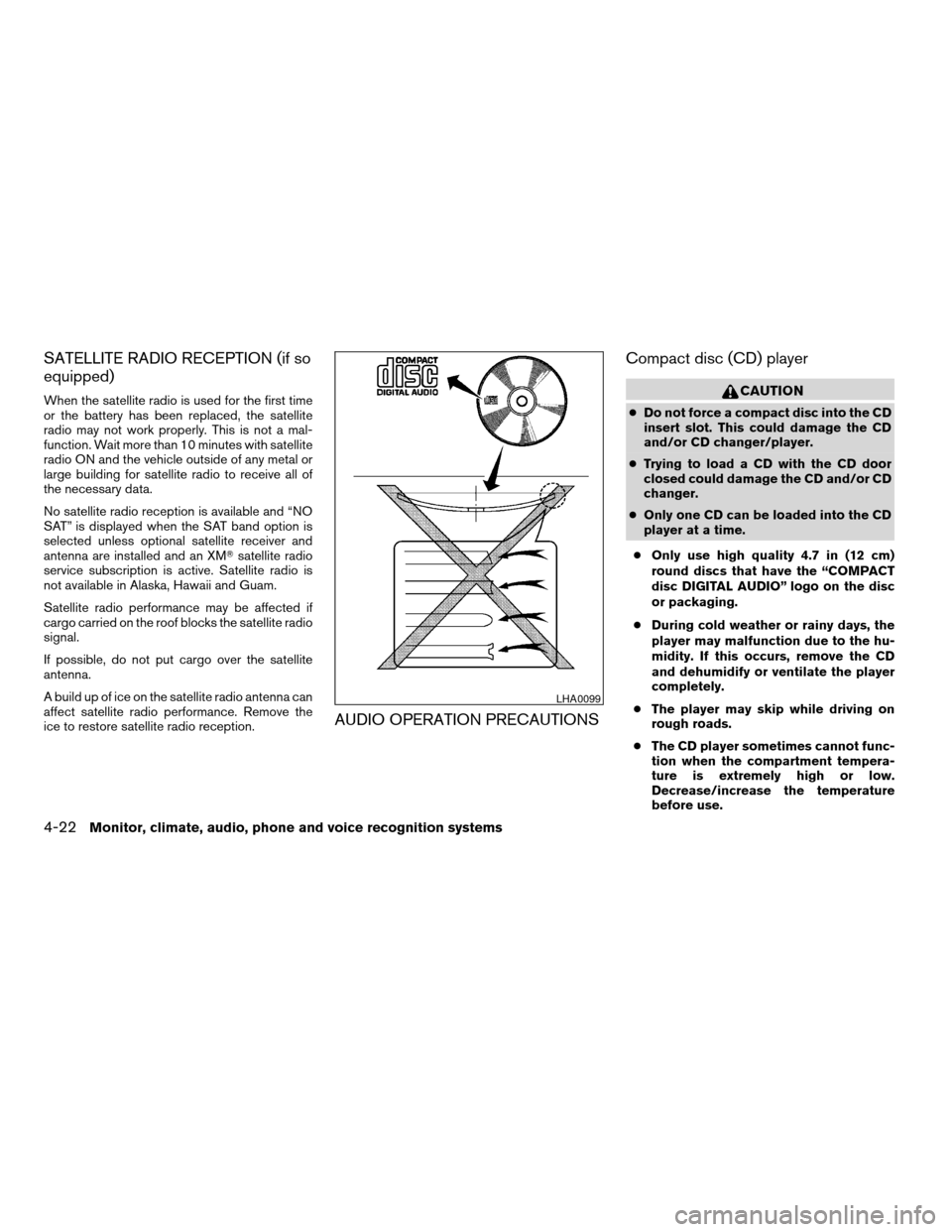
cOnly use high quality 4.7 in (12 cm)
round discs that have the “COMPACT
disc DIGITAL AUDIO” logo on the disc
or packaging.
cDuring cold weather or rainy days, the
player may malfunction due to the hu-
midity. If this occurs, remove the CD
and dehumidify or ventilate the player
completely.
cThe player may skip while driving on
rough roads.
cThe CD player sometimes cannot func-
tion when the compartment tempera-
ture is extremely high or low.
Decrease/increase the temperature
before use.
LHA0099
4-22Monitor, climate, audio, phone and voice recognition systems
ZREVIEW COPYÐ2009 Altima(alt)
Owners Manual(owners)ÐUSA_English(nna)
02/03/09Ðdebbie
X
Page 187 of 373
cDo not expose the CD to direct sun-
light.
cCDs that are in poor condition or are
dirty, scratched or covered with finger-
prints may not work properly.
cThe following CDs may not work prop-
erly:
cCopy control compact discs (CCCD)
cRecordable compact discs (CD-R)
cRewritable compact discs (CD-RW)
cDo not use the following CDs as they
may cause the CD player to malfunc-
tion:
c3.1 in (8 cm) discs with an adapter
cCDs that are not round
cCDs with a paper label
cCDs that are warped, scratched, or
have abnormal edges
cThis audio system can only play pre-
recorded CDs. It has no capability to
record or burn CDs.
cIf the CD cannot be played, one of the
following messages will be displayed.1. MP3 or WMA file not supported!“UN-
PLAYABLE TRACK”!Go to next track
2. CD ROM!“No Audio Track”!Eject disc
and go to the last mode (CD player only) /
Go to next disc (CD changer only)
3. TEMP/MECH ERROR!“PRESS EJECT”
4. READ/FOCUS ERROR!“CHECK DISC”
CHECK DISC:
cConfirm that the CD is inserted cor-
rectly (the label side is facing up,
etc.) .
cConfirm that the CD is not bent or
warped and it is free of scratches.
PRESS EJECT:
This is an error due to excessive tem-
perature inside the player. Remove the
CD by pressing the EJECT button. After
a short time, reinsert the CD. The CD
can be played when the temperature of
the player returns to normal.
UNPLAYABLE:
The file is unplayable in this audio sys-
tem (only MP3 or WMA CD) .Compact Disc with MP3 or WMA
Terms:
cMP3 — MP3 is short for Moving Pictures
Experts Group Audio Layer 3. MP3 is the
most well-known compressed digital audio
file format. This format allows for near “CD
quality” sound, but at a fraction of the size of
normal audio files. MP3 conversion of an
audio track from CD-ROM can reduce the
file size by approximately a 10:1 ratio with
virtually no perceptible loss in quality. MP3
compression removes the redundant and
irrelevant parts of a sound signal that the
human ear doesn’t hear.
cWMA — Windows Media Audio (WMA)* is a
compressed audio format created by Mi-
crosoft as an alternative to MP3. The WMA
codec offers greater file compression than
the MP3 codec, enabling storage of more
digital audio tracks in the same amount of
space when compared to MP3s at the same
level of quality.
cBit rate — Bit rate denotes the number of
bits per second used by a digital music file.
The size and quality of a compressed digital
audio file is determined by the bit rate used
when encoding the file.
Monitor, climate, audio, phone and voice recognition systems4-23
ZREVIEW COPYÐ2009 Altima(alt)
Owners Manual(owners)ÐUSA_English(nna)
02/03/09Ðdebbie
X
Page 188 of 373
cSampling frequency — Sampling frequency
is the rate at which the samples of a signal
are converted from analog to digital (A/D
conversion) per second.
cMultisession — Multisession is one of the
methods for writing data to media. Writing
data once to the media is called a single
session, and writing more than once is called
a multisession.
cID3/WMA Tag — The ID3/WMA tag is the
part of the encoded MP3 or WMA file that
contains information about the digital music
file such as song title, artist, encoding bit
rate, track time duration, etc. ID3 tag infor-
mation is displayed on the Artist/song title
line on the display.
* WindowsTand Windows MediaTare regis-
tered trademarks and trademarks in the United
States of America and other countries of Mi-
crosoft Corporation of the USA.Playback order:
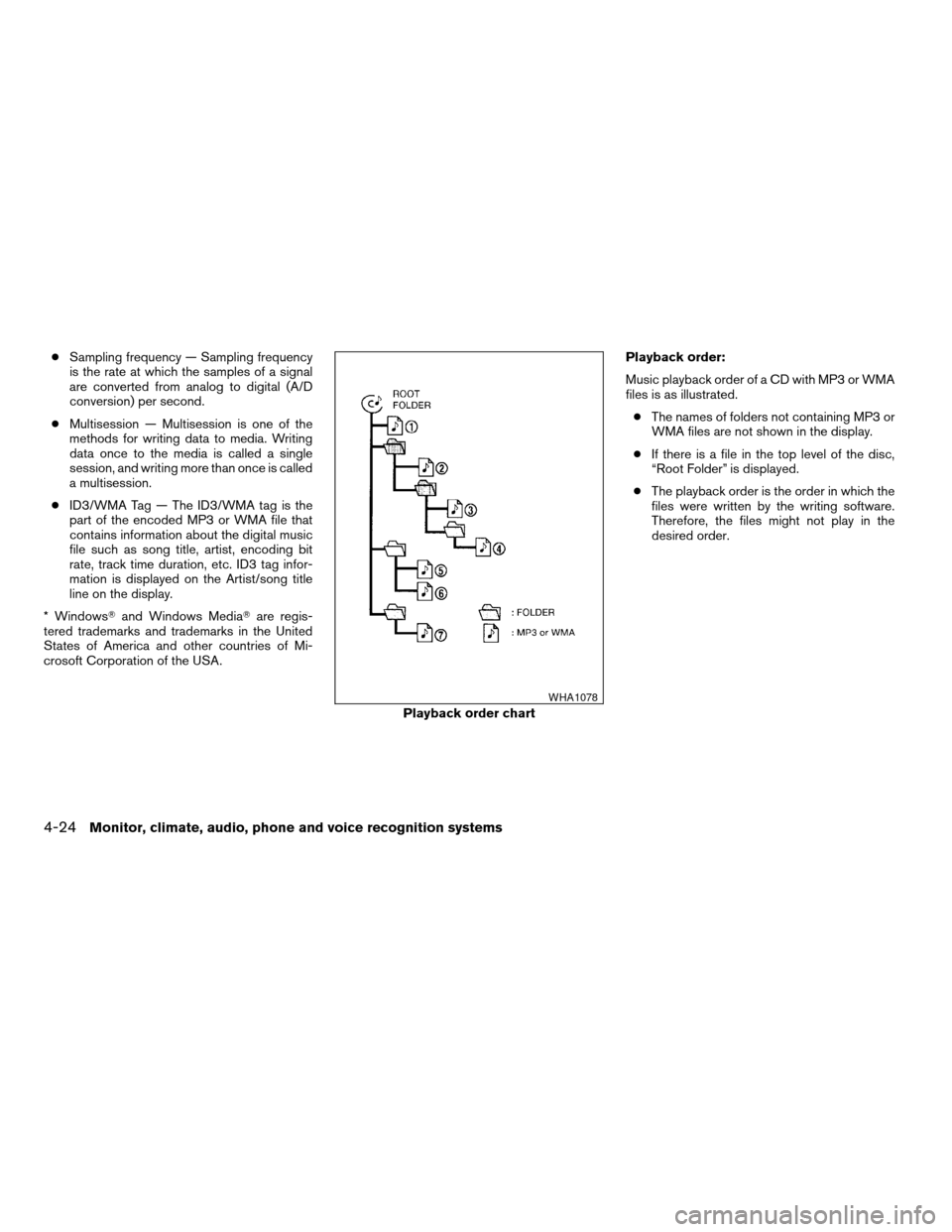
Music playback order of a CD with MP3 or WMA
files is as illustrated.
cThe names of folders not containing MP3 or
WMA files are not shown in the display.
cIf there is a file in the top level of the disc,
“Root Folder” is displayed.
cThe playback order is the order in which the
files were written by the writing software.
Therefore, the files might not play in the
desired order.
Playback order chart
WHA1078
4-24Monitor, climate, audio, phone and voice recognition systems
ZREVIEW COPYÐ2009 Altima(alt)
Owners Manual(owners)ÐUSA_English(nna)
02/03/09Ðdebbie
X