Page 99 of 316
Finish
ADVANCED FUNCTIONS
98
DISPLAYING MEMORY POINT NAMES
The name of a memory point that may be
displayed on the map can be set.
To show the name, touch “ON” on the
“Memory Point” screen. To not show it,
touch “OFF”.
DTo change “Location”
1. Touch “Location” on the “Memory
Point” screen.
2. Touch the eight directional touch −
screen button to move the cursorto
the desired point on the map.
3. Touch “Enter”.
The previous screen will be displayed.
IS F/350/250_Navi_U
(L/O 0808)
Page 102 of 316
Finish
ADVANCED FUNCTIONS
101
1. Push the “MENU” button.
2. Touch “My Places”.
3. Touch “Delete”.
4. To delete home, touch “Yes”. To
cancel the deletion, touch “No”.Areas you want to avoid because of traffic
jams, construction work or other reasons
can be registered as areas to avoid.
1. Push the “MENU” button.
2. Touch “My Places” on the “Menu”
screen.
3. Touch “Register”.
4. Enter the location in the same way
as for a destination search, or display
the map of the area to be avoided.
(See
“Destination search” on page 39.)
5. Touch the eight directional touch −
screen button to move the cursorto
the desired point on the map.
6. Touch “Enter”.
IS F/350/250_Navi_U
(L/O 0808)
— Deleting home — Registering area to avoid
Page 104 of 316
Finish
ADVANCED FUNCTIONS
103
5. Touch the button to be edited.
“Name”:To edit the name of the area to
avoid. The names can be displayed on the
map. (See page 103.)
“Location”: To edit area location. (See
page 104.)
“Area Size”: To edit area size. (See page
105.)
“Active”: To turn on or off the area to avoid
feature. To turn on the feature touch “ ON”
on the “Edit Area to Avoid” screen. To turn
off the feature touch “ OFF” on the “Edit
Area to Avoid” screen.
6. Touch “OK”.
DTo change “Name”
1. Touch “Name” on the “Edit Area to
Avoid” screen.
2. Enter the name using alphanumeric
keys.
Up to 24 letters can be entered.
3. Touch “OK”.
The previous screen will be displayed.
IS F/350/250_Navi_U
(L/O 0808)
Page 105 of 316
Finish
ADVANCED FUNCTIONS
104
DISPLAYING NAMES OF AREAS TO BE
AVOIDED
The name of an area to be avoided that
may be displayed on the map can be set.
To show the name, touch “ON” on the
“Edit Area to Avoid” screen. To not
show it, touch “OFF”.
DTo change “Location”
1. Touch “Location” on the “Edit Area
to Avoid” screen.
2. Touch the eight directional touch −
screen button to move the cursorto
the desired point on the map.
3. Touch “Enter”.
The previous screen will be displayed.
IS F/350/250_Navi_U
(L/O 0808)
Page 111 of 316
Finish
ADVANCED FUNCTIONS
11 0
D
Screen layout function
(
Function)
Each touch −screen button and current
street name on the map screen can be dis-
played or hidden.
1. Push the “MENU” button.
2. Touch “Setup” on the “Menu”
screen.
3. Touch “Change” of “Function”.
4. Touch the button to be turned off.
The button becomes dimmed.
To set the default, touch “Default”.
5. Touch “OK”.
DPOI category change
(Display POI Icons)
Select from among the 6 icons displayed
on the “Display POI Icons” top screen, so
that setting of the icons to be displayed on
the map screen can be done easily.
1. Push the “MENU” button.
2. Touch “Setup” on the “Menu”
screen.
Then touch
to display page 2 of the
“Setup” screen.
3. Touch “Change” of “Display POI
Icons”.
4. Touch the category button to be
changed.
IS F/350/250_Navi_U
(L/O 0808)
Page 112 of 316
Finish
ADVANCED FUNCTIONS
111
5. Touch the category button to be dis-
played on the “Display POI Icons” top
screen.
6. Touch “OK”.
DDisplay of building shape
When the “Display Building Shapes” fea-
ture is turned on, the system will display the
building shape on the map screen using a
scale of 150 feet (50 m) to 300 feet (100 m).
To turn the “Display Building Shapes” on:
1. Push the “MENU” button.
2. Touch “Setup” on the “Menu”
screen.
Then touch
to display page 2 of the
“Setup” screen.
3. Touch “ON” of “Display Building
Shapes”.
The selected button is highlighted.
4. Touch “OK”.
IS F/350/250_Navi_U
(L/O 0808)
Page 114 of 316
Finish
ADVANCED FUNCTIONS
11 3
D
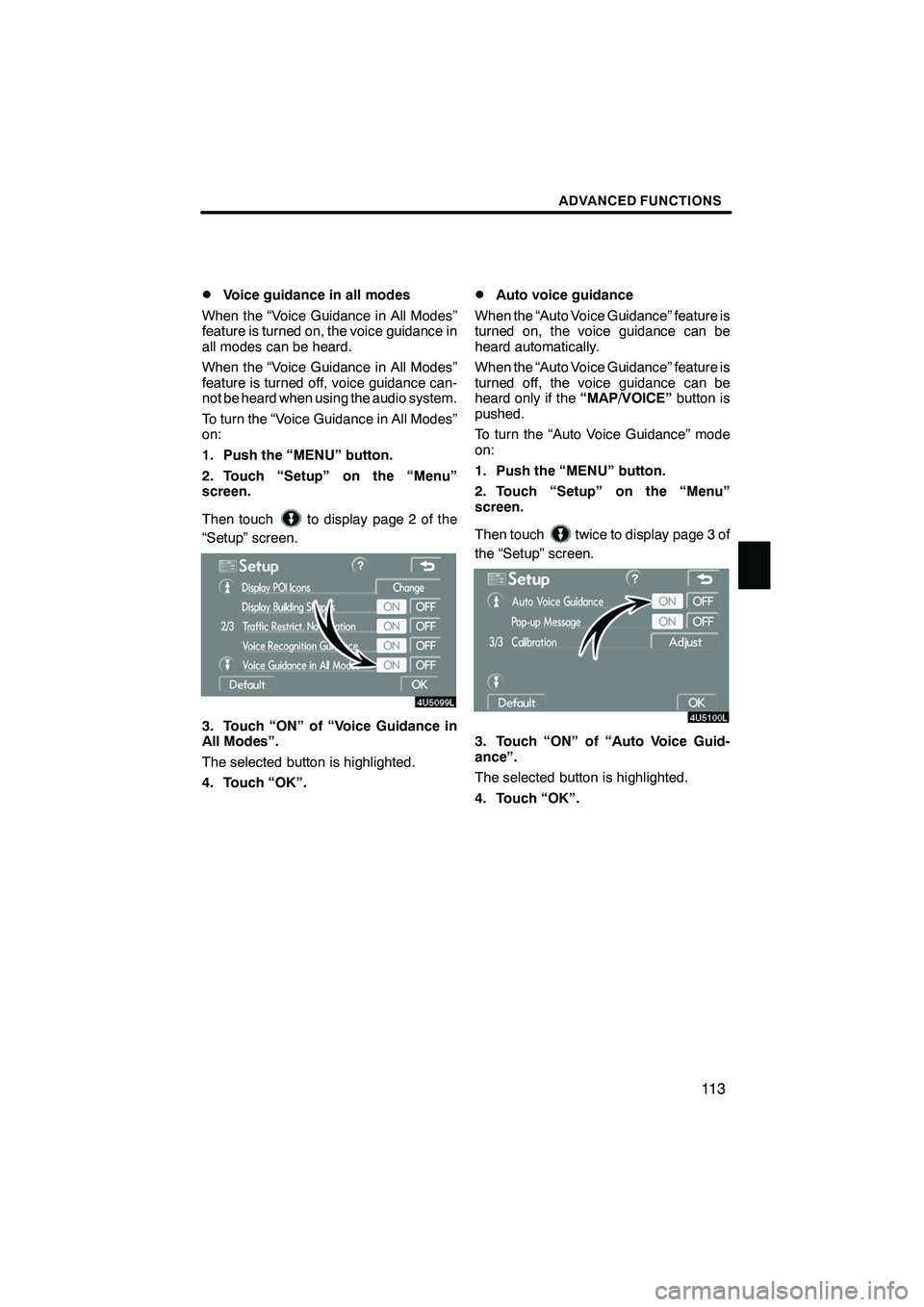
Voice guidance in all modes
When the “Voice Guidance in All Modes”
feature is turned on, the voice guidance in
all modes can be heard.
When the “Voice Guidance in All Modes”
feature is turned off, voice guidance can-
not be heard when using the audio system.
To turn the “Voice Guidance in All Modes”
on:
1. Push the “MENU” button.
2. Touch “Setup” on the “Menu”
screen.
Then touch
to display page 2 of the
“Setup” screen.
3. Touch “ON” of “Voice Guidance in
All Modes”.
The selected button is highlighted.
4. Touch “OK”.
DAuto voice guidance
When the “Auto Voice Guidance” feature is
turned on, the voice guidance can be
heard automatically.
When the “Auto Voice Guidance” feature is
turned off, the voice guidance can be
heard only if the “MAP/VOICE”button is
pushed.
To turn the “Auto Voice Guidance” mode
on:
1. Push the “MENU” button.
2. Touch “Setup” on the “Menu”
screen.
Then touch
twice to display page 3 of
the “Setup” screen.
3. Touch “ON” of “Auto Voice Guid-
ance”.
The selected button is highlighted.
4. Touch “OK”.
IS F/350/250_Navi_U
(L/O 0808)
Page 115 of 316
Finish
ADVANCED FUNCTIONS
11 4
D
Pop−
up message
When the “Pop −up Message” is turned on,
the pop− up message will be displayed.
To turn the “Pop− up Message” on:
1. Push the “MENU” button.
2. Touch “Setup” on the “Menu”
screen.
Then touch
twice to display page 3 of
the “Setup” screen.
3. Touch “ON” of “Pop −up Message”.
The selected button is highlighted.
4. Touch “OK”. When the “Pop
−up Message” is turned off,
the following messages will not displayed.
This message appears when the system is
in the POI mode and the map scale is over
0.5 miles (800 m).
The message appears when the map is
switched to the dual map screen mode.
IS F/350/250_Navi_U
(L/O 0808)


