Page 87 of 316
Finish
ADVANCED FUNCTIONS
86
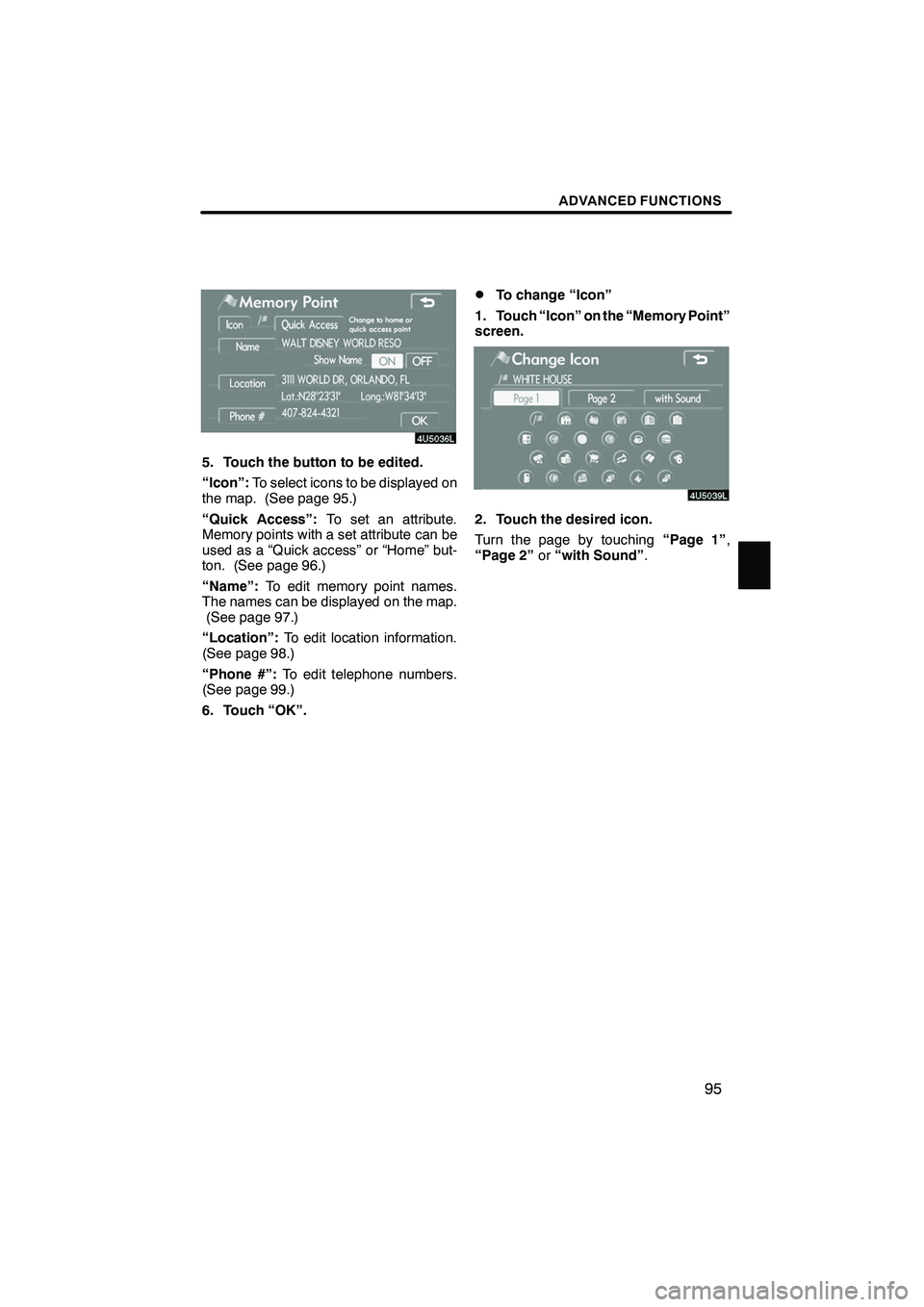
The “Menu” screen allows effective use of the navigation system. To display the “Menu”
screen, push the“MENU”button.
1“Suspend Guidance” and “Re-
sume Guidance”
Suspends or resumes guidance. 88 ....
2“Volume”
Sets the volume for voice guidance. 89
.................................
3“?”
Function help for the “Menu” screen can be
viewed on this screen. 27 ............
4“Map DVD”
Displays information regarding the disc
version or covered area. 296 ..........
5“Select User”
Up to 3 different settings for different users
can be memorized. 90 ...............
6“Setup”
Enables various settings for the navigation
system. 87, 106 .....................
7“My Places”
Enables changes to “Memory points”,
“Home” and “Areas to avoid”. Enables
deletion of the previous point. 92 ......
IS F/350/250_Navi_U
(L/O 0808)
Quick reference (“Menu” screen)
Page 88 of 316
Finish
ADVANCED FUNCTIONS
87
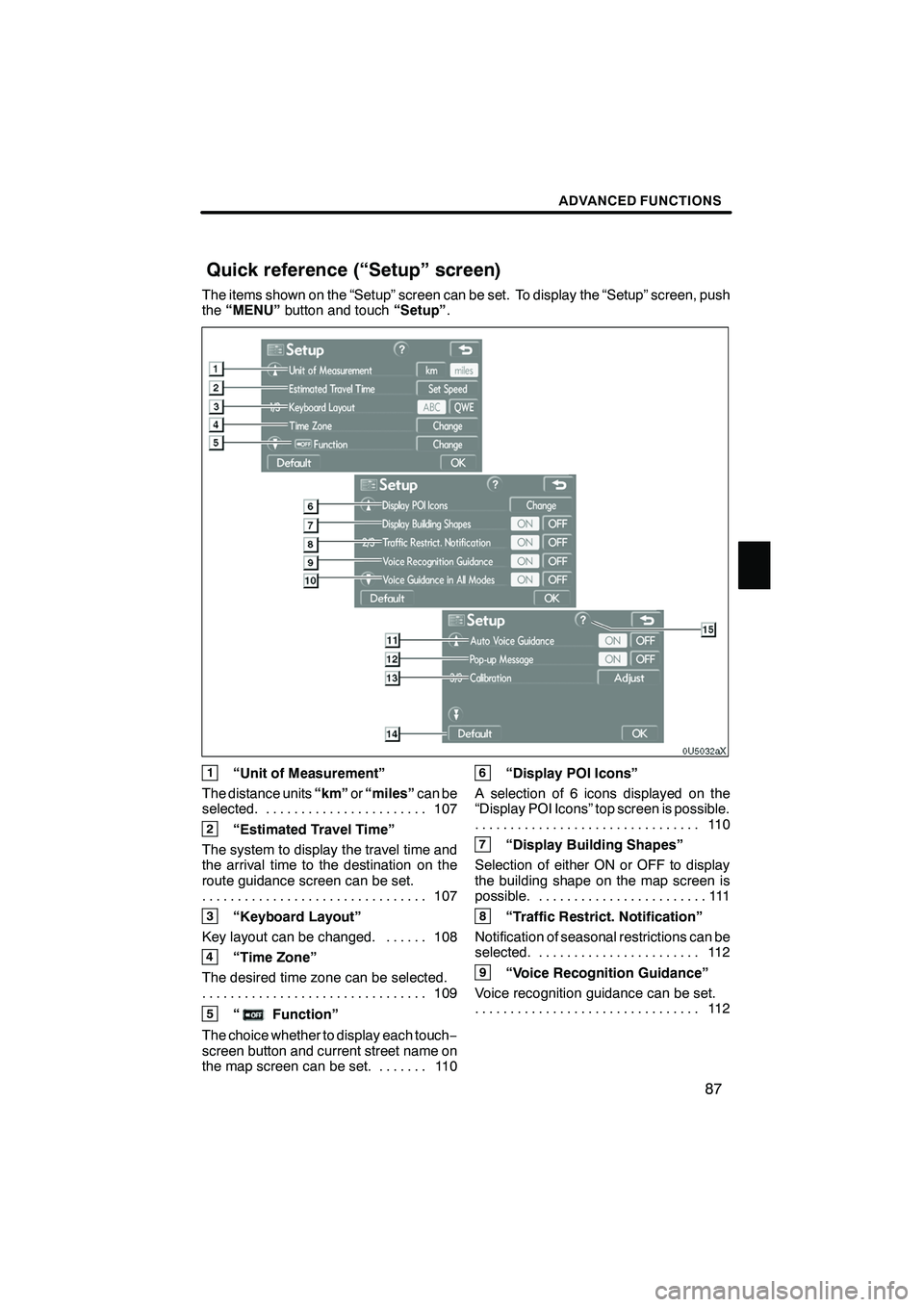
The items shown on the “Setup” screen can be set. To display the “Setup” screen, push
the“MENU” button and touch “Setup”.
1“Unit of Measurement”
The distance units “km”or“miles” can be
selected. 107 .......................
2“Estimated Travel Time”
The system to display the travel time and
the arrival time to the destination on the
route guidance screen can be set. 107
................................
3“Keyboard Layout”
Key layout can be changed. 108 ......
4“Time Zone”
The desired time zone can be selected. 109
................................
5“Function”
The choice whether to display each touch −
screen button and current street name on
the map screen can be set. 110 .......
6“Display POI Icons”
A selection of 6 icons displayed on the
“Display POI Icons” top screen is possible. 11 0
................................
7“Display Building Shapes”
Selection of either ON or OFF to display
the building shape on the map screen is
possible. 111 ........................
8“Traffic Restrict. Notification”
Notification of seasonal restrictions can be
selected. 112 .......................
9“Voice Recognition Guidance”
Voice recognition guidance can be set. 11 2
................................
IS F/350/250_Navi_U
(L/O 0808)
Quick reference (“Setup” screen)
Page 89 of 316
Finish
ADVANCED FUNCTIONS
88
10“Voice Guidance in All Modes”
Voice guidance can be set in all modes. 11 3
................................
11“Auto Voice Guidance”
Automatic voice guidance can be set. 11 3
................................
12“Pop− up Message”
Selection of either ON or OFF to display
the pop− up message is possible.
11 4
................................
13“Calibration”
Adjustment of the current vehicle position
mark can be done manually. 115 ......
14“Default”
This touch −screen button initializes all of
the settings. 106 ....................
15“?”
Function help for the “Setup” screen can
be viewed. 27 ......................
DTo suspend guidance
1. Push the “MENU” button.
2. Touch “Suspend Guidance”.
INFORMATION
Without route guidance, “Suspend
Guidance” cannot be used.
The screen will return to the current posi-
tion map without route guidance.
IS F/350/250_Navi_U
(L/O 0808)
Suspending and resuming
guidance
Page 90 of 316
Finish
ADVANCED FUNCTIONS
89
D
To resume guidance
1. Push the “MENU” button.
2. Touch “Resume Guidance”.
The screen will change to the current posi-
tion map with route guidance. The voice guidance volume can be ad-
justed or switched off.
1. Push the “MENU” button.
2. Touch “Volume”.
IS F/350/250_Navi_U
(L/O 0808)
Volume
Page 91 of 316
Finish
ADVANCED FUNCTIONS
90
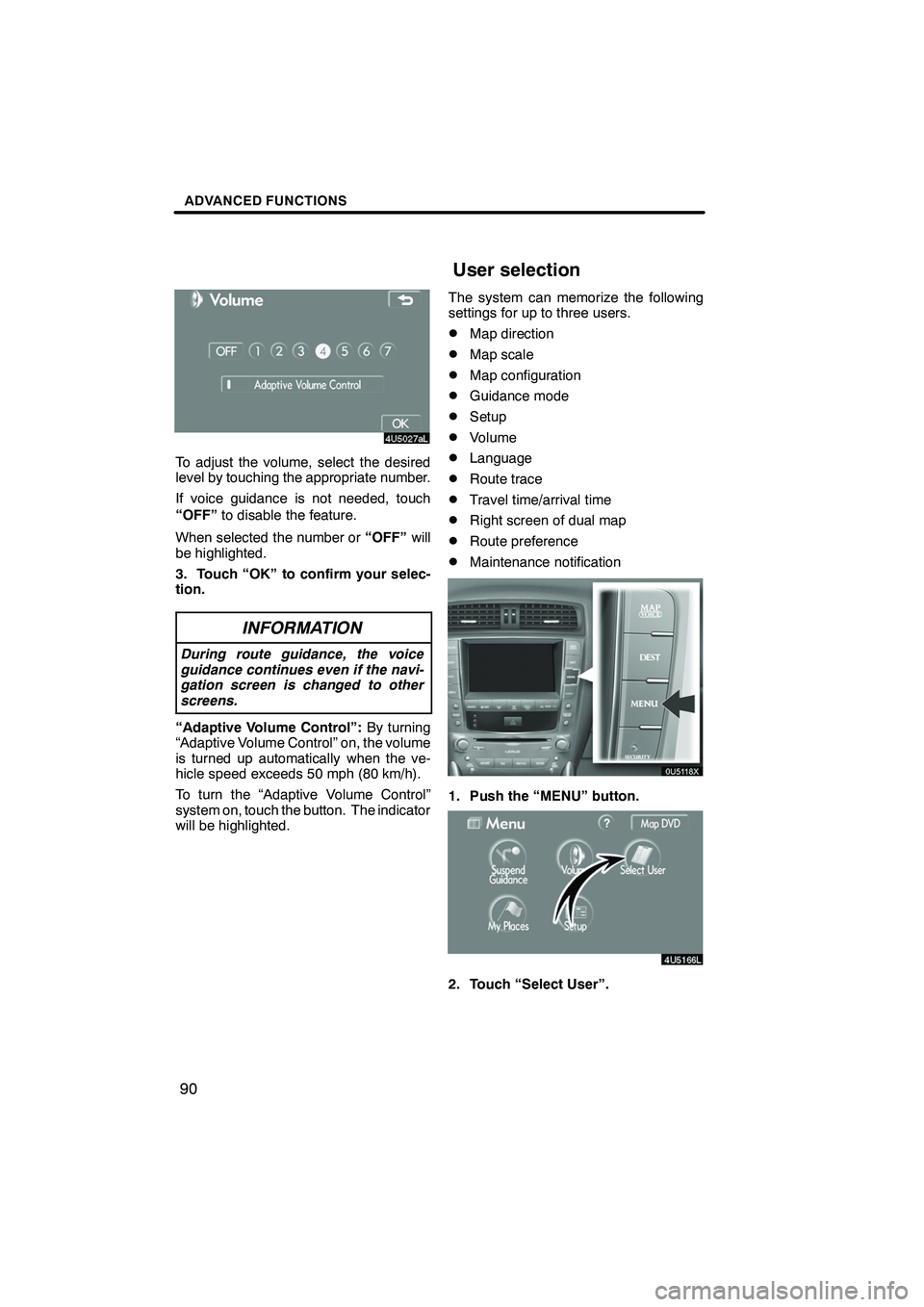
To adjust the volume, select the desired
level by touching the appropriate number.
If voice guidance is not needed, touch
“OFF”to disable the feature.
When selected the number or “OFF”will
be highlighted.
3. Touch “OK” to confirm your selec-
tion.
INFORMATION
During route guidance, the voice
guidance continues even if the navi-
gation screen is changed to other
screens.
“Adaptive Volume Control”: By turning
“Adaptive Volume Control” on, the volume
is turned up automatically when the ve-
hicle speed exceeds 50 mph (80 km/h).
To turn the “Adaptive Volume Control”
system on, touch the button. The indicator
will be highlighted. The system can memorize the following
settings for up to three users.
DMap direction
DMap scale
DMap configuration
DGuidance mode
DSetup
DVolume
DLanguage
DRoute trace
DTravel time/arrival time
DRight screen of dual map
DRoute preference
DMaintenance notification
1. Push the “MENU” button.
2. Touch “Select User”.
IS F/350/250_Navi_U
(L/O 0808)
User selection
Page 92 of 316
Finish
ADVANCED FUNCTIONS
91
D
To register
1. Touch “Memorize”.
The confirmation screen will be displayed.
2. To register, touch “Yes”. To return to
the previous screen, touch “No” or
.
When a button that is already registered is
touched, the following screen appears.
To replace, touch “Yes”. To cancel the re-
placement, touch “No”or
.
DTo change user
Touch “User number”.
The above message appears, then the
map screen will be displayed.
IS F/350/250_Navi_U
(L/O 0808)
Page 93 of 316
Finish
ADVANCED FUNCTIONS
92
D
To delete user
1. Touch “Delete”.
The confirmation screen will be displayed.
2. To delete, touch “Yes”. To return to
the previous screen, touch “No” or
.
Points or areas on the map can be regis-
tered.
The registered points can be used on the
“Destination” screen. (See “ — Destination
search by Home” on page 42, “ — Destina-
tion search by Quick access” on page 42
and “ — Destination search by Memory” on
page 55.)
Registered areas are avoided at the time of
route search.
1. Push the “MENU” button.
2. Touch “My Places”.
IS F/350/250_Navi_U
(L/O 0808)
My places —
Page 96 of 316
Finish
ADVANCED FUNCTIONS
95
5. Touch the button to be edited.
“Icon”:To select icons to be displayed on
the map. (See page 95.)
“Quick Access”: To set an attribute.
Memory points with a set attribute can be
used as a “Quick access” or “Home” but-
ton. (See page 96.)
“Name”: To edit memory point names.
The names can be displayed on the map. (See page 97.)
“Location”: To edit location information.
(See page 98.)
“Phone #”: To edit telephone numbers.
(See page 99.)
6. Touch “OK”.
DTo change “Icon”
1. Touch “Icon” on the “Memory Point”
screen.
2. Touch the desired icon.
Turn the page by touching “Page 1”,
“Page 2” or“with Sound” .
IS F/350/250_Navi_U
(L/O 0808)