Page 205 of 425
Features of your vehicle128
4
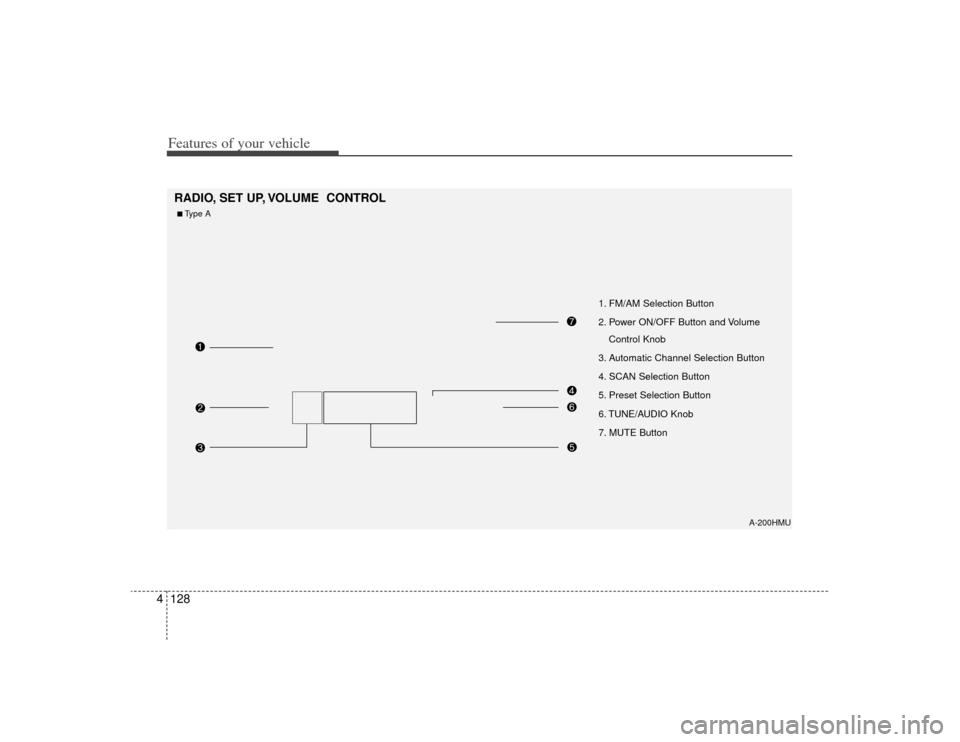
A-200HMU
1. FM/AM Selection Button
2. Power ON/OFF Button and Volume
Control Knob
3. Automatic Channel Selection Button
4. SCAN Selection Button
5. Preset Selection Button
6. TUNE/AUDIO Knob
7. MUTE Button
RADIO, SET UP, VOLUME CONTROL ■Type A
Page 206 of 425
4129
Features of your vehicle
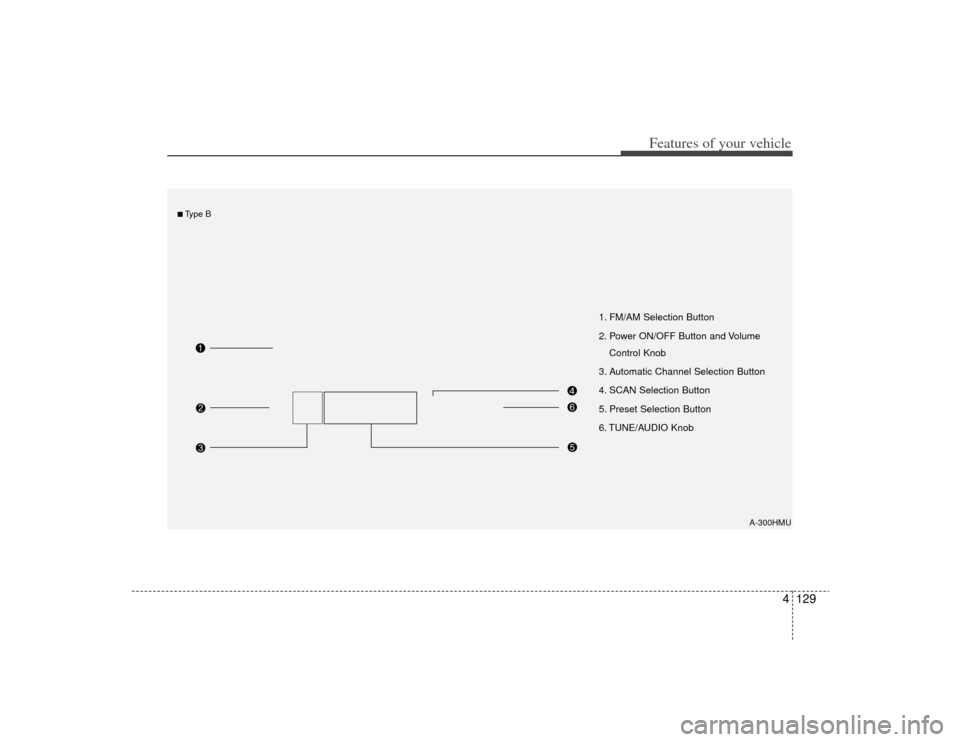
A-300HMU
1. FM/AM Selection Button
2. Power ON/OFF Button and VolumeControl Knob
3. Automatic Channel Selection Button
4. SCAN Selection Button
5. Preset Selection Button
6. TUNE/AUDIO Knob
■Type B
Page 207 of 425
Features of your vehicle130
4
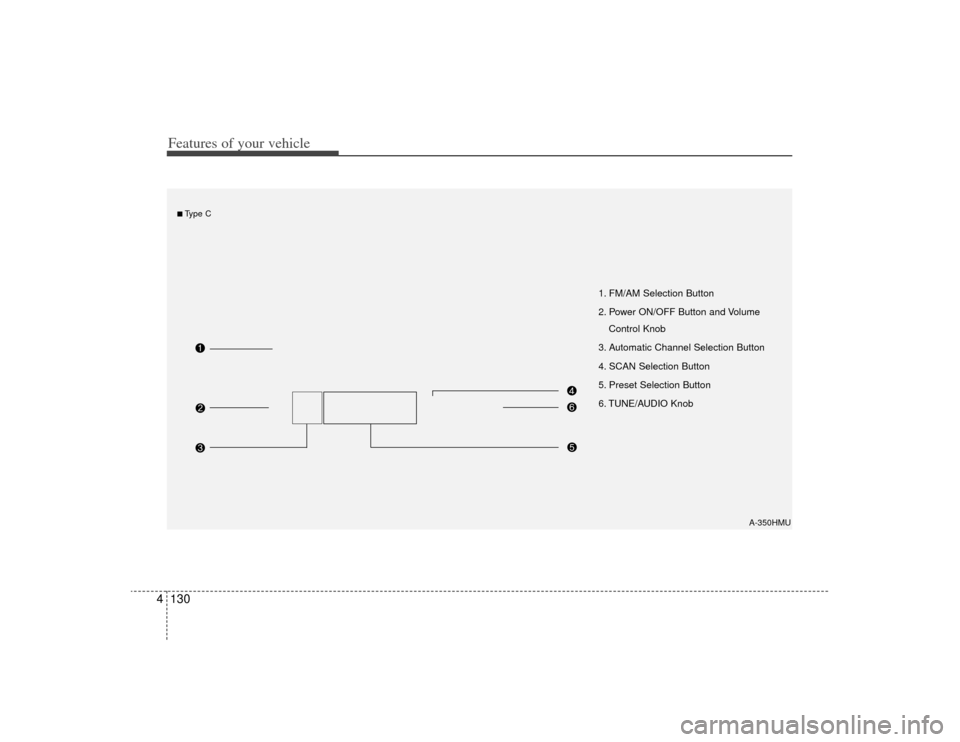
A-350HMU
1. FM/AM Selection Button
2. Power ON/OFF Button and Volume
Control Knob
3. Automatic Channel Selection Button
4. SCAN Selection Button
5. Preset Selection Button
6. TUNE/AUDIO Knob
■Type C
Page 208 of 425

4131
Features of your vehicle
How to Activate RADIO,
SET UP, VOLUME Control1. FM/AM Selection Button The FM/AM button toggles between FM
and AM. Listed below are the paths as
the system switches from FM to AM and
back to FM.
FM/AM : FM1
➟FM2
➟AM
➟FM1...
FM : FM1
➟FM2
➟FM1...
2. Power ON/OFF Button & Volume Control Knob Turns the audio system on/off when
the ignition switch is on ACC or ON.
If the knob is turned clockwise/counter- clockwise, the volume will increase
/decrease.3. Automatic Channel Selection Button When the [TRACK ] is pressed, it
will automatically tune to the next lower
station.
When the [SEEK ] is pressed, it will automatically tune to the next higher
station.
4. SCAN Selection Button When the button is pressed, it auto-matically scans the radio stations
upwards.
The SCAN feature steps through each station, starting from the initial station,
for ten seconds.
Press the [SCAN] button again to stop the scan feature and to listen to the
currently selected channel.5. Preset Selection Button Press [1]~[6] buttons less than 0.8 sec-ond to play the station saved in each
button.
Press [1]~[6] b utton more than 0.8 sec-
ond or longer to save the current station
to the respective button with a beep.6. TUNE/AUDIO KnobIf the knob is turned clockwise/counter-
clockwise, the frequency will increase/
decrease.
(AM 10kHz, FM 200kHz)
■Audio Setup MODE Press and Rotate [AUDIO] repeatedly to
choose the desired mode.
Each press changes the mode as below :
(Hierarchy 4 (AUTO VOLUME CON-
TROL) mode is only selected in the CDP.)
Hierarchy 1
Hierarchy 2
Page 209 of 425
Features of your vehicle132
4 Hierarchy 3
Hierarchy 4
Hierarchy 5
❈For example: To Adjusting FADER
Press [AUDIO] to activate SETUP mode, then Hierarchy 1 is selected.
Rotate [AUDIO], Hierarchy 2 is dis- played.
Press [AUDIO] to select the FADER control mode.
Rotate [AUDIO], to adjust the FADER level.
- If [AUDIO] is not pressed/rotated for 5 seconds after adjusting, the display
automatically returns to normal mode.
- Another adjusting mode can be used for same operation.❈To Select "SIRIUS DISPLAY" mode
If "CAT/CH" or "ART/TITLE" is selected
in the SIRIUS DISPLAY mode, selected
mode will be displayed basically and
another display mode will be displayed
for 3 seconds automatically once.
7. MUTE Button (CDP ONLY)Press [MUTE] to stop the sound and
"MUTE" is displayed on the LCD.
Page 216 of 425

4139
Features of your vehicle
(Continued) If you use devices such as a USB hub you purchased separately,the vehicle’s audio system may not recognize the USB device.Connect the USB device directlyto the multimedia terminal of the vehicle.
If the USB device is divided by logical drives, only the music fileson the highest-priority drive arerecognized by the vehicle’s audio.
Devices such as MP3 Player/ Cellular phone/Digital camera,those are not recognizable bystandard USB I/F (IMPLE- MENTERS FORUM) can be unrec-ognizable.
USB devices other than standard- ized goods (METAL COVER TYPEUSB) can be unrecognizable.
USB flash memory reader (such as CF, SD, microSD, etc.) or exter-nal-HDD type devices can beunrecognizable.
(Continued)
(Continued) Music files protected by DRM(DIGITAL RIGHTS MANAGE-MENT) are not recognizalbe.
The data in the USB memory may get lost while using this AUDIO. Itis recommeded to back up impor- tant data.
Please avoid using USB memory products which can be used askey chains or cellular phoneaccessories as they could causedamage to the USB jack. Please make sure only to use plug typeconnector products as shown below.
Page 222 of 425

4145
Features of your vehicle
✽
✽NOTICE
- Using iPod device
• Some iPod models might not support
the communication protocol and the
files will not be played. (iPod models
supported: Mini, 4G, Photo, Nano,
5G)
• The order of search or playback of songs in the iPod can be different
from the order searched in the audio
system.
• If the iPod crashes due to its own trou- ble, reset iPod. (Reset: Refer to iPod
manual)
• iPod may not operate normally on low battery.
❈ iPod to AUDIO Buttons
(It is displayed once at the beginning of
iPod mode)
(Continued) When connecting the device with iPod cable, push in the jack fullynot to interfere with communica- tion.
When adjusting the sound effects of iPod and the audio system, thesound effects of both devices willoverlap and might reduce or dis-tort the quality of the sound.
Deactivate (turn off) the equalizer function of iPod when adjustingthe audio system’s volume, and turn off the equalizer of the audiosystem when using the equalizer of iPod.
When the iPod cable is connect- ed, the system can be switched tothe AUX mode even without theiPod device and can cause noise. Disconnect iPod cable when youare not using the iPod device.
When the iPod is not used with the audio system, iPod cable hasto be separated from iPod device. Origin display of iPod may not bedisplayed.
CAUTION
- Using iPod device
You need the power cable exclu-
sive for iPod in order to operateiPod with the buttons on the audio system. The PC cable pro-vided by Apple may cause mal-function and do not use it for vehicle use.
(Continued)
MENU
FILE DOWN
/REW
FILE UP /FF
TRACK
CAT
ENTER
ROTATE
ENCODER
SEEK
ROTATION
Page 232 of 425
4155
Features of your vehicle
Product CharacteristicsThis device is a total AV system support-
ing radio (FM1, FM2, AM), SIRIUS, audio
CD, MP3, VCD, and DVD. With a WIDE
VGA LCD (176.7 X 99.4mm.), this device
allows for powerful sound and driving
enjoyment.DisplayLarge-size (176.7 X 99.4mm) WIDE VGA
LCD with CCFL installed large-size
(176.7 X 99.4 mm) WIDE VGA LCD pro-
vides high viewing pleasure.
With NORMAL, FULL, WIDE screens,
the display can be selected in accor-
dance to user preference and video suit-
ability.
DVD PlayerAuto Play function
Inserting an audio CD, MP3, VCD, DVD
will automatically turn on the device and
begin playing. (Auto conversion to Roof
Monitor)
PBC support (PLAY BACK CONTROL)
The various information encoded in the
Video CD can be enjoyed by using the
interactive menu encoded in MPEG1
Version 2.0 Video CD discs.OthersDigital screen control function
The brightness, saturation, color and
contrast of the screen can be easily
adjusted.
![KIA Borrego 2009 1.G Owners Manual Features of your vehicle132
4 Hierarchy 3
Hierarchy 4
Hierarchy 5
❈For example: To Adjusting FADER
Press [AUDIO] to activate SETUP mode, then Hierarchy 1 is selected.
Rotate [AUDIO], Hierarchy](/manual-img/2/2906/w960_2906-208.png "KIA Borrego 2009 1.G Owners Manual Features of your vehicle132
4 Hierarchy 3
Hierarchy 4
Hierarchy 5
❈For example: To Adjusting FADER
Press [AUDIO] to activate SETUP mode, then Hierarchy 1 is selected.
Rotate [AUDIO], Hierarchy")
